To manage bulk and recurring corporate print orders, use fixed reorder templates, batch data files for personalization, clear approval rules, and routed fulfillment so cards, labels, and documents reprint without manual redesign. Set up each recurring item once as a locked template, then reorder by uploading updated data rather than rebuilding artwork every...
Key takeaways
Why do bulk corporate print orders break without a system?
Bulk corporate printing means many near-identical items that change only by data — a cardholder's name, a location's label, a document's revision. Without a system, each reorder becomes a manual redesign: someone edits a file, someone else proofs it, and errors slip into hundreds of printed pieces. Recurring items like business cards for new hires, product labels for each batch, or standard documents magnify the problem because they repeat on a schedule.
The fix is to separate the fixed design from the changing data. The template stays locked; only the data updates. That turns a redesign into a reorder.
How do you set up a repeatable bulk print order?
There are four stages, and each removes a source of manual rework from the reorder.
Step 1Lock the template
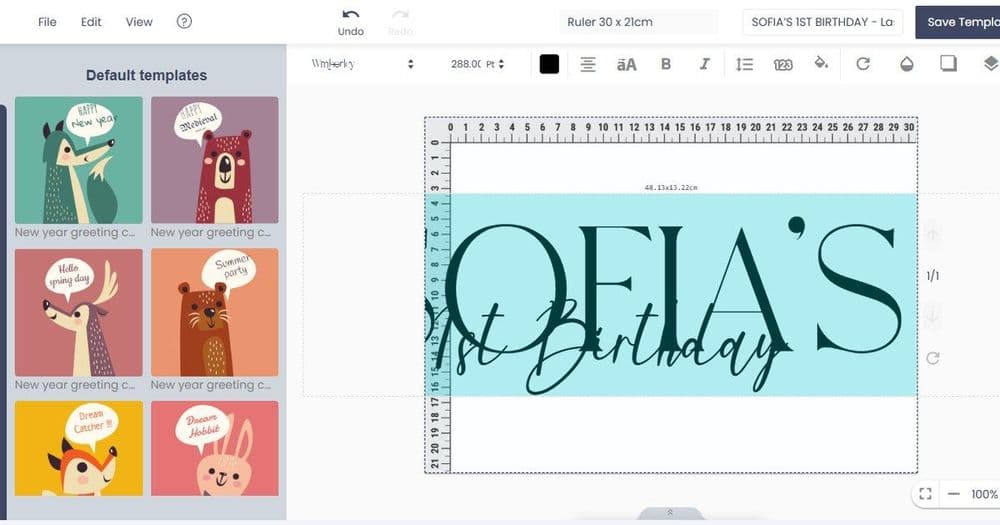
Build one brand-locked template per recurring item. Mark exactly which fields are data-driven (name, title, SKU, batch code, revision) and lock everything else. The template becomes the single source of truth for that product.
Step 2Standardize the data input
Define the data format for personalization — a clean list or spreadsheet with one row per item. For a batch of business cards, that is one row per person; for labels, one row per SKU or location. Consistent data is what makes batch generation reliable.
Step 3Set approval and proof rules
Decide what needs a proof and what can auto-produce. Standard reorders with unchanged templates can skip heavy review; new templates or large runs should get a proof and an approver. This keeps speed without losing control.
Step 4Route fulfillment and reorder schedule
Map each item to a production path and, for recurring items, set the reorder trigger — a hiring event, a production batch, or a calendar cycle. Routing and scheduling turn one-off jobs into a predictable pipeline.
Which corporate items are best run as batch orders?
| Item | What changes per order | Reorder trigger | Proof needed? |
|---|---|---|---|
| Business cards | Name, title, contact | New hires / role changes | Only for template changes |
| Product labels | SKU, batch code, dates | Each production batch | First run, then spot-check |
| Documents / forms | Revision, location, version | Policy or version update | On version change |
| Name badges | Name, department, event | Events / onboarding | No, if template locked |
What mistakes cause reprints in bulk corporate orders?
The common failures are dirty data (misspelled names, wrong SKUs), unlocked templates that let layout drift between runs, and missing proof rules on template changes. Validate the data list before production, keep templates locked, and require a proof only when the template itself changes — not on every routine reorder.
How does Printcart help run recurring corporate orders?
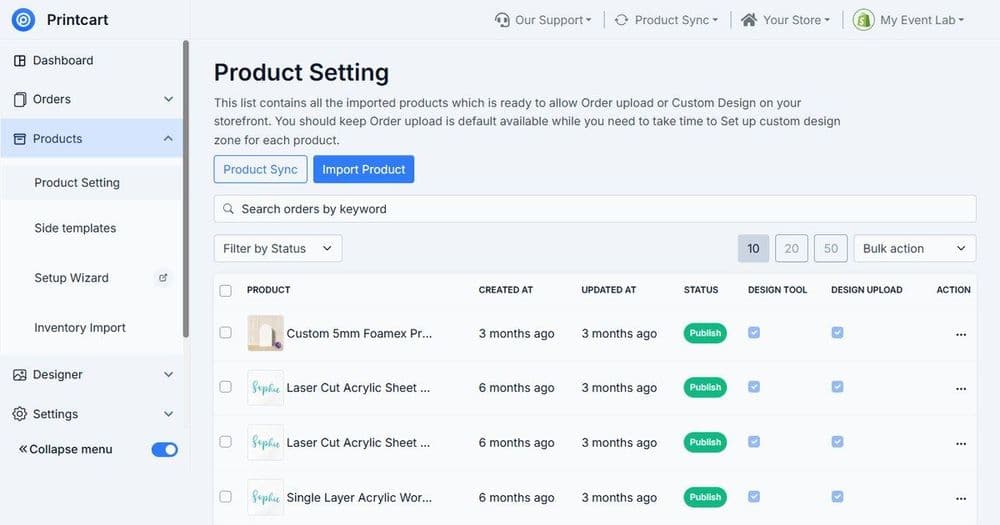
Printcart lets you build locked templates with data-driven fields, structure the product catalog for reorders, and route production so recurring cards, labels, and documents reprint from updated data instead of manual redesign. Pair this with a controlled ordering front end using the corporate printing portal setup guide, and connect your store platform through the Printcart apps when orders originate from an existing storefront.
Recurring order setup checklist
- One locked template per recurring item, with data fields marked
- A standard data format (one row per item) for batch personalization
- Proof rules that trigger on template changes, not routine reorders
- Fulfillment routing plus a defined reorder trigger or schedule
- A data-validation step before each production run
Streamline your recurring print orders. Create a free Printcart account to build reorder templates, or talk to the Printcart team about automating bulk corporate print workflows.
Printcart field note
What to verify before you roll out Managing Bulk and Recurring Corporate Print Orders: Cards, Labels, and Documents
This tutorial is written from Printcart implementation patterns across catalog structure, design controls, and customer personalization. Before treating it as complete, test the workflow with one real product, one real design file, and one real order path.
Managing Bulk and Recurring Corporate Print Orders: Cards, Labels, and Documents — common questions
Why do bulk corporate print orders break without a system?
Bulk corporate printing means many near-identical items that change only by data — a cardholder's name, a location's label, a document's revision. Without a system, each reorder becomes a manual redesign: someone edits a file, someone else proofs it, and errors slip into hundreds of printed pieces. Recurring items like business cards for new hires, product labels for each batch, or standard documents magnify the...
How do you set up a repeatable bulk print order?
There are four stages, and each removes a source of manual rework from the reorder.
What mistakes cause reprints in bulk corporate orders?
The common failures are dirty data (misspelled names, wrong SKUs), unlocked templates that let layout drift between runs, and missing proof rules on template changes. Validate the data list before production, keep templates locked, and require a proof only when the template itself changes — not on every routine reorder.
How does Printcart help run recurring corporate orders?
Printcart lets you build locked templates with data-driven fields, structure the product catalog for reorders, and route production so recurring cards, labels, and documents reprint from updated data instead of manual redesign. Pair this with a controlled ordering front end using the corporate printing portal setup guide , and connect your store platform through the Printcart apps when orders originate from an...
Next steps in Printcart
Connect managing bulk and recurring corporate print orders: cards, labels, and documents with catalog setup, templates, production workflows, and implementation support.
Want to put managing bulk and recurring corporate print orders: cards, labels, and documents into practice?
Use the related Printcart tool below, or create a free account to start building with the product designer.