AI face matching sorts a large photo batch by person: you add one clear reference photo per subject, and the tool tags event or portrait images to the right individual automatically. Printcart's face matching tool runs in your browser with a human review step, so studios speed up school, sports, and event galleries without sending customers the wrong photos.
Key takeaways
What problem does face matching solve for studios?
The hardest part of event and school photography is not taking the photos — it is sorting them. After a shoot with hundreds or thousands of images, someone has to figure out which photos belong to which person before galleries go live or packages ship. Done by hand, that is hours of squinting at thumbnails, and mistakes mean a customer receives a stranger's photos.
Face matching automates the sort. You teach the tool who each person is with a single reference photo, and it assigns the batch accordingly. The operator's job shifts from manually sorting everything to reviewing and confirming, which is far faster and more reliable at scale.
How does AI face matching work?
Step 1Add each person once
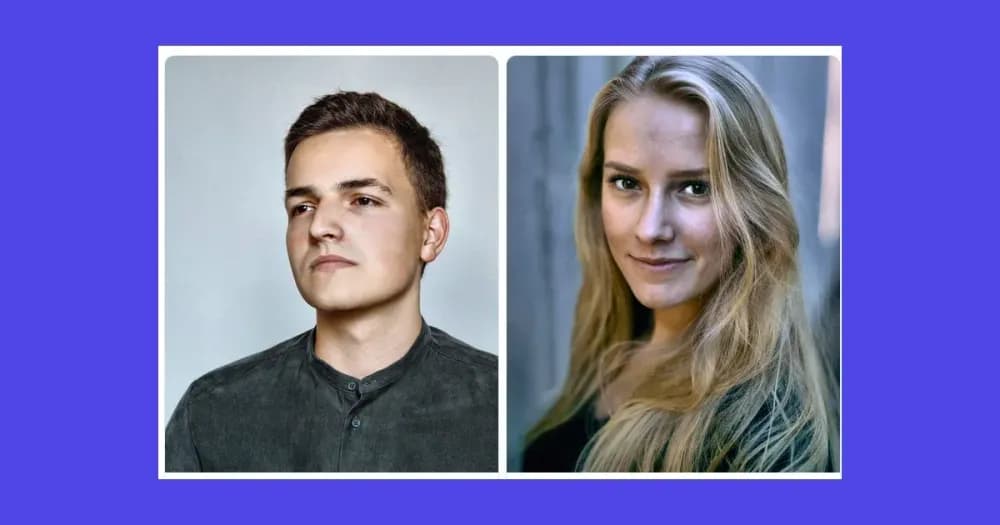
Add every subject with one clear, front-facing reference photo. This is the identity the tool learns from, so a sharp, well-lit reference produces the best matching.
Step 2Upload the event photos
Bring in the batch from the shoot. The face matching tool then compares faces in those photos against the references you added.
Step 3Run the match and review
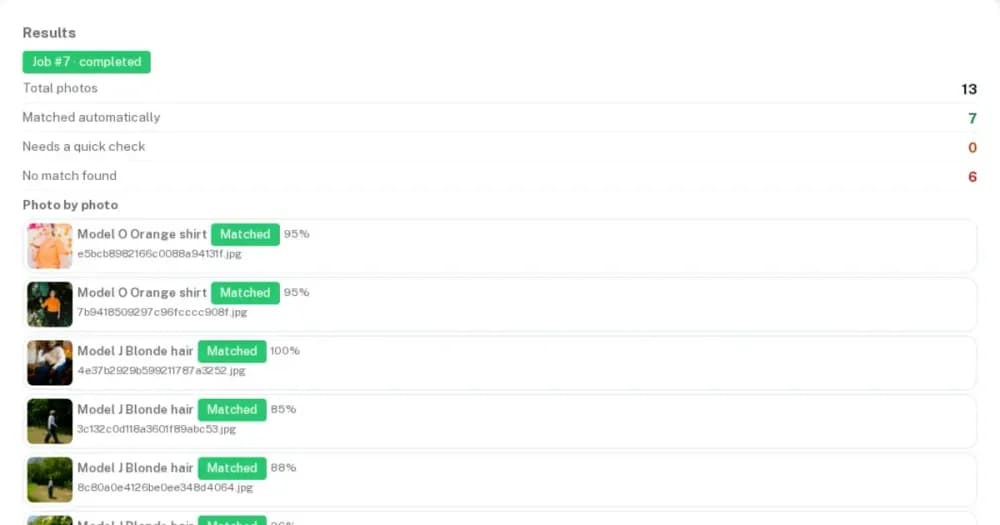
The AI tags each photo to a person and shows how many were assigned, along with any that need a quick manual check. This review step is deliberate: face matching is AI-assisted, not a black box, so a human confirms the results before customers see them. That safety net is what keeps galleries accurate.
Manual sorting versus AI face matching
| Factor | AI face matching | Manual sorting |
|---|---|---|
| Time on a large shoot | Automated first pass, then review | Hours of thumbnail sorting |
| Accuracy at scale | Consistent, with human confirmation | Degrades as fatigue sets in |
| Setup | One reference photo per person | No setup, but no acceleration |
| Best for | School days, sports, events | Very small sessions |
How does face matching fit the studio workflow?
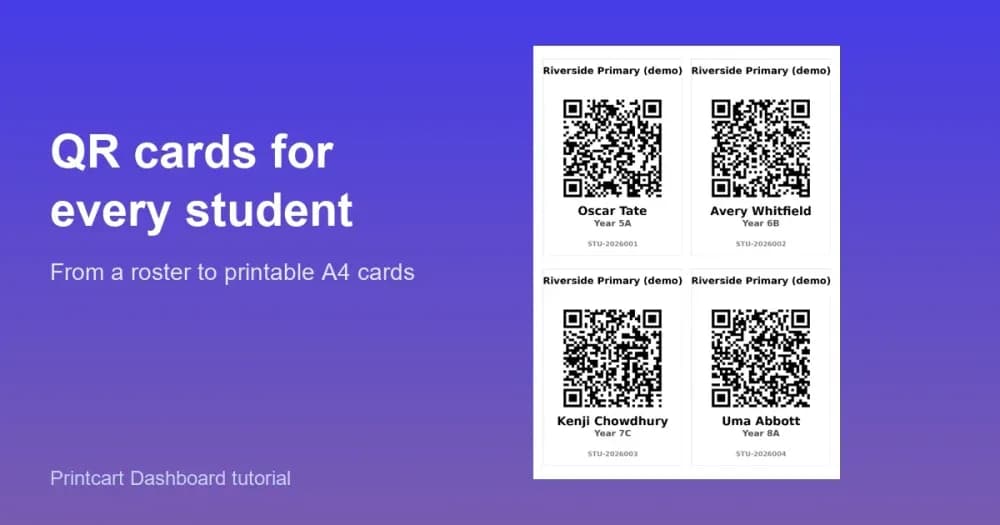
Face matching is the sorting engine in a larger photo fulfillment line. It works best when subjects are already labeled with bulk QR cards, which give each person a reliable key from capture onward. Once photos are matched to the right person, run auto face crop to frame portraits consistently for cards, packages, and layouts. The sequence — label, match, crop — turns a raw shoot into finished, saleable products with far less manual handling. For studios selling prints and products, connect matched galleries into your product catalog and fulfillment.
How do you get the most accurate matches?
- Use one clear reference per person. Front-facing, well-lit, and unobstructed references match best.
- Flag people without a usable face photo. A missing or poor reference cannot be matched reliably.
- Always run the review step. Confirm assignments and resolve the photos the tool marks for checking.
- Keep the human safety net. The final confirmation is what guarantees customers get their own photos.
- Combine with labeling. QR cards plus matching reduce ambiguity on large, mixed batches.
Common face-matching mistakes to avoid
- Relying on blurry or side-profile references. Poor references produce weak matches.
- Publishing without review. Never send galleries live straight from the first pass.
- Matching before labeling on huge events. Label subjects first for cleaner results.
- Treating matches as final for billing. Confirm before packages are charged or shipped.
How do you handle group photos and no-match cases?
Event and school shoots are rarely all single portraits, so plan for the harder cases before you run a large match. Group photos contain several people at once, which means the same image may belong in more than one subject's gallery; treat those as shared rather than forcing them onto a single person. Some photos will not match anyone confidently — a face turned away, blurred, or simply not in your reference list — and those belong in a review queue rather than being hidden. A missing or weak reference photo is the most common reason a real subject goes unmatched, so fix the reference and re-run before assuming the tool failed. Building a deliberate step for group shots and unmatched photos keeps galleries complete, which matters because a customer who cannot find their photos is as unhappy as one who receives the wrong ones.
Next best step
Matching is cleanest when every subject is already labeled, so pair this with the guide on generating bulk QR cards for photo fulfillment, then frame the sorted photos with auto face crop. To connect matching into a complete studio production system, Printcart offers implementation services for event and school photography workflows.
Ready to sort galleries in minutes, not hours? Try the free face matching tool, create a free Printcart account to match large batches, or talk to the Printcart team.
Printcart field note
What to verify before you roll out AI Face Matching for Event & School Photography
This tutorial is written from Printcart implementation patterns across web-to-print launch planning, buyer experience, and repeatable production. Before treating it as complete, test the workflow with one real product, one real design file, and one real order path.
AI Face Matching for Event & School Photography — common questions
What problem does face matching solve for studios?
The hardest part of event and school photography is not taking the photos — it is sorting them. After a shoot with hundreds or thousands of images, someone has to figure out which photos belong to which person before galleries go live or packages ship. Done by hand, that is hours of squinting at thumbnails, and mistakes mean a customer receives a stranger's photos.
How does face matching fit the studio workflow?
Face matching is the sorting engine in a larger photo fulfillment line. It works best when subjects are already labeled with bulk QR cards , which give each person a reliable key from capture onward. Once photos are matched to the right person, run auto face crop to frame portraits consistently for cards, packages, and layouts. The sequence — label, match, crop — turns a raw shoot into finished, saleable products...
How do you handle group photos and no-match cases?
Event and school shoots are rarely all single portraits, so plan for the harder cases before you run a large match. Group photos contain several people at once, which means the same image may belong in more than one subject's gallery; treat those as shared rather than forcing them onto a single person. Some photos will not match anyone confidently — a face turned away, blurred, or simply not in your reference list —...
Next steps in Printcart
Connect ai face matching for event & school photography with catalog setup, templates, production workflows, and implementation support.
Want to put ai face matching for event & school photography into practice?
Use the related Printcart tool below, or create a free account to start building with the product designer.