Auto face crop detects the face in each photo and crops to a consistent frame across a whole batch, so school, sports, and studio portraits share the same composition without manual work. Printcart's AI-assisted face crop tool processes photos in your browser; register to run large batches and export full-resolution crops for print products.
Key takeaways
Why do studios need consistent face cropping?
Portrait products live or die on consistency. ID cards, yearbook grids, sports packages, and print sheets all expect every subject to be framed the same way — same head size, same headroom, same position. Doing that by hand across hundreds or thousands of photos is slow, tiring, and easy to get subtly wrong, which shows up immediately when portraits sit side by side on a layout.
Auto face crop removes that repetitive work. Instead of an operator manually centering each face, the tool finds the face and applies the same crop rule to the entire set. The payoff is speed during peak season and a uniform look that makes finished products appear professional at a glance.
How does AI-assisted face crop work?
The bulk face crop tool detects the face in each image and crops around it using consistent framing. Because it is AI-assisted, it produces a strong, uniform first pass across the batch while still letting you review outliers. Photos with clear, front-facing subjects and even lighting crop most reliably; profile shots, heavy occlusion, or very low light are the cases worth checking by hand.
What batch cropping standardizes
- Head size and headroom so every portrait fills the frame consistently.
- Face position so eyes and features land in the same place across subjects.
- Aspect ratio matched to the product, whether ID card, wallet print, or yearbook cell.
How do you run a bulk face crop, step by step?
- Upload the photo batch from a shoot or session.
- Set the target framing — aspect ratio and how tight the crop should sit around the face — to match the end product.
- Let the AI detect and crop each face across the batch.
- Review the outliers the tool flags or that look off, and adjust the few that need it.
- Export the crops at full resolution for layout and printing.
Manual cropping versus auto face crop
For a handful of images, manual cropping is fine. At studio volume, the difference compounds fast.
| Factor | Auto face crop | Manual cropping |
|---|---|---|
| Speed at volume | Whole batches at once | One photo at a time |
| Consistency | Same rule applied to every subject | Varies with operator fatigue |
| Best for | School days, sports leagues, sessions | Individual retouched hero portraits |
| Review needed | Spot-check profiles and edge cases | Full manual attention throughout |
How does face crop fit a photo fulfillment workflow?
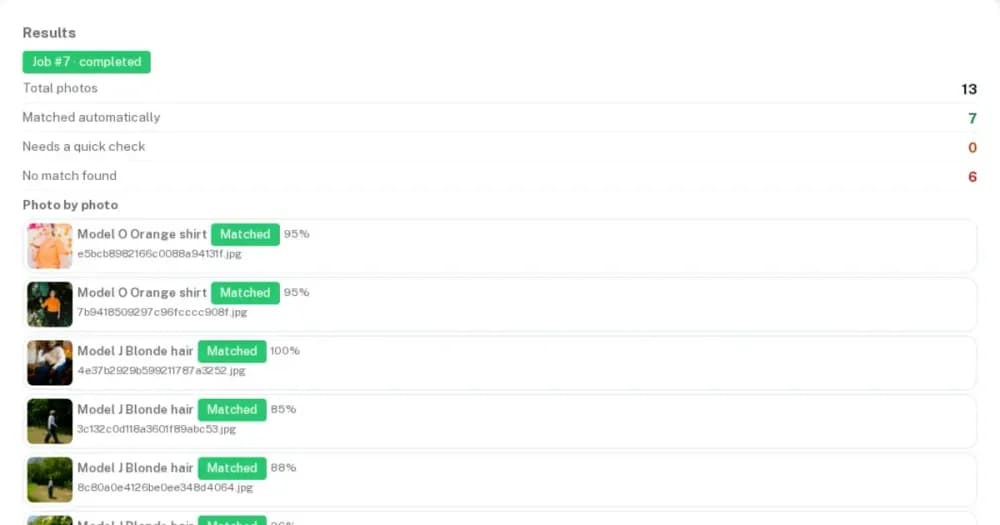
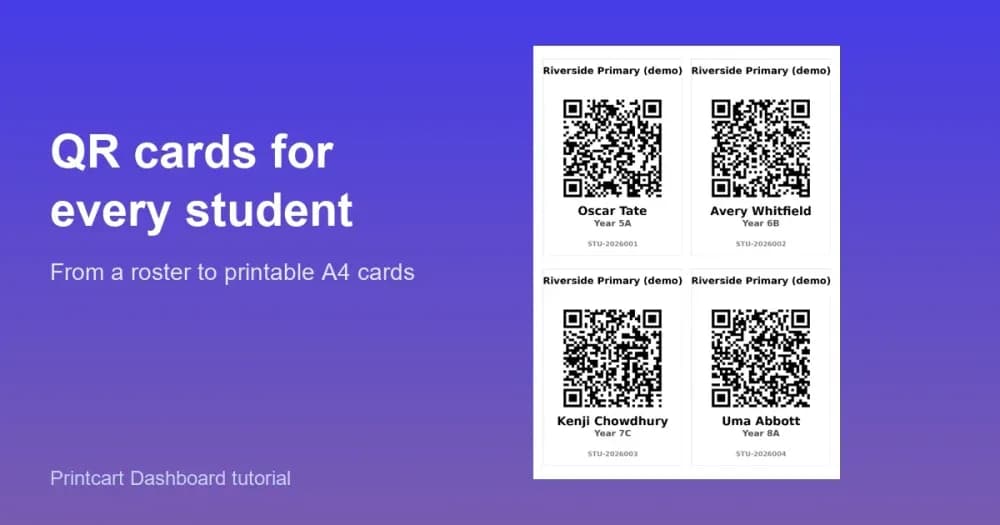
Face crop is one step in turning a raw shoot into finished, saleable products. It pairs naturally with the other studio tools: use bulk QR cards to label and track subjects through the workflow, and AI face matching to sort event and portrait photos to the right person before cropping. Together these move a studio from folders of unsorted images to labeled, matched, and consistently cropped output ready for cards, packages, and layouts. For sellers turning portraits into physical goods, connect the finished crops into your product catalog.
Common face-crop mistakes to avoid
- Cropping before matching or labeling. Sort subjects first so the right face lands on the right order.
- One aspect ratio for every product. Match the crop to ID cards, wallets, and yearbook cells separately.
- Skipping the outlier review. Profiles and low-light shots deserve a quick manual check.
- Cropping too tight. Leave enough headroom for the layout and any trim.
- Exporting preview quality. Register to export full-resolution crops for print.
How do you prepare a shoot for clean auto cropping?
Better input photos mean fewer manual corrections after cropping, and a few habits at capture make the AI's job far easier across a whole session. Keep lighting even and consistent so faces are clear and shadows do not hide features. Position subjects front-facing where the product allows, since profiles and steep angles are the hardest cases to crop uniformly. Leave a little space around the head at capture so the crop tool has room to frame without cutting into hair or shoulders. Photograph against a consistent background so framing stays predictable from subject to subject. Finally, keep the camera setup stable between subjects; when head position and distance are consistent at capture, the automatic crop is consistent by default, and your review step becomes a quick confirmation rather than a round of fixes.
Next best step
Cropping is faster when photos are already sorted to the right subject, so continue with the guide on AI face matching for event and school photography. To build a full studio production line, Printcart offers implementation services that connect photo intake, cropping, matching, and print fulfillment.
Ready to speed up portrait production? Try the free face crop tool, create a free Printcart account to run large batches, or talk to the Printcart team.
Printcart field note
What to verify before you roll out Auto Face Crop for School & Studio Photos
This tutorial is written from Printcart implementation patterns across web-to-print launch planning, buyer experience, and repeatable production. Before treating it as complete, test the workflow with one real product, one real design file, and one real order path.
Auto Face Crop for School & Studio Photos — common questions
Why do studios need consistent face cropping?
Portrait products live or die on consistency. ID cards, yearbook grids, sports packages, and print sheets all expect every subject to be framed the same way — same head size, same headroom, same position. Doing that by hand across hundreds or thousands of photos is slow, tiring, and easy to get subtly wrong, which shows up immediately when portraits sit side by side on a layout.
How does AI-assisted face crop work?
The bulk face crop tool detects the face in each image and crops around it using consistent framing. Because it is AI-assisted, it produces a strong, uniform first pass across the batch while still letting you review outliers. Photos with clear, front-facing subjects and even lighting crop most reliably; profile shots, heavy occlusion, or very low light are the cases worth checking by hand.
How does face crop fit a photo fulfillment workflow?
Face crop is one step in turning a raw shoot into finished, saleable products. It pairs naturally with the other studio tools: use bulk QR cards to label and track subjects through the workflow, and AI face matching to sort event and portrait photos to the right person before cropping. Together these move a studio from folders of unsorted images to labeled, matched, and consistently cropped output ready for cards,...
How do you prepare a shoot for clean auto cropping?
Better input photos mean fewer manual corrections after cropping, and a few habits at capture make the AI's job far easier across a whole session. Keep lighting even and consistent so faces are clear and shadows do not hide features. Position subjects front-facing where the product allows, since profiles and steep angles are the hardest cases to crop uniformly. Leave a little space around the head at capture so the...
Next steps in Printcart
Connect auto face crop for school & studio photos with catalog setup, templates, production workflows, and implementation support.
Want to put auto face crop for school & studio photos into practice?
Use the related Printcart tool below, or create a free account to start building with the product designer.