Preflight is a pre-production check that inspects a print file for the problems that cause reprints: low resolution, missing bleed, the wrong color mode, and unsafe fonts or placement. Printcart's AI-assisted preflight tool flags these risks in your browser so you can fix a file before it reaches production, not after a customer receives it.
Key takeaways
What is print file preflight and why does it matter?
Preflight is the quality gate between a design and the press. A file can look correct on screen and still fail in production because print has stricter requirements than a monitor: it needs enough resolution at physical size, a safe bleed and margin so nothing important is trimmed off, and color defined in a way the printer can reproduce. Skipping preflight is the single most common source of avoidable reprints, refunds, and delayed orders in print-on-demand.
The cost of catching a problem rises at every stage. A warning caught at upload costs a few seconds to fix. The same problem caught after printing costs a reprint, return shipping, and a disappointed customer. Preflight moves the catch point to the cheapest possible moment.
What does an AI preflight check look for?
The free print file preflight tool reviews a file against the checks that matter most for physical output. Each one maps to a real production failure.
Resolution and DPI
Resolution is measured at the final print size, not the pixel count alone. An image that looks fine on a phone can be blurry on a poster because it is being stretched across a much larger area. Preflight flags files that fall below a safe DPI for their product so you can upscale or replace the artwork before printing.
Bleed and safe area
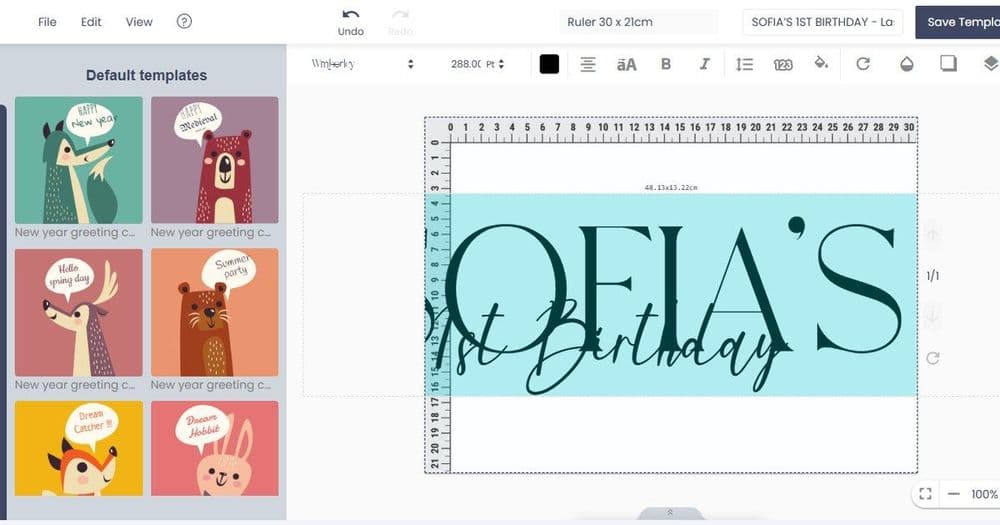
Bleed is the extra artwork beyond the trim line that prevents white slivers when a product is cut. The safe area is the inner margin that keeps text and key elements away from the edge. Preflight checks that a design extends into the bleed and keeps important content inside the safe zone.
Color mode and fonts
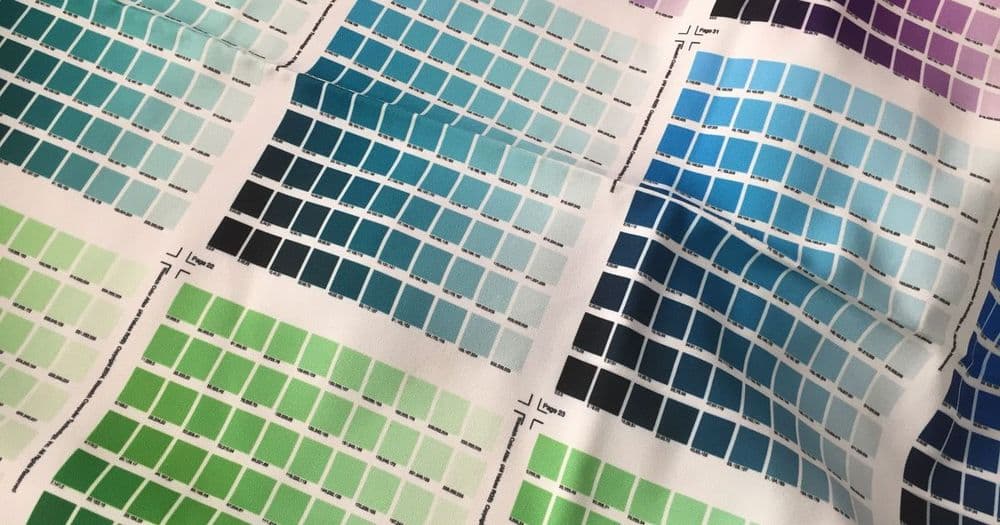
Screens use RGB; most printing works in CMYK, and bright RGB colors can shift when converted. Preflight surfaces color-mode risks so vivid designs do not arrive duller than the preview. It also flags font and text-placement risks, such as small type near a trim edge, that lead to unreadable or clipped results.
How do you run a preflight check before production?
Treat preflight as a fixed step in your order workflow, not an occasional spot check.
- Upload the print file and select the product type so the check uses the right size and requirements.
- Read each warning and separate blockers, such as low DPI on a large product, from minor notes.
- Fix the file at the source — upscale low-resolution art, add bleed, adjust color, or move text inward — rather than forcing a risky file through.
- Re-check and export, then send the cleared file to production. A human and a standard production proof should still review before printing.
Preflight warning to fix: what each one means
Use this table to translate common warnings into the action that clears them.
| Warning | Production risk | How to fix it |
|---|---|---|
| Low DPI | Blurry or pixelated print at size | Upscale the artwork or supply a larger source file |
| No bleed | White edges after trimming | Extend the background past the trim line |
| Content in trim zone | Text or logo cut off | Move key elements inside the safe area |
| RGB color mode | Colors shift and dull in CMYK print | Convert and review color before export |
| Small or edge fonts | Unreadable or clipped text | Increase size and pull text off the edge |
How does preflight fit the rest of the print workflow?
Preflight is most powerful when it sits alongside the other file-prep tools. If a file fails on resolution, send it to the AI image upscale tool before re-checking. If catalog photos need cleaning first, the background removal tool handles that upstream. Preflight then acts as the final gate before a job is routed to a printer. For a broader view of production standards, pair this with the tutorial on quality control for high-quality POD products and the guide to different printing techniques, since bleed and color needs vary by print method.
Common preflight mistakes to avoid
- Judging a file by its on-screen preview. A monitor cannot show trim, bleed, or CMYK shift.
- Forcing a low-DPI file through. Upscale or replace it; large products expose weak resolution fastest.
- Ignoring color mode. Bright RGB designs are the most likely to disappoint in print.
- Running preflight only when something looks wrong. Make it a standard step on every order.
- Treating AI output as final. Keep a human proof in the loop before printing.
Next best step
Preflight tells you what is wrong; fixing resolution is the most common follow-up, so continue with upscaling low-res artwork for printing. To build preflight into a repeatable production process, Printcart offers implementation services that set up file checks and order handoff for POD stores and print shops.
Ready to stop reprints before they start? Try the free preflight tool, create a free Printcart account to run batches and save results, or talk to the Printcart team.
Printcart field note
What to verify before you roll out AI Print File Preflight: Catch Problems Before Production
This tutorial is written from Printcart implementation patterns across file quality, proofing, and production risk. Before treating it as complete, test the workflow with one real product, one real design file, and one real order path.
AI Print File Preflight: Catch Problems Before Production — common questions
What is print file preflight and why does it matter?
Preflight is the quality gate between a design and the press. A file can look correct on screen and still fail in production because print has stricter requirements than a monitor: it needs enough resolution at physical size, a safe bleed and margin so nothing important is trimmed off, and color defined in a way the printer can reproduce. Skipping preflight is the single most common source of avoidable reprints,...
What does an AI preflight check look for?
The free print file preflight tool reviews a file against the checks that matter most for physical output. Each one maps to a real production failure.
How do you run a preflight check before production?
Treat preflight as a fixed step in your order workflow, not an occasional spot check.
How does preflight fit the rest of the print workflow?
Preflight is most powerful when it sits alongside the other file-prep tools. If a file fails on resolution, send it to the AI image upscale tool before re-checking. If catalog photos need cleaning first, the background removal tool handles that upstream. Preflight then acts as the final gate before a job is routed to a printer. For a broader view of production standards, pair this with the tutorial on quality...
Next steps in Printcart
Connect ai print file preflight: catch problems before production with catalog setup, templates, production workflows, and implementation support.
Want to put ai print file preflight: catch problems before production into practice?
Use the related Printcart tool below, or create a free account to start building with the product designer.