WooCommerce web-to-print means adding the Printcart product designer to your WordPress store so shoppers customize products on the page and every order returns a print-ready file. The Printcart WooCommerce plugin adds the customizer, keeps your WooCommerce checkout, and connects catalog, print options, and fulfillment so you sell made-to-order products from...
Key takeaways
What is web-to-print on WooCommerce?
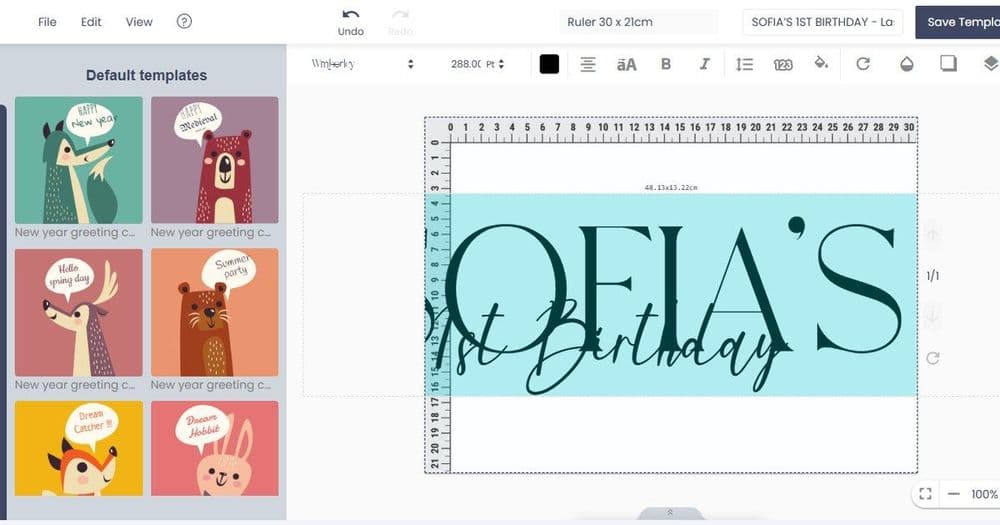
Web-to-print lets customers personalize a product online and get exactly what they designed, produced on demand. On WooCommerce, that means turning your WordPress product pages into a design surface: the shopper adds text, images, or a template, previews the result, and buys, while your store receives a file ready for production. The Printcart WooCommerce plugin adds this layer without replacing WordPress or WooCommerce — you keep your theme, your checkout, and your existing store.
This is the difference between listing a "custom mug" as a static product and actually letting the customer make it. For print shops and POD sellers already running on WordPress, it is the fastest way to sell personalized products without building a designer from scratch. Because WooCommerce is self-hosted, you also keep full ownership of your store data, customer relationships, and checkout, which matters to businesses that would rather not hand their storefront to a closed platform. The Printcart layer sits on top of that control instead of replacing it.
How do you set up Printcart on WooCommerce?
Step 1Install the plugin
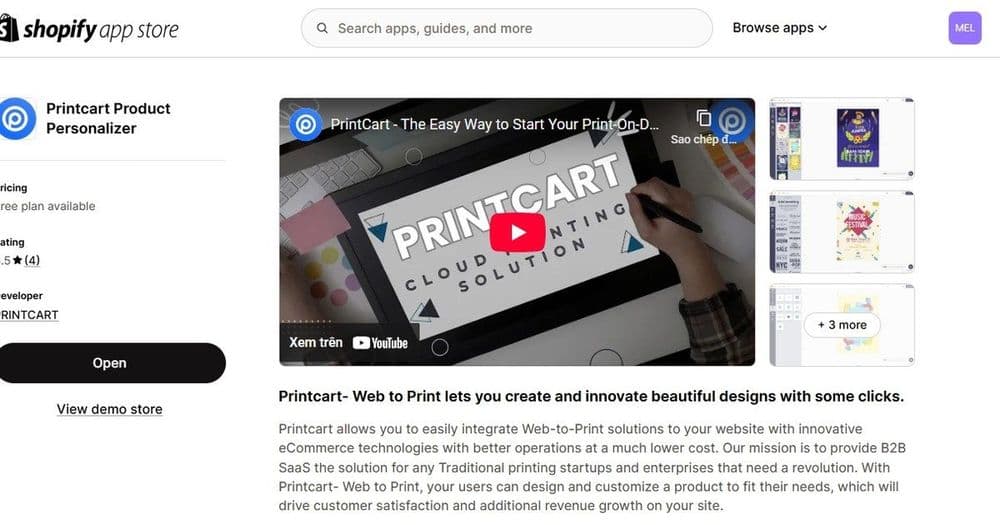
Install and activate the Printcart plugin on your WordPress site, then connect it to your Printcart account. The Printcart for WooCommerce page explains what the plugin does and who it is for, and the plugin is distributed through the WordPress plugin directory ecosystem.
Step 2Build customizable products
Create your WooCommerce products with real variants and correct print areas so the customer preview matches production. A clean catalog underpins pricing, the designer, and fulfillment — see building a custom product catalog for POD.
Step 3Configure the designer and print options
Set up the product designer so customers personalize within safe areas, and define print product options, variants, and pricing rules. The full walkthrough is in setting up the online product designer.
Step 4Connect fulfillment and test
Route orders to production or a printing partner, confirm the print-ready file handoff, and place one real end-to-end order before promoting the store.
WooCommerce alone versus WooCommerce with Printcart
| Factor | WooCommerce alone | WooCommerce with Printcart |
|---|---|---|
| Product type | Fixed products with variants | Customer-personalized print products |
| On-page experience | Static gallery and options | Live designer with real-time preview |
| Production files | Collected manually after the sale | Print-ready file with each order |
| Hosting and control | Full WordPress ownership | Same ownership, plus web-to-print |
Who is WooCommerce web-to-print best for?
It fits merchants who value WordPress ownership and flexibility: print shops moving online, POD sellers who already run WooCommerce, and businesses that want to control hosting and data while still offering personalization. If you run a physical shop, the transition path is covered in turning an offline print shop into a web-to-print store. Comparing platforms first? See which Printcart app fits your platform.
Common setup mistakes to avoid
- Ignoring print areas. On-screen designs can print off-position without correct print-area setup.
- Pricing custom products like fixed ones. Include printing, fees, and shipping before you set a price.
- No end-to-end test order. Confirm the file handoff to your printer before launch.
- Neglecting plugin and WordPress updates. Keep the site and plugin current for stability and security.
What do you need before you install the plugin?
A smooth WooCommerce web-to-print launch depends on a few things being ready before the plugin goes live. First, confirm your WordPress site and WooCommerce are current and stable, since the designer runs on top of your existing store and inherits its health. Second, prepare the products you intend to personalize with clear variants and known print areas, because the plugin turns those products into design surfaces and cannot invent print specifications you have not defined. Third, gather your brand assets and any starting templates so customers begin from an on-brand design rather than a blank canvas. Fourth, decide your fulfillment path — in-house production or a printing partner — and how print-ready files will be delivered, so orders do not pile up without a route to production.
Finally, plan pricing before launch, not after. Custom products carry printing, platform, payment, and shipping costs that a fixed product may not, and pricing them correctly at setup avoids the pain of repricing a live catalog. With those pieces in place, installation becomes the quick step and designer configuration becomes where you spend your setup time.
Next best step
After installing, focus on the designer, since that is where custom sales happen — continue with the product designer guide and price carefully using the POD profit margin guide. If you want the plugin configured for you, Printcart offers implementation services that set up catalog, designer, print options, and fulfillment.
Ready to add web-to-print to WooCommerce? Get the Printcart WooCommerce plugin, create a free Printcart account, or talk to the Printcart team.
Printcart field note
What to verify before you roll out WooCommerce Web-to-Print with Printcart: Setup & Selling
This tutorial is written from Printcart implementation patterns across file quality, proofing, and production risk. Before treating it as complete, test the workflow with one real product, one real design file, and one real order path.
WooCommerce Web-to-Print with Printcart: Setup & Selling — common questions
What is web-to-print on WooCommerce?
Web-to-print lets customers personalize a product online and get exactly what they designed, produced on demand. On WooCommerce, that means turning your WordPress product pages into a design surface: the shopper adds text, images, or a template, previews the result, and buys, while your store receives a file ready for production. The Printcart WooCommerce plugin adds this layer without replacing WordPress or...
Who is WooCommerce web-to-print best for?
It fits merchants who value WordPress ownership and flexibility: print shops moving online, POD sellers who already run WooCommerce, and businesses that want to control hosting and data while still offering personalization. If you run a physical shop, the transition path is covered in turning an offline print shop into a web-to-print store . Comparing platforms first? See which Printcart app fits your platform .
What do you need before you install the plugin?
A smooth WooCommerce web-to-print launch depends on a few things being ready before the plugin goes live. First, confirm your WordPress site and WooCommerce are current and stable, since the designer runs on top of your existing store and inherits its health. Second, prepare the products you intend to personalize with clear variants and known print areas, because the plugin turns those products into design surfaces...
Next steps in Printcart
Connect woocommerce web-to-print with printcart: setup & selling with catalog setup, templates, production workflows, and implementation support.
Want to put woocommerce web-to-print with printcart: setup & selling into practice?
Use the related Printcart tool below, or create a free account to start building with the product designer.