Open Orders in the Printcart Dashboard, find the row marked Storefront Upload , and open it. The Uploaded file — buyer intake card lets you download the print files, then click Accept file or Decline (a reason is required). On paid plans the buyer gets an email about the decision. Accepting the file is separate from accepting the order, which moves the job...
Key takeaways
What do you need before you start?
- A store with Order Upload turned on for at least one product (see the products guide).
- At least one buyer upload. Uploads appear after a shopper sends a file from your storefront.
The screenshots come from a demo account with a demo store called Demo Print Shop and made-up buyer names. Your store name, products and numbers will differ, but the screens and buttons are the same. Secret values are always hidden in the pictures.
How do you review uploaded files and download print files?
Step 1Open Orders
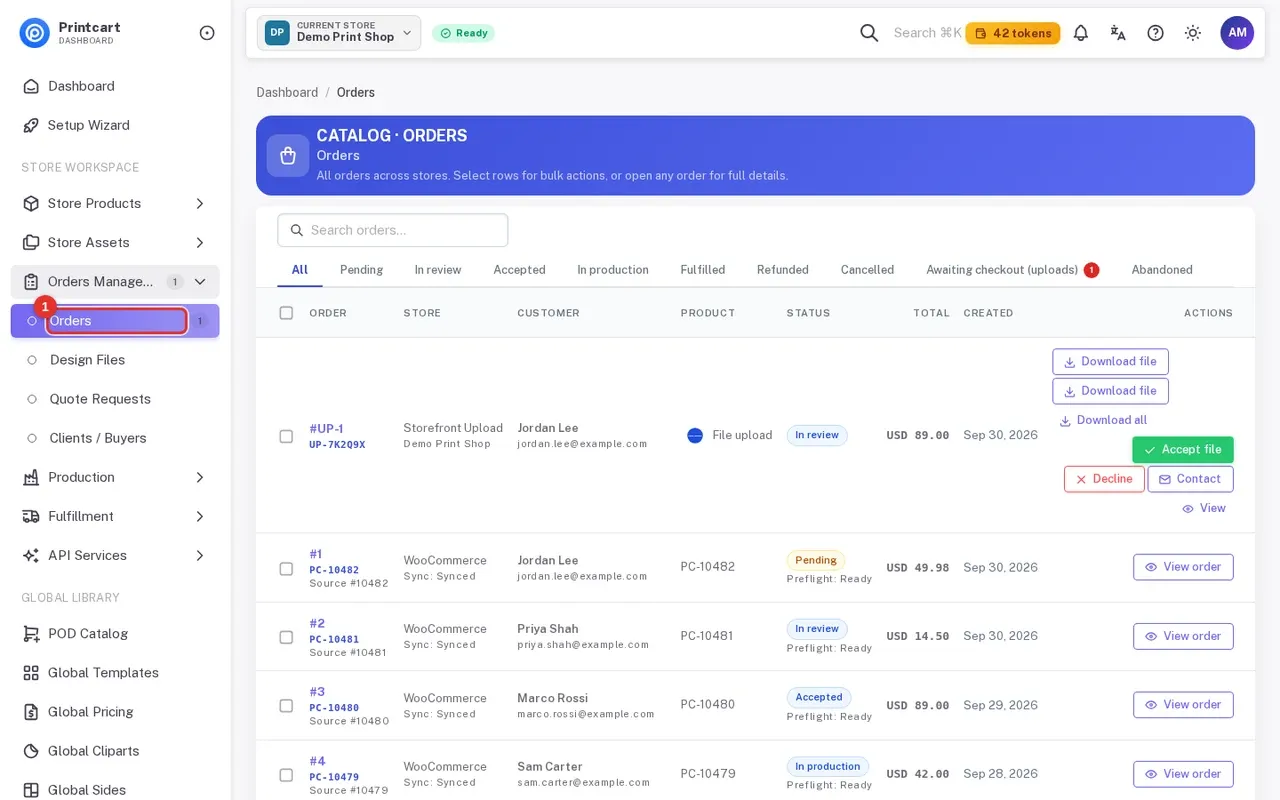
In the left menu open Orders Management, then Orders (www.printcart.com/en/orders). The list shows every order with status tabs: All, Pending, In review, Accepted, In production, Fulfilled, Refunded, Cancelled, Awaiting checkout (uploads) and Abandoned.
Expected result: The Orders list opens.
Step 2Spot the uploaded-file row
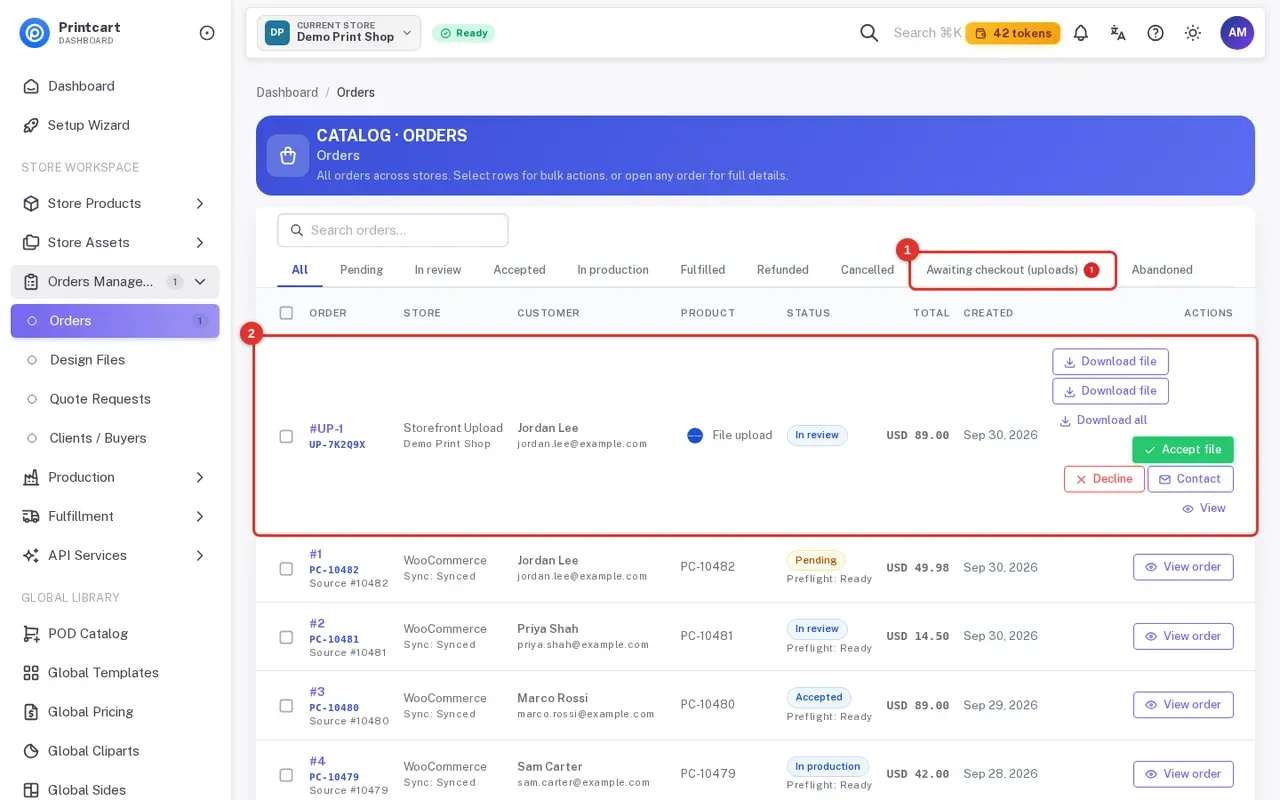
Uploads from your storefront have the source Storefront Upload and a reference such as UP-7K2Q9X. The Awaiting checkout (uploads) tab holds uploads from buyers who sent a file and contact details but have not finished checkout; Abandoned holds the ones that never did. The row already offers Download file, Accept file, Decline, Contact and View.
Expected result: You can see the buyer name, email, status In review and the file buttons on one row.
Step 3Open the order
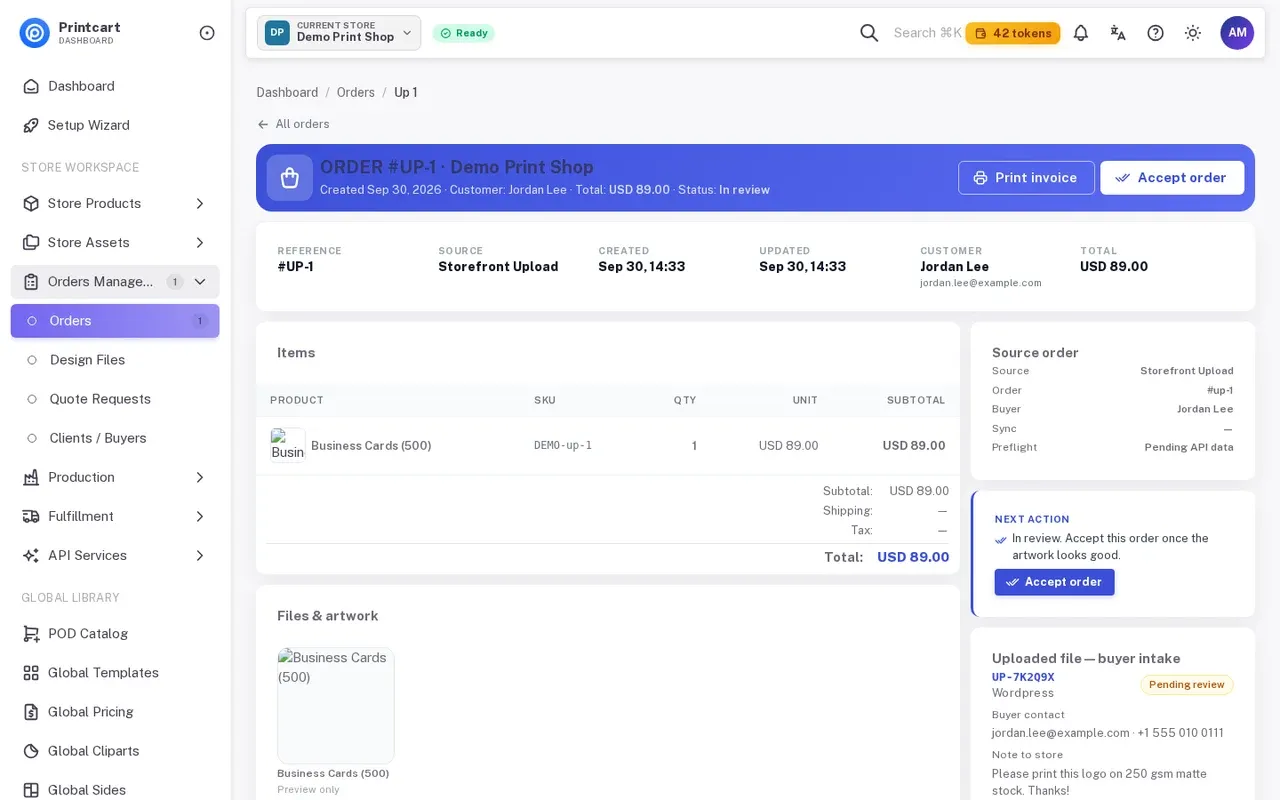
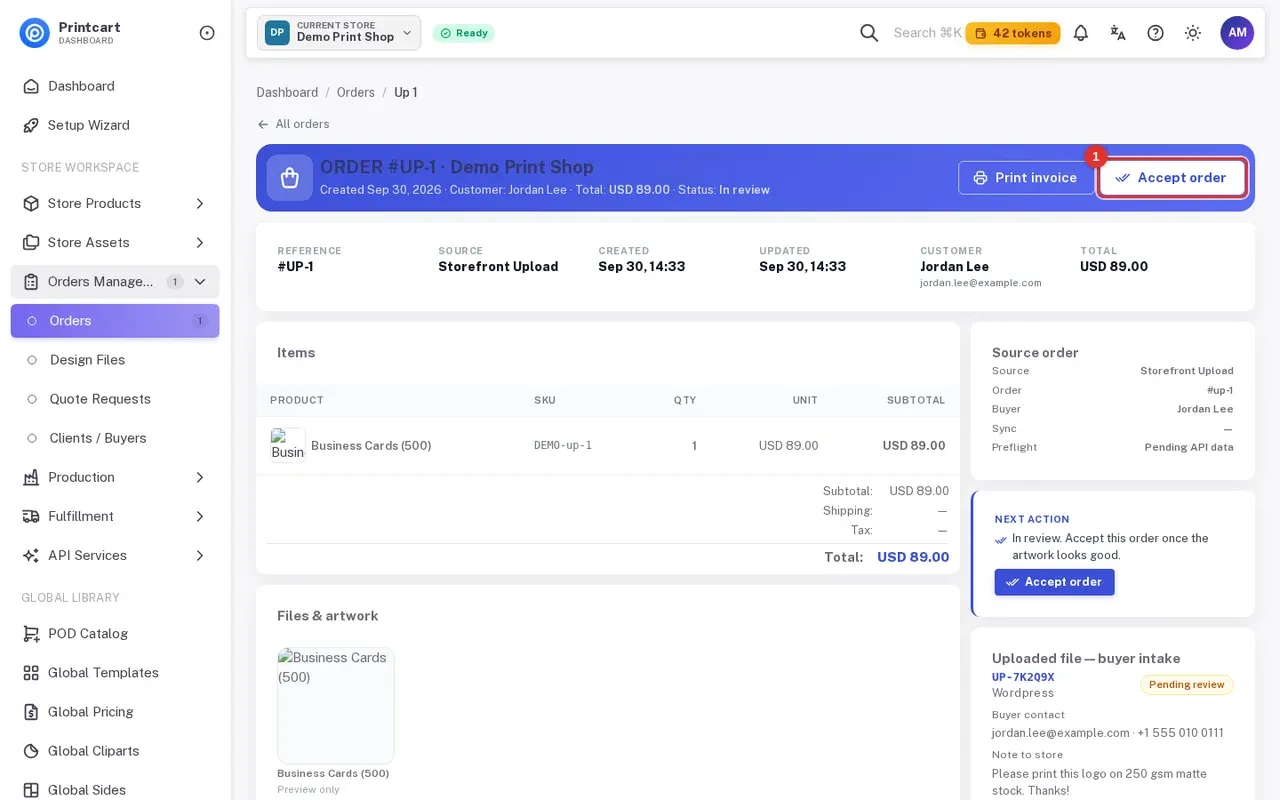
Click View on the row. The header shows the order number, buyer, total and status, with Print invoice and Accept order buttons. Items, Files & artwork and a Timeline sit on the left; the review card is on the right.
Expected result: The order detail page opens.
Step 4Read the buyer intake card
The card Uploaded file — buyer intake shows the upload reference, a Pending review pill, the Buyer contact (email and phone), the Note to store and thumbnails of the files. On the Free plan a limited number of buyer contacts can be viewed each month; the dashboard home shows how many you have used, and locked contacts show an upgrade notice instead.
Expected result: You know who sent the file and what they asked for.
Step 5Download the print files
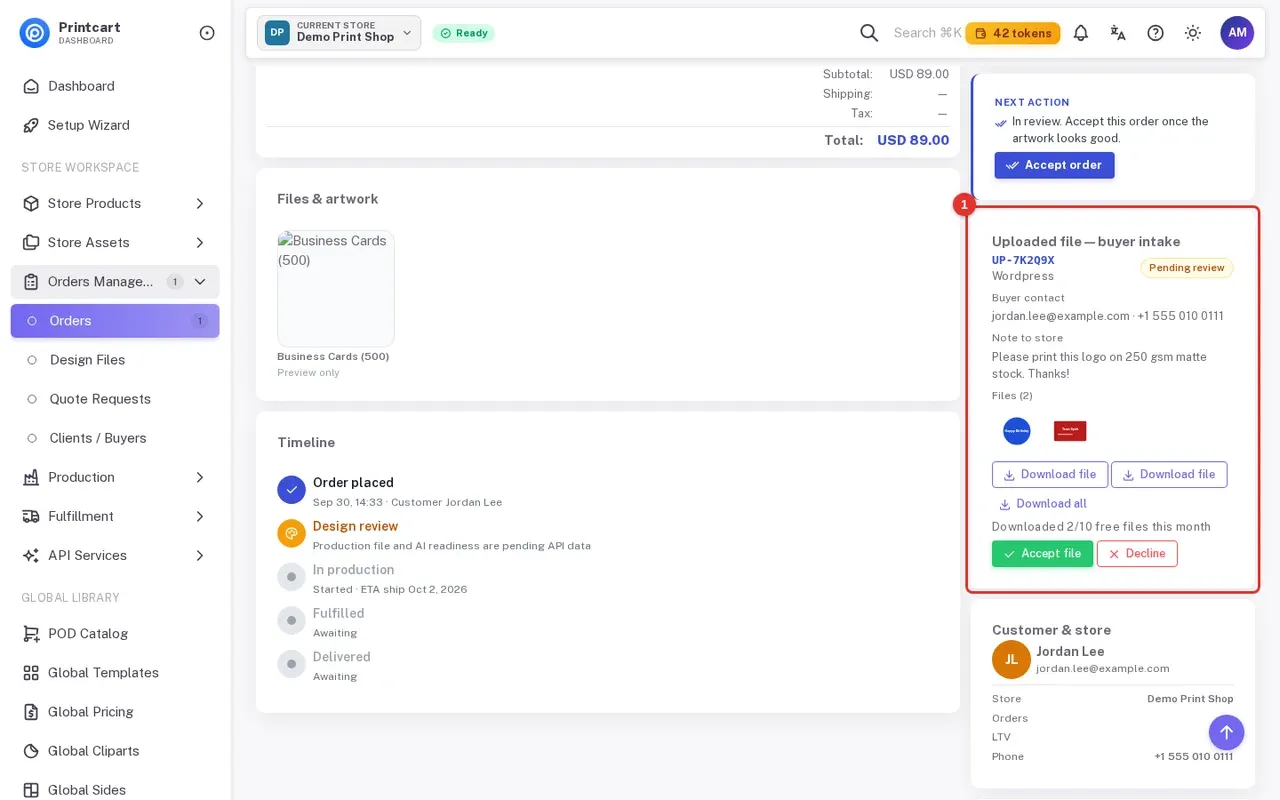
Click Download file under each file, or Download all. A line under the buttons shows how many of your free monthly downloads you have used. If the allowance is used up, the button reads Download — Premium and opens an upgrade prompt instead of the file.
Expected result: Your browser downloads the original files so you can check resolution, size and format.
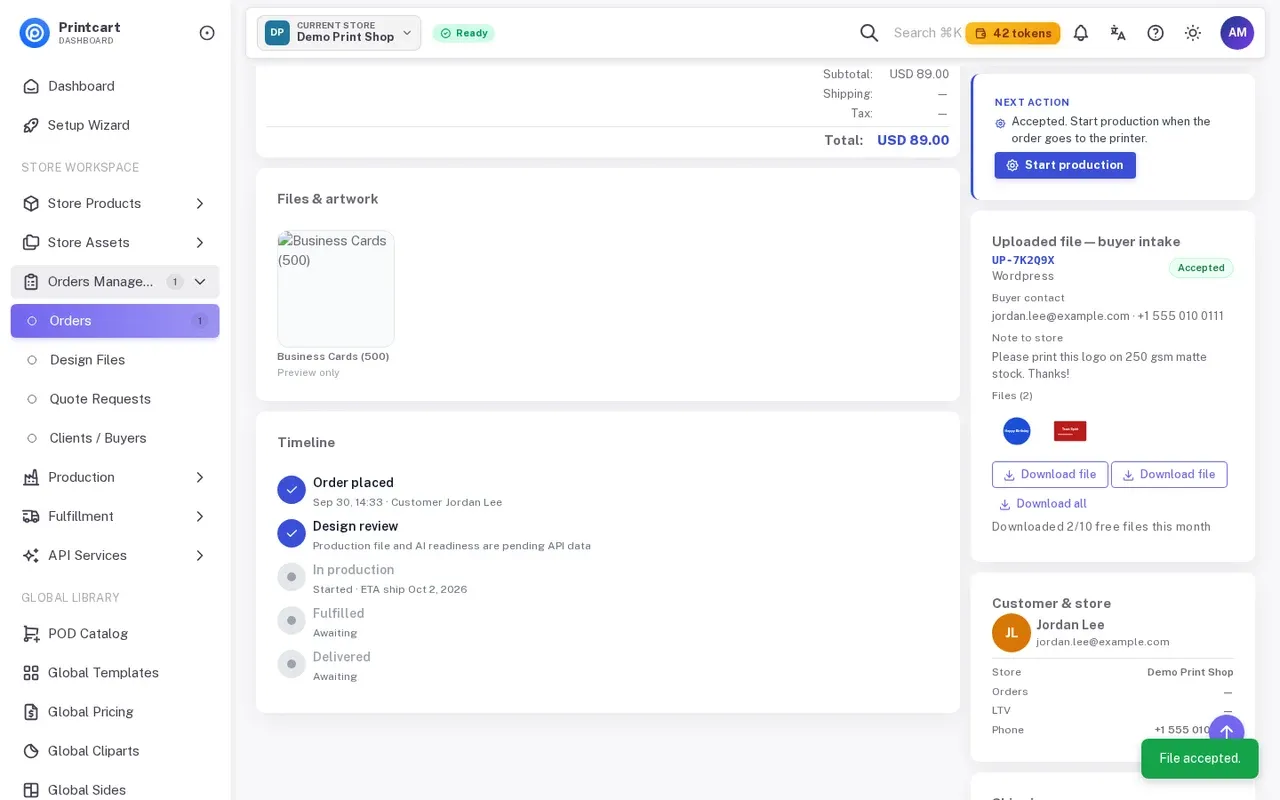
Step 6Accept the file
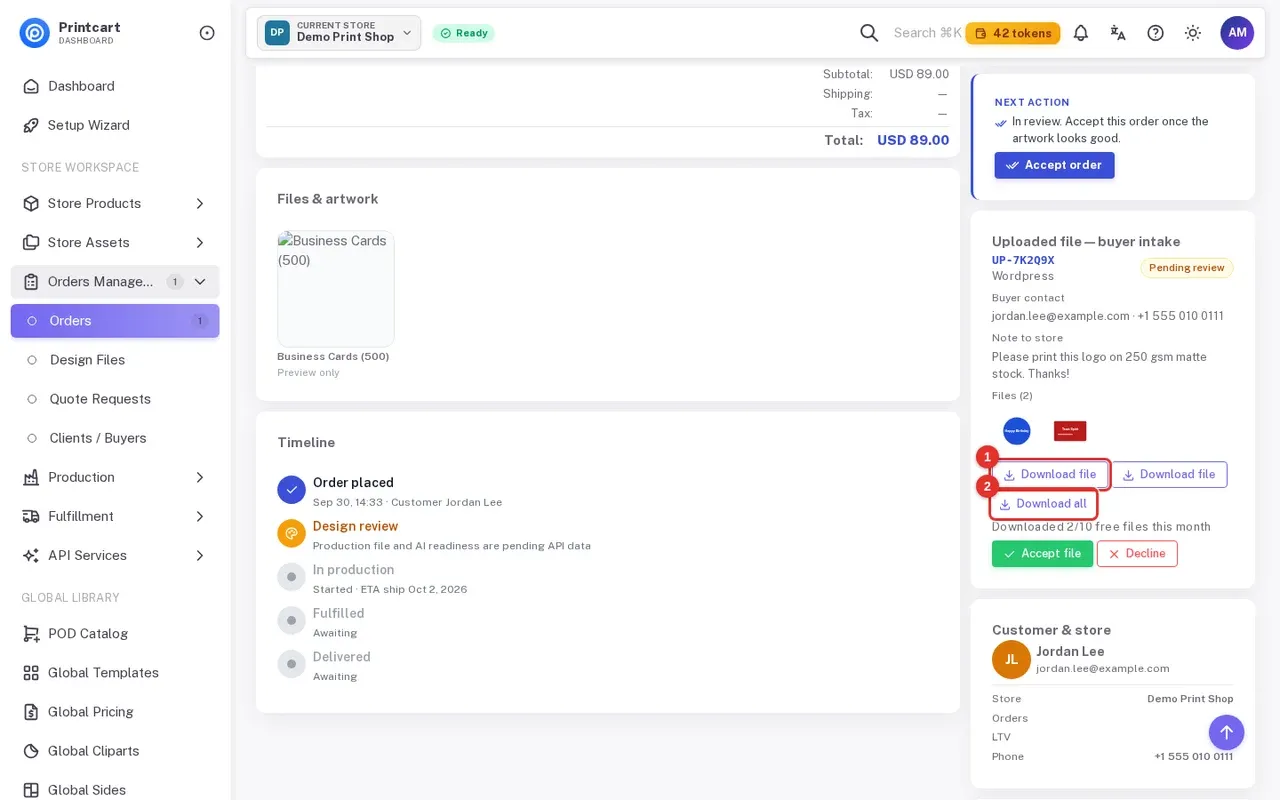
If the artwork is print-ready, click Accept file.
Expected result: A File accepted. message appears, the pill changes to Accepted, and the next-action box now reads Start production. On paid plans the buyer receives the approval email (step 8). On the Free plan the status still changes, but no email is sent and a notice explains the plan limit.
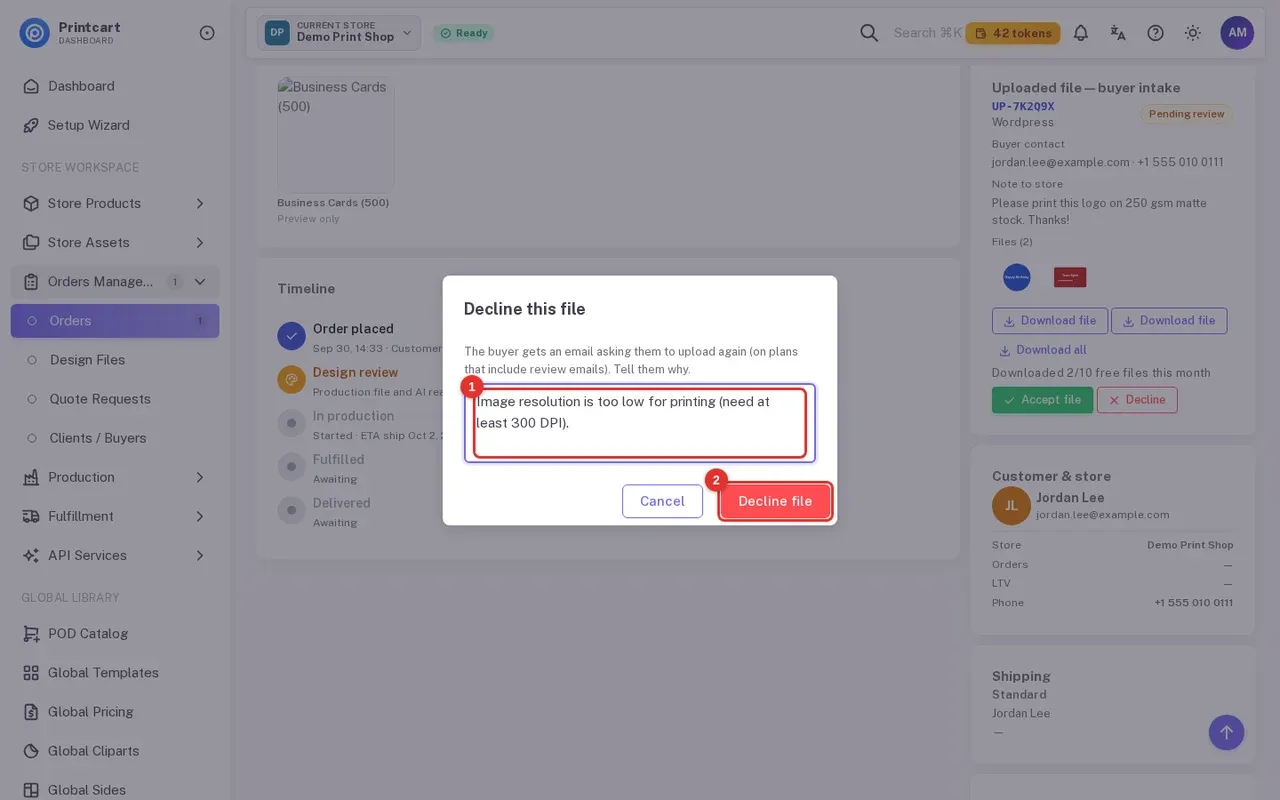
Step 7Or decline the file with a reason
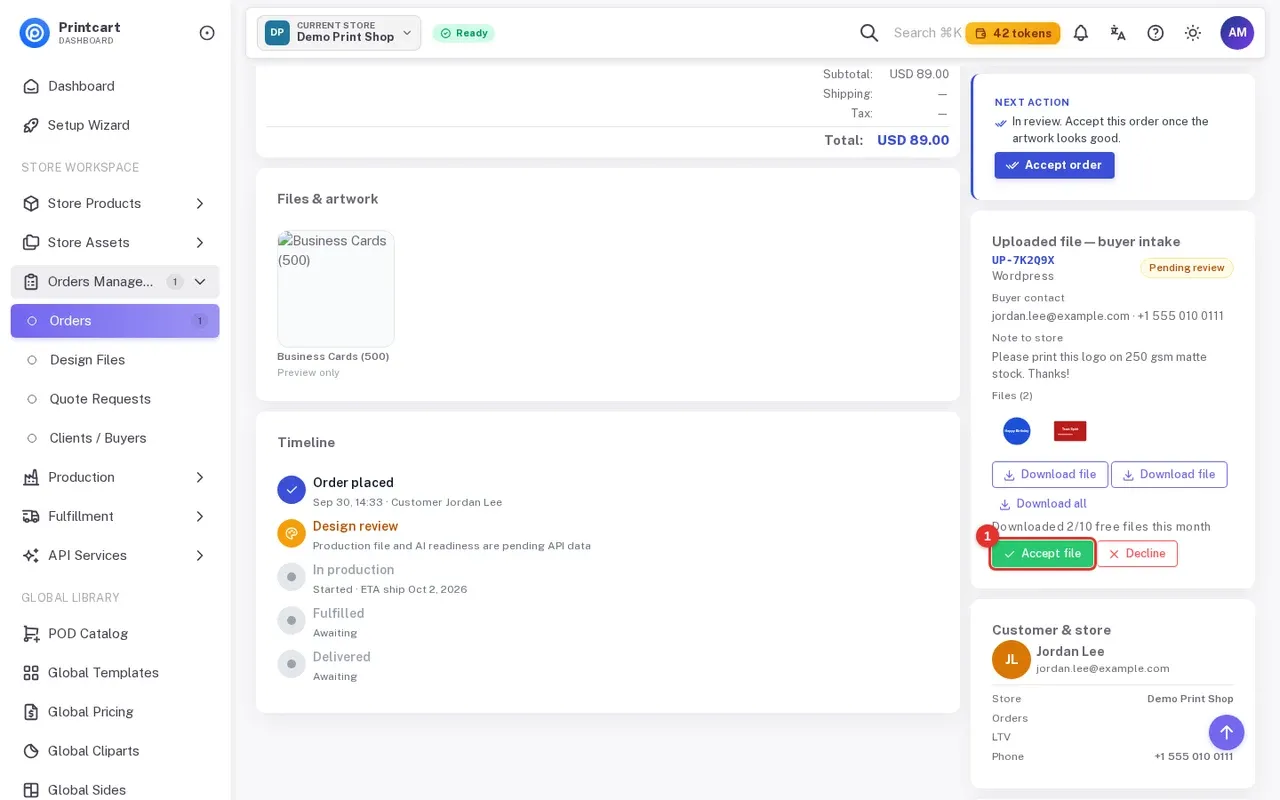
If the file cannot be printed, click Decline. A dialog titled Decline this file asks you to tell the buyer why, for example Image resolution is too low for printing (need at least 300 DPI). The Decline file button stays disabled until you type a reason.
Expected result: A File declined. message appears and the pill shows Declined. On paid plans the buyer is emailed a request to upload again.
Step 8Know what the buyer receives
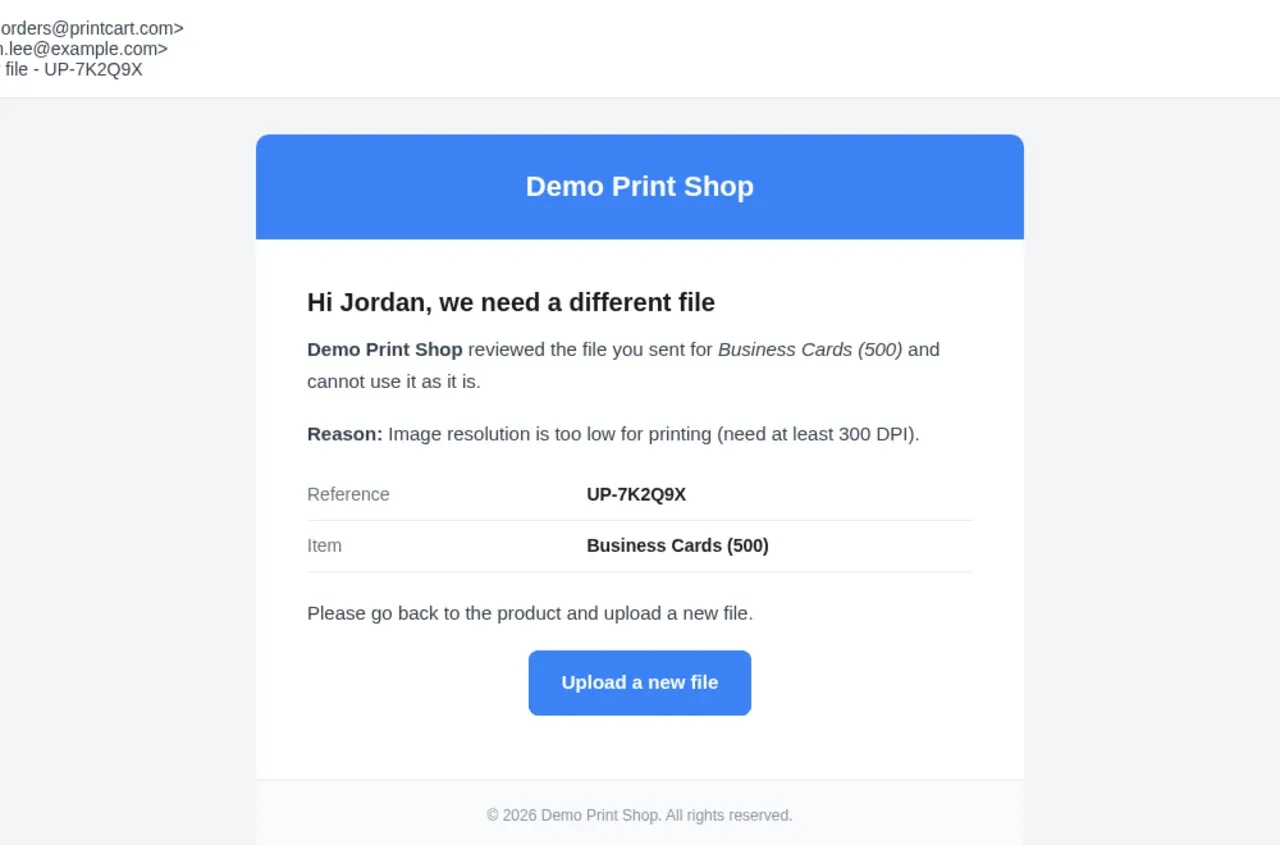
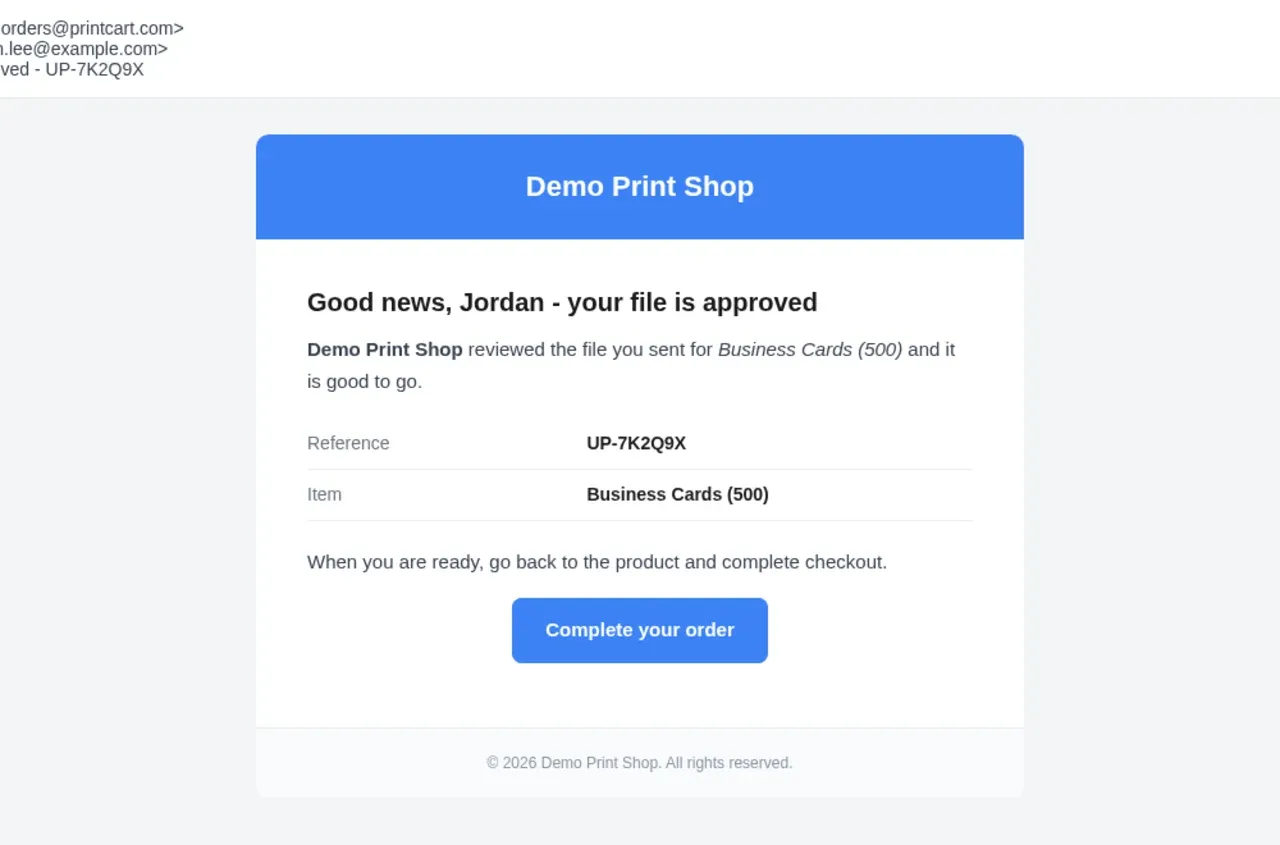
On plans that include review emails, Printcart sends the buyer an email from your store name. A declined file gets Please send a new file with your reason and an Upload a new file button. An approved file gets Your file was approved with a Complete your order button. The pictures below are previews built from the email text with demo names, not a live message.
Expected result: The buyer knows exactly what to do next and returns to your product page.
Step 9Move the order forward
Once the file is accepted and the order is paid, click Accept order in the header, then Start production when the job goes to the printer. Accepting a file reviews the artwork; accepting an order moves the job itself.
Expected result: The order status changes and the timeline advances.
What is the difference between accepting a file and accepting an order?
Accept or Decline on the intake card is only a decision about the buyer's artwork. The order buttons in the header (Accept order, Start production) move the job through your production workflow.
Why does the download button say Premium?
Free stores have a monthly allowance of file downloads. When it is used up, the button is locked and offers an upgrade. See Printcart plans, tokens and upgrading.
Can I get a notification when a file arrives?
Yes. Open Upload Form & Notifications in the sidebar. The dashboard checklist also has a step called Get notified when customers send files.
What should you do next?
- Enable the online designer and set up products and printing options
- Printcart plans, tokens and upgrading
- Prepare print-ready files: DPI, bleed, color and fonts
- Browse all Printcart tutorials
Stuck on a step? Message the Printcart team on WhatsApp and include a screenshot of the screen you are on.
Printcart field note
What to verify before you roll out How to Review, Approve or Decline Uploaded Files and Download Print Files in Printcart
This tutorial is written from Printcart implementation patterns across web-to-print launch planning, buyer experience, and repeatable production. Before treating it as complete, test the workflow with one real product, one real design file, and one real order path.
How to Review, Approve or Decline Uploaded Files and Download Print Files in Printcart — common questions
What do you need before you start?
The screenshots come from a demo account with a demo store called Demo Print Shop and made-up buyer names. Your store name, products and numbers will differ, but the screens and buttons are the same. Secret values are always hidden in the pictures.
What is the difference between accepting a file and accepting an order?
Accept or Decline on the intake card is only a decision about the buyer's artwork. The order buttons in the header (Accept order, Start production) move the job through your production workflow.
Why does the download button say Premium?
Free stores have a monthly allowance of file downloads. When it is used up, the button is locked and offers an upgrade. See Printcart plans, tokens and upgrading .
Can I get a notification when a file arrives?
Yes. Open Upload Form & Notifications in the sidebar. The dashboard checklist also has a step called Get notified when customers send files .
Next steps in Printcart
Connect how to review, approve or decline uploaded files and download print files in printcart with catalog setup, templates, production workflows, and implementation support.
Want to put how to review, approve or decline uploaded files and download print files in printcart into practice?
Use the related Printcart tool below, or create a free account to start building with the product designer.