To add printing options to a product, go to Printcart Store > Printing Options , create an option set with a field such as Paper finish and its choices, add quantity breaks for bulk discounts, apply the set to a product and switch on Enable printing option in the product setup. The product page then shows the choices, a price summary and a pricing table....
Key takeaways
What do you need before you start?
- Printcart Store installed and activated.
- A product with the designer enabled, such as the Business Card sample product.
The screenshots come from a fresh test store with the Storefront theme and Printcart Store 2.11.0. The prices are test values.
How do you add printing options and quantity discounts?
Step 1Create an option set
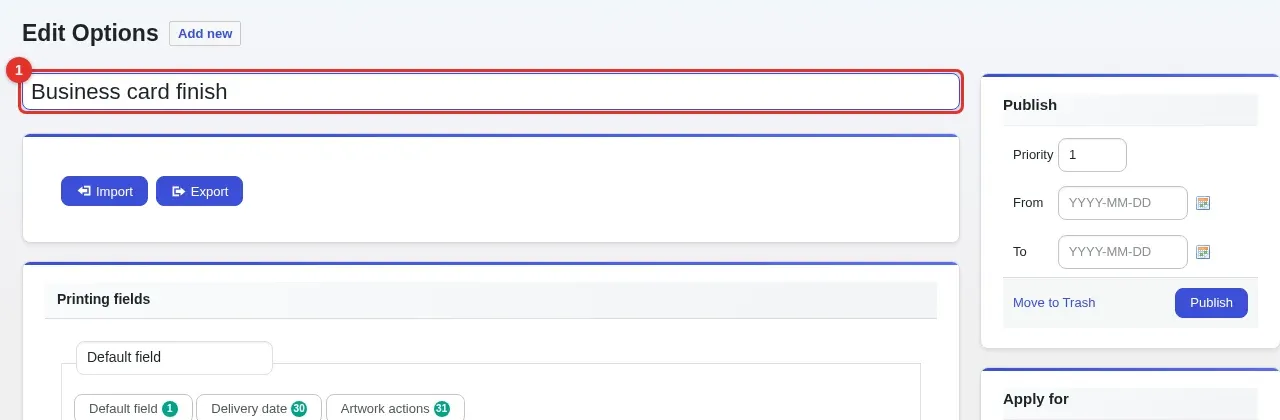
Open Printcart Store > Printing Options, click Add new and type a title for the set. The example uses Business card finish.
Expected result: The Edit Options screen opens with your title at the top.
Step 2Add a field with choices
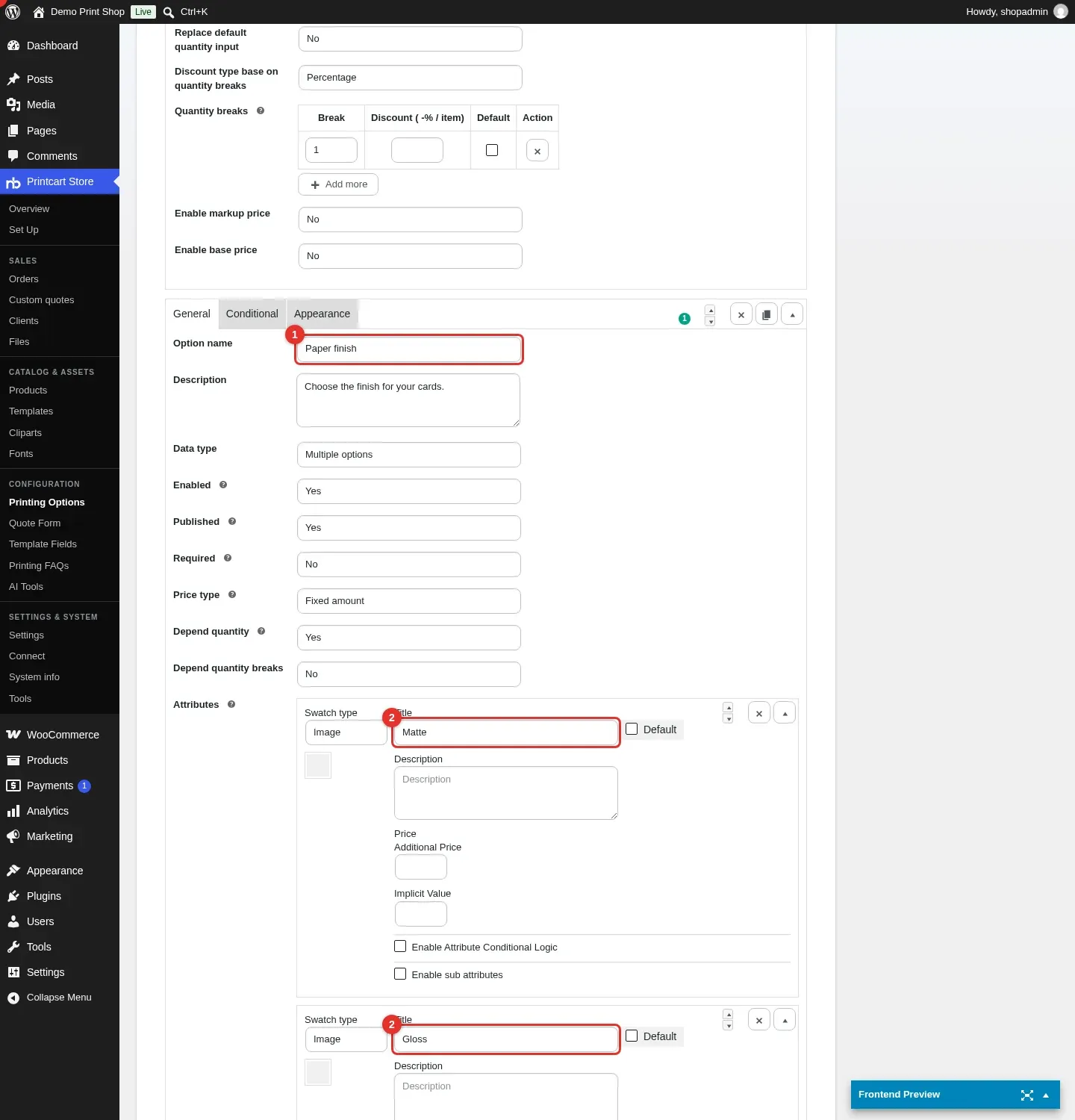
Open the first field (a Default field). Type an Option name such as Paper finish. Under Attributes add the choices: Matte (ticked as the default) and Gloss with an Additional Price of 2.
Expected result: The field lists Matte and Gloss, and Gloss carries the extra price.
Step 3Add quantity breaks
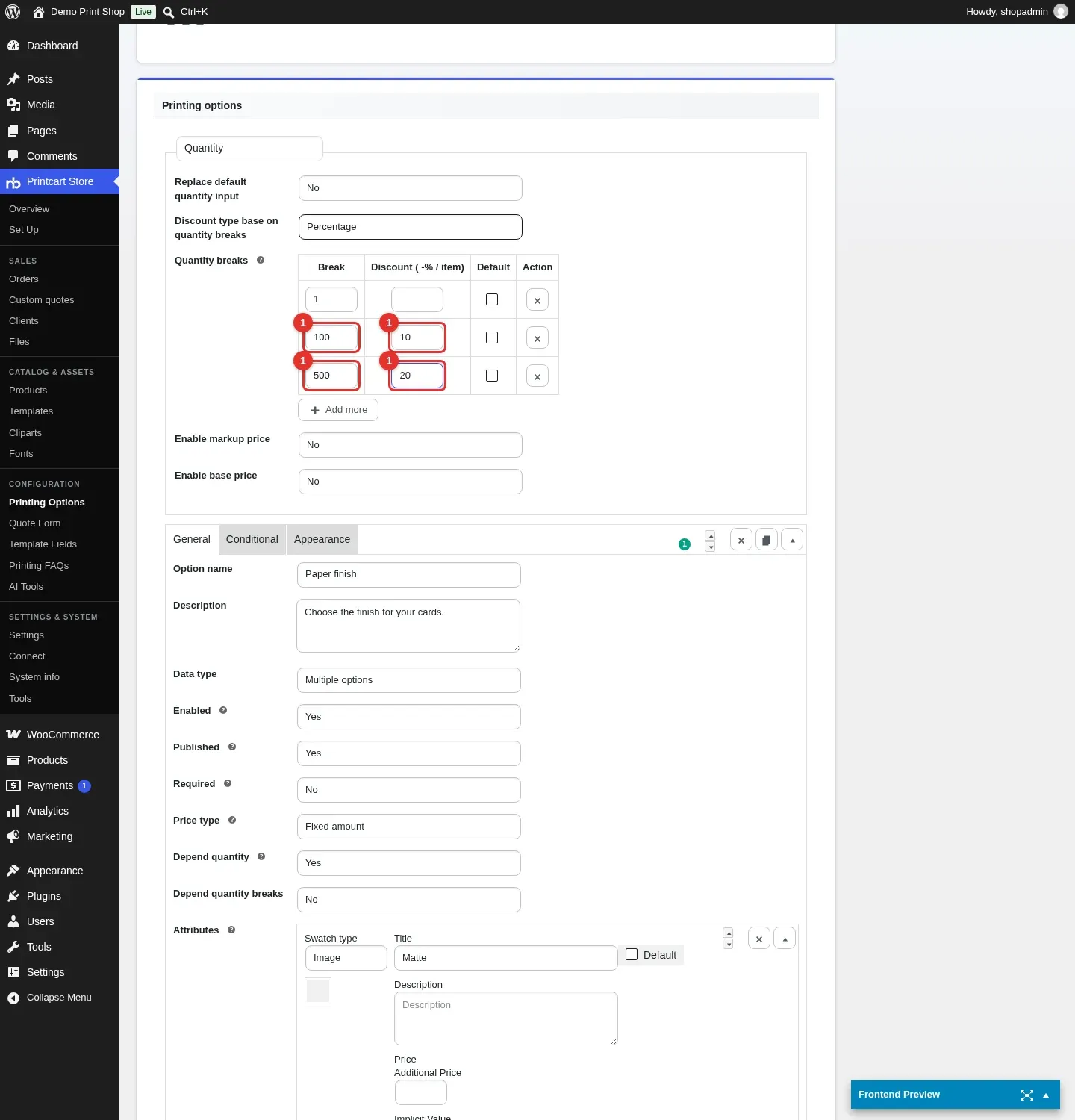
Scroll to Quantity breaks. Keep Discount type on Percentage and add rows: break 100 with a discount of 10, and break 500 with a discount of 20. The first row (break 1) stays as it is.
Expected result: The table shows three rows: 1, 100 and 500.
Step 4Apply the set to a product and publish
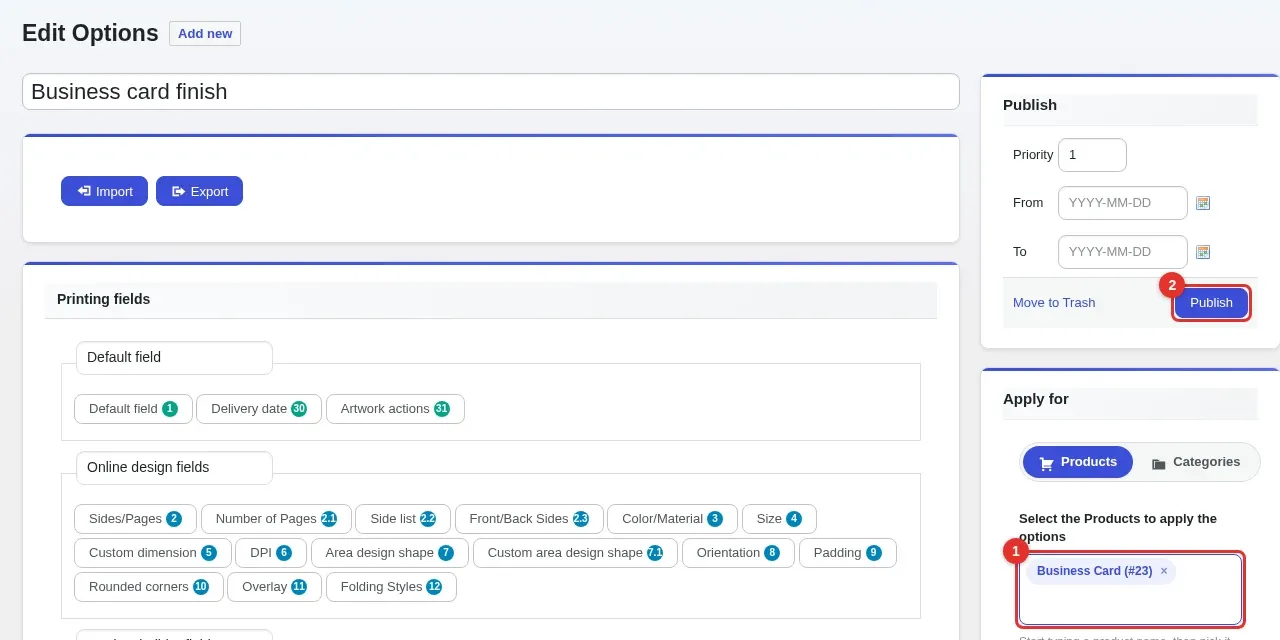
In the Apply for box, search for the product and pick it from the list. Then click Publish.
Expected result: The page reloads with your product listed under Apply for, and the button now reads Update.
Step 5Switch on the printing option for the product
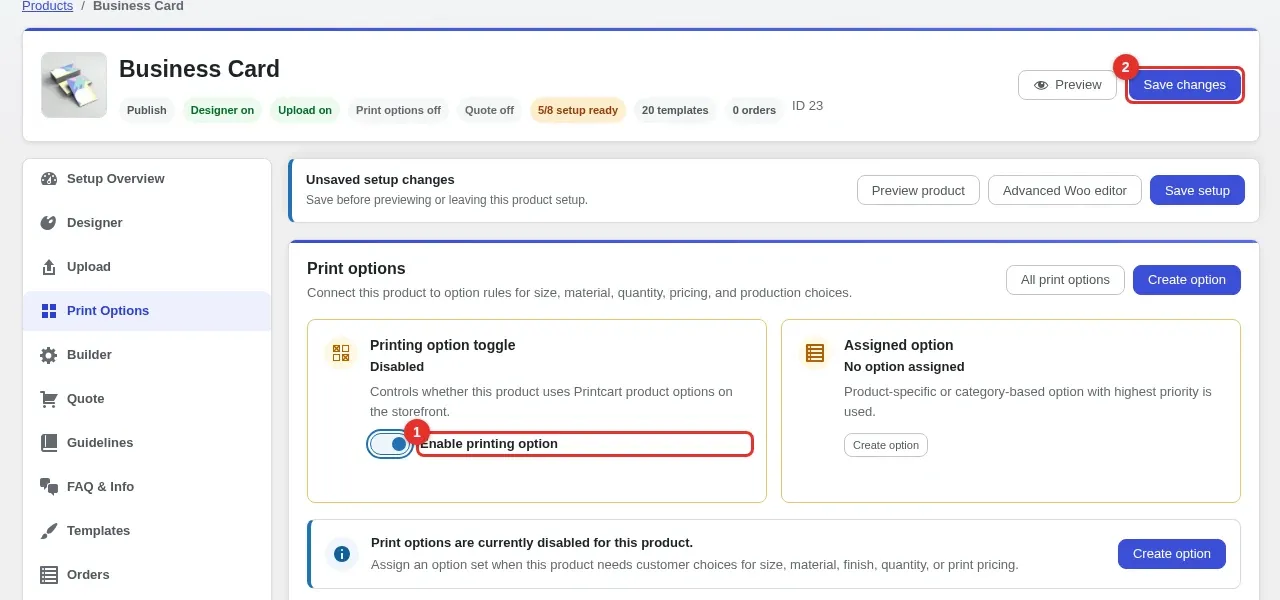
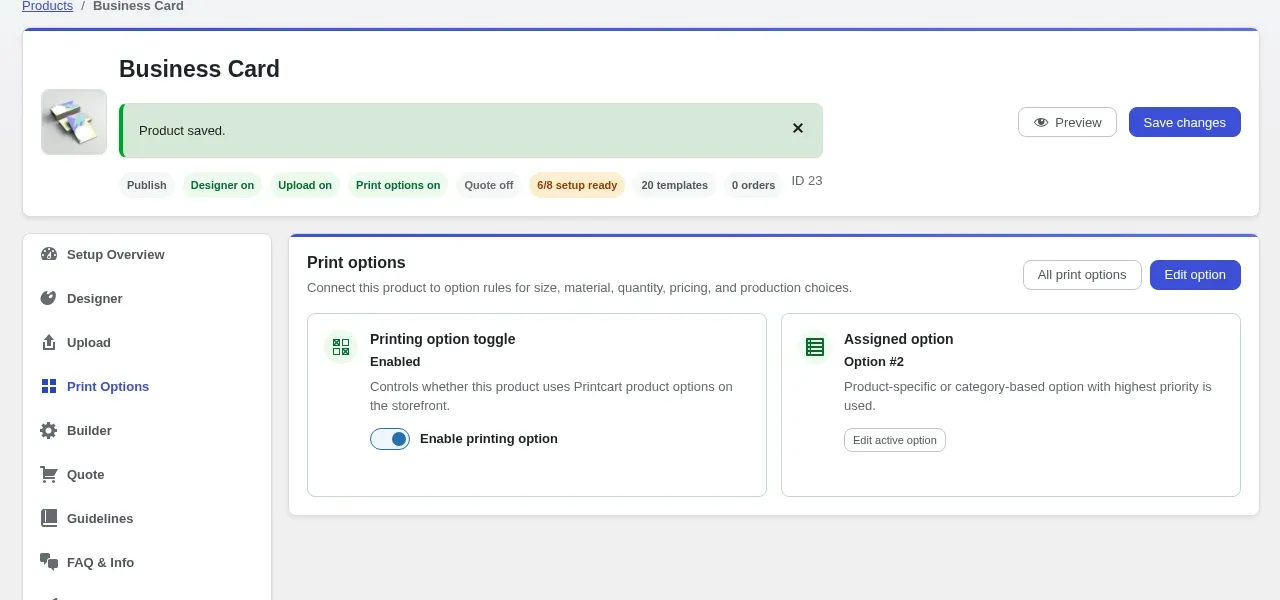
Open Printcart Store > Products and edit the product. In Product setup, open the Print Options tab, switch on Enable printing option and click Save changes.
Expected result: The toggle reads Enabled.
Step 6Test the price as a shopper
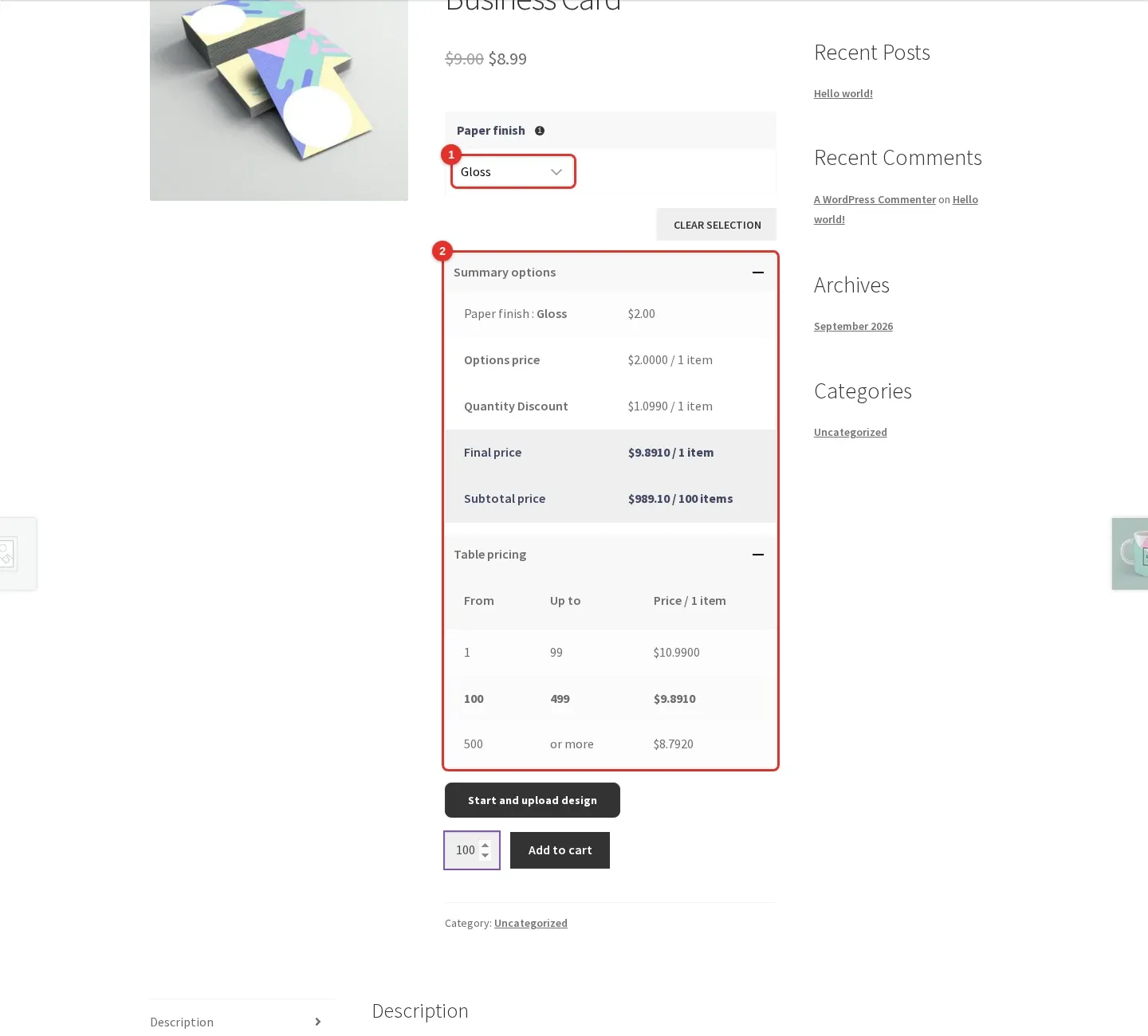
Open the product page. Choose Gloss and set the quantity to 100. The Summary options box shows the option price, the quantity discount, the final price per item and the subtotal, and Table pricing lists every quantity range.
Expected result: With the sale price of 8.99, Gloss adds 2.00, the 10 percent break gives a final price of 9.891 per item, and 100 items come to 989.10.
What is a quantity break?
A quantity break is a minimum quantity from which a discount applies. With the breaks from this guide, 1 to 99 items pay the full price, 100 to 499 items get 10 percent off and 500 or more get 20 percent off. The pricing table on the product page shows each range.
Can one option set apply to many products?
Yes. The Apply for box has a Products tab and a Categories tab, so you can apply a set to selected products or to whole categories. When several sets match, the one with the highest priority is used.
Why do I need to enable the option on the product as well?
Applying a set links it to the product, and the Enable printing option switch in the product setup decides whether the product uses printing options on the storefront. Before the switch is on, the product setup shows the option as disabled.
What should you do next?
- Create a customizable product with the online designer
- Manage print orders in WooCommerce
- Configure print product options, variants and print areas
- Browse all Printcart tutorials
Stuck on a step? Message the Printcart team on WhatsApp and include a screenshot of the screen you are on.
Printcart field note
What to verify before you roll out Add Printing Options and Quantity Discounts to a WooCommerce Product
This tutorial is written from Printcart implementation patterns across order operations, approval routing, and fulfillment handoff. Before treating it as complete, test the workflow with one real product, one real design file, and one real order path.
Add Printing Options and Quantity Discounts to a WooCommerce Product — common questions
What do you need before you start?
The screenshots come from a fresh test store with the Storefront theme and Printcart Store 2.11.0. The prices are test values.
What is a quantity break?
A quantity break is a minimum quantity from which a discount applies. With the breaks from this guide, 1 to 99 items pay the full price, 100 to 499 items get 10 percent off and 500 or more get 20 percent off. The pricing table on the product page shows each range.
Can one option set apply to many products?
Yes. The Apply for box has a Products tab and a Categories tab, so you can apply a set to selected products or to whole categories. When several sets match, the one with the highest priority is used.
Why do I need to enable the option on the product as well?
Applying a set links it to the product, and the Enable printing option switch in the product setup decides whether the product uses printing options on the storefront. Before the switch is on, the product setup shows the option as disabled.
Next steps in Printcart
Connect add printing options and quantity discounts to a woocommerce product with catalog setup, templates, production workflows, and implementation support.
Want to put add printing options and quantity discounts to a woocommerce product into practice?
Use the related Printcart tool below, or create a free account to start building with the product designer.