In Printcart Store, every paid print order appears under Printcart Store > Orders . Open an order to see the customer details, the options they chose and a preview of the design file, review the file, then add a tracking number and click Mark as shipped . The order moves to Completed. This guide follows one test order from checkout to shipping.
Key takeaways
What do you need before you start?
- Printcart Store installed, with a product that customers can design (see Get started with Printcart Store for WordPress).
- A payment method enabled in WooCommerce. The test store uses Pay on delivery.
The screenshots come from a fresh test store with the Storefront theme and Printcart Store 2.11.0. The customer in the examples is made up. Print-ready PDF generation and the AI preflight check run in the Printcart cloud, so this test store, which is not connected, shows their status as not checked.
How do you review and ship a print order in Printcart Store?
Step 1A customer places an order
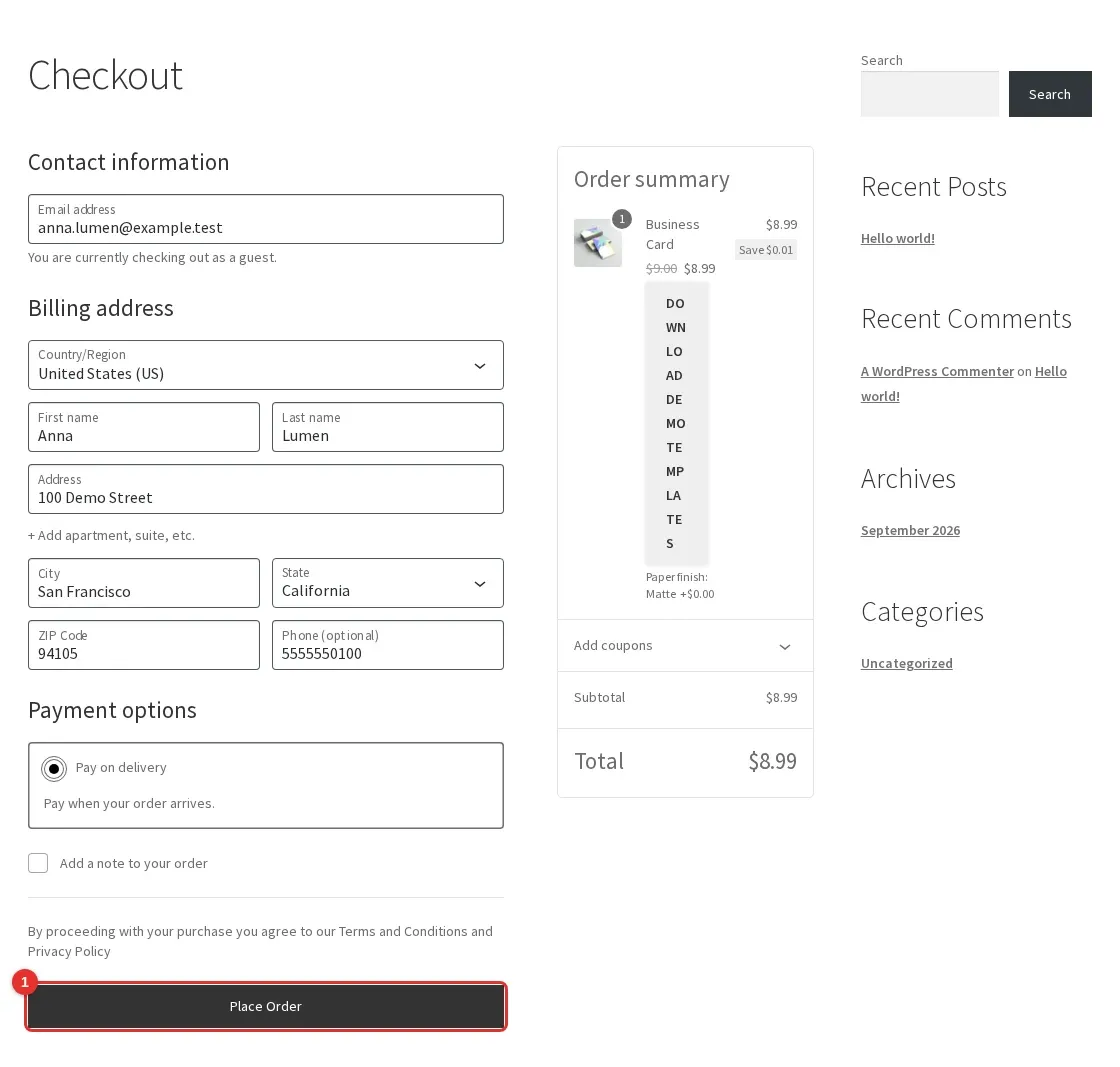
A shopper designs the product, adds it to the cart and checks out. At checkout they choose a payment method and click Place Order.
Expected result: The order is created and WooCommerce shows the order received page.
Step 2Open the Orders list
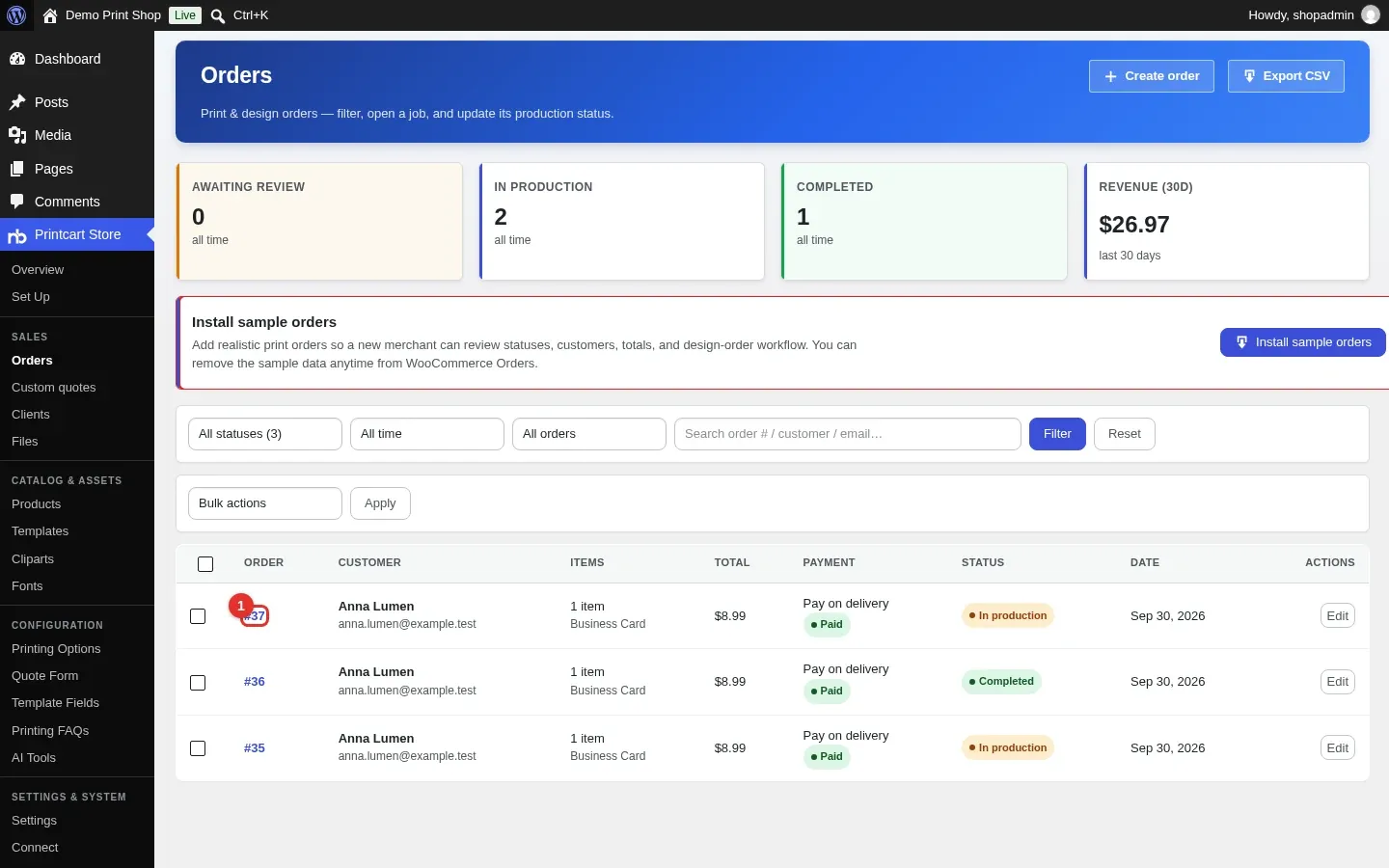
In your admin open Printcart Store > Orders. The top cards count orders that await review, are in production or are completed, and show revenue for the last 30 days. Find your order in the list and click its number.
Expected result: The new order is listed with its customer, items, total, payment and status.
Step 3Open the order
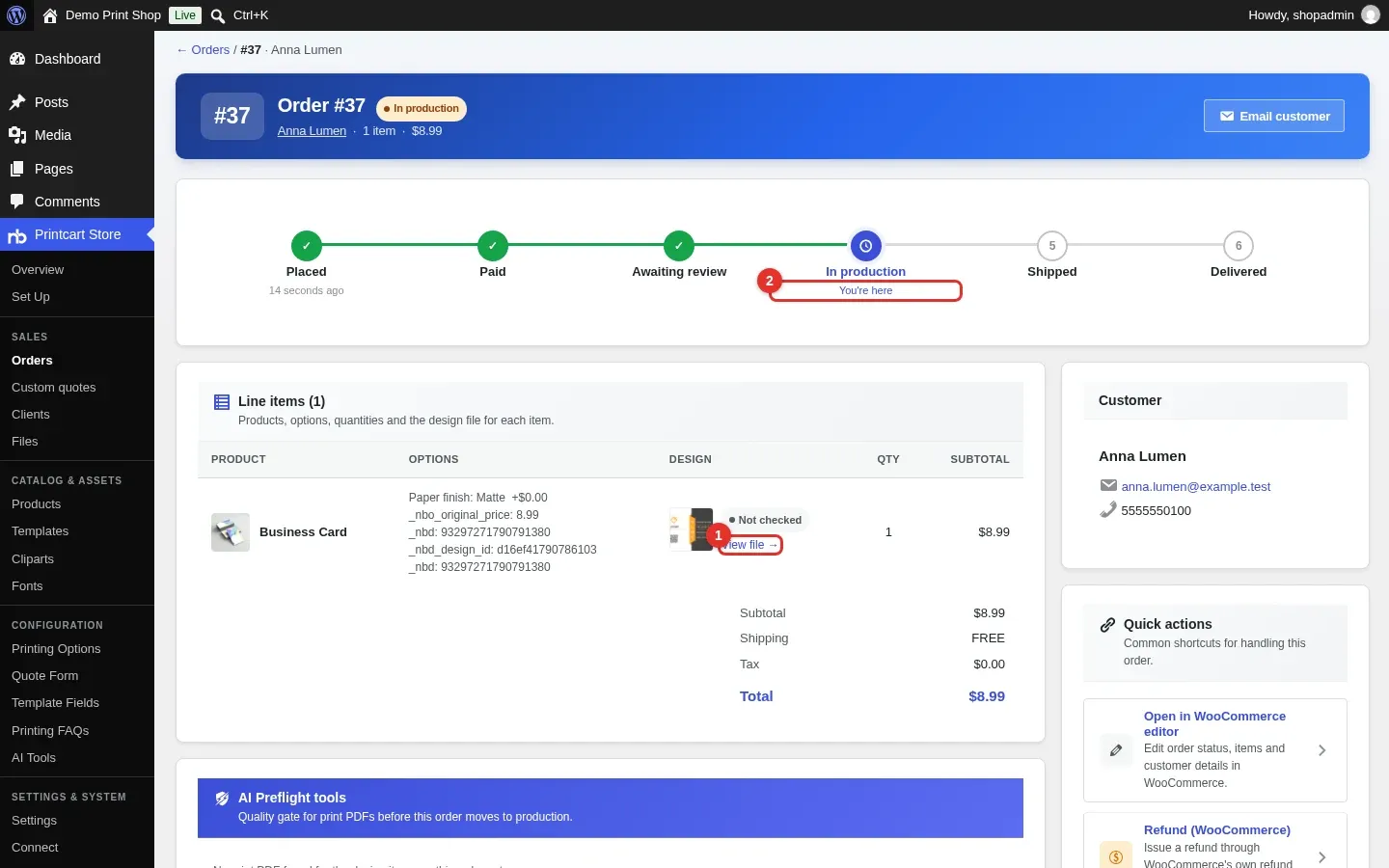
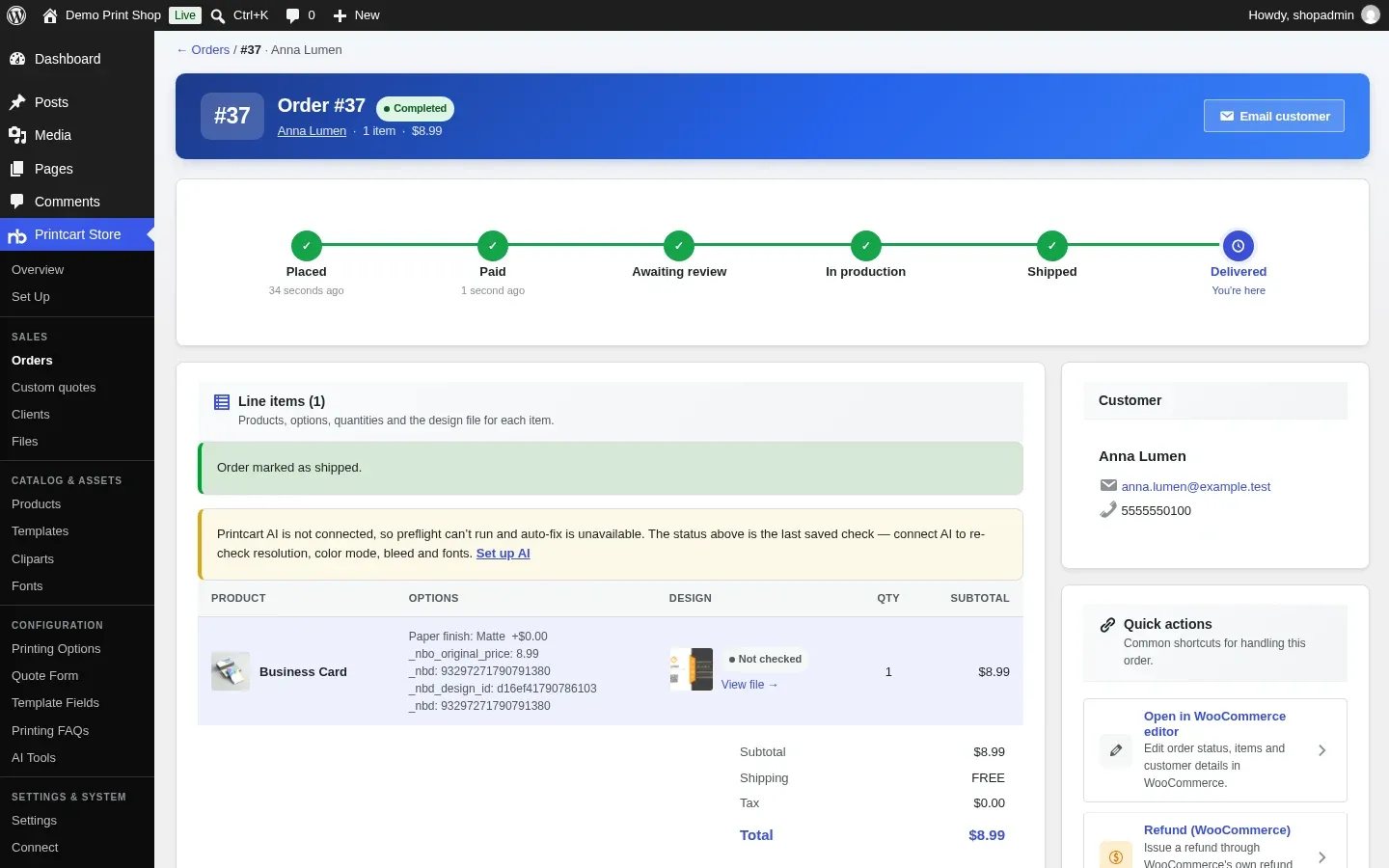
The order page shows a timeline (Placed, Paid, Awaiting review, In production, Shipped, Delivered), the line items with the options the shopper chose and a small preview of the design. Click View file next to the design.
Expected result: The design preview sits in the Design column, and the timeline shows where the order is now.
Step 4Review the design file
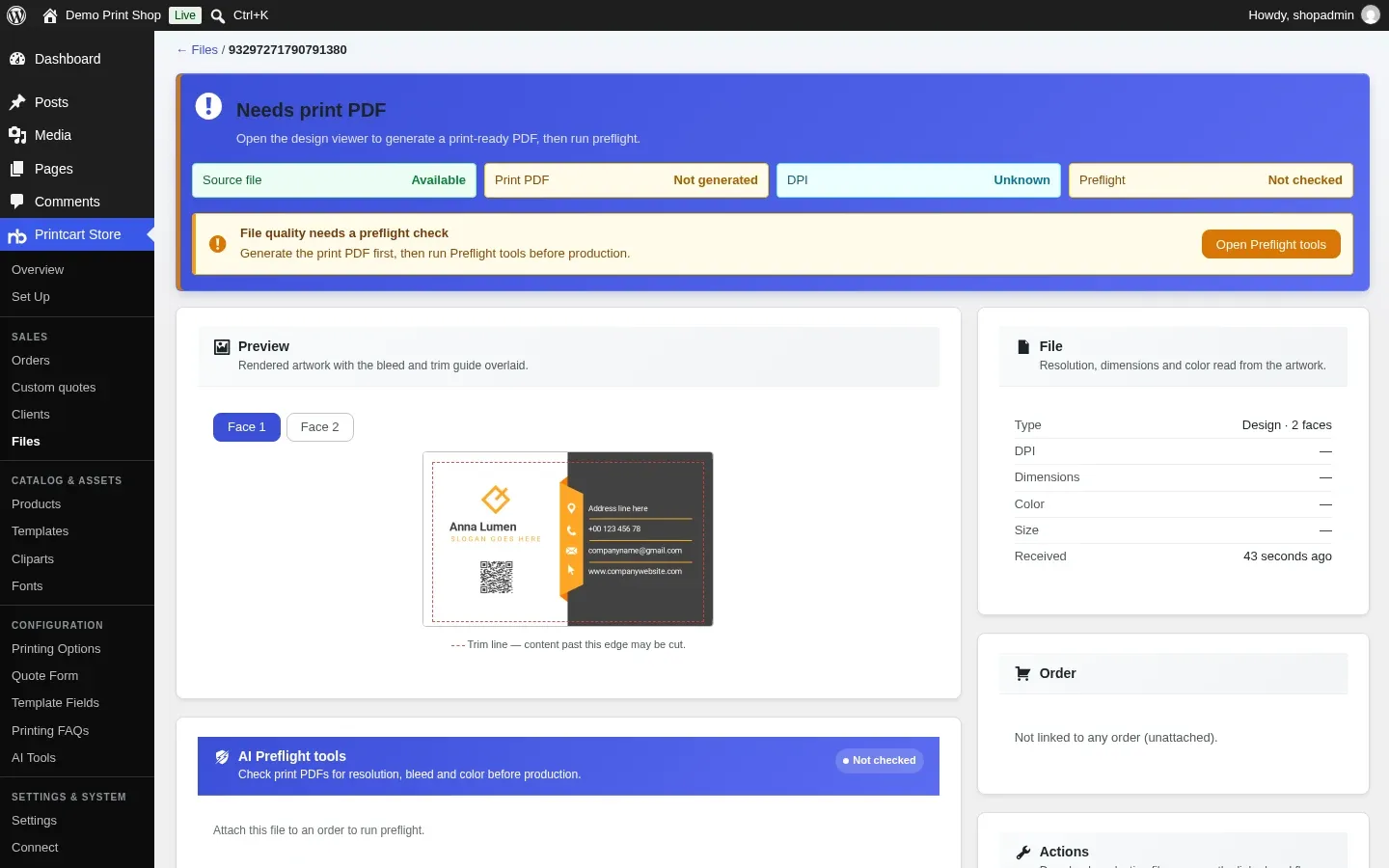
The file page shows the artwork with a trim line, face by face, plus its status: source file, print PDF, resolution and preflight. Download original gives you the design file. The print PDF and the preflight check need a connected Printcart store, so they read not generated and not checked here.
Expected result: You can see both faces of the design and download the original file.
Step 5Add tracking and mark the order as shipped
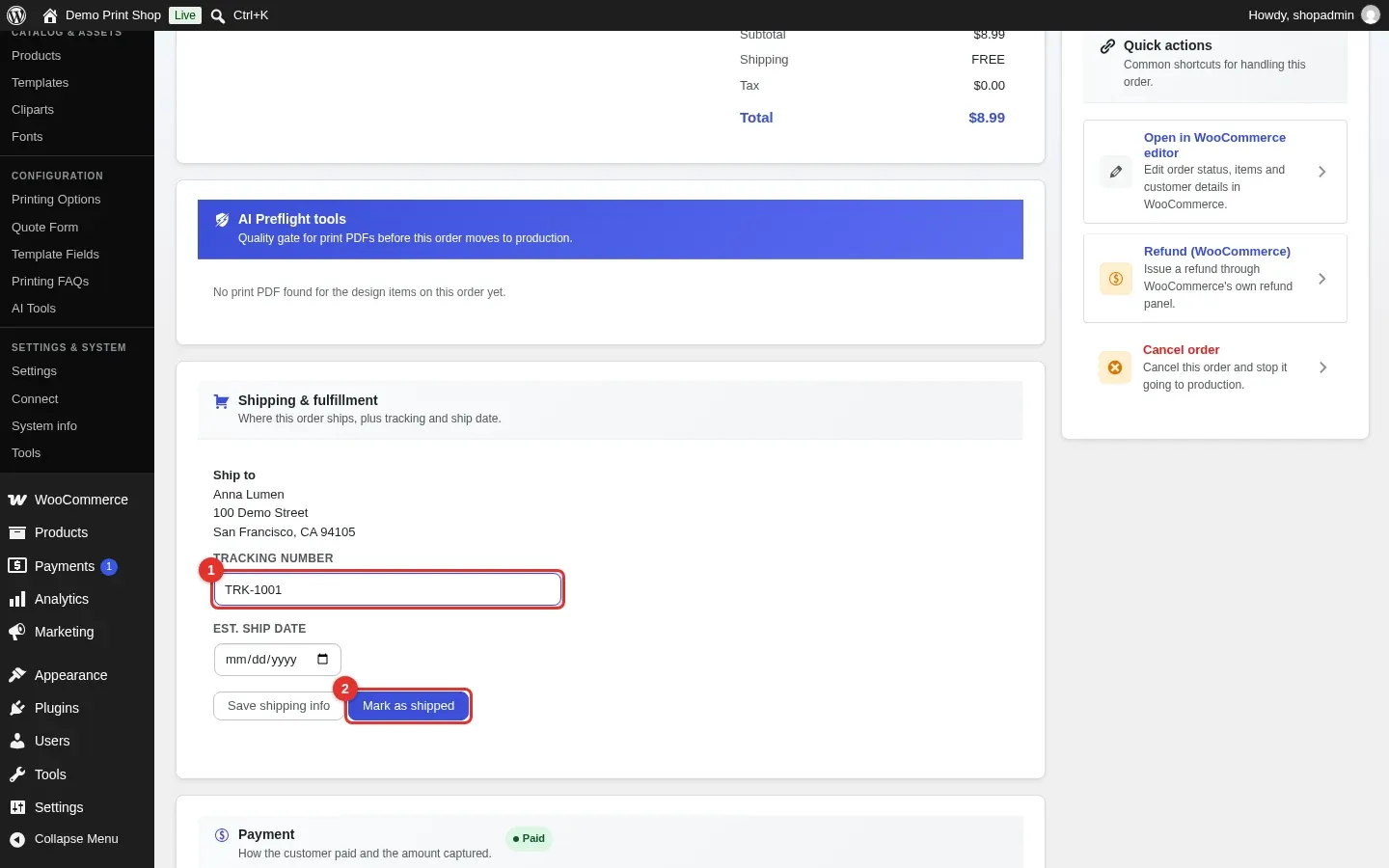
Go back to the order and scroll to Shipping & fulfillment. Type a Tracking number and click Mark as shipped.
Expected result: A green notice reads Order marked as shipped, the status becomes Completed and the timeline moves to Delivered.
Step 6Find every customer file in one place
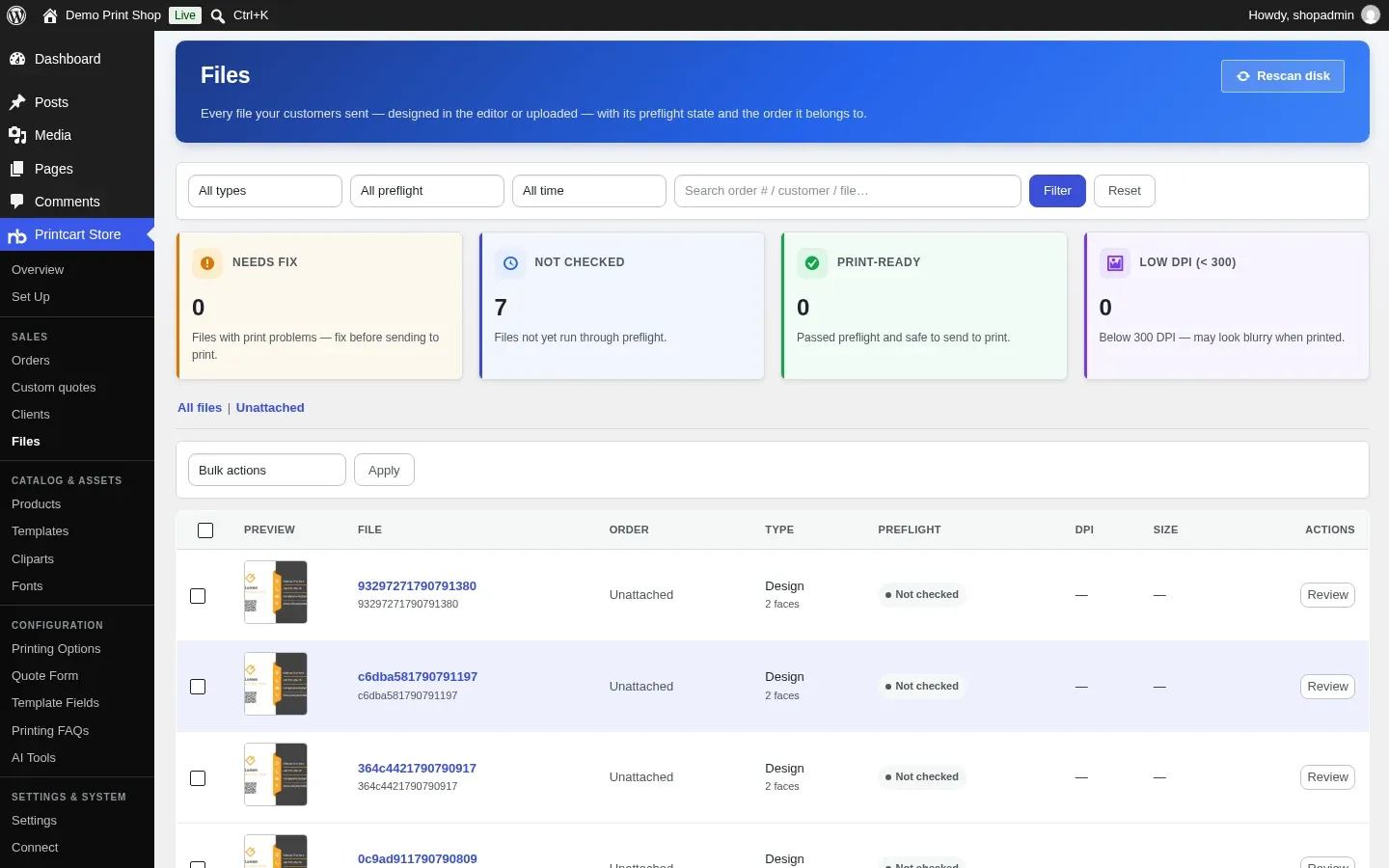
Open Printcart Store > Files. It lists every file your customers sent, designed in the editor or uploaded, with its preflight state. The cards at the top count files that need a fix, are not checked yet, are print-ready or have low resolution.
Expected result: Each design is listed with a preview, its type and its preflight state.
Which order statuses does the timeline use?
The timeline shows Placed, Paid, Awaiting review, In production, Shipped and Delivered. In our test a paid Pay on delivery order started in production, and marking it shipped moved it to Completed. The order list also has bulk actions to mark orders In production, Awaiting review, Completed or Cancelled.
Do orders also appear in the Printcart Dashboard?
Order sync to the Printcart Dashboard is part of connecting your store to Printcart. When a store is connected, paid orders and their print files are sent to the Dashboard for production, and you can turn it off in the Printcart account screen of the plugin. The steps in this guide work without a connection.
How do I get a print-ready PDF for an order?
Print-ready PDF generation runs in the Printcart cloud, so connect your store first. The file page explains the next step: open the design viewer to generate the print-ready PDF, then run the preflight tools before production.
What should you do next?
- Let customers upload their own artwork
- Add printing options and quantity discounts
- AI print file preflight: catch problems before production
- Browse all Printcart tutorials
Stuck on a step? Message the Printcart team on WhatsApp and include a screenshot of the screen you are on.
Printcart field note
What to verify before you roll out Manage Print Orders in WooCommerce: Review Designs, Track Status and Ship
This tutorial is written from Printcart implementation patterns across order operations, approval routing, and fulfillment handoff. Before treating it as complete, test the workflow with one real product, one real design file, and one real order path.
Manage Print Orders in WooCommerce: Review Designs, Track Status and Ship — common questions
What do you need before you start?
The screenshots come from a fresh test store with the Storefront theme and Printcart Store 2.11.0. The customer in the examples is made up. Print-ready PDF generation and the AI preflight check run in the Printcart cloud, so this test store, which is not connected, shows their status as not checked.
Which order statuses does the timeline use?
The timeline shows Placed, Paid, Awaiting review, In production, Shipped and Delivered. In our test a paid Pay on delivery order started in production, and marking it shipped moved it to Completed. The order list also has bulk actions to mark orders In production, Awaiting review, Completed or Cancelled.
Do orders also appear in the Printcart Dashboard?
Order sync to the Printcart Dashboard is part of connecting your store to Printcart. When a store is connected, paid orders and their print files are sent to the Dashboard for production, and you can turn it off in the Printcart account screen of the plugin. The steps in this guide work without a connection.
How do I get a print-ready PDF for an order?
Print-ready PDF generation runs in the Printcart cloud, so connect your store first. The file page explains the next step: open the design viewer to generate the print-ready PDF, then run the preflight tools before production.
Next steps in Printcart
Connect manage print orders in woocommerce: review designs, track status and ship with catalog setup, templates, production workflows, and implementation support.
Want to put manage print orders in woocommerce: review designs, track status and ship into practice?
Use the related Printcart tool below, or create a free account to start building with the product designer.