
Fix low-resolution artwork for print.
Artwork Upscaler checks whether an image has enough pixels for your product's print size, using the same rules as Check Print Files, and recommends a 2× or 4× upscale when it does not. The check is free and runs in your browser. The full-size upscale runs in your Printcart dashboard and uses tokens.
Check your artwork against the product and print size for free, then upscale it 2× or 4× while your original file stays unchanged.
Updated
Artwork Upscaler
Ready to analyze- 1Check
- 2Fix
- 3Recheck
- 4Design
- 5Product
- 6Sell
Upload your artwork
We compare its pixels with the print size and resolution of the product you select. Nothing is uploaded for this check.
PNG or JPG · up to 10 MBNo artwork handy?
- Your original file stays unchanged
- The resolution check is free
- Same rules as Check Print Files
How it works
From low resolution to print ready
Check, fix, then check again before you design and sell.
- 01
Match the print target
We compare your image's pixels with the product's print size and required resolution.
- 02
Choose the right mode
Graphics for logos, text and illustrations. Photo (AI) for photographs, where offered.
- 03
Add the pixels you need
The tool picks the smallest upscale, 2× or 4×, that reaches the target.
- 04
Confirm print quality
Check the upscaled file in Check Print Files before design and production.
One artwork.
More possibilities with Printcart.
Continue with Check Print Files, Background Removal and Product Catalog. These links do not transfer your file.
What this tool does
Artwork Upscaler is for artwork that is too small for the product it will be printed on: an old logo, a customer upload, a file from an earlier project. It compares the image with the print size and resolution of the product you choose, tells you whether it is Good, a Warning or a Must fix, and picks the upscale that reaches the target.
What to expect
Upscaling adds pixels; it cannot bring back detail that was never in the file. Graphics mode resamples without redrawing, so text and logos keep their shapes but cannot become sharper than the source. Photo (AI) mode, where offered, reconstructs detail in photographs and can change small text and logos. Review every result at 100%, and run Check Print Files for bleed, safe area, color and fonts: this tool fixes resolution only.
Example upscale check
Public preview
How the Artwork Upscaler reports a low-resolution file and what it recommends, without claiming a print-ready result.
Check
A 1200 × 1400 px logo on a 15 × 18 in T-shirt front prints at about 78 PPI: Must fix.
Fix
The recommendation is 4×: 4800 × 5600 px, about 311 PPI at that size.
Next step
Upscale the full-size file in your dashboard, review it at 100%, then run Check Print Files.
This is a static public sample, not an AI production result. Full runs, saved results, batch export, and API usage require a Printcart account and available tokens.
Register to save, export full-res, and batch
The resolution check and a daily preview are free without an account. Create a Printcart account to upscale the full-size file, confirm its price first and keep working in your dashboard.
Learn this tool with real screenshots
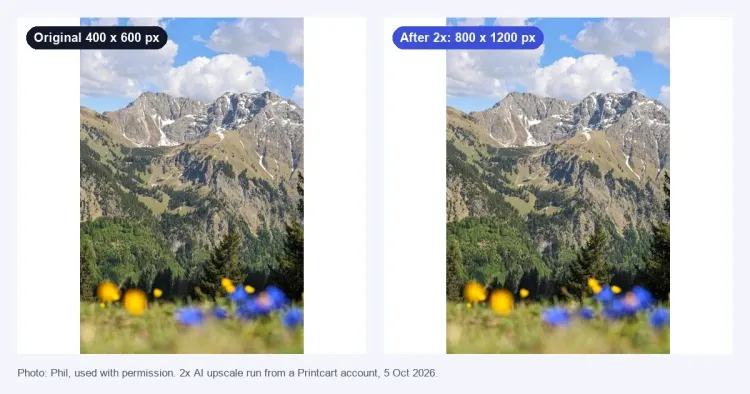
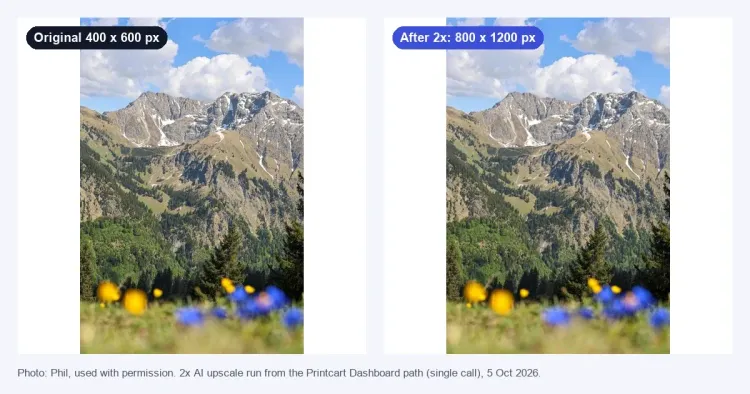
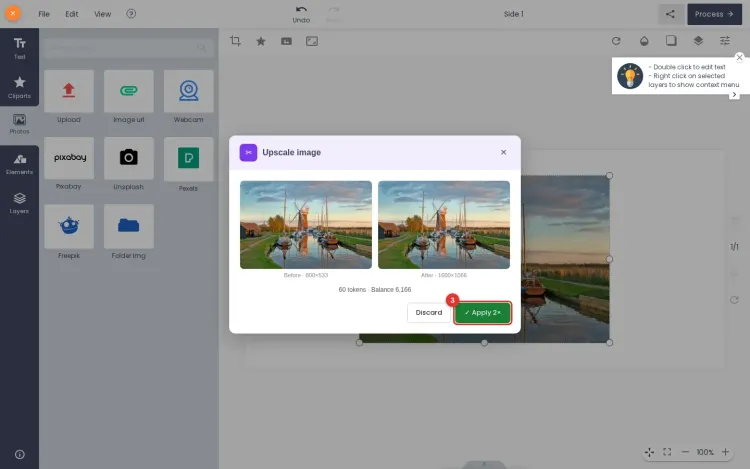
Get artwork ready for print
Frequently asked questions
Resolution, upscale modes and tokens explained.
Is the resolution check free?
Yes. Choosing a product, uploading your artwork and seeing whether it is Good, a Warning or a Must fix is free, needs no account and runs in your browser. A watermarked preview of the upscale is also free a few times a day.
How does the tool decide how much to upscale?
It divides your image size by the product print size to get its resolution, compares that with the product requirement, and recommends the smallest of 2× or 4× that reaches it. If even 4× falls short, it says so instead of promising a print-ready file.
Are the results the same as Check Print Files?
Yes. Both tools use the same products and the same rule: Good at the required resolution, Warning from 80% of it, Must fix below that. Fixing the resolution here clears the resolution issue there.
What is the difference between Graphics and Photo (AI)?
Graphics resamples the image without redrawing it, which suits logos, text and illustrations. Photo (AI) uses a super-resolution model that adds detail to photographs; it can change small text and logos, so it is not for those. Photo (AI) appears in the tool where it is offered.
When are tokens used?
Only for the full-size upscale in your dashboard. You see the price and confirm it before the job starts, and a job that fails is not charged. The check and the free preview never use tokens.
Do I need an account?
Not for the check or the free preview. A free Printcart account is needed for the full-size upscale; your file and settings carry over when you sign up.
Is my original file changed or stored?
No. The check reads your image in your browser and uploads nothing. For the free preview, a copy is sent only after you agree and is deleted within an hour. The full-size upscale creates a new file and leaves your original as it was.
Which files work best?
PNG or JPG up to 10 MB. Clean source files upscale best; heavy compression, blur or very small images have real limits. Review the result at 100% and check it again before printing.
You might also need
New to these tools? Read the photo commerce tools tutorial
Bring artwork upscaling to your storefront.
Help customers fix low-resolution uploads before their orders reach production.