In WooCommerce with Printcart Store, a signed-in customer can upscale a small photo inside the product designer: select the photo, click the Upscale image (AI) icon in the image toolbar, choose 2× or 4×, click Upscale , compare before and after, and apply the result. The designer also suggests it when it sees a low-resolution photo. In our test, a 800 × 533...
Key takeaways
Plugin version. These steps need Printcart Store 2.13.2 or newer. We tested them on version 2.13.2. Update the plugin under Plugins > Installed Plugins if you have an older version.
What you need before you start
- WooCommerce with Printcart Store 2.13.2 or newer, connected to your Printcart account (version 2.13.2 or newer; tested on 6 October 2026).
- A customizable product with Enable Design ticked. See Create a customizable product with the online designer.
- Tokens in your Printcart wallet. Plans and top-ups are on the plans page.
- A customer who is signed in. Visitors who are not signed in do not get the suggestion and see "Please sign in to use AI tools." if they click the icon.
Want to see what upscaling does first? Open printcart.com/tools/image-upscale.
Upscale a photo in the designer
Step 1Check that the tool is on
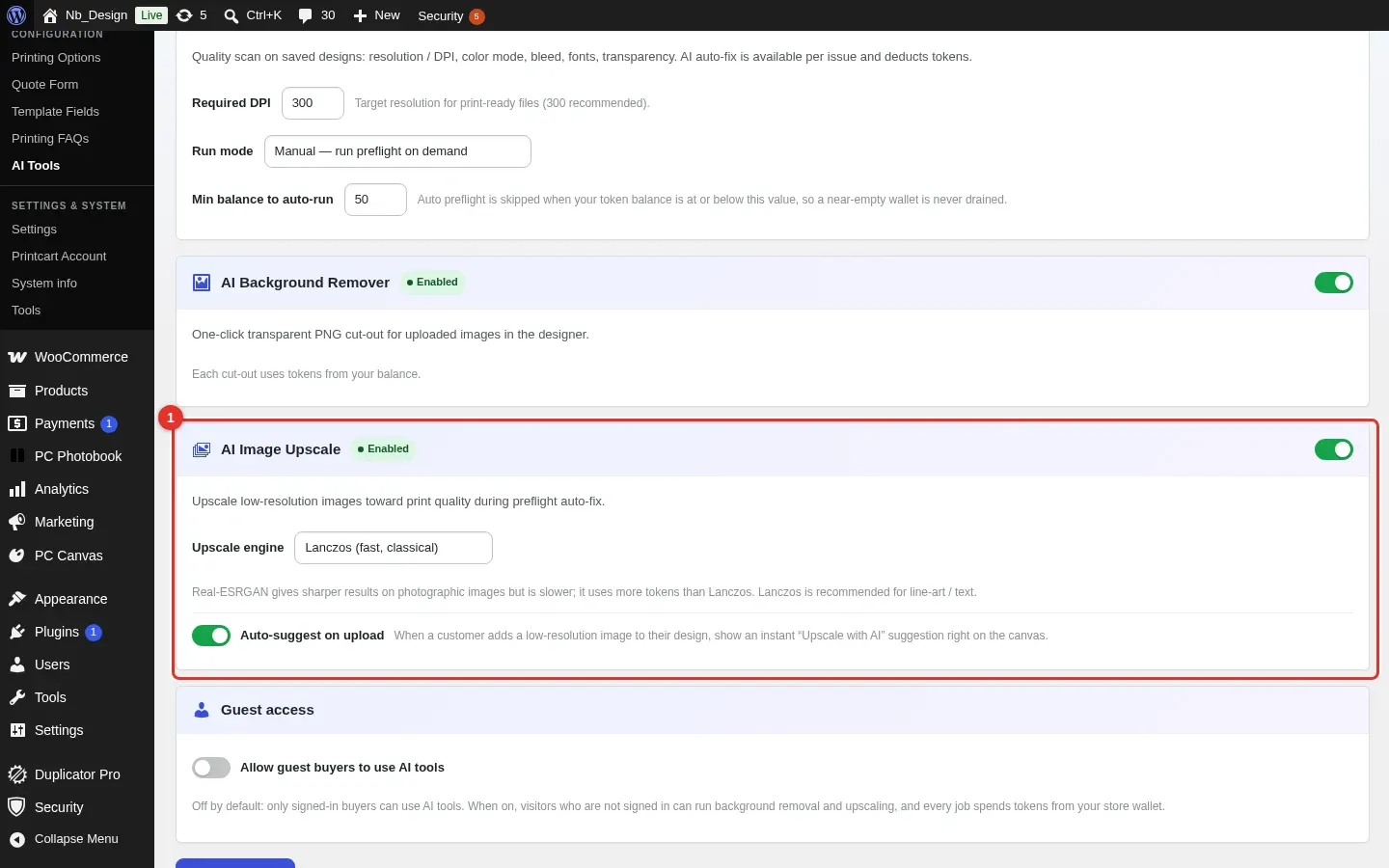
Go to Printcart Store > AI Tools. The AI Image Upscale card (1) should say Enabled. The card also has an "Auto-suggest on upload" option, which is what shows the suggestion in Step 3.
Expected result: the card shows Enabled, the upscale engine and the auto-suggest option.
Step 2Open the product designer
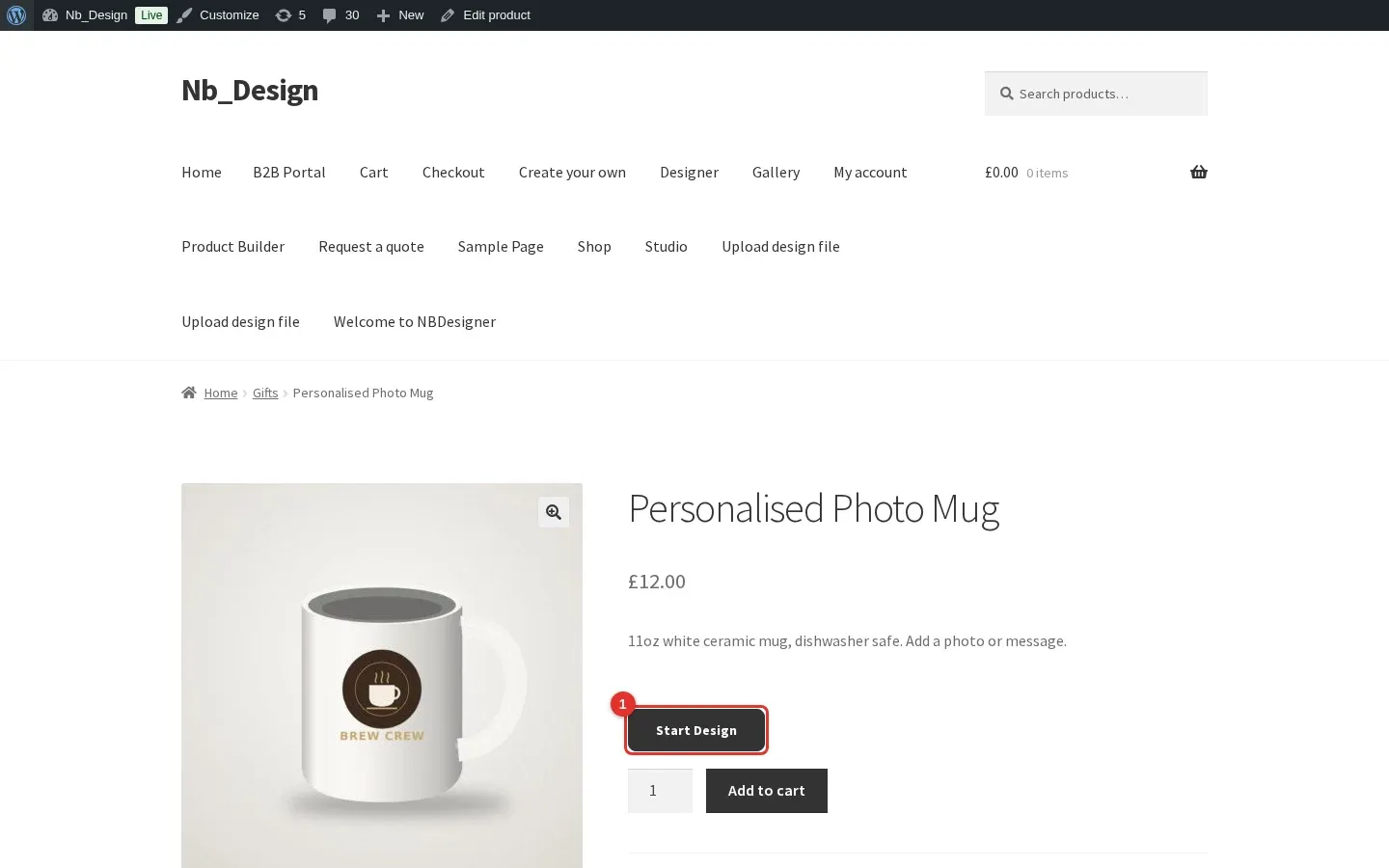
Open the product page and click Start Design (1).
Expected result: the designer opens in full screen.
Step 3Upload a small photo
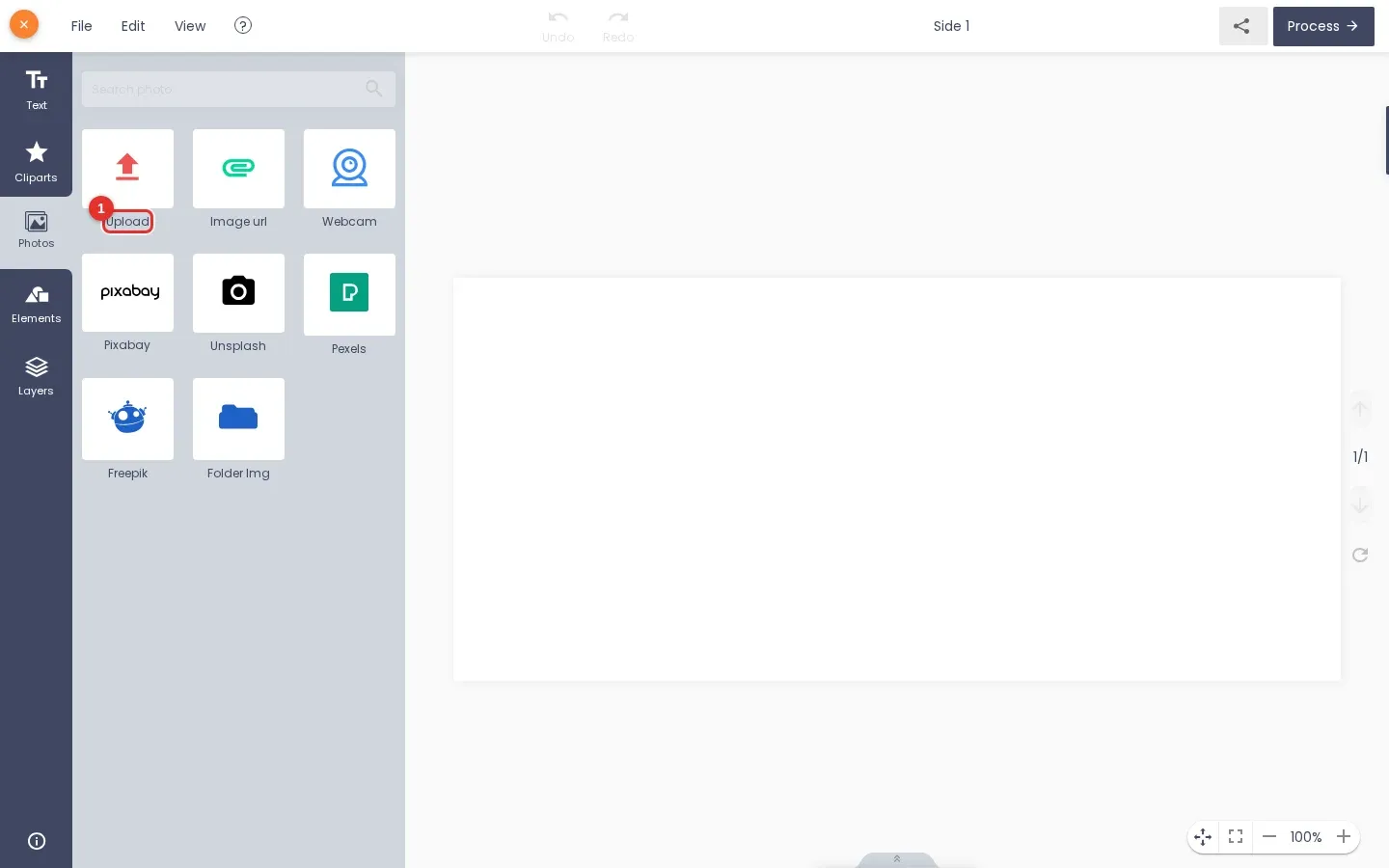
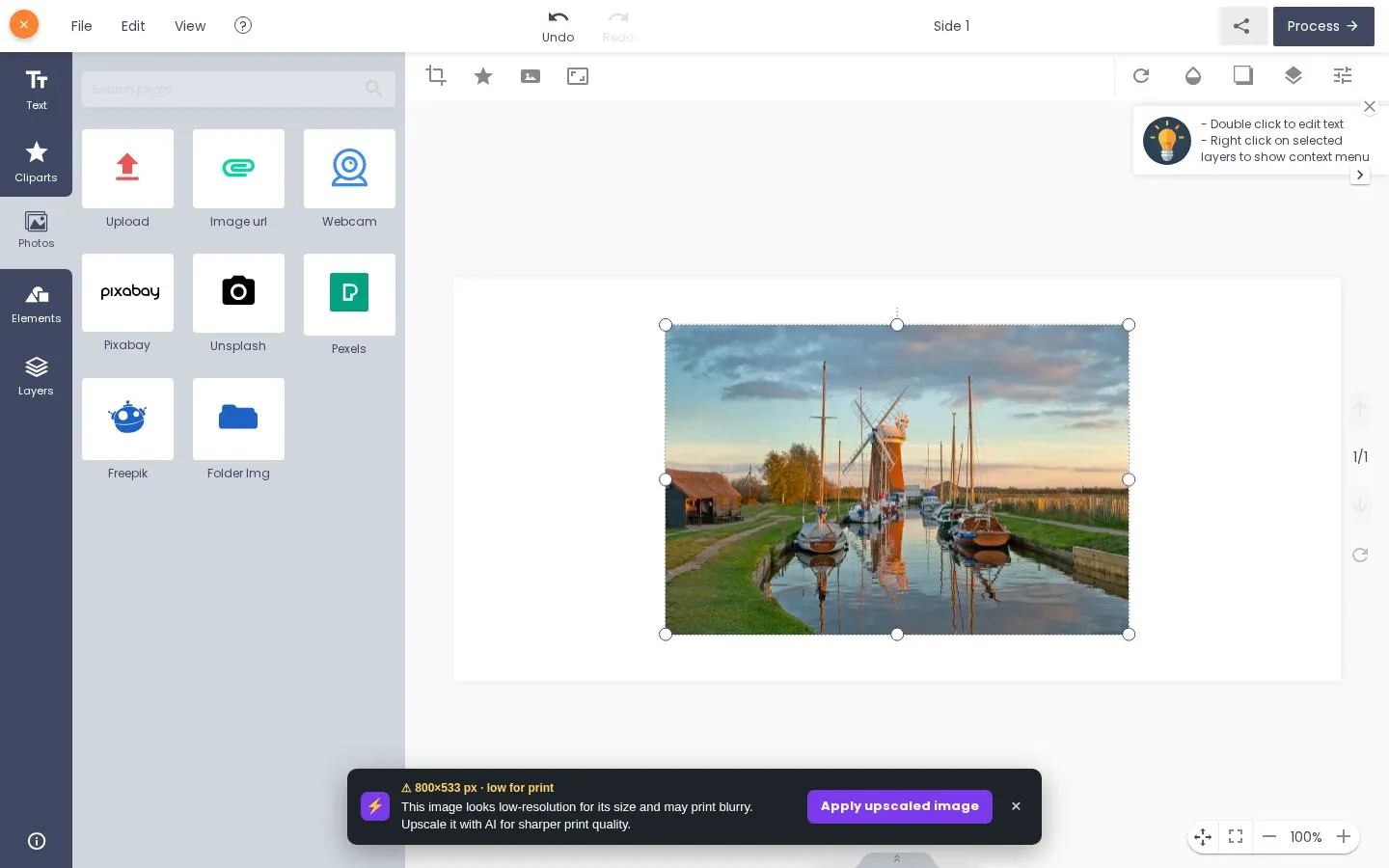
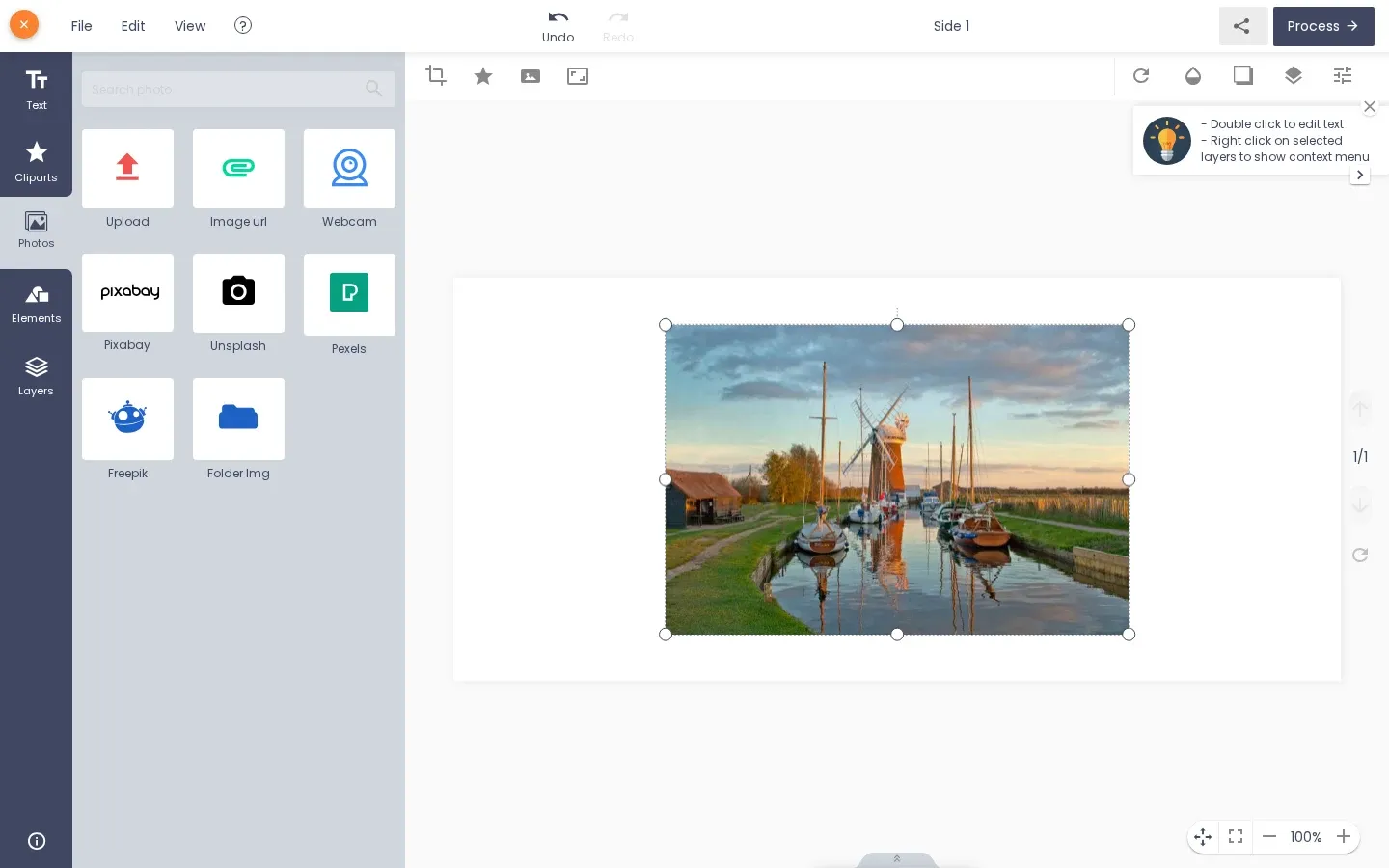
Open the Photos tab and click Upload (1). We used an 800 × 533 px landscape photo.
Expected result: the photo appears on the canvas. A dark message at the bottom says the photo is low-resolution for its size and offers "Apply upscaled image".
Step 4Click Upscale image (AI)
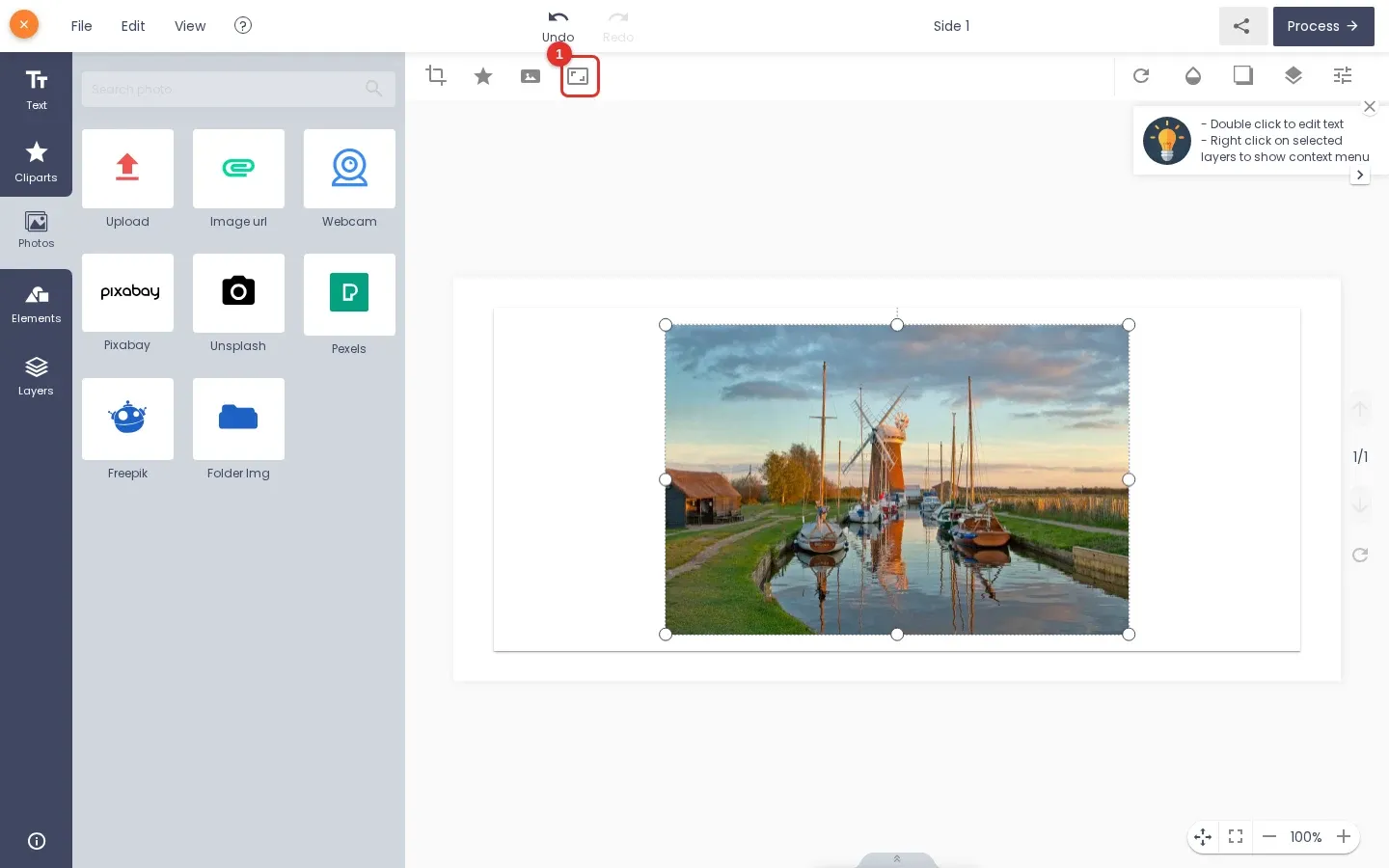
You can click Apply upscaled image in the message, or select the photo and click the Upscale image (AI) icon (1) in the image toolbar, the second AI icon.
Expected result: the "Upscale image" window opens.
Step 5Choose 2× or 4× and run
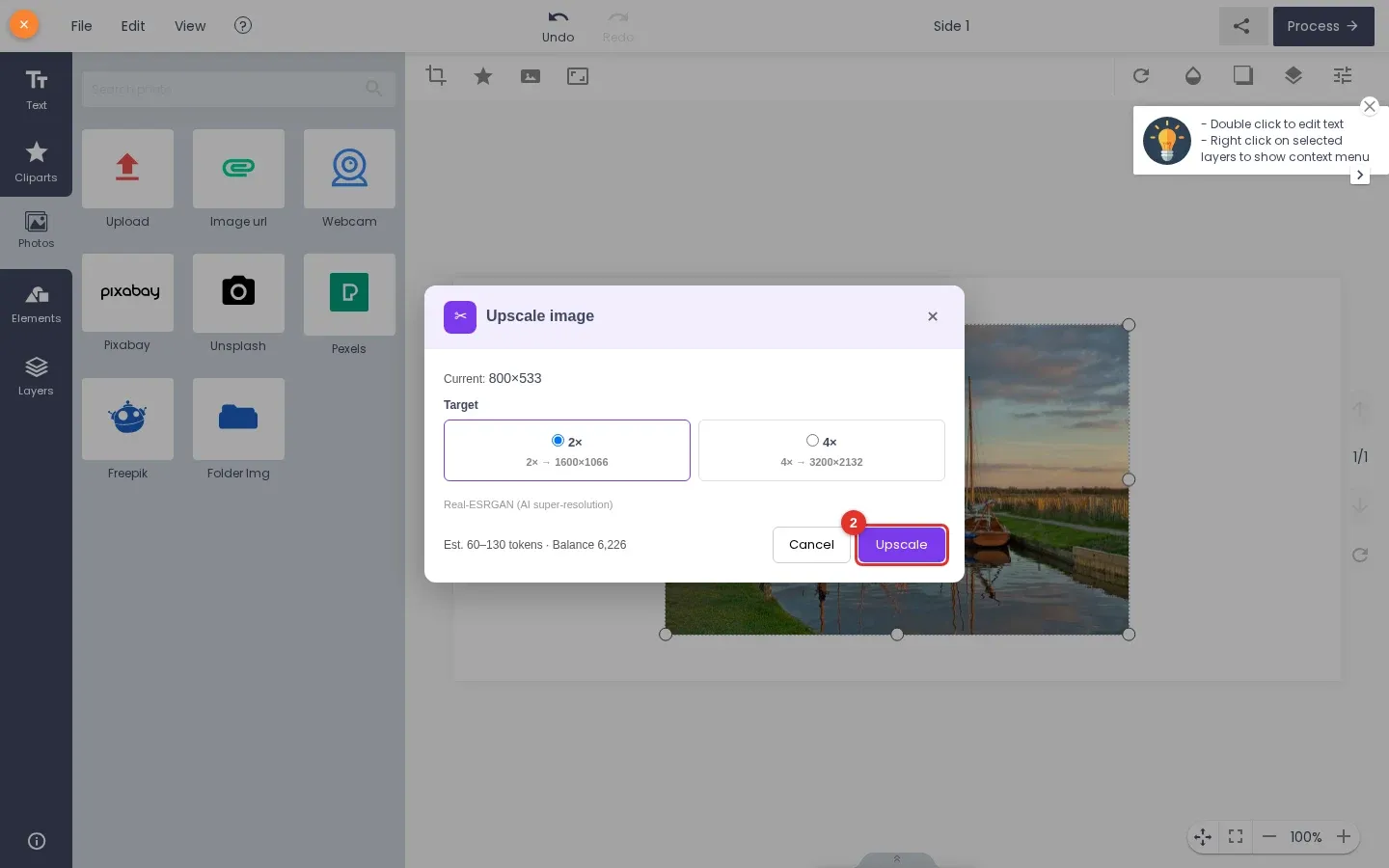
The window shows the current size, the choice of 2× or 4× with the resulting size, and an estimate of 60 to 130 tokens. Choose a scale and click Upscale (2).
Expected result: the job starts and takes a few seconds.
Step 6Compare and apply
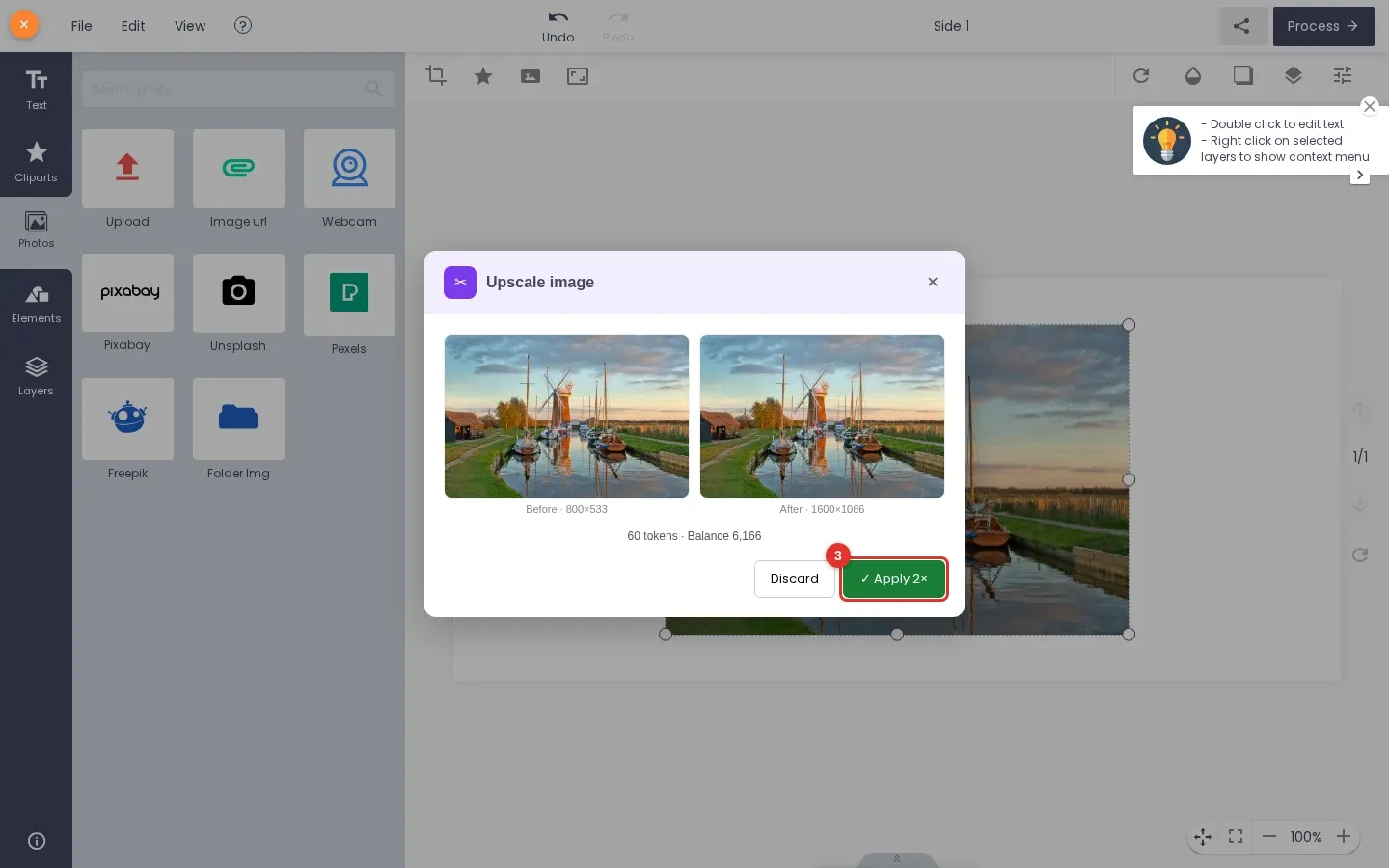
The window shows the photo before (800 × 533) and after (1600 × 1066) and what the job cost. In our run it was 60 tokens. Click Apply 2× (3) to use the larger photo, or Discard to keep the original.
Expected result: two photos side by side with their sizes. Upscaling makes the photo larger and smoother. It does not add detail that was never in the photo.
Step 7See it in the design
The larger photo replaces the original on the canvas. Click Process to return to the product page and add the product to the cart.
Expected result: the photo sits in the design area at the same size, now with more pixels for printing.
Who can use it, and who pays
Each job uses tokens from your Printcart wallet. Signed-in customers can use the tool. Visitors who are not signed in see "Please sign in to use AI tools." and nothing is charged. AI Tools also has a Guest access card, off by default, that lets signed-out visitors use the AI tools; with it on, every job spends your tokens.
Troubleshooting
- No suggestion appears after the upload. The photo may already be large enough for the print area, the visitor may not be signed in, or Auto-suggest is off. You can still click the Upscale icon on a selected photo.
- "Please sign in to use AI tools." The visitor is not signed in and Guest access is off.
- The icon is missing from the toolbar. Select the photo first, and check that your store is connected and the tool is enabled under AI Tools. The icons need a plugin build that includes them.
How many tokens does an upscale cost?
The window shows an estimate before you run (60 to 130 tokens in our test) and the final amount after. A 2× upscale of our small photo cost 60 tokens.
Can I upscale without WordPress?
Yes. The image upscale tool works on printcart.com, and the Dashboard guide Upscale a photo for printing shows the full-resolution steps.
Next steps
- Remove a background in the same designer: AI background removal in WooCommerce.
- Check customer files on an order: AI Preflight for WooCommerce orders.
- Need tokens? Choose a plan, or create an account to start.
Printcart field note
What to verify before you roll out Upscale a Customer Photo Inside the Printcart WooCommerce Designer
This tutorial is written from Printcart implementation patterns across catalog structure, design controls, and customer personalization. Before treating it as complete, test the workflow with one real product, one real design file, and one real order path.
Upscale a Customer Photo Inside the Printcart WooCommerce Designer — common questions
How many tokens does an upscale cost?
The window shows an estimate before you run (60 to 130 tokens in our test) and the final amount after. A 2× upscale of our small photo cost 60 tokens.
Can I upscale without WordPress?
Yes. The image upscale tool works on printcart.com, and the Dashboard guide Upscale a photo for printing shows the full-resolution steps.
Next steps in Printcart
Connect upscale a customer photo inside the printcart woocommerce designer with catalog setup, templates, production workflows, and implementation support.
Want to put upscale a customer photo inside the printcart woocommerce designer into practice?
Use the related Printcart tool below, or create a free account to start building with the product designer.