To find out how large you can print a photo, divide its pixel width and height by the pixels per inch your printer needs. Printcart's Image upscale page shows the target size for 2x or 4x for free, and the print file checker turns any file into an estimated DPI at your print size. Upscaling adds pixels and smooths edges. It cannot recover detail the...
Key takeaways
What you need before you start
- A PNG or JPG of up to 2 MP for the upscale page. No account is needed for the steps below.
- The print size you want, in inches, and the DPI your printer asks for.
Work out the largest print on printcart.com
Step 1Open Image upscale
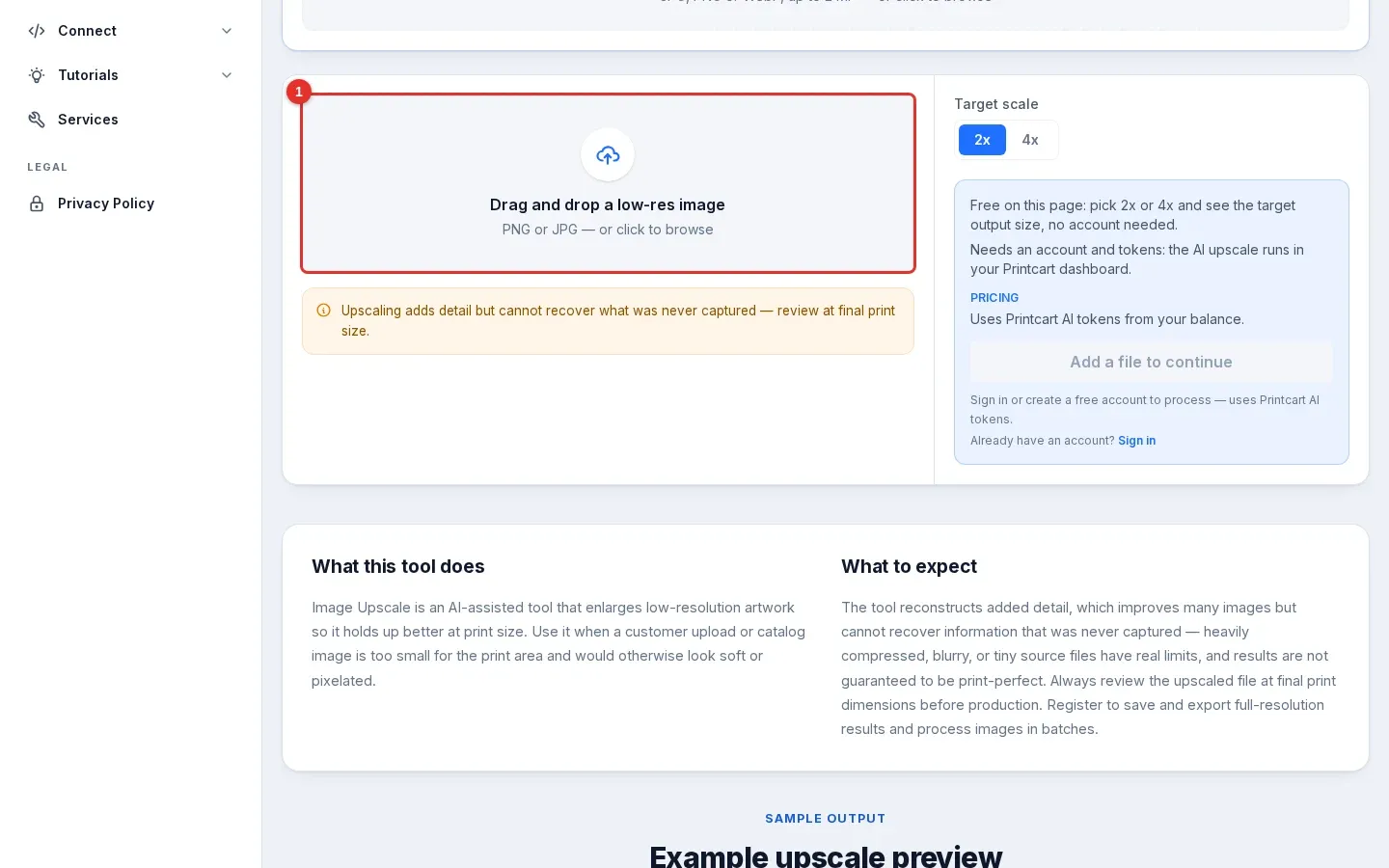
Go to Image upscale. The drop zone (1) says "Drag and drop a low-res image". Click it or drag your file onto it.
Expected result: the page is ready for a file and shows a 2x / 4x choice on the right.
Step 2Add your photo and read the 2x size
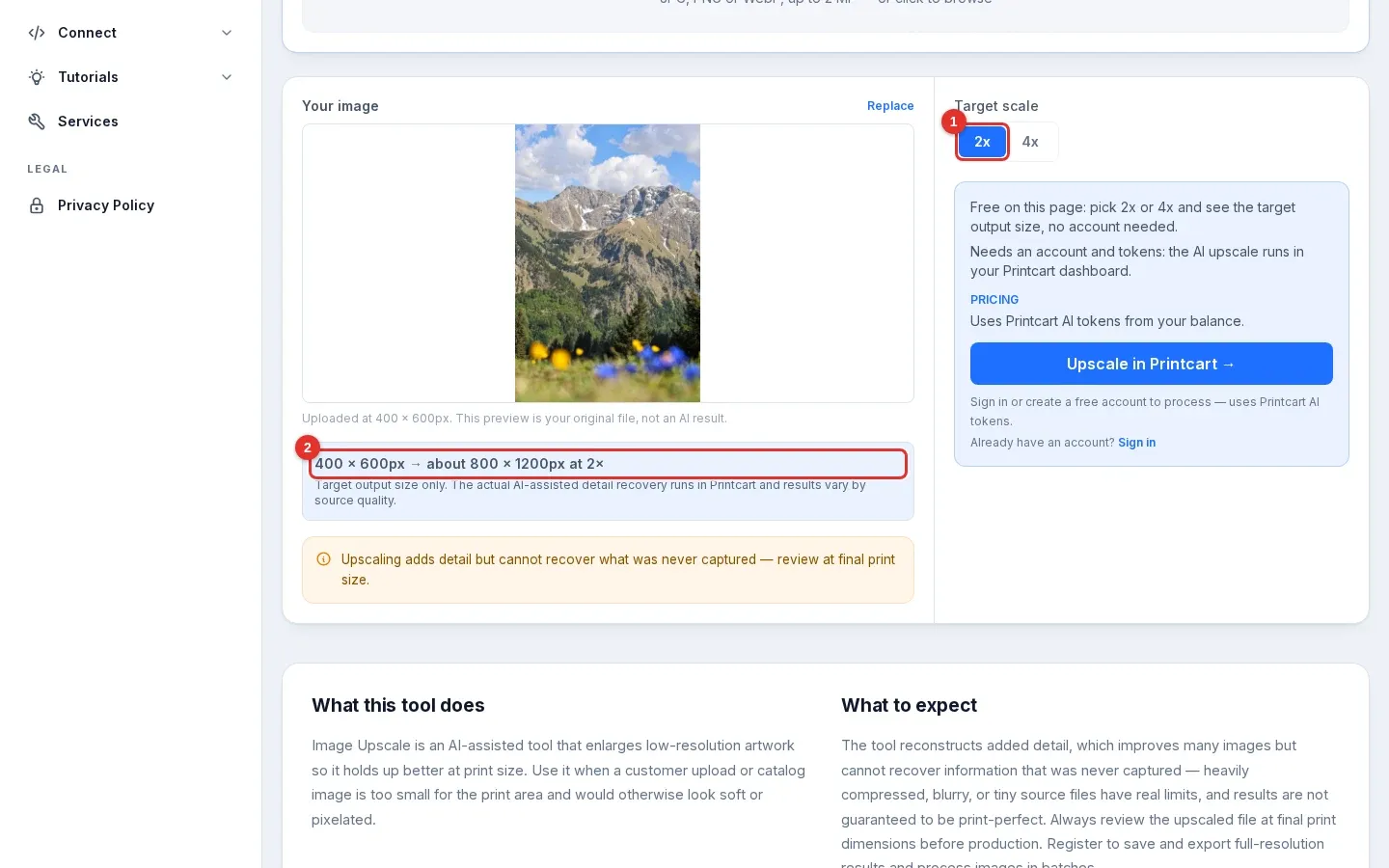
Add the photo. We used a 400 x 600 px mountain photo. Keep 2x selected (1) and read the line under the preview (2).
Expected result: "400 × 600px → about 800 × 1200px at 2×". The page notes that this is the target output size only.
Step 3Switch to 4x
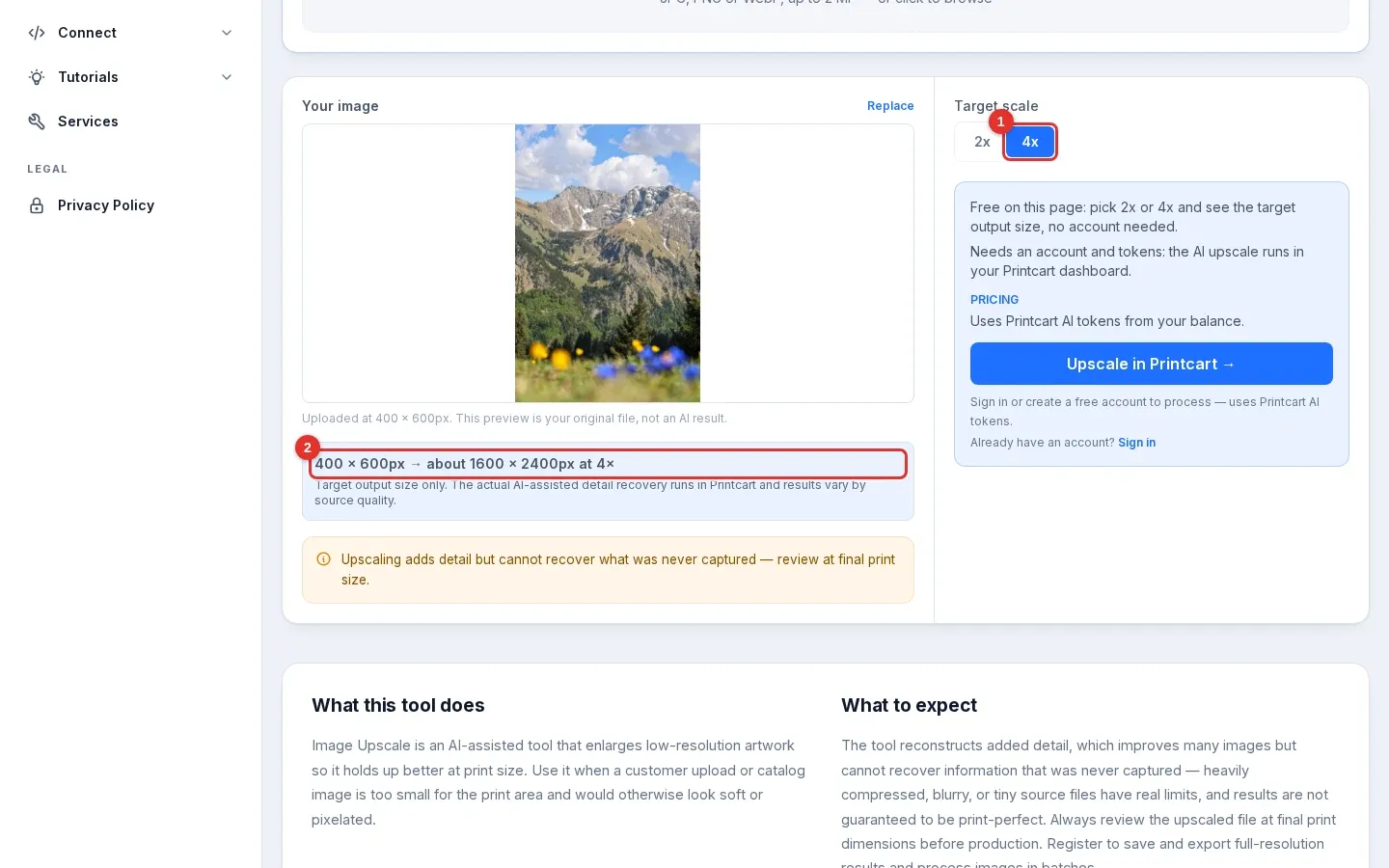
Click 4x (1).
Expected result: the line changes to "400 × 600px → about 1600 × 2400px at 4×" (2). A bigger target size is not the same as a better image: the larger the step, the more the tool has to invent.
Step 4Turn pixels into a print size
Pixels divided by DPI gives inches. For the 400 x 600 px photo, this is what each size can print:
- Original, 400 x 600 px: about 1.3 x 2 inches at 300 DPI, or 2.7 x 4 inches at 150 DPI.
- After 2x, 800 x 1200 px: about 2.7 x 4 inches at 300 DPI, or 5.3 x 8 inches at 150 DPI.
- After 4x, 1600 x 2400 px: about 5.3 x 8 inches at 300 DPI, or 10.7 x 16 inches at 150 DPI.
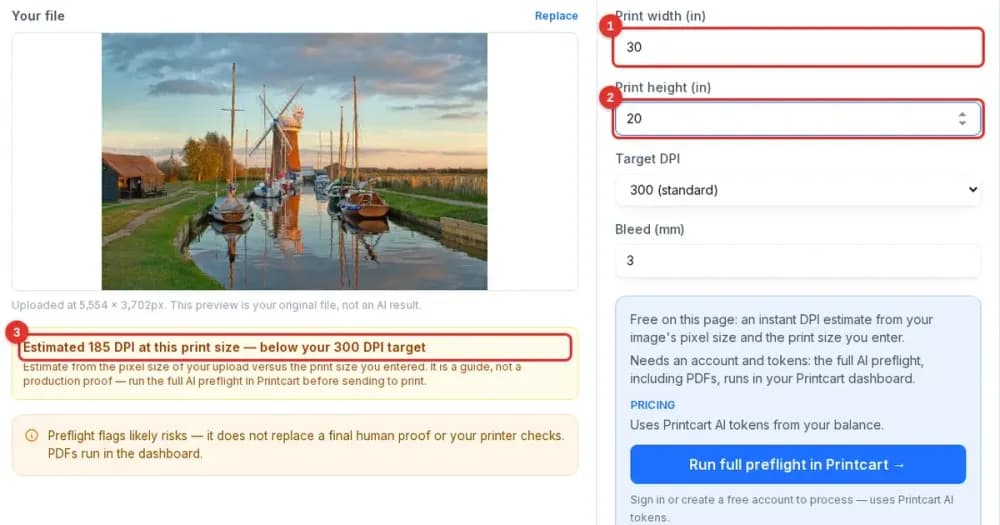
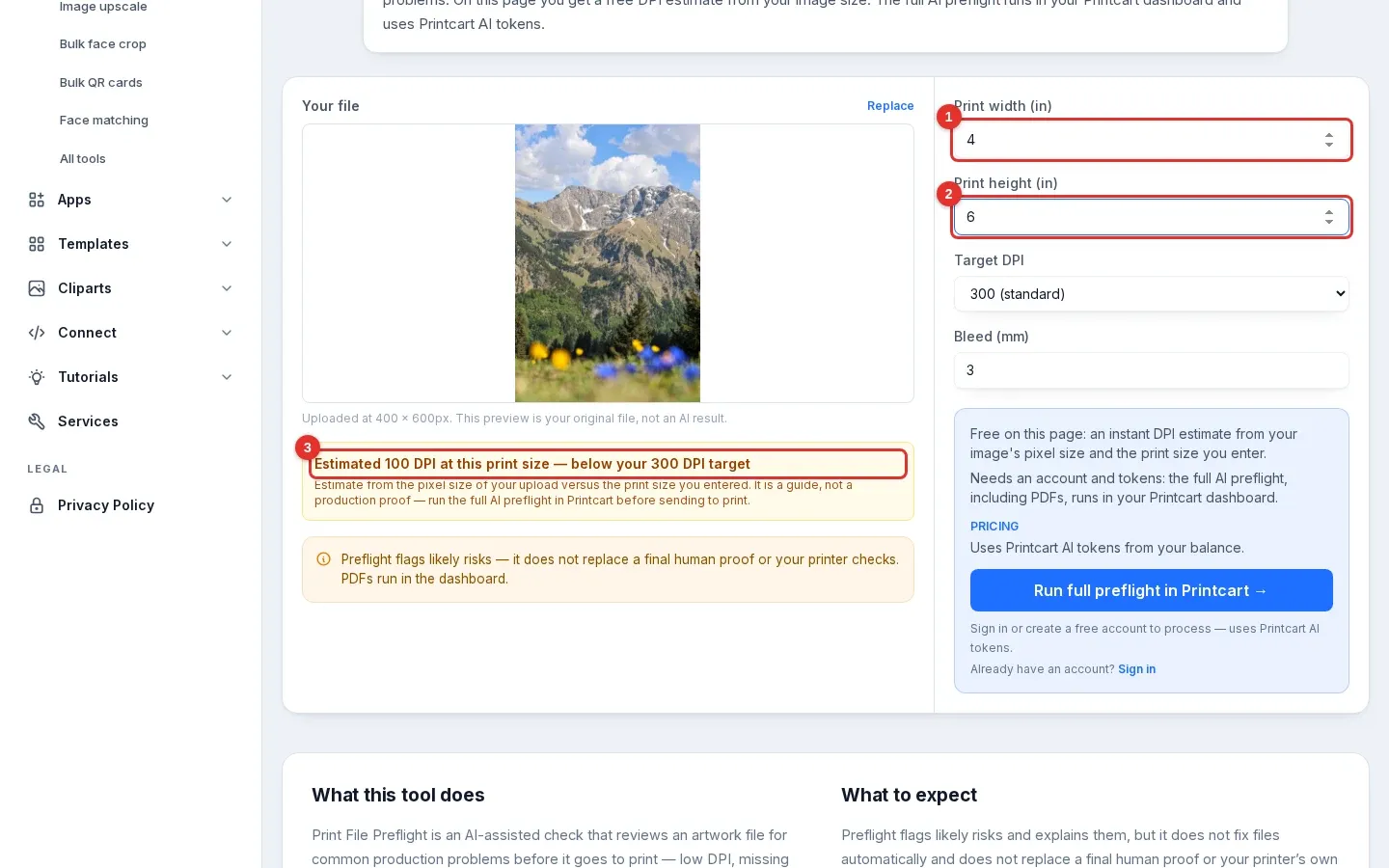
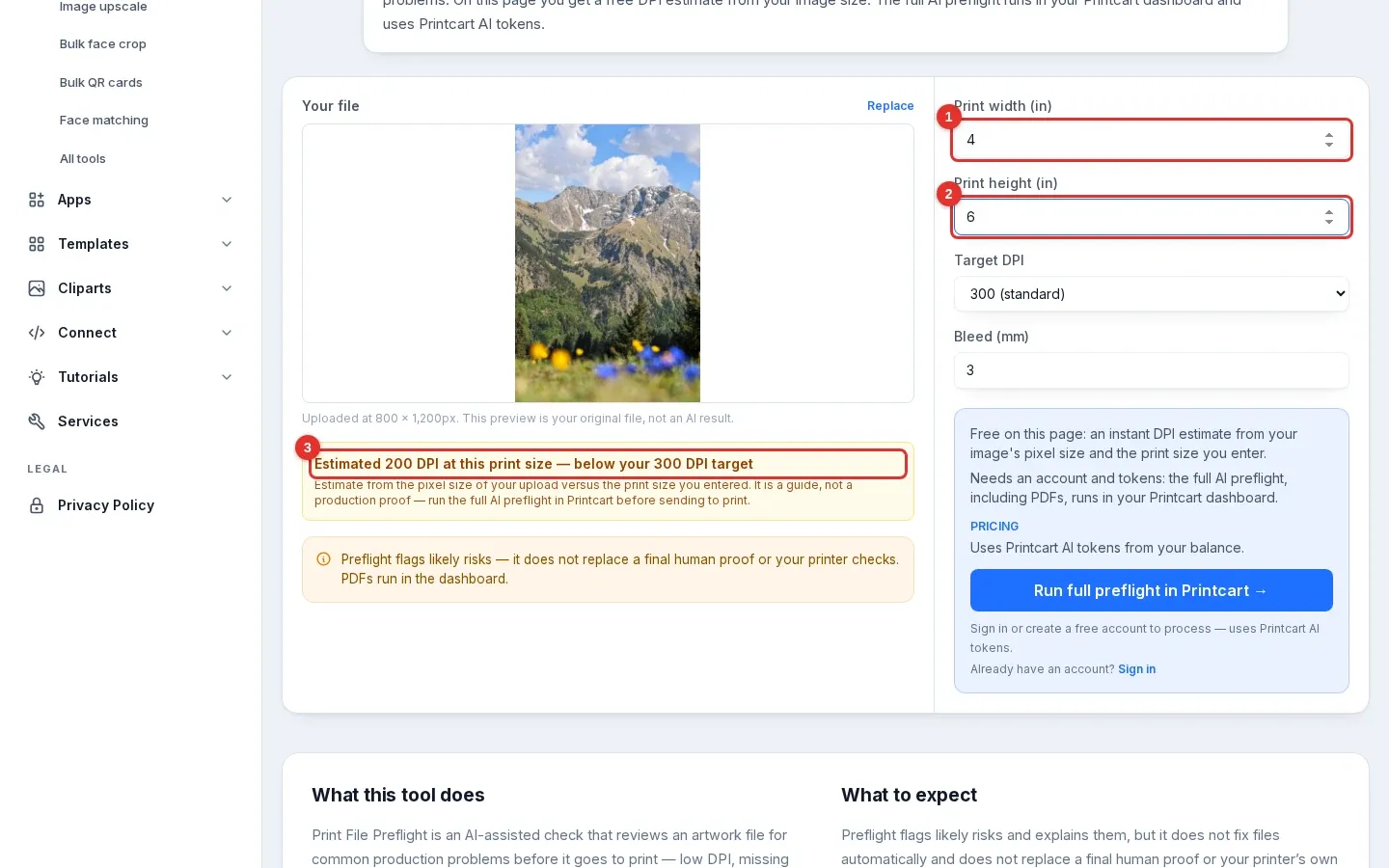
To let the page do the arithmetic, open the print file checker, add the file and enter the print size (1, 2). We tried a 4 x 6 inch print. The original gave "Estimated 100 DPI … below your 300 DPI target" (3). The 2x file, produced by Printcart's AI upscale, gave "Estimated 200 DPI … below your 300 DPI target".
Expected result: a number you can compare with your printer's requirement. If it is still below, choose a smaller print or a larger original.
Step 5Judge what the upscale adds
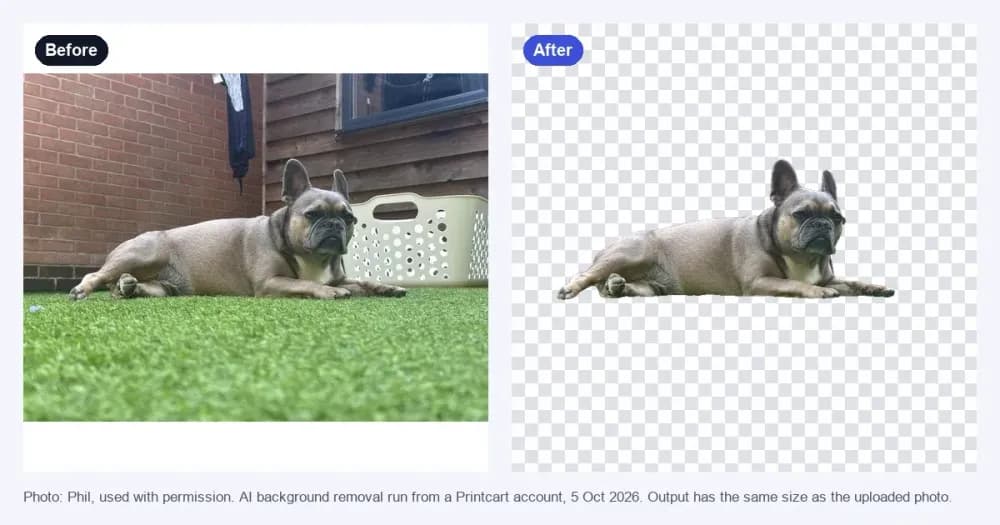
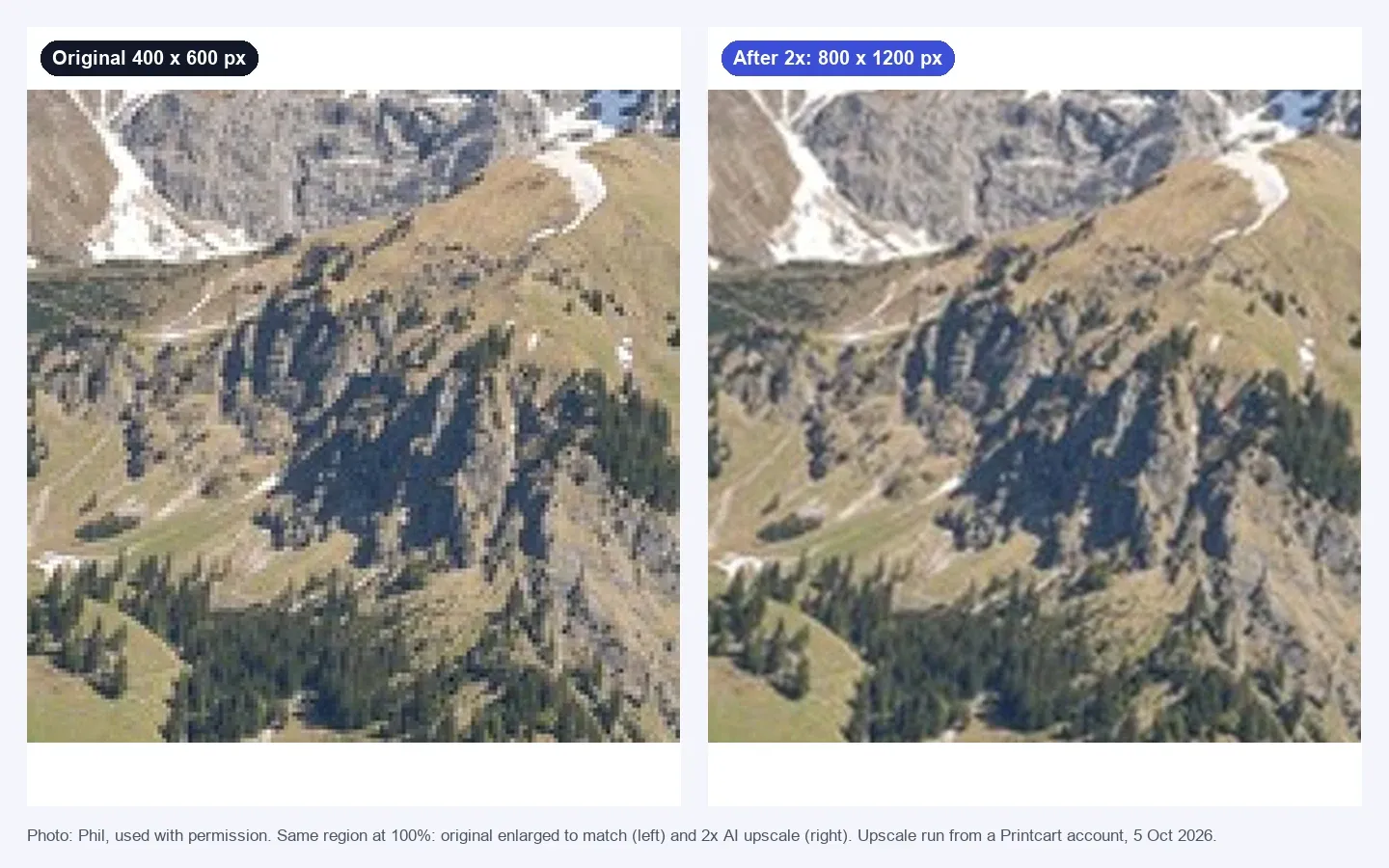
Look at the two files at 100%. In the comparison below, the 2x result has smoother edges and less blockiness than the original enlarged to the same size. It does not show detail that the original never had. That matches the note on the page: upscaling adds detail but cannot recover what was never captured.
Expected result: you can decide whether the smoother file is good enough for your product, or whether you need a better original.
Known limitation. The free page shows the target pixel size only. It does not yet show a print size or the DPI before and after, so use Step 4 for that. Review any upscaled file at your final print size before production.
Troubleshooting
- The DPI is still below my target after 2x. Work out the 4x size with the arithmetic in Step 4, print smaller, or ask the customer for the original file.
- My file is rejected. Check the file type and size. The page asks for a PNG or JPG of up to 2 MP.
- The upscaled photo looks soft. A smoother result is normal for a small or compressed original. It is a sign to ask for a better source.
How large can I print a 1,000 pixel wide photo?
At 300 DPI, 1,000 pixels cover a little over 3 inches. At 150 DPI, they cover about 6.7 inches. Divide the pixels by the DPI your printer needs.
Can upscaling fix a blurry photo?
No. Upscaling adds pixels and can smooth jagged edges, but a photo that was blurry or heavily compressed stays that way. It helps most with small files that are otherwise sharp.
Next steps
- Clean the background first: remove a background on printcart.com.
- Check a file at its print size: check if an image is big enough to print.
- Use these tools with your store: WordPress plugin, Shopify app, Wix app or connect your store.
- More photo tools: Photo commerce tools tutorials.
Ready for whole folders? Process whole folders and save results to your store — choose a long-term plan, or create an account to start.
Printcart field note
What to verify before you roll out Find Out How Large You Can Print a Photo and What an Upscale Adds
This tutorial is written from Printcart implementation patterns across web-to-print launch planning, buyer experience, and repeatable production. Before treating it as complete, test the workflow with one real product, one real design file, and one real order path.
Find Out How Large You Can Print a Photo and What an Upscale Adds — common questions
How large can I print a 1,000 pixel wide photo?
At 300 DPI, 1,000 pixels cover a little over 3 inches. At 150 DPI, they cover about 6.7 inches. Divide the pixels by the DPI your printer needs.
Can upscaling fix a blurry photo?
No. Upscaling adds pixels and can smooth jagged edges, but a photo that was blurry or heavily compressed stays that way. It helps most with small files that are otherwise sharp.
Next steps in Printcart
Connect find out how large you can print a photo and what an upscale adds with catalog setup, templates, production workflows, and implementation support.
Want to put find out how large you can print a photo and what an upscale adds into practice?
Use the related Printcart tool below, or create a free account to start building with the product designer.