
Key takeaways
- Match the Printcart app to the storefront platform, buyer journey, and order workflow you already use.
- Test product sync, customer design data, checkout metadata, and fulfillment callbacks before launch.
- Treat this as an ongoing operating workflow, not a one-time setup task.
- Document the approval owner, fallback process, and production handoff before customers start ordering.
- Review the workflow after the first real orders and tighten the steps that cause rework.
Part 5 of 5 in the Canvas Prints by Printcart on Wix series. | ← Part 4: Photo Quality Stars for Canvas Prints: Set the Standard in Your Wix Store | Canvas Prints by Printcart app page
What do you need before you start?
- At least one canvas product that shows READY (part 3).
- Access to the Wix Editor for your site.
How do you put the canvas buttons on your Wix product page?
Step 1Choose your buyer buttons
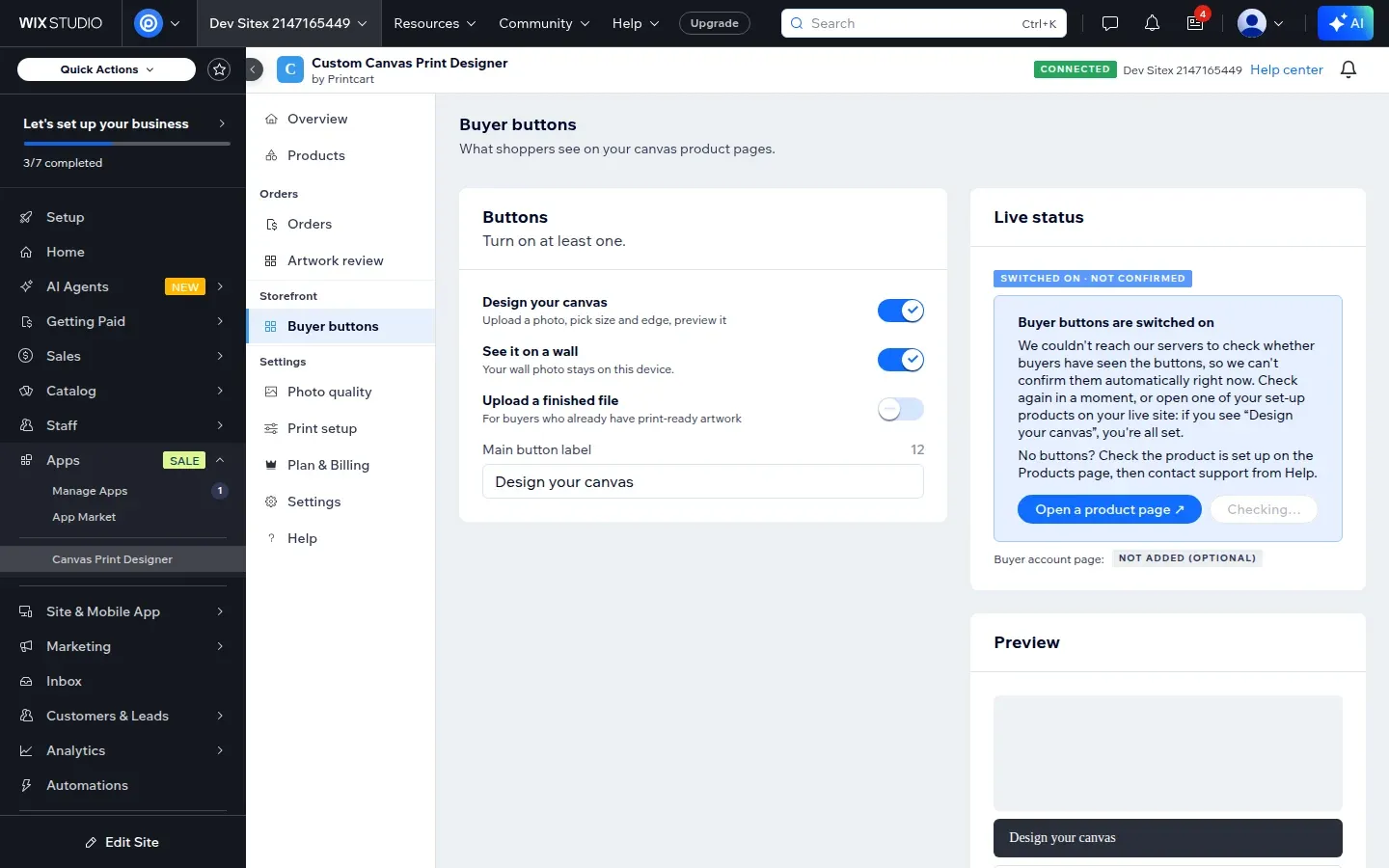
In the app, click Buyer buttons under Storefront. There are three switches:
- Design your canvas: shoppers upload a photo, pick size and edge, and preview it.
- See it on a wall: shoppers try the canvas on a sample room. The app tells them "Your wall photo stays on this device."
- Upload a finished file: for buyers who already have print-ready artwork. It was off in our test.
Turn on at least one. You can also rename the main button in Main button label; a counter shows how many characters you have left.
Expected result: the switches you chose are blue, and the Preview box shows your main button with its label.
Step 2Place the button in the Editor, once
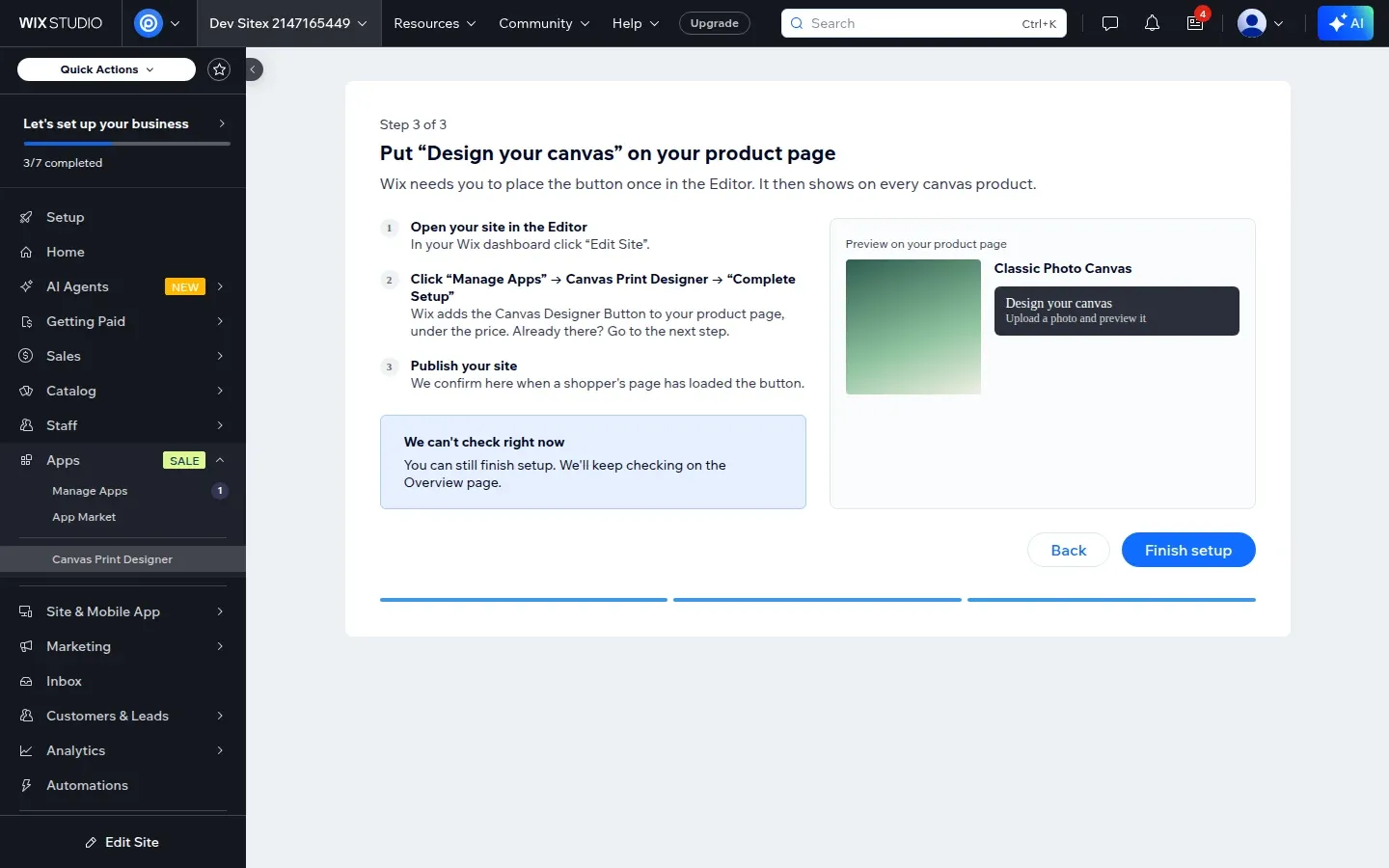
Wix needs you to put the button on the product page one time. The setup step "Put Design your canvas on your product page" spells it out:
- Open your site in the Editor (click Edit Site in the Dashboard).
- Click Manage Apps, select Canvas Prints by Printcart, then click Complete Setup. Wix adds the button under the price.
- Publish the site.
Expected result: after you publish, the button appears on every canvas product, so you do not repeat this step per product.
Step 3Open a live product page
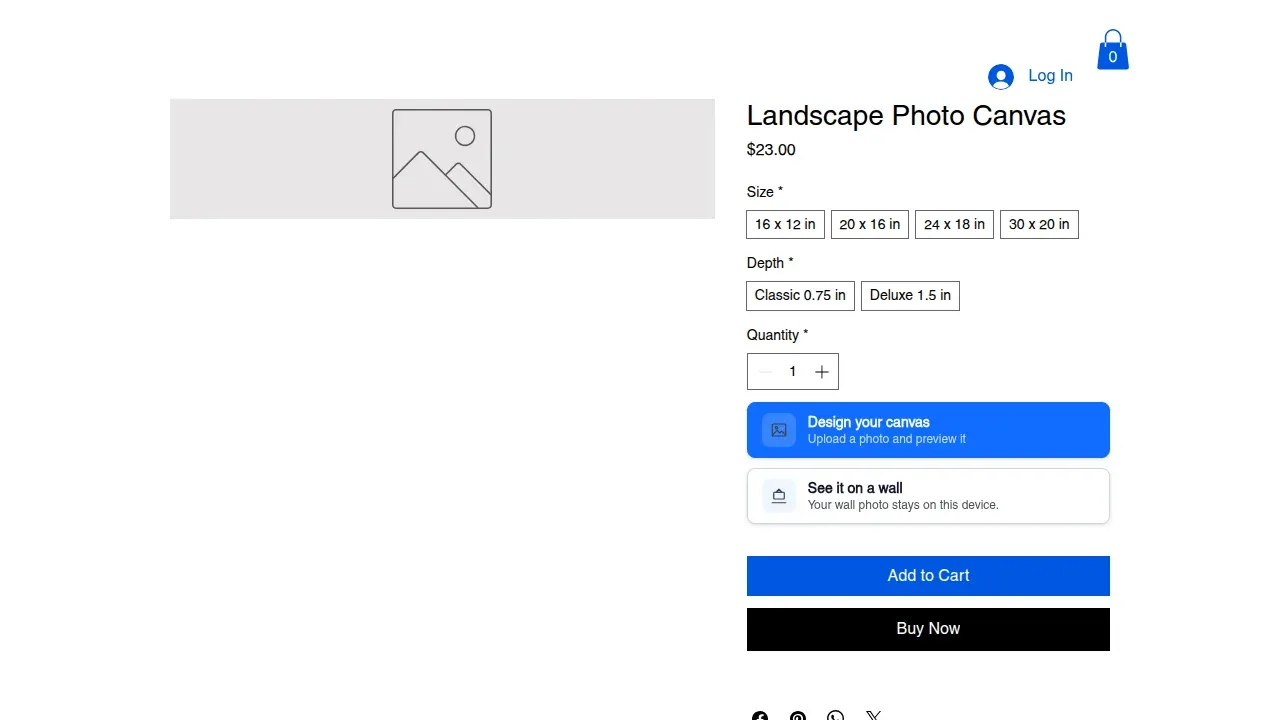
On Buyer buttons, click Open a product page, or visit one of your canvas products on your published site.
Expected result: under Size, Depth and Quantity you see Design your canvas ("Upload a photo and preview it") and See it on a wall ("Your wall photo stays on this device"), above Add to Cart. In our screenshot the product image is a grey placeholder because the test product had no photo; add your own product photo in Wix Stores.
Step 4Try See it on a wall
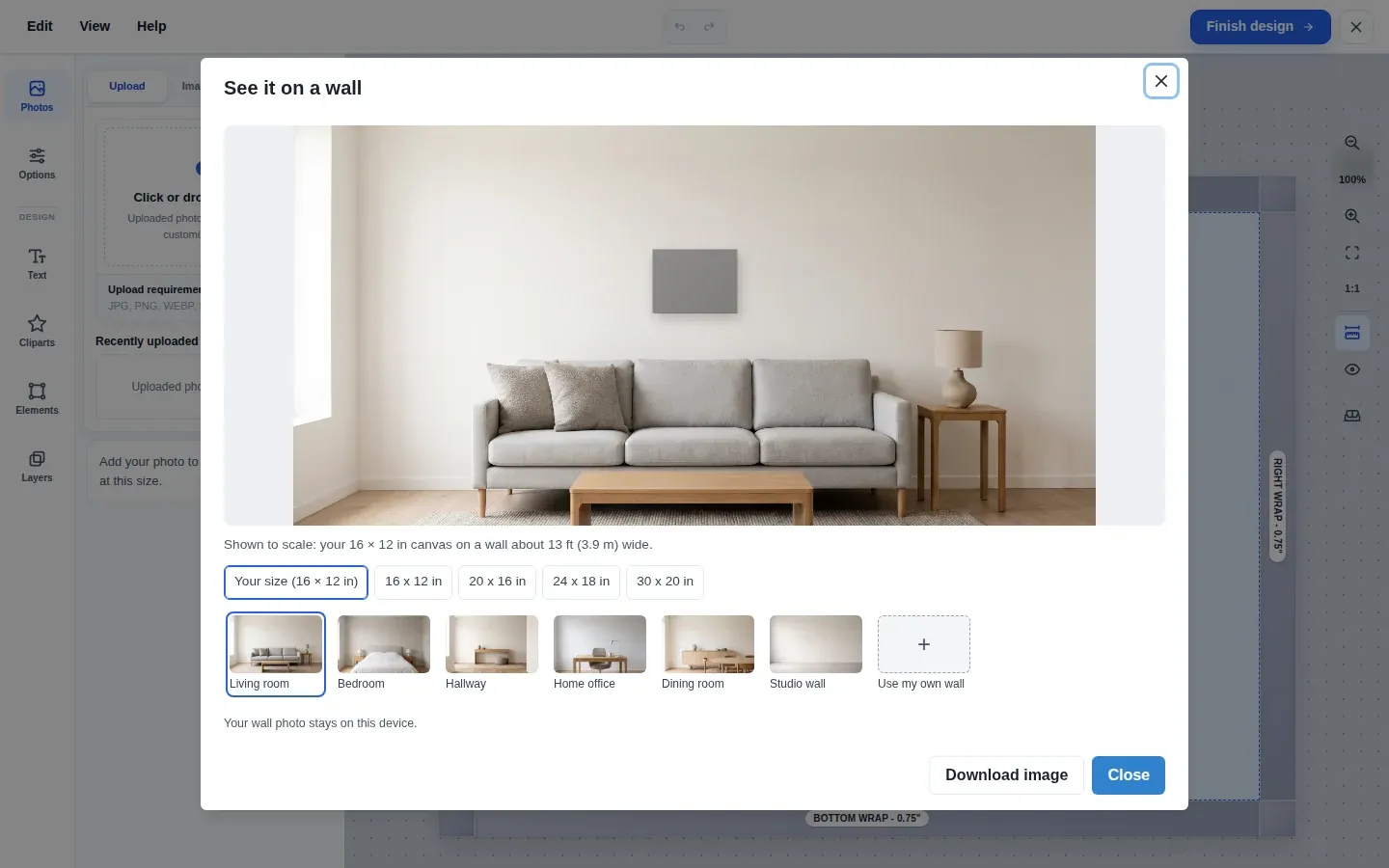
Click See it on a wall. A window opens with a living room and the canvas drawn to scale, for example "your 16 x 12 in canvas on a wall about 13 ft (3.9 m) wide". Below it are the product's own sizes, six rooms (Living room, Bedroom, Hallway, Home office, Dining room, Studio wall) and Use my own wall.
Expected result: shoppers can switch size and room to feel the scale before they buy, and the note "Your wall photo stays on this device" is shown. In our test, opening the window sent no photo to a server.
Troubleshooting
The Live status says "Switched on, not confirmed"
In this release the app cannot always confirm that shoppers have seen the button, and the box says so ("we couldn't reach our servers to check"). It does not mean the buttons are broken. Open a product page and check for yourself. If you see Design your canvas, you are all set.
I do not see buttons on my product page
Check that the product shows READY on the Products page, that you completed the Editor step and that you published. Reload once; the very first load of a page can appear without buttons.
I changed the button label but the Editor preview did not change
The Editor preview may keep the old text. Check the published page.
What should you do next?
- Previous, part 4: Photo Quality Stars for Canvas Prints: Set the Standard in Your Wix Store
- Coming next: what shoppers see when they design a canvas on desktop and phone, and how orders and print files work.
- Canvas Prints by Printcart app page
Part 5 of 5 in the Canvas Prints by Printcart on Wix series. | ← Part 4: Photo Quality Stars for Canvas Prints: Set the Standard in Your Wix Store | Canvas Prints by Printcart app page
Your launch checklist
What should you check before you launch Add "Design Your Canvas" and "See It on a Wall" to Your Wix Product Page?
This guide covers web-to-print launch planning, buyer experience, and repeatable production in Printcart. Before you offer it to your own buyers, place one test order yourself with a real product, a real design file and a real checkout, then answer the questions below.
- Can a customer complete the flow without staff intervention?
- Does the production team receive the exact artwork, option, and approval data they need?
- Is there a clear fallback when artwork, pricing, approval, or fulfillment data is missing?