
Key takeaways
- Match the Printcart app to the storefront platform, buyer journey, and order workflow you already use.
- Test product sync, customer design data, checkout metadata, and fulfillment callbacks before launch.
- Treat photo workflows as high-volume operations: naming, grouping, privacy, review, and delivery rules matter as much as the AI step.
- Run a small controlled batch first, then scale once matching, cropping, and QR fulfillment are predictable.
- Treat this as an ongoing operating workflow, not a one-time setup task.
Part 4 of 5 in the Canvas Prints by Printcart on Wix series. | ← Part 3: How to Add Your Own Canvas Product with Sizes and Prices on Wix | Part 5: Add "Design Your Canvas" and "See It on a Wall" to Your Wix Product Page → | Canvas Prints by Printcart app page
What do you need before you start?
- The app connected and at least one canvas product (part 3).
How do you set the photo quality standard for canvas prints?
Step 1Open Photo quality and read the five bands
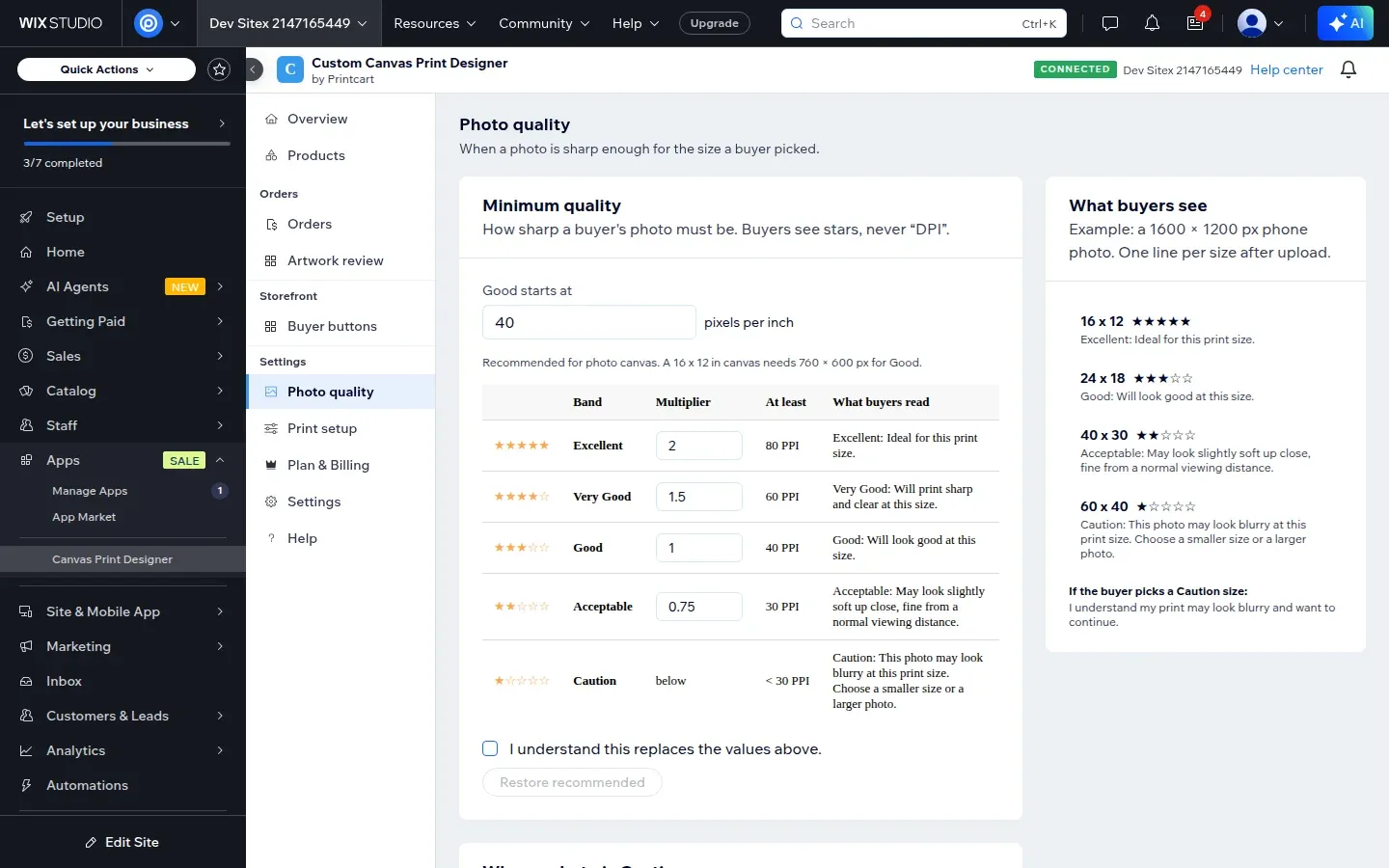
In the app's left menu, under Settings, click Photo quality. Buyers see stars, never "DPI". The page lists five bands and what each means in pixels per inch (PPI):
| Stars | Band | At least |
|---|---|---|
| 5 | Excellent | 80 PPI |
| 4 | Very Good | 60 PPI |
| 3 | Good | 40 PPI |
| 2 | Acceptable | 30 PPI |
| 1 | Caution | below 30 PPI |
Each band has a short sentence buyers read, for example "Good: Will look good at this size." For Caution it reads "This photo may look blurry at this print size. Choose a smaller size or a larger photo."
Expected result: the page shows Good starts at 40 pixels per inch, the band table and a What buyers see preview on the right.
Step 2Set where Good starts and check the preview
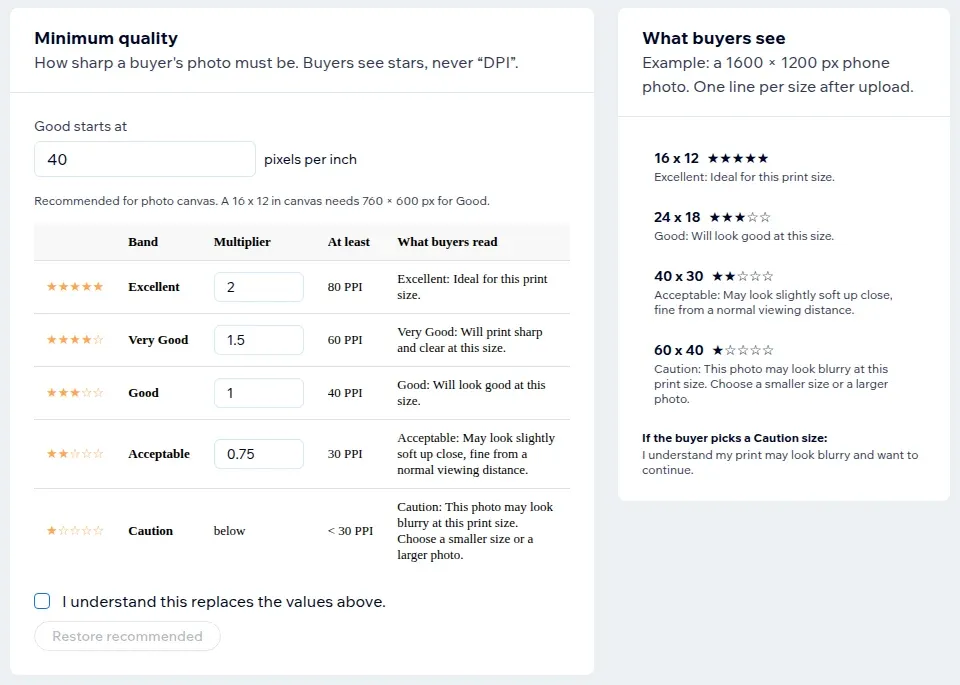
The Good starts at field holds one number, in pixels per inch. It is set to 40, the recommended value for photo canvas, and the page does the maths for you: a 16 x 12 in canvas needs 760 x 600 px for Good. Change the number only if you want a stricter or softer standard; the other bands move with it. Tick "I understand this replaces the values above" before you change it. Restore recommended brings the defaults back.
Expected result: the What buyers see preview shows one line per size for a 1600 x 1200 px phone photo: 16 x 12 in gets five stars (Excellent), 24 x 18 in three stars (Good), 40 x 30 in two stars (Acceptable) and 60 x 40 in one star (Caution).
Step 3See the same stars in the designer
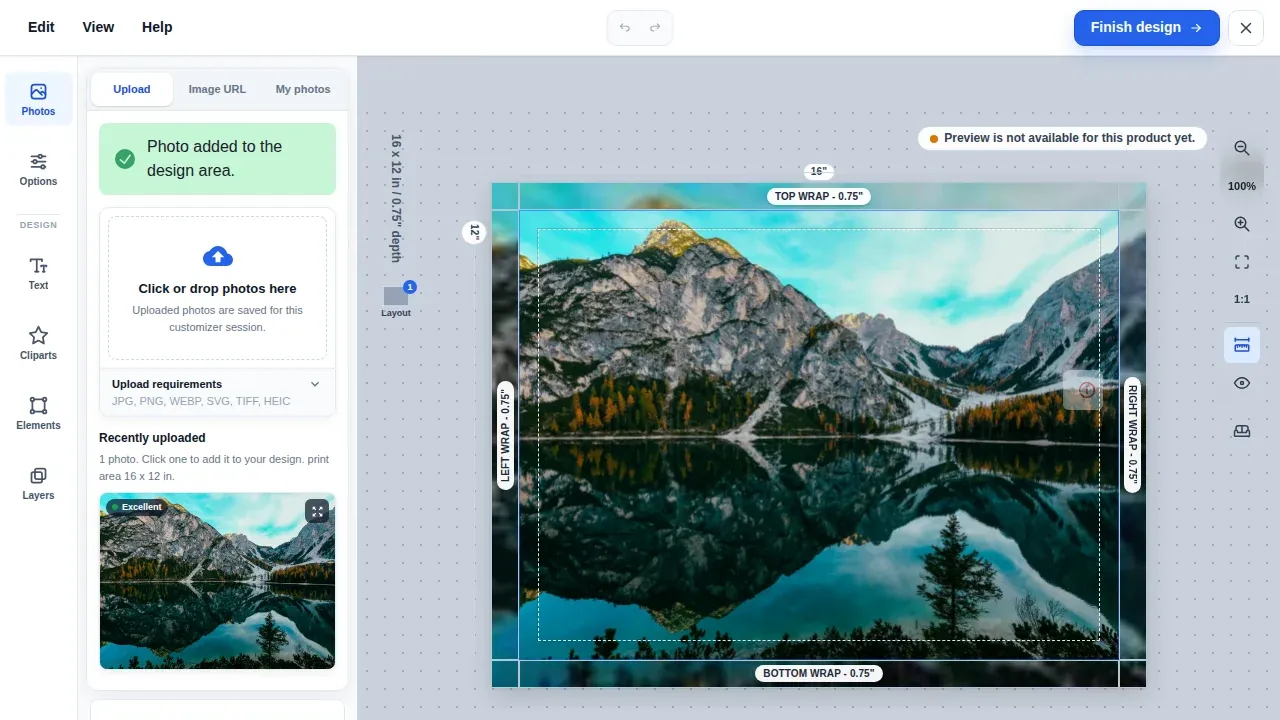
When a customer uploads a photo in the canvas designer, the thumbnail carries a badge with the rating for the chosen size. Tiny photos are flagged too: in our tests an extra-small photo was rated Caution, and a file that could not be read gave the message "could not upload this photo. Please try another image."
Expected result: a landscape photo on a 16 x 12 in canvas shows an Excellent badge on its thumbnail.
Troubleshooting
Every photo shows Caution
Check the size the buyer picked. A phone photo that is Excellent at 16 x 12 in can be Caution at 60 x 40 in. That is the point of the rating.
I changed the number and the preview did not move
Make sure you ticked the confirm box above the buttons, then save.
Can the app stop low-quality photos?
Rules that ask buyers to confirm, or block, a Caution photo are not ready in this release, so this guide does not cover them yet.
What should you do next?
- Part 5: Add "Design Your Canvas" and "See It on a Wall" to Your Wix Product Page
- Previous, part 3: How to Add Your Own Canvas Product with Sizes and Prices on Wix
- Canvas Prints by Printcart app page
Part 4 of 5 in the Canvas Prints by Printcart on Wix series. | ← Part 3: How to Add Your Own Canvas Product with Sizes and Prices on Wix | Part 5: Add "Design Your Canvas" and "See It on a Wall" to Your Wix Product Page → | Canvas Prints by Printcart app page
Your launch checklist
What should you check before you launch Photo Quality Stars for Canvas Prints: Set the Standard in Your Wix Store?
This guide covers web-to-print launch planning, buyer experience, and repeatable production in Printcart. Before you offer it to your own buyers, place one test order yourself with a real product, a real design file and a real checkout, then answer the questions below.
- Can a customer complete the flow without staff intervention?
- Does the production team receive the exact artwork, option, and approval data they need?
- Is there a clear fallback when artwork, pricing, approval, or fulfillment data is missing?