
Key takeaways
- Match the Printcart app to the storefront platform, buyer journey, and order workflow you already use.
- Test product sync, customer design data, checkout metadata, and fulfillment callbacks before launch.
- Treat photo workflows as high-volume operations: naming, grouping, privacy, review, and delivery rules matter as much as the AI step.
- Run a small controlled batch first, then scale once matching, cropping, and QR fulfillment are predictable.
- Treat this as an ongoing operating workflow, not a one-time setup task.
Part 2 of 5 in the Canvas Prints by Printcart on Wix series. | ← Part 1: How to Add a Canvas Print App to Your Wix Store | Part 3: How to Add Your Own Canvas Product with Sizes and Prices on Wix → | Canvas Prints by Printcart app page
What do you need before you start?
- The app installed and showing CONNECTED (part 1).
- A few minutes. Creating all five products took one to two minutes in our test.
How do you add sample canvas products to your Wix store?
Step 1Choose your niche
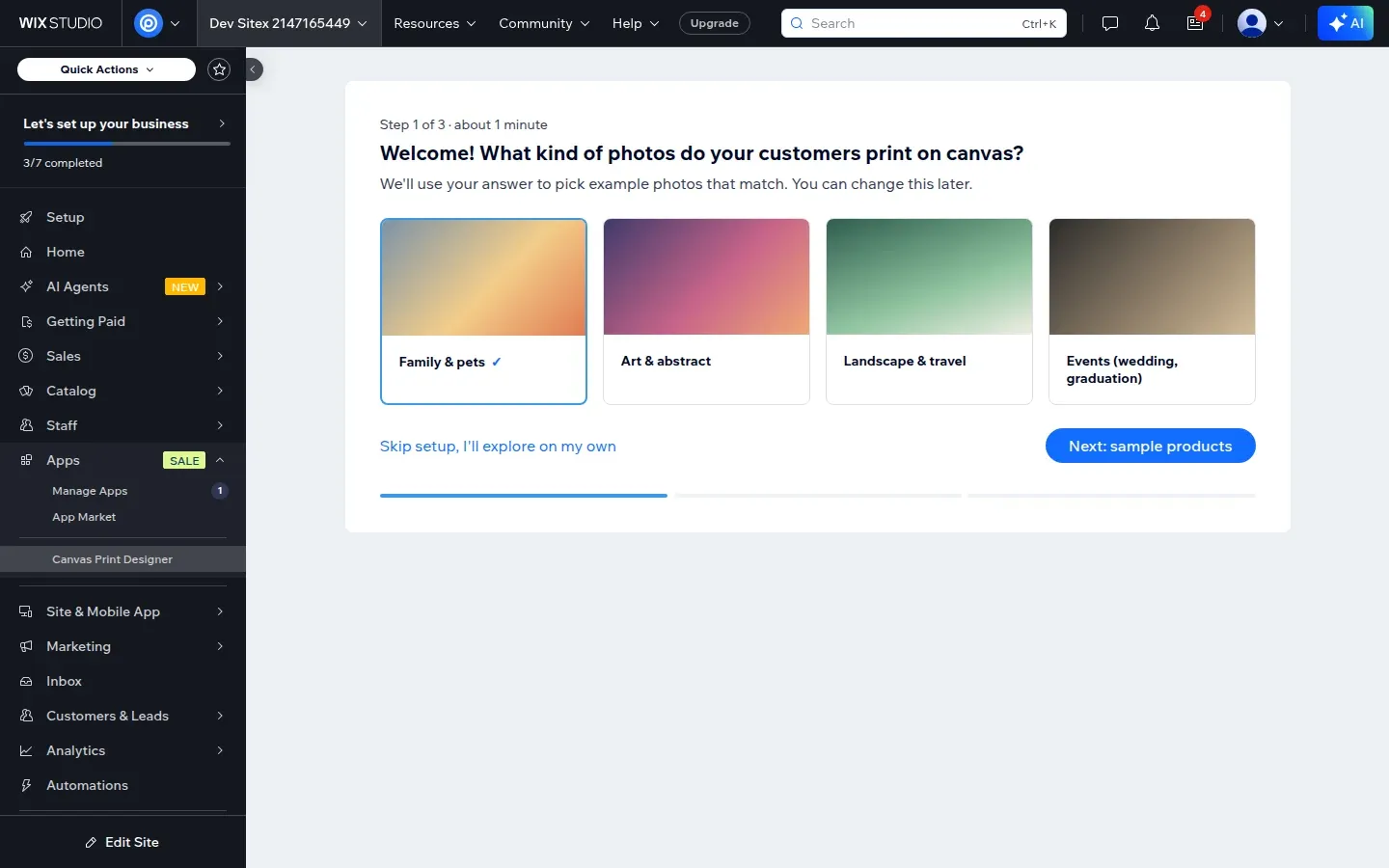
On the welcome step, click the tile that matches your customers: Family & pets, Art & abstract, Landscape & travel or Events (wedding, graduation). The app uses your answer to pick example photos, and you can change it later. Then click Next: sample products. Prefer to build everything yourself? Click Skip setup, I'll explore on my own and go to part 3.
Expected result: a tick appears on your tile, the Next: sample products button turns blue, and clicking it opens step 2 of 3.
Step 2Review the five sample products
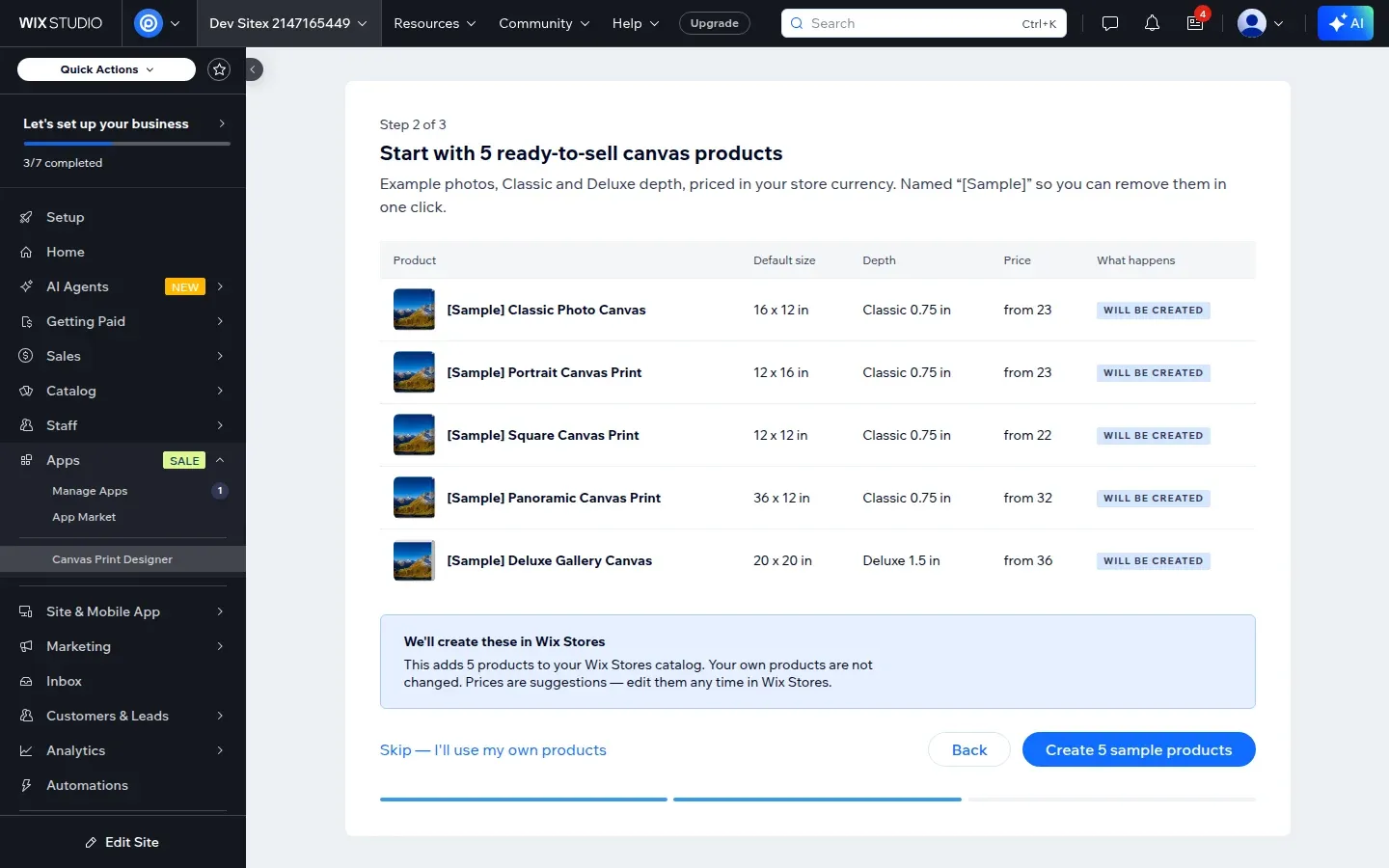
Step 2 is titled "Start with 5 ready-to-sell canvas products". The table lists each product with its default size, depth and starting price. In our test the five were a Classic Photo Canvas (16 x 12 in), a Portrait (12 x 16 in), a Square (12 x 12 in), a Panoramic (36 x 12 in) and a Deluxe Gallery Canvas (20 x 20 in, 1.5 in depth). Read the blue note: your own products are not changed, and prices are suggestions you can edit any time in Wix Stores.
Expected result: every row is tagged WILL BE CREATED, and every sample name starts with [Sample] so you can find it later.
Step 3Click Create 5 sample products
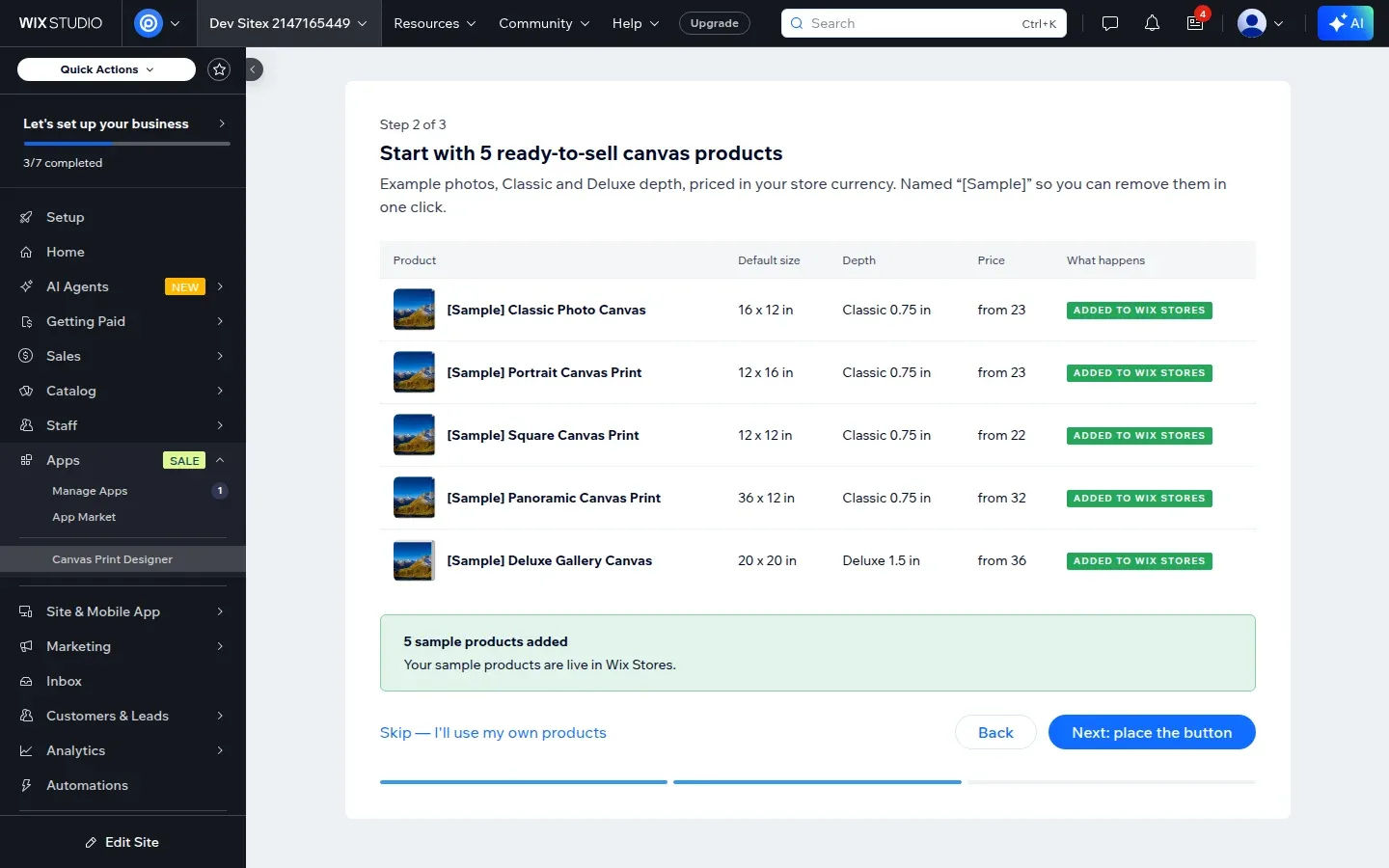
Click Create 5 sample products and wait. Each row changes to a green tag as it finishes.
Expected result: every row reads ADDED TO WIX STORES, and a green box says "5 sample products added. Your sample products are live in Wix Stores." Click Next: place the button to continue (part 5 explains that step).
Step 4Find the samples on the Products page
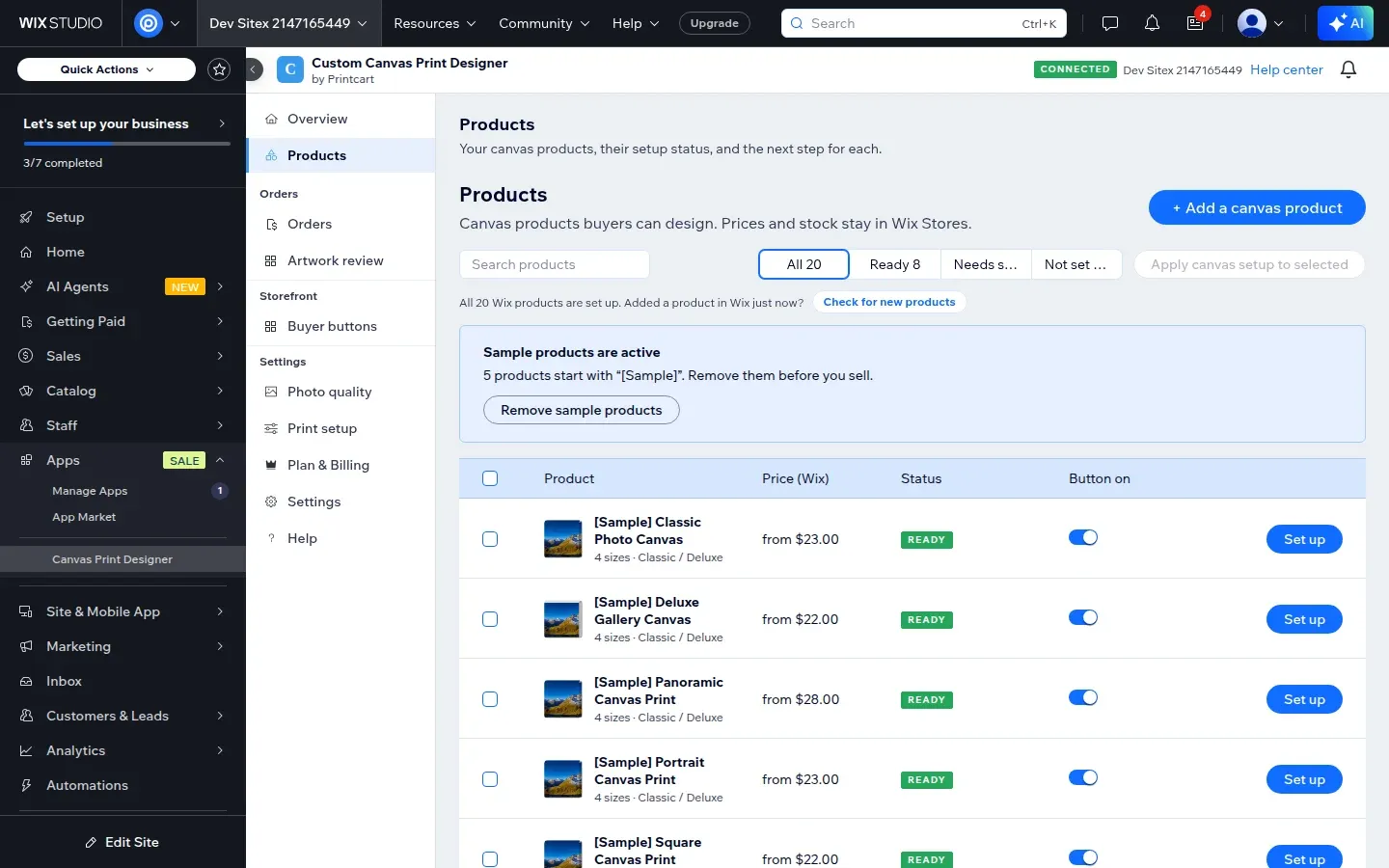
Open Products in the app's left menu. Treat the samples as a working template: open one and change its name, price and photo in Wix Stores, or copy its setup for your own product in part 3.
Expected result: your canvas products are listed with a READY status, the Wix price, the number of sizes and depths, and a switch under Button on. A blue box reads "Sample products are active. 5 products start with [Sample]. Remove them before you sell."
Troubleshooting
Some samples were not created
The Free plan covers up to 10 canvas products. If your store already has canvas products, the count may reach the limit. Remove products you do not need, or check the plans on the app page.
Prices show without a currency symbol in the wizard
The numbers are in your store currency. The Wix product and the Products page show the full price with the symbol.
I ran the step twice
The app shows ALREADY ON YOUR STORE for samples that exist and does not create duplicates.
The samples are still in my Wix catalog after I clicked Remove
In this release the remove button unlinks the canvas setup but leaves the product in Wix Stores. Delete the leftover [Sample] products in Wix Stores yourself before you sell.
What should you do next?
- Part 3: How to Add Your Own Canvas Product with Sizes and Prices on Wix
- Part 5: Add "Design Your Canvas" and "See It on a Wall" to Your Wix Product Page
- Canvas Prints by Printcart app page
Part 2 of 5 in the Canvas Prints by Printcart on Wix series. | ← Part 1: How to Add a Canvas Print App to Your Wix Store | Part 3: How to Add Your Own Canvas Product with Sizes and Prices on Wix → | Canvas Prints by Printcart app page
Your launch checklist
What should you check before you launch Start Selling Canvas Prints on Wix with 5 Sample Products?
This guide covers web-to-print launch planning, buyer experience, and repeatable production in Printcart. Before you offer it to your own buyers, place one test order yourself with a real product, a real design file and a real checkout, then answer the questions below.
- Can a customer complete the flow without staff intervention?
- Does the production team receive the exact artwork, option, and approval data they need?
- Is there a clear fallback when artwork, pricing, approval, or fulfillment data is missing?