
Key takeaways
- Start with a clean product catalog: product type, variants, print areas, pricing rules, and production constraints.
- Keep customer-facing options simple, but preserve enough production detail for accurate quoting and fulfillment.
- Match the Printcart app to the storefront platform, buyer journey, and order workflow you already use.
- Test product sync, customer design data, checkout metadata, and fulfillment callbacks before launch.
- Treat this as an ongoing operating workflow, not a one-time setup task.
Part 3 of 5 in the Canvas Prints by Printcart on Wix series. | ← Part 2: Start Selling Canvas Prints on Wix with 5 Sample Products | Part 4: Photo Quality Stars for Canvas Prints: Set the Standard in Your Wix Store → | Canvas Prints by Printcart app page
What do you need before you start?
- The app connected to your store (part 1).
- A price in mind for each size and for both depths (Classic 0.75 in and Deluxe 1.5 in).
How do you create a canvas product with sizes and prices?
Step 1Open the panel, name the product and pick a shape
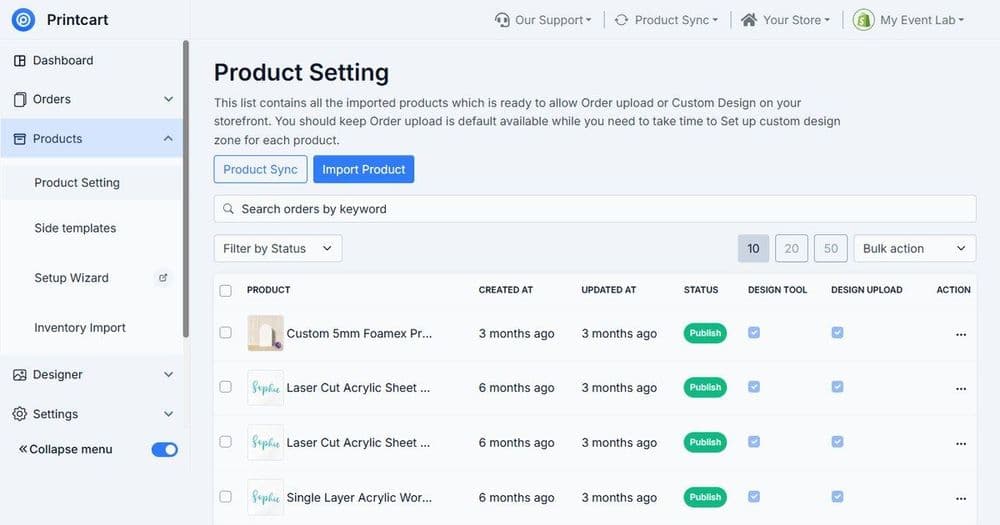
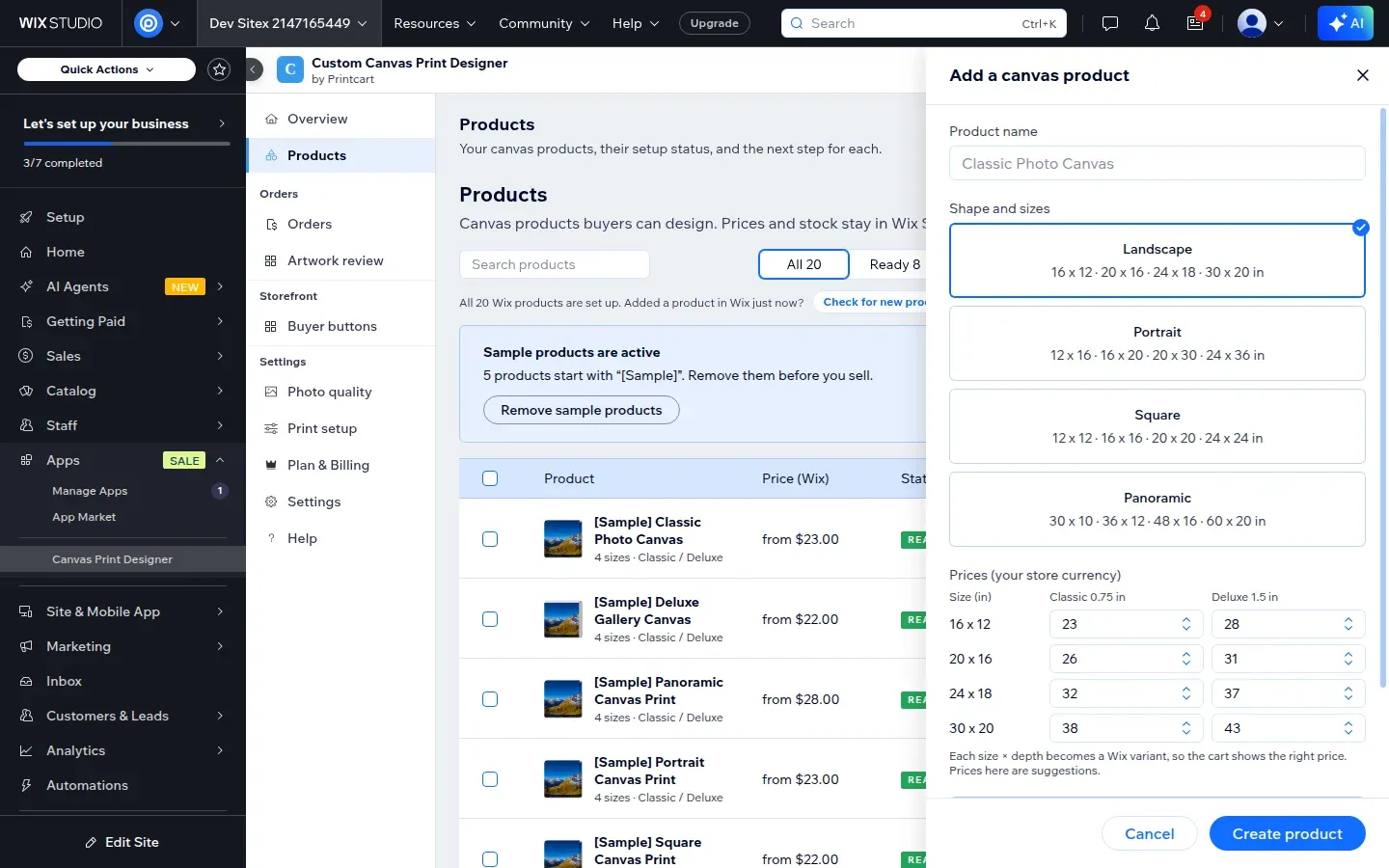
In the app, go to Products and click + Add a canvas product at the top right. In the panel that slides in, type the Product name shoppers will see, then pick a Shape and sizes card:
- Landscape: 16 x 12, 20 x 16, 24 x 18 and 30 x 20 in
- Portrait: 12 x 16, 16 x 20, 20 x 30 and 24 x 36 in
- Square: 12 x 12, 16 x 16, 20 x 20 and 24 x 24 in
- Panoramic: 30 x 10, 36 x 12, 48 x 16 and 60 x 20 in
Expected result: the card you picked shows a blue tick, and the Prices (your store currency) grid below lists that shape's four sizes.
Step 2Set a price for every size and depth, then create the product
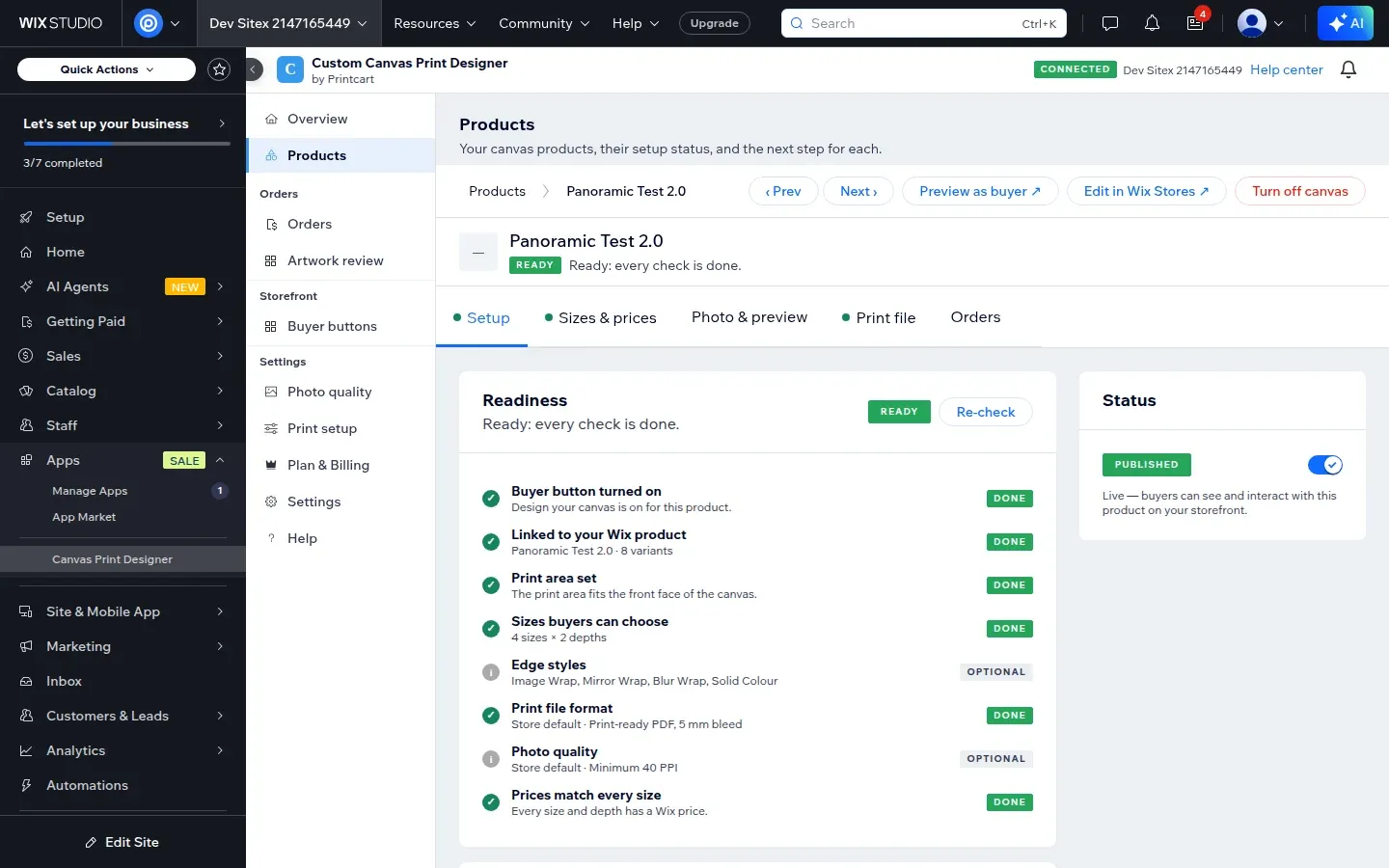
The price grid has one row per size, one column for Classic 0.75 in and one for Deluxe 1.5 in. The app pre-fills suggestions; change them to your own prices and make sure every cell has a number. As the note under the grid says, each size and depth becomes a Wix variant, so the cart shows the right price. Click Create product. In our test a Panoramic product was created in seconds with 8 variants (4 sizes x 2 depths).
Expected result: the product opens in the app with a green READY tag and the line "Ready: every check is done." The checklist confirms the buyer button is on, the product is linked to your Wix product with its variant count, the print area fits the front face, sizes are chosen and every size and depth has a price. Edge styles and photo quality show OPTIONAL because the store defaults apply.
Step 3Check the Sizes & prices tab
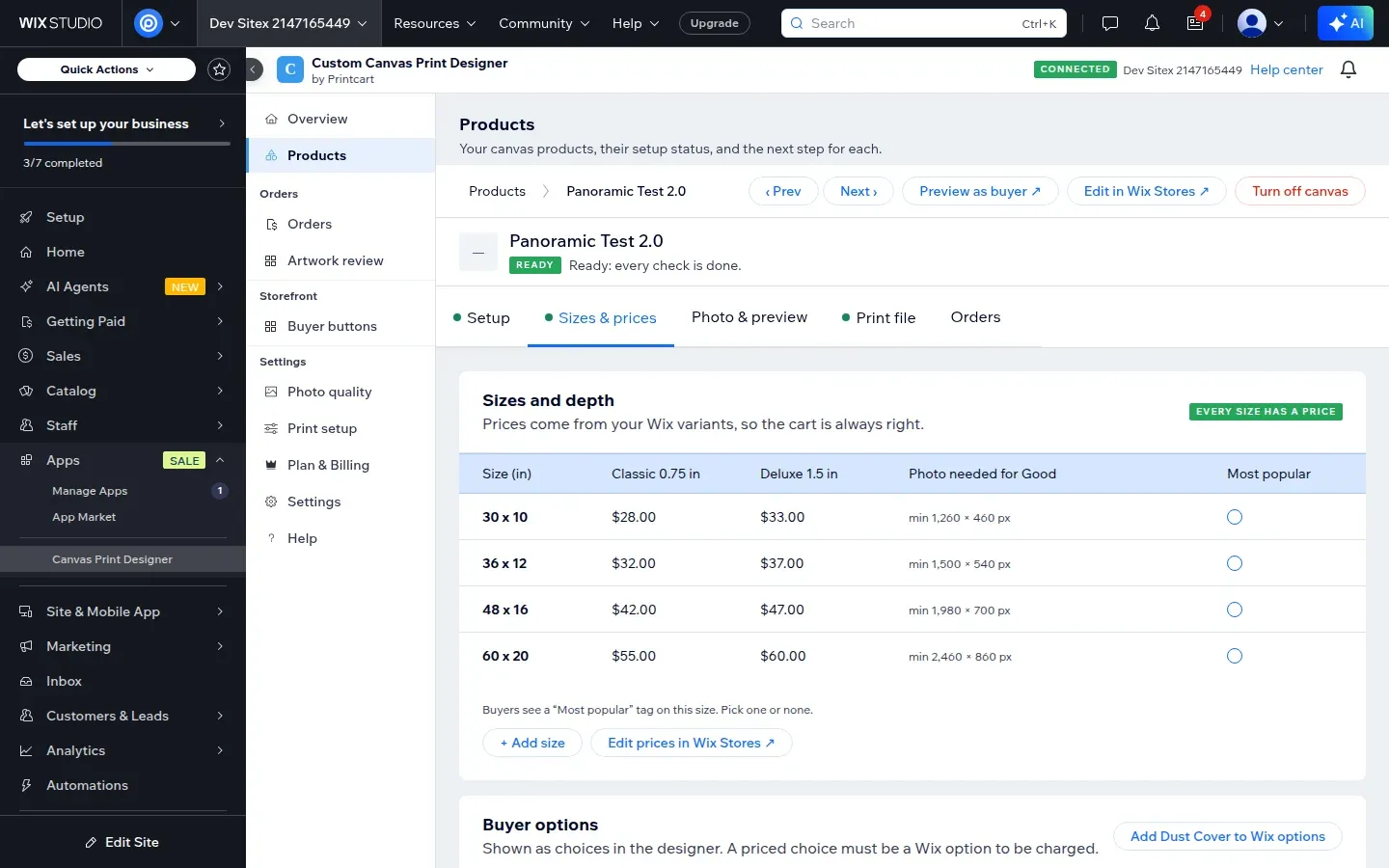
Open the Sizes & prices tab. You can mark one size as Most popular (buyers see the tag), add a size with + Add size, or change prices with Edit prices in Wix Stores. Prices live in Wix, so any change you make there is what the cart charges.
Expected result: each size is listed with its Classic and Deluxe price and the photo size needed for a Good rating, for example at least 1,500 x 540 px for a 36 x 12 in panoramic canvas. A green tag reads EVERY SIZE HAS A PRICE.
Troubleshooting
The panel did not create anything
Check that every price cell is filled and that you have not reached the Free limit of 10 canvas products.
A product I made in Wix Stores does not show as canvas
On the Products page, look for it under Not set up and click Make it a canvas. If you created it a moment ago, click Check for new products first.
The dust cover option is not available yet
The Add Dust Cover to Wix options button does not work in this release, so skip it for now. This guide will cover it once it is ready.
What should you do next?
- Part 4: Photo Quality Stars for Canvas Prints: Set the Standard in Your Wix Store
- Previous, part 2: Start Selling Canvas Prints on Wix with 5 Sample Products
- Canvas Prints by Printcart app page
Part 3 of 5 in the Canvas Prints by Printcart on Wix series. | ← Part 2: Start Selling Canvas Prints on Wix with 5 Sample Products | Part 4: Photo Quality Stars for Canvas Prints: Set the Standard in Your Wix Store → | Canvas Prints by Printcart app page
Your launch checklist
What should you check before you launch How to Add Your Own Canvas Product with Sizes and Prices on Wix?
This guide covers web-to-print launch planning, buyer experience, and repeatable production in Printcart. Before you offer it to your own buyers, place one test order yourself with a real product, a real design file and a real checkout, then answer the questions below.
- Can a customer complete the flow without staff intervention?
- Does the production team receive the exact artwork, option, and approval data they need?
- Is there a clear fallback when artwork, pricing, approval, or fulfillment data is missing?