Open Orders Management then Orders in the Printcart Dashboard and click an order. The Next action card walks it forward: Move to review , Accept order , Start production and Mark fulfilled . Orders from WooCommerce, Wix, Shopify and storefront uploads share the same list. The designs your buyers save are listed under Design Files , where you review them and...
Key takeaways
Part 4 of 9 in the Printcart Dashboard tutorial series. Previous: Part 3, Enable the designer and set up products. Next: Part 5, Review buyer uploads and download files.
What do you need before you start?
- A store connected to Printcart (see Part 2) with at least one order. Orders appear after a buyer checks out on your storefront.
- Products with the designer or upload turned on (see Part 3).
The screenshots come from a demo account with a demo store called Demo Print Shop and made-up buyer names. Your store name, products and numbers will differ, but the screens and buttons are the same. Secret values are always hidden in the pictures.
How do you manage orders and design files in the Printcart Dashboard?
Step 1Open the Orders list
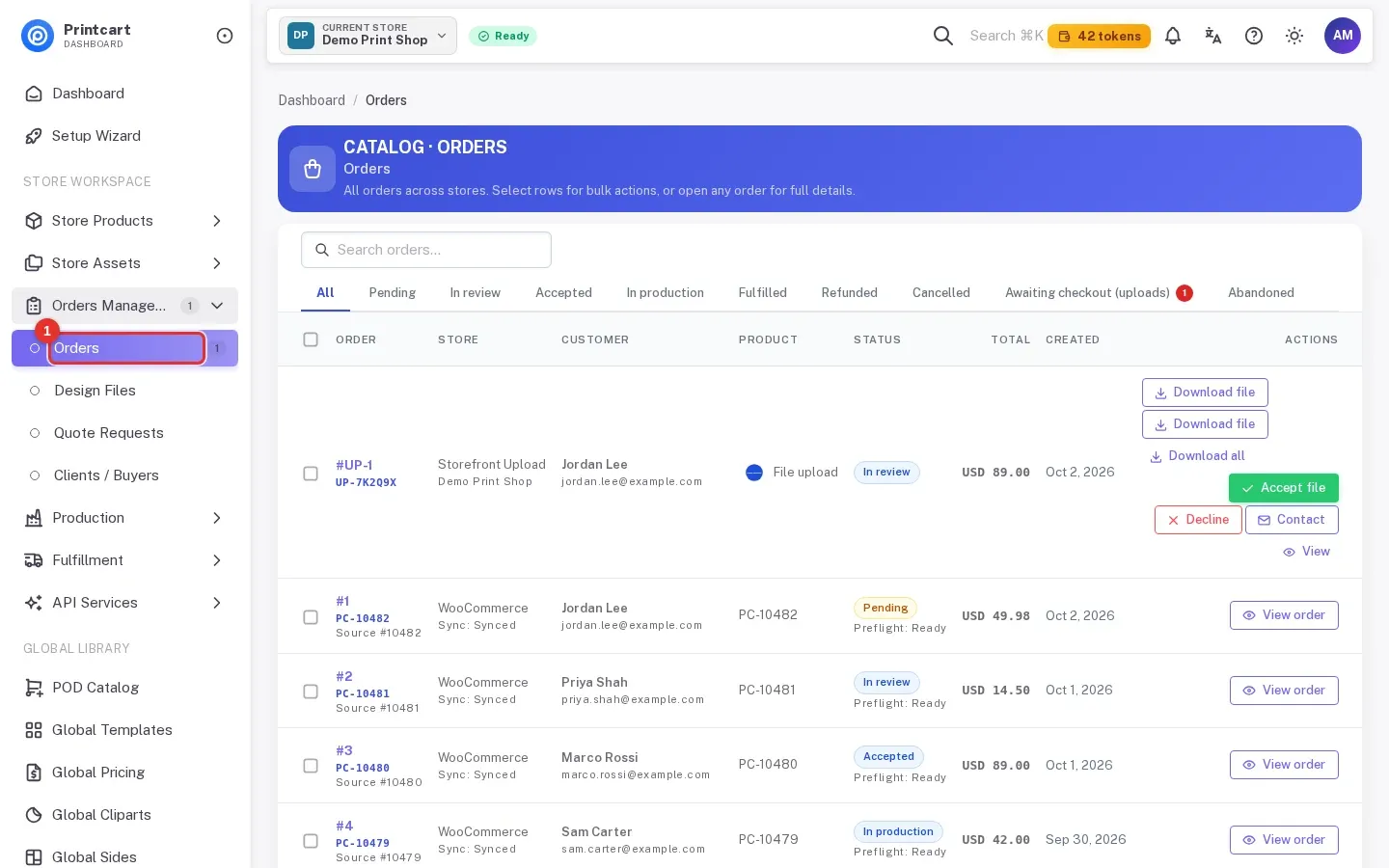
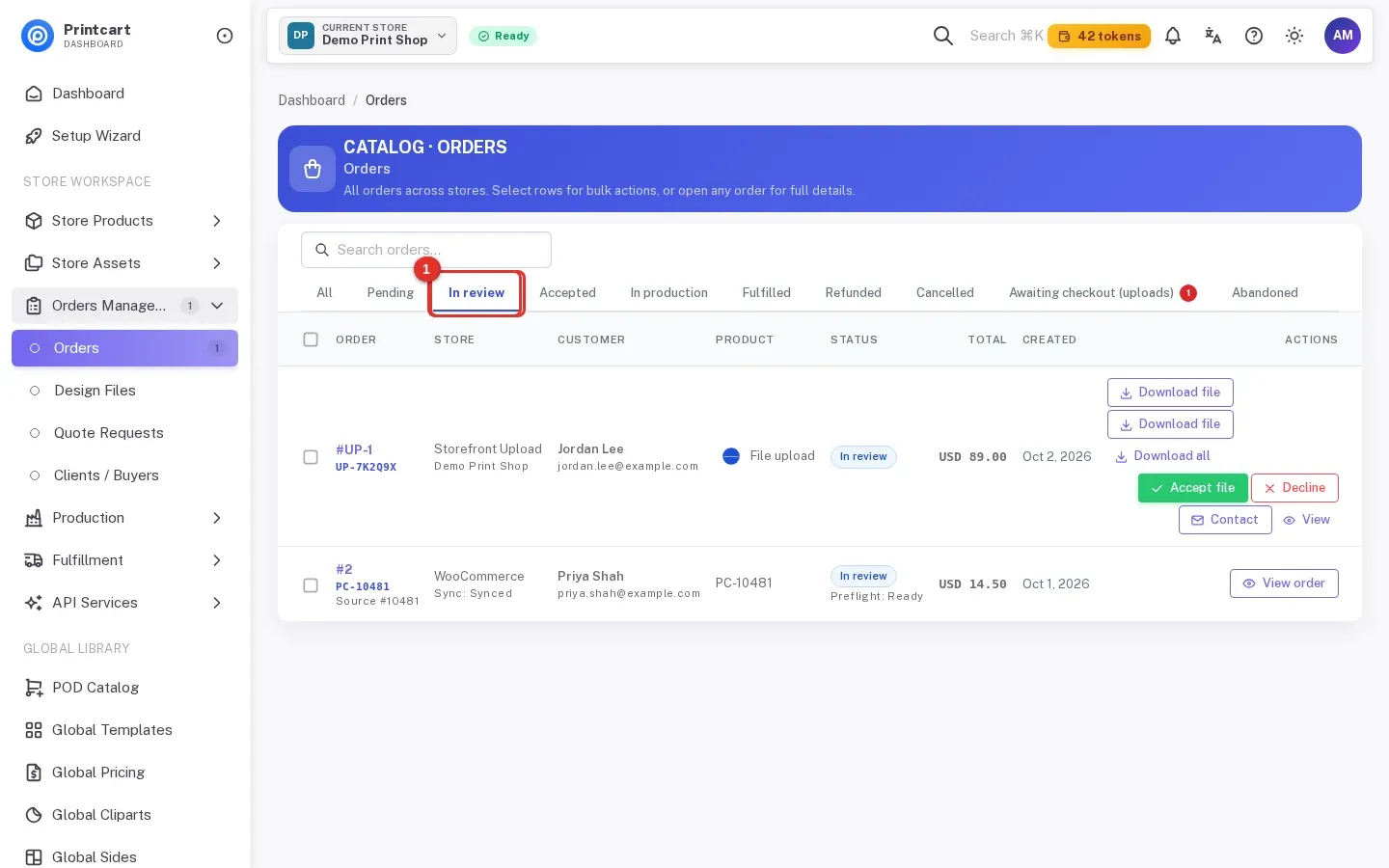
In the left menu open Orders Management, then Orders (www.printcart.com/en/orders). Each row shows the order number, the store it came from, the customer, the product, the status, the total and the date.
Expected result: The Orders list opens with every order from every connected store.
Step 2Filter by status
Click a status tab above the table: Pending, In review, Accepted, In production, Fulfilled or Cancelled. Awaiting checkout (uploads) and Abandoned hold files that buyers sent before paying; they are explained in the next guide on buyer uploads.
Expected result: The table shows only the orders with that status.
Step 3Open an order
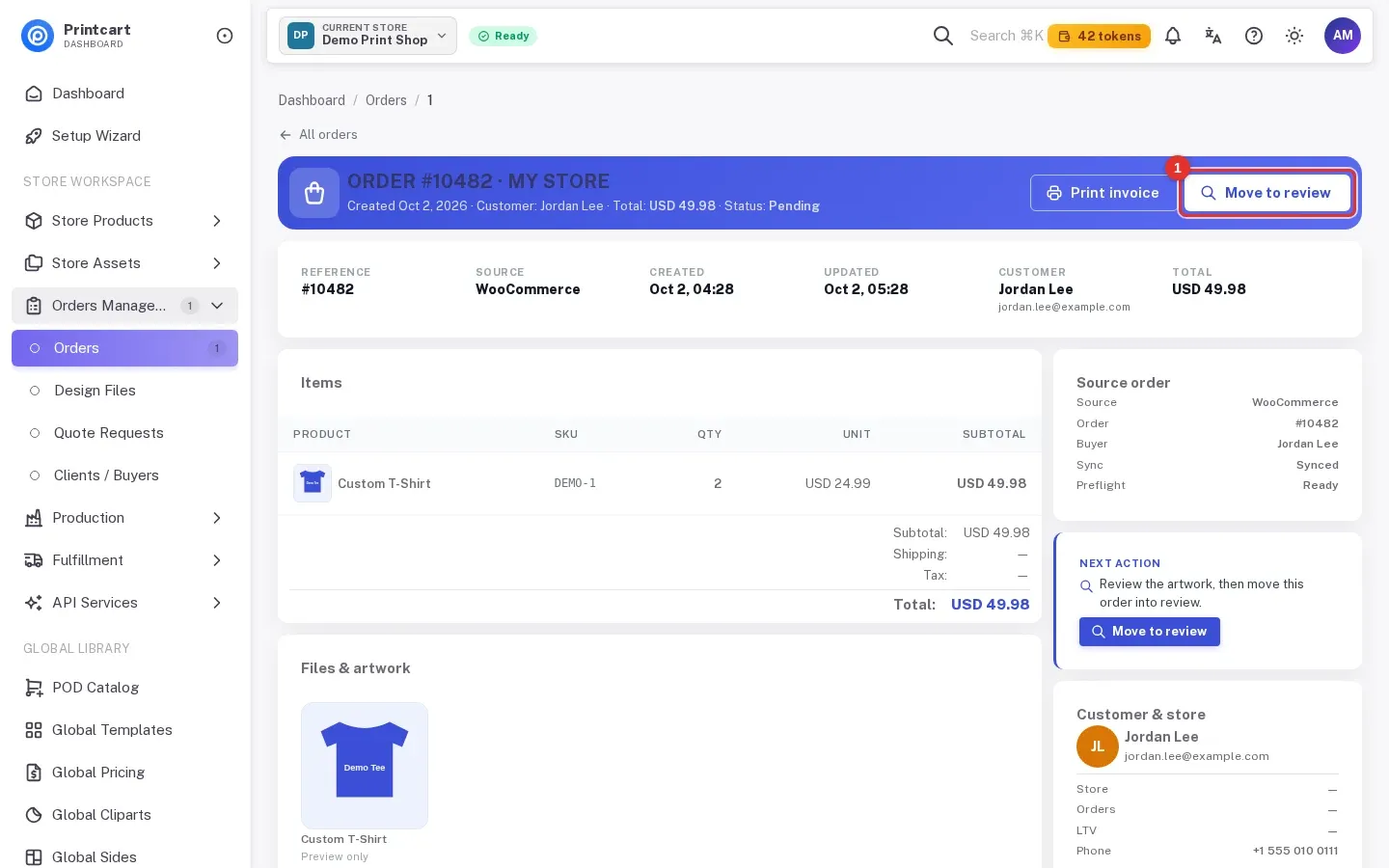
Click View order on a row. The header shows the order number, the store, the customer, the total and the status. Below it you see the items, the files and artwork, a timeline, and on the right the source order (WooCommerce, Wix or Shopify), the customer, the shipping method and the payment state.
Expected result: The order page opens. The blue button in the header names the next step, for example Move to review.
Step 4Read the timeline
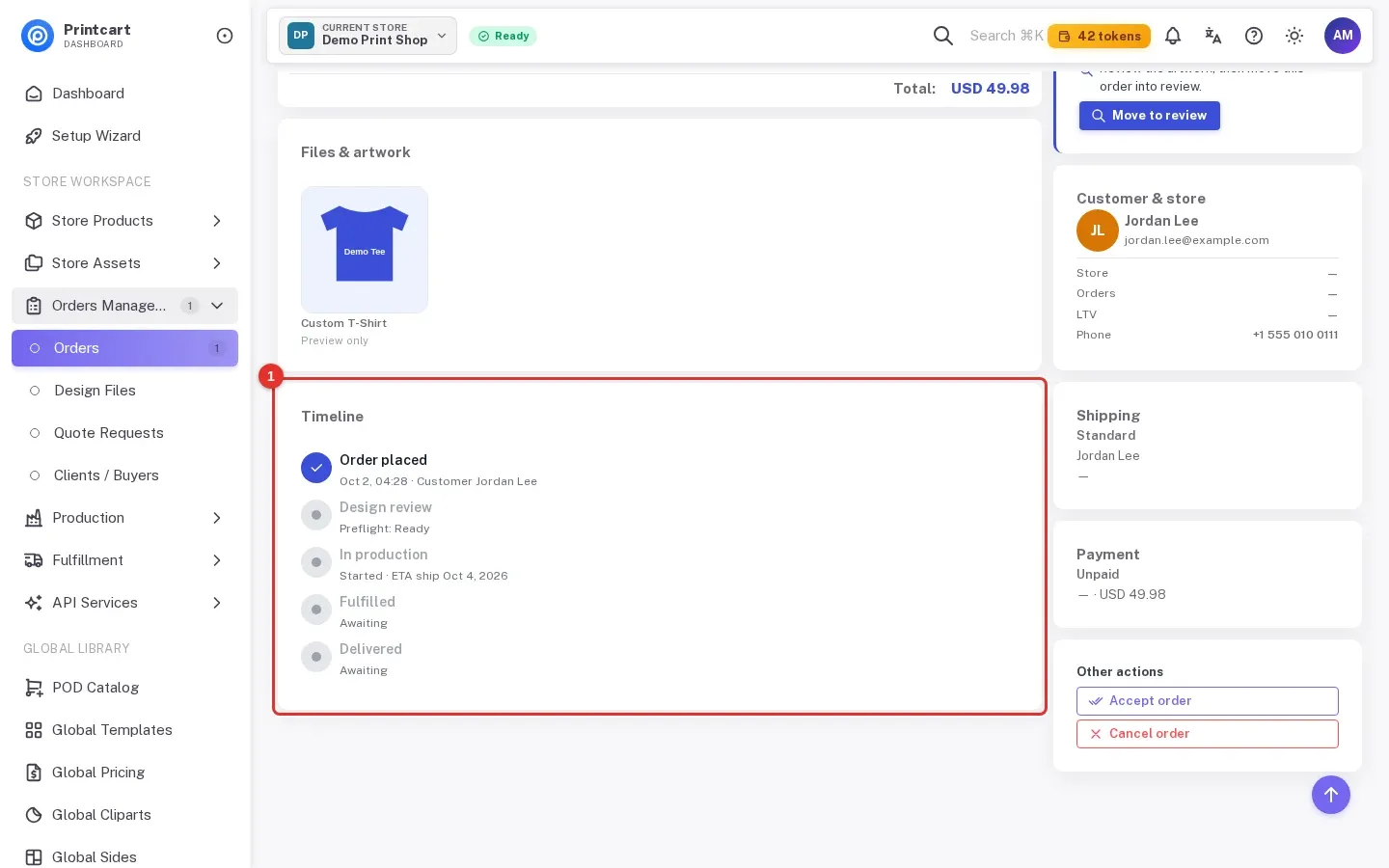
The Timeline card lists the stages an order passes through: Order placed, Design review, In production, Fulfilled and Delivered. Finished stages are ticked and the others stay grey, so you always know where the order is.
Expected result: You can tell at a glance which stage the order has reached.
Step 5Move the order to review
Click Move to review once you have looked at the artwork. The same action is also in the Next action card on the right.
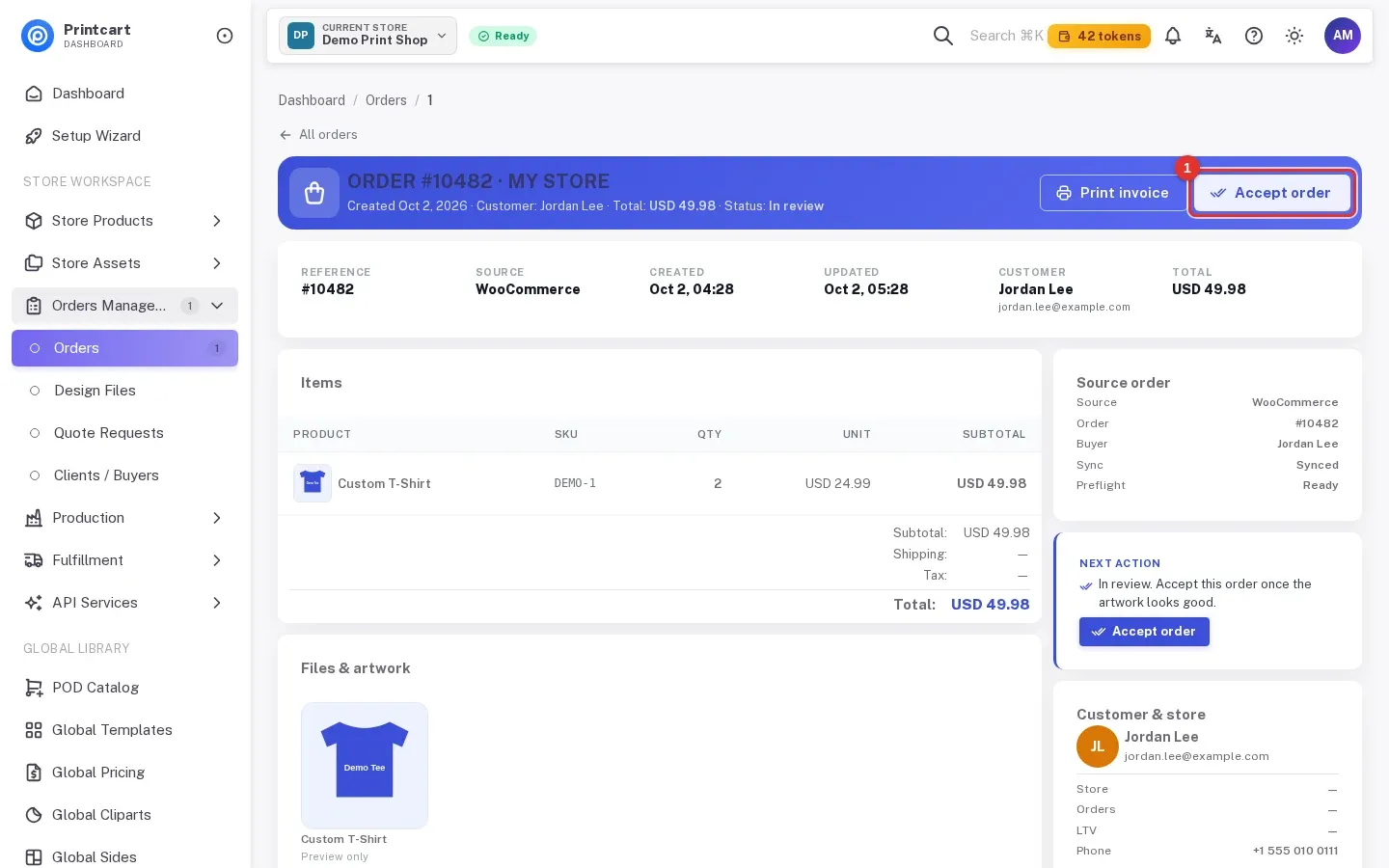
Expected result: A green message says Order moved to review., the status reads In review and the blue button now says Accept order.
Step 6Accept the order
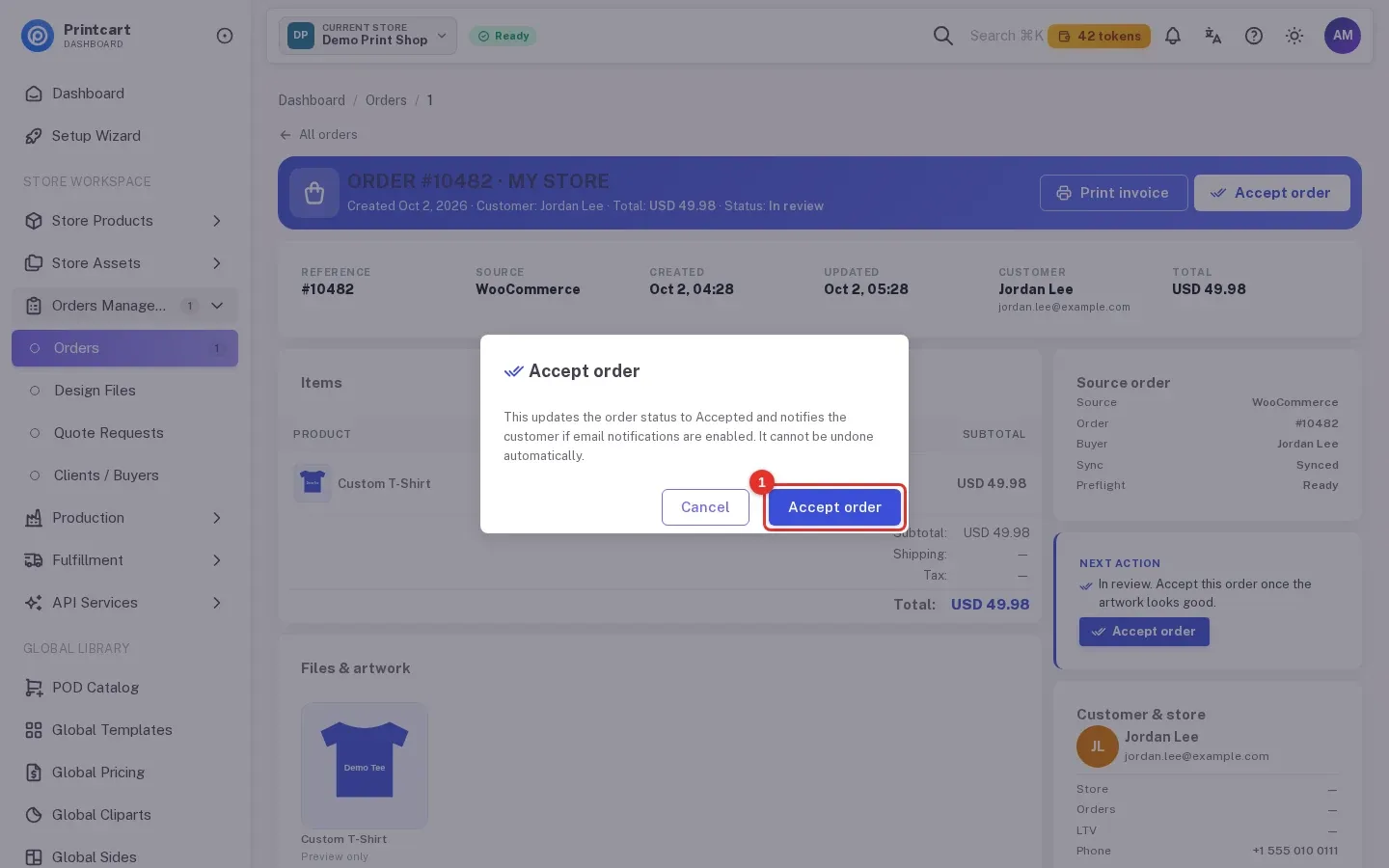
Click Accept order. A dialog explains that this sets the status to Accepted and notifies the customer if email notifications are enabled, and that it cannot be undone automatically. Click Accept order again to confirm.
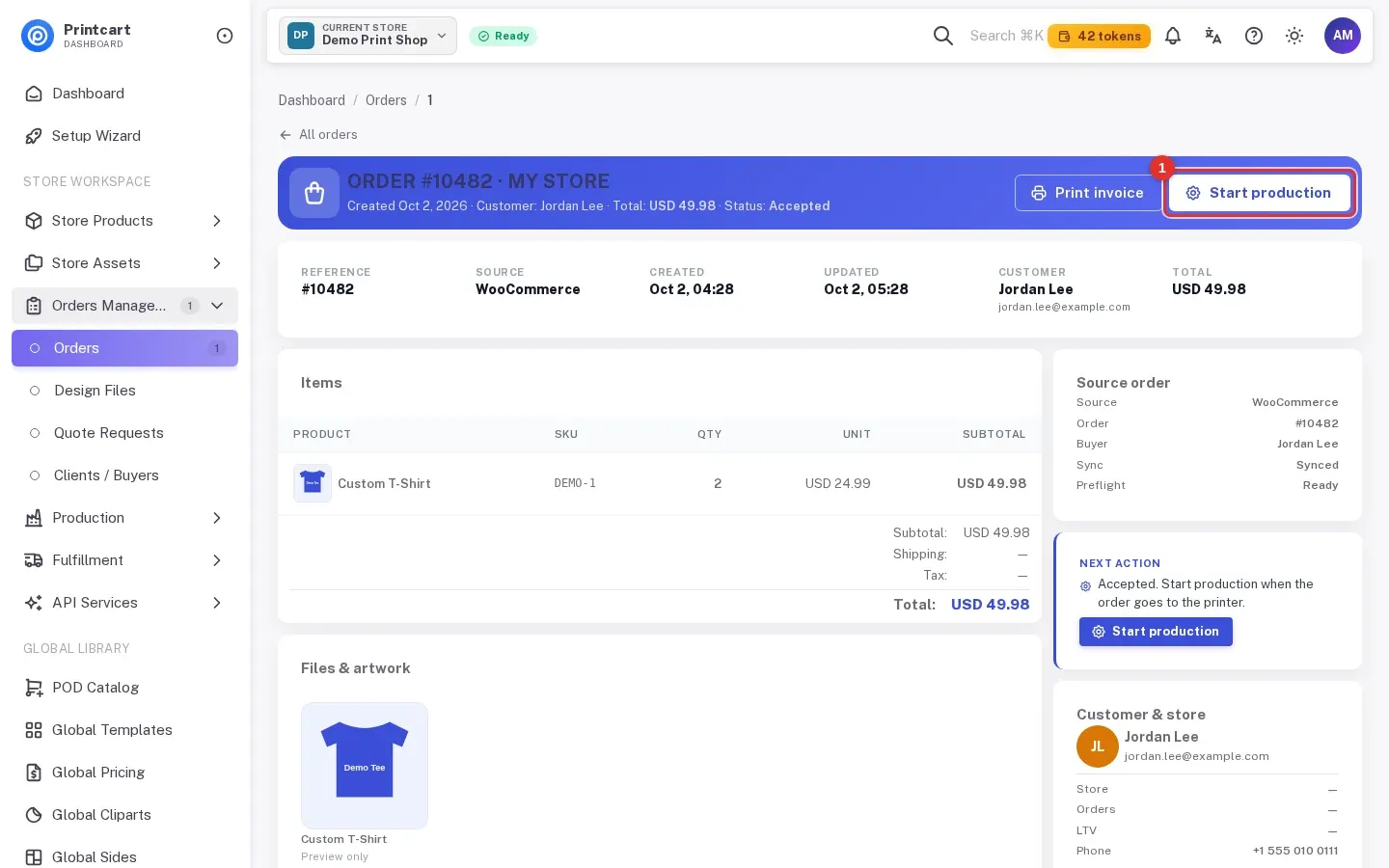
Expected result: The status changes to Accepted and the next button reads Start production.
Step 7Start production and mark the order fulfilled
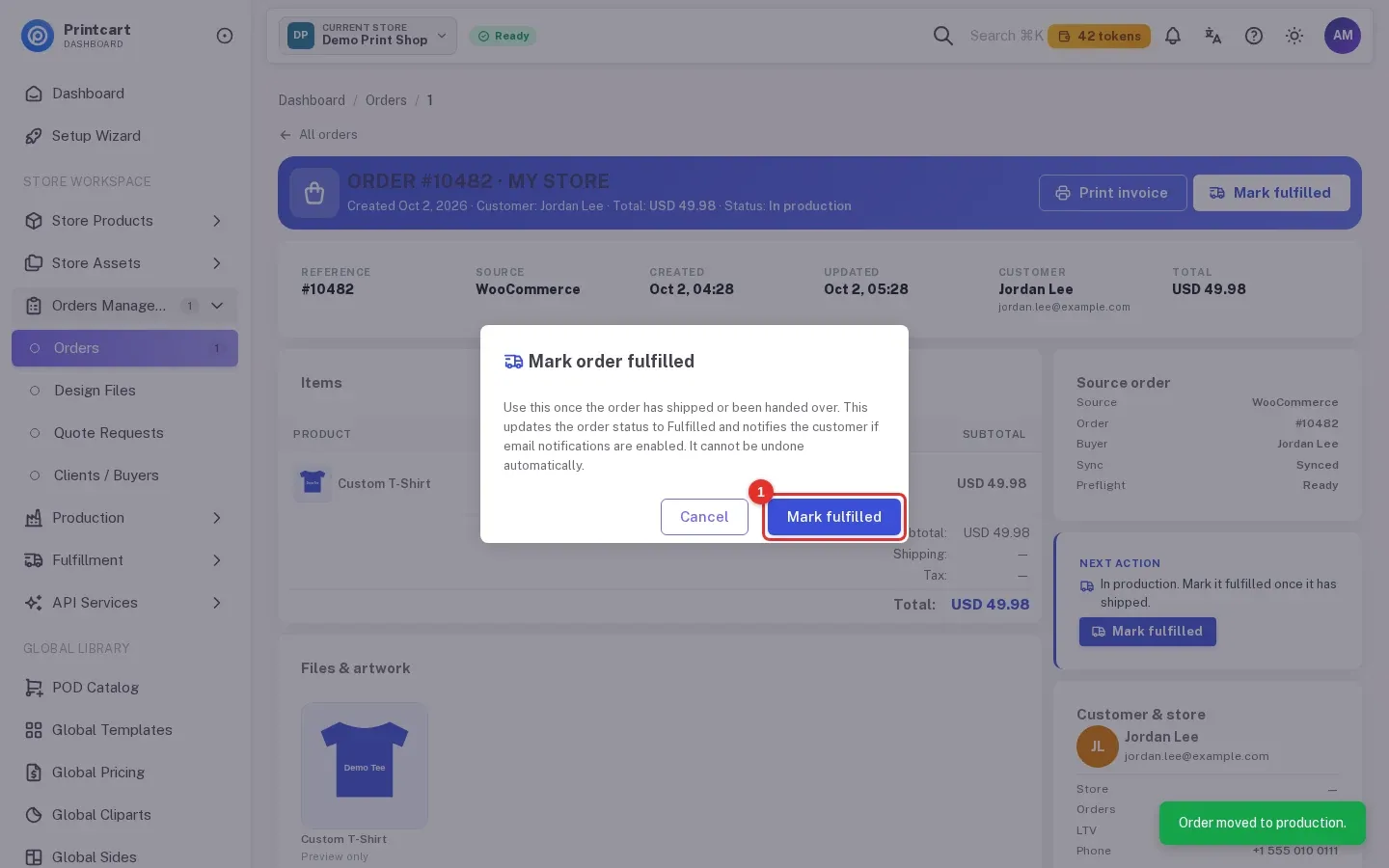
Click Start production when the job goes to the printer. When it has shipped or been handed over, click Mark fulfilled and confirm in the dialog, which also warns that the customer may be notified. Use Cancel order in the Other actions box only when the order must stop.
Expected result: The status moves to In production and then Fulfilled, and the timeline ticks each stage.
Step 8Find the buyer's design in Design Files
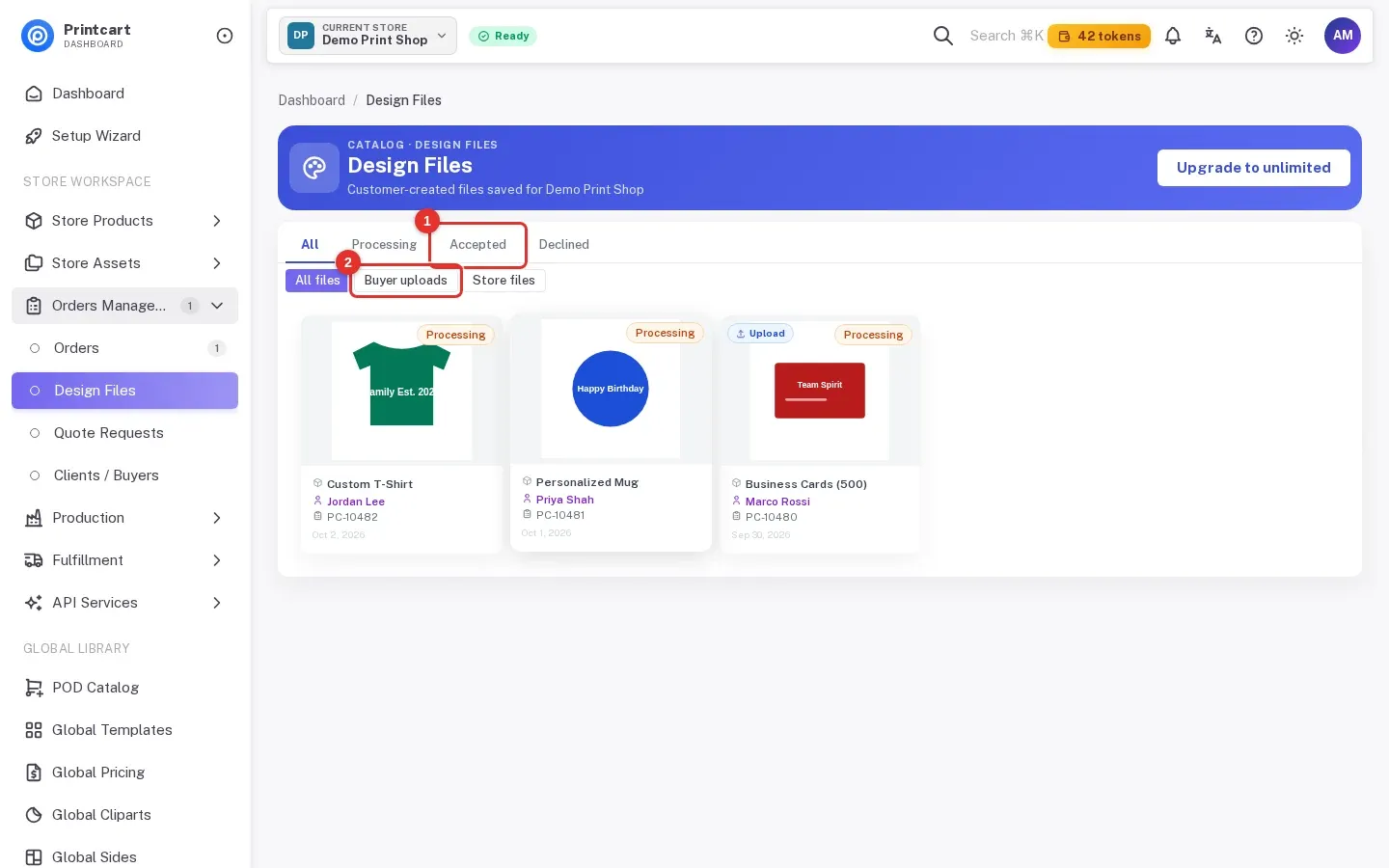
Open Design Files in the same menu group. Every design a buyer saved appears as a card with the product, the buyer and the order reference. Use the tabs All, Processing, Accepted and Declined, and the filters All files, Buyer uploads and Store files.
Expected result: You see the design cards for your store, each linked to its order.
Step 9Review a design and check the exports
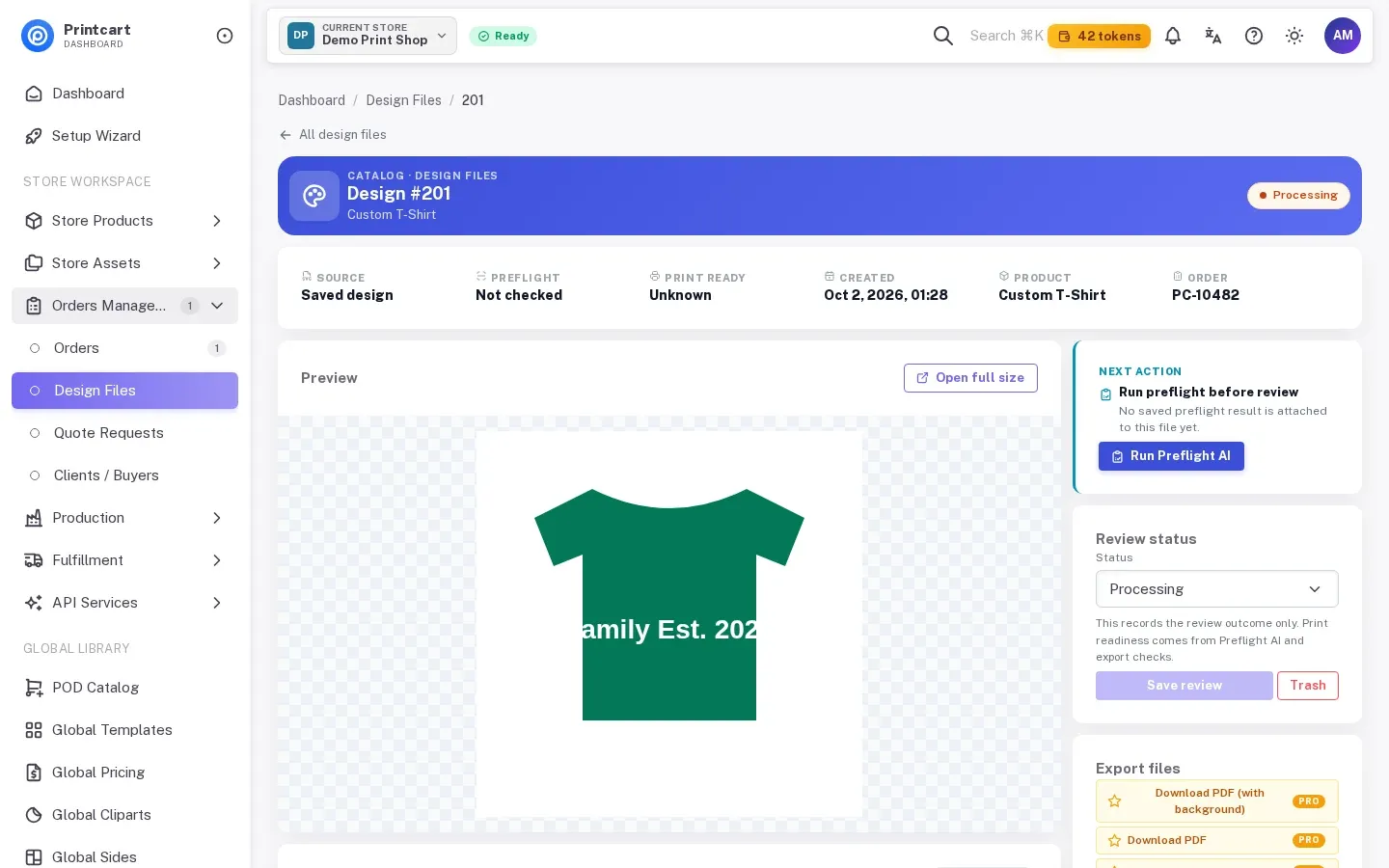
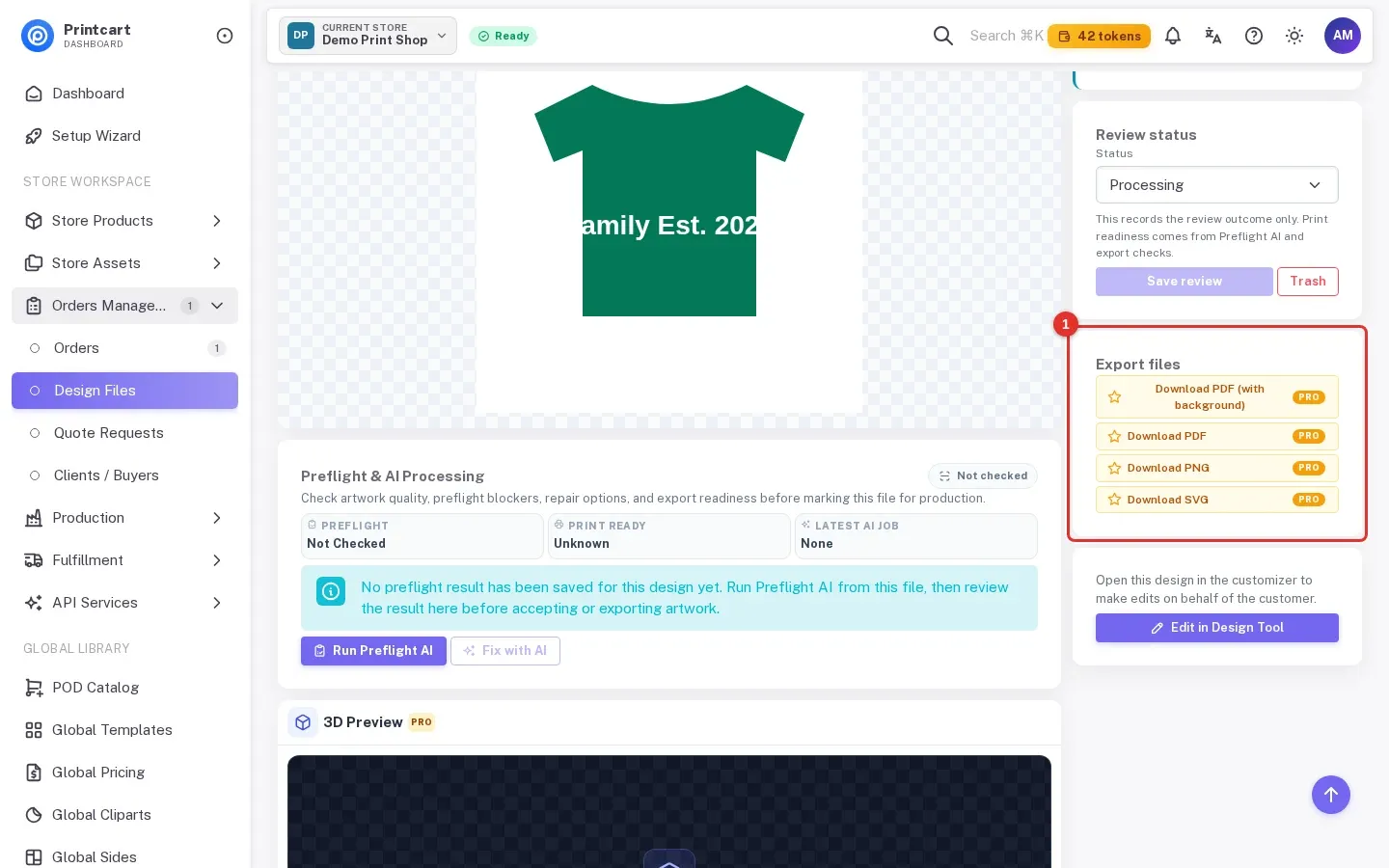
Click a card. The page shows the preview, a Preflight & AI Processing card, the Review status and the Export files card. Choose a review status and click Save review; the note under it says this records your decision only, and print readiness comes from the preflight and export checks. In Export files, the PDF, PNG and SVG downloads are marked PRO on the Free plan.
Expected result: You can record your review and you know which exports need a paid plan.
Does the customer get an email when I change a status?
The confirmation dialogs for Accept order and Mark fulfilled say that the customer is notified if email notifications are enabled. Move to review and Start production do not show that notice.
Why does an item say "Preview only" under Files & artwork?
The order page shows a picture of each item, and adds an Open file link only when a file is attached to that item. A picture without a link means no file is attached to the order item yet. Check the design under Design Files, and for WooCommerce orders open Apps & Connectors then WooCommerce and read the sync health cards to see whether products and files are synced.
What does the PRO label on the exports mean?
PDF, PNG and SVG exports of a saved design are a paid-plan feature. On the Free plan the buttons carry the PRO label and open a Pro feature prompt with an upgrade button instead of the file; the prompt says Pro plan, while the plan cards in Wallet & Billing are named Premium, Advanced and Enterprise. The plans, their prices and the upgrade steps are in the plans and billing guide.
All 9 parts of the Printcart Dashboard series
- Sign up and create your store
- Connect your store
- Enable the designer and set up products
- Manage orders and design files (you are here)
- Review buyer uploads and download files
- Use global templates and cliparts
- Plans, tokens and billing
- API keys and webhooks
- Store profile and brand settings
Using a store platform? See the guides for Wix, WordPress and WooCommerce and Shopify. Back to all Printcart tutorials.
What should you do next?
- Review, approve or decline uploaded files and download print files
- Plans, tokens and upgrading
- Enable the online designer and set up products
- Browse all Printcart tutorials
Stuck on a step? Message the Printcart team on WhatsApp and include a screenshot of the screen you are on.
Printcart field note
What to verify before you roll out Manage Orders and Design Files in the Printcart Dashboard: Statuses, Review and Exports
This tutorial is written from Printcart implementation patterns across order operations, approval routing, and fulfillment handoff. Before treating it as complete, test the workflow with one real product, one real design file, and one real order path.
Manage Orders and Design Files in the Printcart Dashboard: Statuses, Review and Exports — common questions
What do you need before you start?
The screenshots come from a demo account with a demo store called Demo Print Shop and made-up buyer names. Your store name, products and numbers will differ, but the screens and buttons are the same. Secret values are always hidden in the pictures.
Does the customer get an email when I change a status?
The confirmation dialogs for Accept order and Mark fulfilled say that the customer is notified if email notifications are enabled. Move to review and Start production do not show that notice.
Why does an item say "Preview only" under Files & artwork?
The order page shows a picture of each item, and adds an Open file link only when a file is attached to that item. A picture without a link means no file is attached to the order item yet. Check the design under Design Files , and for WooCommerce orders open Apps & Connectors then WooCommerce and read the sync health cards to see whether products and files are synced.
What does the PRO label on the exports mean?
PDF, PNG and SVG exports of a saved design are a paid-plan feature. On the Free plan the buttons carry the PRO label and open a Pro feature prompt with an upgrade button instead of the file; the prompt says Pro plan , while the plan cards in Wallet & Billing are named Premium, Advanced and Enterprise. The plans, their prices and the upgrade steps are in the plans and billing guide .
Next steps in Printcart
Connect manage orders and design files in the printcart dashboard: statuses, review and exports with catalog setup, templates, production workflows, and implementation support.
Want to put manage orders and design files in the printcart dashboard: statuses, review and exports into practice?
Use the related Printcart tool below, or create a free account to start building with the product designer.