Open Global Templates or Global Cliparts under Global Library in the Printcart Dashboard. Search or pick a collection, click Preview and use on a template (or click a clipart), then choose one of your store products. Products with the designer on are listed as ready; the others show Open setup so you can turn the designer on first.
Key takeaways
Part 6 of 9 in the Printcart Dashboard tutorial series. Previous: Part 5, Review buyer uploads and download files. Next: Part 7, Plans, tokens and billing.
What do you need before you start?
- A store with at least one product that has the designer turned on (see Part 3).
- Nothing to install: the libraries are Printcart's own and are shared by all stores.
The screenshots come from a demo account with a demo store called Demo Print Shop and made-up buyer names. Your store name, products and numbers will differ, but the screens and buttons are the same. Secret values are always hidden in the pictures.
How do you use global templates and cliparts?
Step 1Open Global Templates
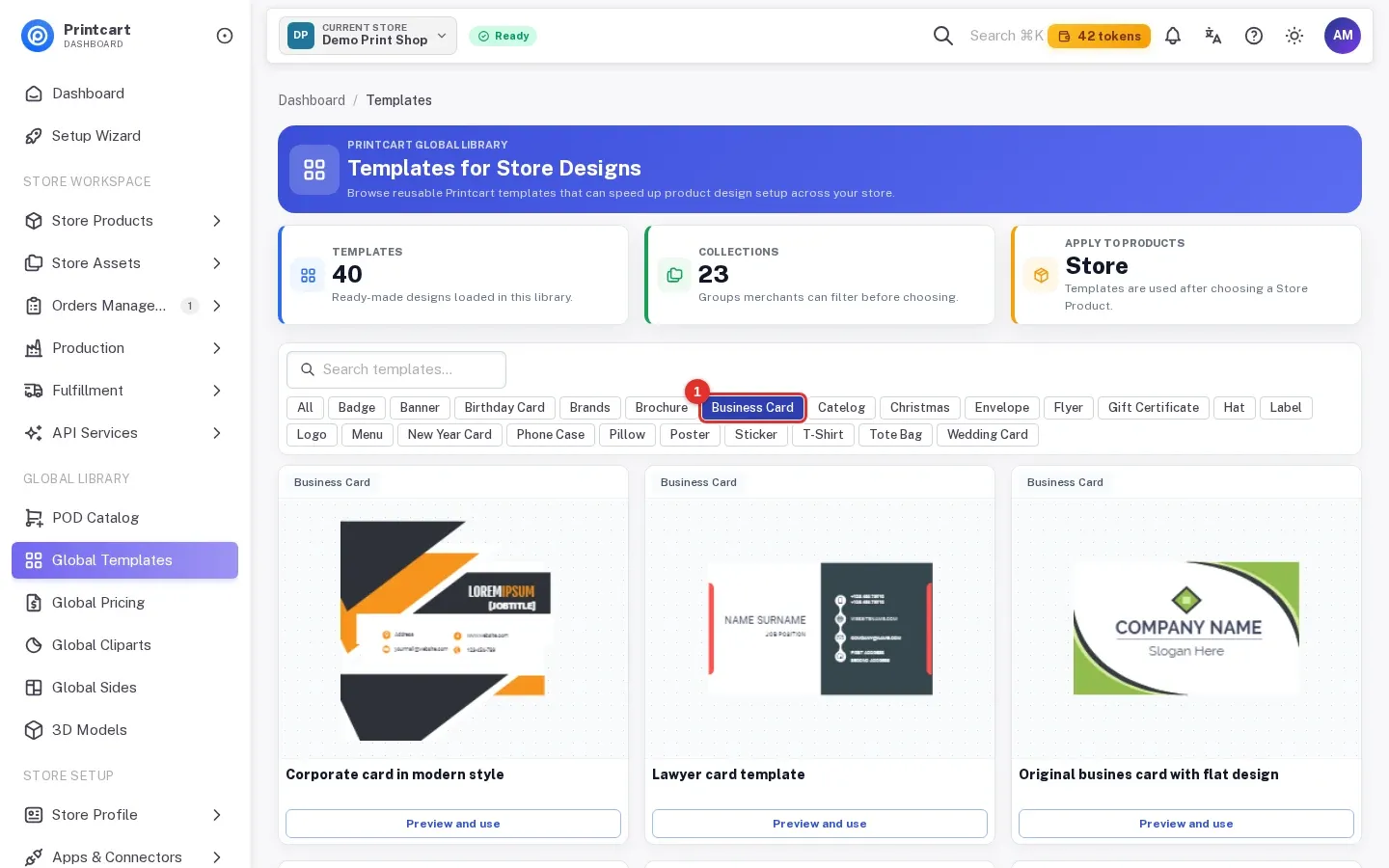
In the left menu, under Global Library, click Global Templates (www.printcart.com/en/templates). The top cards show how many templates are loaded and how many collections there are, and remind you that a template is used on a store product, not directly on the POD catalog.
Expected result: The page Templates for Store Designs opens with a grid of template cards.
Step 2Search the library
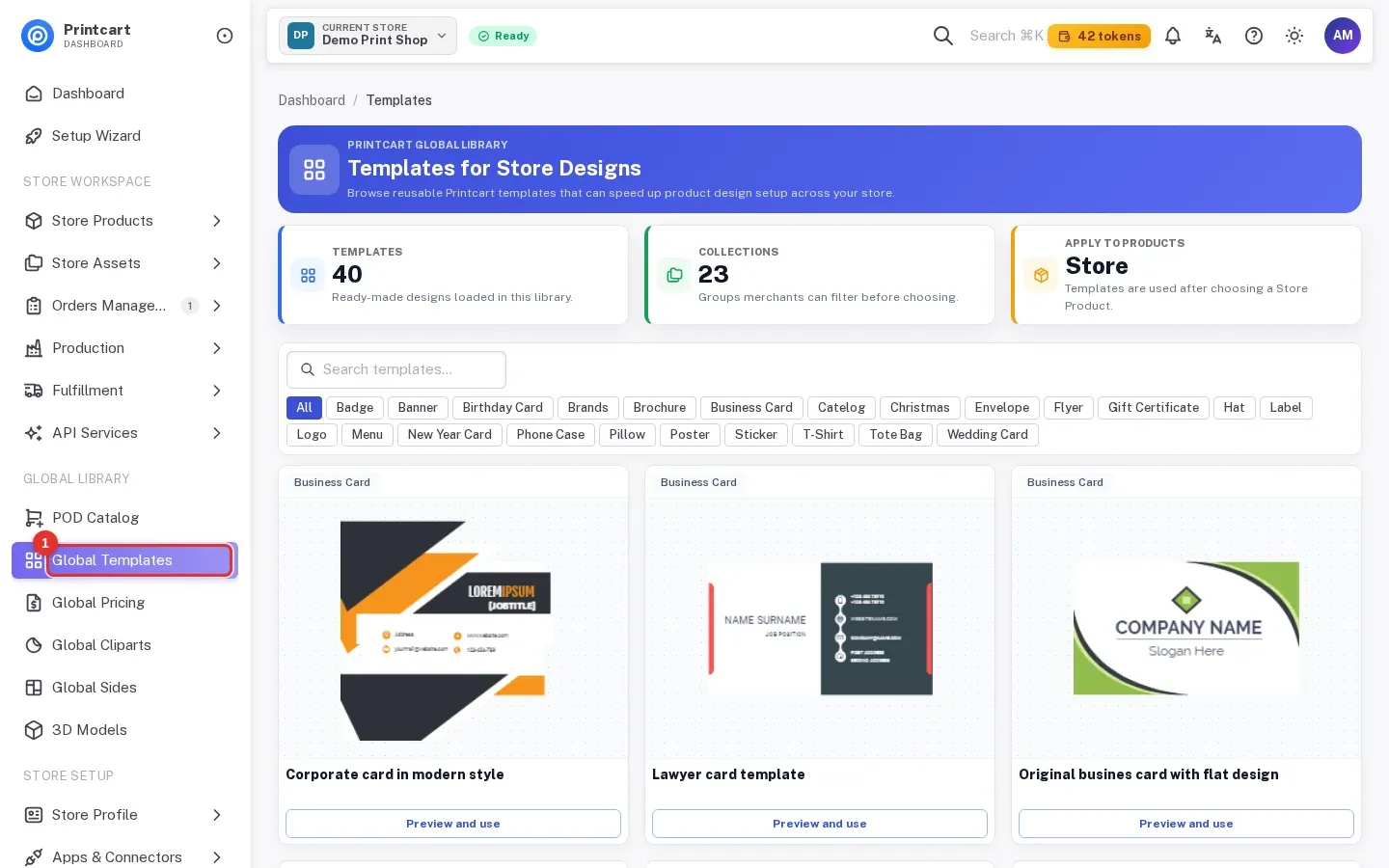
Type a word such as wedding into Search templates. The grid updates to the templates whose names match.
Expected result: Only matching templates are shown.
Step 3Pick a collection
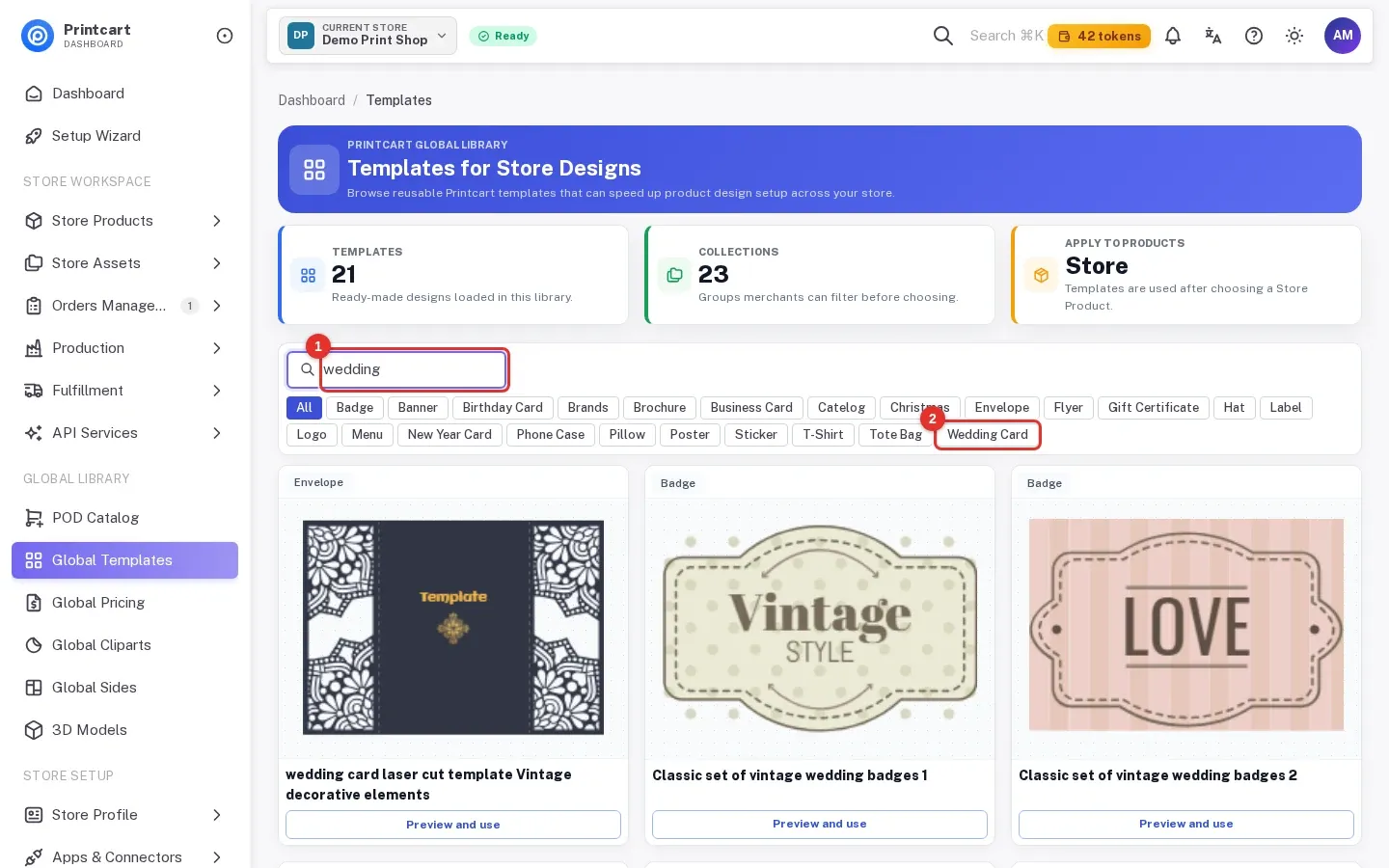
Clear the search and click a collection chip such as Business Card, Poster or T-Shirt. Click All to see everything again.
Expected result: The grid shows only the templates in that collection, and each card is tagged with its collection.
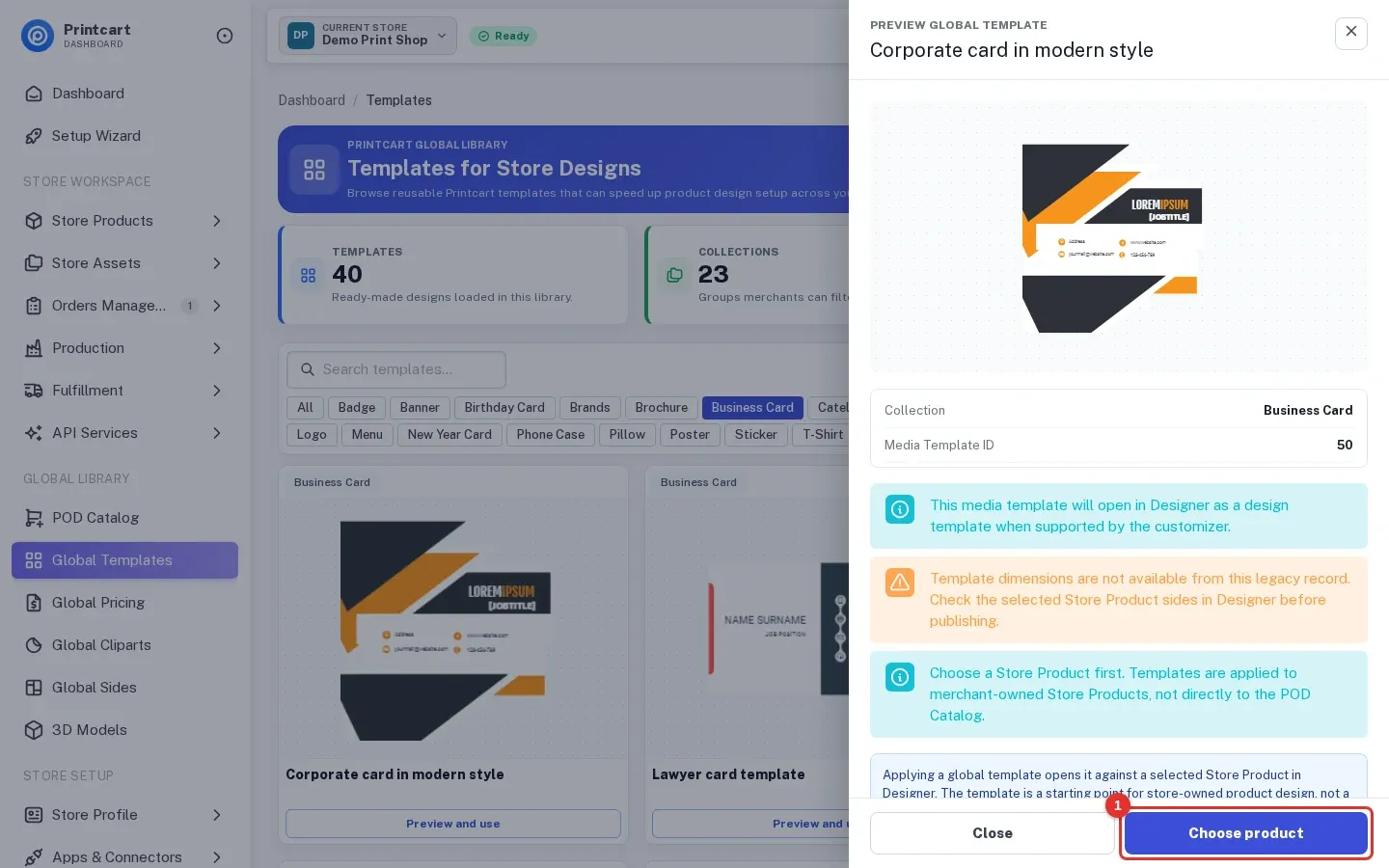
Step 4Preview a template
Click Preview and use on a card. A side panel shows a larger preview, the collection and the template ID, and a few notes: a template opens in the Designer, the size of older templates may be missing, and you must choose a store product first. If the panel warns that the template size is not available, open the product afterwards and check its sides before you publish.
Expected result: The preview panel is open with the Choose product button at the bottom.
Step 5Choose a store product
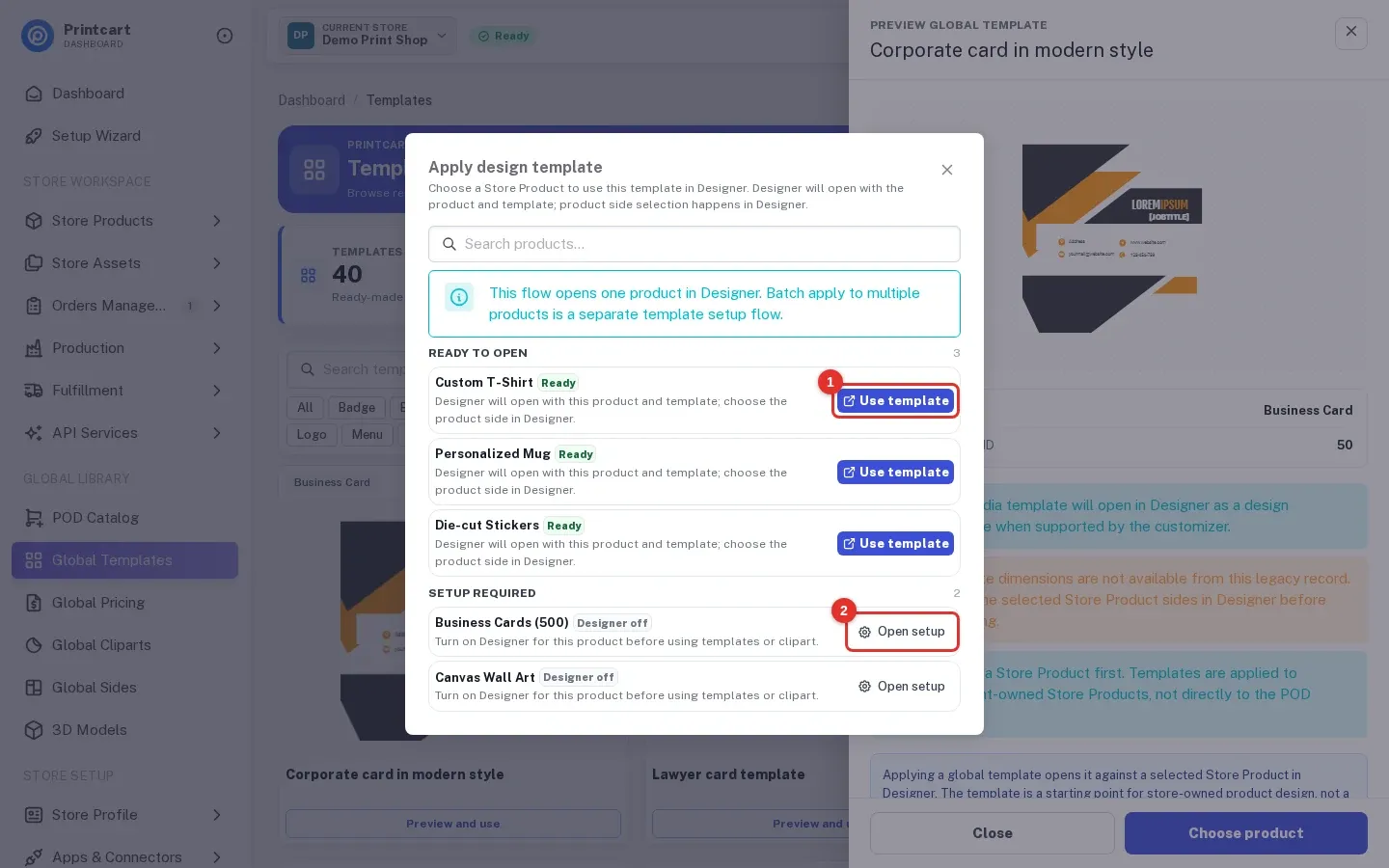
Click Choose product. The Apply design template window lists your products in two groups. Ready to open products have the designer on; click Use template beside one to open the Designer with that product and template together. Setup required products show why, for example Designer off, with an Open setup button that takes you to the product so you can turn the designer on.
Expected result: You see which of your products can take the template right now.
Step 6Open Global Cliparts
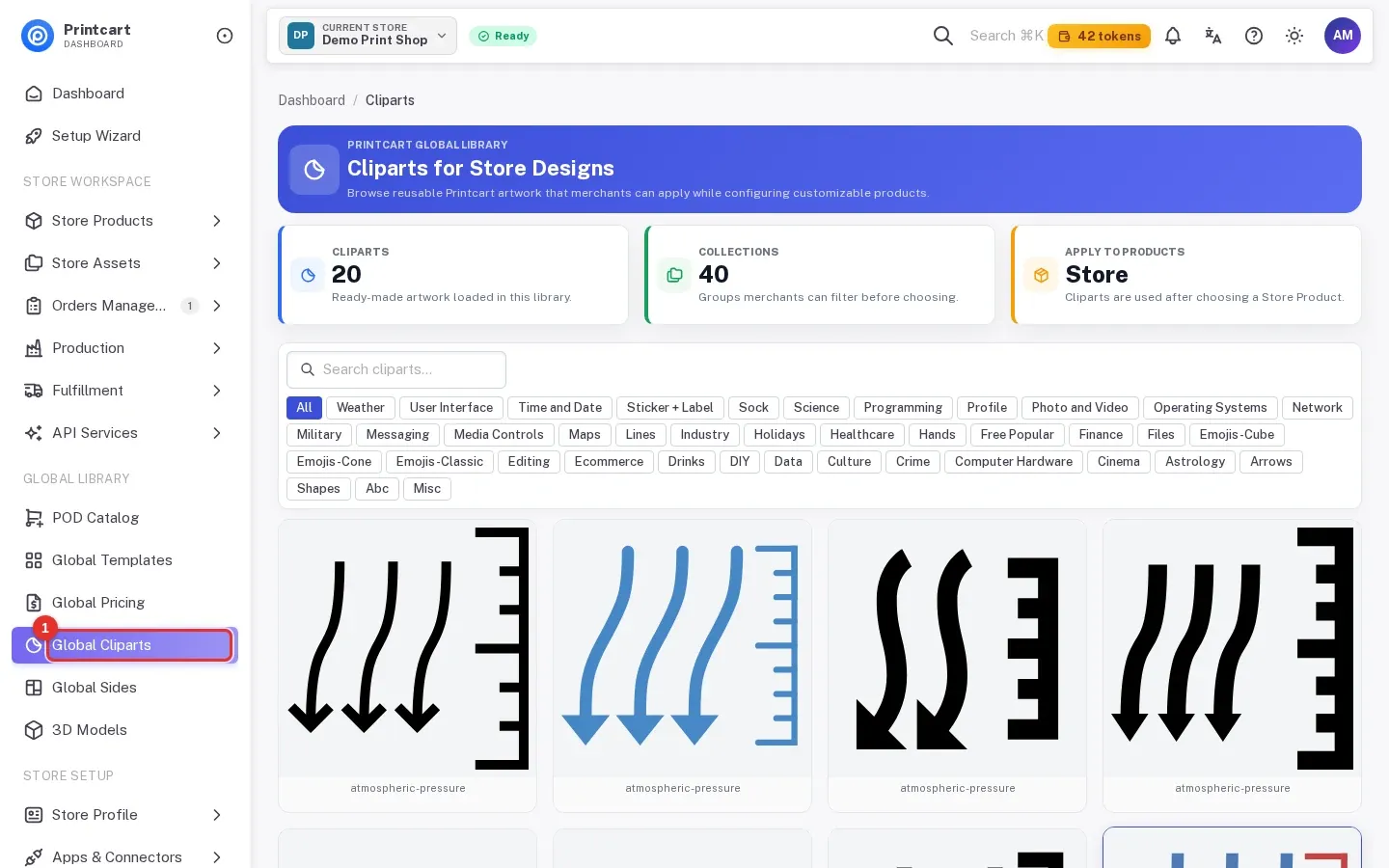
Click Global Cliparts in the same menu group (www.printcart.com/en/cliparts). The chips above the grid are the clipart categories, such as Weather, Holidays or Healthcare.
Expected result: The page Cliparts for Store Designs opens with a grid of artwork.
Step 7Search the cliparts
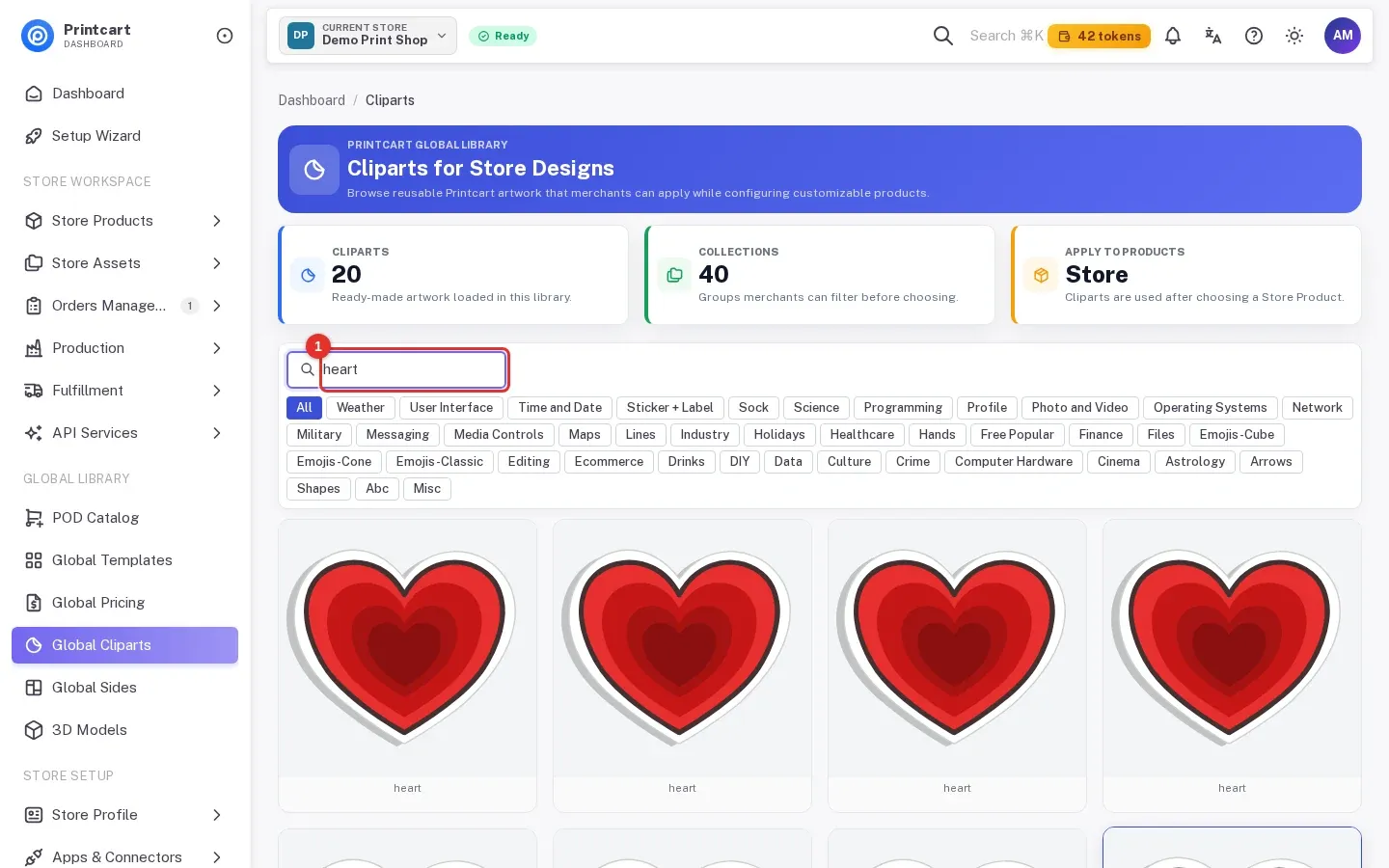
Type a word such as heart into Search cliparts, or click a category chip, to narrow the grid.
Expected result: The grid shows only matching cliparts.
Step 8Use a clipart
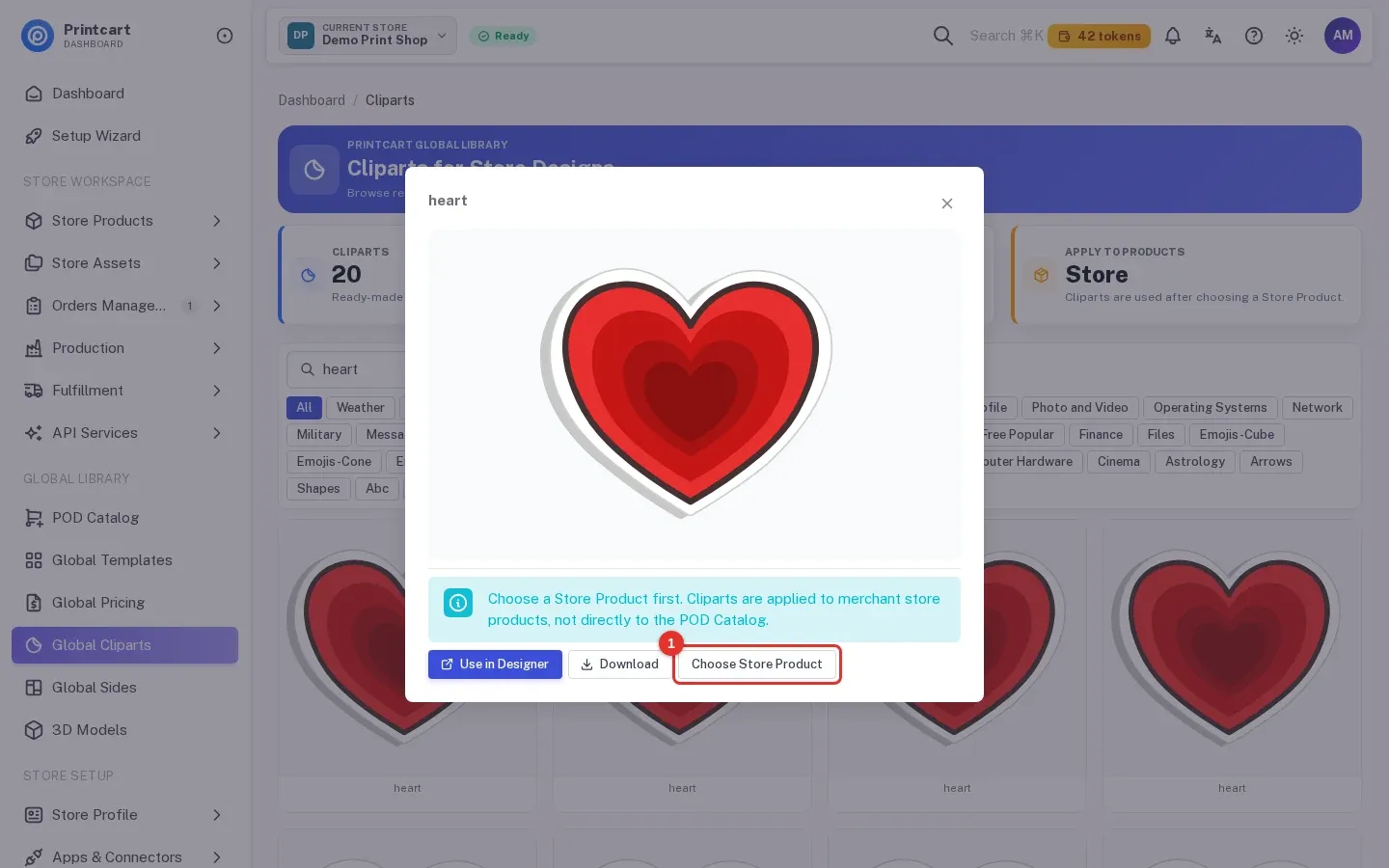
Click a clipart to open it. The window offers Use in Designer, Download and Choose Store Product. Cliparts are applied to your own store products, so pick a product the same way as for a template.
Expected result: The clipart window is open with the three buttons.
Which plan do I need for the premium library?
The plan comparison under Wallet & Billing then App subscriptions lists a premium clipart library and premium design templates as features of the Premium plan and above, and shows the Free plan as not including them. The plans and billing guide shows where to read it.
Where are the cliparts and templates I upload myself?
The Store Assets pages (Uploaded Cliparts and Uploaded Templates) say that the list of your own uploads is still waiting for backend support, so this guide covers the global library only. You can still use a global template or clipart in the Designer as shown above.
Why does Choose product say my product needs setup?
A product can only take a template or a clipart when its designer is on and it has at least one side. Click Open setup, follow Part 3, then come back.
All 9 parts of the Printcart Dashboard series
- Sign up and create your store
- Connect your store
- Enable the designer and set up products
- Manage orders and design files
- Review buyer uploads and download files
- Use global templates and cliparts (you are here)
- Plans, tokens and billing
- API keys and webhooks
- Store profile and brand settings
Using a store platform? See the guides for Wix, WordPress and WooCommerce and Shopify. Back to all Printcart tutorials.
What should you do next?
- Enable the online designer and set up products
- Plans, tokens and upgrading
- Personalization at scale: templates, cliparts and input fields
- Browse all Printcart tutorials
Stuck on a step? Message the Printcart team on WhatsApp and include a screenshot of the screen you are on.
Printcart field note
What to verify before you roll out Use Global Templates and Cliparts in the Printcart Dashboard
This tutorial is written from Printcart implementation patterns across catalog structure, design controls, and customer personalization. Before treating it as complete, test the workflow with one real product, one real design file, and one real order path.
Use Global Templates and Cliparts in the Printcart Dashboard — common questions
What do you need before you start?
The screenshots come from a demo account with a demo store called Demo Print Shop and made-up buyer names. Your store name, products and numbers will differ, but the screens and buttons are the same. Secret values are always hidden in the pictures.
Which plan do I need for the premium library?
The plan comparison under Wallet & Billing then App subscriptions lists a premium clipart library and premium design templates as features of the Premium plan and above, and shows the Free plan as not including them. The plans and billing guide shows where to read it.
Where are the cliparts and templates I upload myself?
The Store Assets pages ( Uploaded Cliparts and Uploaded Templates ) say that the list of your own uploads is still waiting for backend support, so this guide covers the global library only. You can still use a global template or clipart in the Designer as shown above.
Why does Choose product say my product needs setup?
A product can only take a template or a clipart when its designer is on and it has at least one side. Click Open setup , follow Part 3 , then come back.
Next steps in Printcart
Connect use global templates and cliparts in the printcart dashboard with catalog setup, templates, production workflows, and implementation support.
Want to put use global templates and cliparts in the printcart dashboard into practice?
Use the related Printcart tool below, or create a free account to start building with the product designer.