To make sure shoppers can order from a phone, walk through your own shop at phone size: open a customizable product, tap the design button, choose Design online , pick a template, edit the text, tap Process , add to cart and place the order. Then try the upload option and open the order in WooCommerce. In our phone-sized test every step worked, and the...
Key takeaways
Part 5 of 8 in the Printcart Store for WordPress plugin page tutorial series. Previous: Part 4, Let customers upload their own artwork. Next: Part 6, Manage print orders: review designs, track status and ship.
What do you need before you start?
- Printcart Store installed with a published customizable product (see Create a customizable product with the online designer). The example is the Business Card sample product, with the printing options from Part 3 and file upload from Part 4.
- A payment method for tests in WooCommerce. The example uses Pay on delivery.
- A phone, or your desktop browser switched to a phone model in its device mode. Making a desktop window narrow is not enough, because the shop decides what is a phone from the browser type (see the answer on empty editors below).
The screenshots come from a test shop with the Storefront theme and Printcart Store 2.11, taken in a phone-sized browser (390 by 844 pixels) that reports an iPhone, not on a physical phone. The customer in the examples is made up.
How do you check the whole customer journey on a phone?
Step 1Open the product and tap the design button
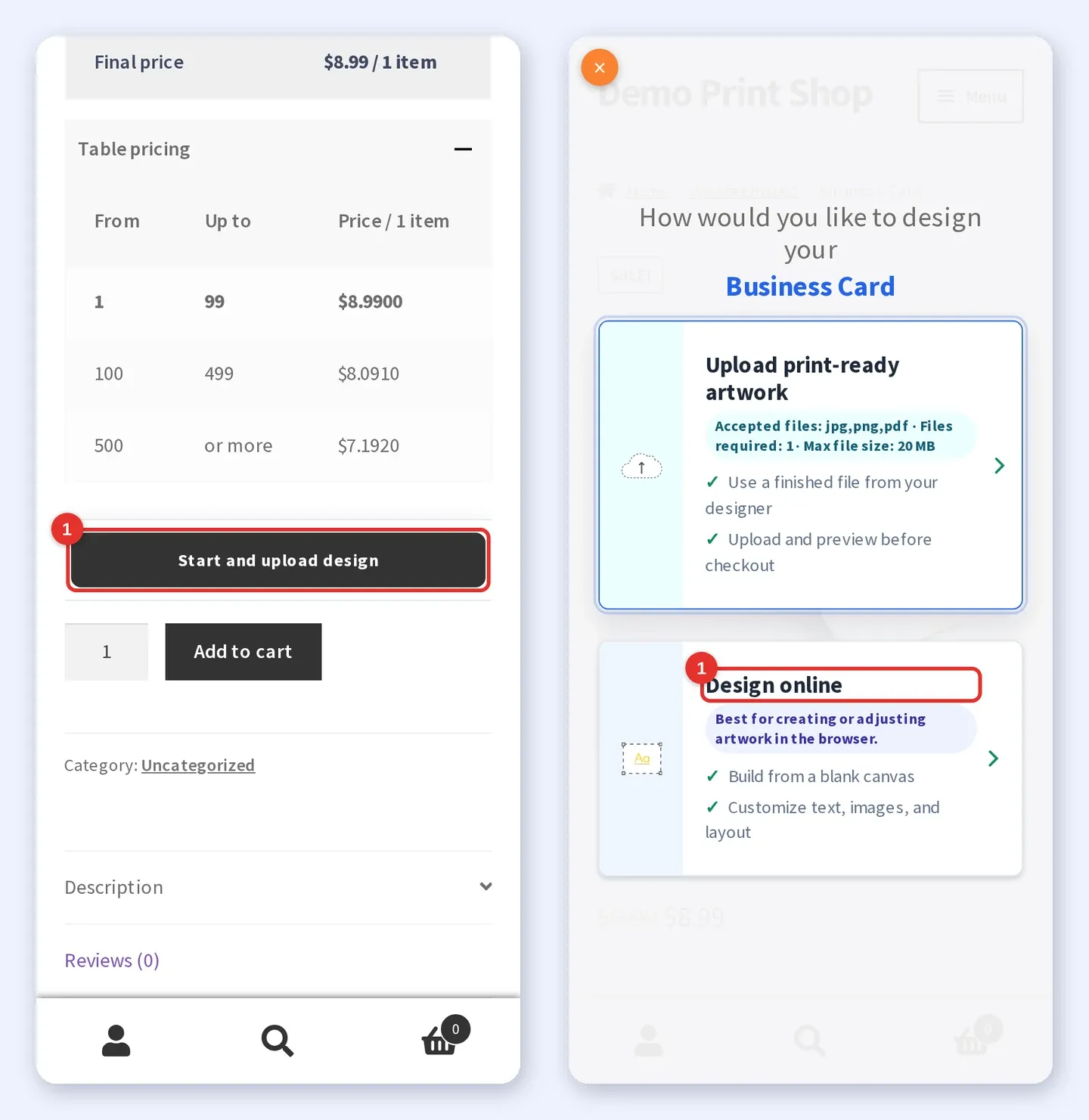
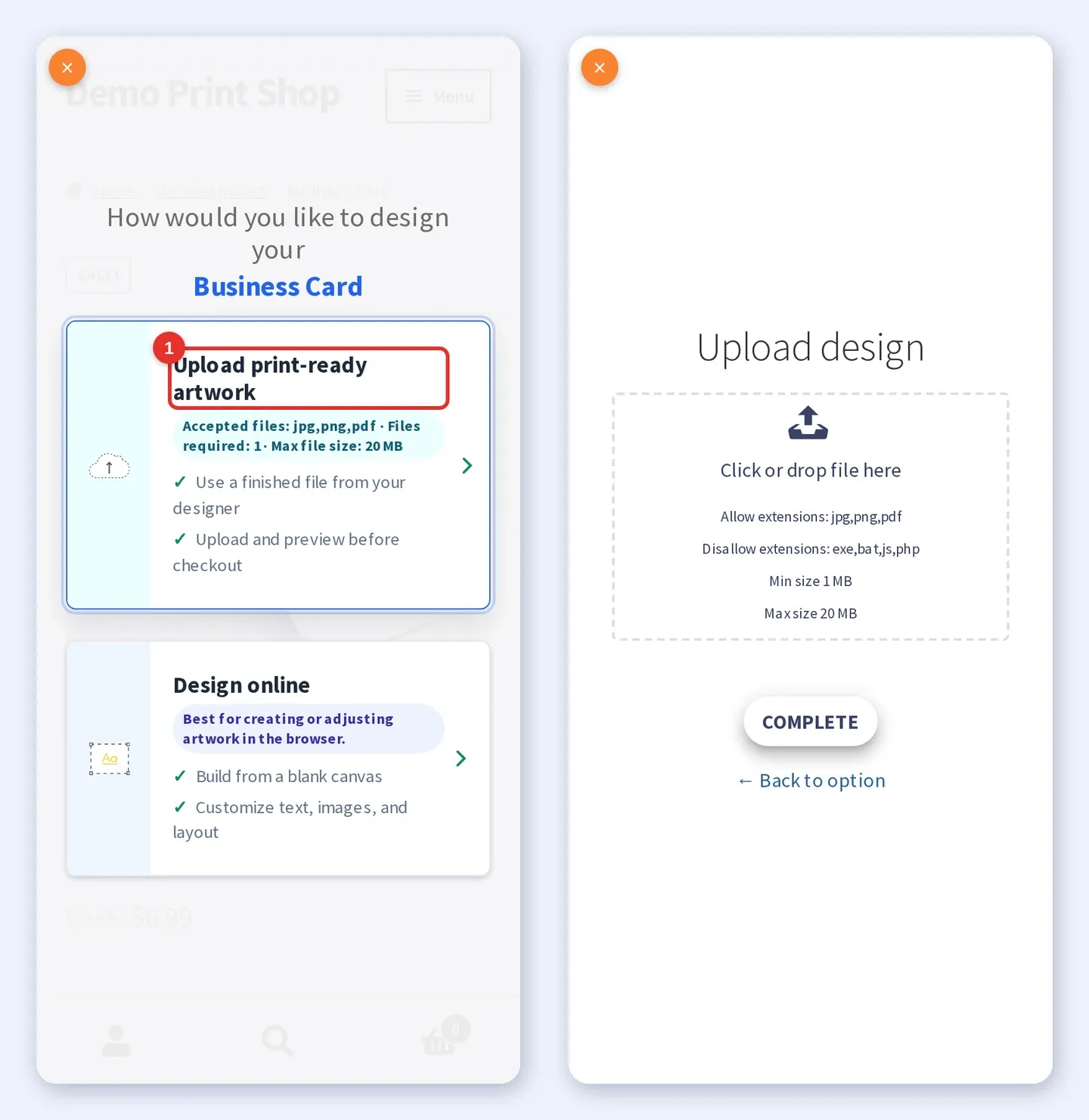
On the phone, open your shop and the product page. The example is the Business Card. Scroll to the design button. Because this product has both the designer and file upload turned on, it reads Start and upload design. Tap it. A chooser opens with two cards, Upload print-ready artwork and Design online. Tap Design online.
Expected result: The chooser fills the screen. The upload card repeats the file rules you set in Part 4.
Step 2Pick a template and change the text
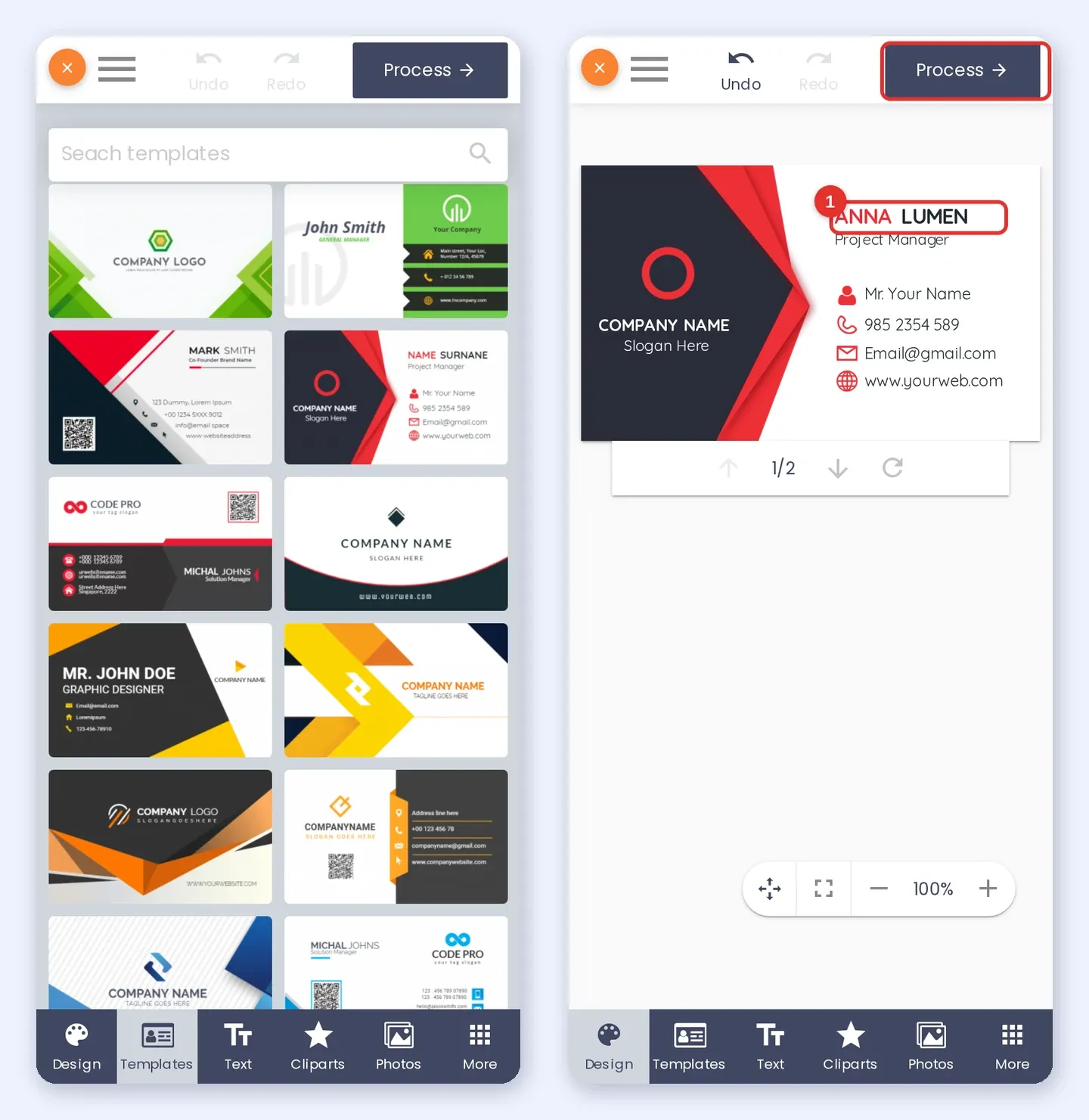
The designer opens full screen with its tabs along the bottom: Design, Templates, Text, Cliparts, Photos and More. If a short tour opens as a bottom sheet, tap Skip tour. Tap Templates and choose a card. The designer returns to the Design tab with the template on the canvas. Double-tap the text you want to change, type your own words and close the keyboard. The example changes the name on the card to ANNA LUMEN.
Expected result: The template is on the canvas, your text replaces the sample name and Undo is active.
Step 3Tap Process, review your artwork and add it to the cart
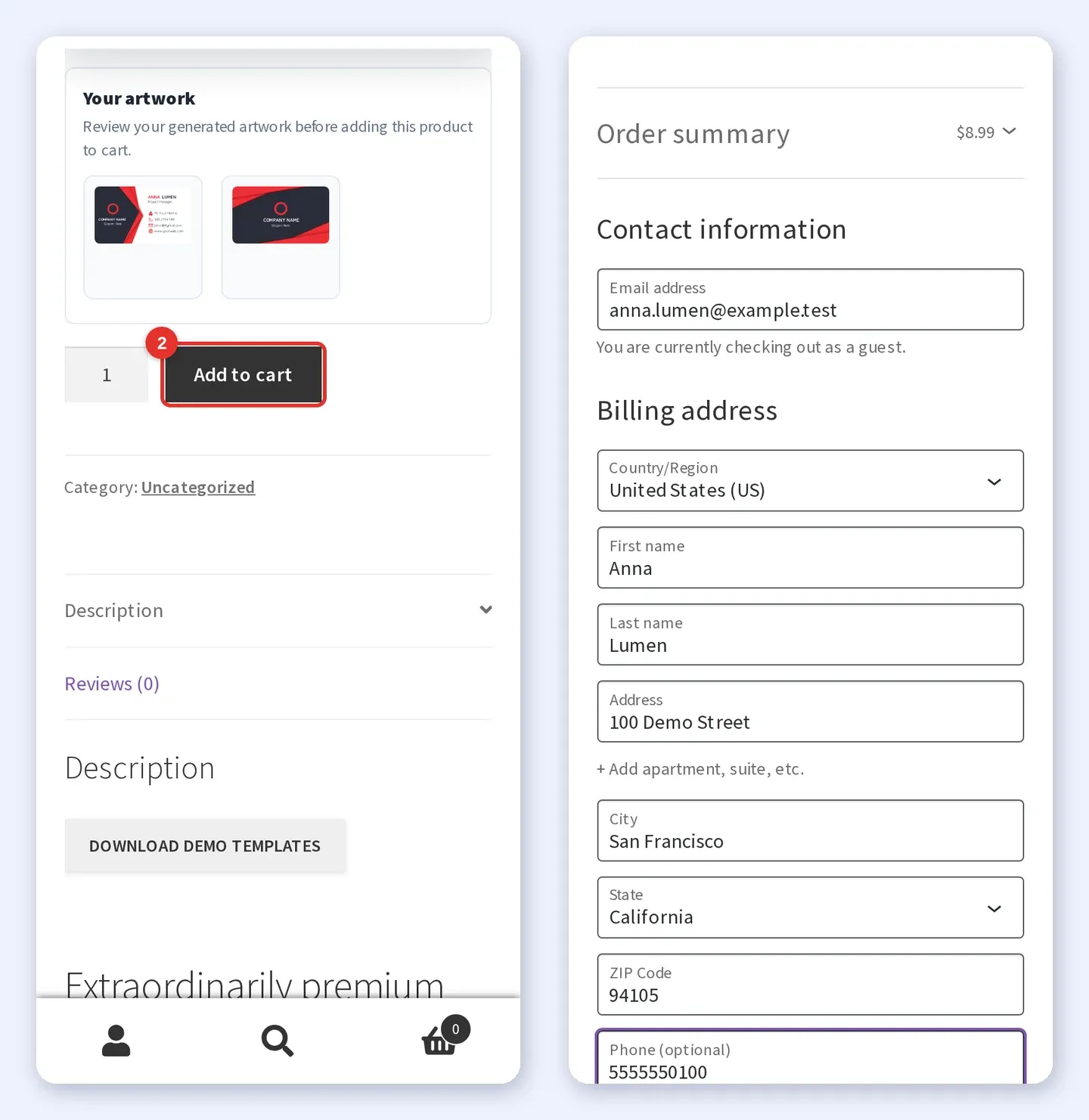
Tap Process at the top right. The designer closes and the product page shows Your artwork with a preview of every side. Check both sides, then tap Add to cart and open the checkout.
Expected result: The preview shows the front and the back of the card, and the checkout lists the Business Card with the option you picked (Paper finish: Matte).
Step 4Check out and place the order
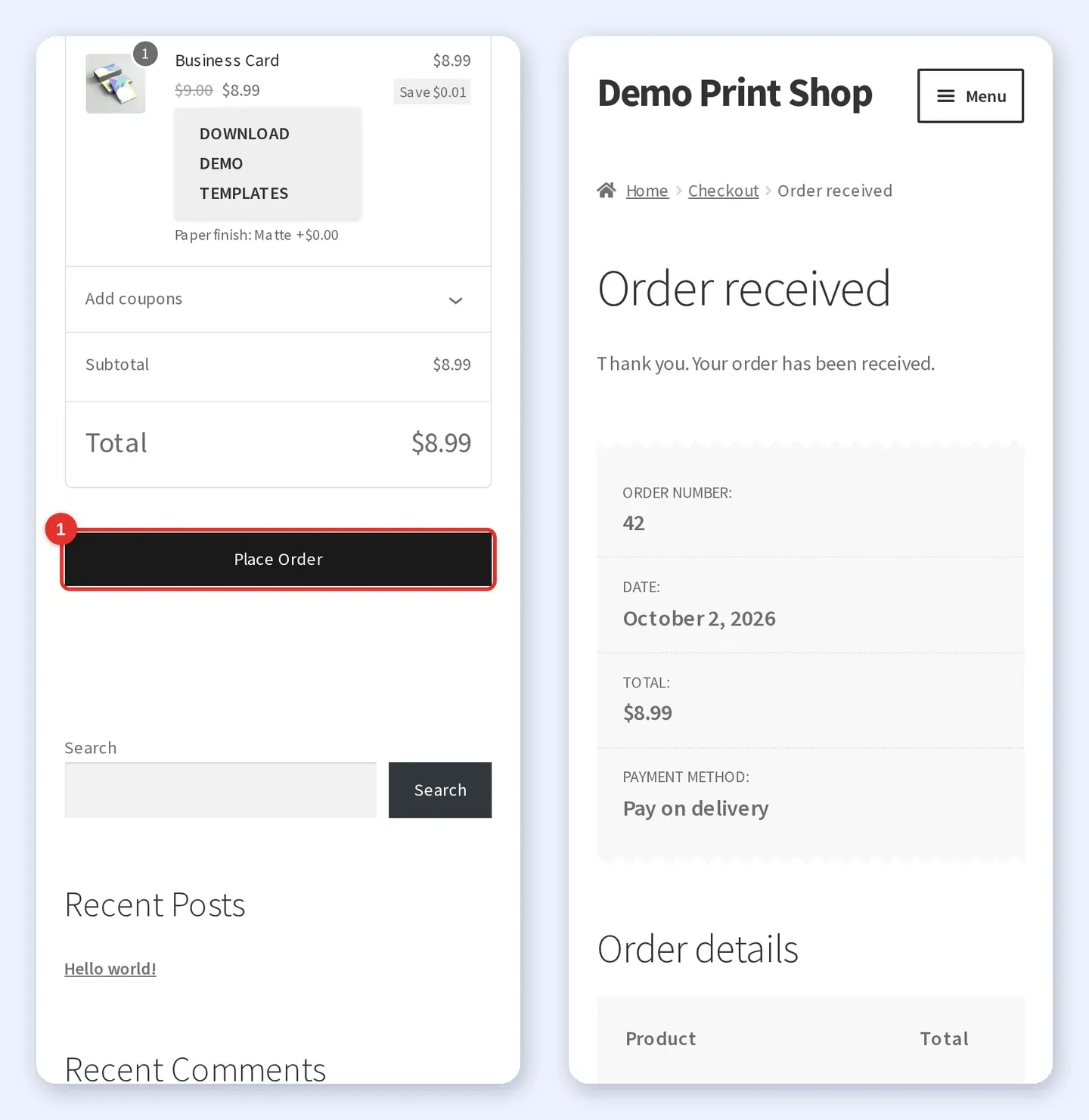
On the checkout page fill in the contact and billing details, choose a payment method (the example uses Pay on delivery) and tap Place Order.
Expected result: WooCommerce shows Order received with the order number, the payment method and the total.
Step 5Try the upload option on the phone
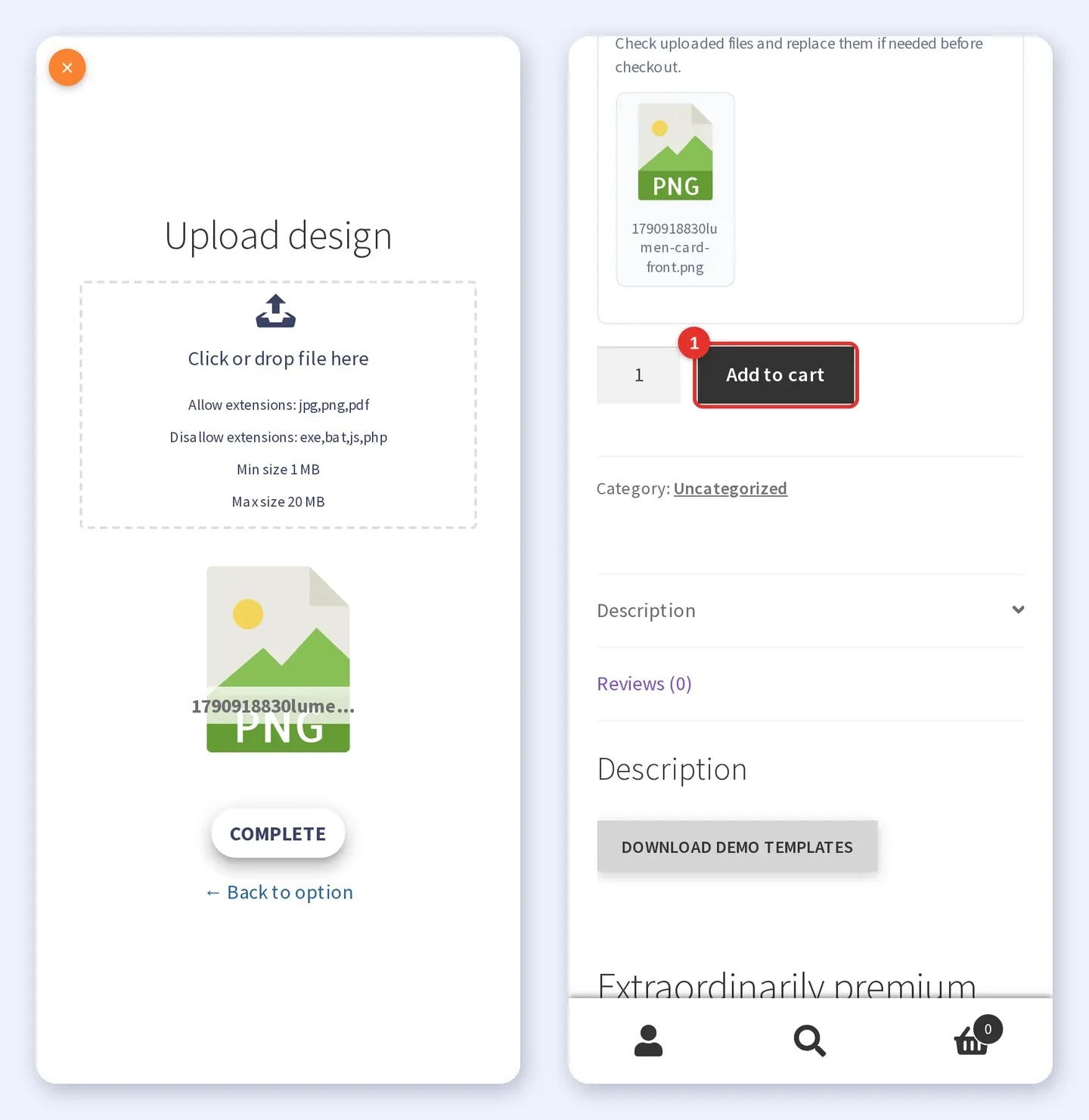
Open the product again, tap the design button and choose Upload print-ready artwork. The upload box lists the allowed file types and the size limits. Tap Click or drop file here, pick a file from the phone and tap Complete. A file that breaks the rules is refused with a pop-up message. In our test this product asks for files of at least 1 MB, and a smaller test image was refused with a message that read Min file size 1 MB. The file in the screenshots is larger than that.
Expected result: The product page lists the uploaded file as a thumbnail in the Upload file box, above the Add to cart button.
Step 6Find the order in your WordPress admin
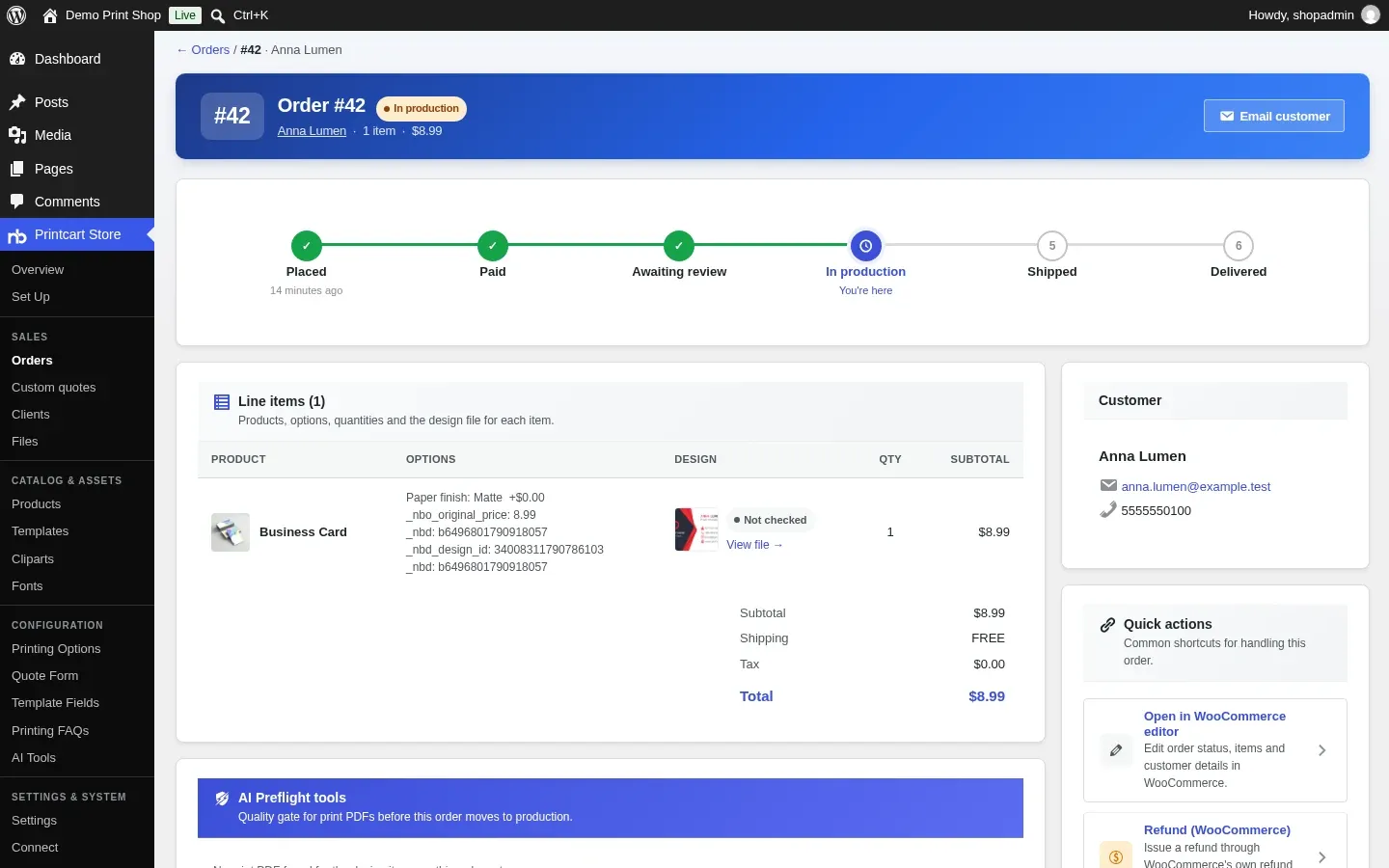
On a computer, open Printcart Store > Orders and click the order number. The order page shows the customer, the options they chose and a thumbnail of the design that was made on the phone. Click View file to open it. Part 6 shows how to review the file and ship the order.
Expected result: The order shows the design preview and the status timeline. Because the test used Pay on delivery, WooCommerce put the order straight into In production.
What should you check on a phone before you promote a product?
- The design button is easy to find and opens the chooser.
- All the tabs of the designer fit on the screen and the tour can be skipped.
- You can edit the text, tap Process and see Your artwork.
- Add to cart and checkout work with your printing options.
- The upload box shows the right file types and size limits, and a good file is accepted.
- The order reaches Printcart Store > Orders with the design thumbnail.
Why is the editor empty in my narrow desktop browser window?
The shop treats a visitor as a phone from the browser type, not only from the window width. In our test, a desktop browser made about 700 pixels wide opened the editor with an empty canvas, while the same screen with a phone browser type showed the design. Widen the window, or set your browser device mode to a phone model, to test the phone layout. The troubleshooting guide shows the empty screen.
Can I turn the designer off for phones?
Yes. Printcart Store > Settings > General has Hide design editor on smartphones. When it is set to Yes, phone shoppers see an information message instead of the designer. It is set to No by default, so leave it as it is if you want orders from phones.
All 8 parts of the Printcart Store for WordPress series
- Get started with Printcart Store for WordPress
- Create a customizable product with the online designer
- Add printing options and quantity discounts
- Let customers upload their own artwork
- Test your shop on a phone: order a custom product (you are here)
- Manage print orders: review designs, track status and ship
- Free plan, connecting and upgrading
- Troubleshooting common problems
Back to the Printcart Store for WordPress plugin page.
What should you do next?
- Manage print orders in WooCommerce: review designs, track status and ship
- Mobile-friendly online product designer: before and after in Printcart Store 2.11
- Printcart Store for WordPress troubleshooting
Stuck on a step? Message the Printcart team on WhatsApp and include your plugin version and a screenshot of the screen you are on.
Printcart field note
What to verify before you roll out Test Your WooCommerce Shop on a Phone: Order a Custom Product from Design to Checkout
This tutorial is written from Printcart implementation patterns across order operations, approval routing, and fulfillment handoff. Before treating it as complete, test the workflow with one real product, one real design file, and one real order path.
Test Your WooCommerce Shop on a Phone: Order a Custom Product from Design to Checkout — common questions
What do you need before you start?
The screenshots come from a test shop with the Storefront theme and Printcart Store 2.11, taken in a phone-sized browser (390 by 844 pixels) that reports an iPhone, not on a physical phone. The customer in the examples is made up.
Why is the editor empty in my narrow desktop browser window?
The shop treats a visitor as a phone from the browser type, not only from the window width. In our test, a desktop browser made about 700 pixels wide opened the editor with an empty canvas, while the same screen with a phone browser type showed the design. Widen the window, or set your browser device mode to a phone model, to test the phone layout. The troubleshooting guide shows the empty screen.
Can I turn the designer off for phones?
Yes. Printcart Store > Settings > General has Hide design editor on smartphones . When it is set to Yes, phone shoppers see an information message instead of the designer. It is set to No by default, so leave it as it is if you want orders from phones.
What should you do next?
Stuck on a step? Message the Printcart team on WhatsApp and include your plugin version and a screenshot of the screen you are on.
Next steps in Printcart
Connect test your woocommerce shop on a phone: order a custom product from design to checkout with catalog setup, templates, production workflows, and implementation support.
Want to put test your woocommerce shop on a phone: order a custom product from design to checkout into practice?
Use the related Printcart tool below, or create a free account to start building with the product designer.