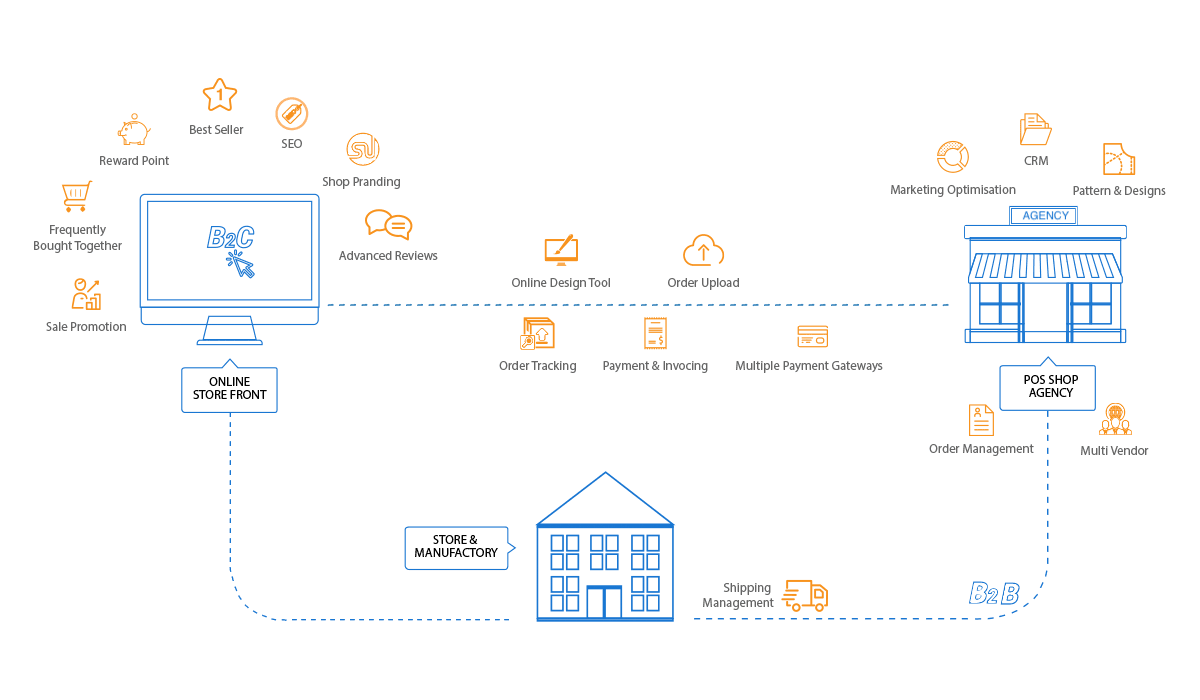
Add Printcart POD from the Wix App Market, approve the permissions, and Printcart connects your store and imports your Wix products automatically. You only need Wix Stores on your site; the free plan is enough to start.
Key takeaways
Before you start
- A Wix site with Wix Stores and at least one product.
- A Wix account that owns or manages that site.
- About five minutes.
Install and connect, step by step
Step 1Open the Printcart POD listing on the Wix App Market
Go to the Printcart POD listing. Before you install, make sure your Wix site has Wix Stores (the listing lists it as a site requirement). The app has a free plan, so you can install and try it without paying.
Click Add to Site (marked 1).
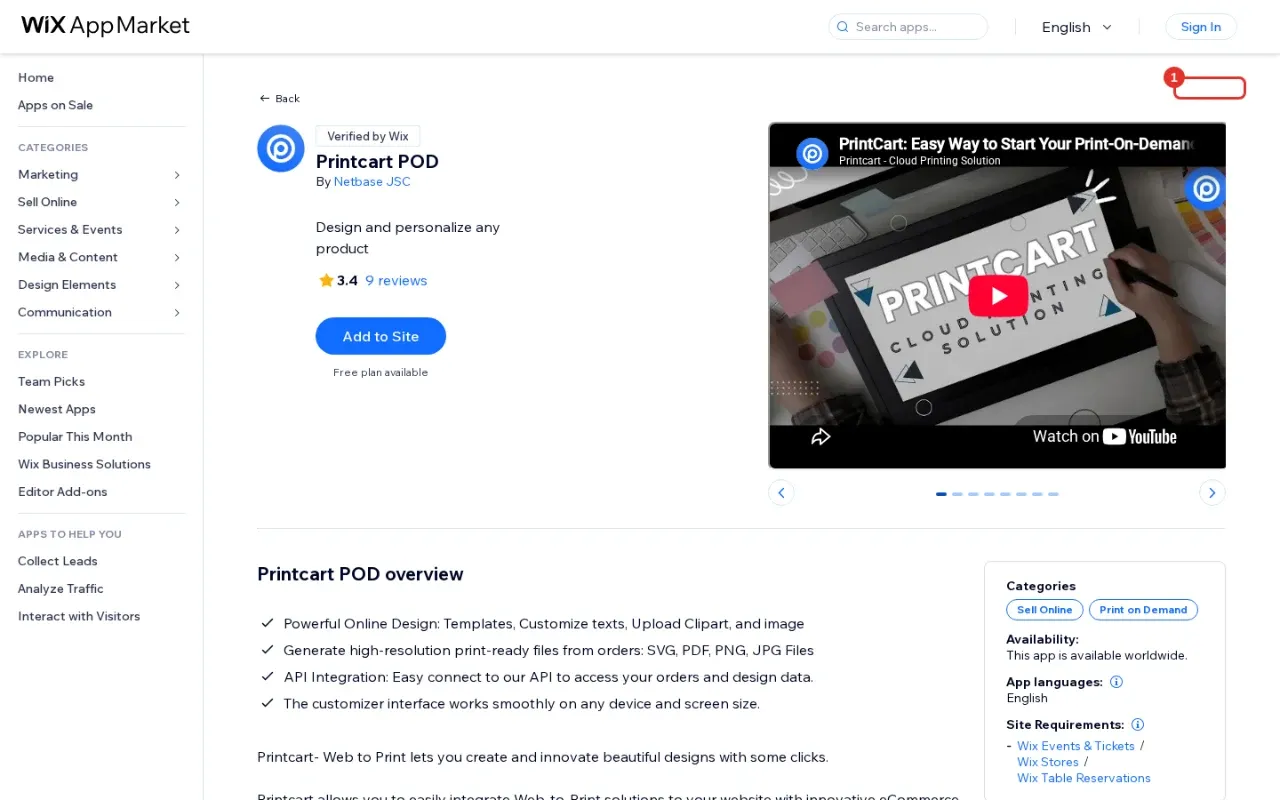
Expected result: The Wix sign-in or site picker opens.
Step 2Choose your site and approve the permissions
Sign in to Wix if asked, pick the site that has your Wix Stores products, and approve the permissions Wix lists for the app. Printcart uses them to read your products and orders and to show its buttons on your product pages.
This is the screen where Wix asks you to pick the site that has your Wix Stores products and lists the permissions you approve for the app.
Expected result: Wix installs the app and opens Printcart POD inside your Wix dashboard.
Step 3See the welcome screen: your store is connected automatically
You do not create a separate account or paste keys. During install, Printcart creates and links a store for your Wix site. The first screen confirms it: Your store … is now connected and ready. It moves on by itself after a couple of seconds, or click Next.

Expected result: You see your Wix site name in the message.
Step 4Let Printcart import your Wix products
The next screen, Connecting your Wix products, shows a short checklist: store confirmed, products syncing, API integrations ready. Nothing to configure here. If you have a large catalog the import keeps running in the background after you continue.
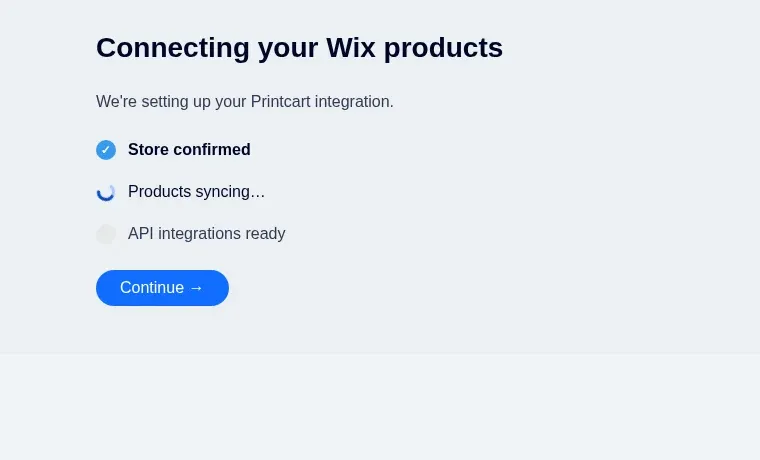
Expected result: The checklist finishes and you can click Continue.
Step 5Finish the welcome flow
On You're All Set! you have two choices. Click Set Up Side Templates (1) to start applying print-area presets, or Skip for now, go to Dashboard (2) to look around first. The screen also notes that sample orders will be loaded so you can explore the dashboard right away.
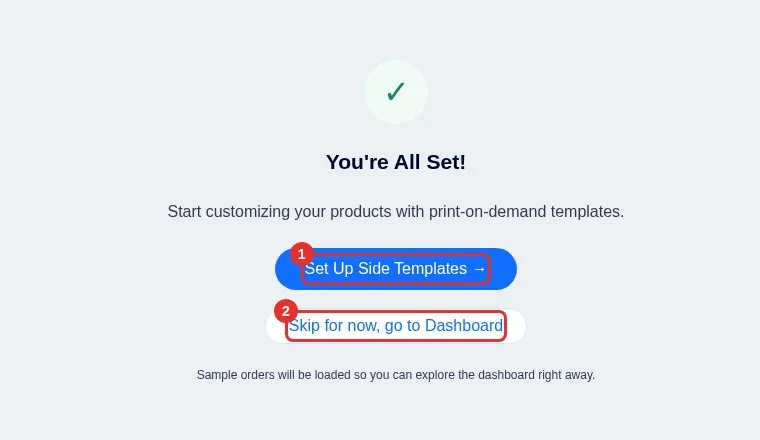
Expected result: The Printcart dashboard opens.
Step 6Find your way around the dashboard
The Overview page shows a green CONNECTED badge next to your site name, your plan, your app version and a setup checklist. The left menu has everything you will use next: Products (2), Printing Options, the Orders group, and Settings (3).
Sample orders and sample products are marked SAMPLE. Use Remove sample data before you start selling so they do not mix with real orders.
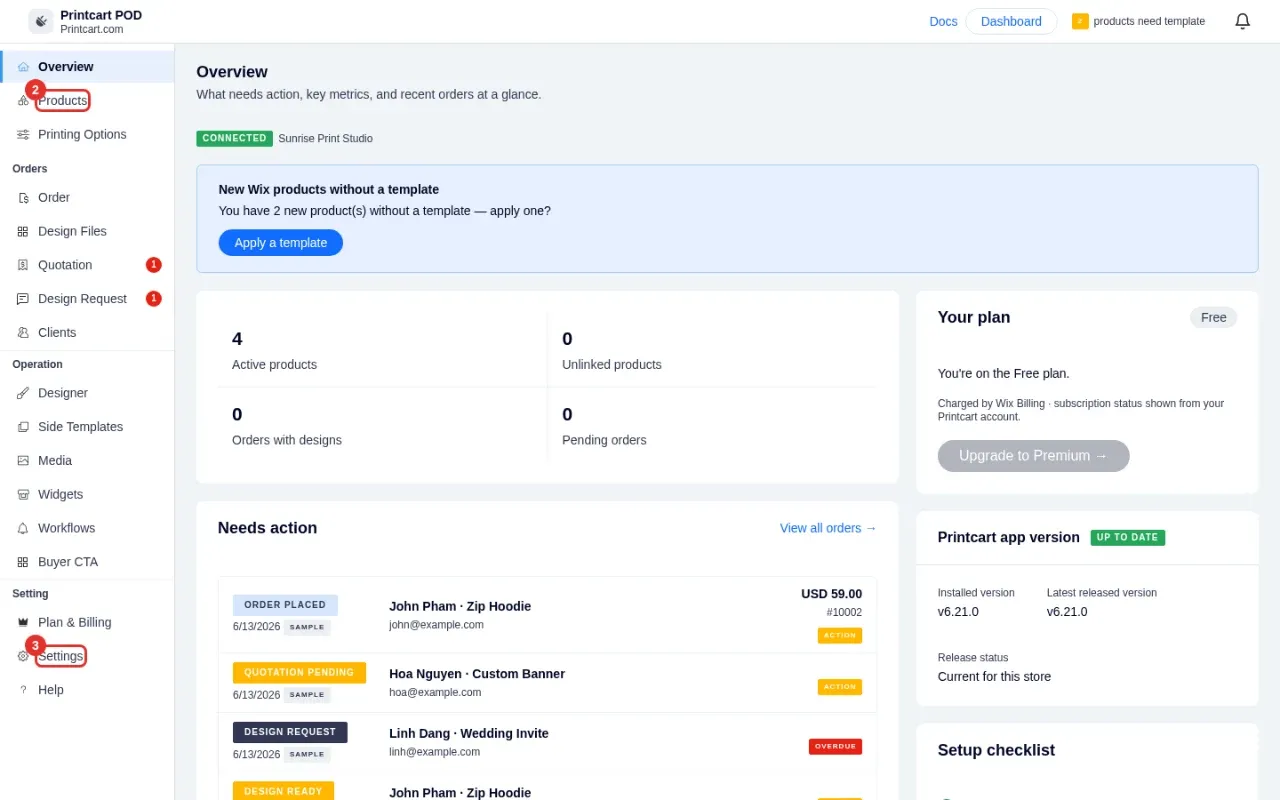
Expected result: You see CONNECTED and the list of products that need a template, if any.
Step 7Check the connection details
Open Settings. The Printcart Connection card shows the status (ACTIVE), your plan, the installed app version, how many products are synced and your store URL. Use Refresh if the numbers look old. Keep View API Credentials private and never paste those values into screenshots or chats.
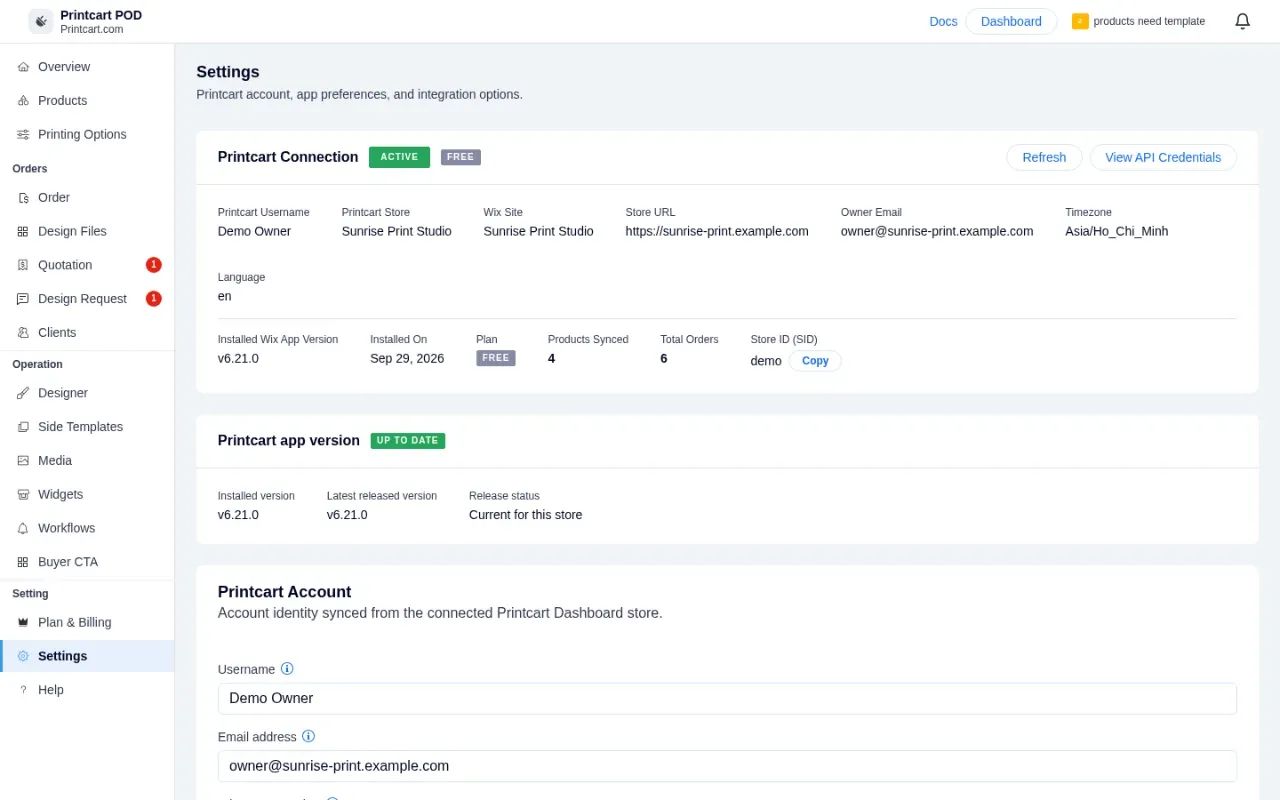
Expected result: Status reads ACTIVE and Installed Wix App Version reads 6.21.0 (or newer).
Step 8If you see the connect screen instead
Rarely, the dashboard cannot verify the link and shows Welcome to Printcart POD with a Get started button. Click it, then choose I have an account (1) to sign in to your existing Printcart account, or Create free account (2). Finish in the Printcart tab and come back: the dashboard checks the connection every few seconds and continues on its own.
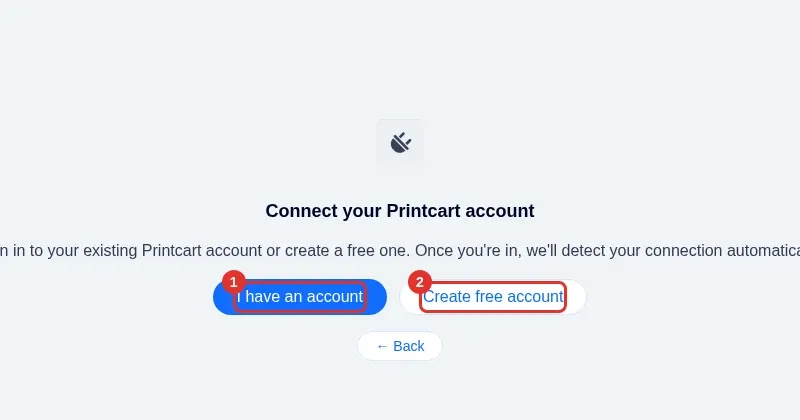
Expected result: The screen changes to the dashboard once the store is detected.
Why is my Printcart connection not showing Active?
Open Settings and click Refresh. If it still does not connect, follow Step 8 to sign in to your Printcart account, then contact us with your Wix site name.
Do I need a Printcart account before installing?
No. The install links a store for your Wix site automatically. You only sign in separately when you want to use the full Printcart dashboard.
Next steps
- Create your first customizable product on Wix
- Set up printing options and pricing on Wix
- Add a product designer to your Wix store (overview)
- Printcart integrations guide
Need help?
Message us on WhatsApp at +84 937 869 689 or email [email protected]. Tell us your Wix site name and which step you are on.
Printcart field note
What to verify before you roll out How to Install Printcart on Wix and Connect Your Store
This tutorial is written from Printcart implementation patterns across web-to-print launch planning, buyer experience, and repeatable production. Before treating it as complete, test the workflow with one real product, one real design file, and one real order path.
How to Install Printcart on Wix and Connect Your Store — common questions
Why is my Printcart connection not showing Active?
Open Settings and click Refresh. If it still does not connect, follow Step 8 to sign in to your Printcart account, then contact us with your Wix site name.
Do I need a Printcart account before installing?
No. The install links a store for your Wix site automatically. You only sign in separately when you want to use the full Printcart dashboard.
Need help?
Message us on WhatsApp at +84 937 869 689 or email [email protected] . Tell us your Wix site name and which step you are on.
Next steps in Printcart
Connect how to install printcart on wix and connect your store with catalog setup, templates, production workflows, and implementation support.
Want to put how to install printcart on wix and connect your store into practice?
Use the related Printcart tool below, or create a free account to start building with the product designer.