To start with Printcart, open www.printcart.com/en/register , create a free account with your name, email and password (or Google or GitHub), then follow the Setup Wizard: fill in your profile, name your store and pick a business type. Printcart creates the store, its API credentials and 50 free tokens. Connecting a platform such as WooCommerce, Wix or...
Key takeaways
What do you need before you start?
- An email address you can open (you will use it to sign in).
- A name for your store. You can change details later.
- No credit card. The sign-up page says the account is free and needs no credit card.
The screenshots come from a demo account with a demo store called Demo Print Shop and made-up buyer names. Your store name, products and numbers will differ, but the screens and buttons are the same. Secret values are always hidden in the pictures.
How do you sign up and create your store in the Printcart Dashboard?
Step 1Open the sign-up page
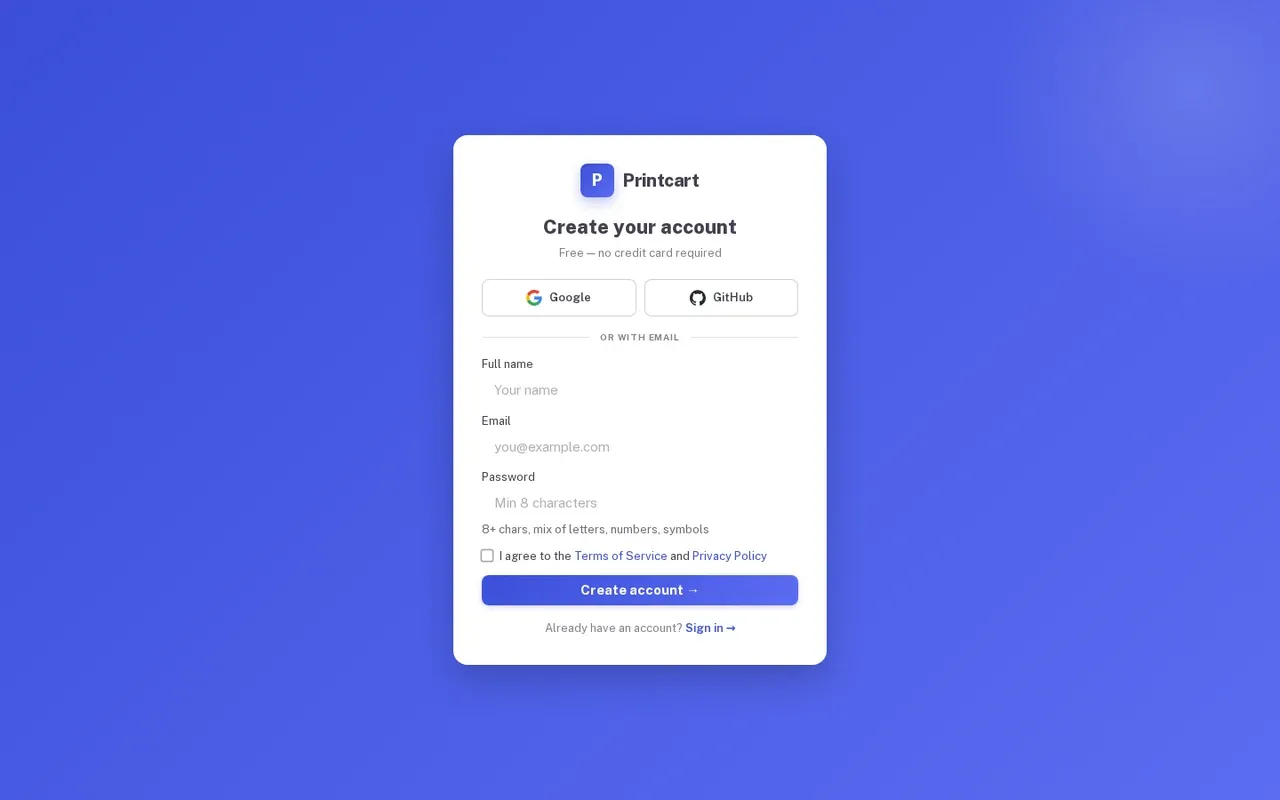
Go to www.printcart.com/en/register. You see Create your account. You can continue with Google or GitHub, or use the email form below them. Already registered? Use Sign in instead.
Expected result: The Create your account card is open with the Google and GitHub buttons and an empty email form.
Step 2Create your account with email
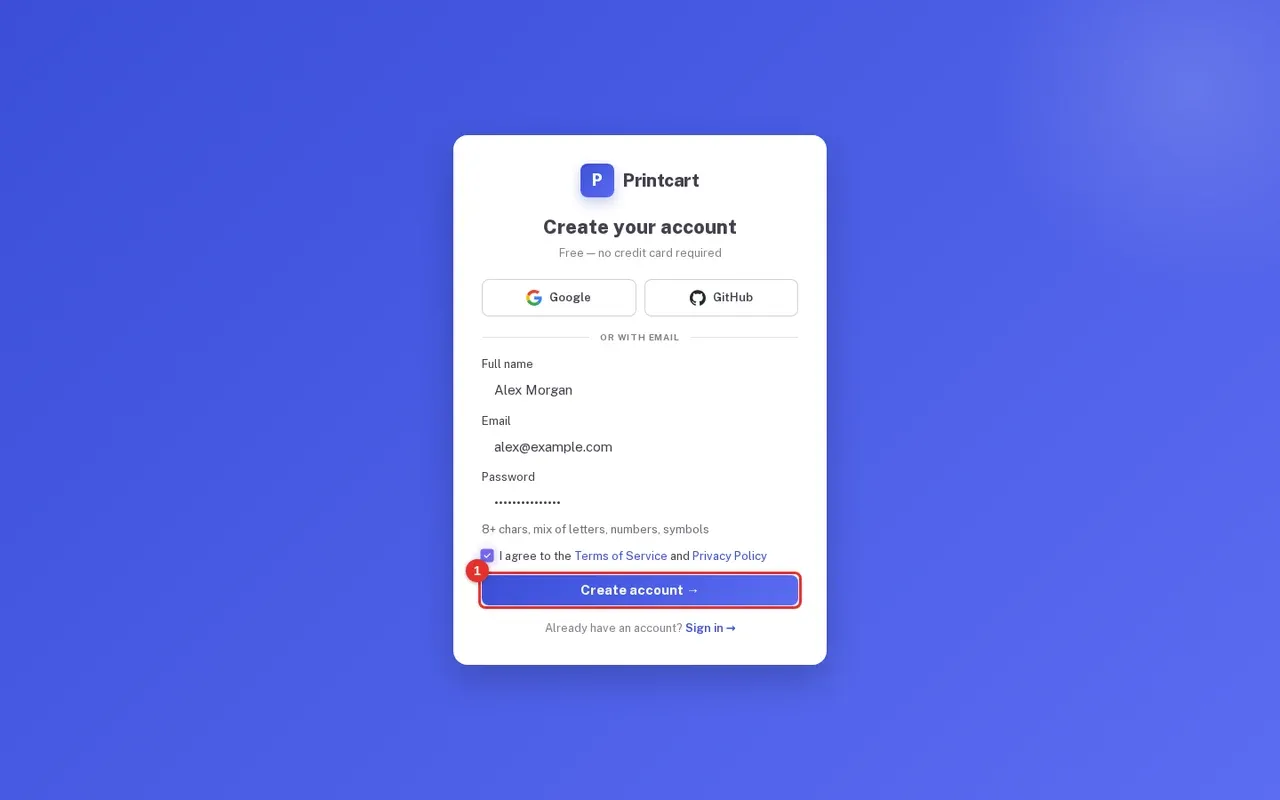
Type your Full name, Email and a Password (the hint says 8 or more characters, mixing letters, numbers and symbols). Tick I agree to the Terms of Service and Privacy Policy, then click Create account.
Expected result: Printcart creates the account and signs you in automatically. You land on the dashboard without a separate login step.
Step 3Start from the Finish store setup checklist
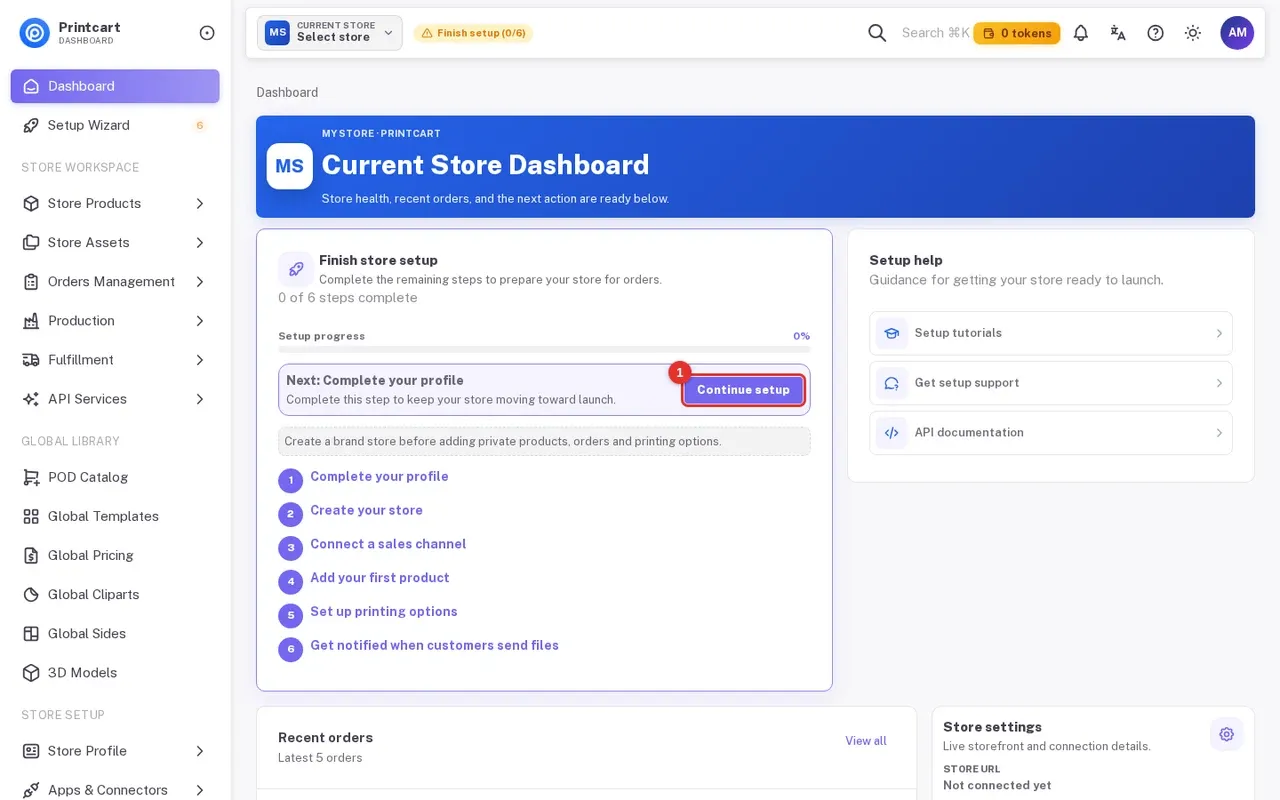
A new account has no store yet, so the dashboard shows Finish store setup with 0 of 6 steps complete: complete your profile, create your store, connect a sales channel, add your first product, set up printing options, and get notified when customers send files. Click Continue setup. You can also open Setup Wizard in the left menu at any time.
Expected result: The Setup Wizard opens on step 1, Profile.
Step 4Fill in your profile (wizard step 1)
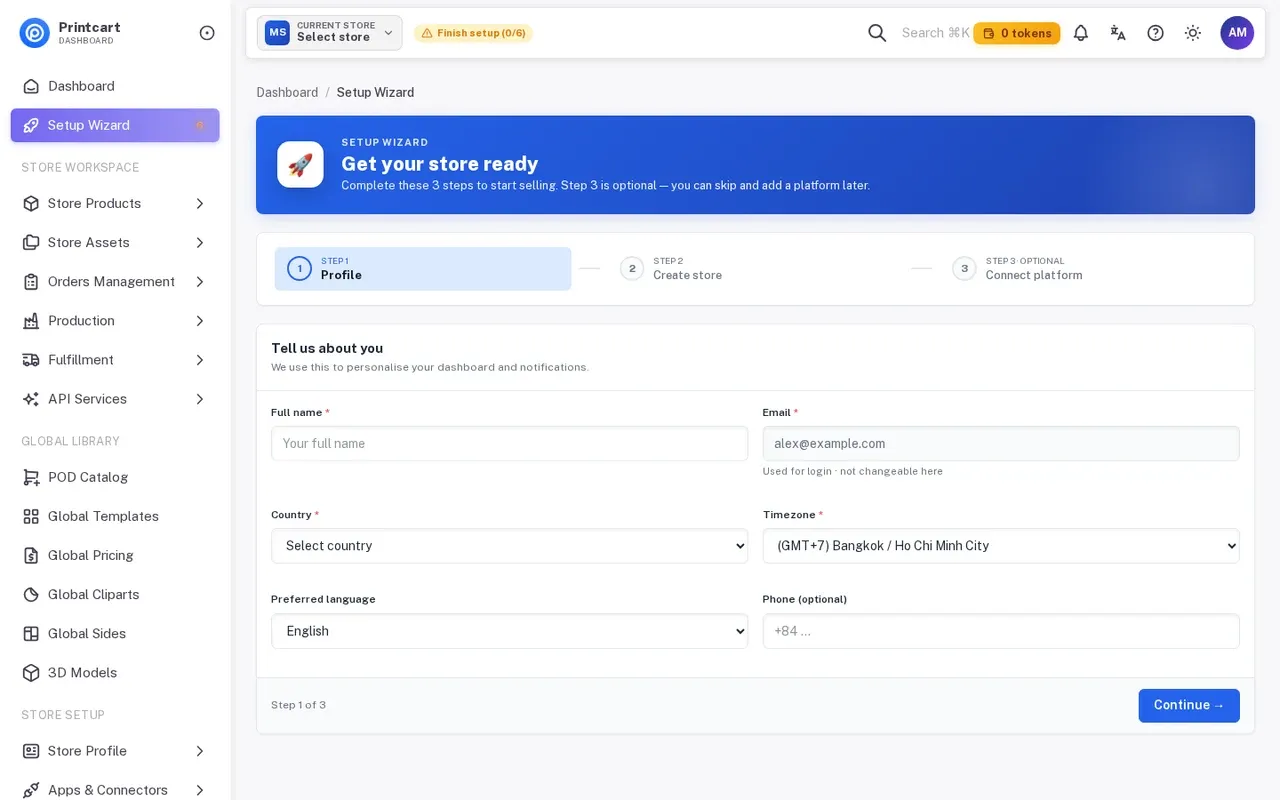
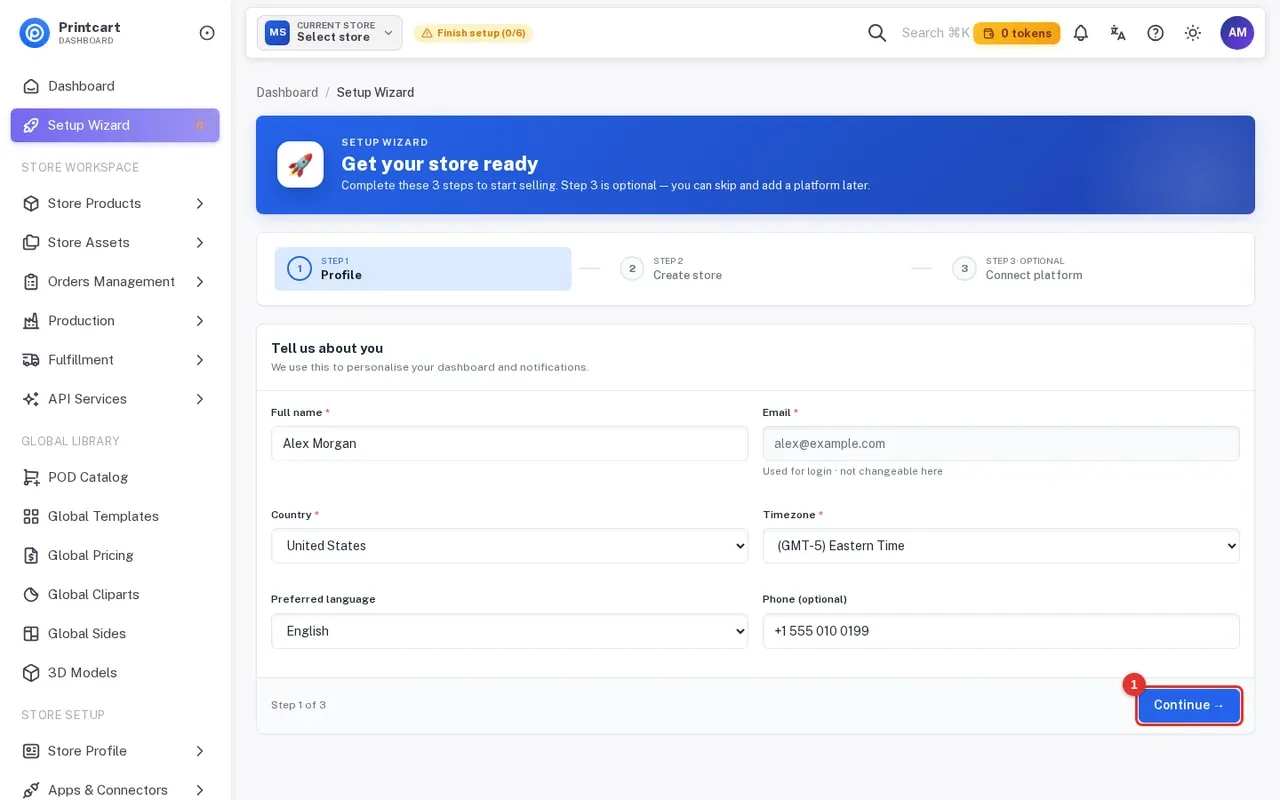
Under Tell us about you, enter your Full name, Country, Timezone and Preferred language. Phone is optional. Your email is shown but cannot be changed here because it is your login. Click Continue.
Expected result: Step 1 shows a green check and the wizard moves to step 2, Create store.
Step 5Create your store (wizard step 2)
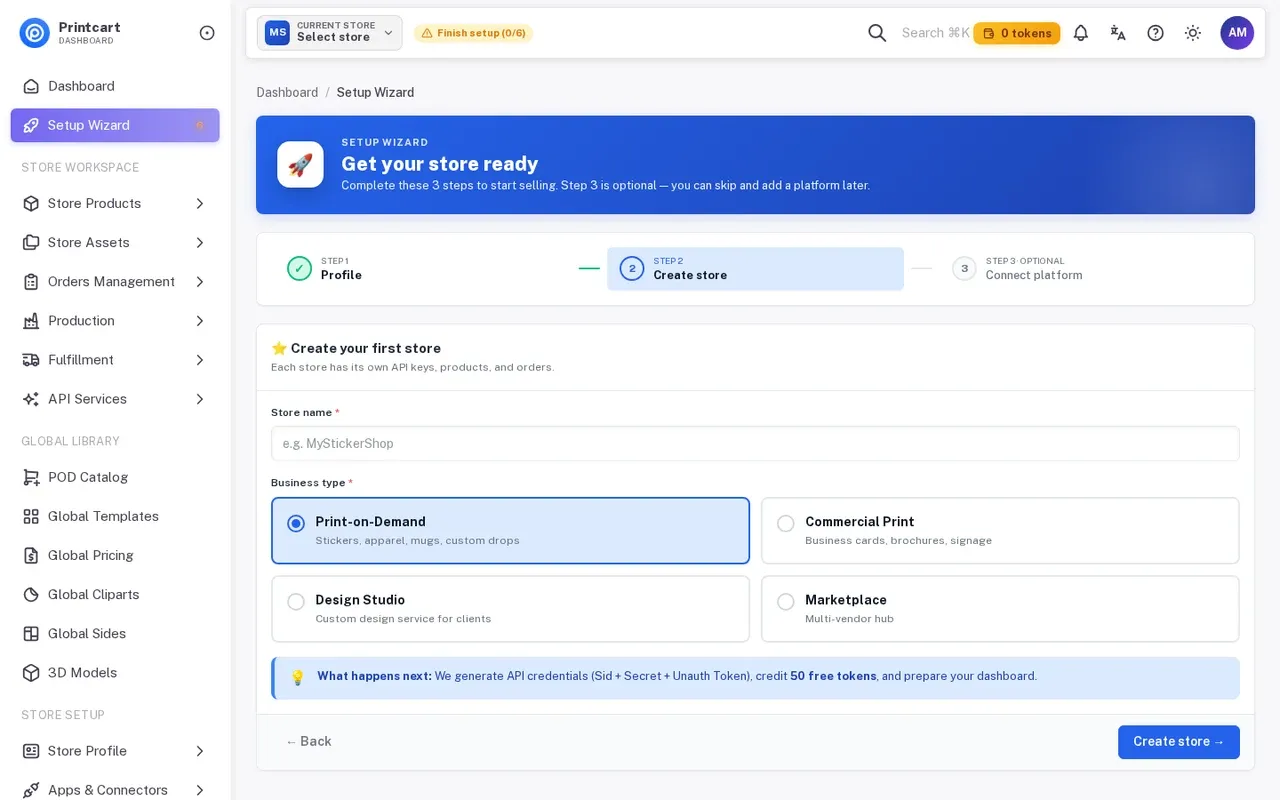
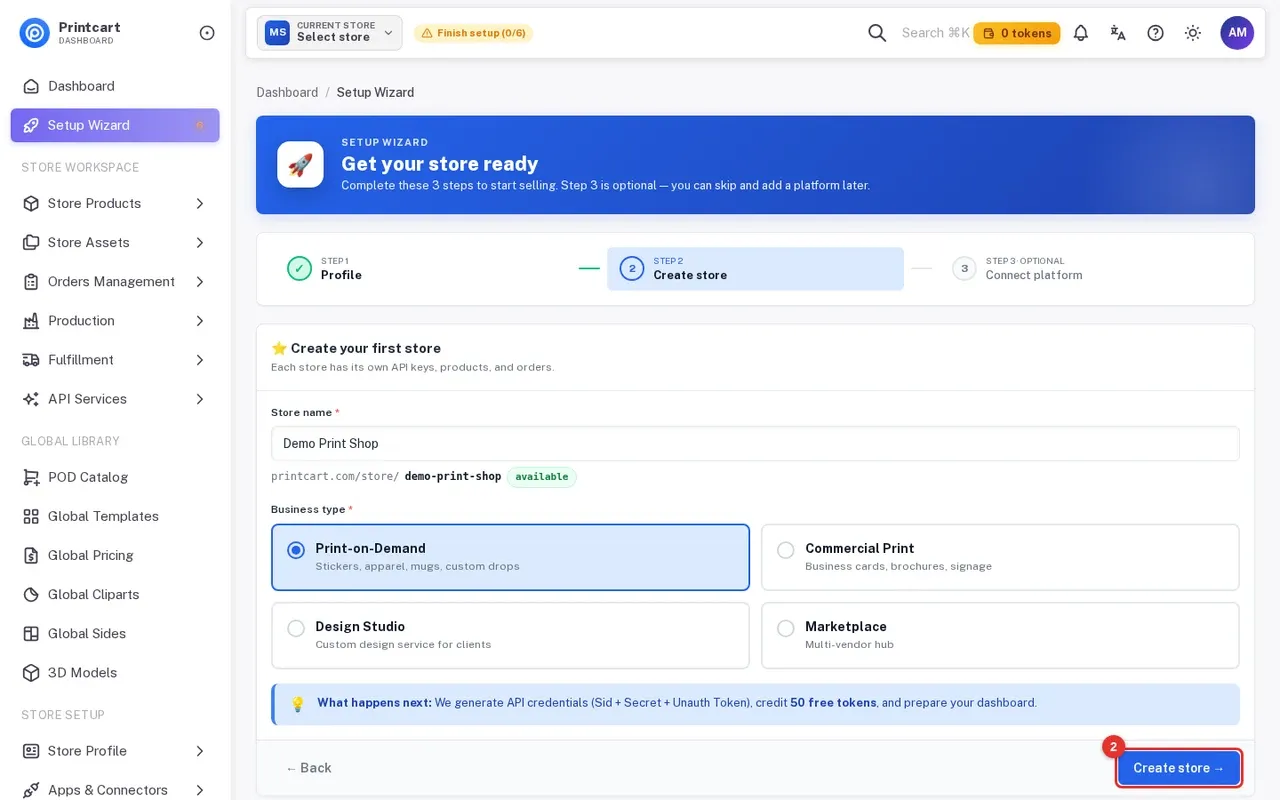
Enter a Store name. Below it Printcart previews your public store link and shows available when the name is free. Choose a Business type: Print-on-Demand (stickers, apparel, mugs), Commercial Print (business cards, brochures, signage), Design Studio or Marketplace. The blue note explains what happens next: Printcart generates your API credentials (Sid, Secret and Unauth Token), credits 50 free tokens and prepares your dashboard. Click Create store.
Expected result: A green message says your store was created successfully.
Step 6Choose a platform or skip (wizard step 3, optional)
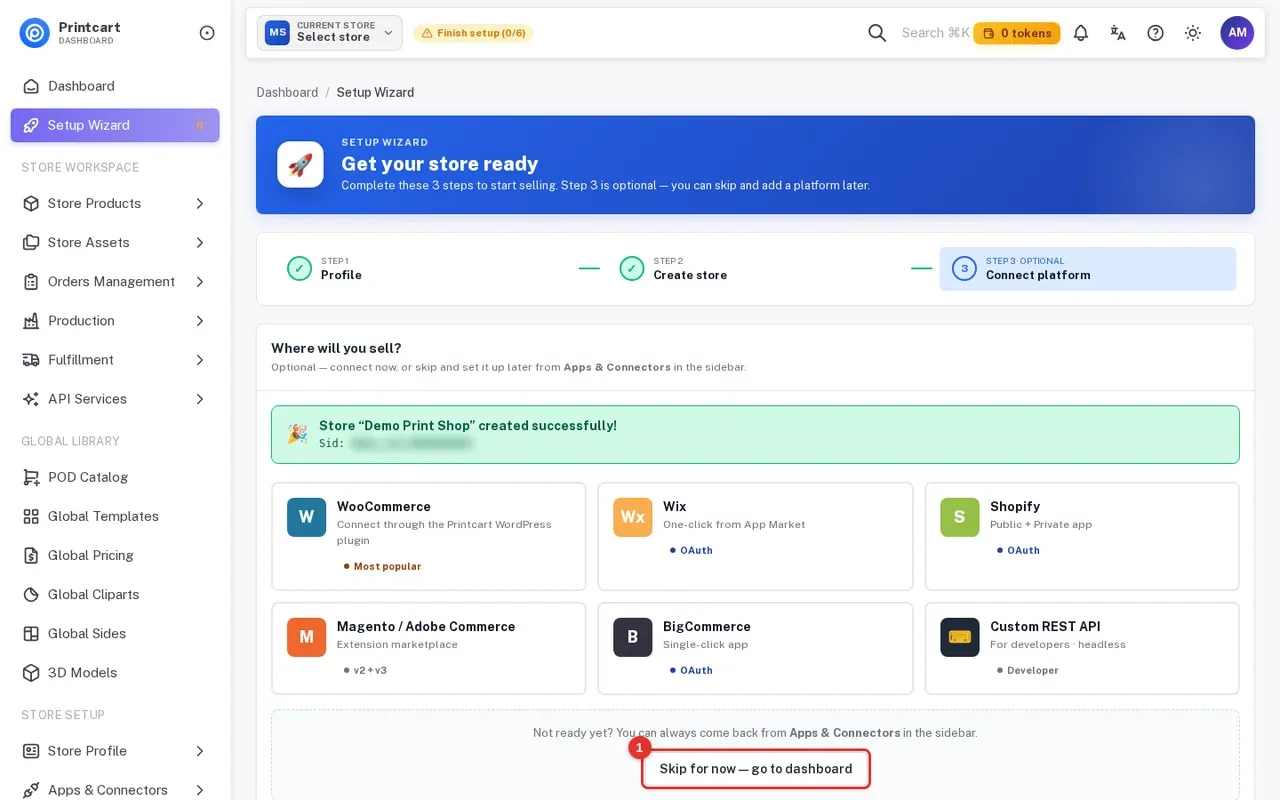
Step 3 asks Where will you sell? and lists WooCommerce, Wix, Shopify, Magento / Adobe Commerce, BigCommerce and Custom REST API. Pick one to connect now, or click Skip for now — go to dashboard. You can come back any time from Apps & Connectors in the sidebar. The Sid shown in the green box is a public identifier, but keep your Secret private.
Expected result: Either the platform page opens, or you are taken to the dashboard.
Step 7Check that your store is ready
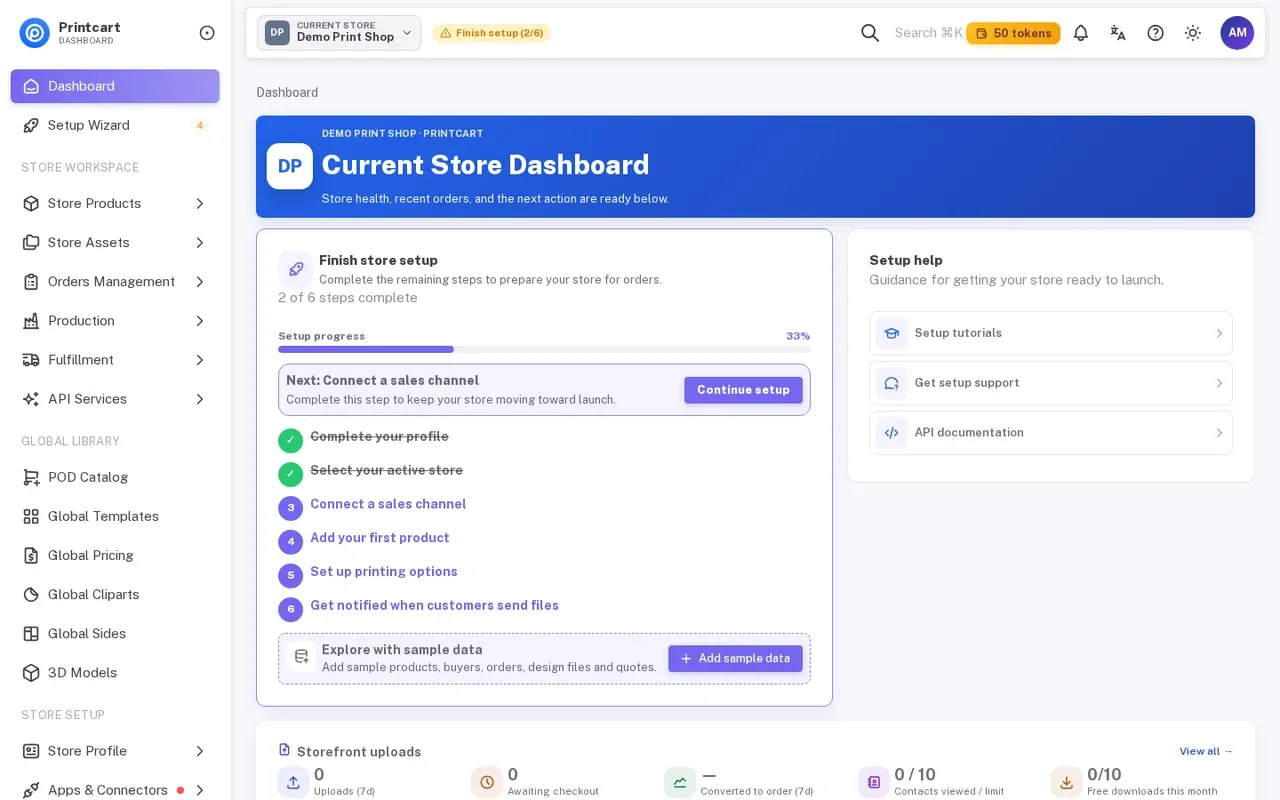
Back on the dashboard, the top bar shows Current store with your store name and your token balance, and the checklist now reads 2 of 6 steps complete with Connect a sales channel as the next action.
Expected result: Your store name appears in the top bar, and the wizard badge in the menu counts down the remaining steps.
Is Printcart free to start?
Yes. The sign-up page says the account is free and needs no credit card, and the wizard credits 50 free tokens when the store is created. Paid options are covered in the plans and tokens guide.
Do I have to connect a platform right away?
No. Step 3 of the wizard is marked optional. You can skip it and connect later from Apps & Connectors. Follow the connect guide when you are ready.
Can I create more than one store?
Yes. The wizard notes that each store has its own API keys, products and orders, and the My Stores page has a Create store button for adding another one.
What should you do next?
- Connect your store to Printcart: WooCommerce, Wix, Shopify or a custom site
- Enable the online designer and set up products and printing options
- Get started with Printcart Store for WordPress
- Set up the online product designer: a complete guide
- Browse all Printcart tutorials
Stuck on a step? Message the Printcart team on WhatsApp and include a screenshot of the screen you are on.
Printcart field note
What to verify before you roll out How to Sign Up for Printcart and Create Your Store with the Setup Wizard
This tutorial is written from Printcart implementation patterns across web-to-print launch planning, buyer experience, and repeatable production. Before treating it as complete, test the workflow with one real product, one real design file, and one real order path.
How to Sign Up for Printcart and Create Your Store with the Setup Wizard — common questions
What do you need before you start?
The screenshots come from a demo account with a demo store called Demo Print Shop and made-up buyer names. Your store name, products and numbers will differ, but the screens and buttons are the same. Secret values are always hidden in the pictures.
Is Printcart free to start?
Yes. The sign-up page says the account is free and needs no credit card, and the wizard credits 50 free tokens when the store is created. Paid options are covered in the plans and tokens guide .
Do I have to connect a platform right away?
No. Step 3 of the wizard is marked optional. You can skip it and connect later from Apps & Connectors . Follow the connect guide when you are ready.
Can I create more than one store?
Yes. The wizard notes that each store has its own API keys, products and orders, and the My Stores page has a Create store button for adding another one.
Next steps in Printcart
Connect how to sign up for printcart and create your store with the setup wizard with catalog setup, templates, production workflows, and implementation support.
Want to put how to sign up for printcart and create your store with the setup wizard into practice?
Use the related Printcart tool below, or create a free account to start building with the product designer.