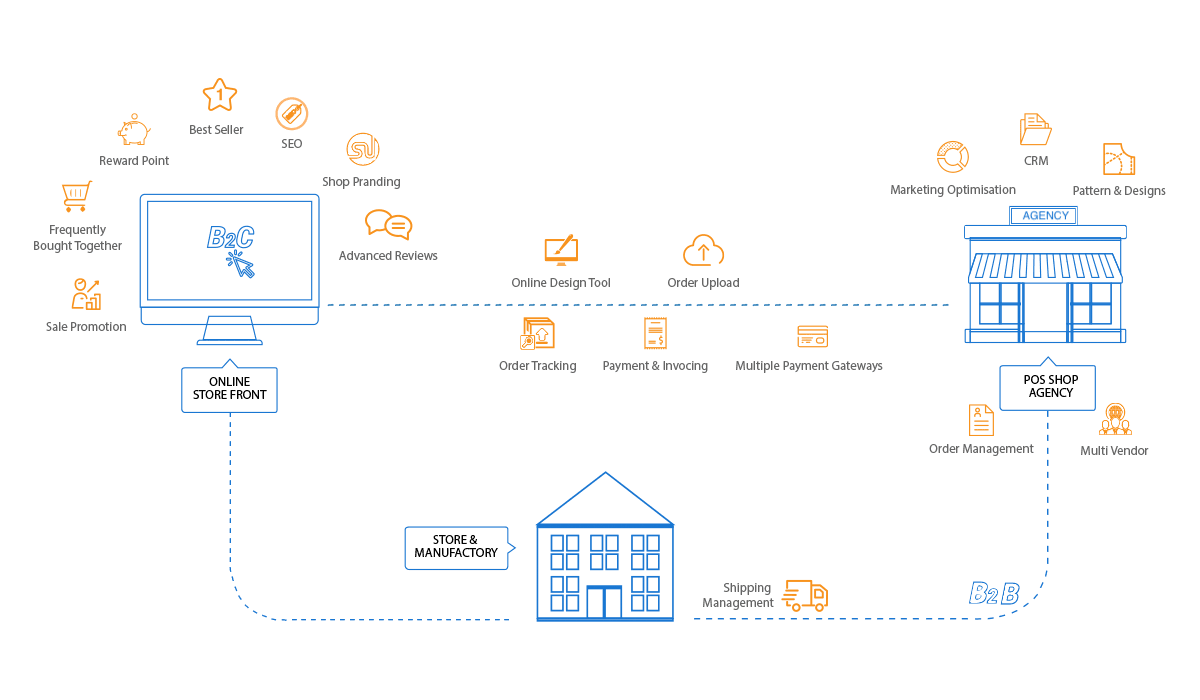
In the Printcart Dashboard, open Apps & Connectors in the left menu and pick your platform: WooCommerce (install the Printcart plugin from WordPress.org), Wix (one-click install from the Wix App Market), Shopify (install the app from the Shopify App Store) or Custom API (use your Sid, Secret and Unauth Token). The store shows a green Connected badge when...
Key takeaways
What do you need before you start?
- A Printcart account with a store. If you do not have one yet, follow the sign-up guide first.
- Admin access to the platform you want to connect (WordPress admin, Wix site owner, Shopify admin).
- For WooCommerce: WordPress 6.0 or newer and WooCommerce 7.0 or newer, as listed on the Connect WooCommerce page.
The screenshots come from a demo account with a demo store called Demo Print Shop and made-up buyer names. Your store name, products and numbers will differ, but the screens and buttons are the same. Secret values are always hidden in the pictures.
How do you connect your store platform to Printcart?
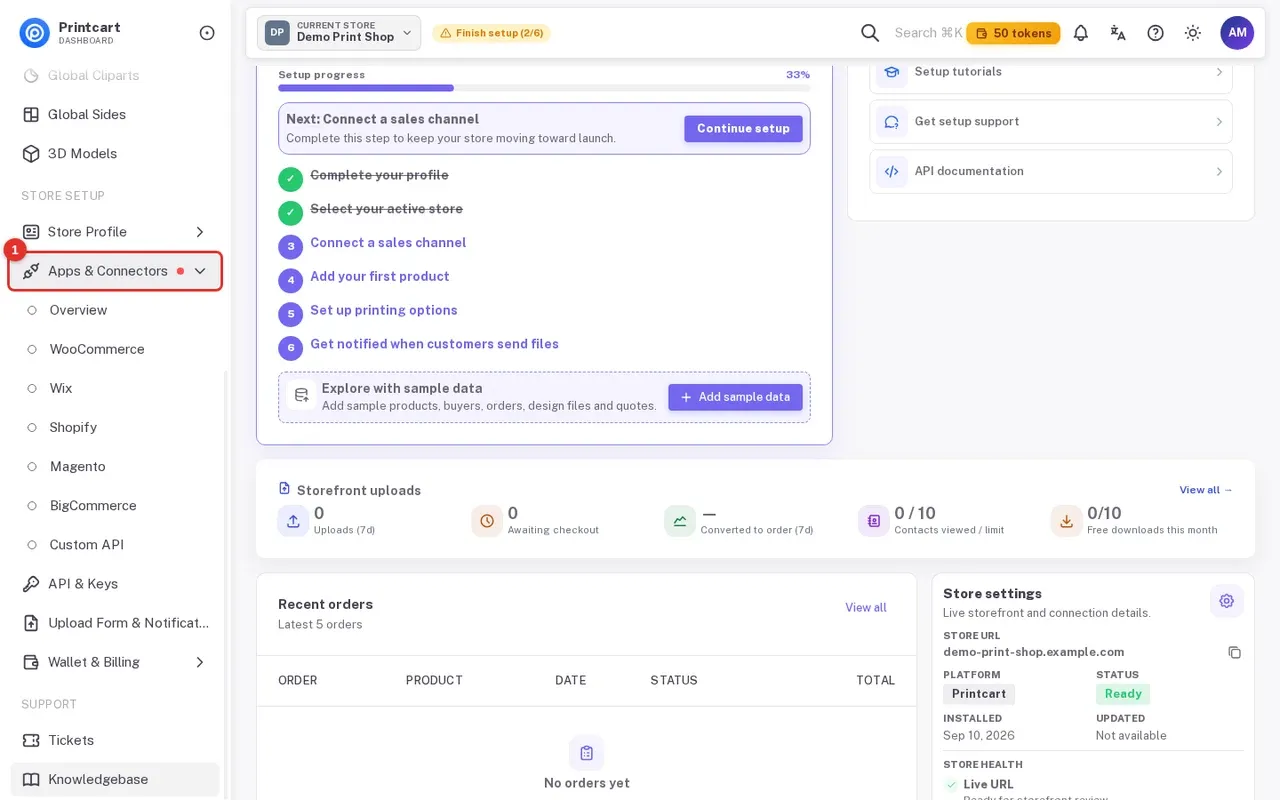
Step 1Open Apps & Connectors
In the left menu of the Printcart Dashboard, click Apps & Connectors. The group opens with Overview, WooCommerce, Wix, Shopify, Magento, BigCommerce and Custom API, plus API & Keys below it. Each platform has its own page.
Expected result: The platform list is visible in the sidebar.
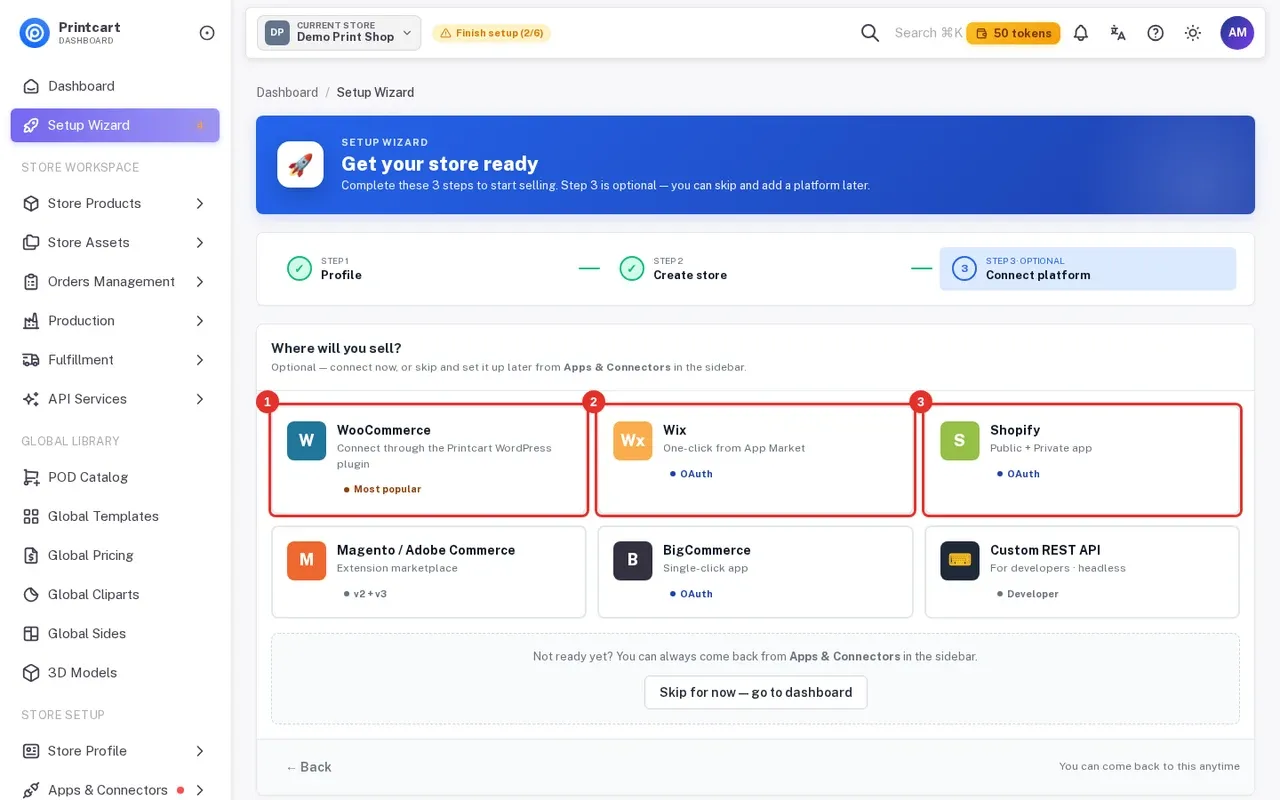
Step 2Or pick a platform in the Setup Wizard
New stores can also choose a platform at the end of the Setup Wizard. Step 3 Where will you sell? shows the same platforms as cards. Click a card to open its connect page.
Expected result: The matching Connect page opens (for example Connect WooCommerce).
Step 3WooCommerce: install the plugin
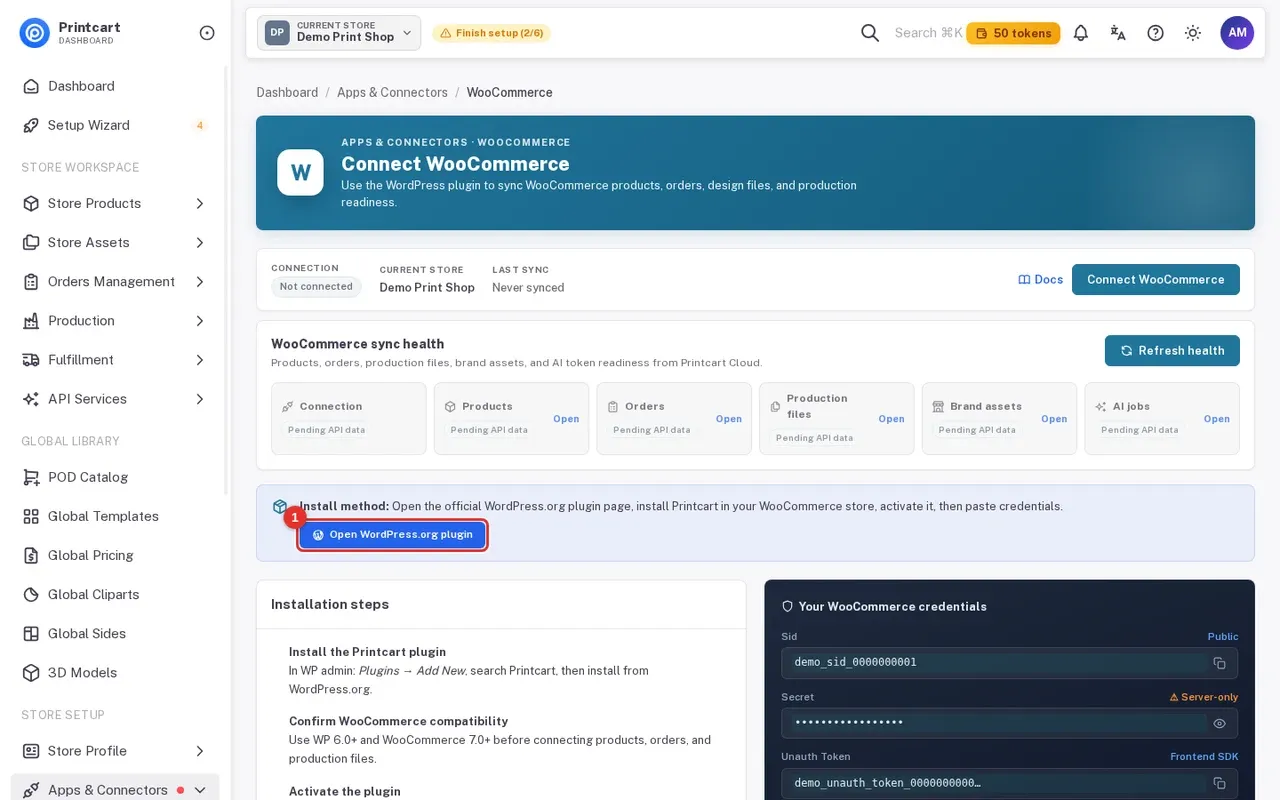
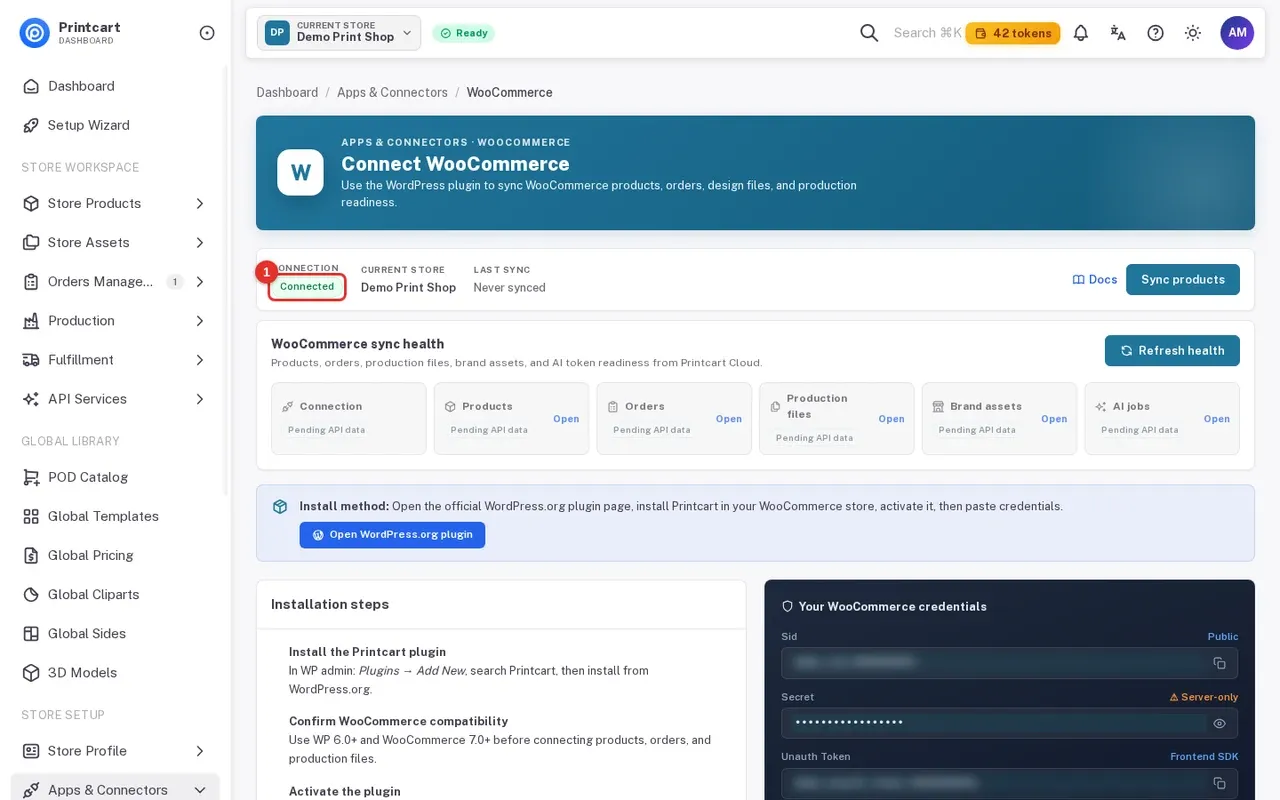
On Connect WooCommerce, click Open WordPress.org plugin to see the Printcart plugin page. The page lists the installation steps: in WP admin go to Plugins > Add New, search for Printcart and install it; confirm WordPress 6.0+ and WooCommerce 7.0+; click Activate Plugin.
Expected result: The plugin is active in your WordPress admin.
Step 4WooCommerce: copy your credentials
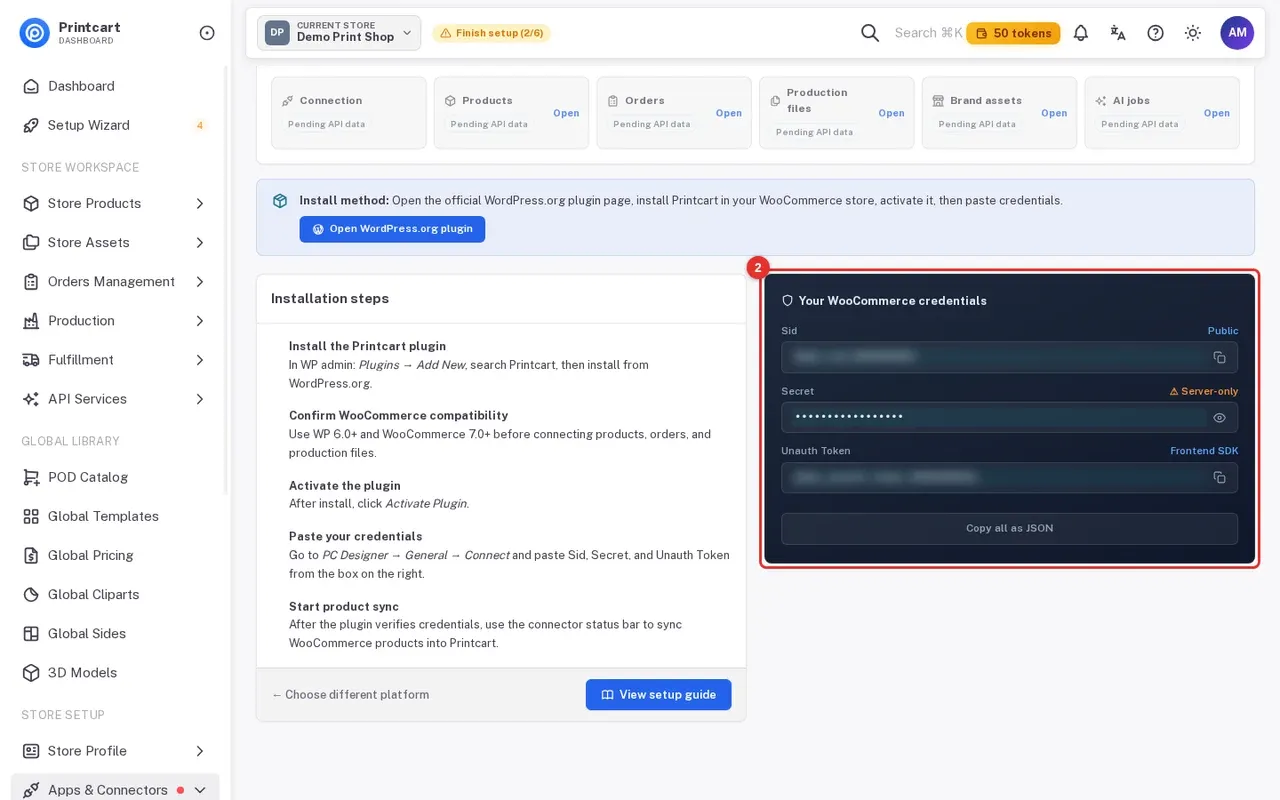
The dark box on the right, Your WooCommerce credentials, shows your Sid (public), your Secret (server-only, hidden behind dots, use the eye icon to reveal it) and your Unauth Token (used by the frontend designer). Use the copy buttons or Copy all as JSON. As the page says, open the plugin's Connect screen and paste the three values. The plugin also has a Connect now button that can create the connection itself; the WordPress guide walks through both. Never share your Secret in screenshots or chats. The pictures in this guide blur all three values.
Expected result: After the plugin verifies the credentials, use Sync products on this page to bring your WooCommerce products into Printcart.
Step 5Wix: one-click install
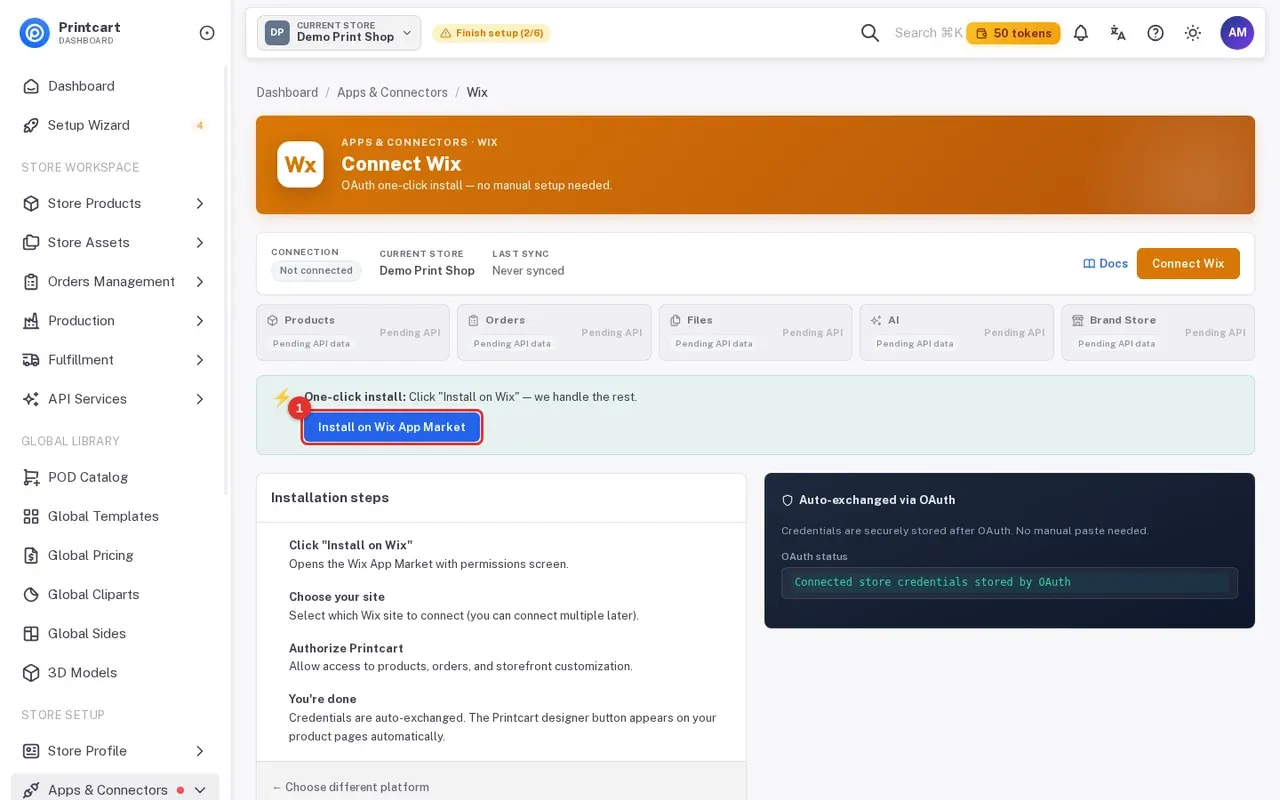
Open Connect Wix. There is nothing to paste: click Install on Wix App Market, choose the Wix site, and approve the permissions. The page explains that credentials are exchanged automatically through OAuth and the Printcart designer button appears on your product pages. The app is listed in the Wix App Market. See the Wix guide for the full walkthrough.
Expected result: The OAuth status box shows the store credentials are stored by OAuth.
Step 6Shopify: public app or private app
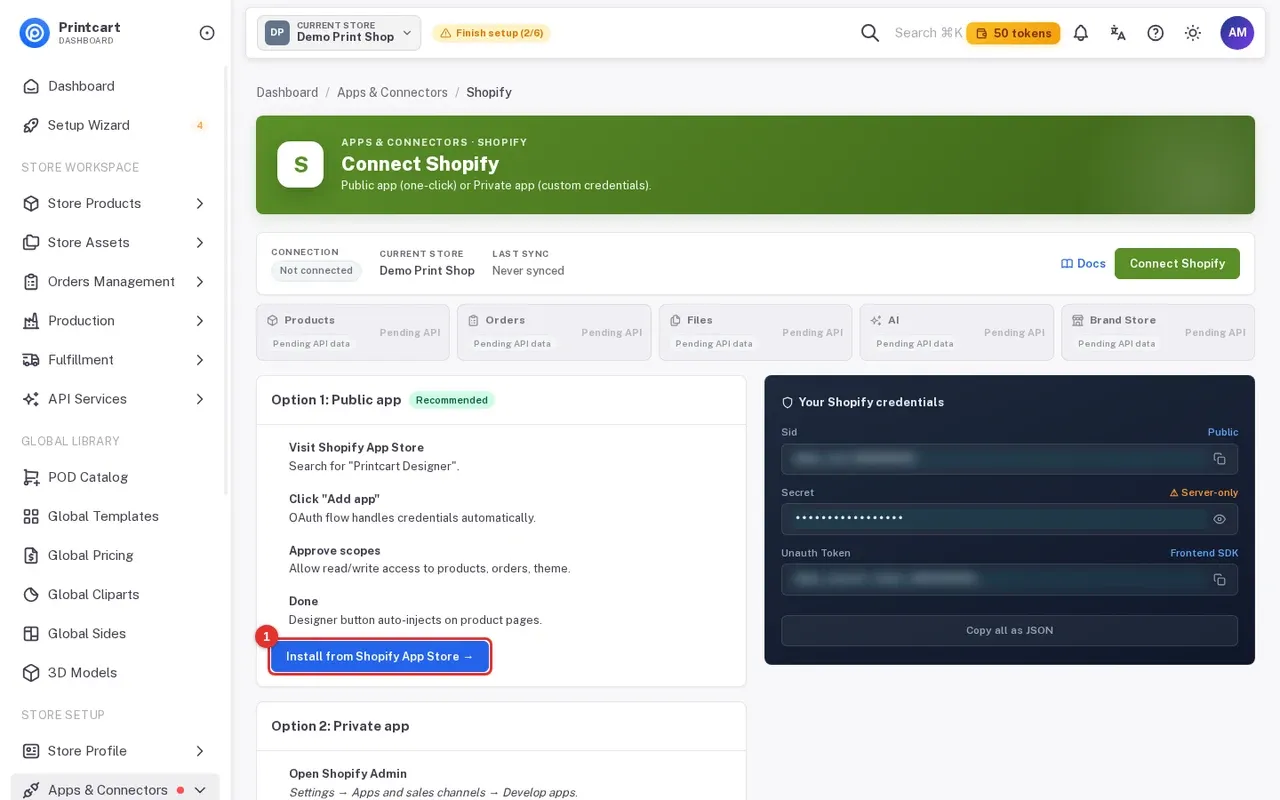
Open Connect Shopify. Option 1, Public app (recommended): click Install from Shopify App Store to open the Printcart app listing, click Add app and approve the requested scopes. Option 2, Private app is lower on the page for custom credentials: create an app in Shopify Admin under Settings > Apps and sales channels > Develop apps and use your Sid, Secret and Unauth Token from the box on the right.
Expected result: The store appears as connected after the OAuth flow finishes.
Step 7Custom site: use the REST API
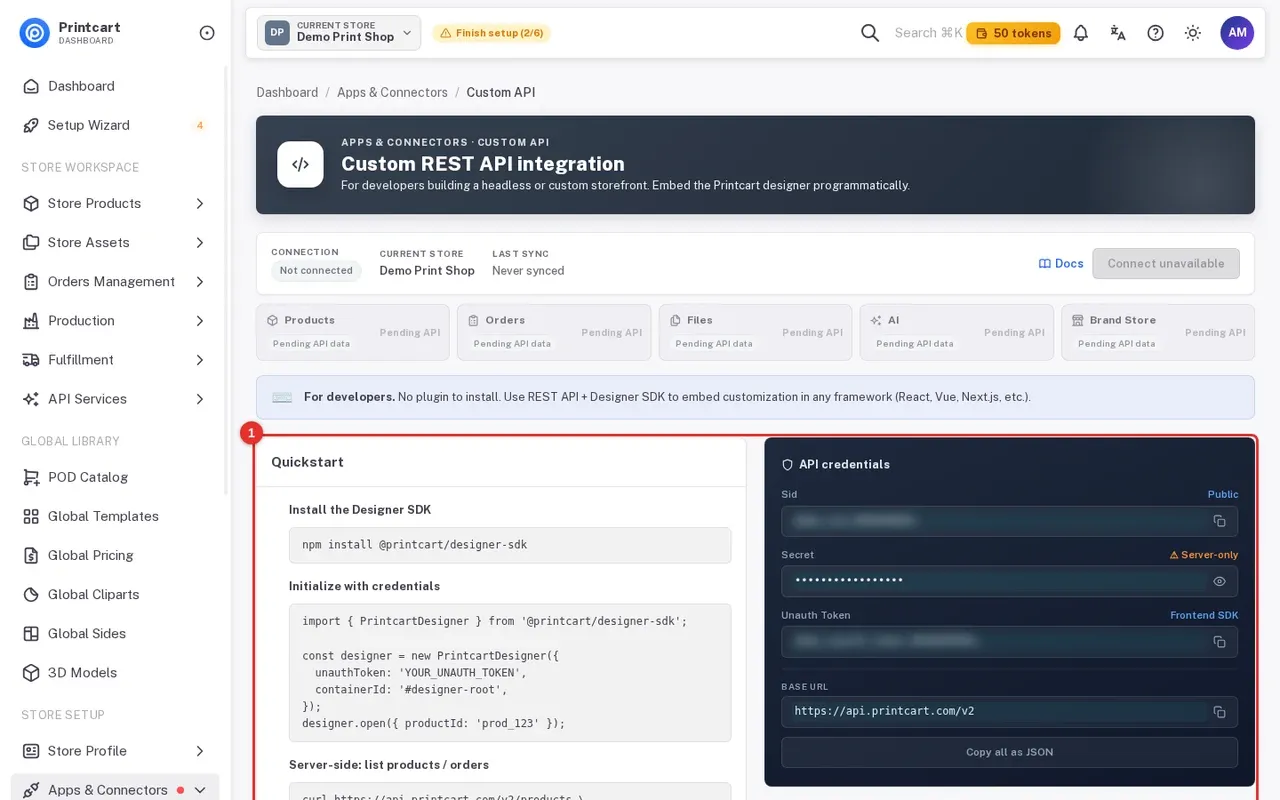
Building a headless or custom storefront? Open Custom API. The page says no plugin is needed. The Quickstart shows how to install the designer SDK, initialise it with your credentials and call the API from your server. The API credentials box on the right holds your Sid, Secret and Unauth Token. Full reference is at docs.printcart.com. Magento and BigCommerce have their own pages in the same menu.
Expected result: You can copy the credentials and start with the quickstart code.
Step 8Check that the connection works
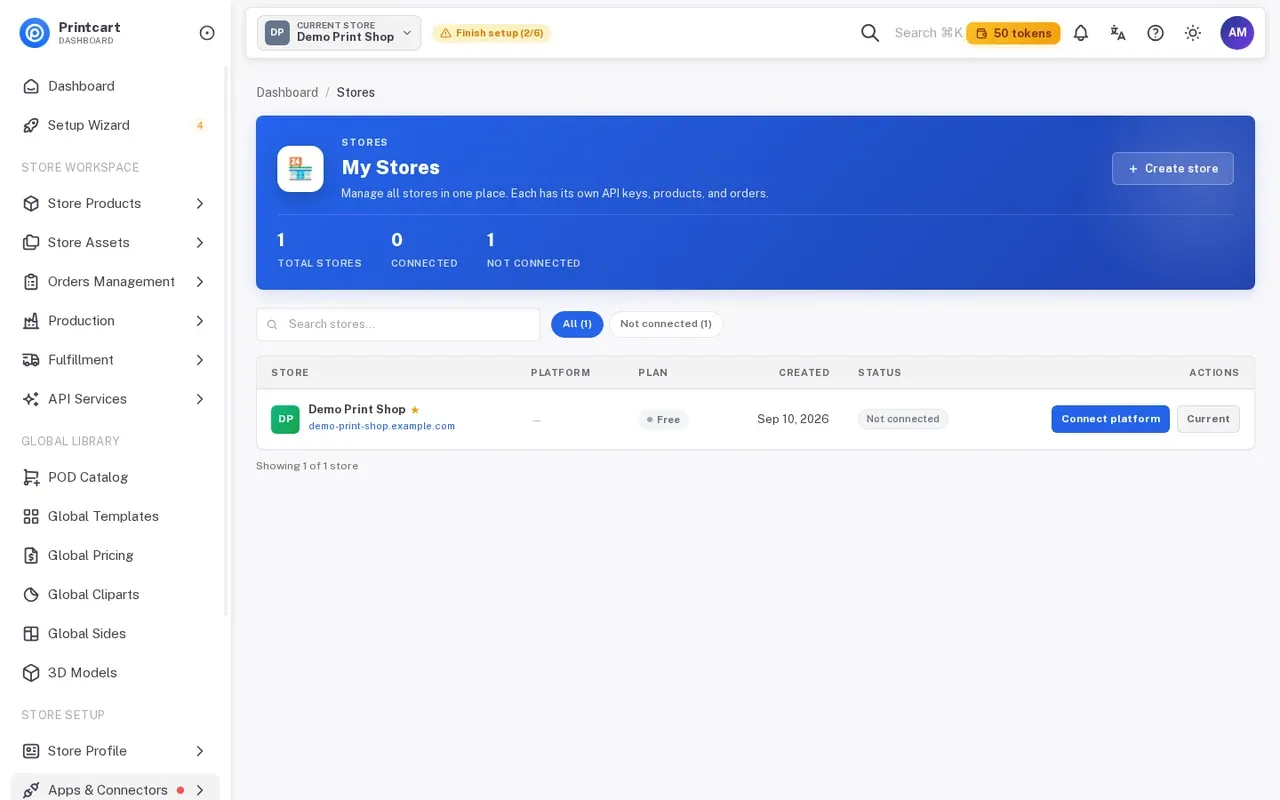
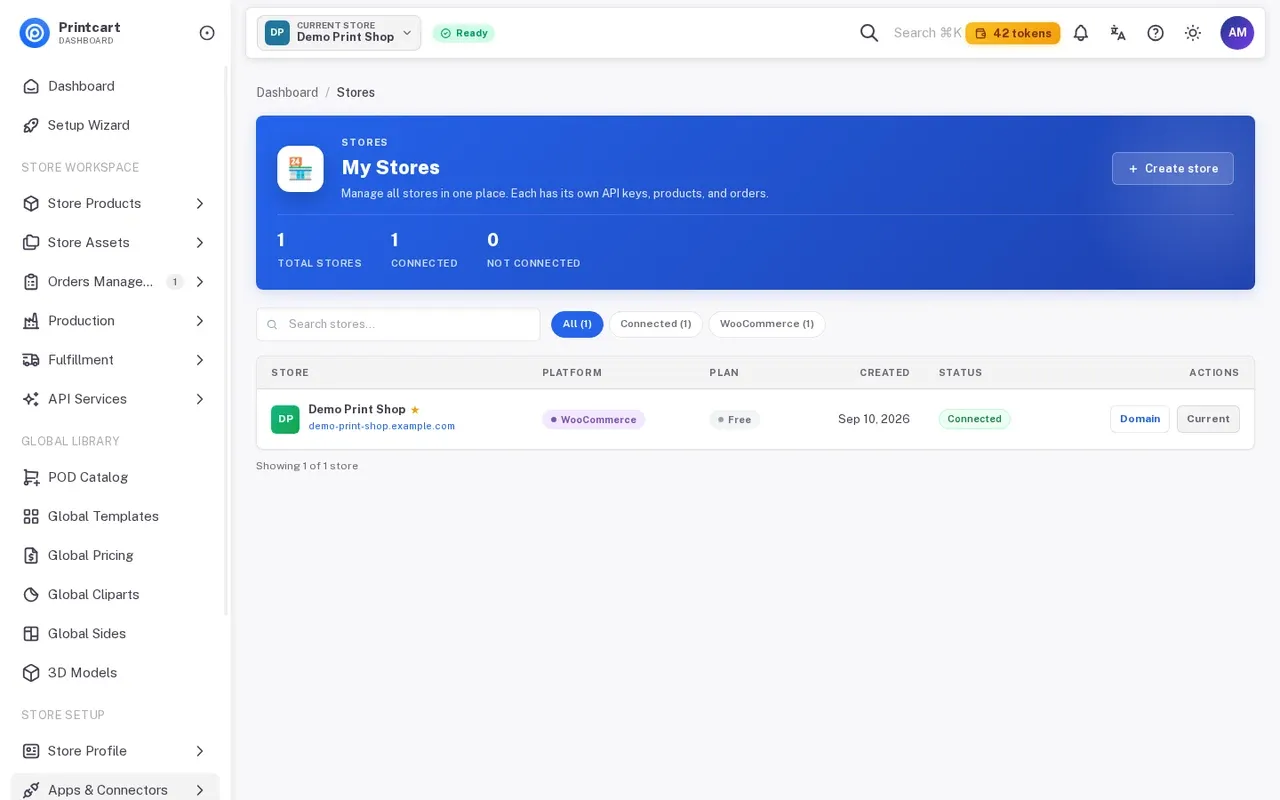
Open My Stores. A store that is not linked shows Not connected and a Connect platform button. After a successful connection the platform page shows a green Connected badge next to Current store, and the WooCommerce page adds a sync health panel (Connection, Products, Orders, Production files, Brand assets, AI jobs) with a Refresh health button.
Expected result: The store shows Connected, and the sidebar checklist step Connect a sales channel is marked done.
Which platform should I choose?
Use the platform your shop already runs on. WooCommerce needs the WordPress plugin, Wix and Shopify install from their app stores, and Custom API is for developers who build their own storefront. You can connect more than one store to the same Printcart account; each store has its own credentials.
Where do I find my Sid, Secret and Unauth Token?
On the connect page of your platform, in the dark credentials box on the right. The Secret is hidden until you click the eye icon and should stay on your server. The Unauth Token is meant for the browser designer.
What if the store still says Not connected?
Re-check that the three values were pasted into the plugin without extra spaces, then click Refresh health on the platform page. If it still fails, open a ticket from Helpdesk > Tickets or use the WhatsApp link below.
What should you do next?
- Enable the online designer and set up products and printing options
- Review, approve or decline uploaded files and download print files
- Get started with Printcart Store for WordPress
- Install Printcart on Wix and connect your store
- Browse all Printcart tutorials
Stuck on a step? Message the Printcart team on WhatsApp and include a screenshot of the screen you are on.
Printcart field note
What to verify before you roll out How to Connect Your Store to Printcart: WooCommerce, Wix, Shopify or a Custom Site
This tutorial is written from Printcart implementation patterns across order operations, approval routing, and fulfillment handoff. Before treating it as complete, test the workflow with one real product, one real design file, and one real order path.
How to Connect Your Store to Printcart: WooCommerce, Wix, Shopify or a Custom Site — common questions
What do you need before you start?
The screenshots come from a demo account with a demo store called Demo Print Shop and made-up buyer names. Your store name, products and numbers will differ, but the screens and buttons are the same. Secret values are always hidden in the pictures.
Which platform should I choose?
Use the platform your shop already runs on. WooCommerce needs the WordPress plugin, Wix and Shopify install from their app stores, and Custom API is for developers who build their own storefront. You can connect more than one store to the same Printcart account; each store has its own credentials.
Where do I find my Sid, Secret and Unauth Token?
On the connect page of your platform, in the dark credentials box on the right. The Secret is hidden until you click the eye icon and should stay on your server. The Unauth Token is meant for the browser designer.
What if the store still says Not connected?
Re-check that the three values were pasted into the plugin without extra spaces, then click Refresh health on the platform page. If it still fails, open a ticket from Helpdesk > Tickets or use the WhatsApp link below.
Next steps in Printcart
Connect how to connect your store to printcart: woocommerce, wix, shopify or a custom site with catalog setup, templates, production workflows, and implementation support.
Want to put how to connect your store to printcart: woocommerce, wix, shopify or a custom site into practice?
Use the related Printcart tool below, or create a free account to start building with the product designer.