Every canvas order line in Printcart Canvas has its own print-ready PDF, made from the design exactly as it was ordered. Press Download PDF on the WooCommerce order, on the PC Canvas order detail or in PC Canvas > Orders . The file is a CMYK PDF with trim box, 3 mm bleed and a cut line, sized for the chosen face, frame depth, back wrap and staple margin....
Key takeaways
What do you need before you start?
- Printcart Canvas installed and connected (see Install Printcart Canvas and connect your store).
- At least one canvas order.
The screenshots come from a demonstration WooCommerce store running Printcart Canvas 4.5.9 with the UK Standard Canvas template. Store credentials and internal identifiers are masked. Want to see it first? Open the live demo store and press Design your canvas.
How do you handle a canvas order, from review to print file?
Step 1Find canvas orders
Open PC Canvas > Orders. Each canvas order line shows the design thumbnail, the size, frame depth and edge style, the artwork, preview and production status, and the print file. Filter by status, WooCommerce status or date.
Expected result: The Print file column reads Ready with Download PDF, or Not created with Create print file.
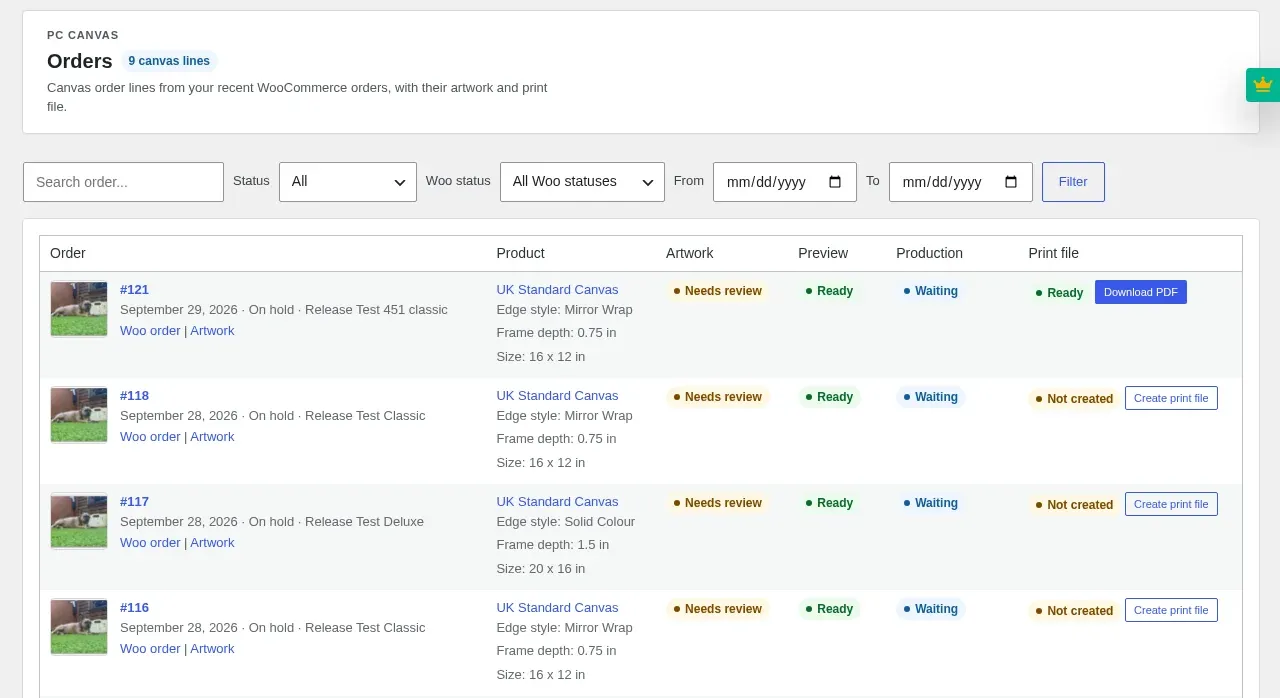
Step 2Open the order detail
Click an order number, or Open in PC Canvas on the WooCommerce order. The order detail shows the production status, Review artwork, Download PDF, the buyer's artwork and the 3D preview, then Selected canvas options and production notes.
Expected result: The header badge reads Print file: Ready once the file exists.
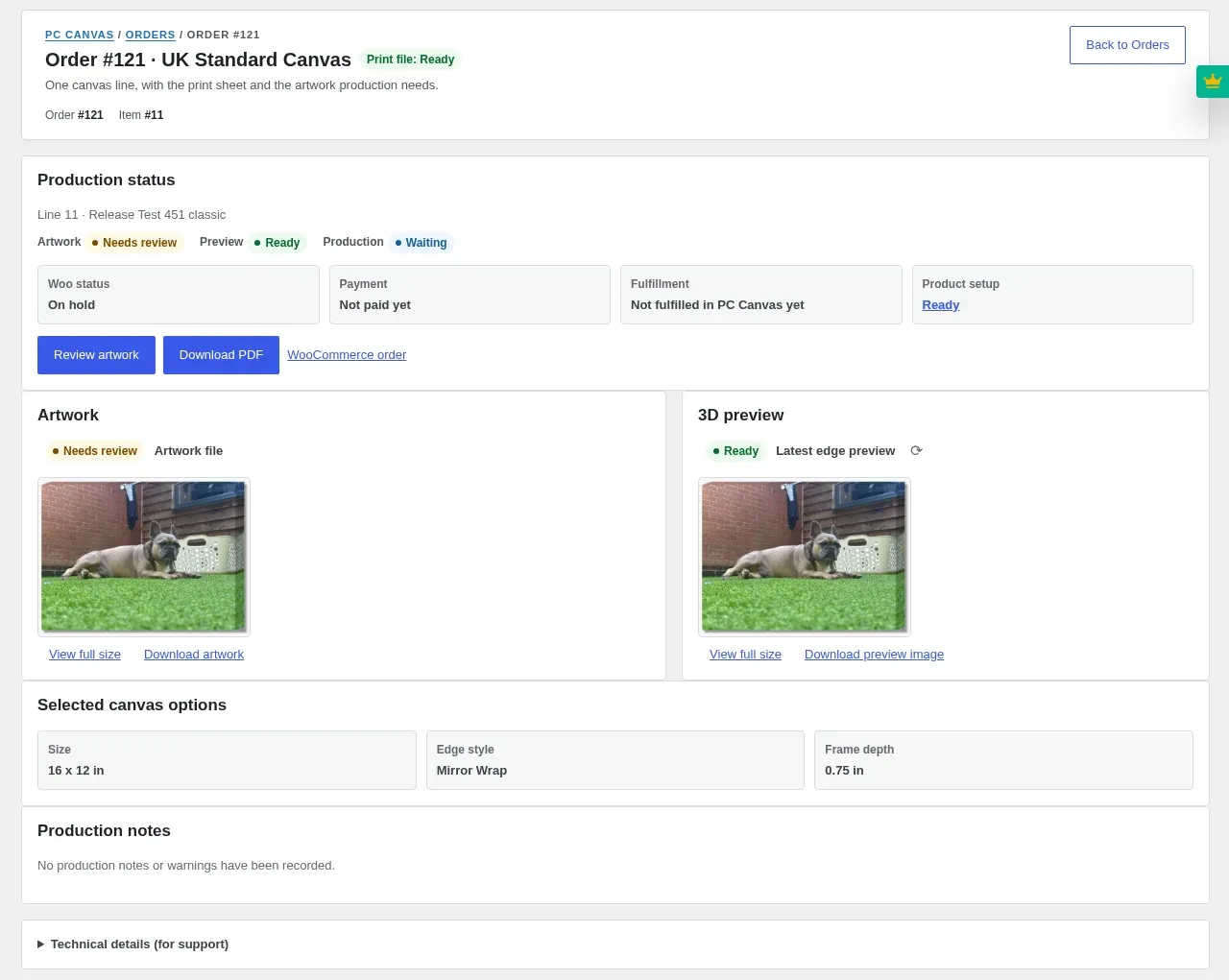
Step 3Review the artwork
Press Review artwork. The artwork detail shows the design and the 3D preview, the preflight checks in plain words and the file details. Bleed and safe zone read Not checked, so look at the downloaded original for those two. Add an optional production note and press Approve for production or Request replacement.
Expected result: The decision is saved in the review history.
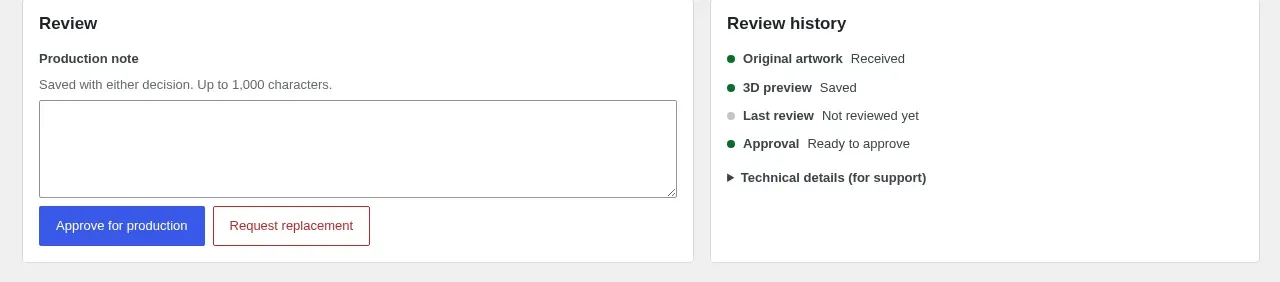
Step 4Download the print-ready PDF
Press Download PDF. Each click gives you a fresh copy, made from the design as it was ordered; later changes to a design never alter the file of an order already placed. If the column reads Not created, press Create print file first.
Expected result: You have a print-ready file for that order line.
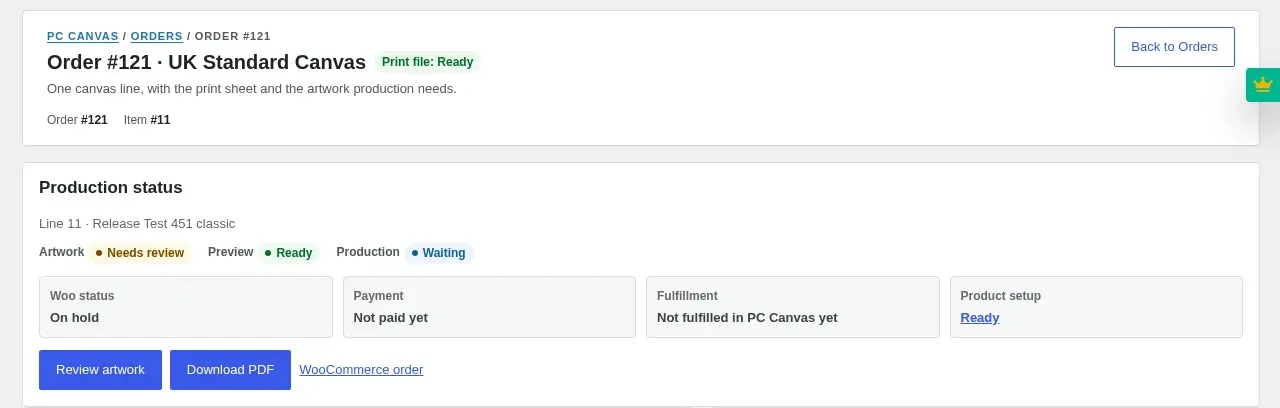
Step 5Read the print sheet
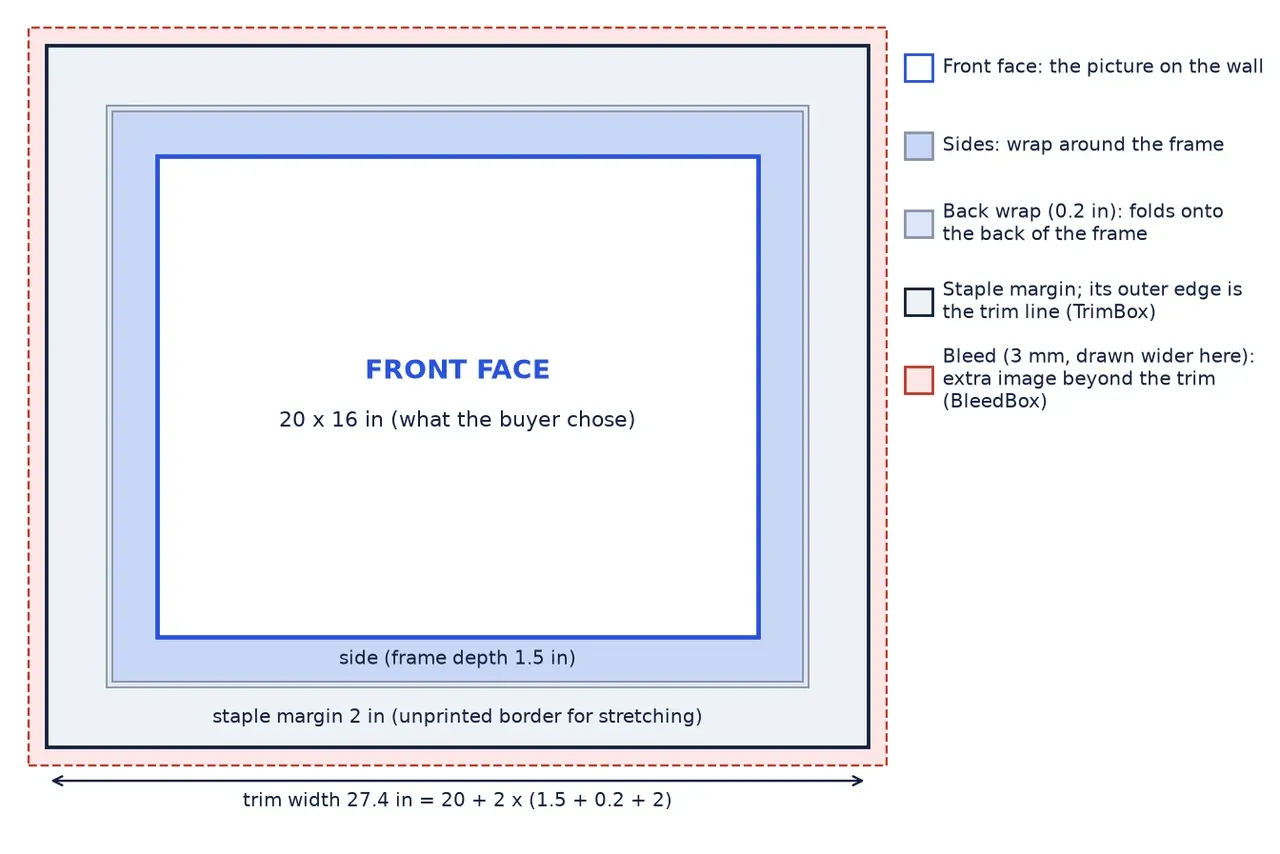
The PDF holds one print sheet sized for the buyer's choice. The trim box is the face plus twice the frame depth, back wrap and staple margin: for a 20 × 16 in Deluxe canvas, 27.4 × 23.4 in. A 3 mm bleed surrounds the trim, a thin cut line marks the cut, the staple margin stays unprinted, and images are converted to CMYK (Coated FOGRA39).
Expected result: The sheet is ready for your printer and stretcher bars.
Step 6Let orders reach Printcart
With Order sync on (the default), paid orders with a canvas design are sent to Printcart in the background. Orders that are not paid yet, for example On hold awaiting a cheque, wait until payment is received.
Expected result: Production starts without manual re-keying.
Can I change the PDF settings?
Yes. PC Canvas > Print Output holds the store-wide defaults, such as the CMYK preset and the bleed. Apply preset only fills the form; nothing is saved until you press Save Print Output. A product can override these under Product Setup > Print output.
An order never reached Printcart. What should I check?
Check that the order is paid, that Order sync is on and that WP-Cron runs on your host. If it still has not arrived, contact [email protected] with the order number.
Try Printcart Canvas
Printcart Canvas is free on WordPress.org, from Printcart, the web-to-print platform used by 2000+ stores. Download Printcart Canvas from WordPress.org, or try the live demo as a buyer.
What should you do next?
- Set up canvas sizes, prices and the print sheet
- Install Printcart Canvas and connect your store
- Browse all Printcart tutorials
Stuck on a step? Email [email protected] with a screenshot of the screen you are on, or a support bundle from PC Canvas > Diagnostics; it contains no credentials.
Printcart field note
What to verify before you roll out Download Print-Ready Canvas PDFs and Manage Canvas Orders
This tutorial is written from Printcart implementation patterns across file quality, proofing, and production risk. Before treating it as complete, test the workflow with one real product, one real design file, and one real order path.
Download Print-Ready Canvas PDFs and Manage Canvas Orders — common questions
What do you need before you start?
The screenshots come from a demonstration WooCommerce store running Printcart Canvas 4.5.9 with the UK Standard Canvas template. Store credentials and internal identifiers are masked. Want to see it first? Open the live demo store and press Design your canvas .
Can I change the PDF settings?
Yes. PC Canvas > Print Output holds the store-wide defaults, such as the CMYK preset and the bleed. Apply preset only fills the form; nothing is saved until you press Save Print Output. A product can override these under Product Setup > Print output .
An order never reached Printcart. What should I check?
Check that the order is paid, that Order sync is on and that WP-Cron runs on your host. If it still has not arrived, contact [email protected] with the order number.
What should you do next?
Stuck on a step? Email [email protected] with a screenshot of the screen you are on, or a support bundle from PC Canvas > Diagnostics ; it contains no credentials.
Next steps in Printcart
Connect download print-ready canvas pdfs and manage canvas orders with catalog setup, templates, production workflows, and implementation support.
Want to put download print-ready canvas pdfs and manage canvas orders into practice?
Use the related Printcart tool below, or create a free account to start building with the product designer.