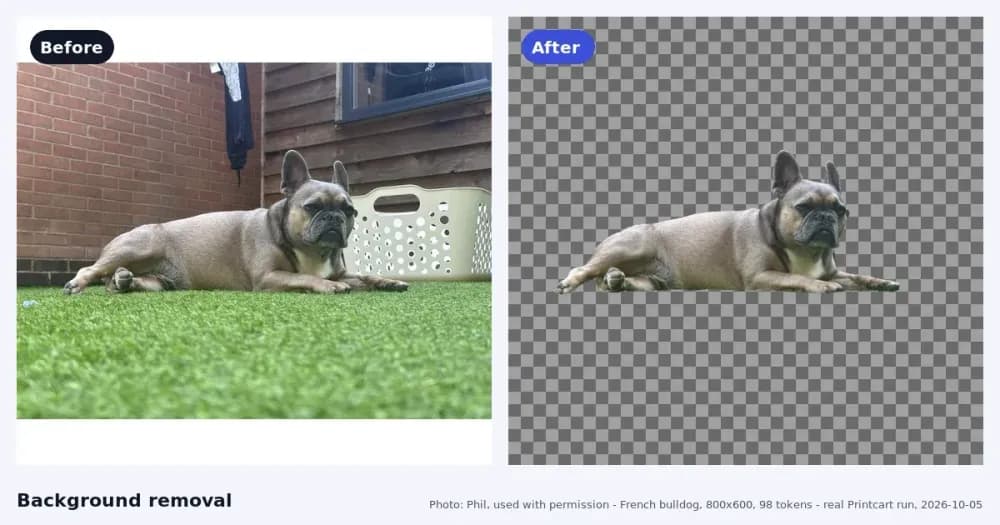
Open AI Face Matching in your Printcart Dashboard, create a group, add one clear reference photo for each person, click Teach the AI these faces (free), upload your event photos and click Run match . Each photo is tagged with a person, or marked No match . In our test on 6 October 2026, 13 photos cost 78 tokens (the price box showed 78 tokens for 13 photos)...
Key takeaways
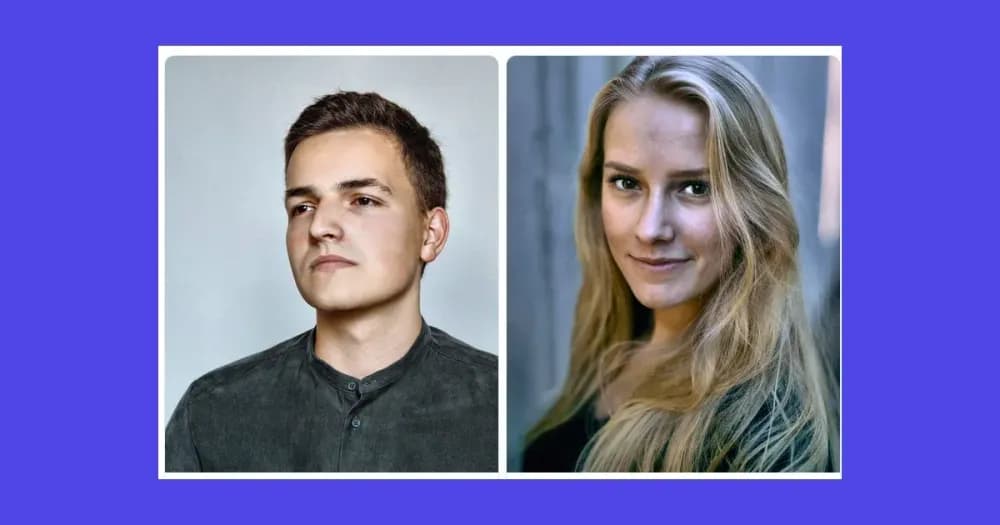
About the test photos. Everything here is a free-licence stock photoshoot from Unsplash (credits at the end): two adult models, a couple the tool had never seen, and one unrelated portrait. These are not real students or customers. Stock photos are cleaner than a school hall, a sports field or a party, so treat our numbers as a best case and run a small batch of your own photos first.
What you need before you start
- A Printcart account with tokens. The price box shows the total before you run a match. New to tokens? See Choose which store your tool results are saved to.
- One clear, front-facing photo of each person, as a direct image link (a .jpg, .png or .webp address that stays online). The form checks that the link loads before it saves the person.
- Your event photos as image files on your computer.
- Permission. Matching photos to named people processes faces. Get consent from the people (or their parents) first, and remove reference photos you no longer need.
From a pile of photos to photos sorted by person
Step 1Open AI Face Matching
Sign in, open API Services in the left menu and click AI Face Matching. The page explains the three steps: add people, teach the AI, match photos.
Expected result: a page called AI Face Matching with your token balance at the top right.
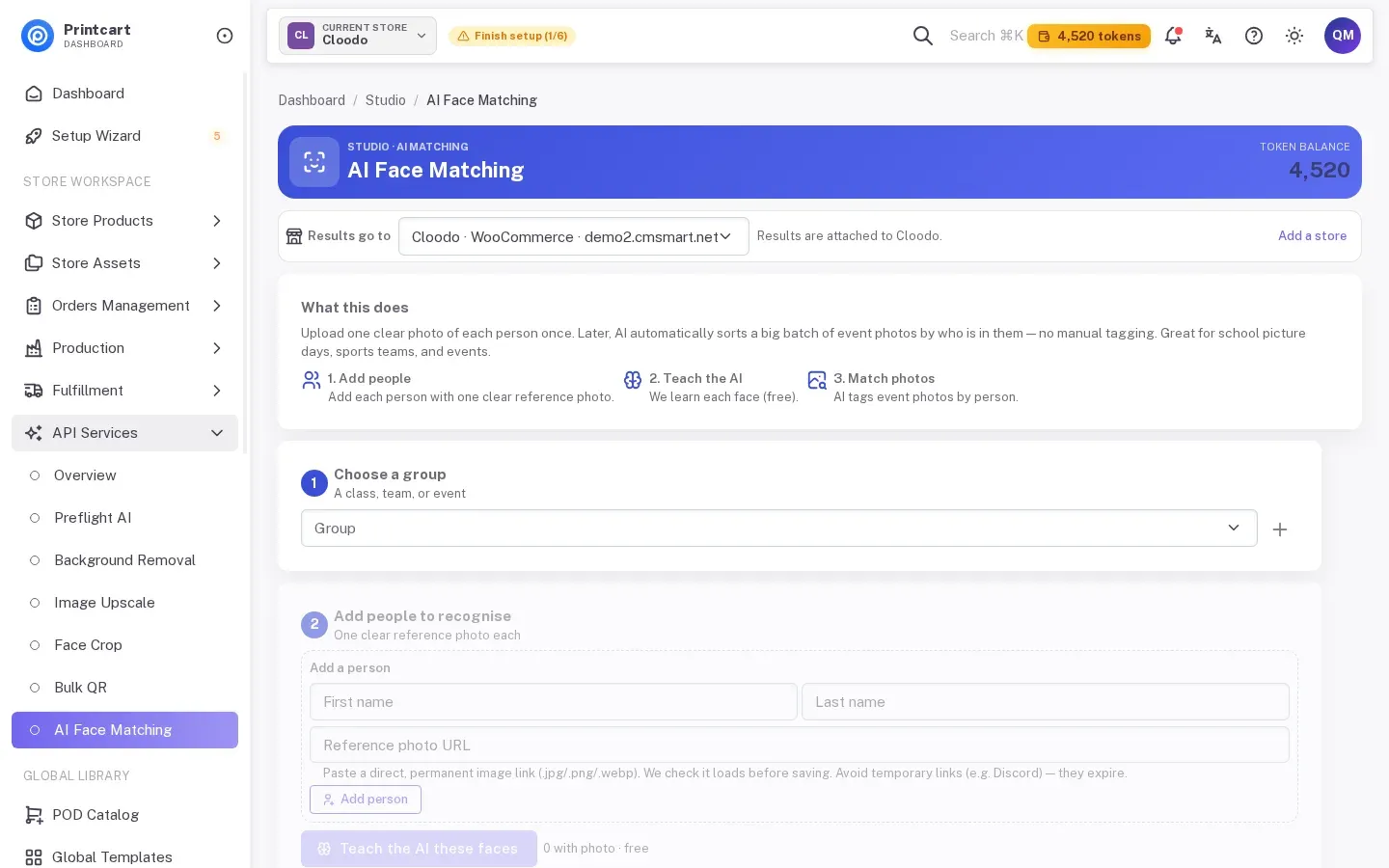
Step 2Choose a group and add your people
Under Choose a group, pick an existing group or click the plus button to create one (a class, a team or an event). Then, under Add people to recognise, type a first name, a last name and the reference photo link for each person and click Add person. Our group had two people, "Model O" and "Model J".
Expected result: each person appears as a chip with a small face picture above the form.
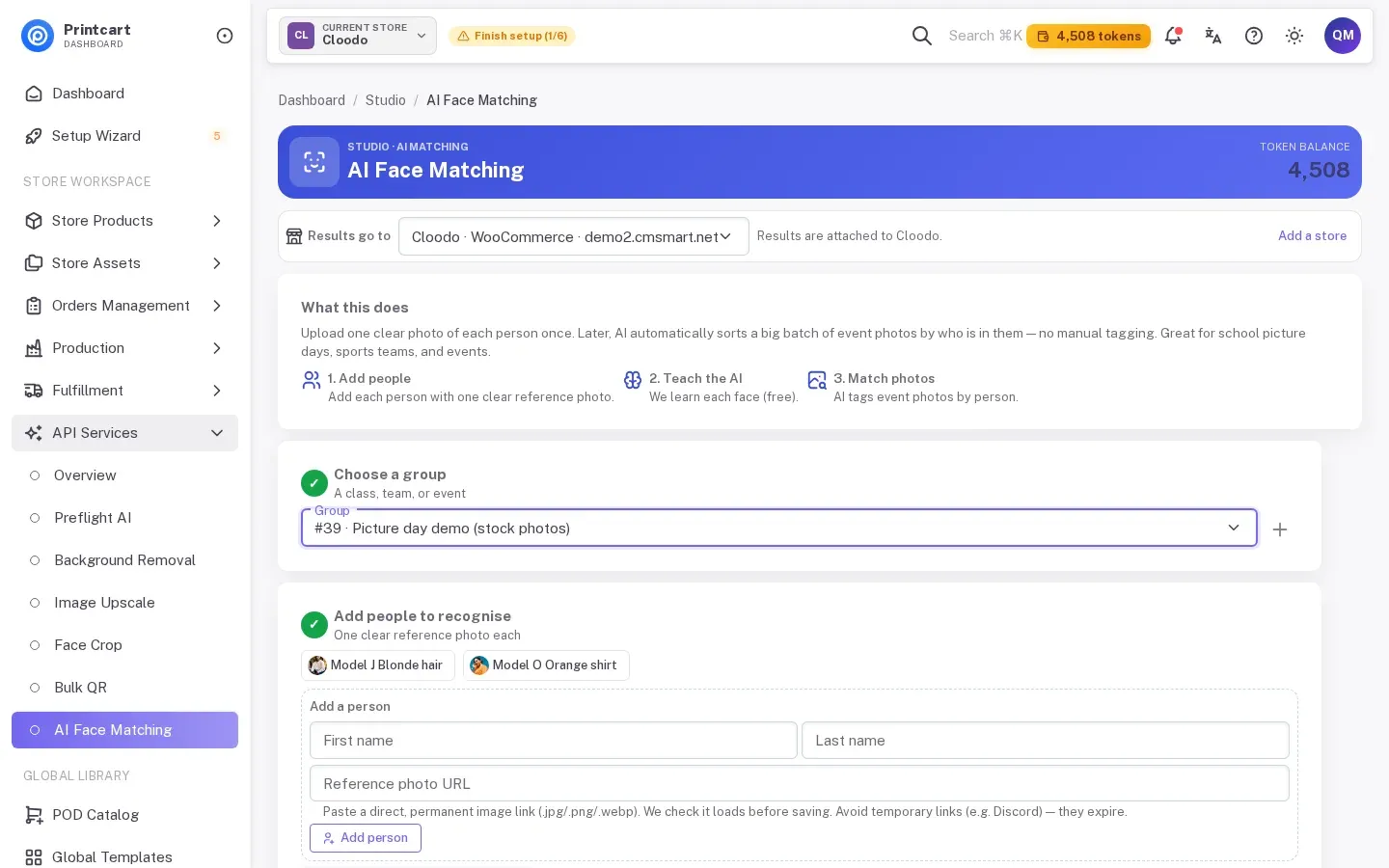
Step 3Teach the AI
Click Teach the AI these faces. It learns each reference face and costs no tokens. The label next to the button says how many people have a photo ("2 with photo · free").
Expected result: "2 with photo · free" and no error message.
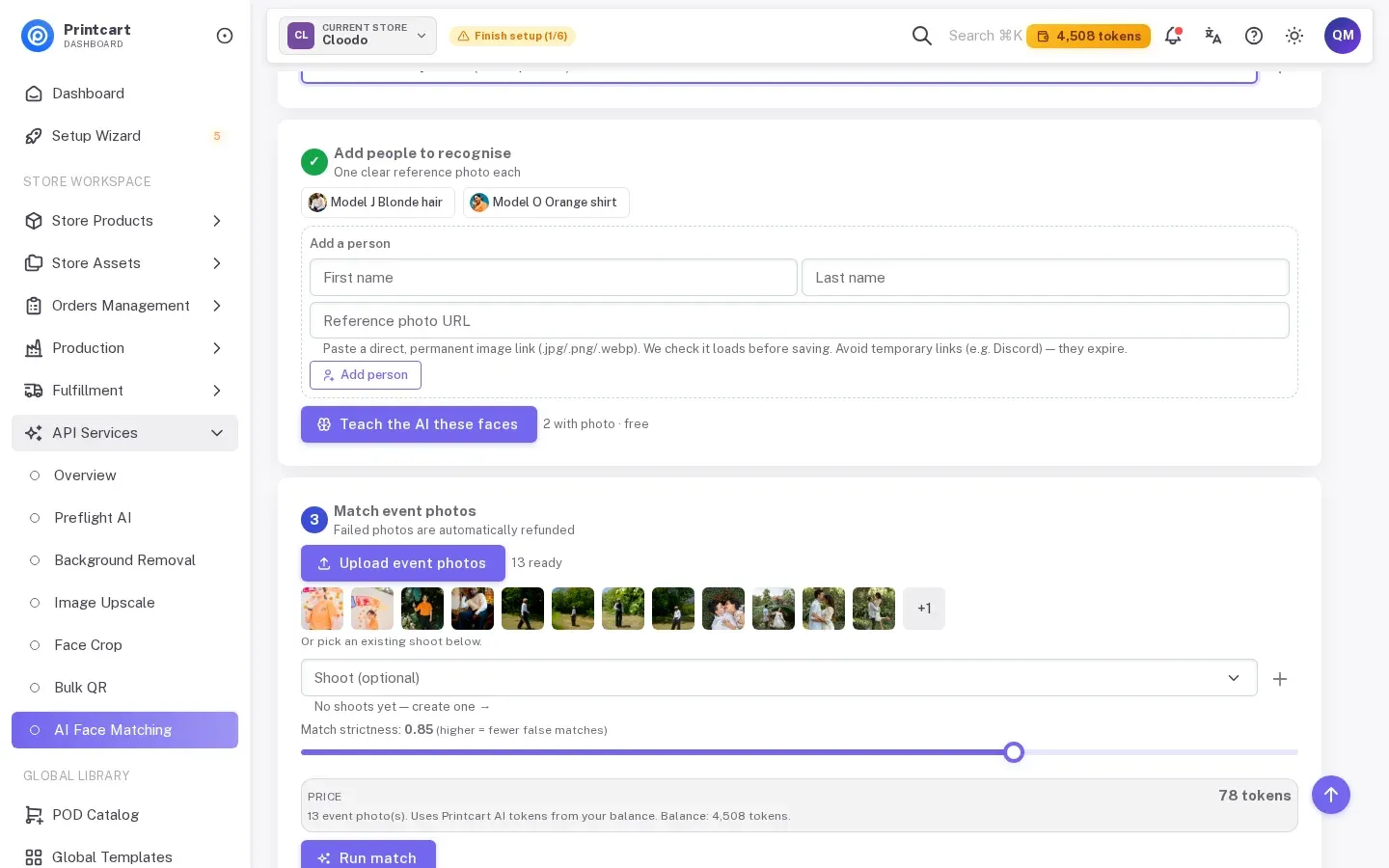
Step 4Upload the event photos and check the price
In Match event photos, click Upload event photos and choose your files. Small thumbnails appear and the label shows "13 ready". Leave Match strictness at 0.85 for a first run; a higher number gives fewer wrong matches but misses more photos. The price box now shows 78 tokens for 13 photos. Nothing is charged until you click Run match.
Expected result: thumbnails of your photos, "13 photo(s) ready to match" and the price.
Step 5Run the match and read the results
Click Run match. A line says the photos are being matched, then the Results card shows the job number and its status. Our job went from running to completed in about 45 seconds, and the page showed "completed" about 3 seconds after the job finished. The card then gives four numbers (total, matched automatically, needs a quick check, no match found) and a Photo by photo list with a thumbnail, the person's name, a Matched or No match label, a percentage and the reason when there is no match.
Expected result: "Job completed", 13 total, 7 matched automatically, 0 needing a quick check, 6 with no match.
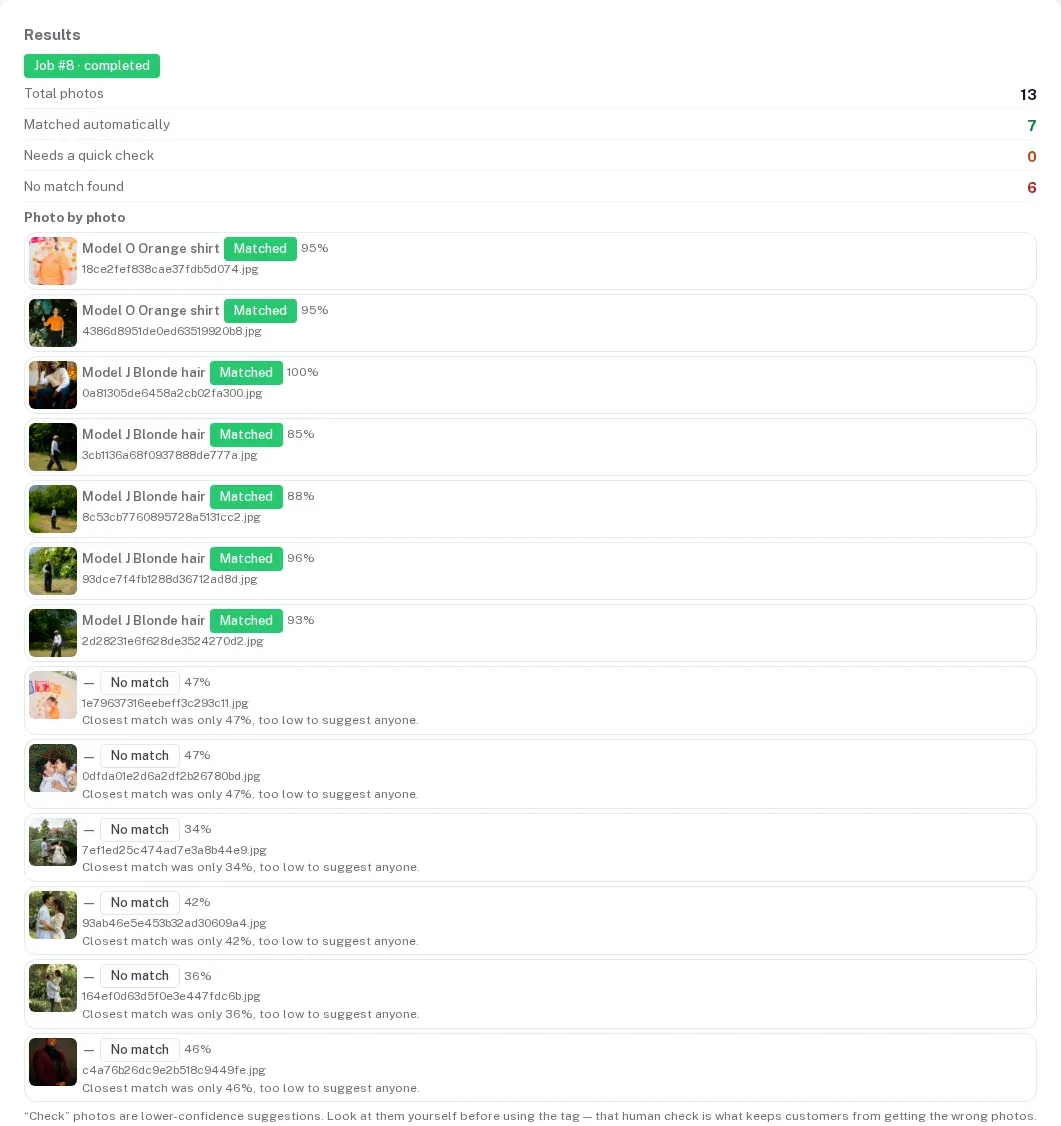
What the results looked like
We knew who was in every photo, so we could check the answers:
| Photos | Who is in them | Result | Scores |
|---|---|---|---|
| 3 photos of Model O | Model O | 2 matched to Model O, 1 "No match" (her face is motion-blurred) | 95%, 95%, 47% |
| 5 photos of Model J (4 of them small, full-length) | Model J | 5 matched to Model J | 85%, 88%, 93%, 96%, 100% |
| 4 photos of an unknown couple | Nobody we taught | 4 No match | 34% to 47% |
| 1 photo of an unrelated man | Nobody we taught | 1 No match | 46% |
Before: 13 mixed photos and no tags. After: 7 photos tagged with the right person, 5 correctly left untagged, 1 photo missed. No photo was given to the wrong person in this run.
Troubleshooting (what we saw)
- A photo of someone you taught shows "No match". One of Model O's photos, where she is moving and her face is blurred, got a closest match of only 47%. Earlier the same day the page said "No face found" for it; after a service update it finds the face, but the score is still too low. Check blurred, small or turned-away faces by hand.
- A correct match scores just above the line. One match was 85% at a strictness of 0.85. If you raise the strictness, photos like this drop out. If you lower it, strangers are more likely to get a tag.
- The list shows file names like a long string of letters. The page lists the names Printcart gave the uploaded files, not your original names. Use the thumbnails to tell photos apart before you copy anything out.
- The "Past jobs" list shows the wrong status. Under the results, a Past jobs list lets you reopen earlier jobs. In our test its labels were wrong: the job that had just finished showed "pending" and finished older jobs showed "failed". Trust the Results card, not that label.
- "Needs a quick check" stayed at 0. This label is for lower-confidence matches you should confirm yourself. None of our photos landed there, so we did not test that case. If you see it, look at those photos before you use the tag.
- Earlier the same day, jobs stayed pending. On 6 October 2026 our first jobs never started; the cause was fixed the same day and the run in this guide is after the fix. If a job still shows running after several minutes, do not click Run match again, because each run is charged. Wait, and contact Printcart support if it never finishes.
FAQ
How much does AI Face Matching cost?
The page showed 78 tokens for 13 photos in our test, which is 6 tokens per photo. Teaching the AI the reference faces is free. The price box shows your total before you click Run match.
How many photos can I match at once?
We tested 13 photos in one job. We did not test hundreds, so run a first batch of 20 to 50 from your event before a full upload.
Does it get every photo right?
No. In our stock-photo test it tagged 7 of 8 and gave no wrong tags, but real events have crowds, hats, masks and side views. Always look over the results before you send photos to families.
What does a lower-confidence match mean?
It means the AI found a likely person but is less sure. The page asks you to check those photos yourself. We did not get any in our test.
Do I have to crop the faces first?
No. For ID or class portraits, the separate Face Crop tool makes same-size crops. See Crop school portraits with Face Crop.
Next steps
- Back to the tool page: AI face matching.
- Crop the portraits to one frame: Crop school portraits with Face Crop.
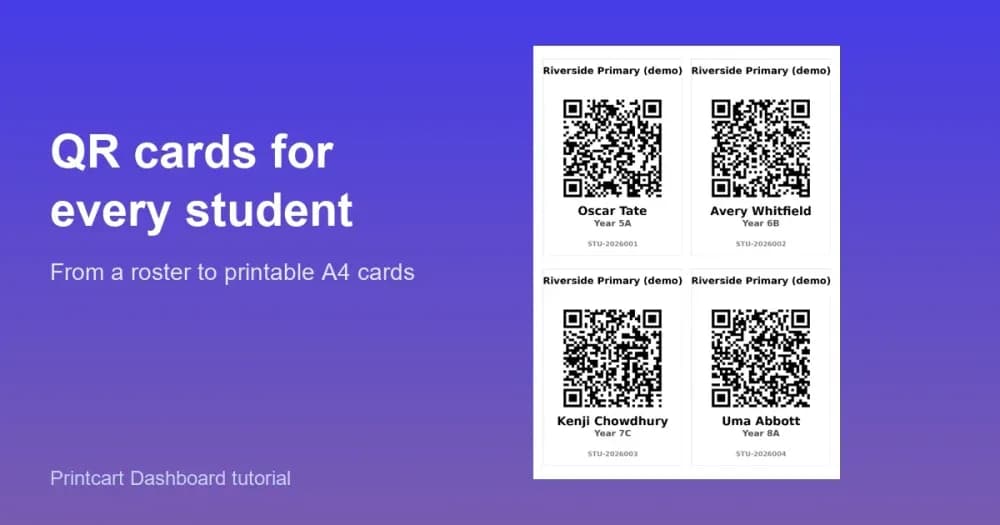
- Make the picture-day cards: Bulk QR cards from a student roster.
- Older overview: AI Face Matching for Event and School Photography.
- More in this series: Photo commerce tools tutorials.
Sort photos by person for every event and keep your tokens topped up. See the token plans: AI wallet pricing.
Photo credits (Unsplash License): Bruno Dias, Hector O'Connor and Jadon Johnson (stock photos of adults, used here only as test inputs).
Printcart field note
What to verify before you roll out Sort Event Photos by Person with Face Matching
This tutorial is written from Printcart implementation patterns across web-to-print launch planning, buyer experience, and repeatable production. Before treating it as complete, test the workflow with one real product, one real design file, and one real order path.
Sort Event Photos by Person with Face Matching — common questions
How much does AI Face Matching cost?
The page showed 78 tokens for 13 photos in our test, which is 6 tokens per photo. Teaching the AI the reference faces is free. The price box shows your total before you click Run match.
How many photos can I match at once?
We tested 13 photos in one job. We did not test hundreds, so run a first batch of 20 to 50 from your event before a full upload.
Does it get every photo right?
No. In our stock-photo test it tagged 7 of 8 and gave no wrong tags, but real events have crowds, hats, masks and side views. Always look over the results before you send photos to families.
What does a lower-confidence match mean?
It means the AI found a likely person but is less sure. The page asks you to check those photos yourself. We did not get any in our test.
Next steps in Printcart
Connect sort event photos by person with face matching with catalog setup, templates, production workflows, and implementation support.
Want to put sort event photos by person with face matching into practice?
Use the related Printcart tool below, or create a free account to start building with the product designer.