Open printcart.com/tools/background-removal , add a photo and download a transparent PNG. The free preview in your browser works on photos with a plain backdrop. For a busier photo, the page also has an AI trial that needs no account: a few runs a day, photos up to 2 MP, and a small watermark on the sample. Full-resolution results and batches run from a...
Key takeaways
What you need before you start
- One photo as JPG, PNG or WebP. A product on a plain backdrop is best for Steps 1 to 3.
- A browser. You do not need an account for any step except Step 6.
Remove a background on printcart.com
Step 1Open the tool and add a photo
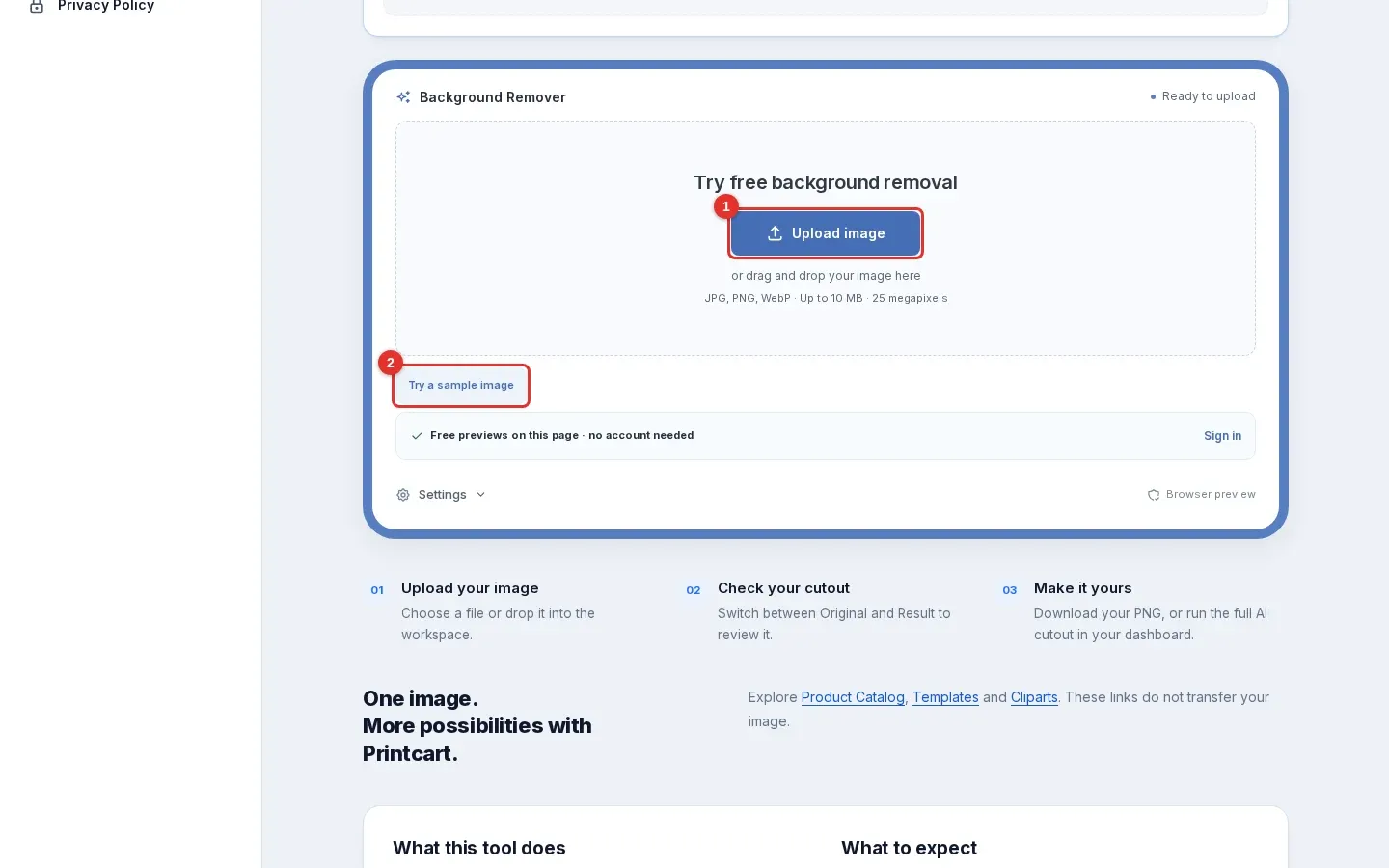
Go to Background removal and scroll to the workspace called Background Remover. Click Upload image (1) or drag a photo onto the box. If you only want to look around first, click Try a sample image (2): it loads a product bottle on a plain backdrop.
Expected result: after a few seconds the workspace says "Your result is ready" and shows the cutout.
Step 2Compare the original and the result
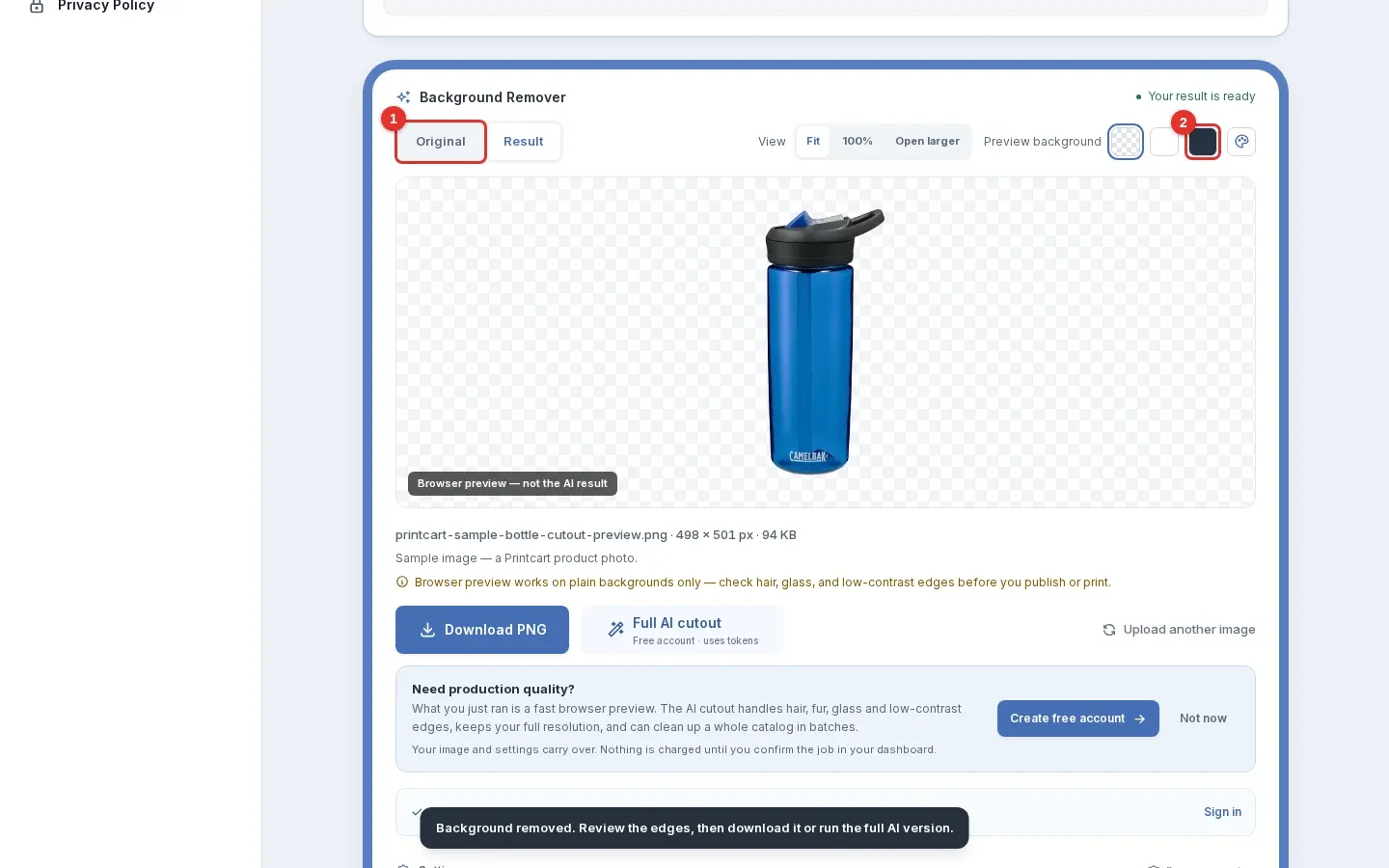
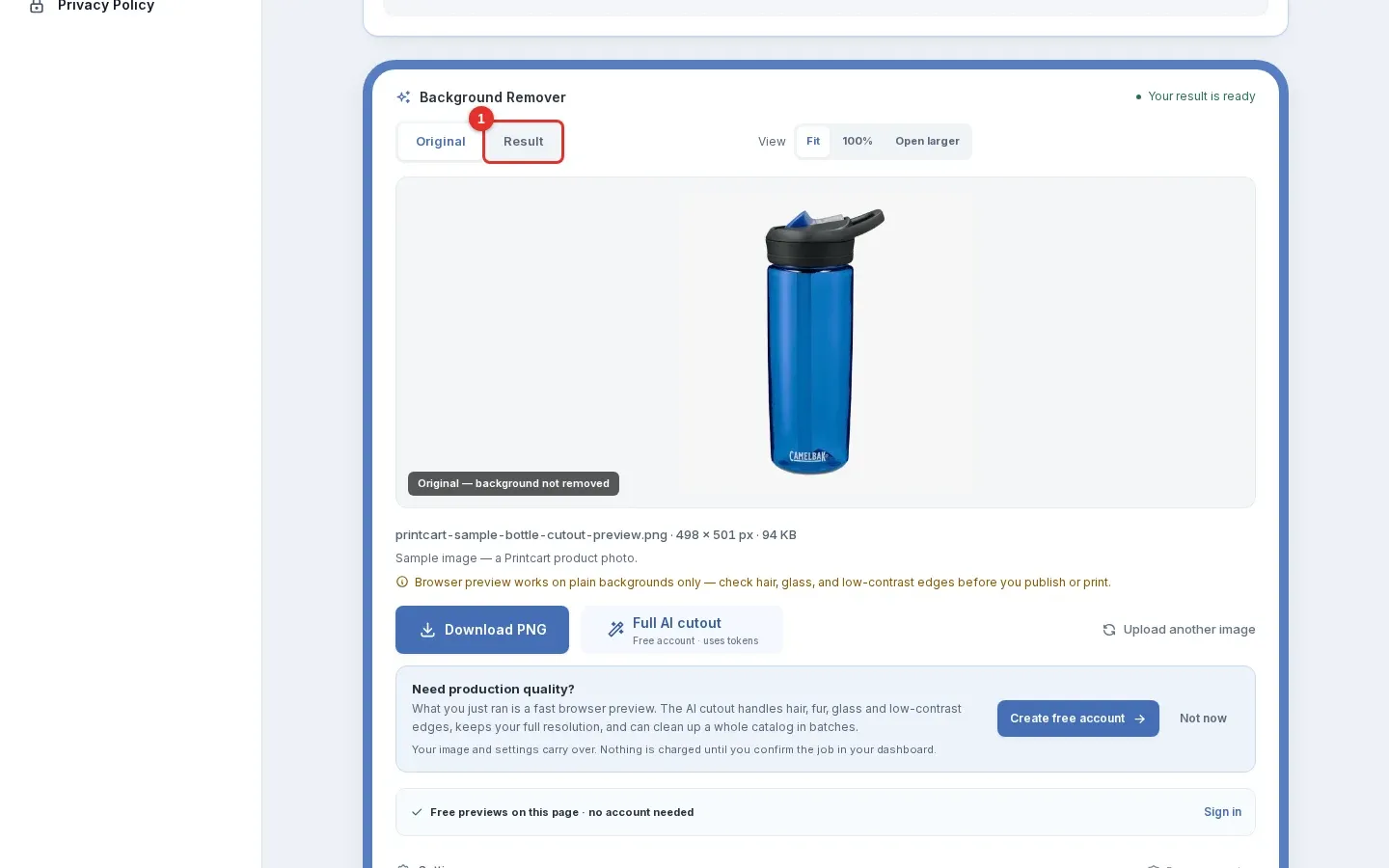
Use the Original and Result tabs (1) to flip between the two views. Next to them, the preview background swatches (2) let you see the cutout on a checkerboard, a light background or a dark background. Check the edge of the product on both a light and a dark background, because halos show up on one of them. Fit, 100% and Open larger change the zoom.
Expected result: the Result tab shows only the product. The label "Browser preview — not the AI result" tells you which engine made it.
Step 3Download the transparent PNG
Click Download PNG (1). The file keeps a transparent background, so you can place it on a mockup or a coloured product. In our test the sample downloaded as a 498 x 501 px PNG and its background was transparent.
Expected result: a PNG file on your computer. Open it on a coloured background to confirm there is no white box around the product.
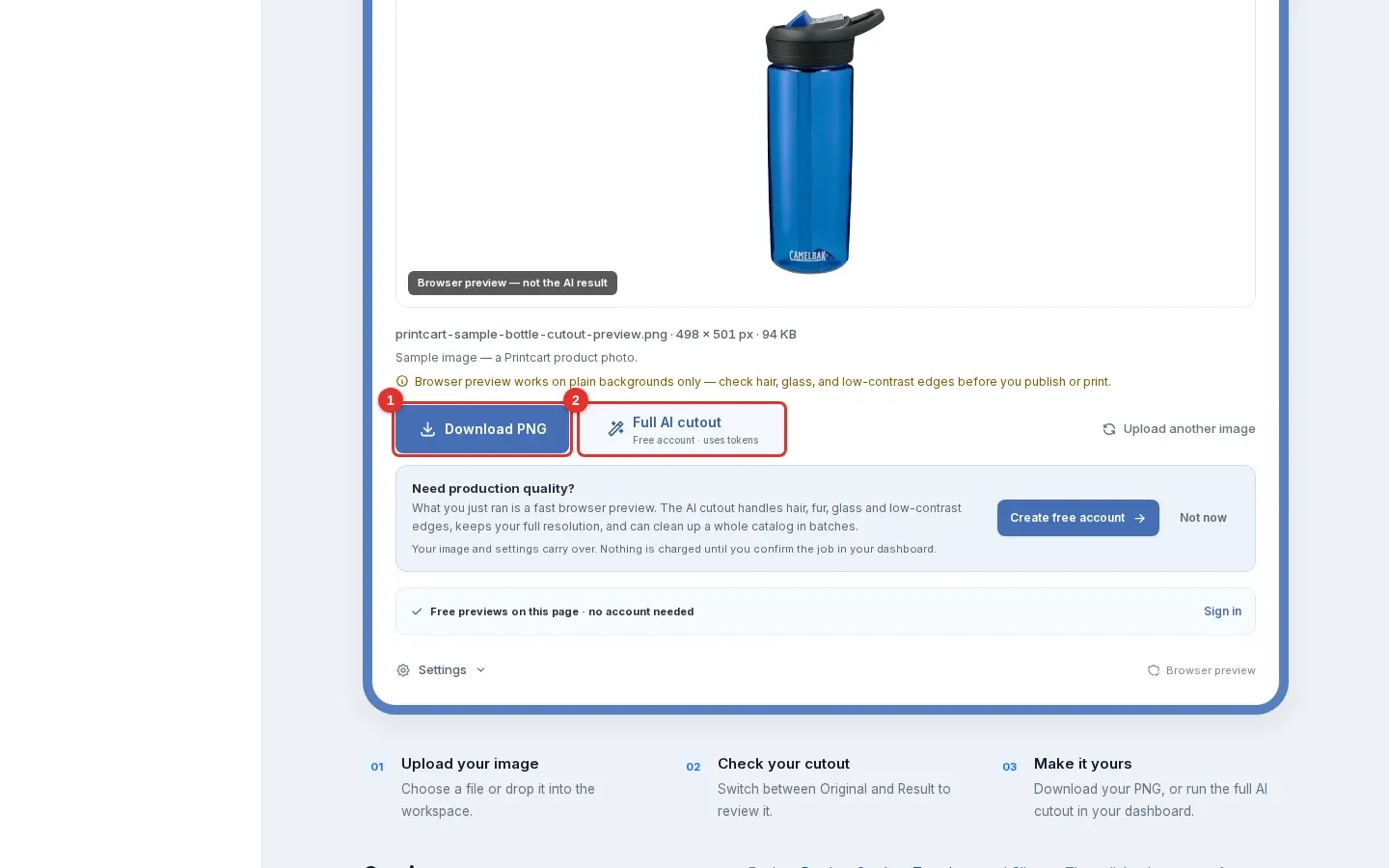
Known limitation. The browser preview removes a plain-colour backdrop. It is not the AI cutout, so it can leave parts of a busy background, and it is not suitable for hair, glass or low-contrast edges. Use Step 4 for those photos.
Step 4Run the AI trial on a busier photo
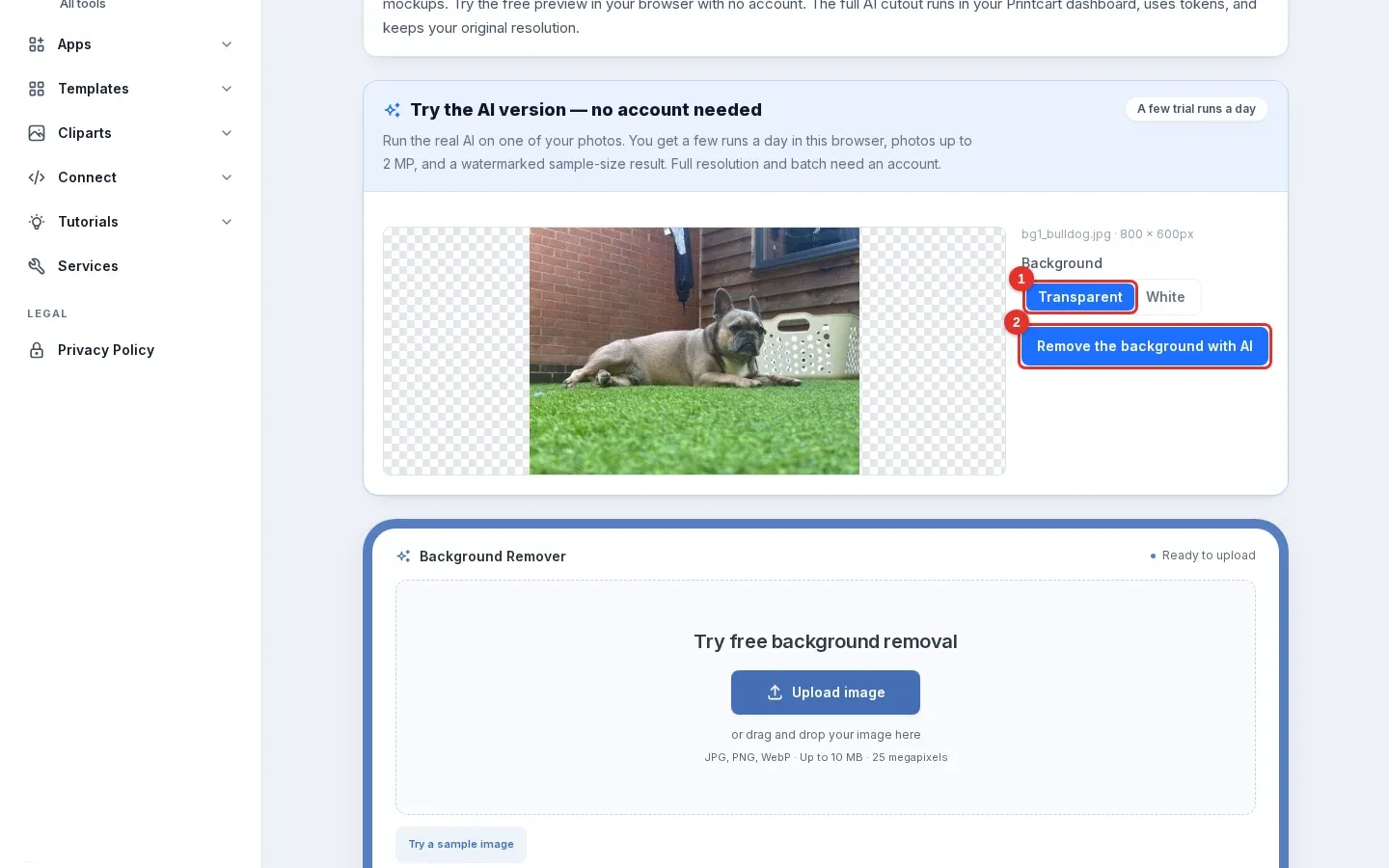
In the blue panel Try the AI version — no account needed, drop a JPG, PNG or WebP of up to 2 MP. Choose Transparent (1) or White, then click Remove the background with AI (2). The trial allows a few runs a day in the same browser.
Expected result: the panel shows "The AI is working on it…" and, in our test with an 800 x 600 px photo, a result appeared after about ten seconds.
Step 5Review the result and download the sample
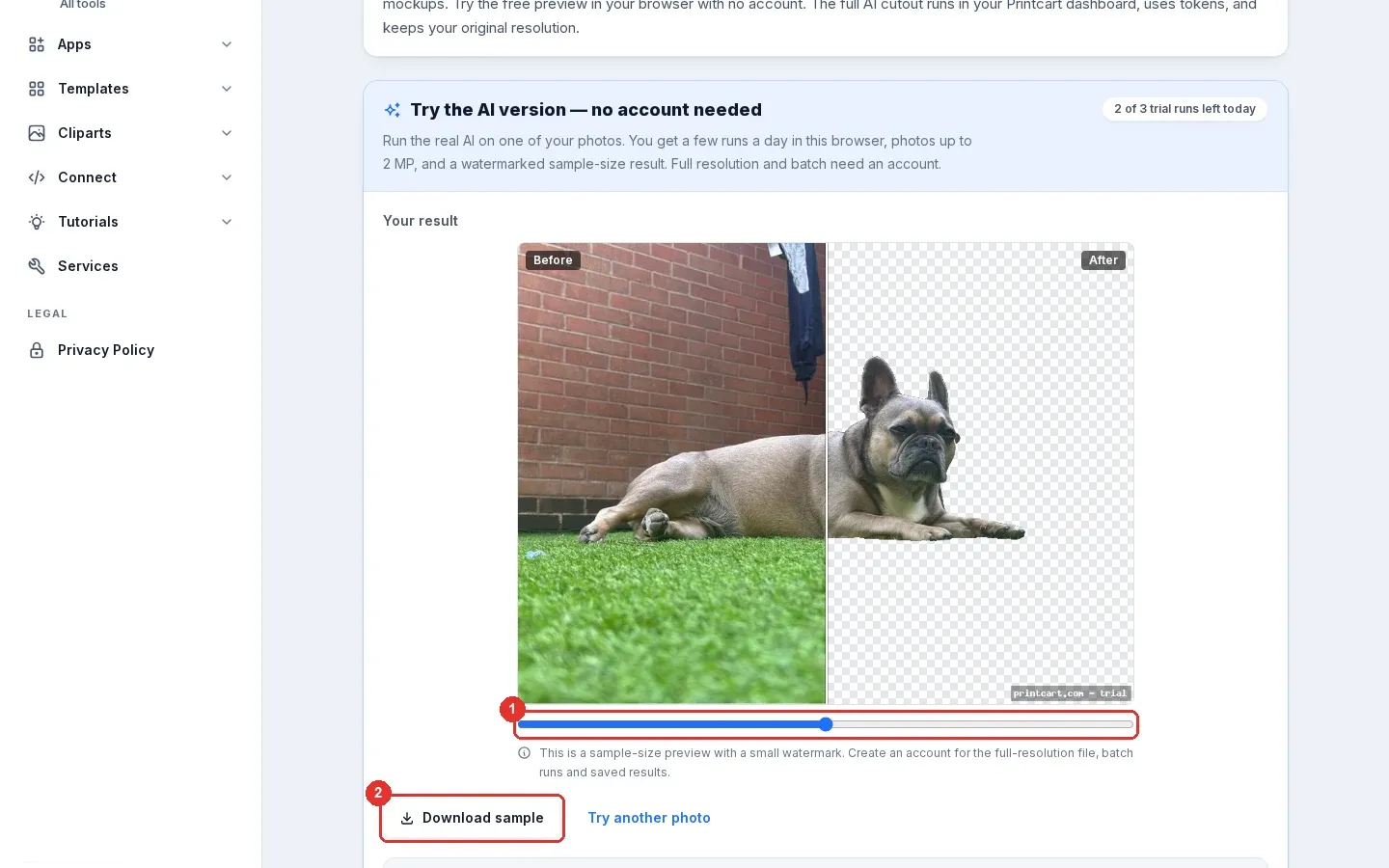
Drag the slider (1) to compare before and after. Click Download sample (2) to save the cutout. The panel also tells you how many trial runs are left today.
Expected result: in our test the whole dog was kept, ears and paws included, and the grass, wall and laundry basket were removed. The downloaded sample was an 800 x 600 px PNG with a transparent background and a small "printcart.com - trial" watermark in the corner. The watermark belongs to the trial; a Printcart account produces the result at your original resolution.
Step 6Get the full-resolution cutout from your Printcart account
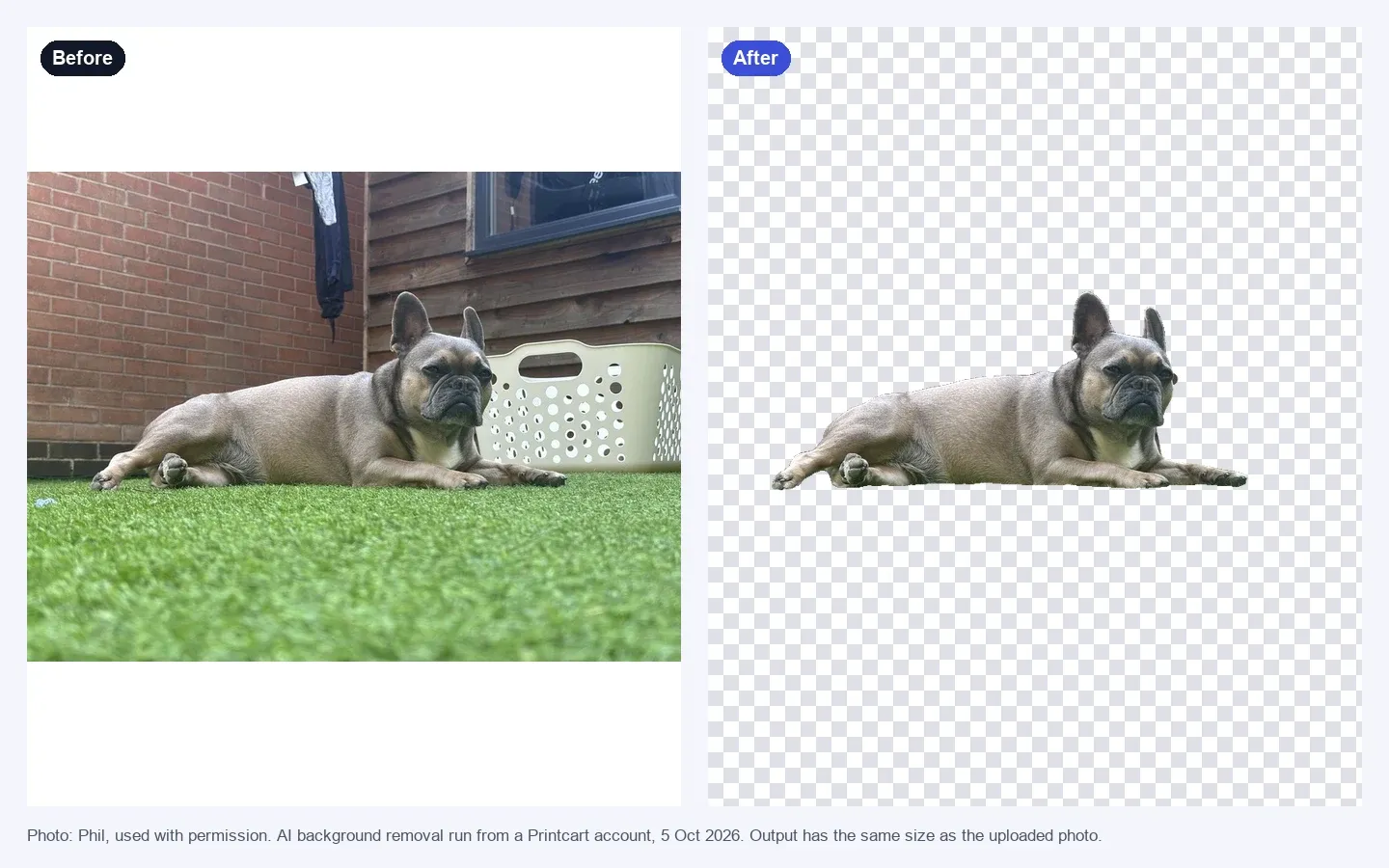
When the trial result looks right, use Get full resolution and batch or Full AI cutout to create a Printcart account. In your account the AI cutout keeps your original resolution and you can process more than one image. Try it with your own photo first, then decide whether you need an account.
Expected result: a clean PNG with a transparent background, like the one below from a run on a Printcart account.
Check the edges before you publish or print
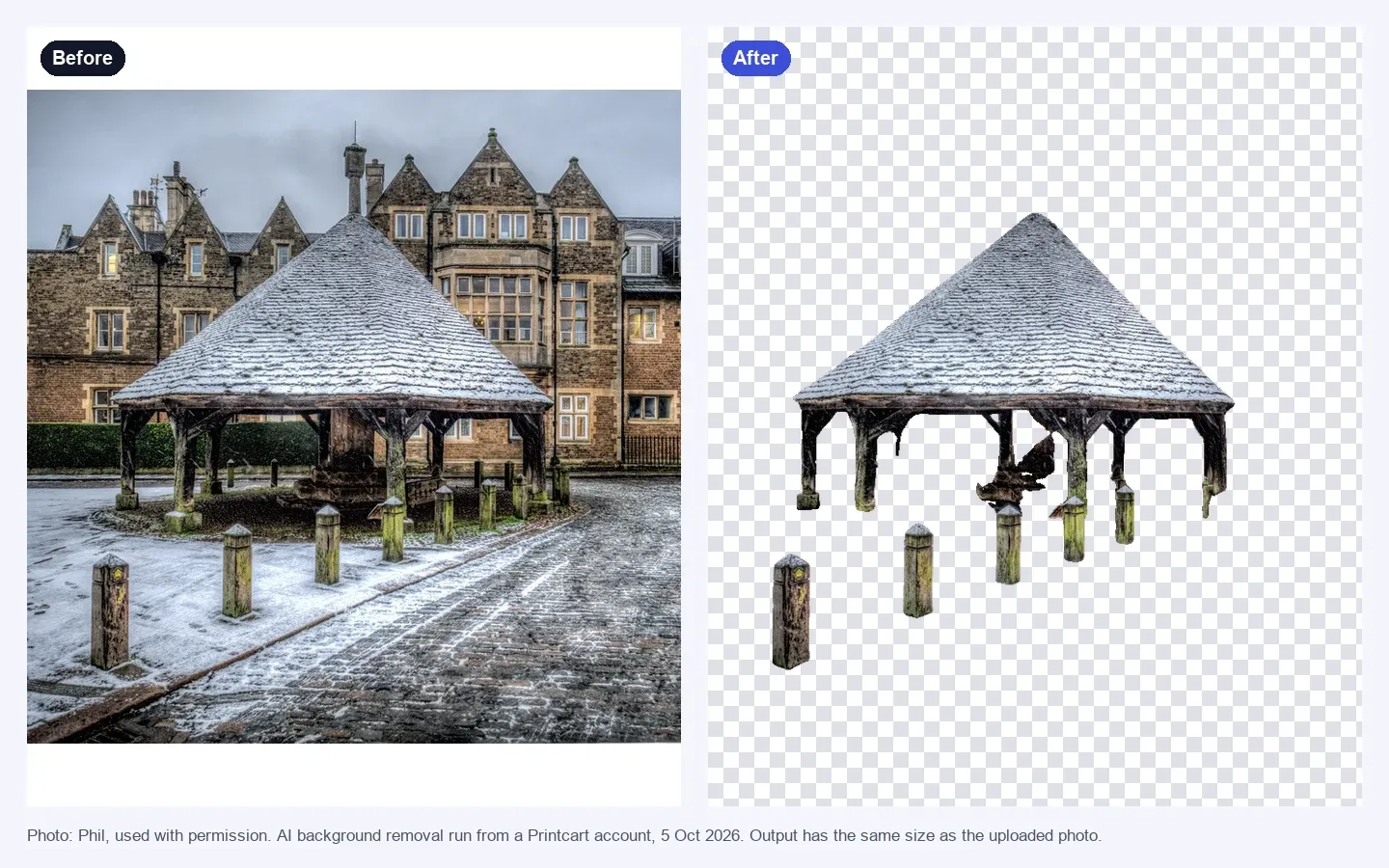
AI cutouts are good, not perfect. Thin parts and low-contrast areas can disappear. In the example below, the roof of a snow-covered gazebo was kept, but several wooden posts were cut away. Zoom to 100% and look at fine details before you use a cutout on a listing or a print file.
Troubleshooting
- Part of the old background is still there. The browser preview only handles plain backdrops. Run the photo through the AI trial instead.
- The trial says there are no runs left today. The limit resets daily. A Printcart account is the way to run more photos.
- The photo is rejected. The browser preview takes JPG, PNG or WebP up to 10 MB and 25 megapixels. The AI trial takes photos up to 2 MP, so shrink the photo first.
- A white box appears around the product on a coloured shirt. You chose White in Step 4. Choose Transparent and download again.
What is the difference between the browser preview and the AI trial?
The browser preview is a quick colour-based cutout that runs on the page and works on plain backdrops. The AI trial uses Printcart's AI background removal, handles busier photos, and returns a sample-size result with a small watermark.
Can I use the cutout for print-on-demand products?
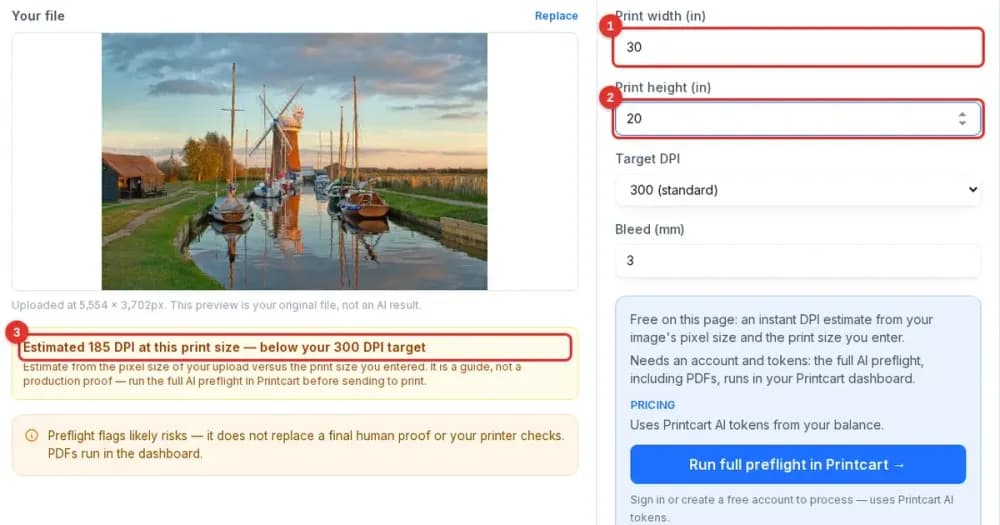
Yes, if it is a PNG with a transparent background and the resolution is high enough for the print area. Check the pixel size against your print size with the DPI checker, and see how large you can print a photo if the file is small.
Next steps
- Enlarge a small image: Image upscale.
- Check the file before production: Print file preflight.
- Use cutouts on products in your store: see the Printcart apps for WordPress, Shopify and Wix, or connect your store.
- More photo tools: Photo commerce tools tutorials.
Ready for whole folders? Process whole folders and save results to your store — choose a long-term plan, or create an account to start.
Printcart field note
What to verify before you roll out Remove a Product Photo Background on printcart.com: Free Preview and AI Trial
This tutorial is written from Printcart implementation patterns across web-to-print launch planning, buyer experience, and repeatable production. Before treating it as complete, test the workflow with one real product, one real design file, and one real order path.
Remove a Product Photo Background on printcart.com: Free Preview and AI Trial — common questions
What is the difference between the browser preview and the AI trial?
The browser preview is a quick colour-based cutout that runs on the page and works on plain backdrops. The AI trial uses Printcart's AI background removal, handles busier photos, and returns a sample-size result with a small watermark.
Can I use the cutout for print-on-demand products?
Yes, if it is a PNG with a transparent background and the resolution is high enough for the print area. Check the pixel size against your print size with the DPI checker , and see how large you can print a photo if the file is small.
Next steps in Printcart
Connect remove a product photo background on printcart.com: free preview and ai trial with catalog setup, templates, production workflows, and implementation support.
Want to put remove a product photo background on printcart.com: free preview and ai trial into practice?
Use the related Printcart tool below, or create a free account to start building with the product designer.