

Key takeaways
Part 5 of 5 in the Printcart Product Personalizer for Shopify series. The series starts on the Printcart Product Personalizer for Shopify page.
What you need before you start
- A product with Quote on (see Part 2).
- The app permission to create draft orders (the app asks for it when you install or update).
- Your price for the job, including shipping if you charge it.
How this guide was checked. We ran every step on 11 November 2026 and checked the quote form again on 16 November 2026 on a Shopify development store with the Printcart Product Personalizer installed, three real products (a T-shirt, business cards and kraft mailer boxes) and a test checkout. The screenshots are from that store. Names, emails and checkout links are blurred or made up.
Step 1Turn on Quote for the product
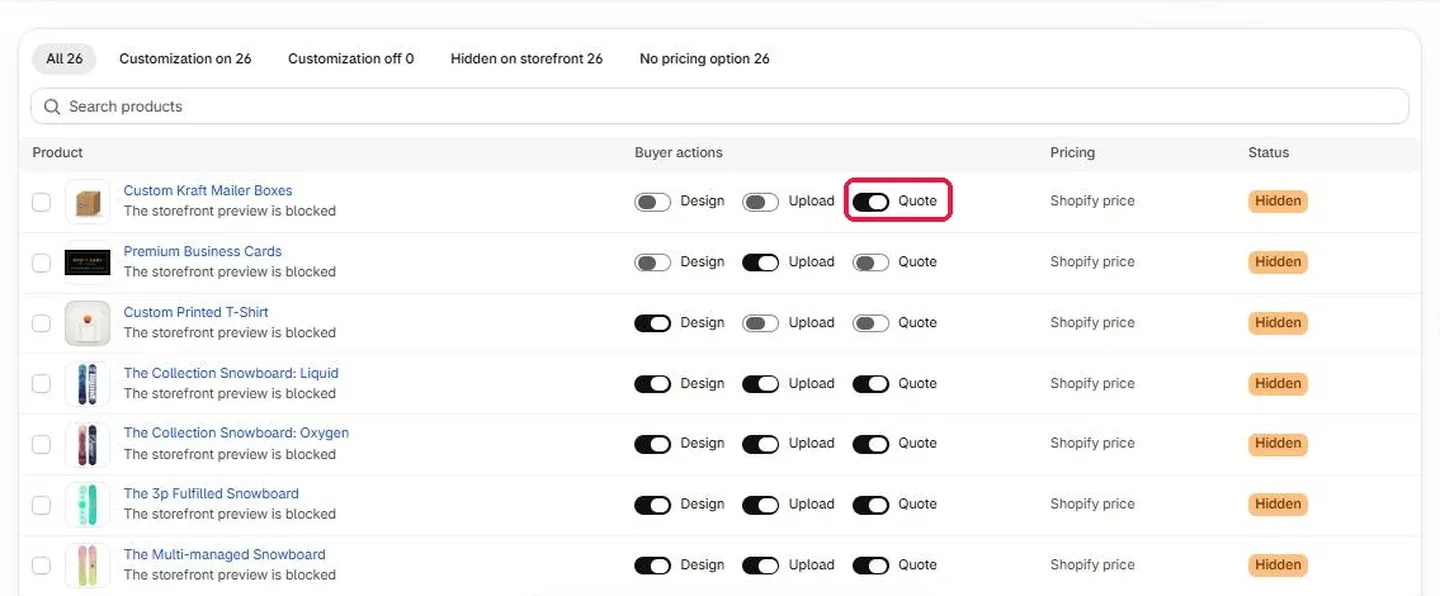
In Products, turn on Quote for products that you price per job, such as custom packaging. We used Custom Kraft Mailer Boxes with only Quote on.
Expected result: The Quote switch is on for the product.
Step 2The buyer sends a quote request
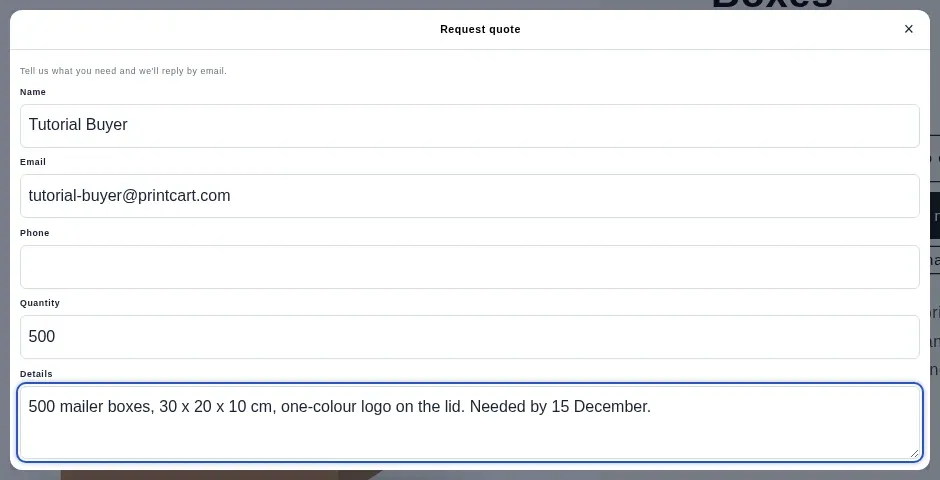
On the product page the buyer clicks Personalize, fills in Name, Email, Phone, Quantity and Details, and clicks Send request. They see a thank-you message that says you will reply by email.
Expected result: The form closes with a confirmation message.
Step 3Open the request in Quotes
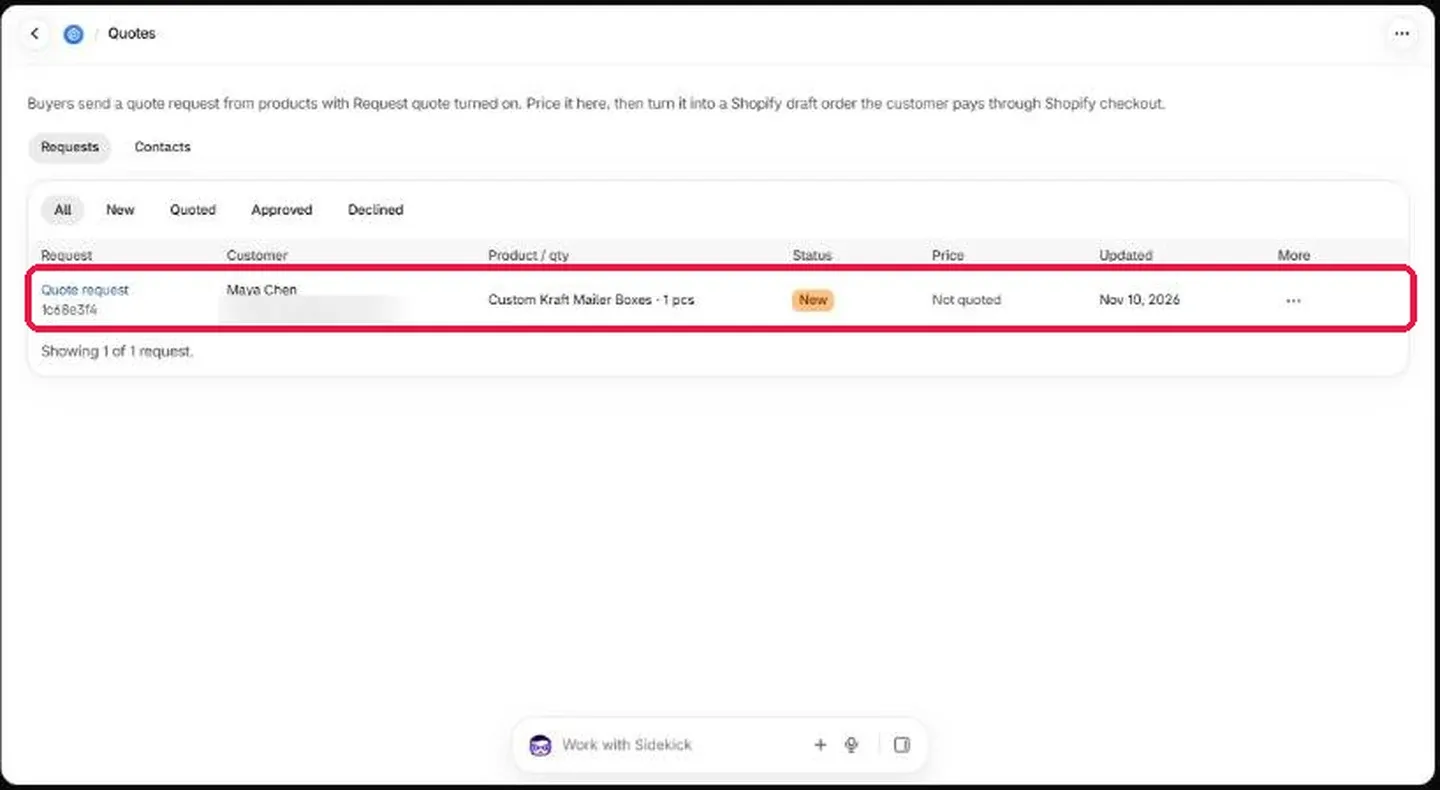
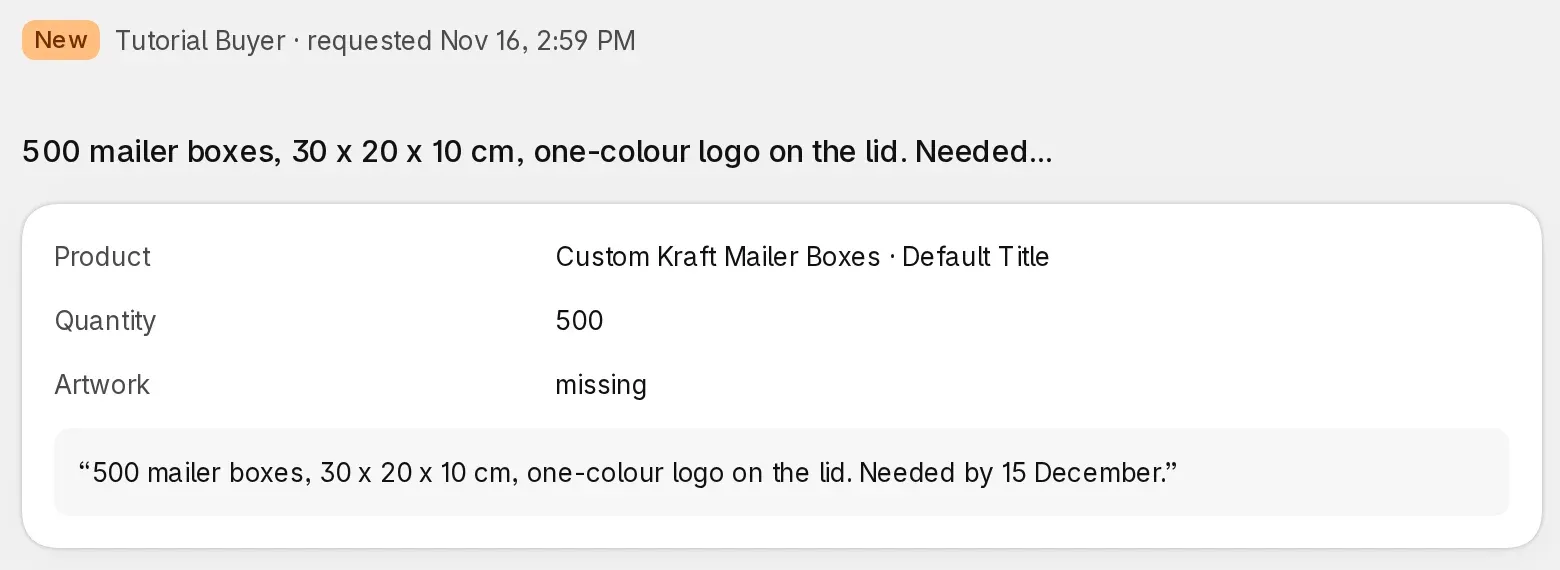
Open Quotes in the app. New requests have the status New and show the customer, the product and when it was updated. Click the request to open it.
The request shows the product, the Quantity the buyer typed and their Details text in quotes, so you have the whole job in one place.
Expected result: The new request is in the list with status New, and its page shows the buyer's quantity and Details.
Step 4Price the quote
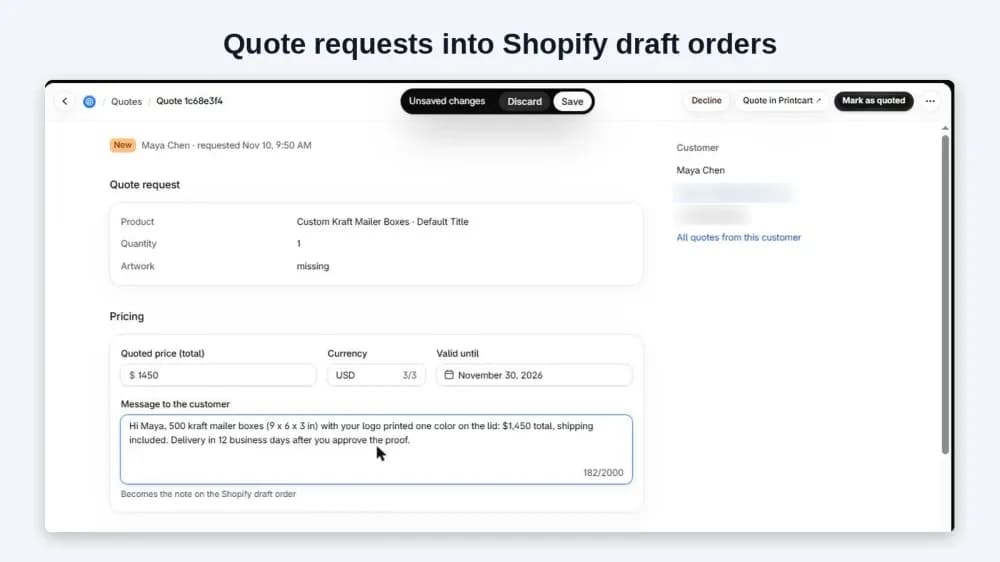
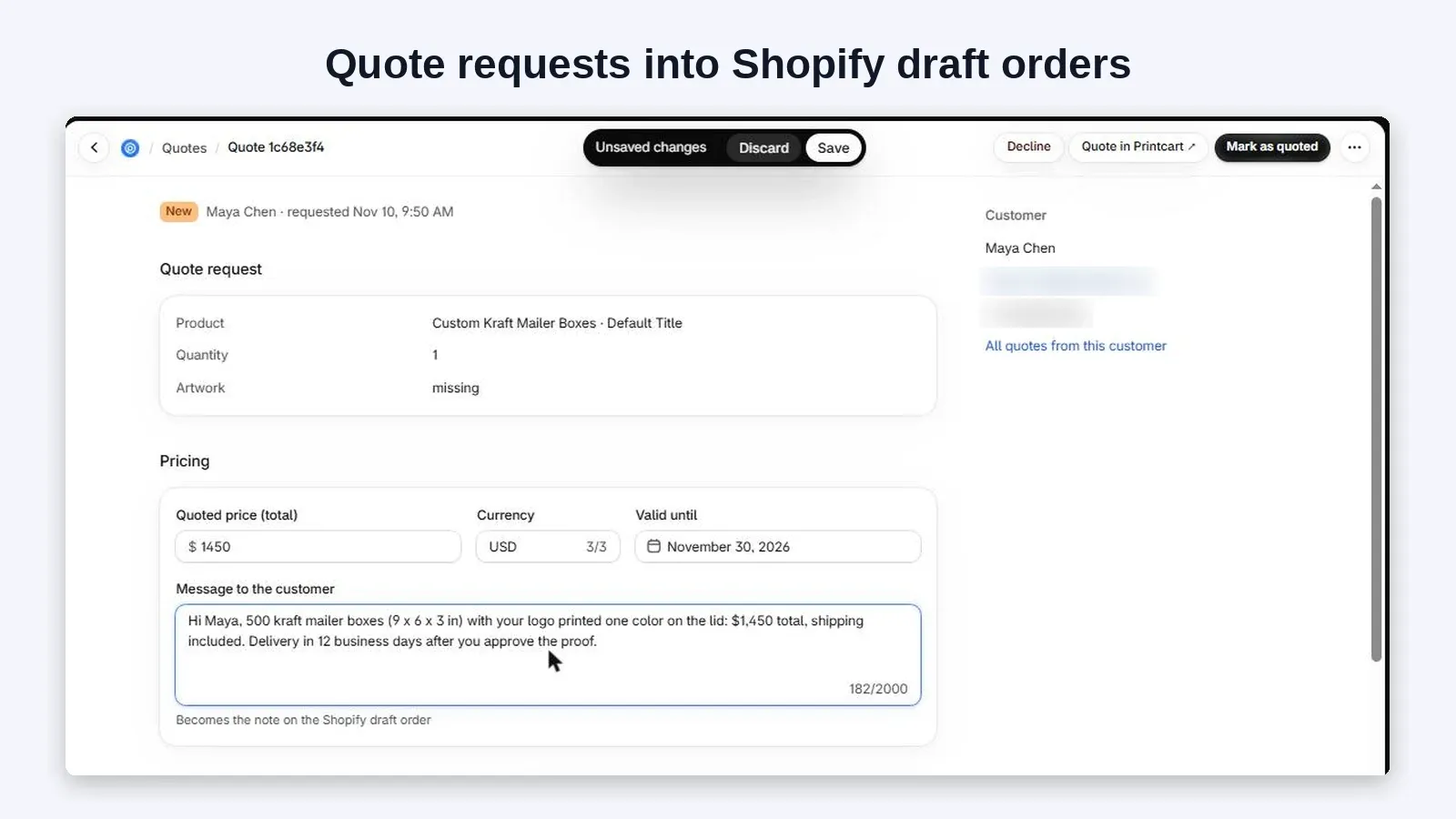
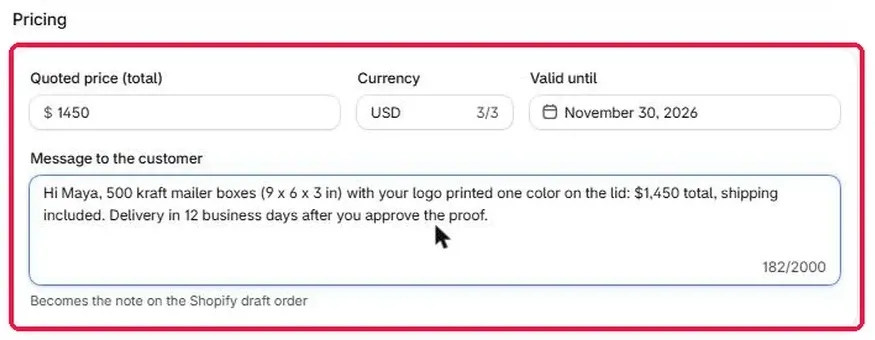
Under Pricing enter the Quoted price (total), the Currency and Valid until, and write a Message to the customer. The message becomes the note on the Shopify draft order. Click Save, then Mark as quoted.
Check the quantity and Details first. Price the job for the quantity on the request, and confirm anything unclear in Details (size, print sides, deadline) with the buyer before you send the price.
Expected result: The quote has a price, currency, end date and message.
Step 5Create the Shopify draft order and send the link
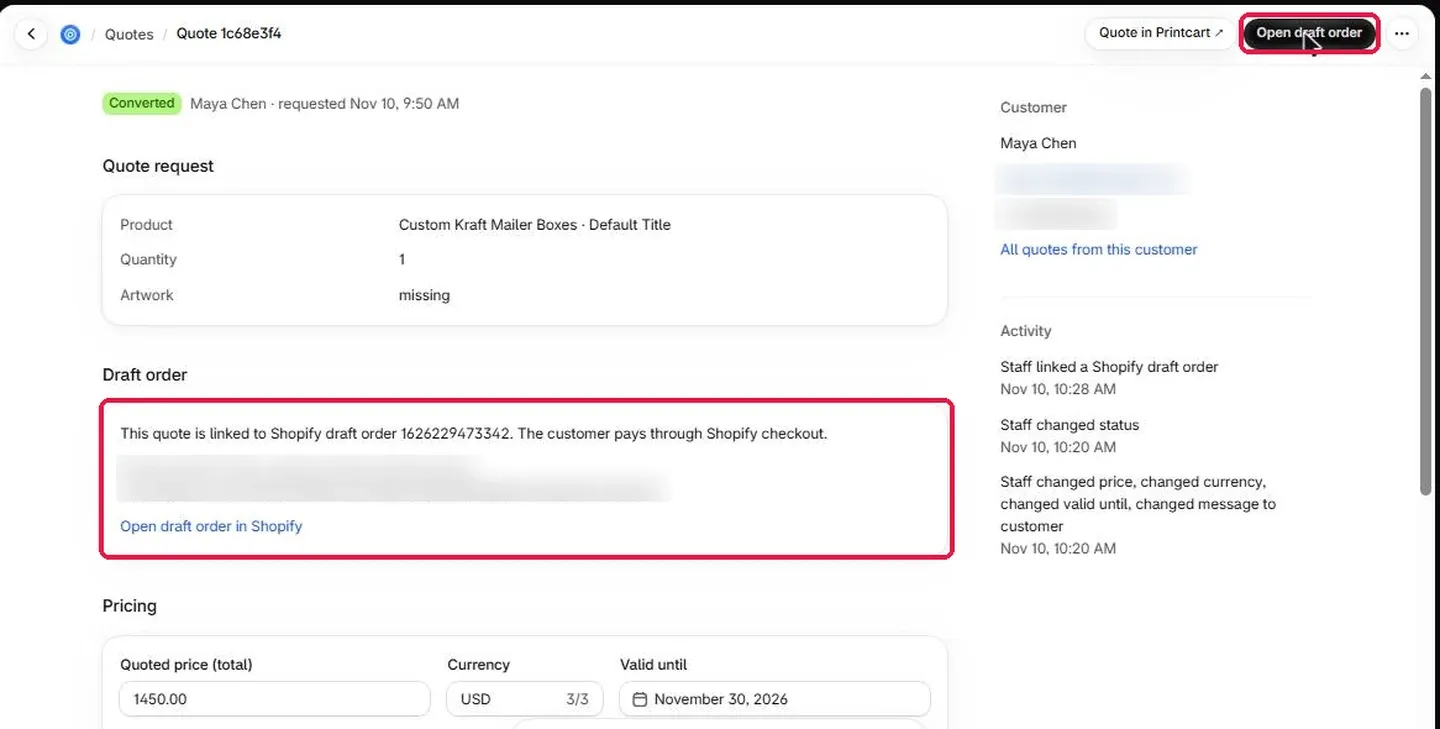
Click Create draft order. Printcart creates a Shopify draft order from the quote, and the quote status changes to Converted. The Draft order card shows the draft order number and a checkout link for the customer. Send that link, or open the draft order in Shopify and send the invoice from there. The customer pays through Shopify checkout.
Expected result: The quote shows Converted and a linked Shopify draft order with a checkout link.
What if something goes wrong?
- The request is not in Quotes. Check that the buyer saw the thank-you message, then reload Quotes.
- The quantity looks wrong. The quote shows the number the buyer typed in Quantity. Read their Details and confirm by email before you price it.
- The buyer cannot pay. Open the draft order in Shopify and check that it has the right price and that the checkout link was sent to the right email.
Frequently asked questions
Does the buyer need an account to pay a quote?
No. The draft order has a Shopify checkout link, and the buyer pays with any payment method your store accepts.
Can I change the price after creating the draft order?
You can edit the draft order in Shopify before the buyer pays. The quote page in Printcart keeps the link to that draft order.
How do I get help if a step does not work?
Message the Printcart team on WhatsApp at https://wa.me/84937869689 or email support@printcart.com. Send the product name, the step you are on and a screenshot of the screen.
What should you read next?
Your launch checklist
What should you check before you launch How to Turn Quote Requests into Shopify Draft Orders with Printcart?
This guide covers order operations, approval routing, and fulfillment handoff in Printcart. Before you offer it to your own buyers, place one test order yourself with a real product, a real design file and a real checkout, then answer the questions below.
Sources
How to Turn Quote Requests into Shopify Draft Orders with Printcart — common questions
Does the buyer need an account to pay a quote?
No. The draft order has a Shopify checkout link, and the buyer pays with any payment method your store accepts.
Can I change the price after creating the draft order?
You can edit the draft order in Shopify before the buyer pays. The quote page in Printcart keeps the link to that draft order.
How do I get help if a step does not work?
Message the Printcart team on WhatsApp at https://wa.me/84937869689 or email support@printcart.com. Send the product name, the step you are on and a screenshot of the screen.
Next steps in Printcart
Connect this guide with catalog setup, templates, production workflows and implementation support.
Try it

Printcart Product Personalizer
Printcart Product Personalizer is a Shopify app that adds an online design tool to your products. Buyers personalize items with templates, text and image uploads, and you receive print-ready files in SVG, PDF, PNG and JPG. It is built for print shops, print-on-demand sellers and B2B suppliers who sell custom products on Shopify. A Free plan is available.
Put this guide into practice with Printcart
Use the related Printcart tool below, or create a free account to start building with the product designer.