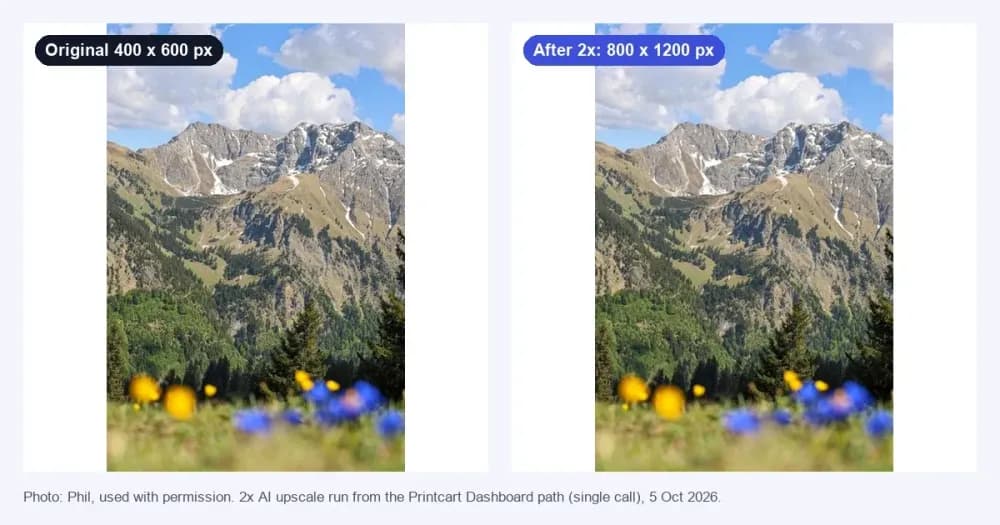
To remove a background for Etsy or Shopify, upload the photo to a background remover, choose a transparent or white background and download a PNG. Printcart's browser preview needs no account; full-resolution results and batches run in your Printcart Dashboard and save to the store you pick.
Key takeaways
Why marketplaces prefer clean backgrounds
A plain background keeps the shopper's eye on the product and makes a whole shop look consistent. Marketplaces also publish their own image rules, so read them before you edit.
- Etsy recommends listing photos at least 2000 pixels wide and tall, and warns that files over 1 MB may fail to upload on a slow connection.
- Shopify says a 2048 x 2048 px square is the size Shopify suggests, accepts images up to 5000 x 5000 px (25 megapixels) and 20 MB, and recommends one aspect ratio for your main images.
- Amazon and other marketplaces have their own main-image rules. Check the current style guide in your seller account before you export.
Whatever the size rule, the cutout can only be as large as the photo you start with. In our test, a 1000 x 1000 px photo gave a 1000 x 1000 px result. Start from your largest, sharpest file.
Step 1 — Start with the sharpest photo you have
Use a sharp photo with the product fully in frame and as few other objects as possible. A product on a table in front of a plain wall cuts out far more cleanly than one in front of a window or a bookshelf. Save it as JPG, PNG or WebP.
Step 2 — Remove the background
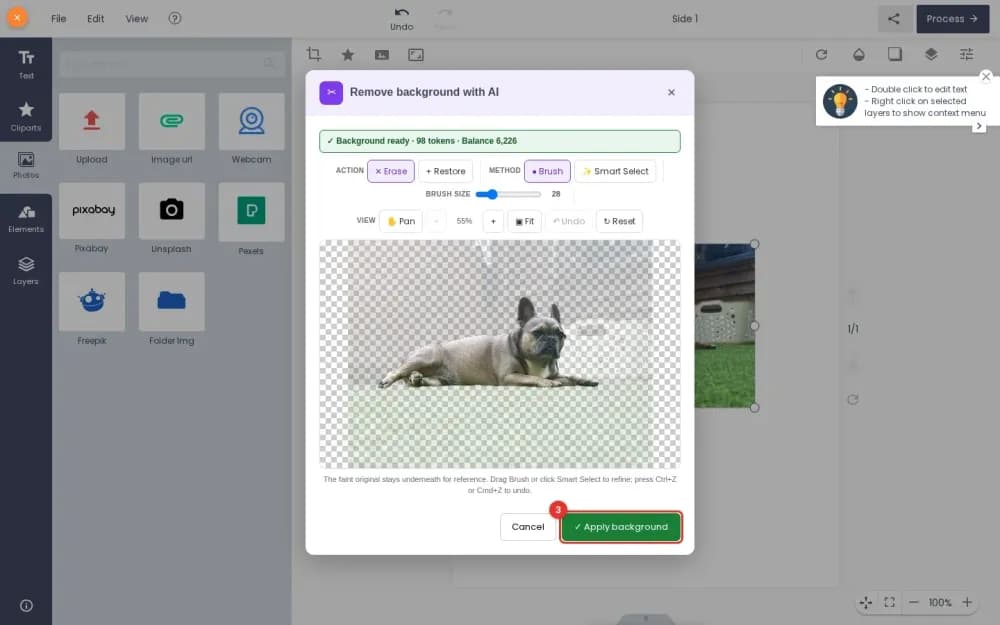
Open printcart.com/tools/background-removal. The browser preview needs no account. It removes a plain-colour backdrop and works well for a product on a simple surface. For a busier photo, use the AI trial on the same page, which also needs no account but allows only a few runs a day and photos up to 2 MP (see Remove a Product Photo Background on printcart.com).
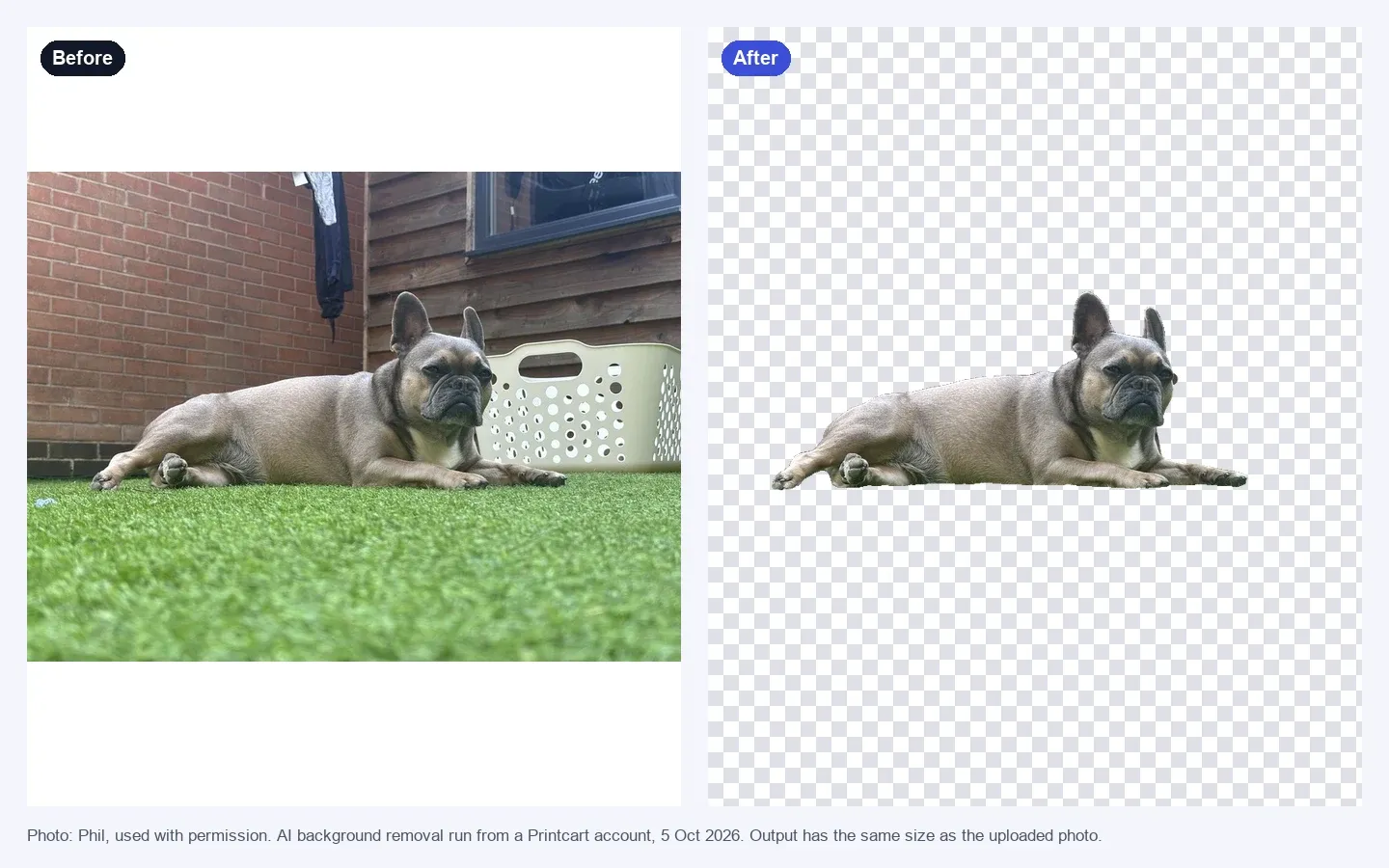
For full-resolution files and batches, use the Dashboard. Open API Services, then Background Removal, add your photo from your computer or paste a link, pick the store the result should go to and confirm the price. The steps are in How to Remove Backgrounds from Product Photos for Print and Listings. The price is shown on the tool page and again before each job; when we measured it on 6 October 2026, a 1-megapixel photo was priced at 105 tokens, and larger images cost more. If your store uses WooCommerce, customers can also remove a background inside the designer: see Remove Backgrounds with AI Inside the Printcart WooCommerce Designer (Printcart Store 2.13.2 or newer).
Step 3 — Download and check the edges
Download the PNG. Open it on a light and on a dark background at 100% zoom. Halos and leftover fringe show up on one of the two. If you need a white background for a marketplace, place the PNG on a white canvas in any editor, or choose a white background in the tool when it offers one.
White vs transparent
- Transparent PNG lets you place the product on a coloured background, a lifestyle scene or a mockup later. It is the most flexible master file.
- White background is what many marketplace main images ask for. Keep the transparent master and export a white version for each listing.
- JPG cannot hold transparency, so export PNG when you need it.
Common edge problems
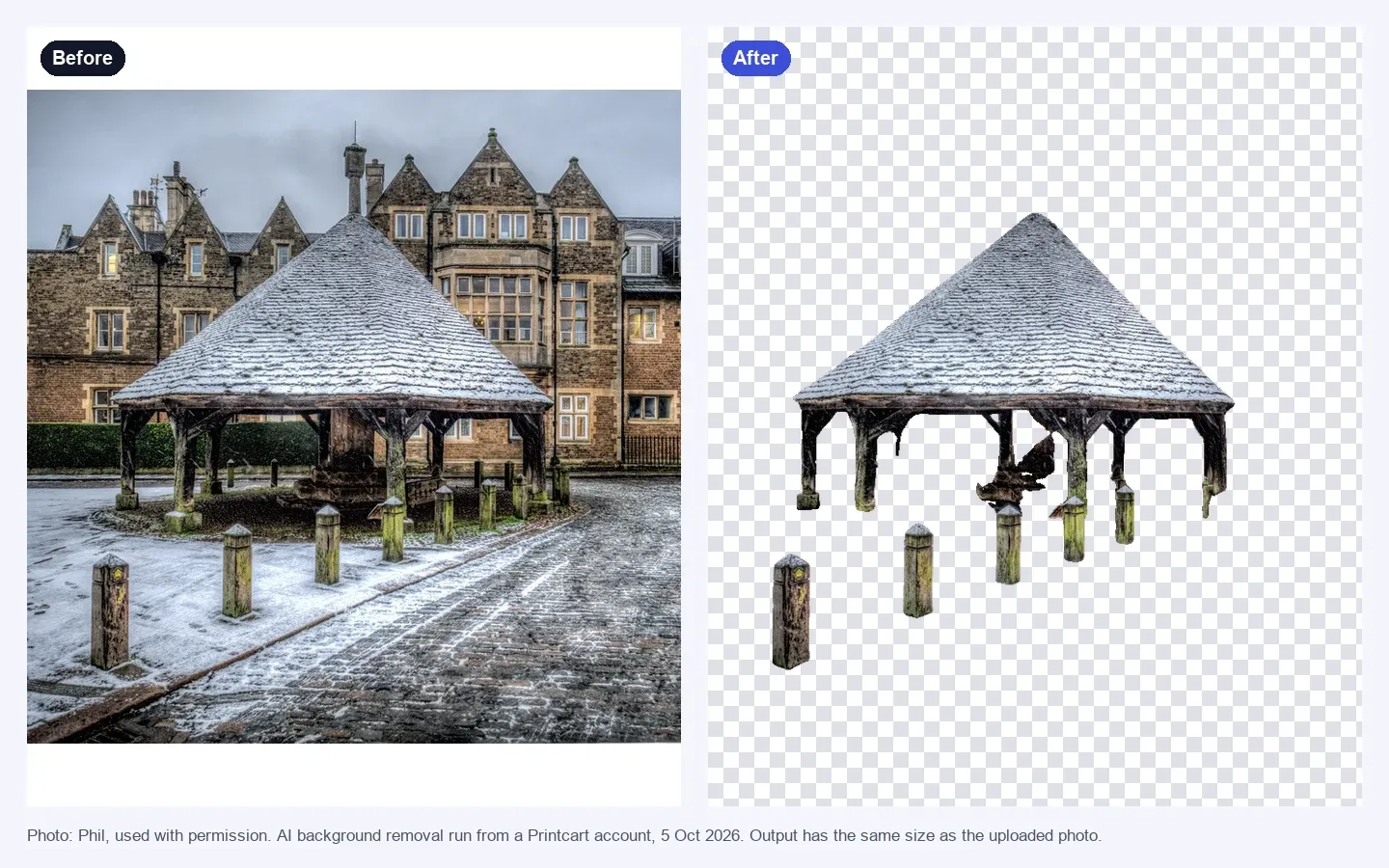
- Large objects behind the product are kept. In our test, a dark candle jar on a dark table lost the bottom of the jar in the cutout, because the jar and the table were almost the same colour. Large objects close to a product can also be kept. Shoot dark products against a lighter surface, move the product away from big shapes, or crop tighter before you upload.
- Thin parts and lettering can go missing. Check handles, chains, hair and small print at 100%.
- Soft or blurry edges in the original give soft edges in the result. Reshoot with better focus.
- No shadow. The cutout has no shadow of its own. Add a soft one in your editor if the marketplace allows it.
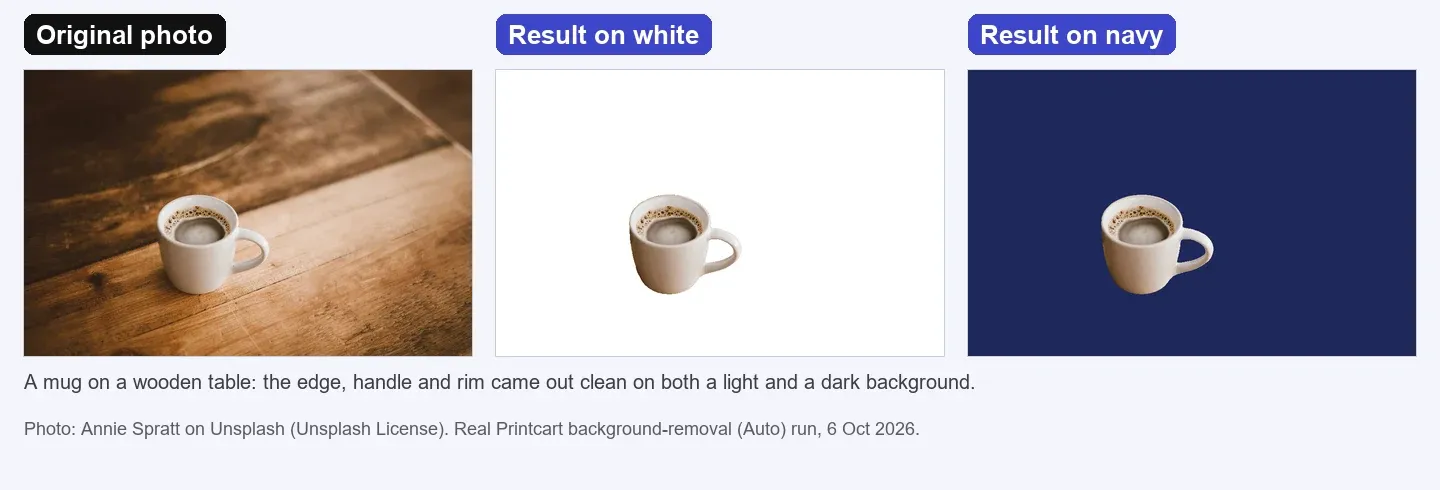
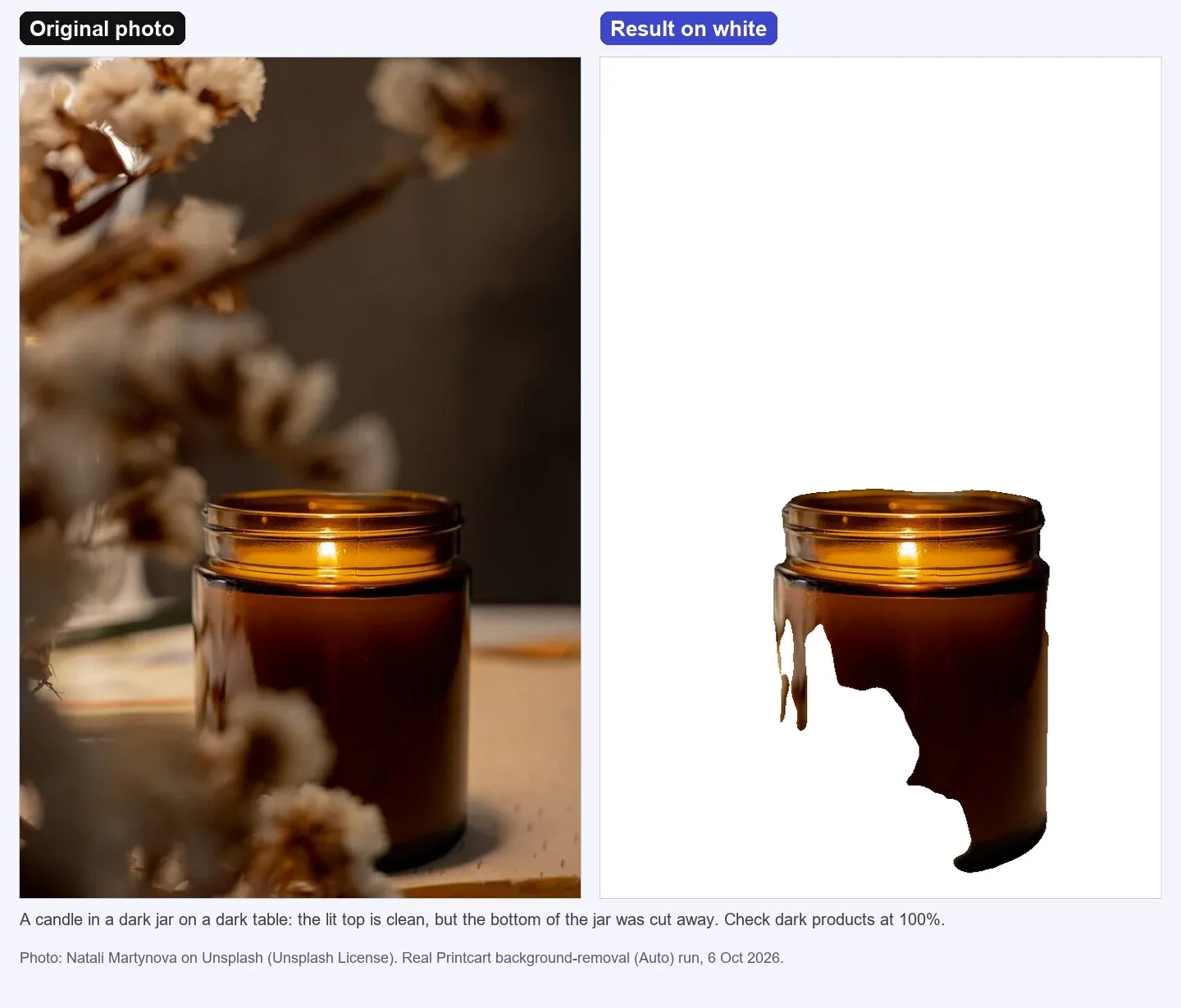
Test notes. Real Printcart runs on 6 October 2026 from a test account. Inputs are real photos: free Unsplash photos (each one is credited in its image) and photos by Phil, used with permission. Prices change; the Dashboard shows the price before every job.
FAQ
Do I need an account to remove a background on Printcart?
No account is needed for the browser preview or the AI trial on the tools page. Full-resolution files and batches run in the Printcart Dashboard, which needs an account.
Which size should my product photo be?
Follow the marketplace rule. Etsy recommends at least 2000 pixels on both sides and Shopify says 2048 x 2048 px displays well. The cutout keeps the size of your original, so start large.
Should I use a white or a transparent background?
Keep a transparent PNG as your master and export a white version when a listing needs it.
Why was part of my product cut away, or part of the background kept?
Dark products on dark surfaces and large objects next to the product are the hard cases. Reshoot against a plain, contrasting surface or crop closer before you upload.
Keep reading
- Background removal tool
- Image upscale tool (the next step if the photo is small)
- Remove a Product Photo Background on printcart.com
- How to Make a Transparent PNG for Print-on-Demand T-Shirts
- Kitchen-Table Product Photos to Marketplace-Ready White Backgrounds
- Printcart apps for WooCommerce, Shopify and Wix
Ready for whole folders? Process whole folders and save results to your store — choose a long-term plan, or create an account to start.
Sources
Outside facts in this article come from these pages. Rules change, so check the current version before you rely on them.
- Etsy Help Center: image requirements for your Etsy shop (accessed 6 October 2026; the page shows no date).
- Shopify Help Center: Product media (accessed 6 October 2026; the page shows no date).
Printcart field note
What to verify before you roll out How to Remove Backgrounds from Product Photos for Etsy and Shopify
This tutorial is written from Printcart implementation patterns across web-to-print launch planning, buyer experience, and repeatable production. Before treating it as complete, test the workflow with one real product, one real design file, and one real order path.
How to Remove Backgrounds from Product Photos for Etsy and Shopify — common questions
Do I need an account to remove a background on Printcart?
No account is needed for the browser preview or the AI trial on the tools page. Full-resolution files and batches run in the Printcart Dashboard, which needs an account.
Which size should my product photo be?
Follow the marketplace rule. Etsy recommends at least 2000 pixels on both sides and Shopify says 2048 x 2048 px displays well. The cutout keeps the size of your original, so start large.
Should I use a white or a transparent background?
Keep a transparent PNG as your master and export a white version when a listing needs it.
Why was part of my product cut away, or part of the background kept?
Dark products on dark surfaces and large objects next to the product are the hard cases. Reshoot against a plain, contrasting surface or crop closer before you upload.
Next steps in Printcart
Connect how to remove backgrounds from product photos for etsy and shopify with catalog setup, templates, production workflows, and implementation support.
Want to put how to remove backgrounds from product photos for etsy and shopify into practice?
Use the related Printcart tool below, or create a free account to start building with the product designer.