In WooCommerce with the Printcart Store plugin, open Printcart Store > Orders , open the order, download the print PDF of the design, then click Run AI Preflight in the AI Preflight tools box. The check reads the print PDF itself (in our run: 1 page, trim 400 × 499.9 mm) and the report lists resolution, color mode, fonts, bleed and transparency. Findings...
Key takeaways
Plugin version. These steps need Printcart Store 2.13.2 or newer. We tested them on version 2.13.2. Update the plugin under Plugins > Installed Plugins if you have an older version.
What you need before you start
- WooCommerce with Printcart Store (version 2.13.2 or newer) connected to your Printcart account.
- A customizable product (Enable Design ticked) and an order for it that contains a design.
- AI Tools enabled under Printcart Store > AI Tools. The Preflight Quality Checker is on by default.
The screenshots come from a real test shop on 5 October 2026. The order is a cash-on-delivery test order for a custom T-shirt with a customer photo and a line of text.
Run AI Preflight on an order
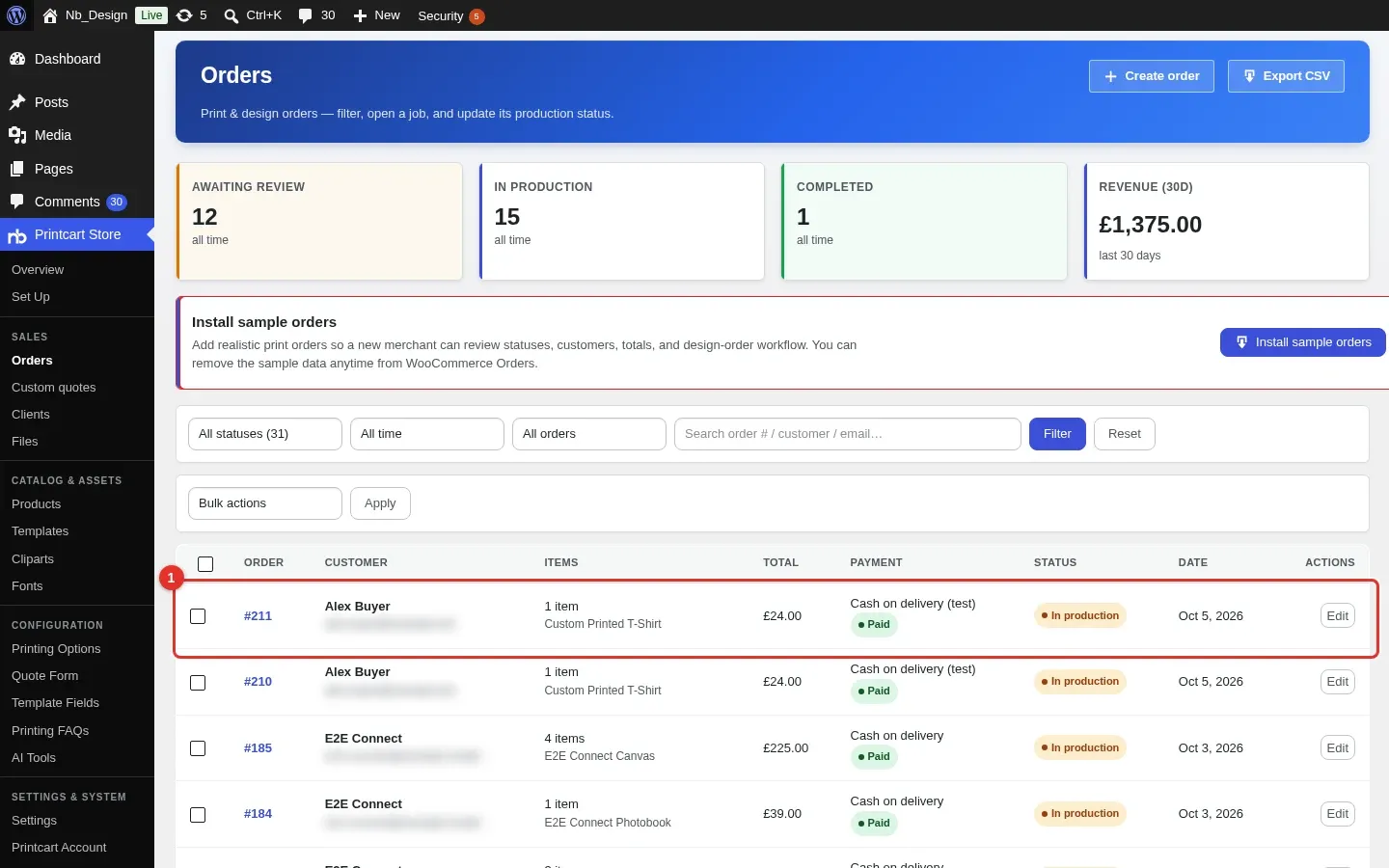
Step 1Open the order
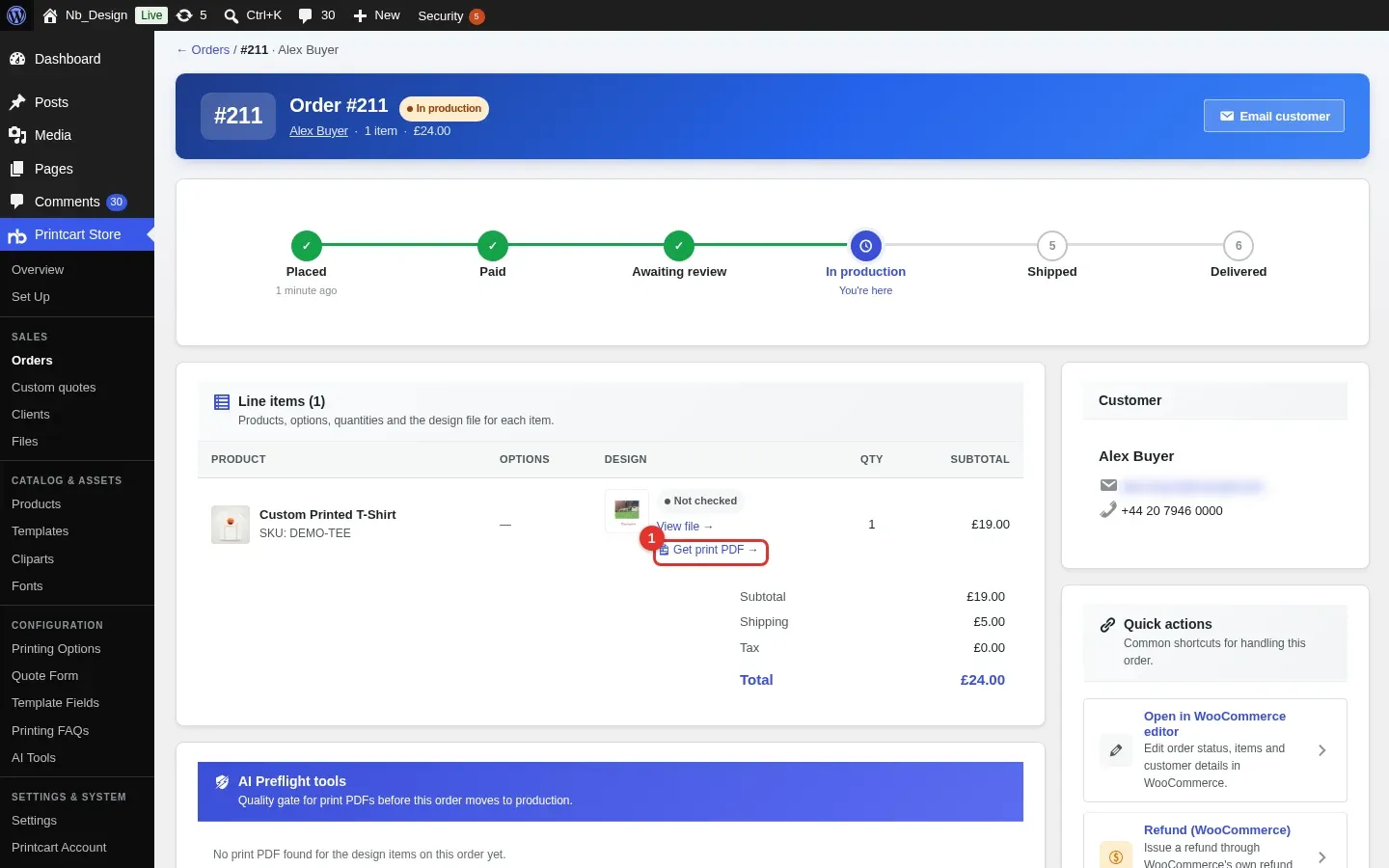
Go to Printcart Store > Orders and click the order number (1).
Expected result: the order page opens with a progress bar, the line items and an "AI Preflight tools" box.
Step 2Open the design file
In the line items, the Design column shows a small preview and a "Not checked" label. Click Get print PDF (1).
Expected result: the "Detail product design" page opens.
Step 3Download the print PDF
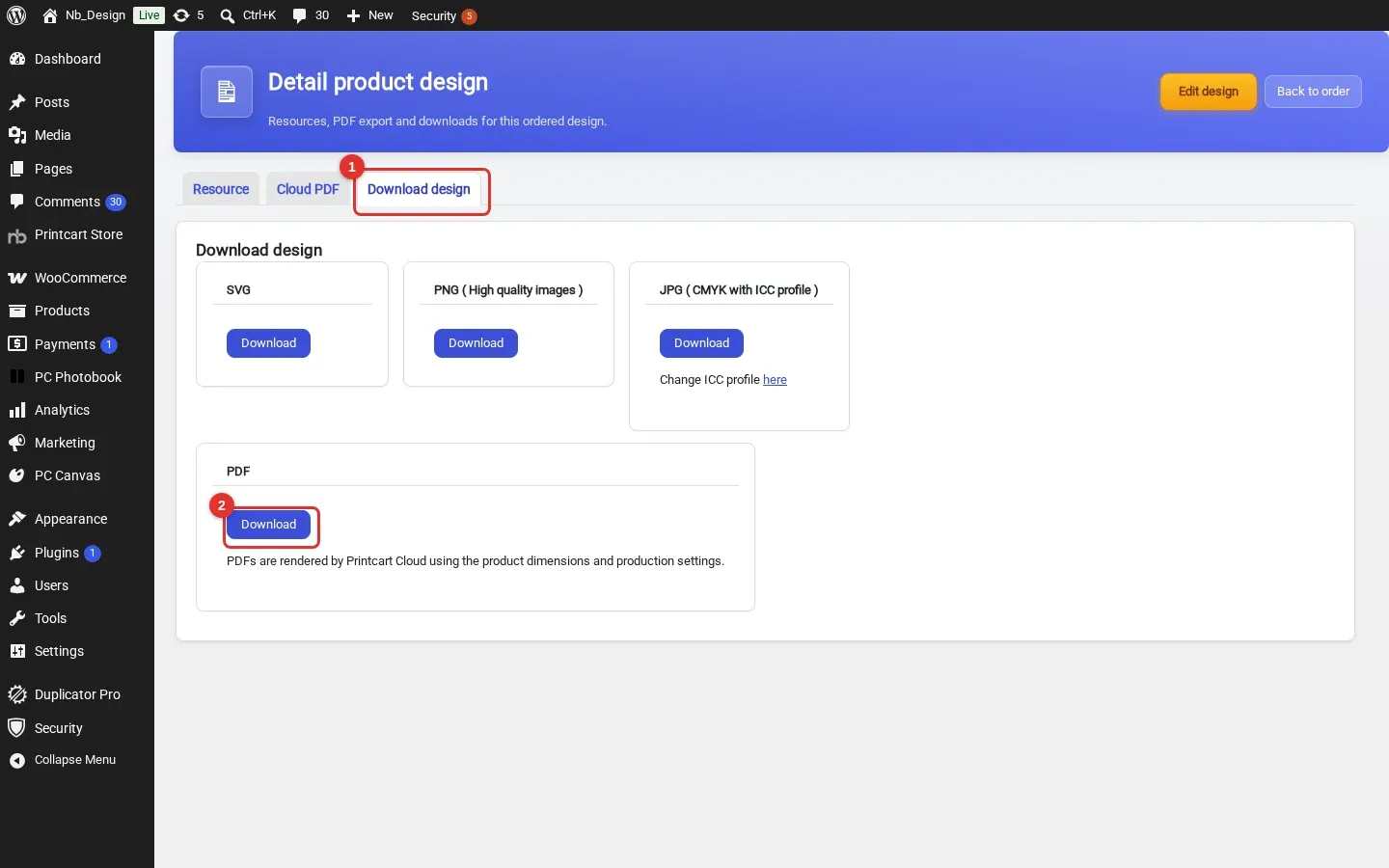
Open the Download design tab (1) and click Download under PDF (2). Printcart Cloud renders the PDF from the product dimensions and production settings. The browser saves a ZIP file that contains the PDF.
Expected result: a ZIP named "customer-design-…-pdf" downloads, and the plugin keeps the PDF for the order.
Step 4Go back to the order and run the check
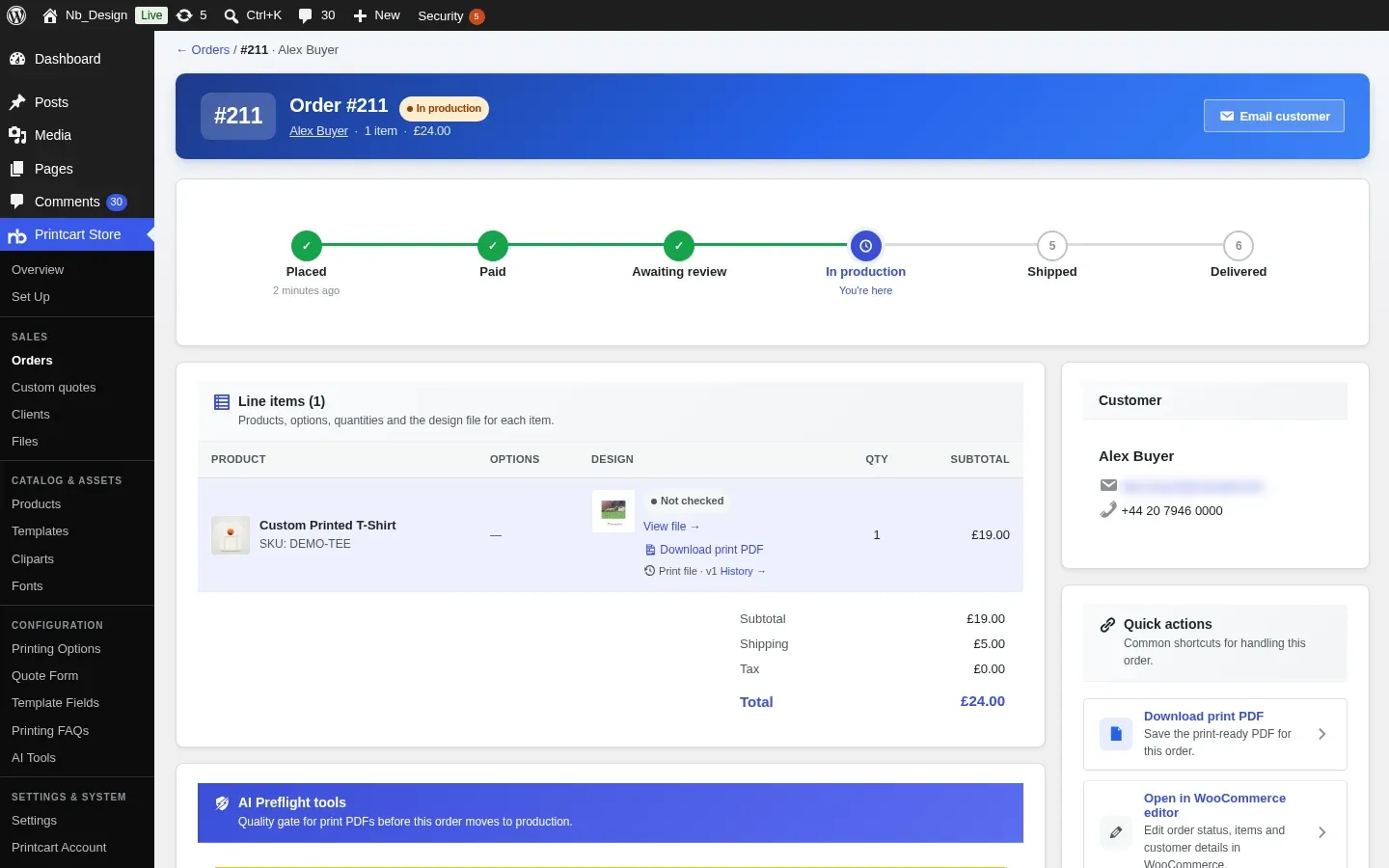
Click Back to order. The AI Preflight tools box now shows the file as "PDF ready" and "Not checked yet". Click Run AI Preflight (1).
Expected result: after a few seconds the box shows a report.
Step 5Read the report
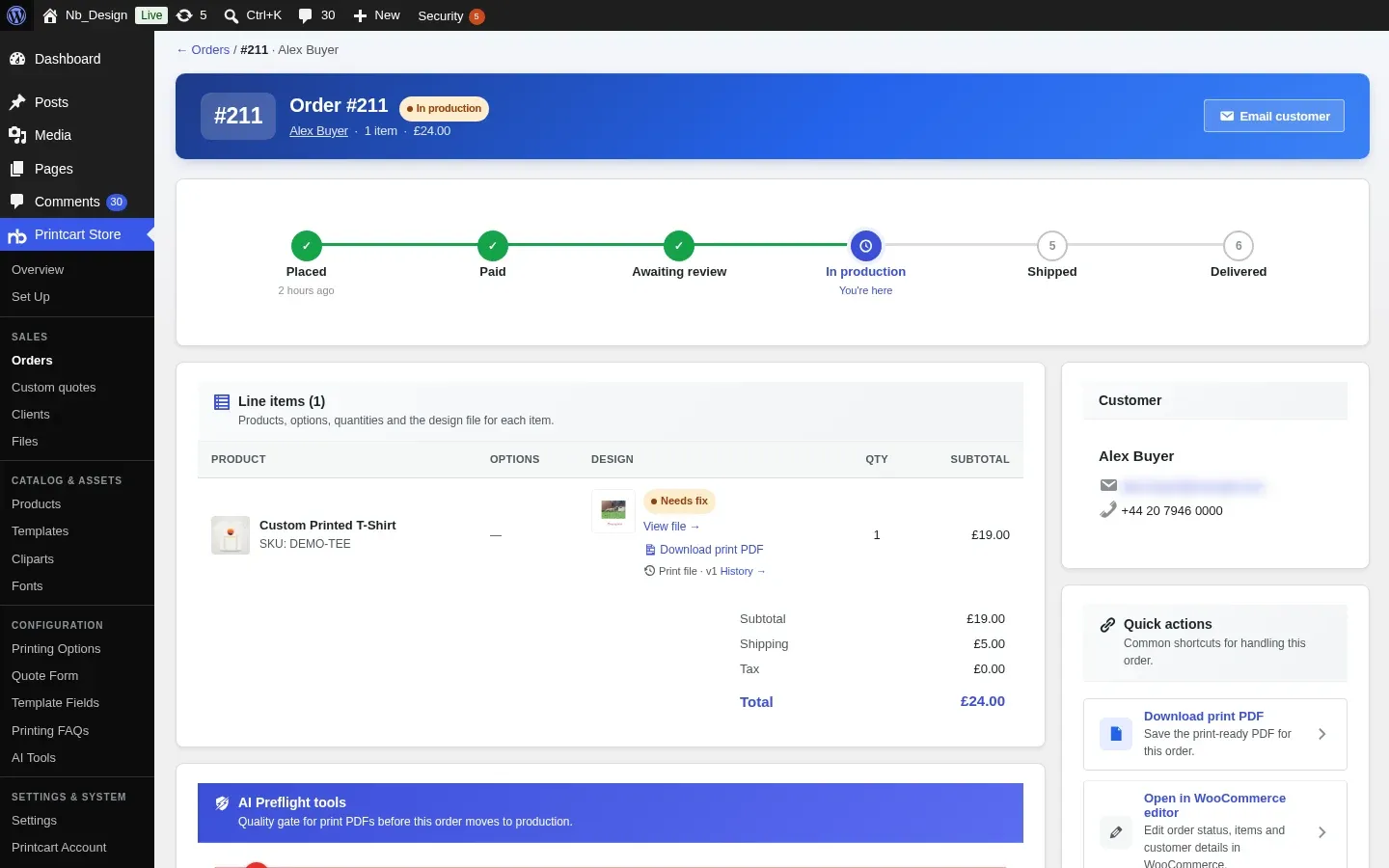
The box header (1) gives the verdict, here "Fix required before production". Below it each check has a tick or a cross: Resolution (2), Color mode, Fonts embedded, Bleed margin (3) and Transparency. A cross can have an AI fix button, and Auto-fix (4) offers fixes for all issues at once. AI fixes take tokens, so we did not run them. Re-run AI Preflight repeats the check.
Expected result: a list of checks with the required value and the value found. In our run, the status was fail with 3 issues (resolution, color mode, bleed) and 2 passes (fonts, transparency). Your token balance (6,895) was the same before and after the check.
Step 6Choose when the check runs
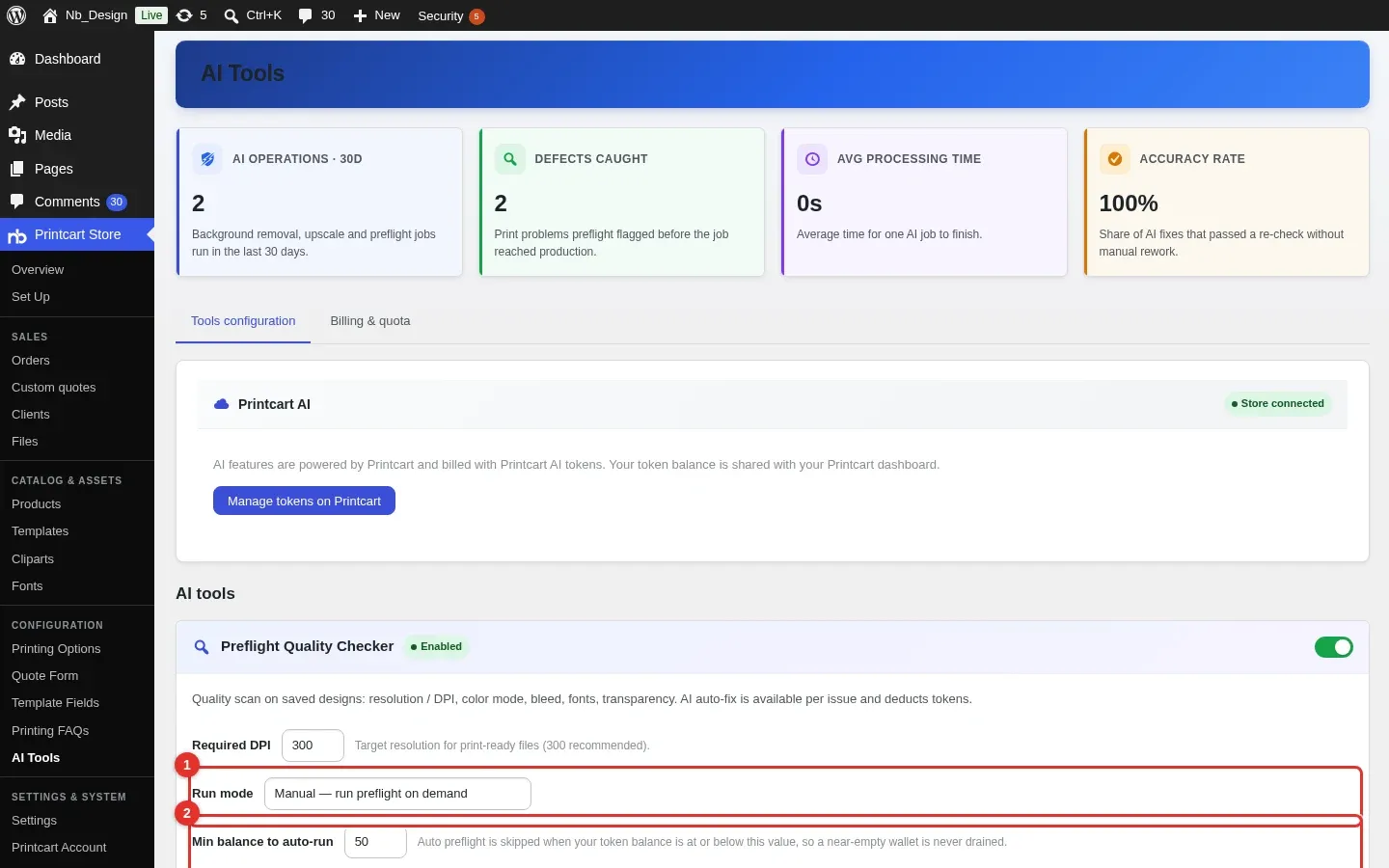
Open Printcart Store > AI Tools. In Preflight Quality Checker, set the Required DPI your printer asks for, and choose the Run mode (1): manual runs on demand, auto runs when a new order lands on hold. With auto mode, Min balance to auto-run (2) stops automatic checks when your token balance is at or below that number.
Expected result: after you click Save settings, the page says "Settings saved". Reload the page to confirm.
What to know before you rely on the report
- The check reads the print PDF. In our run on 6 October 2026 the report was based on the print PDF of the order (1 page, trim 400 × 499.9 mm, the size of the product). The T-shirt design had a photo of only 800 × 600 px on a 25 × 30 cm area, so the report correctly flagged low resolution (90 DPI in our run). The design had no bleed set, so the bleed line failed too.
- Color mode, fonts and transparency lines: we did not check them against the PDF, so verify them in the file if they matter for your printer.
Troubleshooting
- "No print PDF found for the design items on this order yet." Do Step 3 first. The box looks for the PDF that the plugin saves when you download it.
- The box does not appear. Check that the Preflight Quality Checker is enabled under AI Tools and that your store is connected under Printcart Account.
- The report fails on color mode for every order. The check compares against the profile in AI Tools. If your printer accepts RGB, ignore that line.
Does AI Preflight run automatically?
Only if you choose auto mode in AI Tools. The default is manual, which runs the check when you click the button.
Does the customer see the preflight result?
The result is shown in the WordPress admin, on the order page. We did not find it on the customer's order screens.
Next steps
- Run the same kind of check on single files: Preflight a print PDF in your Printcart Dashboard.
- Check if a photo is big enough before it is printed: free size check.
- More photo tools: Photo commerce tools tutorials.
Printcart field note
What to verify before you roll out Preflight Customer Files from a WooCommerce Order with Printcart
This tutorial is written from Printcart implementation patterns across file quality, proofing, and production risk. Before treating it as complete, test the workflow with one real product, one real design file, and one real order path.
Preflight Customer Files from a WooCommerce Order with Printcart — common questions
Does AI Preflight run automatically?
Only if you choose auto mode in AI Tools. The default is manual, which runs the check when you click the button.
Does the customer see the preflight result?
The result is shown in the WordPress admin, on the order page. We did not find it on the customer's order screens.
Next steps in Printcart
Connect preflight customer files from a woocommerce order with printcart with catalog setup, templates, production workflows, and implementation support.
Want to put preflight customer files from a woocommerce order with printcart into practice?
Use the related Printcart tool below, or create a free account to start building with the product designer.