

Key takeaways
Part 4 of 5 in the Printcart Product Personalizer for Shopify series. The series starts on the Printcart Product Personalizer for Shopify page.
What you need before you start
- Products with Design or Upload on (Parts 2 and 3).
- A test order. On a development store you can use Shopify's test payment gateway.
- Access to Orders in Shopify admin and to the Printcart app.
How this guide was checked. We ran every step on 11 November 2026 and downloaded the print files again on 16 November 2026 on a Shopify development store with the Printcart Product Personalizer installed, three real products (a T-shirt, business cards and kraft mailer boxes) and a test checkout. The screenshots are from that store. Names, emails and checkout links are blurred or made up.
Step 1The buyer checks out with the design or file attached
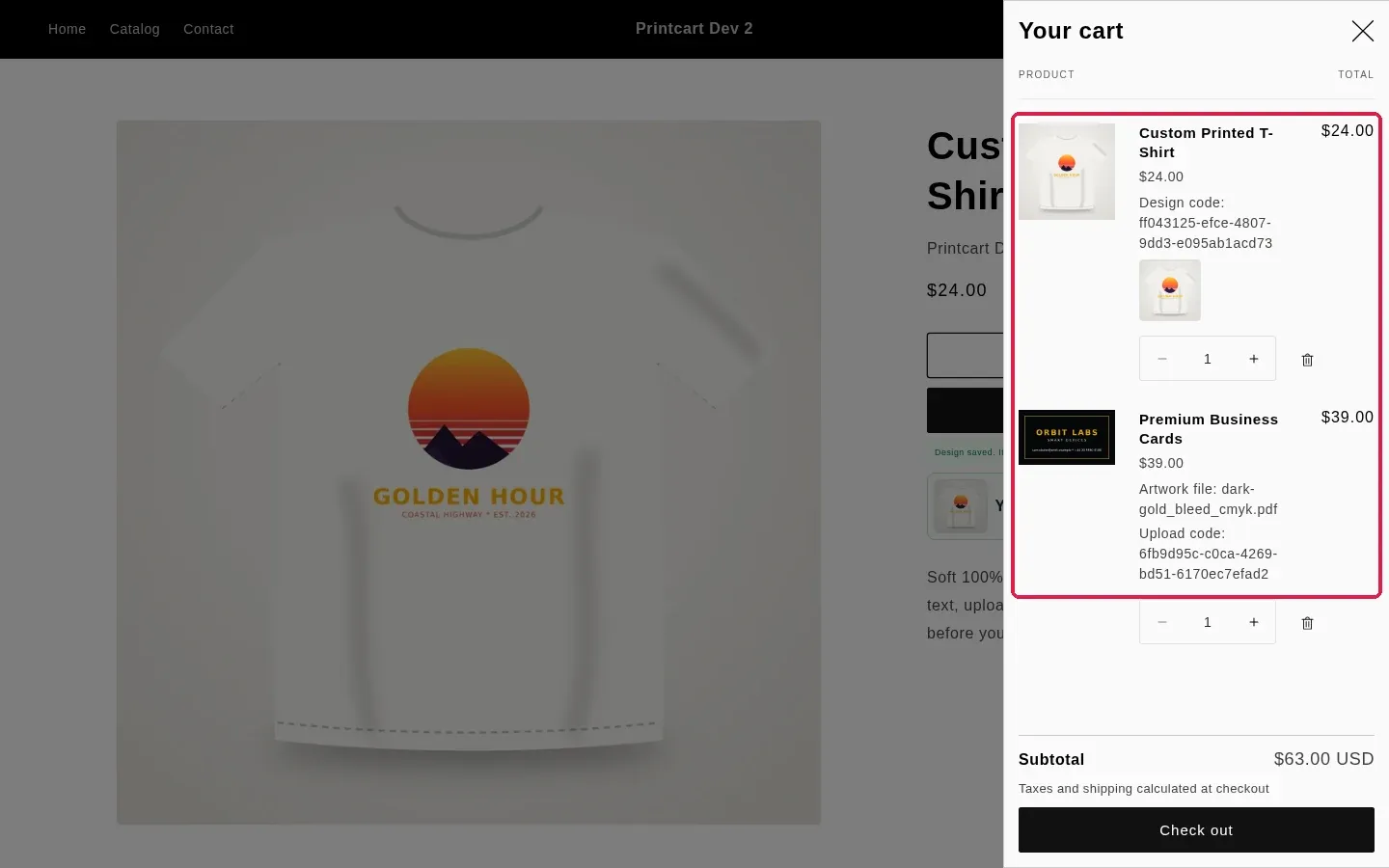
When a buyer adds a personalized item, the cart line carries a reference. A designed item shows Design code; an uploaded file shows Artwork file and Upload code. The buyer then checks out the normal Shopify way.
Expected result: The cart lists each personalized item with its design code or artwork file.
Step 2The codes stay on the order
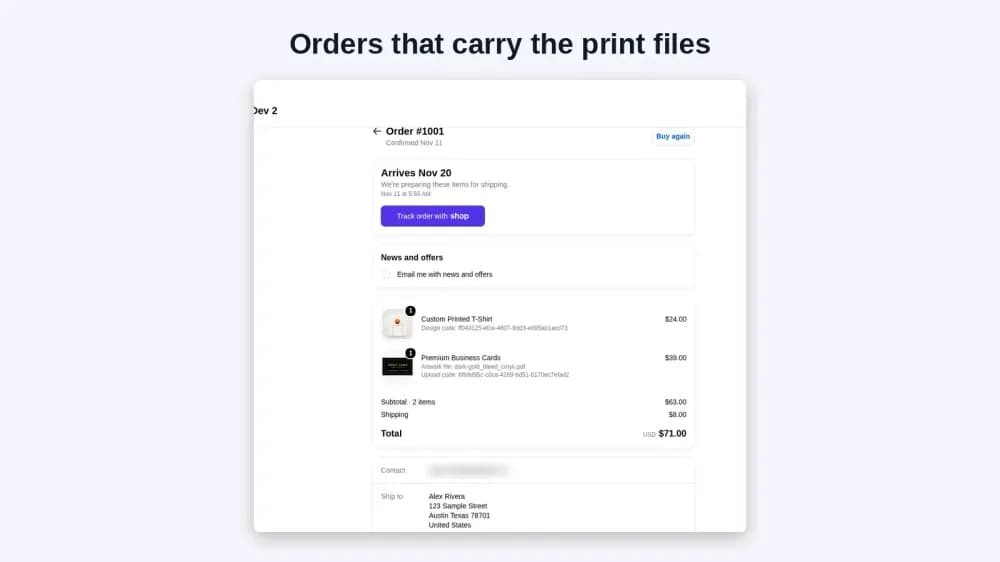
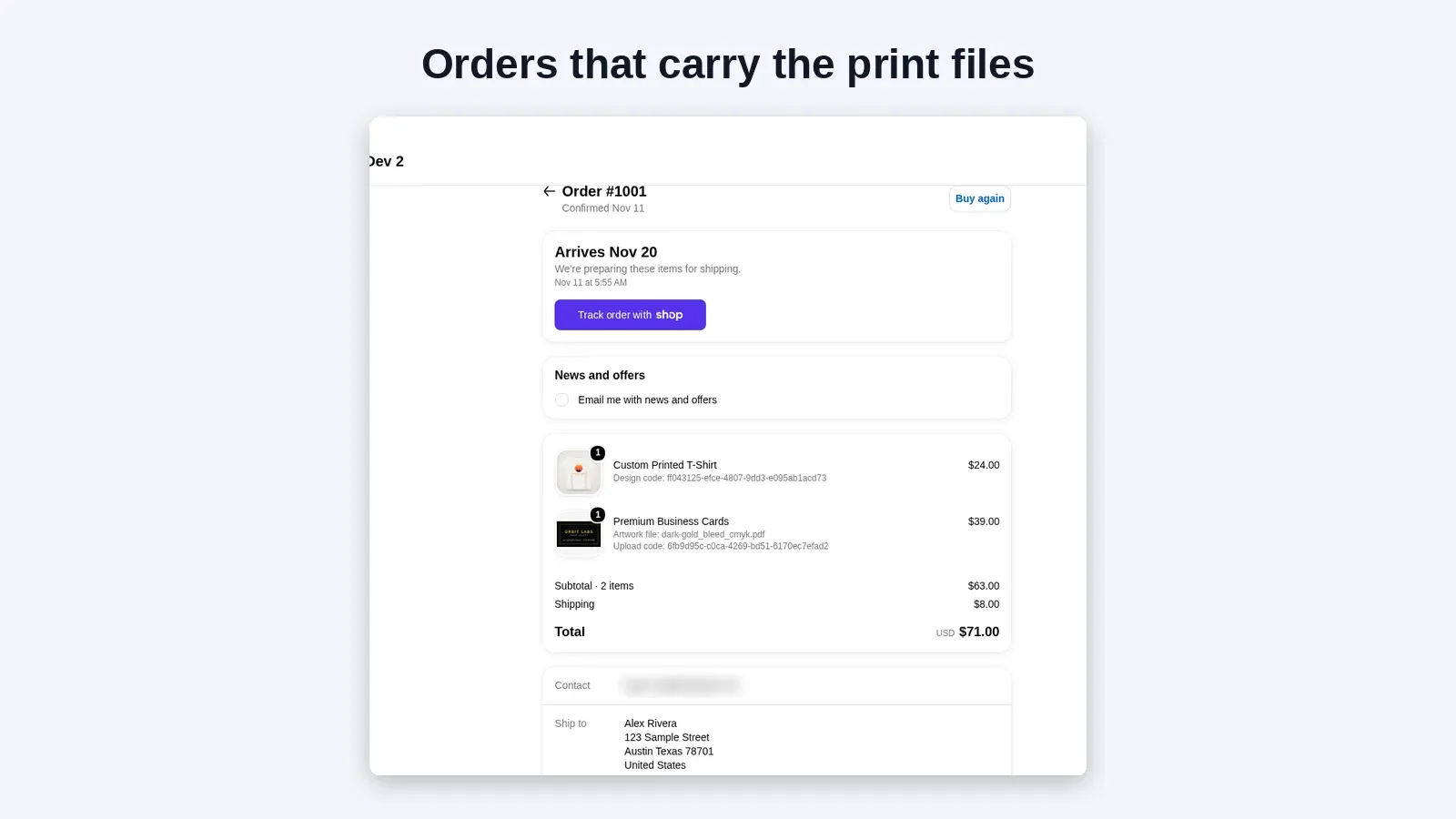
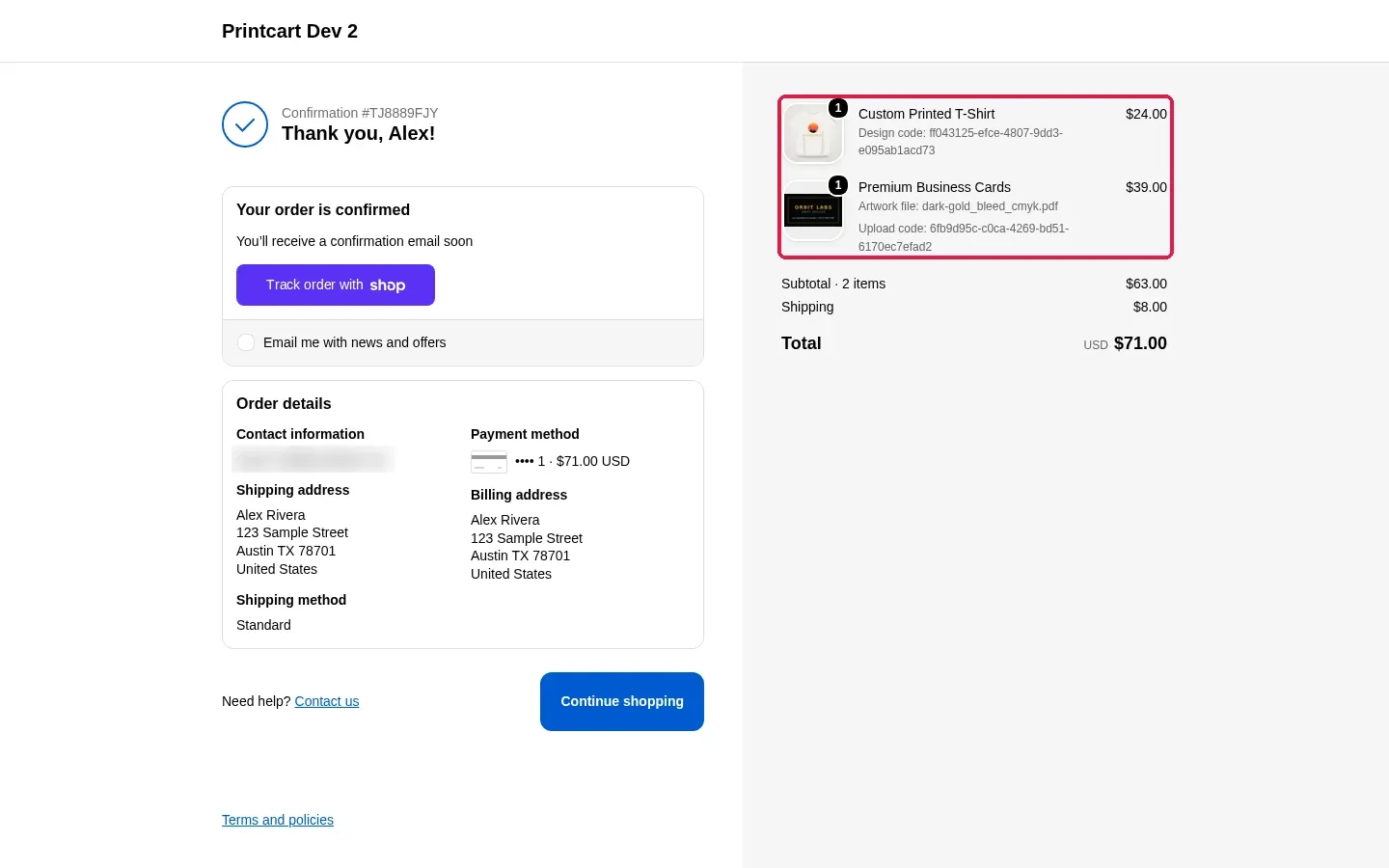
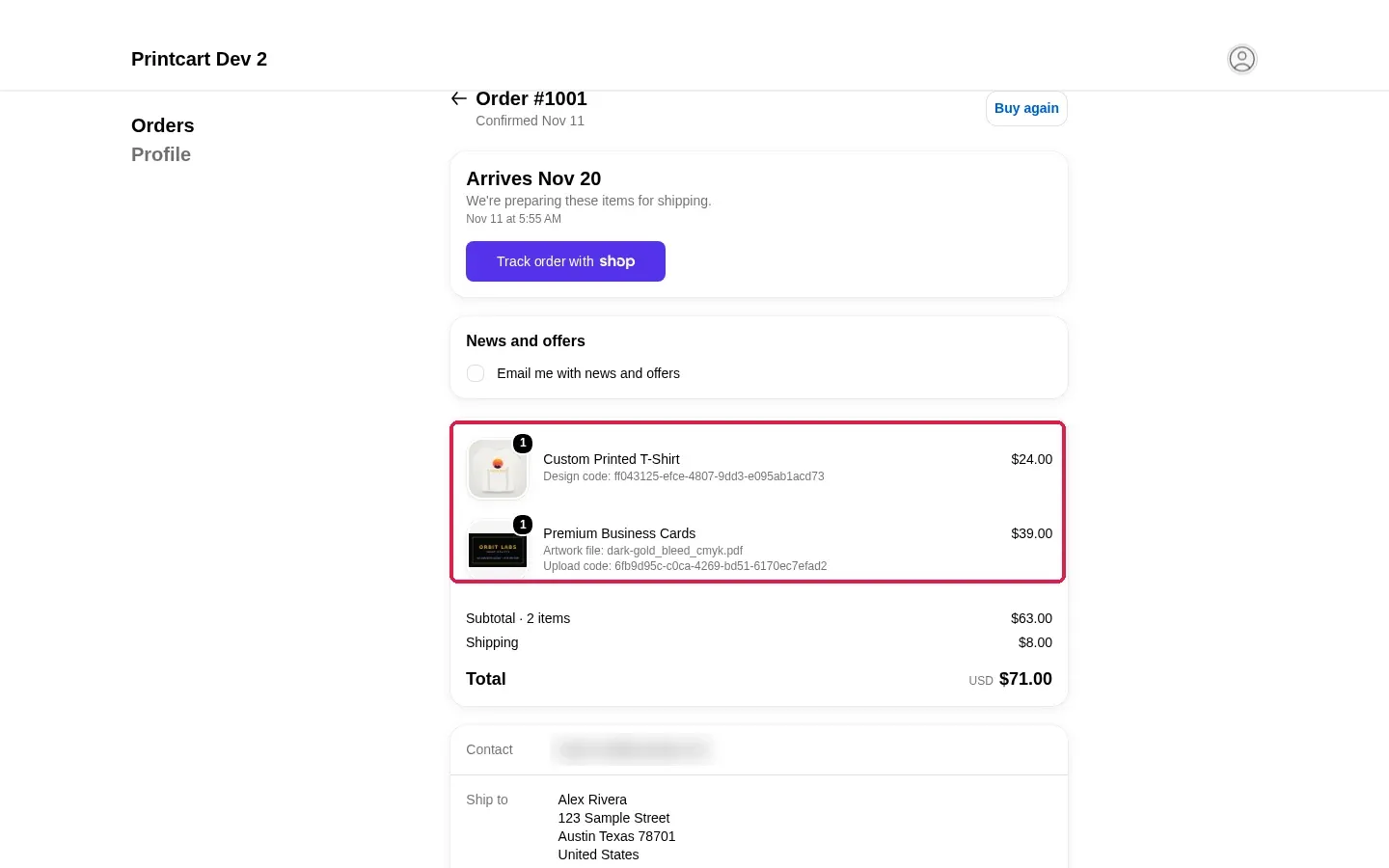
On the confirmation page the same lines are still there. In our test order, one T-shirt with a design and one pack of business cards with a PDF, both lines kept their codes.
Expected result: The order summary shows the design code and the artwork file for each item.
Step 3Find the order in Shopify Orders
Open Orders in Shopify admin and open the order. The line items show the same Design code, Artwork file and Upload code details, so your team can match each item with its file. The buyer sees them too on their order status page.
Expected result: Each personalized line item shows its code.
Step 4Open the order in the Printcart app and get the print files
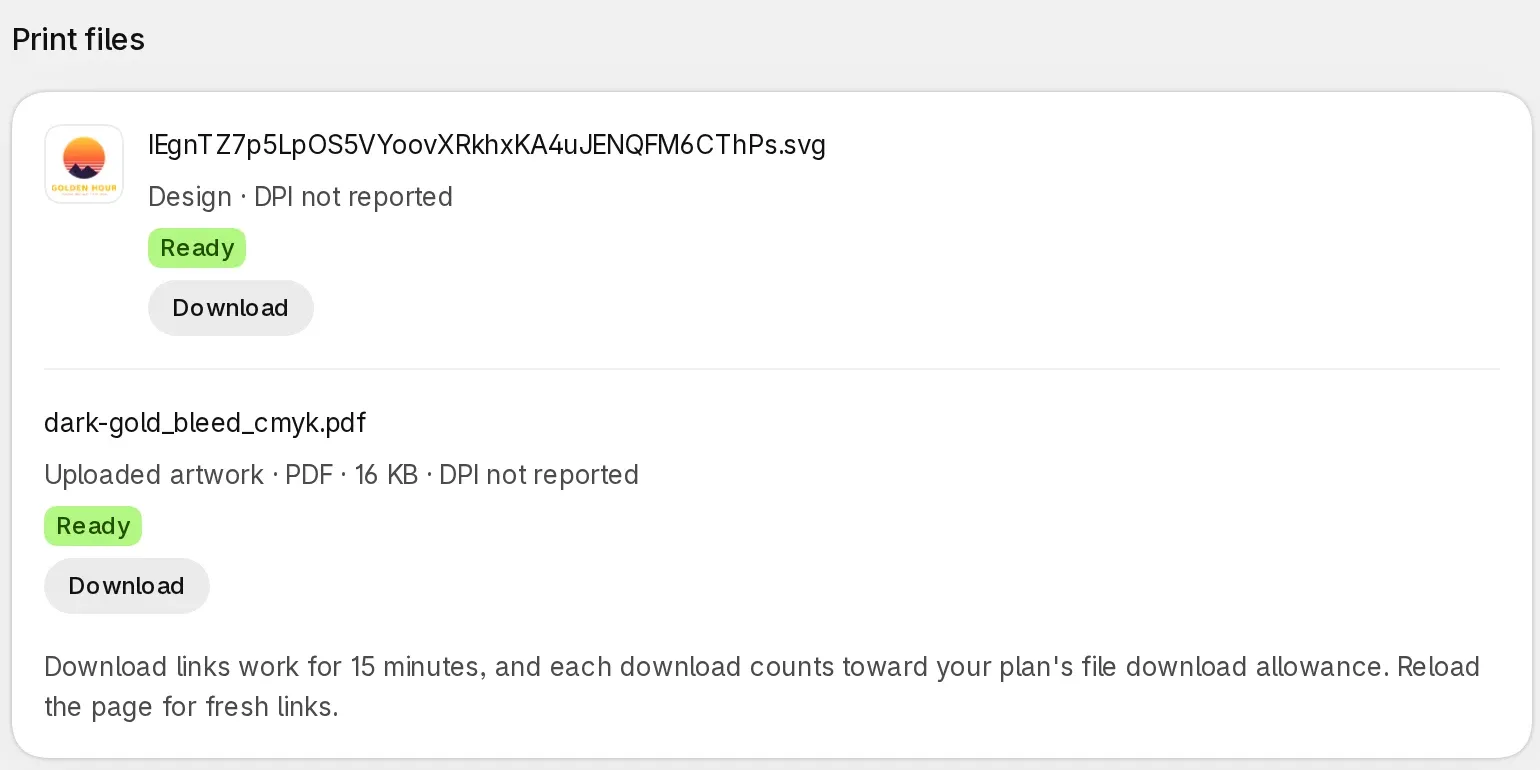
Open Orders in the Printcart app and click View on the same order. The Print files block lists each file with its type and a Ready status: the buyer's design (an SVG with the full-resolution artwork inside) and the uploaded artwork (here a PDF). Click Download on each file. Links work for 15 minutes; reload the page for fresh links. On our test order the business card PDF downloaded at 3.5 × 2 in with 0.125 in bleed on every side, exactly as the buyer uploaded it. Check size and bleed before you print.
Expected result: The Print files block shows the design and the uploaded artwork, both Ready, each with a Download button.
Step 5Know what the design preview is
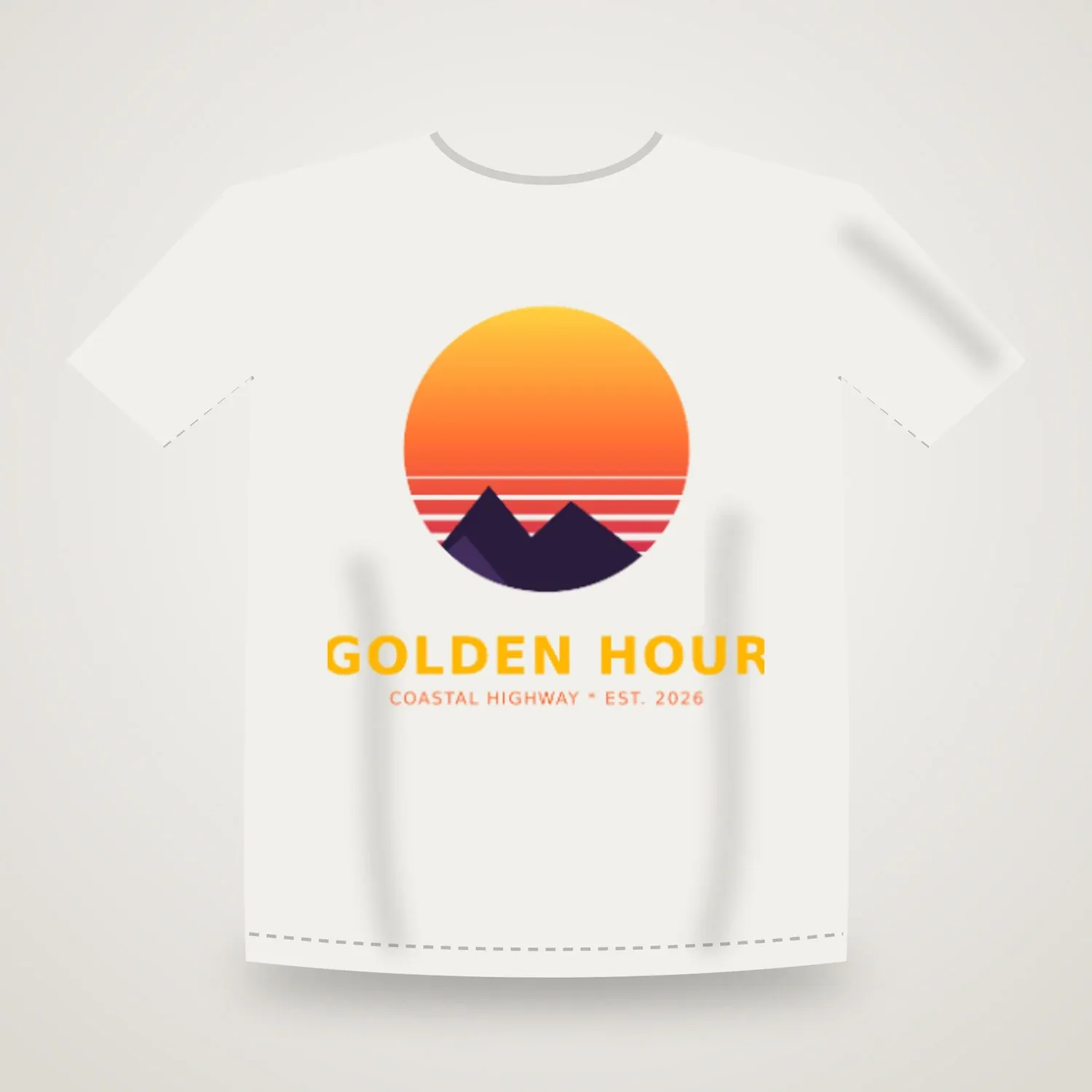
For designed items Printcart also saves a preview image of the product with the design on it. Use it to check the placement with the buyer. It is a mockup, not the file you print: print from the files in step 4.
Expected result: You can tell the mockup preview apart from the print file.
What if something goes wrong?
- An order has no Design code or Artwork file line. The buyer added the item without finishing the design or upload. Ask them for the file. The upload rules in the app Settings also have an option to require artwork before checkout.
- The preview image looks blurry when printed. The preview is a mockup. Print from the files in the Print files block.
- The order is missing in the Printcart app. Wait a minute and reload; the app receives the order from Shopify after checkout.
Frequently asked questions
Which file do I send to production?
The files listed in the Print files block of the order in the Printcart app. The design preview image is only a mockup for checking placement.
Can my team match a printed item to its order line?
Yes. Each personalized line keeps its Design code or Upload code on the Shopify order, and the same reference is used in Printcart.
How do I get help if a step does not work?
Message the Printcart team on WhatsApp at https://wa.me/84937869689 or email support@printcart.com. Send the product name, the step you are on and a screenshot of the screen.
What should you read next?
Your launch checklist
What should you check before you launch How to Find Personalized Shopify Orders and Their Print Files with Printcart?
This guide covers order operations, approval routing, and fulfillment handoff in Printcart. Before you offer it to your own buyers, place one test order yourself with a real product, a real design file and a real checkout, then answer the questions below.
Sources
How to Find Personalized Shopify Orders and Their Print Files with Printcart — common questions
Which file do I send to production?
The files listed in the Print files block of the order in the Printcart app. The design preview image is only a mockup for checking placement.
Can my team match a printed item to its order line?
Yes. Each personalized line keeps its Design code or Upload code on the Shopify order, and the same reference is used in Printcart.
How do I get help if a step does not work?
Message the Printcart team on WhatsApp at https://wa.me/84937869689 or email support@printcart.com. Send the product name, the step you are on and a screenshot of the screen.
Next steps in Printcart
Connect this guide with catalog setup, templates, production workflows and implementation support.
Try it

Printcart Product Personalizer
Printcart Product Personalizer is a Shopify app that adds an online design tool to your products. Buyers personalize items with templates, text and image uploads, and you receive print-ready files in SVG, PDF, PNG and JPG. It is built for print shops, print-on-demand sellers and B2B suppliers who sell custom products on Shopify. A Free plan is available.
Put this guide into practice with Printcart
Use the related Printcart tool below, or create a free account to start building with the product designer.