Orders with Printcart products appear under Order in the Printcart POD app. Open an order to see the design files, click Open order to approve and download the print file in the Printcart dashboard, and use Awaiting checkout for buyer uploads that are not paid yet.
Key takeaways
Before you start
- At least one product with Online Design or Order Upload turned on.
- A Printcart account for downloads (the install links one for your store).
From order to print file, step by step
Step 1Open the Orders list
Click Order in the menu. It lists your Wix orders that contain Printcart products, with the order number, customer, date, products and status. New stores also show sample orders marked SAMPLE; click Remove sample data before you go live.
Use the two tabs at the top: Orders and Awaiting checkout (1). Click a customer (2) to open the order.
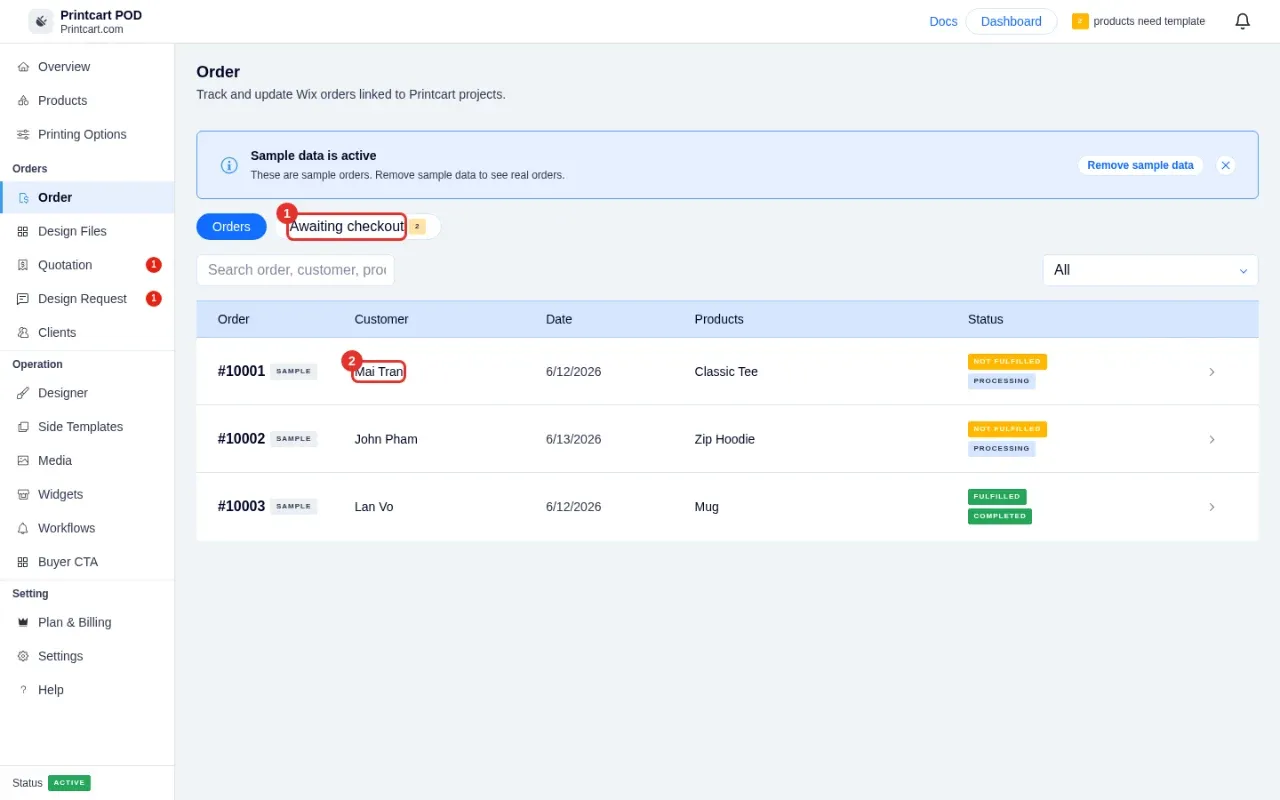
Expected result: You see your orders and their fulfillment and processing status.
Step 2Open an order
The order page shows the buyer details, the products, the payment status, a status tracker (Processing, In review, Accepted, In production, Fulfilled) and the Design files section (2). The Timeline tab lists each change.
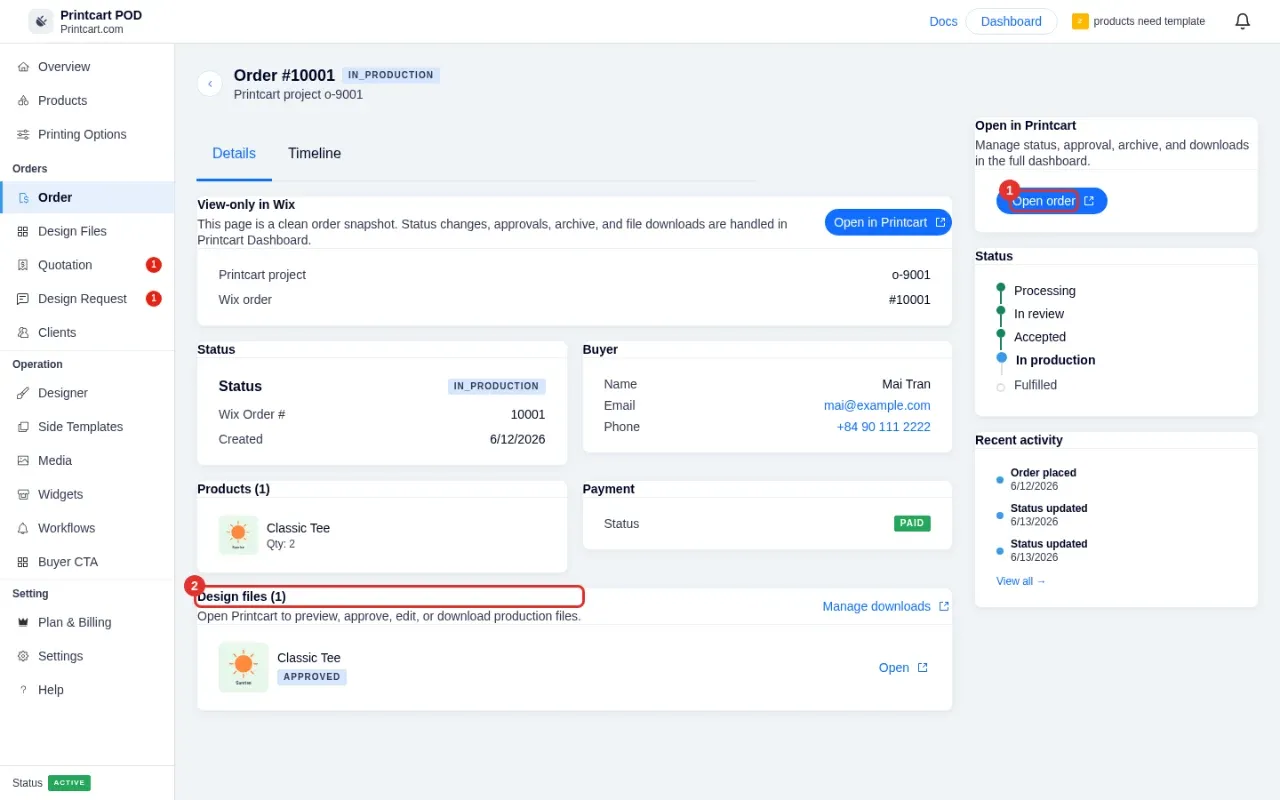
Expected result: You can see which design file belongs to which product.
Step 3Approve and download in the Printcart dashboard
In the Wix dashboard the order page is a snapshot. Status changes, approvals, archiving and file downloads happen in the Printcart dashboard. Click Open order (1); it opens the same order in Printcart, where you can review the design, approve it and download the production file (PDF, PNG, JPG or SVG).
In Printcart the same order opens with the design preview and the buttons to approve it and download the production file.
Expected result: The order opens in Printcart on the right project.
Step 4Handle buyer uploads that are awaiting checkout
When buyers upload a file but have not paid yet, they appear under Awaiting checkout. Each row shows a thumbnail, a reference such as UP-8F3K2, the buyer and when it arrived. Click Download file to get the file, Accept to approve it, or Decline to reject it. On the Free plan the first 10 buyer files each month can be downloaded; after that the button reads Download — Premium.
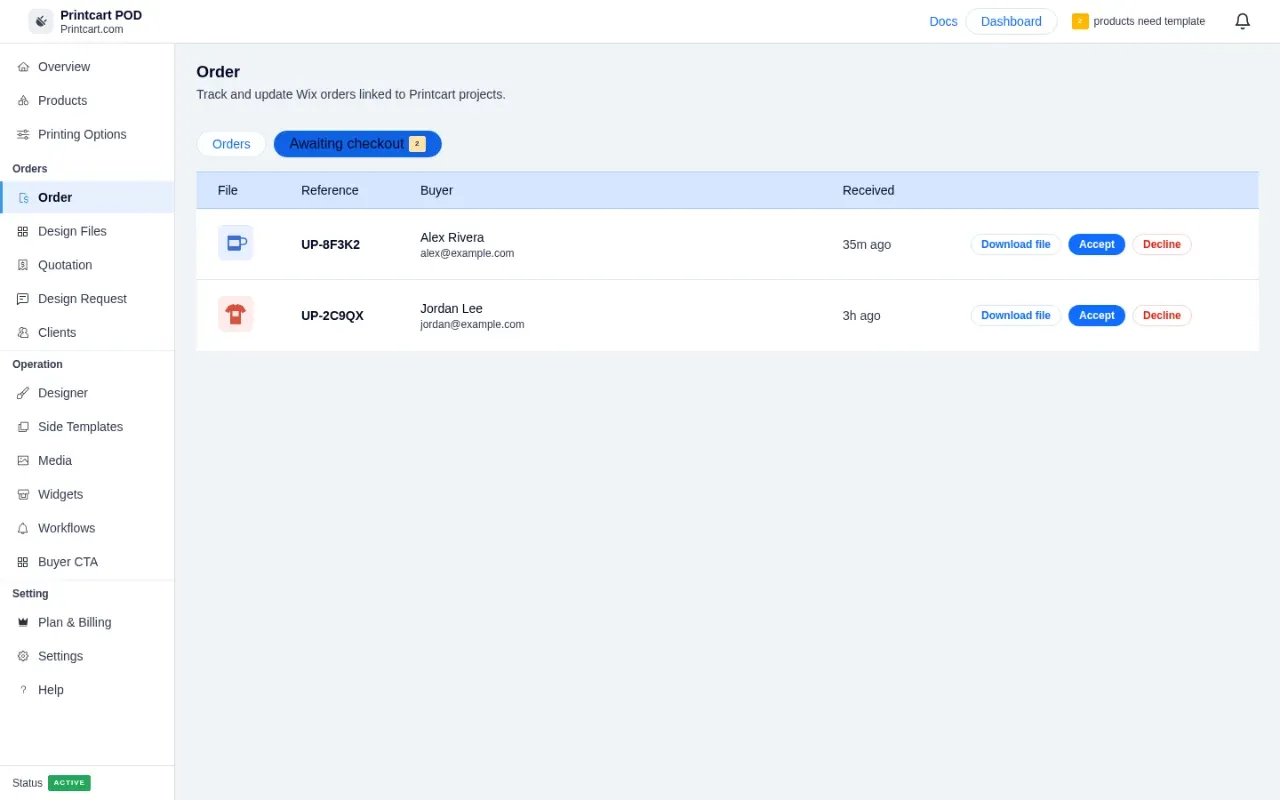
Expected result: Accepted uploads move on with the order once the buyer checks out.
Step 5Review all design files in one place
Open Design Files to see every buyer-uploaded or online-designed file across orders. Use the Needs review, Reviewed and All tabs, filter by type or source, or search. Each card shows the product, buyer, date and status, with an Open in Printcart link.
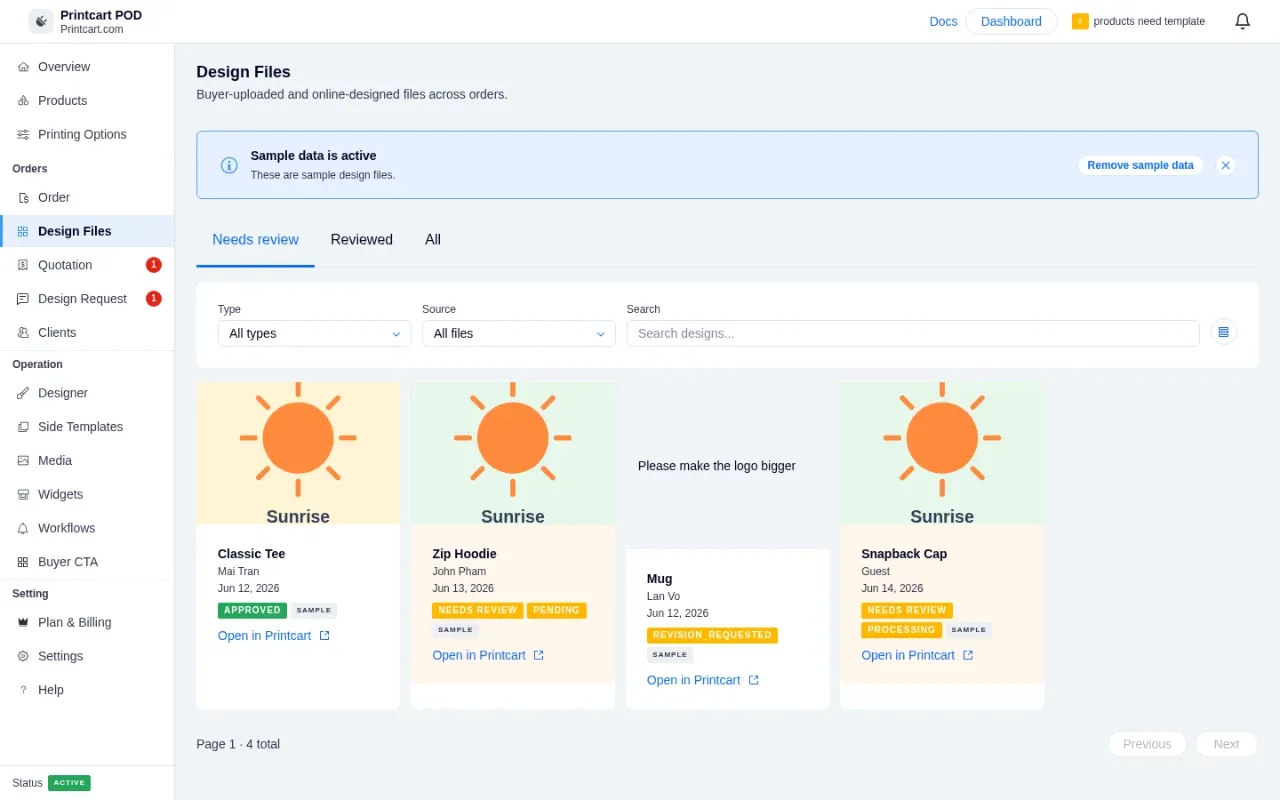
Expected result: You can spot files that need review at a glance.
Step 6Choose which notifications are sent
Open Workflows to decide how buyers are told about their order. The Customer tab lets you pick one channel per event (order confirmation, proof ready for review, order shipped, design request update, quote ready). Your alerts covers the messages you receive, and Emails & branding lets you edit the email templates.
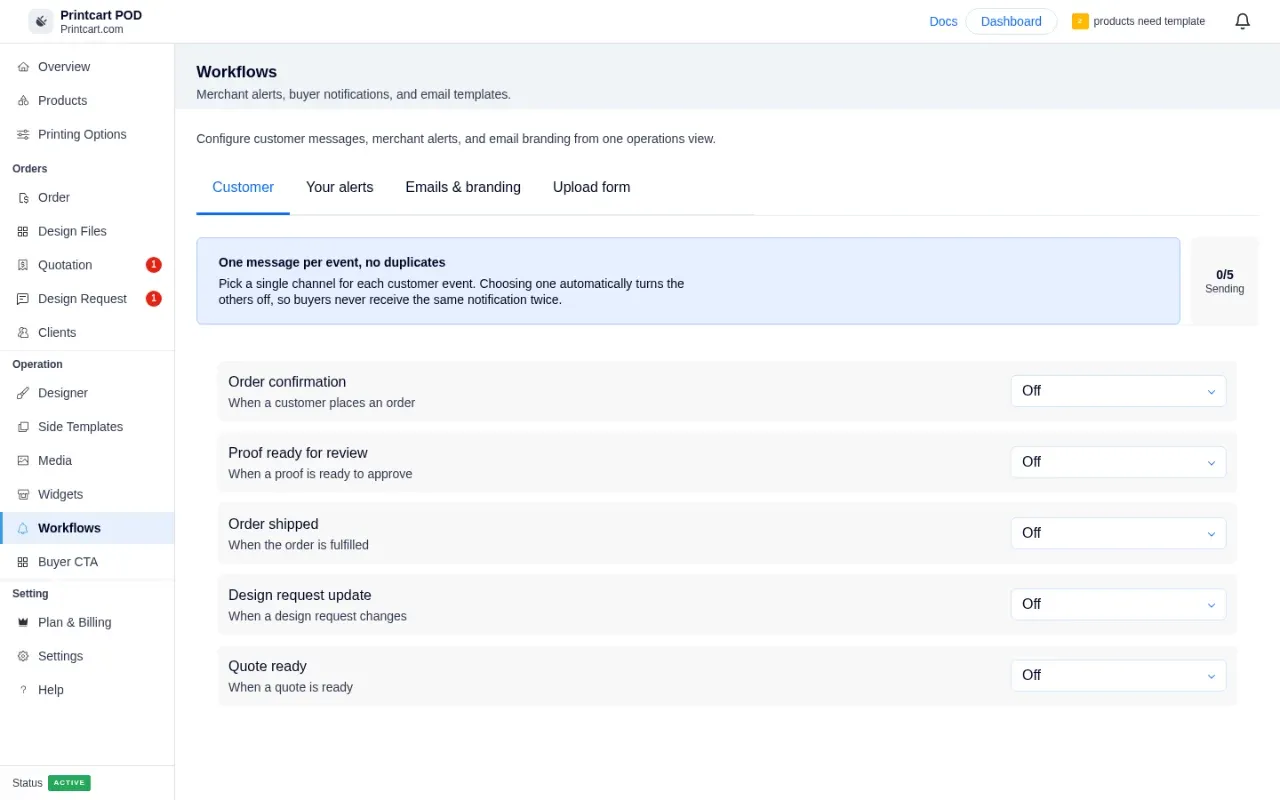
Expected result: Each event has exactly one channel, so buyers do not get duplicate messages.
Why do I see orders marked SAMPLE?
They are demo data loaded so you can explore. Click Remove sample data on the Orders page to clear them.
Where do I download the print file?
Use Download file on Awaiting checkout rows, or open the order in Printcart from the order page and download the production file there.
Next steps
- Printcart plans on Wix: compare and upgrade
- Create your first customizable product on Wix
- Open your orders in the Printcart dashboard
- Printcart integrations guide
Need help?
Message us on WhatsApp at +84 937 869 689 or email [email protected]. Tell us your Wix site name and which step you are on.
Printcart field note
What to verify before you roll out Receive Wix Orders and Download Print Files with Printcart
This tutorial is written from Printcart implementation patterns across file quality, proofing, and production risk. Before treating it as complete, test the workflow with one real product, one real design file, and one real order path.
Receive Wix Orders and Download Print Files with Printcart — common questions
Why do I see orders marked SAMPLE?
They are demo data loaded so you can explore. Click Remove sample data on the Orders page to clear them.
Where do I download the print file?
Use Download file on Awaiting checkout rows, or open the order in Printcart from the order page and download the production file there.
Need help?
Message us on WhatsApp at +84 937 869 689 or email [email protected] . Tell us your Wix site name and which step you are on.
Next steps in Printcart
Connect receive wix orders and download print files with printcart with catalog setup, templates, production workflows, and implementation support.
Want to put receive wix orders and download print files with printcart into practice?
Use the related Printcart tool below, or create a free account to start building with the product designer.