Open Products in the Printcart POD app, click Edit on a product, switch on Online Design and/or Order Upload, make sure it has a design zone, and save. Buyers then see Start Design or Upload artwork buttons on the product page.
Key takeaways
Before you start
- Printcart POD installed and connected (see the install tutorial).
- At least one Wix Stores product.
Make a product customizable, step by step
Step 1Open Products
In the Printcart POD menu, click Products. Your Wix products appear here after the import. Each row shows the product image, its Printcart and Wix ids, the feature badges (Designer, Upload, Quote) and a status: CONNECTED or NOT CONNECTED.
Find the product you want to make customizable and click Edit (marked 1 on the row).
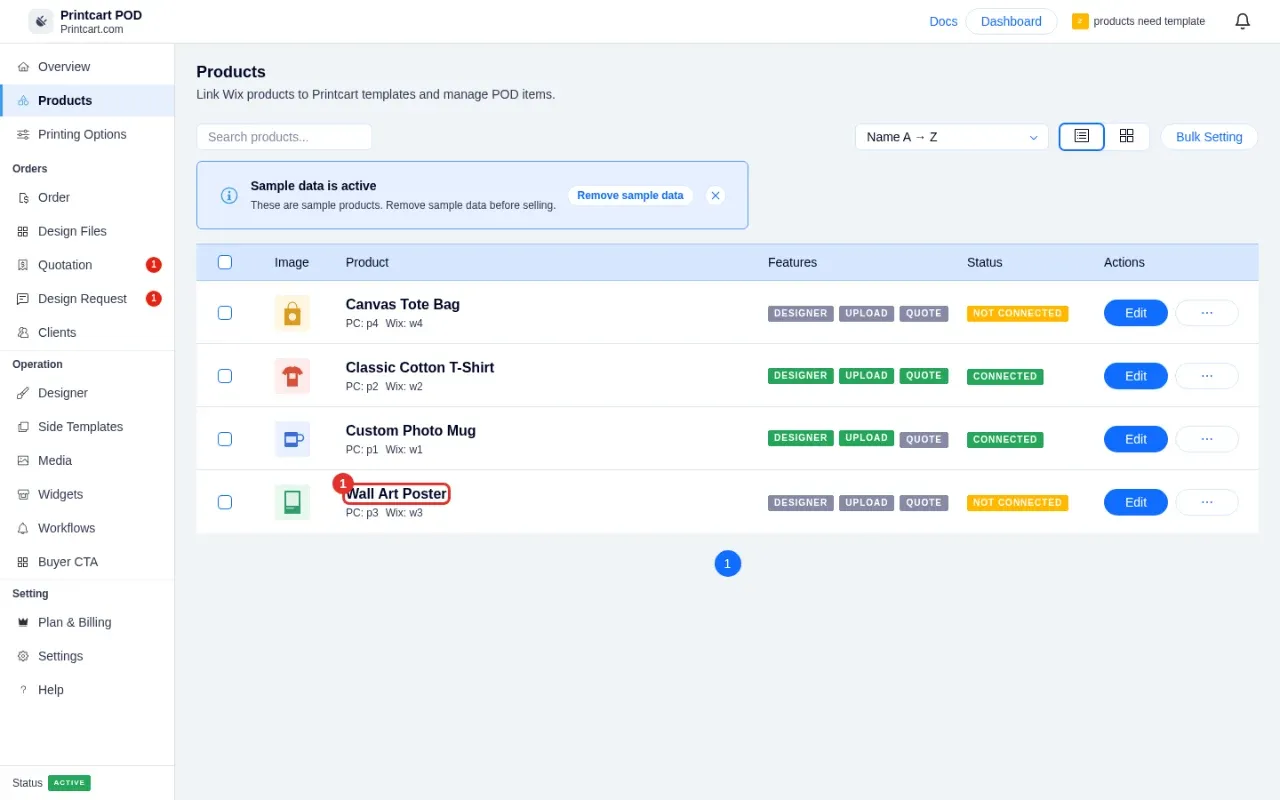
Expected result: The product page opens.
Step 2Review the product page
The top card is a read-only copy of your Wix product: name, price, stock and options. Change those in Wix Stores; the Edit in Wix editor and Open in Wix store buttons at the top take you there. The tabs are Settings, Design Zones, Variants and Orders.
The Storefront features card (marked 1) is where you decide what buyers can do.
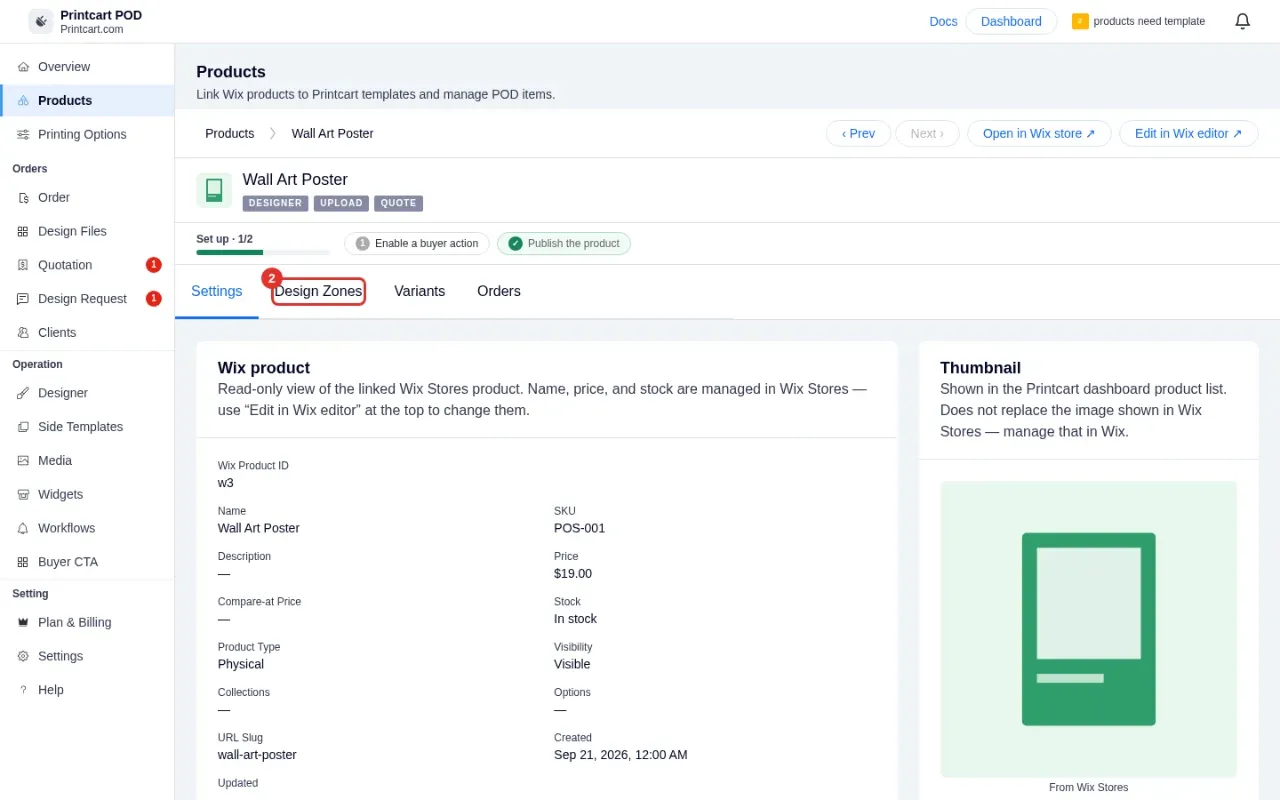
Expected result: You see a progress line such as Set up 1/2 and a note when no feature is enabled yet.
Step 3Turn on Online Design and/or Order Upload
Switch on Online Design (1) to show a Start Design button that opens the Printcart designer. It needs at least one Design Zone. Switch on Order Upload (2) to show an Upload artwork button so buyers can send a print-ready PDF, PNG or JPG. Turn on Request Quote if you want buyers to send a brief instead of buying directly.
Below, Print options lets you set the DPI (for example 300), the unit, and which upload file types are allowed. Click Save at the bottom when you finish.
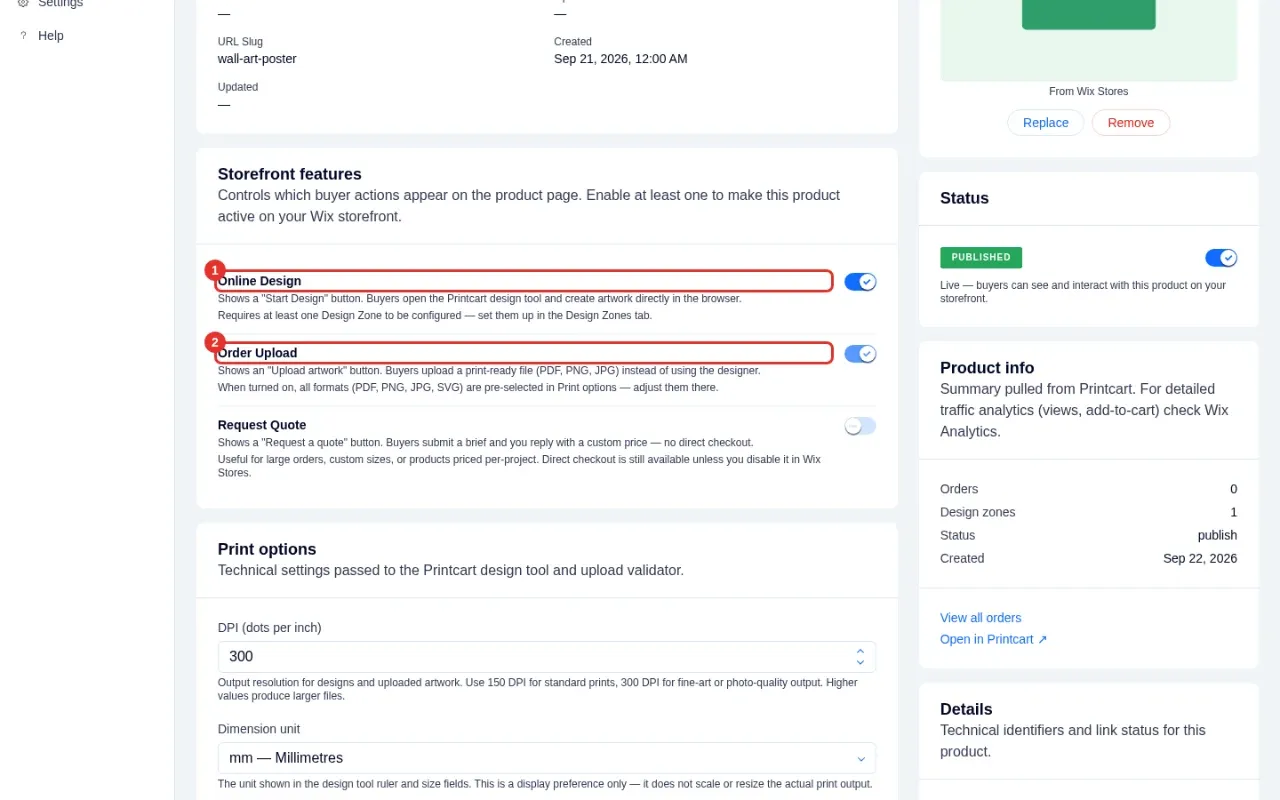
Expected result: The warning that no feature is enabled disappears and the feature badges on the product turn green after saving.
Step 4Check the design zones (print areas)
Open the Design Zones tab. It lists the print areas of the product (for example Front) and whether each is published. The Wix dashboard shows them read-only. To draw or change a zone, click Manage in Printcart; it opens the Printcart dashboard on the right product.
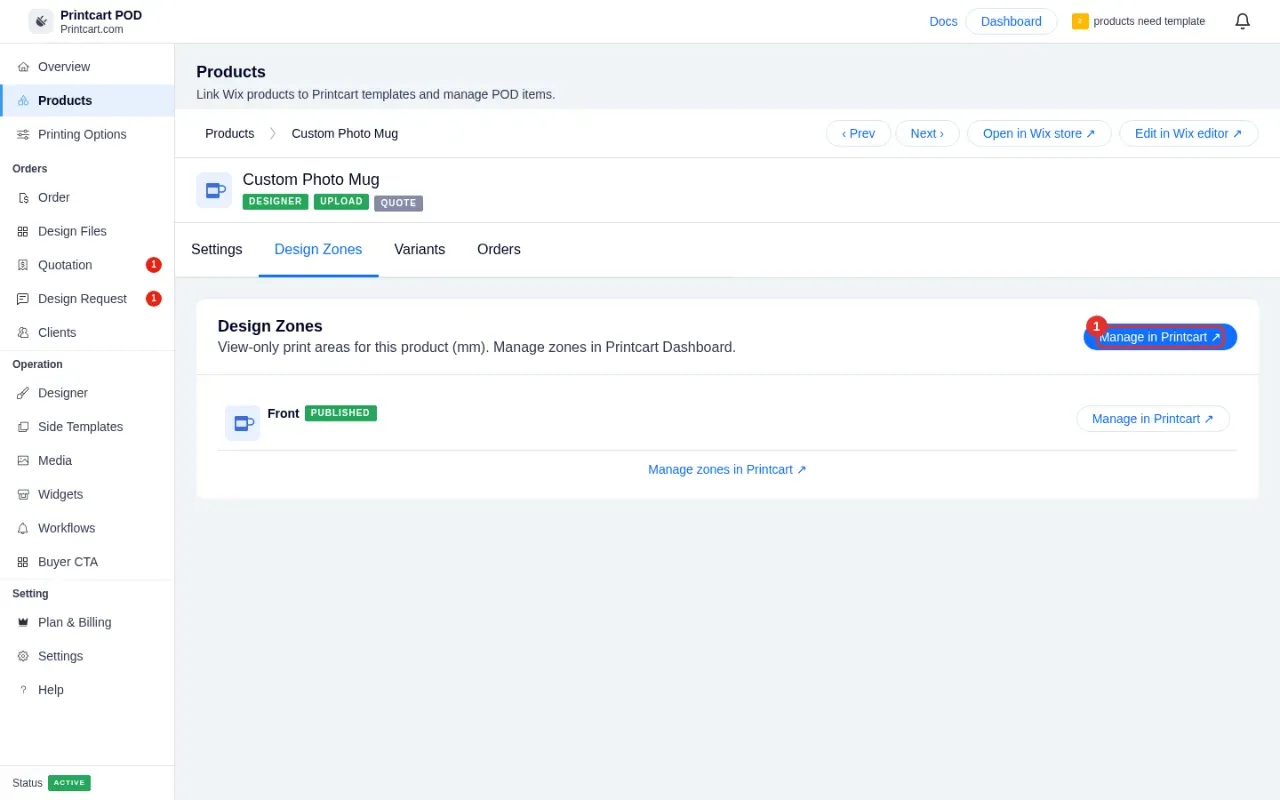
Expected result: At least one published zone is listed for products that use Online Design.
Step 5Or start from a preset with Side Templates
If you do not want to draw zones yourself, open Side Templates in the menu. Preset Sides are ready-made print areas curated by Printcart; My Sides are the ones you saved. Pick a category, search, and apply a preset to your products. The Recommended button suggests presets that match your product type.
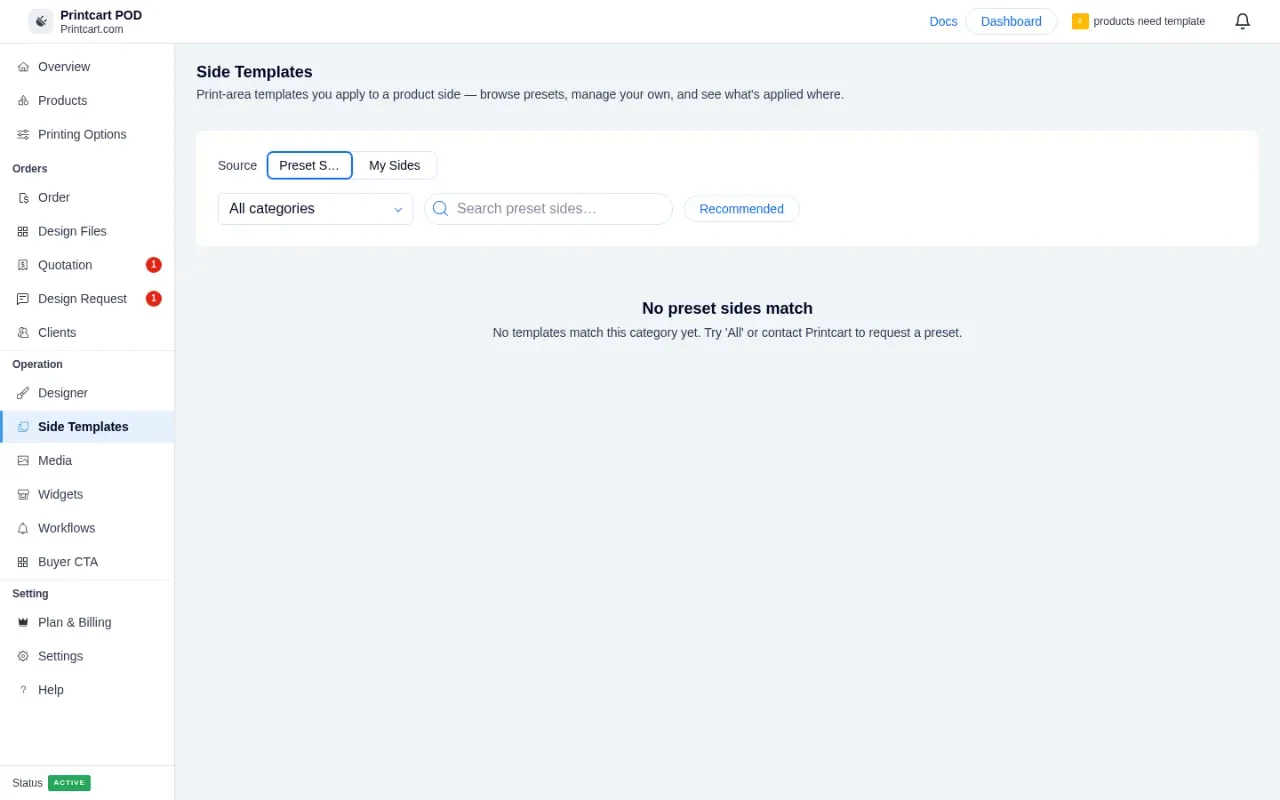
Expected result: The preset is applied and the product shows a design zone.
Step 6Customize the buyer buttons
Open Buyer CTA to change the wording and style of the buttons on your product page. Edit the button label and supporting text, choose which button is the main one, and watch the Live preview on the right update.
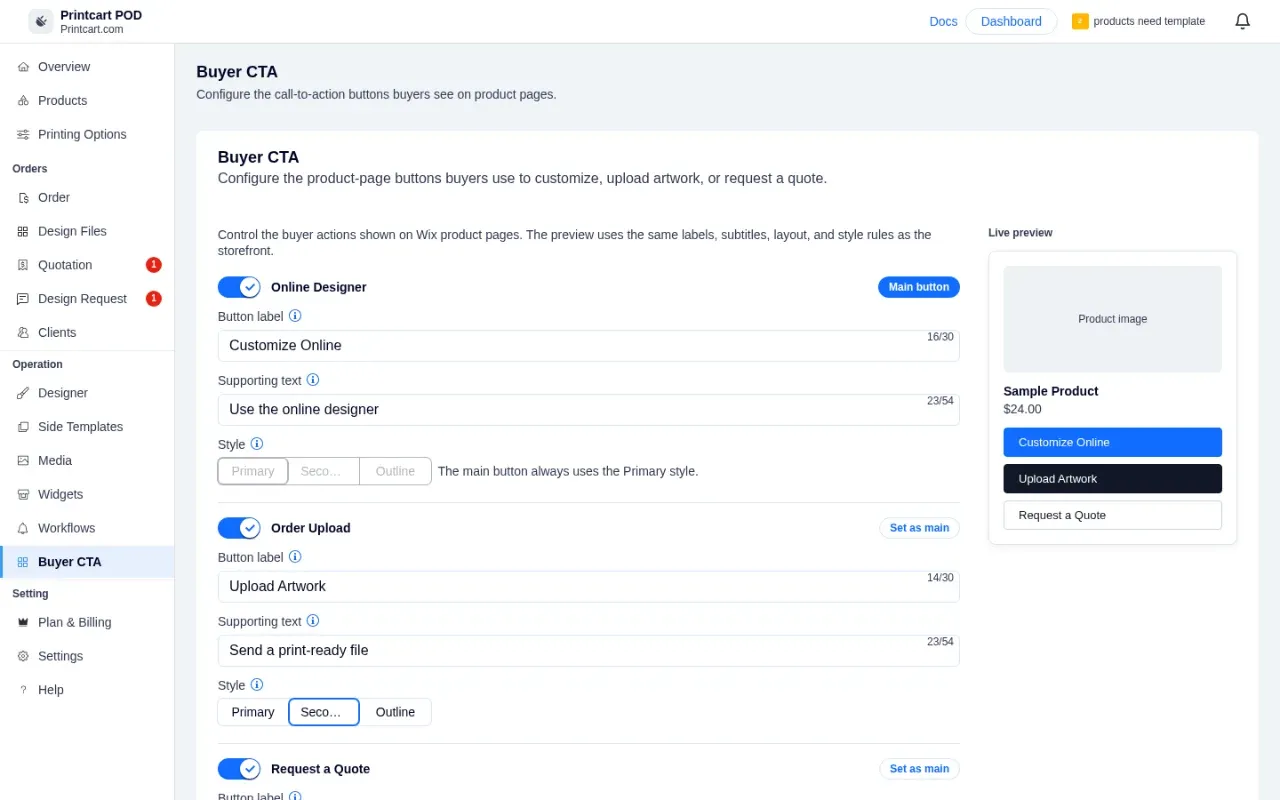
Expected result: The live preview shows your labels, for example Customize Online and Upload Artwork.
Step 7Publish and test on your live product page
Back on the product page, make sure the Status switch on the right says PUBLISHED. Then open the product on your Wix site in a private window. You should see your buttons under the product details. Click one to try the designer or the upload.
Your product page now shows the Printcart buttons, such as Start Design and Upload artwork, under the product details. If the buttons do not appear, add the Printcart element to the page in the Wix Editor.
Expected result: Buyers can open the designer or upload a file from the product page.
Why does my product say NOT CONNECTED?
The product has no buyer feature turned on yet. Enable Online Design, Order Upload or Request Quote on its product page and save.
Can I change a product name or price from Printcart?
No. Name, price, stock and options belong to Wix Stores. Printcart shows them read-only.
Next steps
- Set up printing options and pricing on Wix
- Receive Wix orders and download print files
- Browse Printcart design templates
- Printcart integrations guide
Need help?
Message us on WhatsApp at +84 937 869 689 or email [email protected]. Tell us your Wix site name and which step you are on.
Printcart field note
What to verify before you roll out Create Your First Customizable Product on Wix with Printcart
This tutorial is written from Printcart implementation patterns across web-to-print launch planning, buyer experience, and repeatable production. Before treating it as complete, test the workflow with one real product, one real design file, and one real order path.
Create Your First Customizable Product on Wix with Printcart — common questions
Why does my product say NOT CONNECTED?
The product has no buyer feature turned on yet. Enable Online Design, Order Upload or Request Quote on its product page and save.
Can I change a product name or price from Printcart?
No. Name, price, stock and options belong to Wix Stores. Printcart shows them read-only.
Need help?
Message us on WhatsApp at +84 937 869 689 or email [email protected] . Tell us your Wix site name and which step you are on.
Next steps in Printcart
Connect create your first customizable product on wix with printcart with catalog setup, templates, production workflows, and implementation support.
Want to put create your first customizable product on wix with printcart into practice?
Use the related Printcart tool below, or create a free account to start building with the product designer.