Open Face Crop in your Printcart Dashboard, add your portraits, keep the School (4:5) preset and click Process images . Each photo that has a readable face comes back as a 400 x 500 px head-and-shoulders crop with a Download button. In our latest test on 6 October 2026, 4 portraits took 8 tokens up front (2 tokens per image). 2 crops came back, the 2...
Key takeaways
This guide is for school, studio and ID-photo workers who need every portrait in the same frame. The free Face Crop page on printcart.com only previews your photos in the browser. The cropping itself runs in the Dashboard.
What you need before you start
- A Printcart account with a connected store and tokens in your balance. In our test Face Crop cost 2 tokens per image; the price box shows your total before you click. New to tokens? See Choose which store your tool results are saved to.
- Portraits as JPEG or PNG files, one person per photo, face visible and looking at the camera. Faces turned away, group photos and very small faces may not be cropped (see Troubleshooting).
- Permission to process the photos. For school or ID work, get consent first and delete files you no longer need. The photos in this guide are free-licence stock portraits of adults from Unsplash (credits at the end), not real students.
From portraits to same-frame crops
Step 1Open Face Crop in the Dashboard
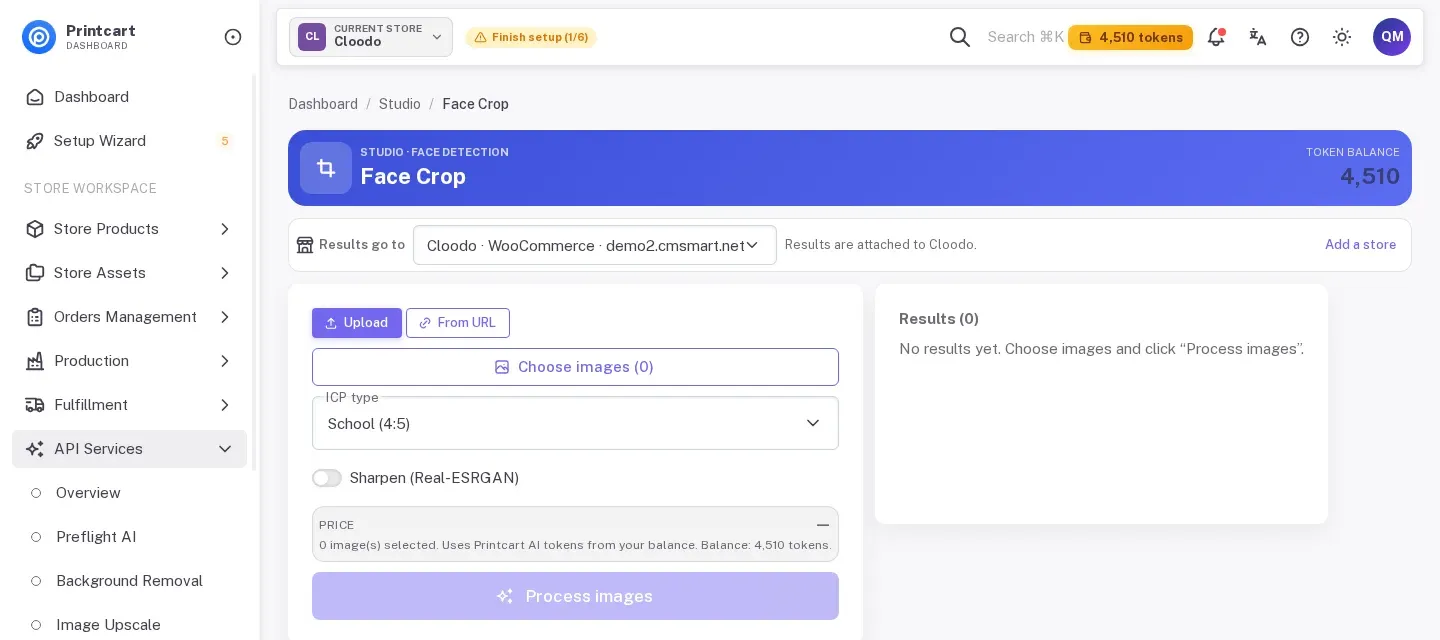
Sign in, open API Services in the left menu and click Face Crop.
Expected result: a page called Face Crop with your token balance at the top right of the blue header.
Step 2Check where the result goes
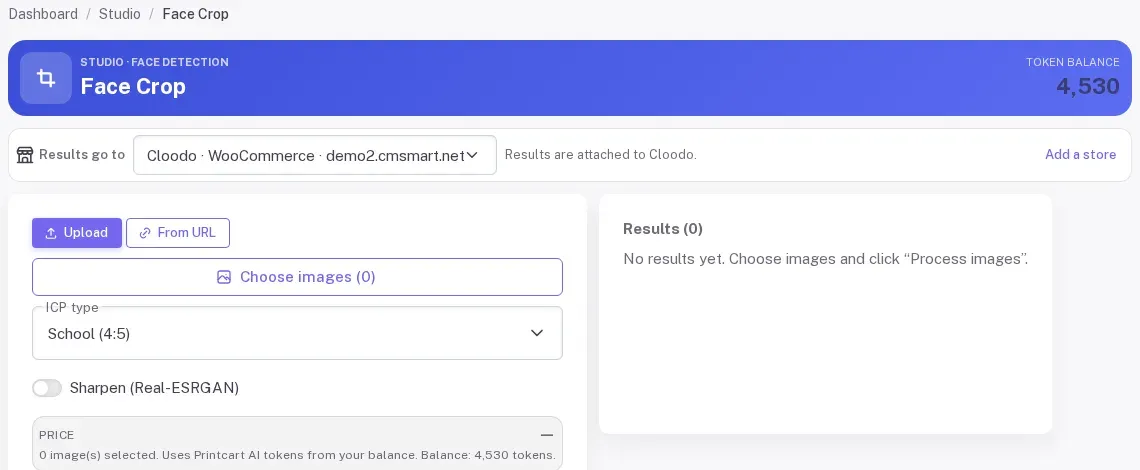
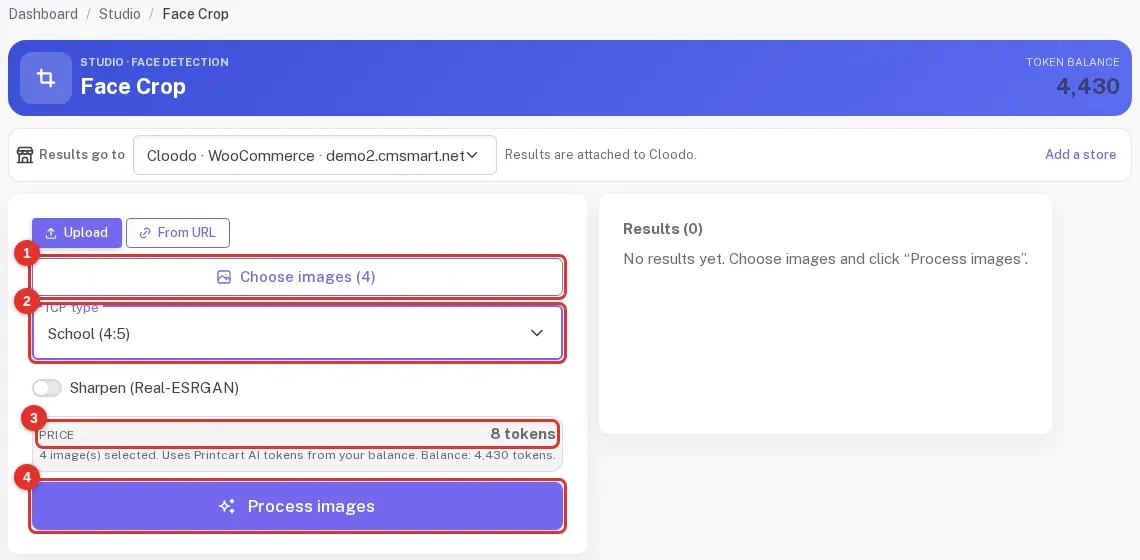
Under Results go to, make sure the right store is selected. The form below has two tabs, Upload and From URL, a Choose images button, an ICP type list, a Sharpen (Real-ESRGAN) switch and a price box that shows a dash until you add photos.
Expected result: "Choose images (0)" and "0 image(s) selected".
Step 3Pick the crop preset
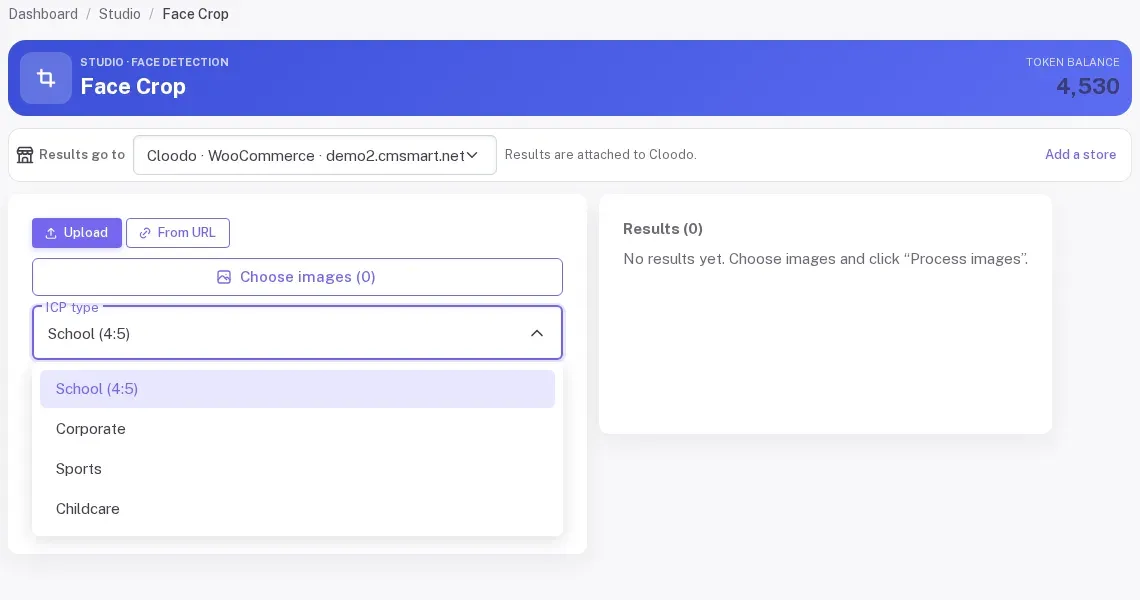
Open ICP type. We saw four presets: School (4:5), Corporate, Sports and Childcare. This guide uses School (4:5), a portrait frame with a 4 to 5 ratio. We only tested School (4:5), so check the other presets on one photo before you use them on a batch.
Expected result: the list shows the four presets and School (4:5) is selected.
Step 4Add your photos
Click Choose images and select your files. Keep Sharpen off for a first run. The price box updates at once: 4 images, 8 tokens. We used 4 portraits of 1800 px on the long side. Nothing is charged until you click Process images.
Expected result: "Choose images (4)" and "4 image(s) selected" with the price.
Step 5Process and read the message
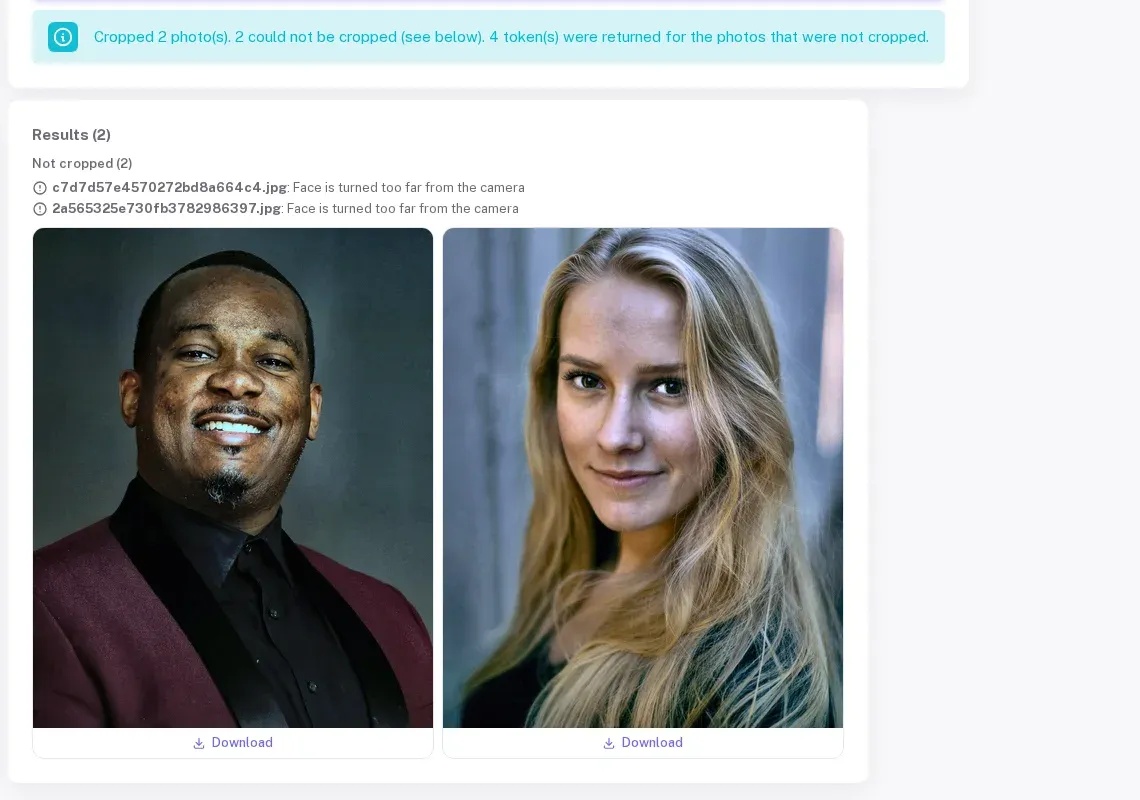
Click Process images. In our test the crops were ready within about 10 seconds. A blue message sums up the run, for example "Cropped 2 photo(s). 2 could not be cropped (see below). 4 token(s) were returned for the photos that were not cropped." The Results list shows one crop per readable face, each with its own Download link, and a Not cropped line lists any photo that was skipped, with the reason. Our balance went from 4,430 to 4,426 tokens: 8 charged, 4 returned.
Expected result: a Results heading with a count, a Not cropped line if any photo was skipped, and Download under each crop.
Step 6Check each crop against its original
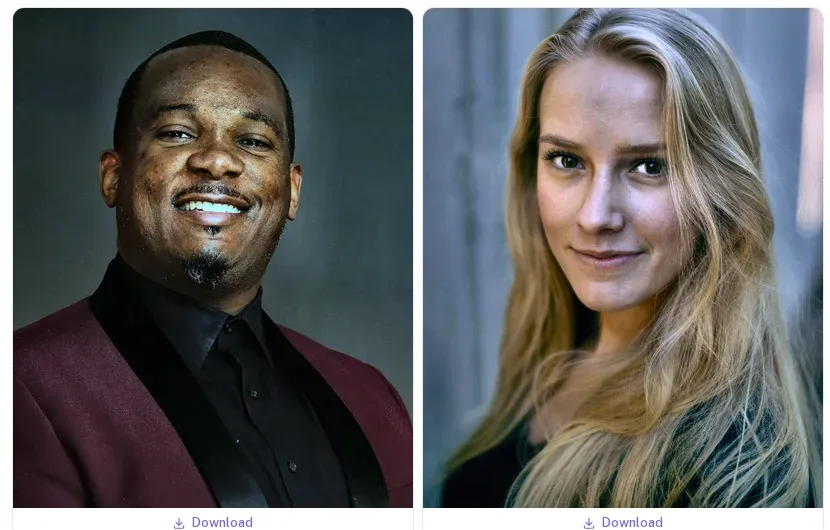
Compare the crops with the originals before you send them to print. In our run both crops were sharp, the face was centred and the frame included the shoulders, so it suits a head-and-shoulders school layout.
Expected result: the same person, centred, in a 4:5 frame with some shoulder room.
Before and after
Before: 4 uploads in different sizes and framings (square, 2:3, 4:5 and a full-length shot). After: 2 crops in one 4:5 frame, 400 x 500 px each, in about 10 seconds for a net 4 tokens. The other 2 photos are listed under Not cropped.
Troubleshooting (what actually happened in our tests)
- Photos are under "Not cropped". Two portraits where the head is turned away from the camera were skipped with the reason "Face is turned too far from the camera". Earlier the same day, before a service update, the same two photos were cropped, so the rule is stricter now. The page shows the file name Printcart gave the upload (a long string of letters), so note which photo it is by the order you added them. Retake, or pick a frame where the person faces the camera.
- Is a skipped photo charged? The price is taken when you click Process images, and the tokens for photos that were not cropped came back (4 tokens for 2 photos in our run). Read the blue message and check your balance after a big batch.
- A full-length photo with a small face. In the morning run this photo was skipped. After a service update it was cropped when we ran it on its own (2 tokens). Check small faces on the crop before you print.
- Results are fewer than photos. Count the crops plus the Not cropped list; they should add up to the photos you added. If they do not, run a few photos first before a large class.
- Face Crop returned errors earlier the same day. On 6 October 2026 every image failed for several hours because the face service could not load its detection files. It was fixed the same day, and the run above is after the fix. If it fails for you, wait and retry later rather than re-clicking.
FAQ
How much does Face Crop cost?
In our test 2 tokens per image, so 4 images were 8 tokens up front and 1 image was 2 tokens. Tokens for photos that were not cropped were returned (4 of the 8 in our latest run, so the net cost was 4). The price box shows the total before you click.
Can I crop a whole class at once?
The chooser accepts several files. We tested 1, 4 and 6 photos at a time, not hundreds, so run a first batch of 10 to 20 before a large class.
What is the Sharpen switch?
It is labelled Sharpen (Real-ESRGAN). We did not test it, so we cannot say what it costs or how it changes the result. Try it on one photo.
Does it work on group photos?
The tool page says group shots and covered faces may need a manual tweak. We did not run group photos here.
Can I sort the photos by person afterwards?
That is a different tool. See Sort event photos by person with Face Matching or the older AI Face Matching for Event and School Photography.
Next steps
- Back to the tool page: Bulk face crop.
- Sort the event photos by person: Sort event photos by person with Face Matching.
- Make the picture-day cards: Bulk QR cards from a student roster.
- Older overview: Auto Face Crop for School and Studio Photos.
- More in this series: Photo commerce tools tutorials.
Crop whole classes and keep your tokens topped up. See the token plans: AI wallet pricing.
Photo credits (Unsplash License): Alex Suprun, Jorik Kleen, OSPAN ALI and Jadon Johnson (stock portraits of adults, used here only as test inputs).
Printcart field note
What to verify before you roll out Crop School and ID Portraits to One Frame With Face Crop
This tutorial is written from Printcart implementation patterns across web-to-print launch planning, buyer experience, and repeatable production. Before treating it as complete, test the workflow with one real product, one real design file, and one real order path.
Crop School and ID Portraits to One Frame With Face Crop — common questions
How much does Face Crop cost?
In our test 2 tokens per image, so 4 images were 8 tokens up front and 1 image was 2 tokens. Tokens for photos that were not cropped were returned (4 of the 8 in our latest run, so the net cost was 4). The price box shows the total before you click.
Can I crop a whole class at once?
The chooser accepts several files. We tested 1, 4 and 6 photos at a time, not hundreds, so run a first batch of 10 to 20 before a large class.
What is the Sharpen switch?
It is labelled Sharpen (Real-ESRGAN). We did not test it, so we cannot say what it costs or how it changes the result. Try it on one photo.
Does it work on group photos?
The tool page says group shots and covered faces may need a manual tweak. We did not run group photos here.
Next steps in Printcart
Connect crop school and id portraits to one frame with face crop with catalog setup, templates, production workflows, and implementation support.
Want to put crop school and id portraits to one frame with face crop into practice?
Use the related Printcart tool below, or create a free account to start building with the product designer.