In your Printcart Dashboard, open API Services and Preflight AI , switch to Full check , paste the link to your PDF and choose PDF as the file type. The check now opens the PDF and reports its file type, file size and color mode. In our test on 5 October 2026, three A5 PDFs (300 DPI without bleed, 300 DPI with 3 mm bleed and 96 DPI) all came back with the...
Key takeaways
What you need before you start
- A Printcart account and a connected store.
- The PDF on a public link. PDFs run from a link, because the Dashboard uploads images only.
- Your printer's requirements: DPI, color mode (CMYK or RGB) and bleed in millimetres.
The screenshots come from a real Dashboard session on 5 October 2026.
Run a Full check on a PDF
Step 1Open Preflight AI and check the store
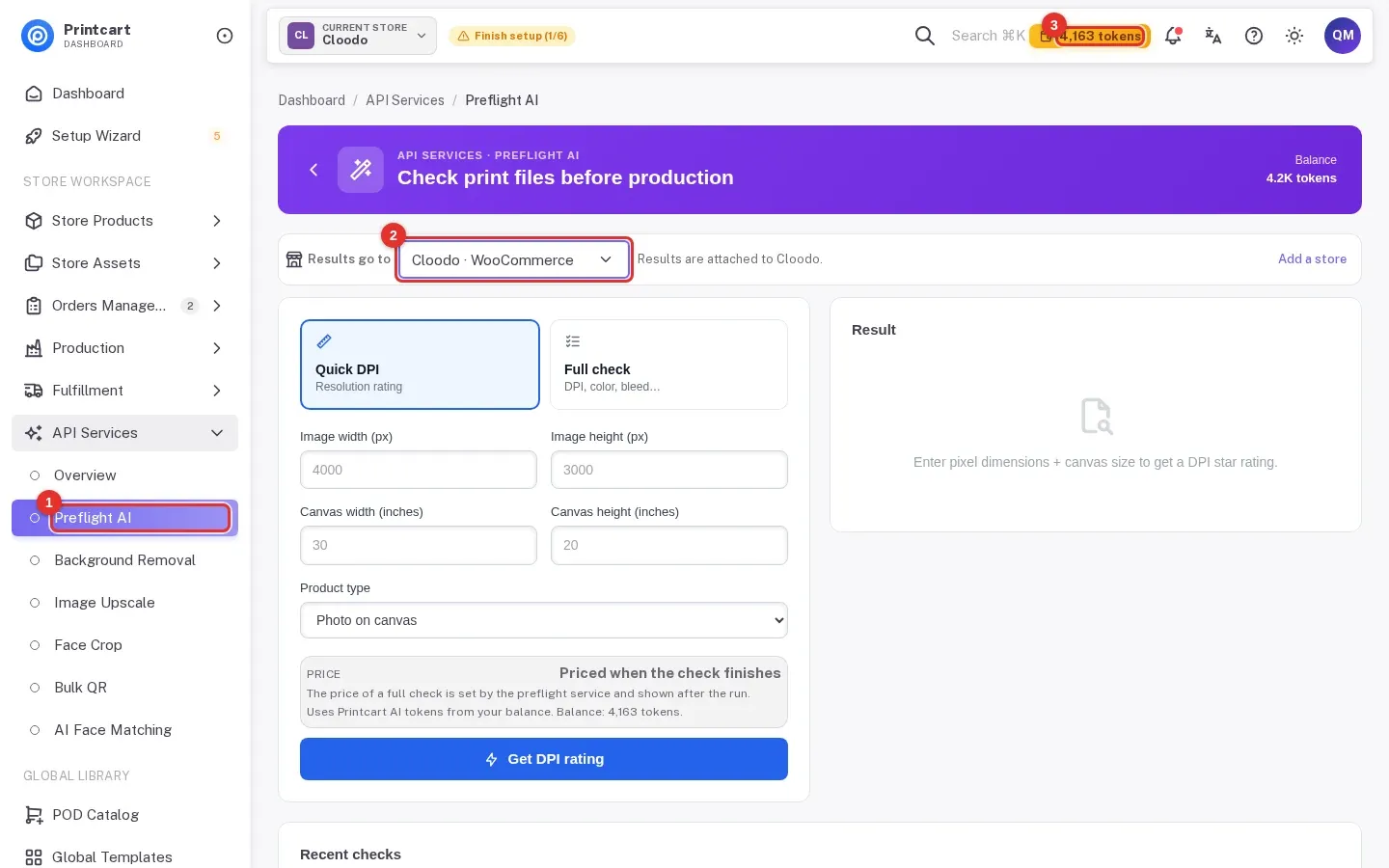
In the sidebar, open API Services and click Preflight AI (1). Check the store under Results go to (2). Your token balance (3) is in the top bar.
Expected result: the page "Check print files before production" opens on the Quick DPI tab.
Step 2Switch to Full check
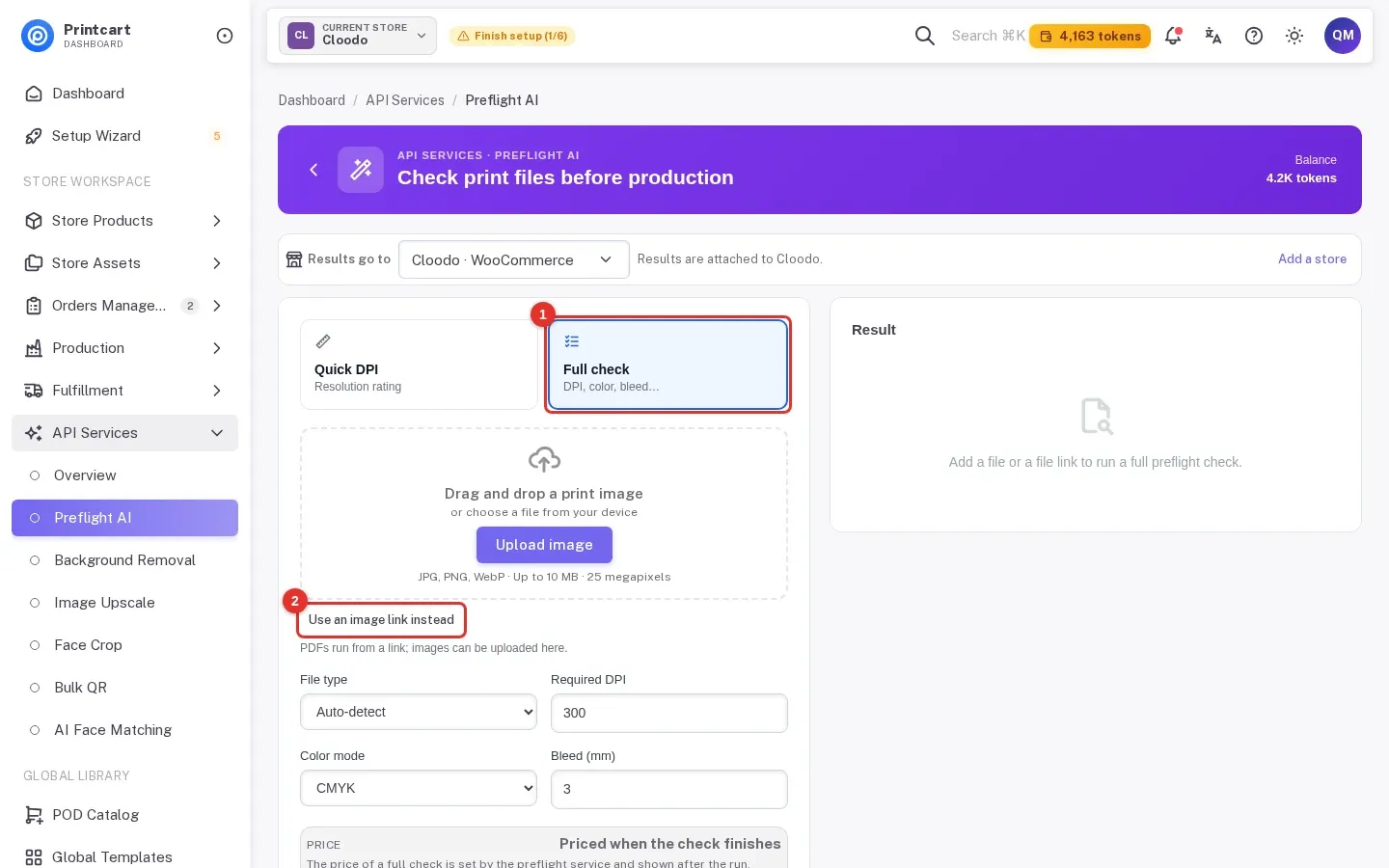
Click Full check (1), then Use an image link instead (2). The same link field takes PDF links.
Expected result: a "File link" field appears with File type, Required DPI, Color mode and Bleed below it.
Step 3Enter the PDF link and your requirements
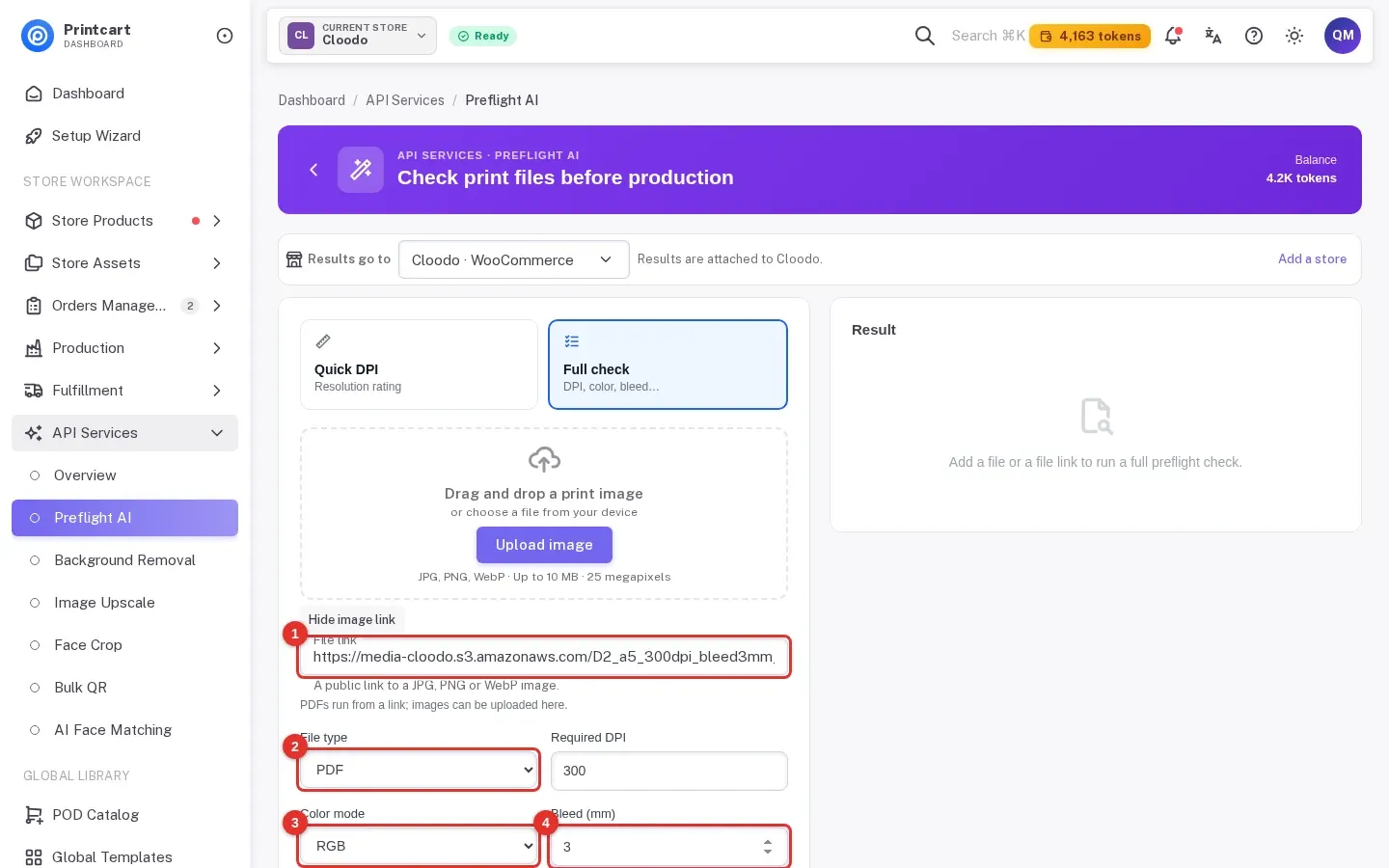
Paste the link (1), choose PDF as the file type (2), pick the color mode (3), enter the bleed in millimetres (4) and the DPI your printer asks for. Click Run preflight (5).
Expected result: the price box says the price of a full check is set after the run.
Step 4Confirm
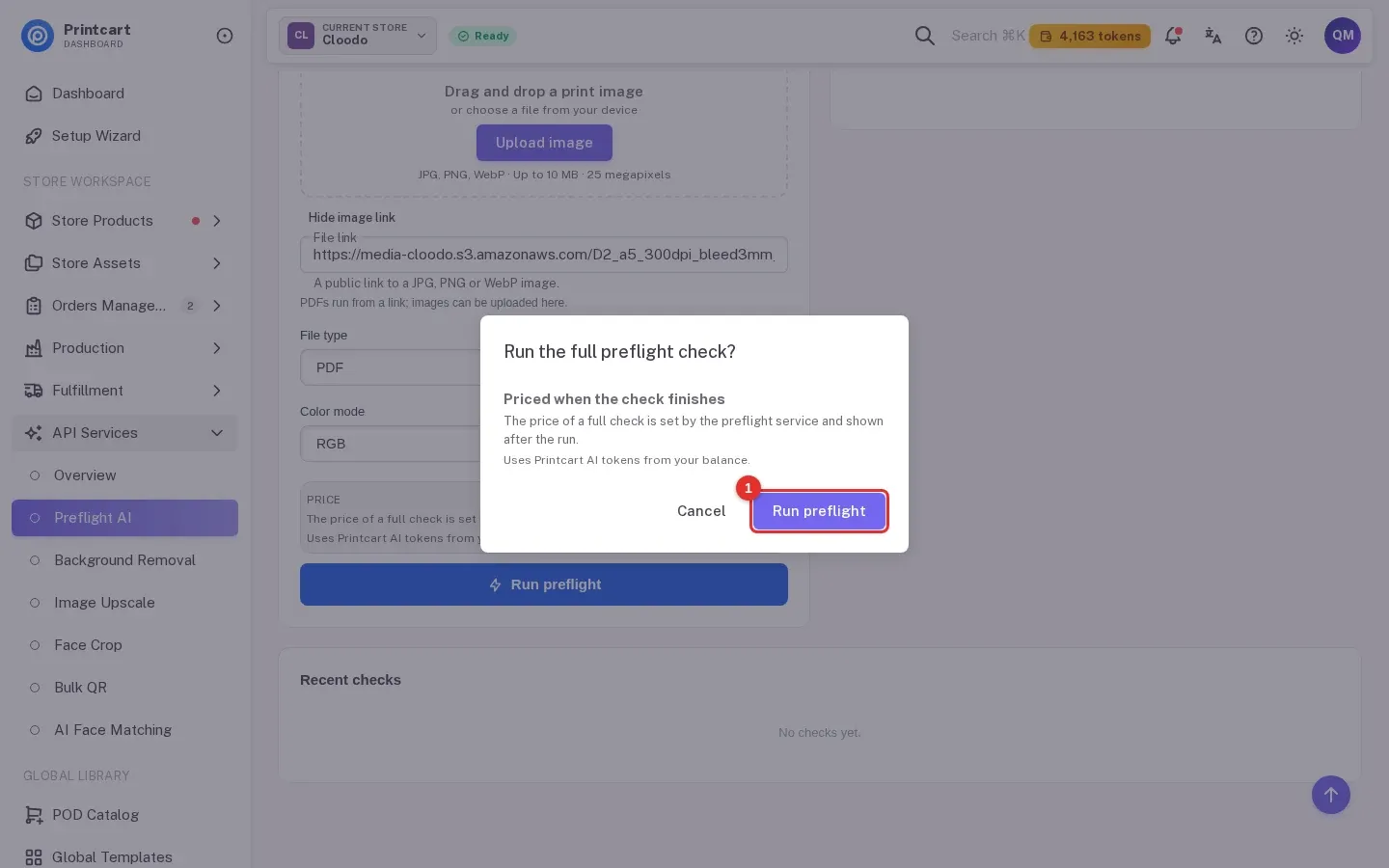
A box called "Run the full preflight check?" appears. Click Run preflight (1).
Expected result: the check starts.
Step 5Read the result
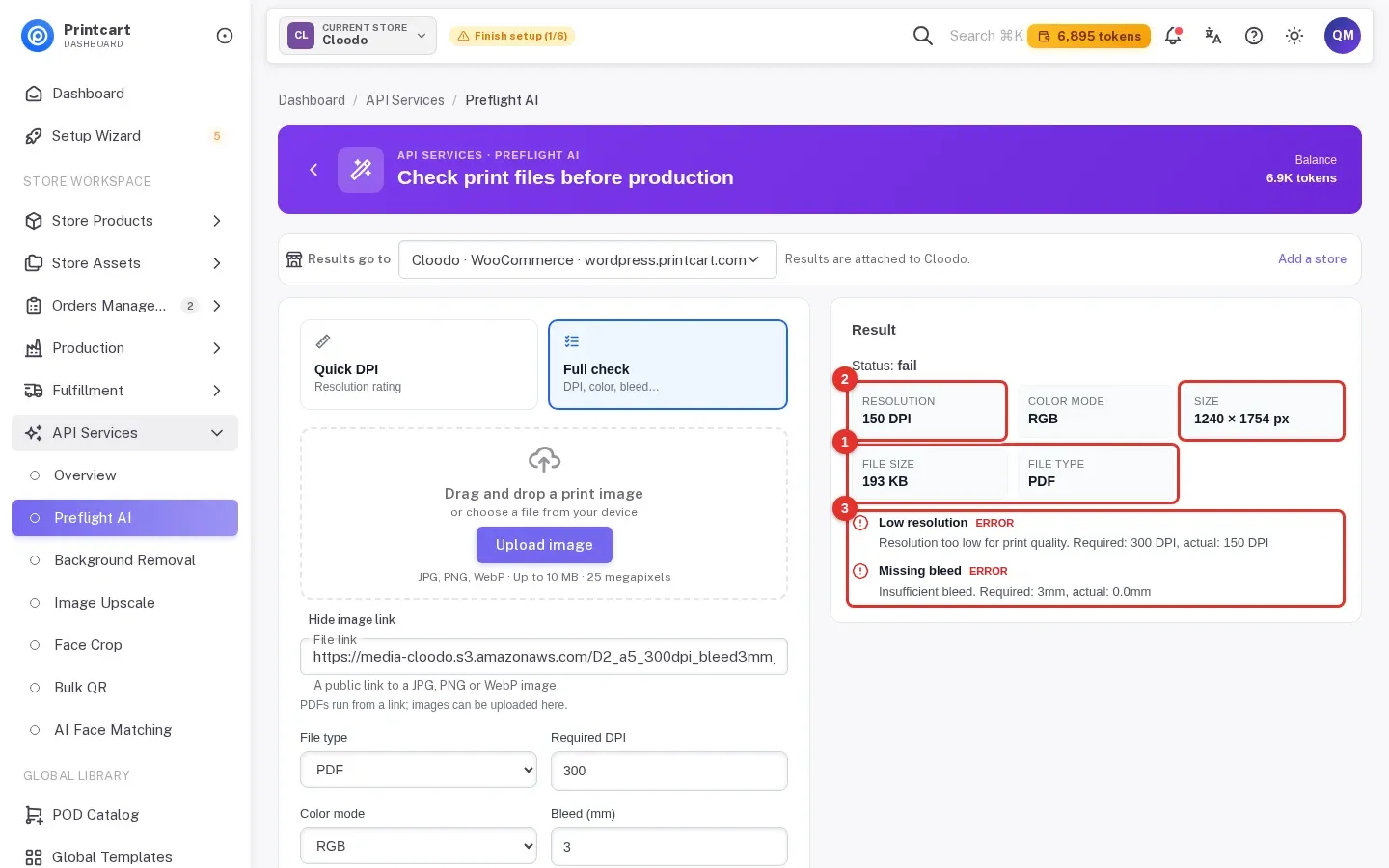
The Result panel shows the status and one line for each issue. For a PDF, the file type, file size and color mode (1) are read from the file itself. In our run they were correct for all three files: PDF, a file size matching the file, and RGB. The resolution and size cards (2) and the issue lines (3) were not correct: all three files reported 150 DPI and 1240 × 1754 px, a "Low resolution" error, and a "Missing bleed" error with 0.0 mm. Two of the files really are 300 DPI and the file in the screenshot has a 3 mm bleed, so treat these lines as unreliable for now.
Expected result: status fail, with file type PDF, color mode RGB and a file size in KB. Do not use the DPI, size or bleed lines to accept or reject a PDF yet.
Good to know. The first PDF you check after a quiet period may come back as a warning, "PDF checks are not available yet", while the PDF reader starts up. No tokens are taken. Run the same check again and the PDF is read.
What to do instead today
- Export a PNG or JPEG of the artwork at its final size and run a Full check on it. It reports color mode and DPI. A PNG has no trim box, so bleed is reported as not checked.
- Confirm the bleed in your design file. Most printers want 3 mm on every side.
- Use the free size check to work out whether a photo has enough pixels for your print size.
Troubleshooting
- The status is warn and says PDF checks are not available yet. This can happen on the first PDF after a quiet period. Run the check again.
- The result says Low resolution or Missing bleed, but my PDF is fine. We saw this in our tests: three different PDFs returned the same 150 DPI and 0 mm bleed. Check DPI on an image export and confirm the bleed in your design file.
- The link does not work. The link must be public. A link that needs a sign-in cannot be read.
- The balance did not change. That is what we saw in our runs. The page only says the price is set when the check finishes, so look at your balance after your own run.
Does the Full check read PDFs?
Yes, from a link. It reports the file type, file size and color mode. The DPI, size and bleed figures were not reliable in our tests, so use an image export for DPI and confirm the bleed in your design file.
Can I upload a PDF from my computer?
No. The Dashboard uploads images only. PDFs run from a link.
Next steps
- Check a photo's size: free size check.
- Try the checks without an account: Print file preflight.
- More photo tools: Photo commerce tools tutorials.
Ready for whole folders? Process whole folders and save results to your store — choose a long-term plan, or create an account to start.
Printcart field note
What to verify before you roll out Preflight a Print PDF in Your Printcart Dashboard: What the Check Reports Today
This tutorial is written from Printcart implementation patterns across file quality, proofing, and production risk. Before treating it as complete, test the workflow with one real product, one real design file, and one real order path.
Preflight a Print PDF in Your Printcart Dashboard: What the Check Reports Today — common questions
Does the Full check read PDFs?
Yes, from a link. It reports the file type, file size and color mode. The DPI, size and bleed figures were not reliable in our tests, so use an image export for DPI and confirm the bleed in your design file.
Can I upload a PDF from my computer?
No. The Dashboard uploads images only. PDFs run from a link.
Next steps in Printcart
Connect preflight a print pdf in your printcart dashboard: what the check reports today with catalog setup, templates, production workflows, and implementation support.
Want to put preflight a print pdf in your printcart dashboard: what the check reports today into practice?
Use the related Printcart tool below, or create a free account to start building with the product designer.