In Printcart Canvas every product is configured in Product Setup : link it to its Printcart printing option, choose a pricing template, then define the face size, wrap depth and print sheet. Prices come from your price table on width, height and depth, never from an area formula, and a size and its rotation share one price. The print sheet is calculated for...
Key takeaways
What do you need before you start?
- Printcart Canvas installed and connected (see Install Printcart Canvas and connect your store).
- A canvas product, for example one imported from the Template Library (see Import a ready-made canvas product).
The screenshots come from a demonstration WooCommerce store running Printcart Canvas 4.5.9 with the UK Standard Canvas template. Store credentials and internal identifiers are masked. Want to see it first? Open the live demo store and press Design your canvas.
How do you set up sizes, prices and the print sheet?
Step 1Open Product Setup
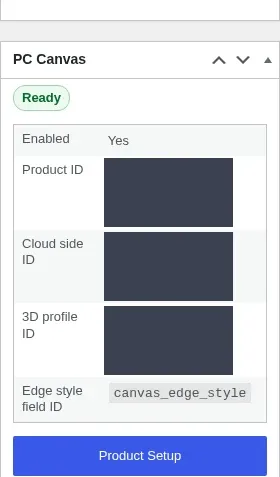
Edit the product in WooCommerce. The PC Canvas box in the sidebar shows its status and a Product Setup button. A green dot in the step list means that step is complete.
Expected result: Product Setup opens with the product verdict and the step list on the left.
Step 2Link the product to Printcart
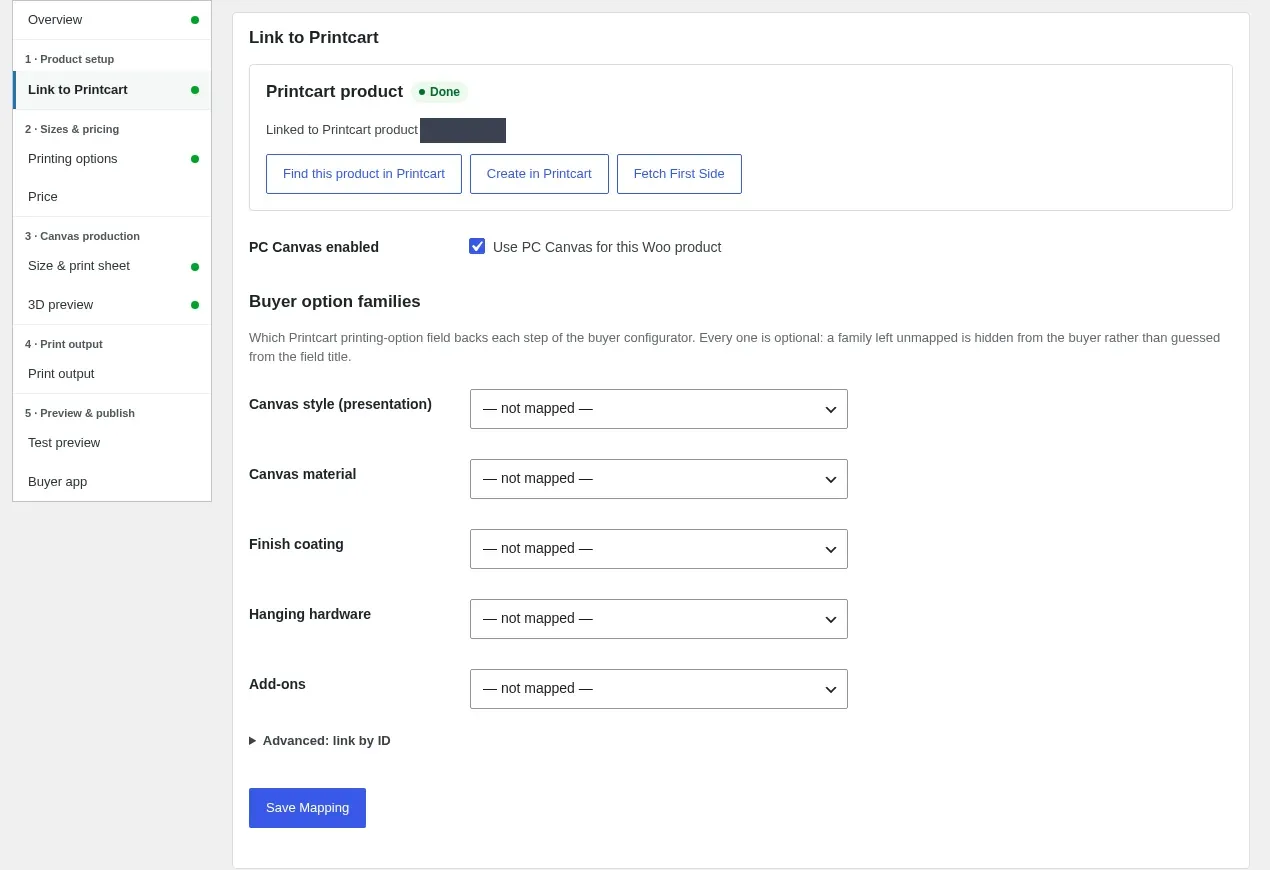
In Link to Printcart, use Find this product in Printcart (or Create in Printcart) and Fetch First Side. Tick Use PC Canvas for this Woo product and press Save Mapping.
Expected result: The status reads Done and shows the linked Printcart product.
Step 3Map the printing options
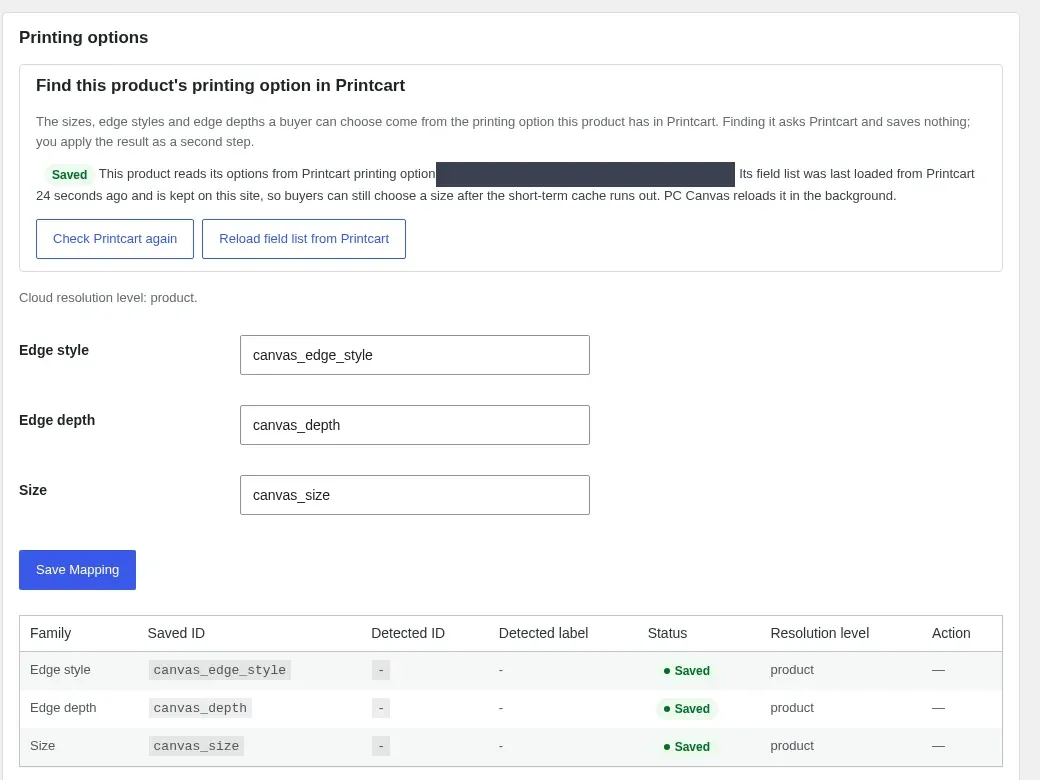
Under Printing options, press Check Printcart again. PC Canvas finds which Printcart fields hold the size, edge style and edge depth choices. Press Save Mapping. If you later change the options in Printcart, press Reload field list from Printcart.
Expected result: All three fields read Saved.
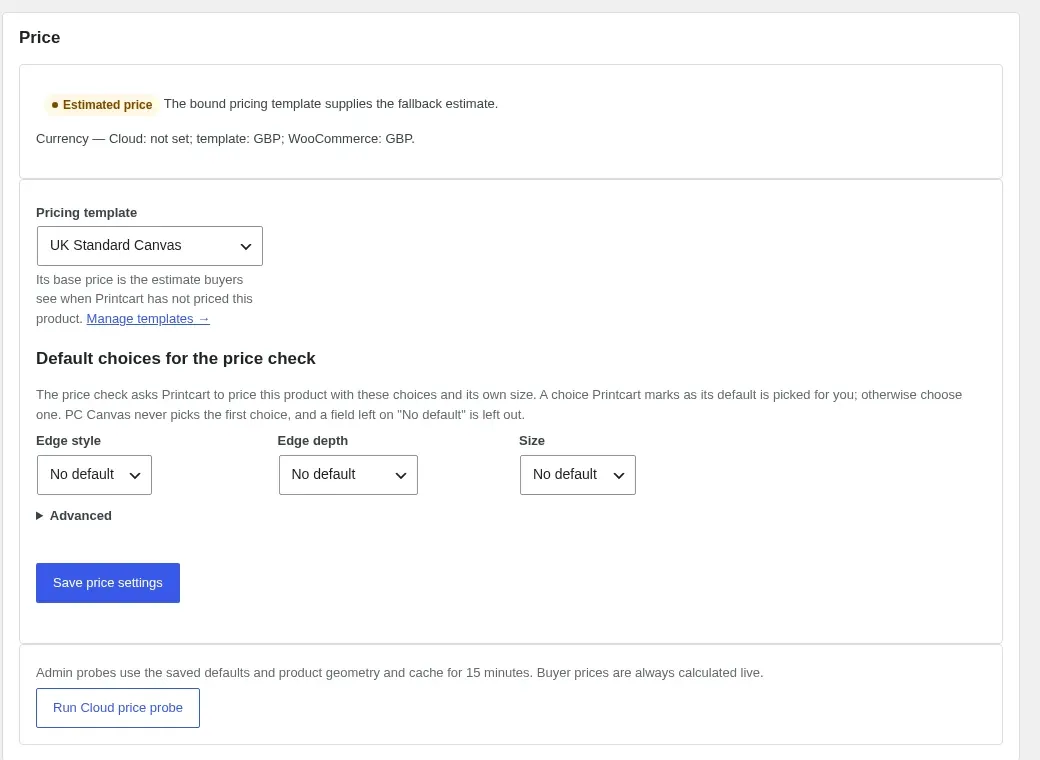
Step 4Choose the pricing template
Under Price, choose the pricing template. Buyers are always priced live by Printcart from their selection; the template's base price is only the estimate shown before a size is chosen. Every selectable size is priced, and a size that is not in your table is refused before Add to cart. Press Save price settings.
Expected result: The price section shows your pricing template and its base price.
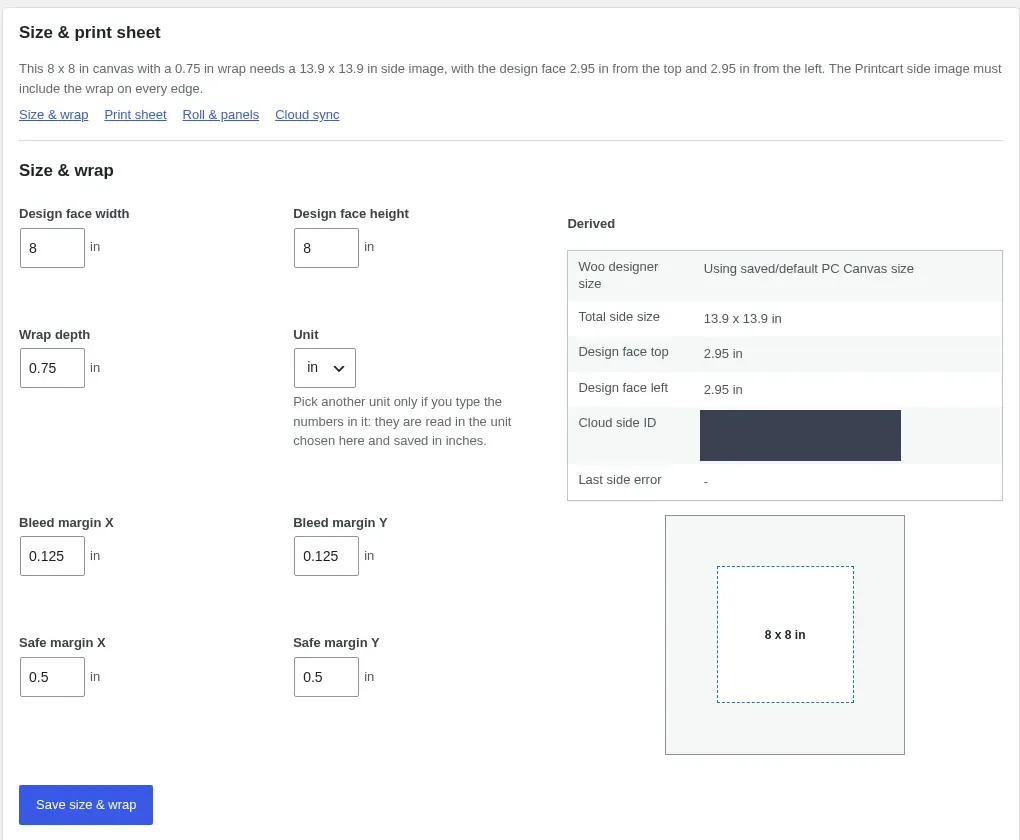
Step 5Set the size and wrap
Under Size & print sheet, enter the design face width and height, the wrap depth and unit, the bleed margin and the safe margin (keep faces and text inside it). Press Save size & wrap. Size limits apply to the finished face, so a size beyond your limit is never offered, in either orientation.
Expected result: A to-scale preview of the face and the derived sheet size appear.
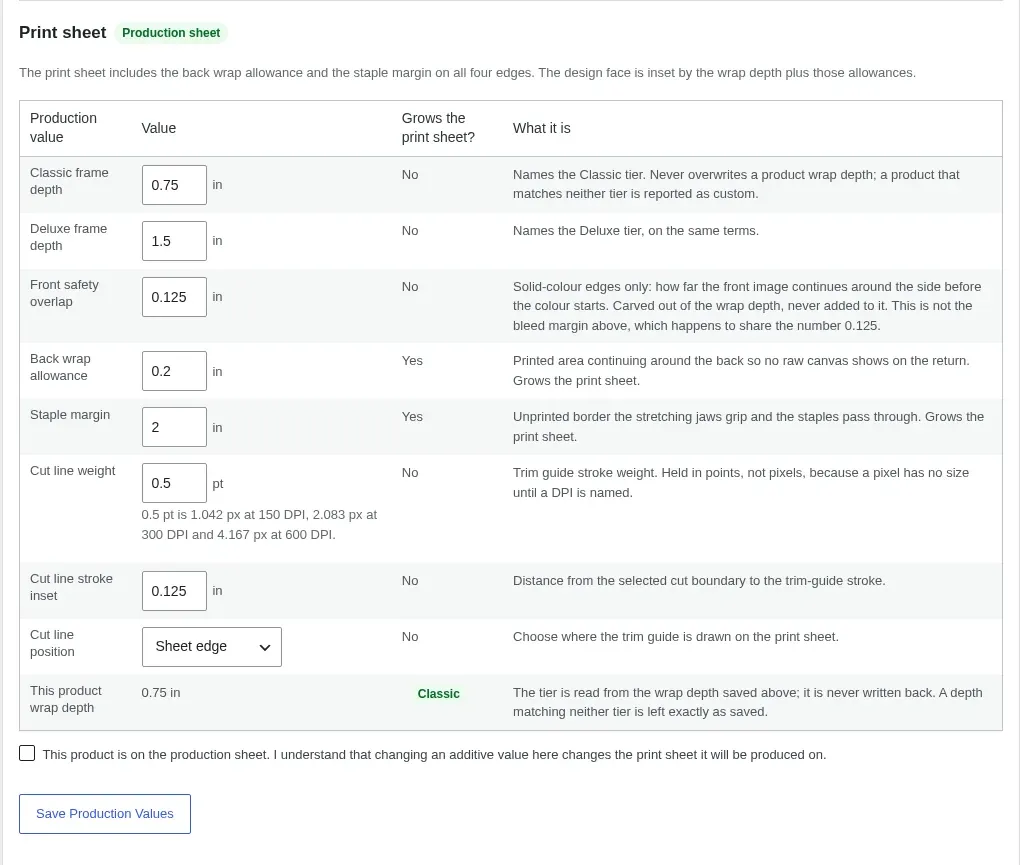
Step 6Set the print sheet production values
Name the two frame depths (for example Classic 0.75 in and Deluxe 1.5 in) and set the back-wrap allowance and the staple margin. The sheet is built face, frame depth, back wrap, then staple margin, with the cut line just inside the outer edge. For an 8 × 8 in canvas at 0.75 in with a 0.2 in back wrap and a 2 in staple margin, the sheet is 8 + 2 × (0.75 + 0.2 + 2) = 13.9 in square. Tick the confirmation and press Save Production Values.
Expected result: Each value is explained next to its field, and the sheet size updates.
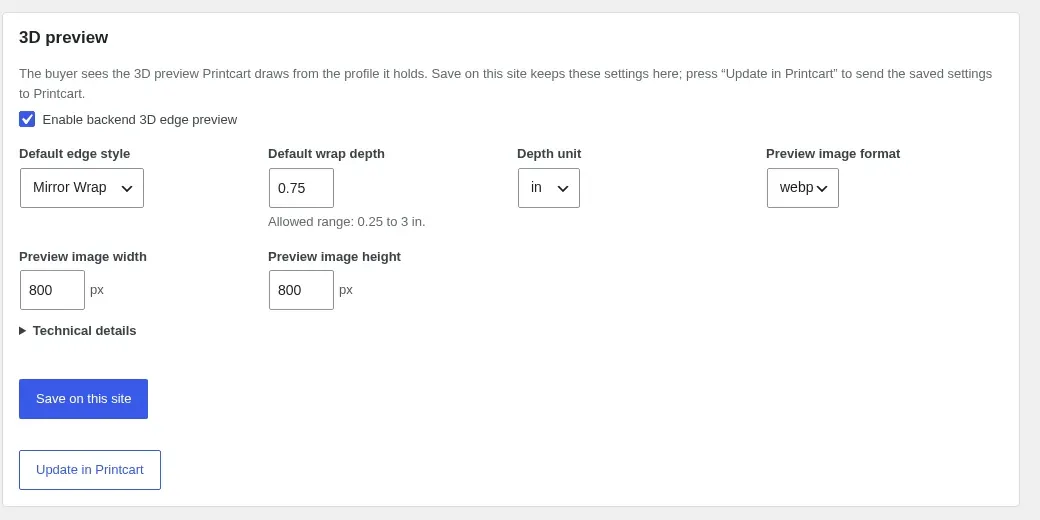
Step 7Set up the 3D preview
Under 3D preview, keep Enable backend 3D edge preview ticked, choose the default edge style and wrap depth, and press Save on this site, then Update in Printcart. The preview is drawn from the profile Printcart holds, so both are needed.
Expected result: The 3D preview profile is saved on both sides.
Step 8Render a test preview
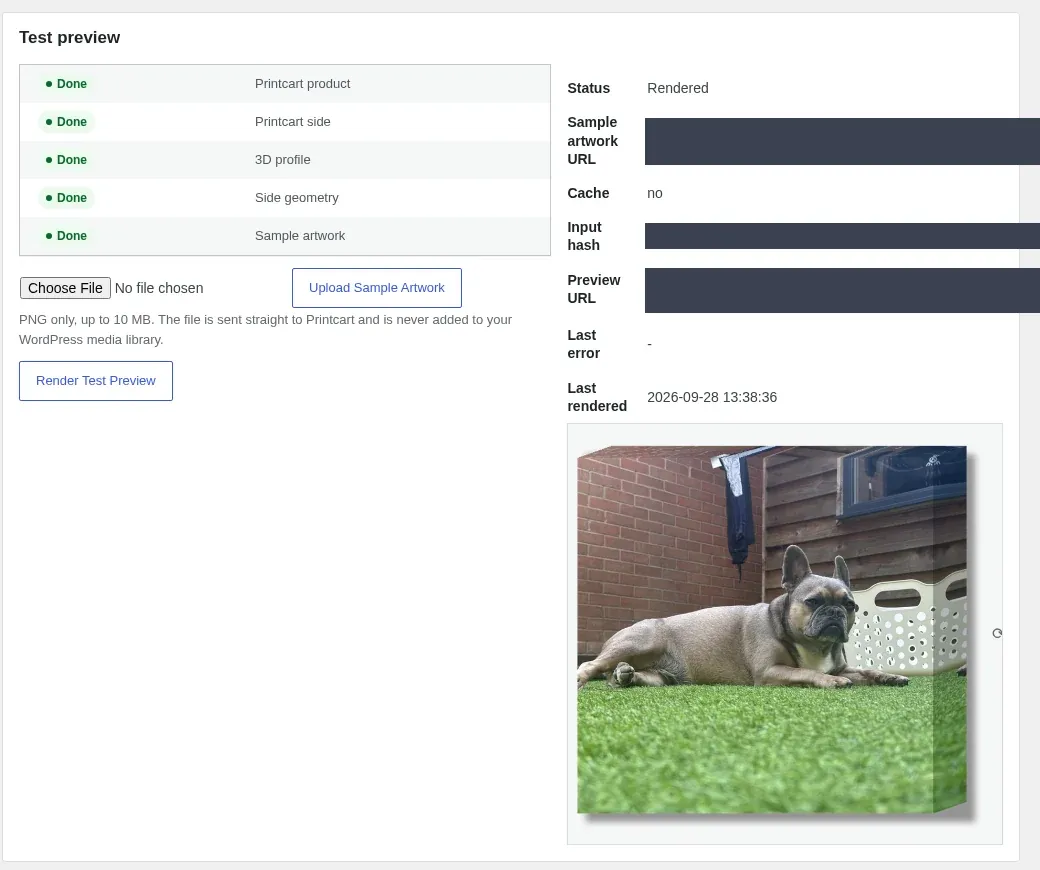
Under Test preview, choose a PNG (up to 10 MB), press Upload Sample Artwork, then Render Test Preview. This proves the preview works end to end before a buyer tries it.
Expected result: The status reads Rendered and the 3D image appears. Buyer app then summarises the face, depths, sizes, edge styles and pricing the designer will receive, and Preview Buyer App opens the designer exactly as a buyer sees it.
Do rotated sizes cost the same?
Yes. Prices come from a table on width, height and depth, and a size and its rotation, such as 20 × 30 and 30 × 20, always return the same price.
How do I know which sheet width my printer needs?
Printcart Canvas calculates the print sheet for every size and depth on top of the finished face. Size & print sheet shows the production sheet next to the buyer-facing size, and the roll limit check stops sizes your printer cannot take.
What happens if a buyer picks a size without a price?
It is refused before Add to cart with the message "This size isn't available — please choose another size", so no canvas is ever sold at the wrong price. Prices are shown with two decimals.
Try Printcart Canvas
Printcart Canvas is free on WordPress.org, from Printcart, the web-to-print platform used by 2000+ stores. Download Printcart Canvas from WordPress.org, or try the live demo as a buyer.
What should you do next?
- Offer edge styles, frame depths and Black & White or Sepia
- Add optional extras: retouching, hanging hardware and back finish
- Browse all Printcart tutorials
Stuck on a step? Email [email protected] with a screenshot of the screen you are on, or a support bundle from PC Canvas > Diagnostics; it contains no credentials.
Printcart field note
What to verify before you roll out Set Up Canvas Print Sizes, Prices and the Print Sheet in WooCommerce
This tutorial is written from Printcart implementation patterns across file quality, proofing, and production risk. Before treating it as complete, test the workflow with one real product, one real design file, and one real order path.
Set Up Canvas Print Sizes, Prices and the Print Sheet in WooCommerce — common questions
What do you need before you start?
The screenshots come from a demonstration WooCommerce store running Printcart Canvas 4.5.9 with the UK Standard Canvas template. Store credentials and internal identifiers are masked. Want to see it first? Open the live demo store and press Design your canvas .
Do rotated sizes cost the same?
Yes. Prices come from a table on width, height and depth, and a size and its rotation, such as 20 × 30 and 30 × 20, always return the same price.
How do I know which sheet width my printer needs?
Printcart Canvas calculates the print sheet for every size and depth on top of the finished face. Size & print sheet shows the production sheet next to the buyer-facing size, and the roll limit check stops sizes your printer cannot take.
What happens if a buyer picks a size without a price?
It is refused before Add to cart with the message "This size isn't available — please choose another size", so no canvas is ever sold at the wrong price. Prices are shown with two decimals.
Next steps in Printcart
Connect set up canvas print sizes, prices and the print sheet in woocommerce with catalog setup, templates, production workflows, and implementation support.
Want to put set up canvas print sizes, prices and the print sheet in woocommerce into practice?
Use the related Printcart tool below, or create a free account to start building with the product designer.