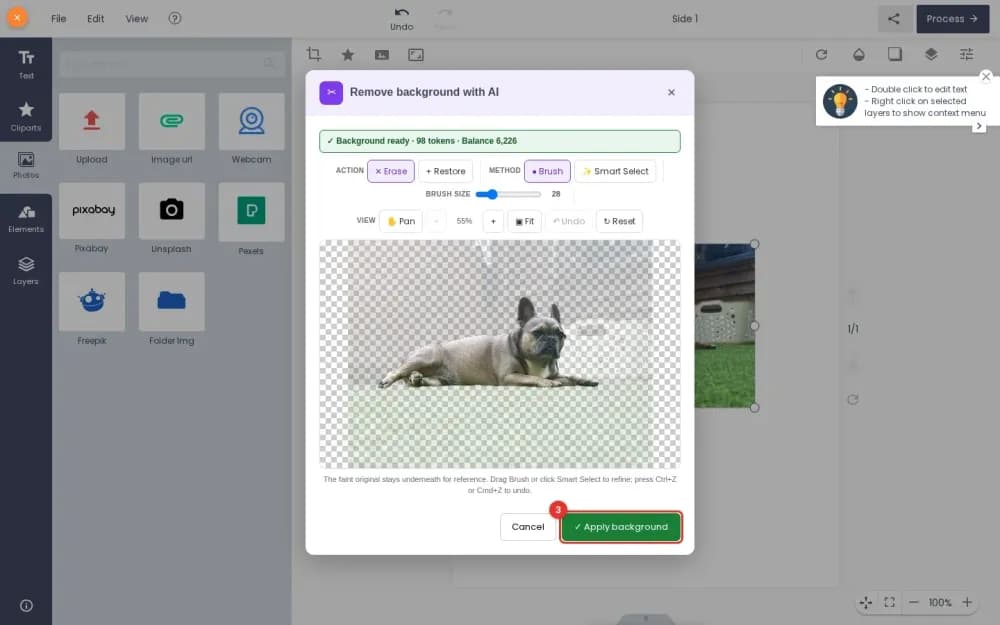
To personalize products at scale, control the design with reusable templates, a curated clipart library, and defined customer input fields — text, images, and choices — instead of free-form editing. This keeps every order on-brand and print-ready, lets you launch many personalized products fast, and prevents the artwork problems that free editing creates.
Key takeaways
Why does free-form editing fail at scale?
Letting customers edit anything feels flexible but breaks at scale: designs go off-brand, text overflows print areas, low-resolution uploads slip through, and every order becomes a manual proof. Personalization works better as a guided experience — the store defines what can change and how, and the customer fills in the parts that make it theirs. That is the difference between a store with three custom products and one with three hundred.
Controlled personalization also converts better, because a clear "add your name / photo / message" flow is easier than a blank canvas.
What are the building blocks of scalable personalization?
Templates
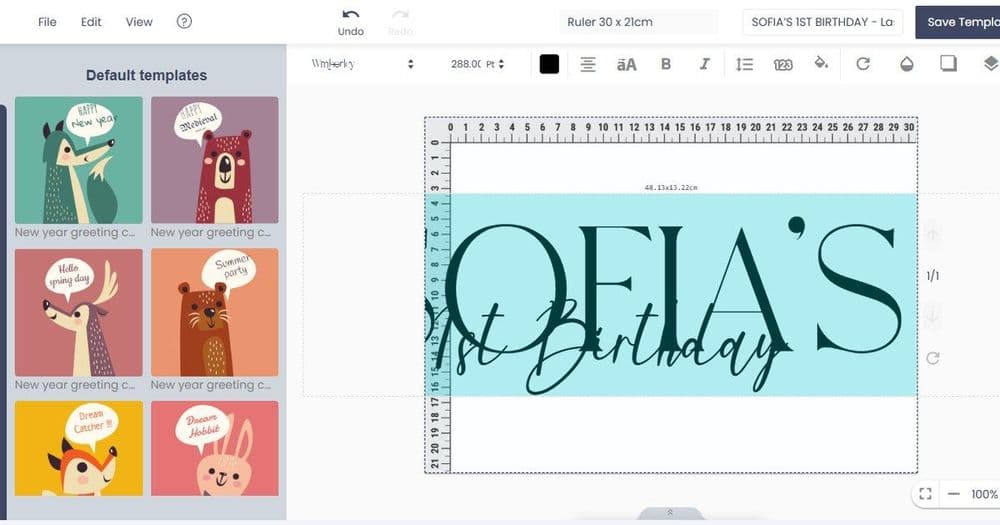
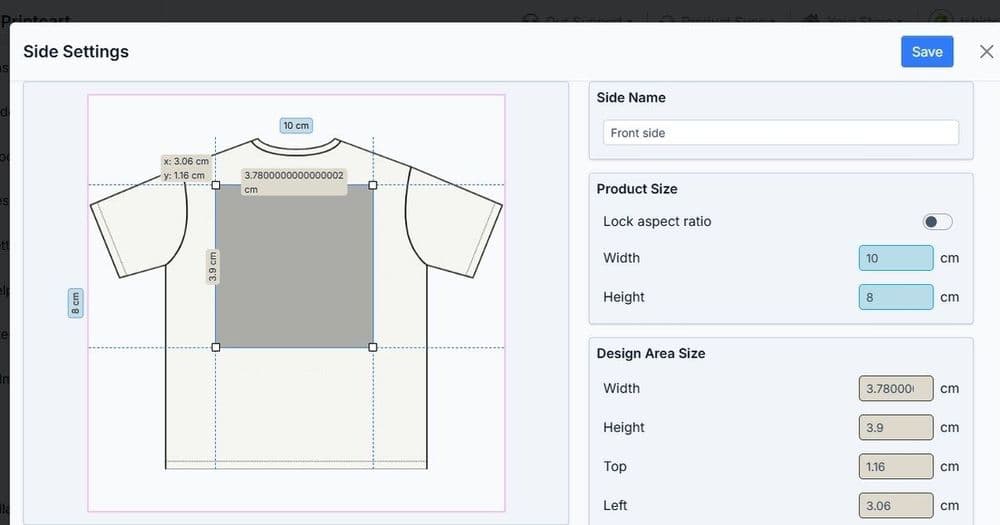
A template is a pre-built design with fixed layout and brand elements plus defined editable zones. Build one template per product and reuse it, so launching a new personalized product is configuration, not design from scratch.
Clipart and asset library
Give customers a curated set of cliparts, icons, and graphics rather than open image search. A controlled library keeps designs consistent, print-ready, and legally safe.
Customer input fields
Define exactly what the customer provides: text fields (name, date, message), image uploads (with minimum resolution), and choices (color, style, variant). Each field has rules, so inputs stay within the print area and quality bar.
How should you set up input fields for each product?
| Input type | Use for | Rule to set |
|---|---|---|
| Text field | Name, date, short message | Max length, font, fit to area |
| Image upload | Photo, logo | Minimum resolution, crop to frame |
| Clipart pick | Icons, themed graphics | Curated set only |
| Choice / variant | Color, size, style | Allowed options only |
How do you keep personalized orders print-ready?
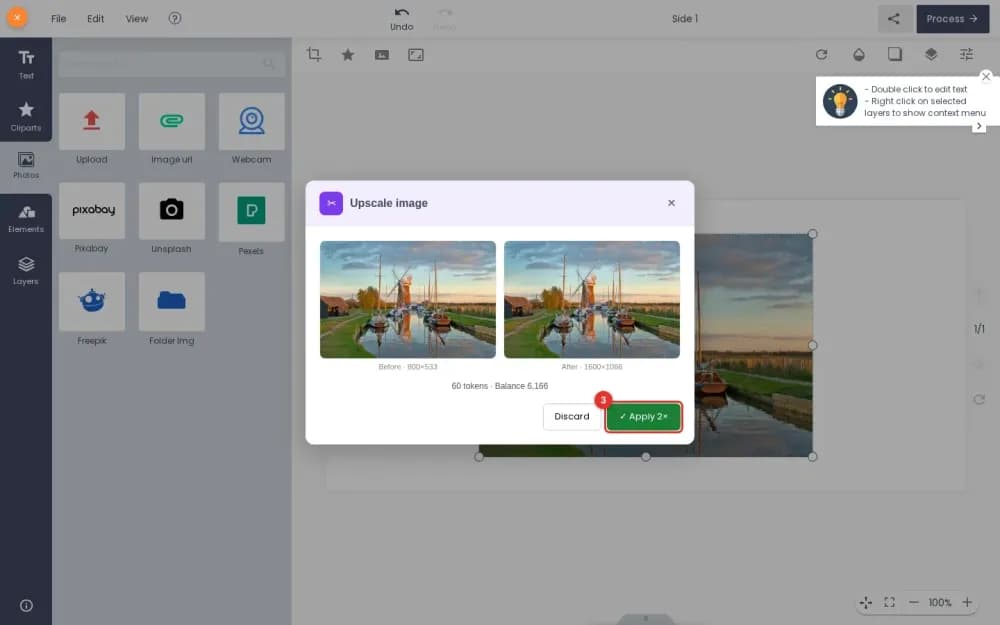
Constrain inputs at the source: cap text length so it fits, enforce a minimum upload resolution, and lock everything outside the editable zones. Show an accurate preview so the customer approves what will actually print. For uploads that come in low-resolution, an AI-assisted image upscale can help, and a preflight check flags remaining issues before production.
What mistakes break personalization at scale?
The usual failures are open editing that produces off-brand or broken layouts, unlimited image uploads with no resolution floor, and no live preview so customers are surprised by the printed result. Define the editable zones tightly, set input rules, and always show a true preview before checkout.
How does Printcart support personalization at scale?
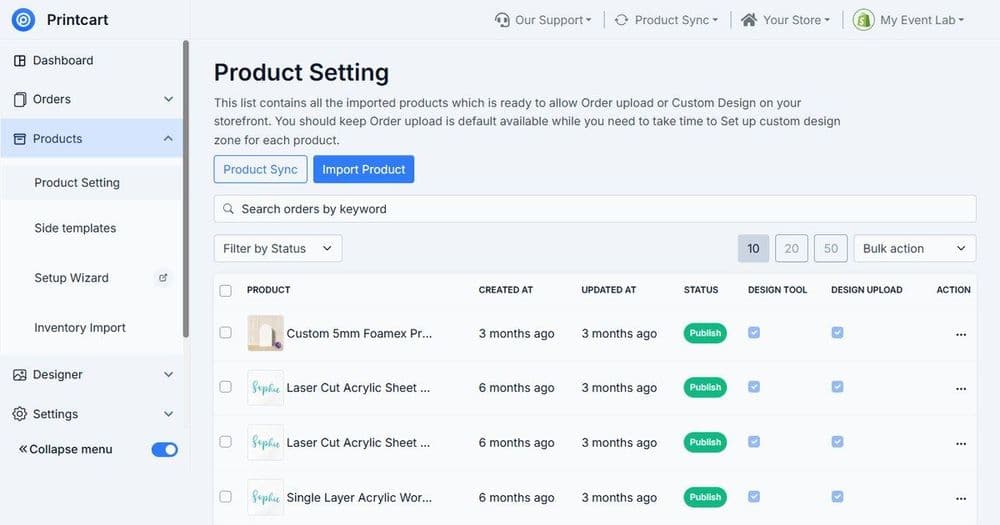
Printcart's product designer lets you build reusable templates, a curated clipart library, and rule-based customer input fields, so you can launch many personalized products that stay on-brand and print-ready. See the product personalizer setup service and the guide on customizing personalized gifts, and browse Printcart templates to start faster.
Personalization setup checklist
- One reusable template per product with defined editable zones
- Curated clipart / asset library instead of open uploads
- Input fields with rules: text length, upload resolution, allowed choices
- Accurate live preview before checkout
- Preflight / upscale to keep personalized orders print-ready
Ready to scale personalized products? Create a free Printcart account to set up templates and input fields, or talk to the Printcart team for product designer setup.
Printcart field note
What to verify before you roll out Personalization at Scale: Templates, Cliparts, and Customer Input Fields
This tutorial is written from Printcart implementation patterns across file quality, proofing, and production risk. Before treating it as complete, test the workflow with one real product, one real design file, and one real order path.
Personalization at Scale: Templates, Cliparts, and Customer Input Fields — common questions
Why does free-form editing fail at scale?
Letting customers edit anything feels flexible but breaks at scale: designs go off-brand, text overflows print areas, low-resolution uploads slip through, and every order becomes a manual proof. Personalization works better as a guided experience — the store defines what can change and how, and the customer fills in the parts that make it theirs. That is the difference between a store with three custom products and...
How do you keep personalized orders print-ready?
Constrain inputs at the source: cap text length so it fits, enforce a minimum upload resolution, and lock everything outside the editable zones. Show an accurate preview so the customer approves what will actually print. For uploads that come in low-resolution, an AI-assisted image upscale can help, and a preflight check flags remaining issues before production.
What mistakes break personalization at scale?
The usual failures are open editing that produces off-brand or broken layouts, unlimited image uploads with no resolution floor, and no live preview so customers are surprised by the printed result. Define the editable zones tightly, set input rules, and always show a true preview before checkout.
How does Printcart support personalization at scale?
Printcart's product designer lets you build reusable templates, a curated clipart library, and rule-based customer input fields, so you can launch many personalized products that stay on-brand and print-ready. See the product personalizer setup service and the guide on customizing personalized gifts , and browse Printcart templates to start faster.
Next steps in Printcart
Connect personalization at scale: templates, cliparts, and customer input fields with catalog setup, templates, production workflows, and implementation support.
Want to put personalization at scale: templates, cliparts, and customer input fields into practice?
Use the related Printcart tool below, or create a free account to start building with the product designer.