A starter photo makes the Printcart Canvas designer open with a picture already on the canvas, so buyers see a finished-looking canvas instead of an empty one; they keep it or replace it with their own. Photo layouts decide which arrangements buyers can pick: 1 photo, 2 photos, 3 photos or Photo with title. Both are set per product under Product Setup >...
Key takeaways
What do you need before you start?
- Printcart Canvas installed and connected (see Install Printcart Canvas and connect your store).
- A canvas product that is Ready in Product Setup.
The screenshots come from a demonstration WooCommerce store running Printcart Canvas 4.5.9 with the UK Standard Canvas template. Store credentials and internal identifiers are masked. Want to see it first? Open the live demo store and press Design your canvas.
How do you set a starter photo and photo layouts?
Step 1Choose the starter photo
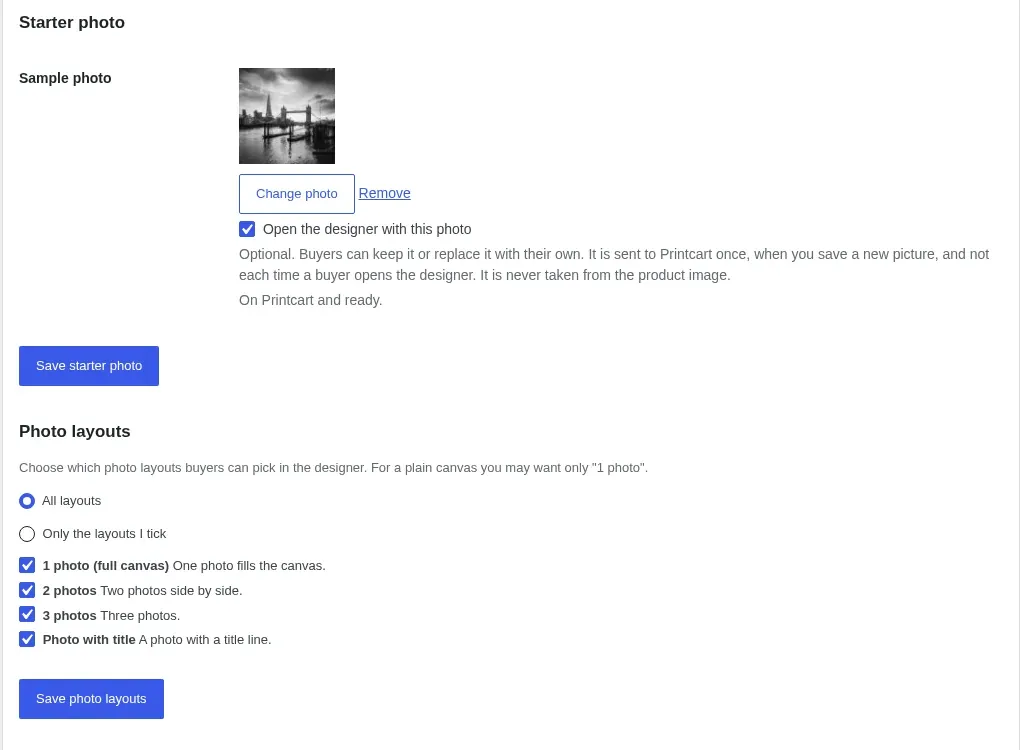
In Product Setup > Link to Printcart > Starter photo, press Change photo and choose a picture from the media library. Leave Open the designer with this photo ticked and press Save starter photo. The picture is sent to Printcart once, when you save it, not each time a buyer opens the designer. Remove takes it away again.
Expected result: The row reads "On Printcart and ready".
Step 2See what buyers see
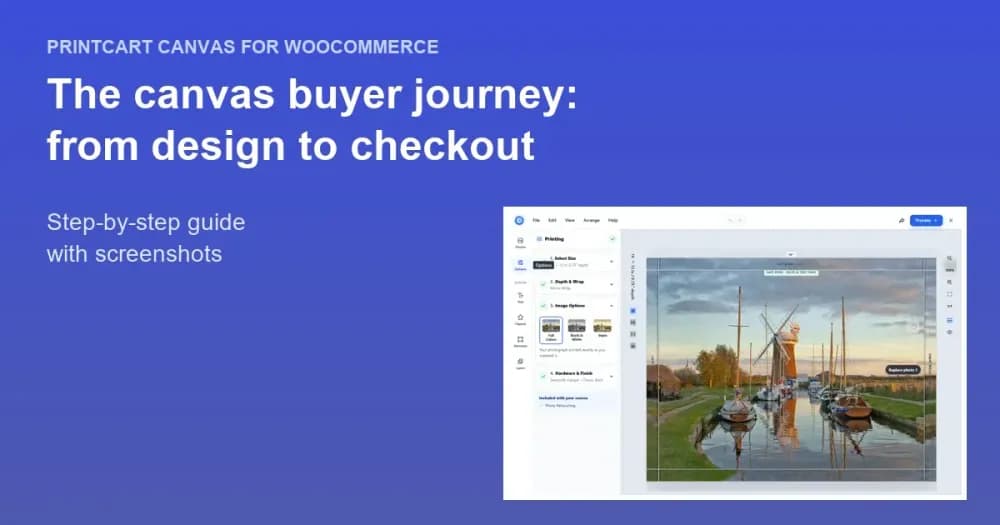
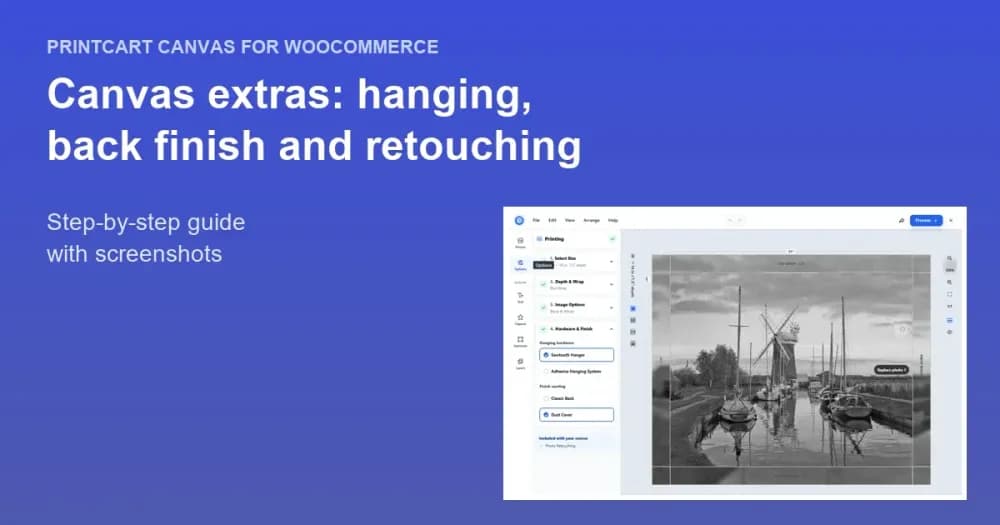
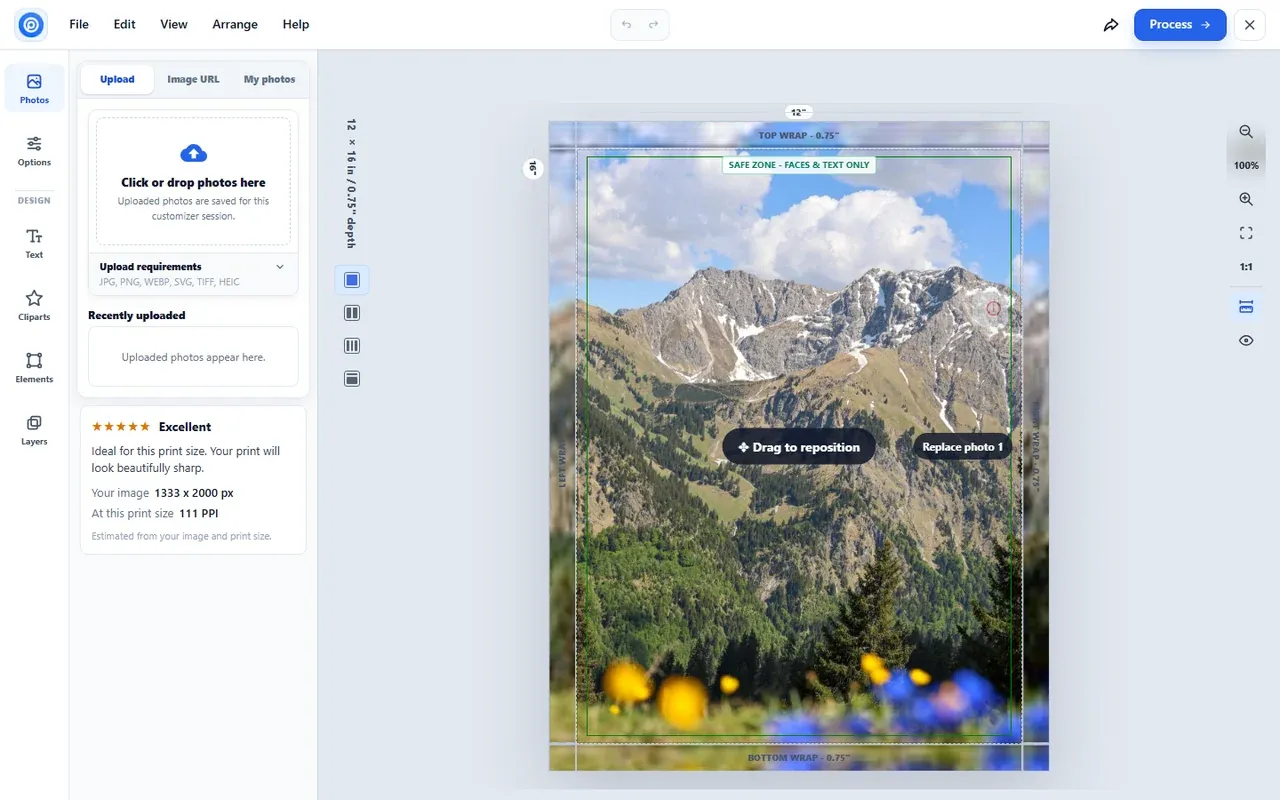
Open the product page and press Design your canvas. The designer opens with the starter photo placed on the face and wrapped round the sides, together with its quality rating. The buyer can drag it to reposition it or press Replace photo to use their own.
Expected result: The canvas looks finished from the first second.
Step 3Choose the photo layouts
In the same section, under Photo layouts, choose Only the layouts I tick, tick the layouts you want and press Save photo layouts. By default every layout is offered. If you allow only one layout, the layout picker is hidden from buyers, which suits a plain single-photo canvas.
Expected result: The designer offers only the layouts you ticked.
Step 4Buyers pick a layout
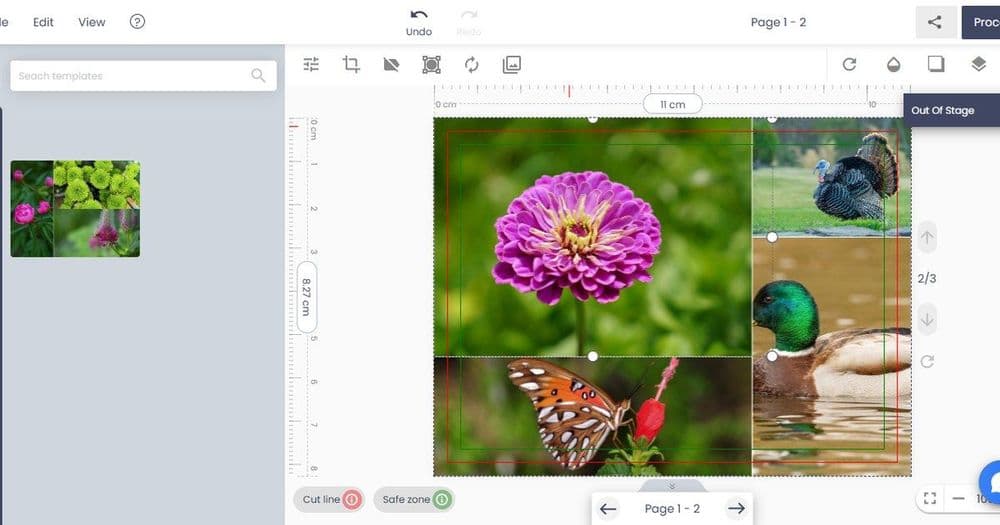
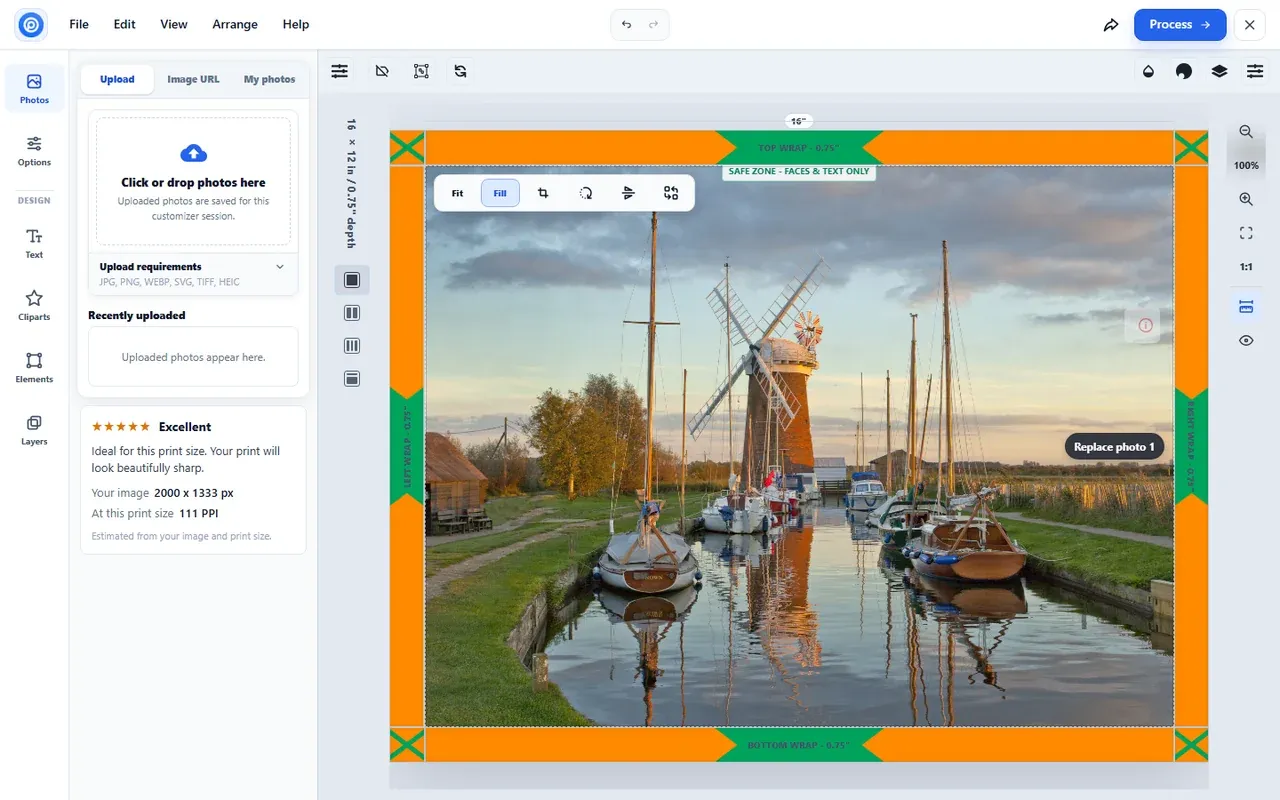
In the designer, the narrow bar beside the canvas picks a photo layout. Next to it, the photo toolbar offers Fit, Fill, crop and rotate.
Expected result: Each layout cell can hold its own photo.
Is the starter photo taken from the product image?
No. It is a separate picture you choose, so your product gallery can show room scenes while the designer opens with a clean photo.
Does the starter photo end up in orders?
Only if the buyer keeps it. Most buyers replace it with their own photo; the order always records the design as it was saved.
Try Printcart Canvas
Printcart Canvas is free on WordPress.org, from Printcart, the web-to-print platform used by 2000+ stores. Download Printcart Canvas from WordPress.org, or try the live demo as a buyer.
What should you do next?
- The buyer journey: from design to checkout
- Offer edge styles, frame depths and Black & White or Sepia
- Browse all Printcart tutorials
Stuck on a step? Email [email protected] with a screenshot of the screen you are on, or a support bundle from PC Canvas > Diagnostics; it contains no credentials.
Printcart field note
What to verify before you roll out Use a Starter Photo and Photo Layouts for Canvas Products
This tutorial is written from Printcart implementation patterns across catalog structure, design controls, and customer personalization. Before treating it as complete, test the workflow with one real product, one real design file, and one real order path.
Use a Starter Photo and Photo Layouts for Canvas Products — common questions
What do you need before you start?
The screenshots come from a demonstration WooCommerce store running Printcart Canvas 4.5.9 with the UK Standard Canvas template. Store credentials and internal identifiers are masked. Want to see it first? Open the live demo store and press Design your canvas .
Is the starter photo taken from the product image?
No. It is a separate picture you choose, so your product gallery can show room scenes while the designer opens with a clean photo.
Does the starter photo end up in orders?
Only if the buyer keeps it. Most buyers replace it with their own photo; the order always records the design as it was saved.
What should you do next?
Stuck on a step? Email [email protected] with a screenshot of the screen you are on, or a support bundle from PC Canvas > Diagnostics ; it contains no credentials.
Next steps in Printcart
Connect use a starter photo and photo layouts for canvas products with catalog setup, templates, production workflows, and implementation support.
Want to put use a starter photo and photo layouts for canvas products into practice?
Use the related Printcart tool below, or create a free account to start building with the product designer.