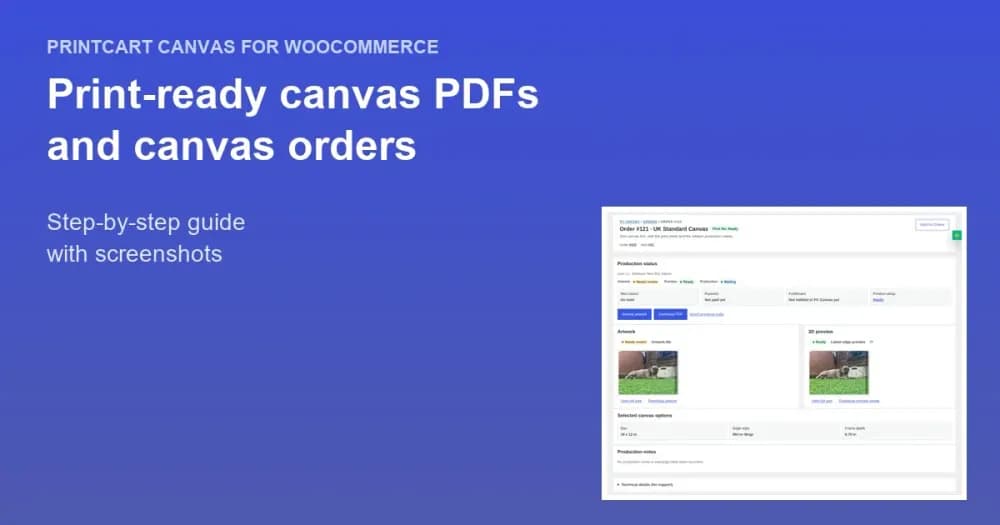
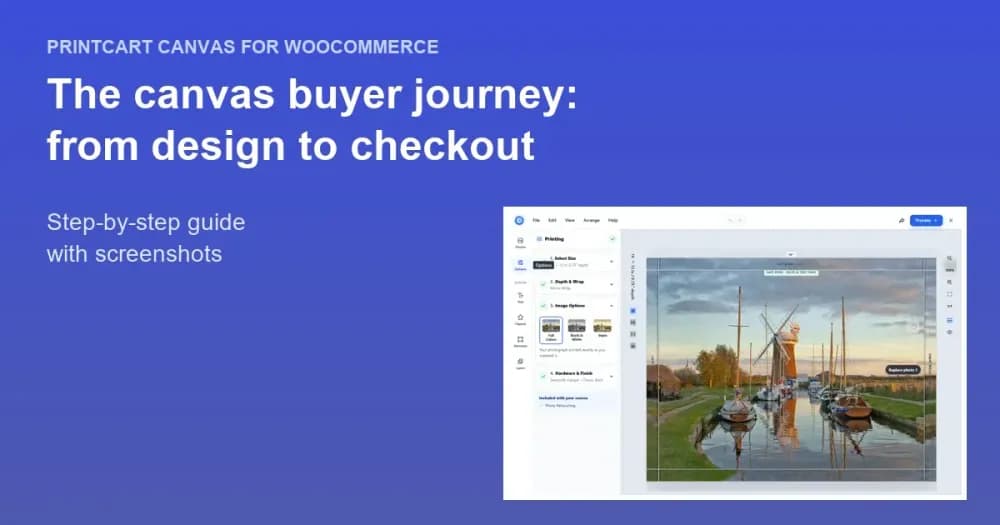
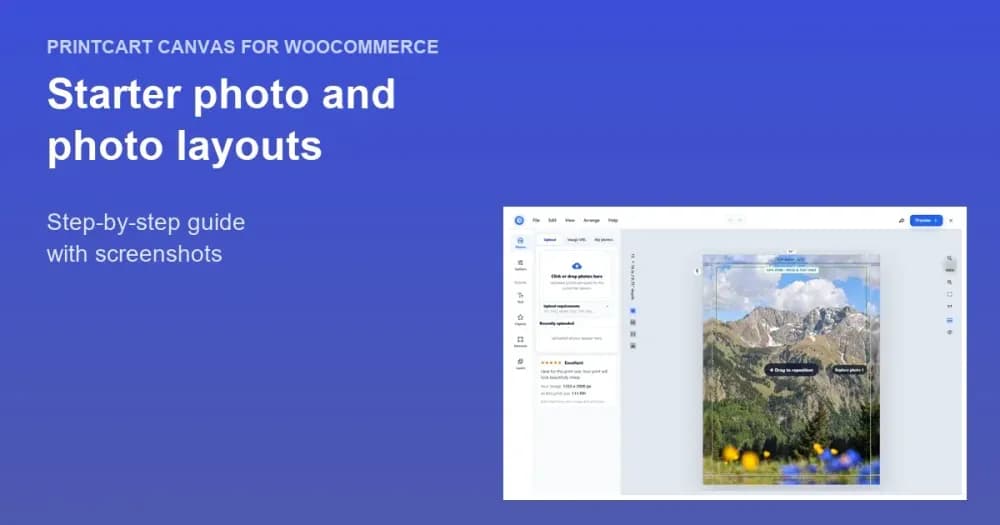
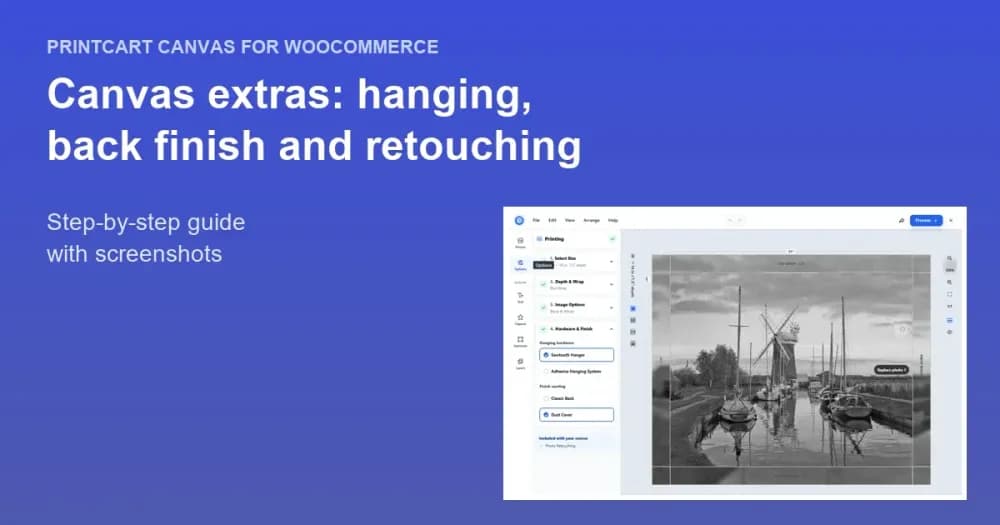
The fastest way to start selling canvas prints is the Template Library in PC Canvas > Templates . Importing the UK Standard Canvas template creates, in one step, a WooCommerce product, the matching Printcart product and printing option, the pricing template and the canvas template, already linked. You see a plain-language preview of what will change...
Key takeaways
What do you need before you start?
- Printcart Canvas installed and connected (see Install Printcart Canvas and connect your store).
The screenshots come from a demonstration WooCommerce store running Printcart Canvas 4.5.9 with the UK Standard Canvas template. Store credentials and internal identifiers are masked. Want to see it first? Open the live demo store and press Design your canvas.
How do you import the UK Standard Canvas template?
Step 1Open the Template Library
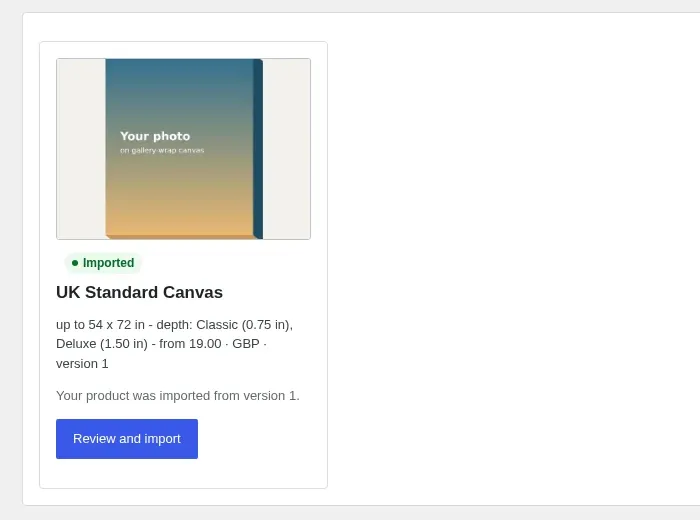
Go to PC Canvas > Templates. Each ready-made canvas product shows a cover, a summary of sizes, depths and price, and its version. Find UK Standard Canvas and press Review and import.
Expected result: The template card shows its size range (up to 54 × 72 in), the Classic 0.75 in and Deluxe 1.5 in depths and the starting price.
Step 2Read the import preview
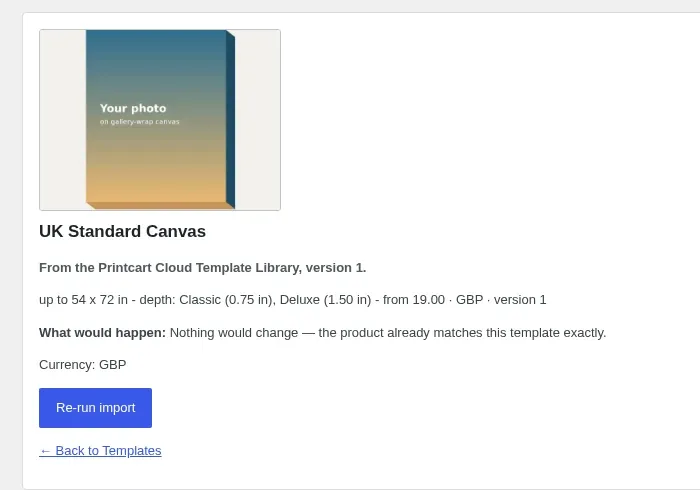
The preview says in plain words what would be created or changed. On a fresh store it lists the new product; if your product already matches, it reads Nothing would change. Nothing is saved until you confirm.
Expected result: You can see exactly what the import will do before you commit.
Step 3Confirm the import
Confirm. The import creates a WooCommerce product UK Standard Canvas with a £19 base price; the Printcart product, print side and printing option (popular sizes plus a custom size, Classic and Deluxe frame depths, four edge styles, Colour / Black & White / Sepia, and optional retouching, hanging hardware and back finish); and the pricing and canvas templates that link them. If a step is interrupted, for example by a network error, run the import again: it carries on where it stopped and never overwrites a setting you changed without asking.
Expected result: The template card is marked Imported.
Step 4Review the new product
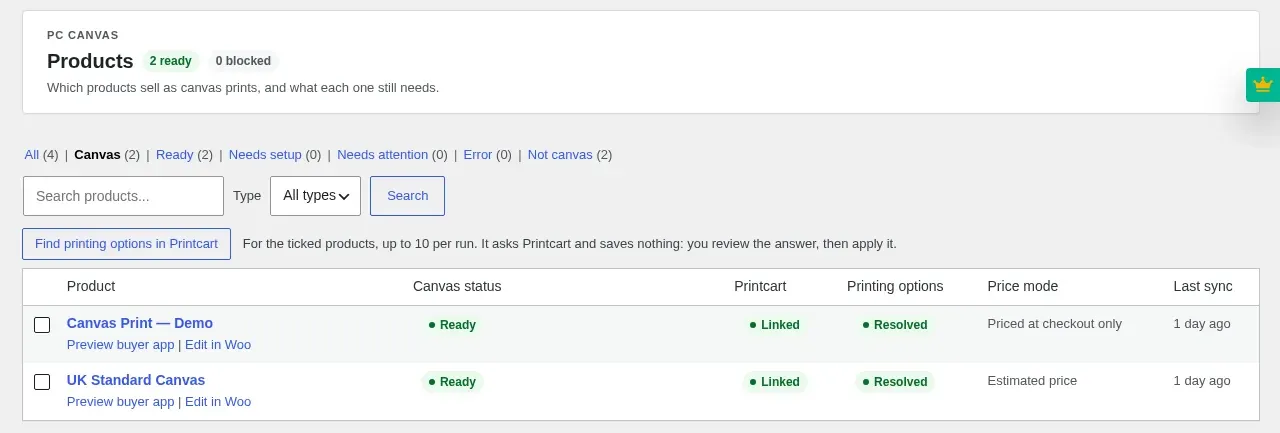
Open PC Canvas > Products. The new product is listed with its canvas status, Printcart link and printing-option status.
Expected result: The product reads Ready, Linked and Resolved.
Step 5Check readiness in Product Setup
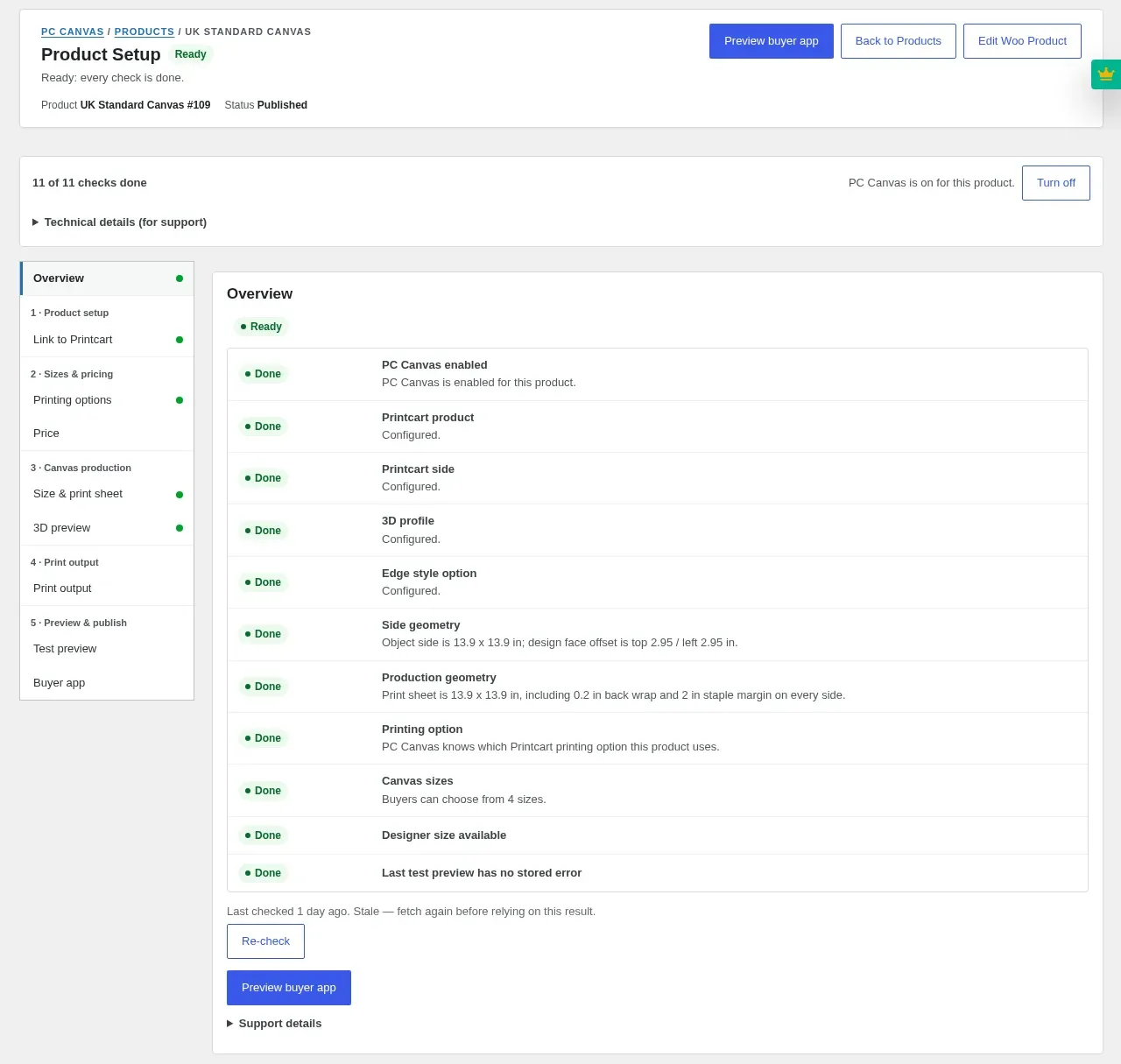
Choose the product to open Product Setup. The Overview lists every readiness check. A product is only offered to buyers when every check is Done, so a half-configured product never reaches them.
Expected result: The header reads Ready and the progress line shows every check done. Open the product page: buyers now see Design your canvas.
Can I change the sizes and prices after importing?
Yes. The imported product is an ordinary canvas product. Edit its sizes, depths and prices as described in Set up canvas sizes, prices and the print sheet. Re-running the import never overwrites a setting you changed without asking.
Can I turn an existing WooCommerce product into a canvas instead?
Yes. Create the printing option in your Printcart dashboard (a size field, an edge style field and optionally a depth field), then edit the product and press Product Setup in the PC Canvas box, or choose Continue setup under PC Canvas > Products.
Can I see the result before installing?
Yes. The live demo store runs canvas products built this way. Open one and press Design your canvas to try it as a buyer.
Try Printcart Canvas
Printcart Canvas is free on WordPress.org, from Printcart, the web-to-print platform used by 2000+ stores. Download Printcart Canvas from WordPress.org, or try the live demo as a buyer.
What should you do next?
- Set up canvas sizes, prices and the print sheet
- Offer edge styles, frame depths and Black & White or Sepia
- Browse all Printcart tutorials
Stuck on a step? Email [email protected] with a screenshot of the screen you are on, or a support bundle from PC Canvas > Diagnostics; it contains no credentials.
Printcart field note
What to verify before you roll out Import a Ready-Made Canvas Print Product from the Template Library
This tutorial is written from Printcart implementation patterns across catalog structure, design controls, and customer personalization. Before treating it as complete, test the workflow with one real product, one real design file, and one real order path.
Import a Ready-Made Canvas Print Product from the Template Library — common questions
What do you need before you start?
The screenshots come from a demonstration WooCommerce store running Printcart Canvas 4.5.9 with the UK Standard Canvas template. Store credentials and internal identifiers are masked. Want to see it first? Open the live demo store and press Design your canvas .
Can I change the sizes and prices after importing?
Yes. The imported product is an ordinary canvas product. Edit its sizes, depths and prices as described in Set up canvas sizes, prices and the print sheet . Re-running the import never overwrites a setting you changed without asking.
Can I turn an existing WooCommerce product into a canvas instead?
Yes. Create the printing option in your Printcart dashboard (a size field, an edge style field and optionally a depth field), then edit the product and press Product Setup in the PC Canvas box, or choose Continue setup under PC Canvas > Products .
Can I see the result before installing?
Yes. The live demo store runs canvas products built this way. Open one and press Design your canvas to try it as a buyer.
Next steps in Printcart
Connect import a ready-made canvas print product from the template library with catalog setup, templates, production workflows, and implementation support.
Want to put import a ready-made canvas print product from the template library into practice?
Use the related Printcart tool below, or create a free account to start building with the product designer.