Printcart Store is free to install from WordPress.org. The free plan gives you the online product designer, templates and cliparts for up to 5 designable products, and every guide in Parts 1 to 6 works without a Printcart account. Connecting your store adds print-ready PDF output made in the Printcart cloud, the AI print tools and order sync to the...
Key takeaways
Part 7 of 8 in the Printcart Store for WordPress plugin page tutorial series. Previous: Part 6, Manage print orders: review designs, track status and ship. Next: Part 8, Troubleshooting common problems.
What do you need before you start?
- Printcart Store installed (Part 1) and administrator access.
- A few minutes. Nothing in this guide changes your shop.
The screenshots come from a test shop that is not connected to a Printcart account, so they show the Not connected state. We did not click Connect now, because it creates a real Printcart account. The wording for connected stores comes from the plugin itself.
How do you see your plan and decide whether to connect?
Step 1Open the Connect screen
In WordPress open Printcart Store > Connect, in the Settings & system group of the menu. Once a store is connected, this menu item reads Printcart Account.
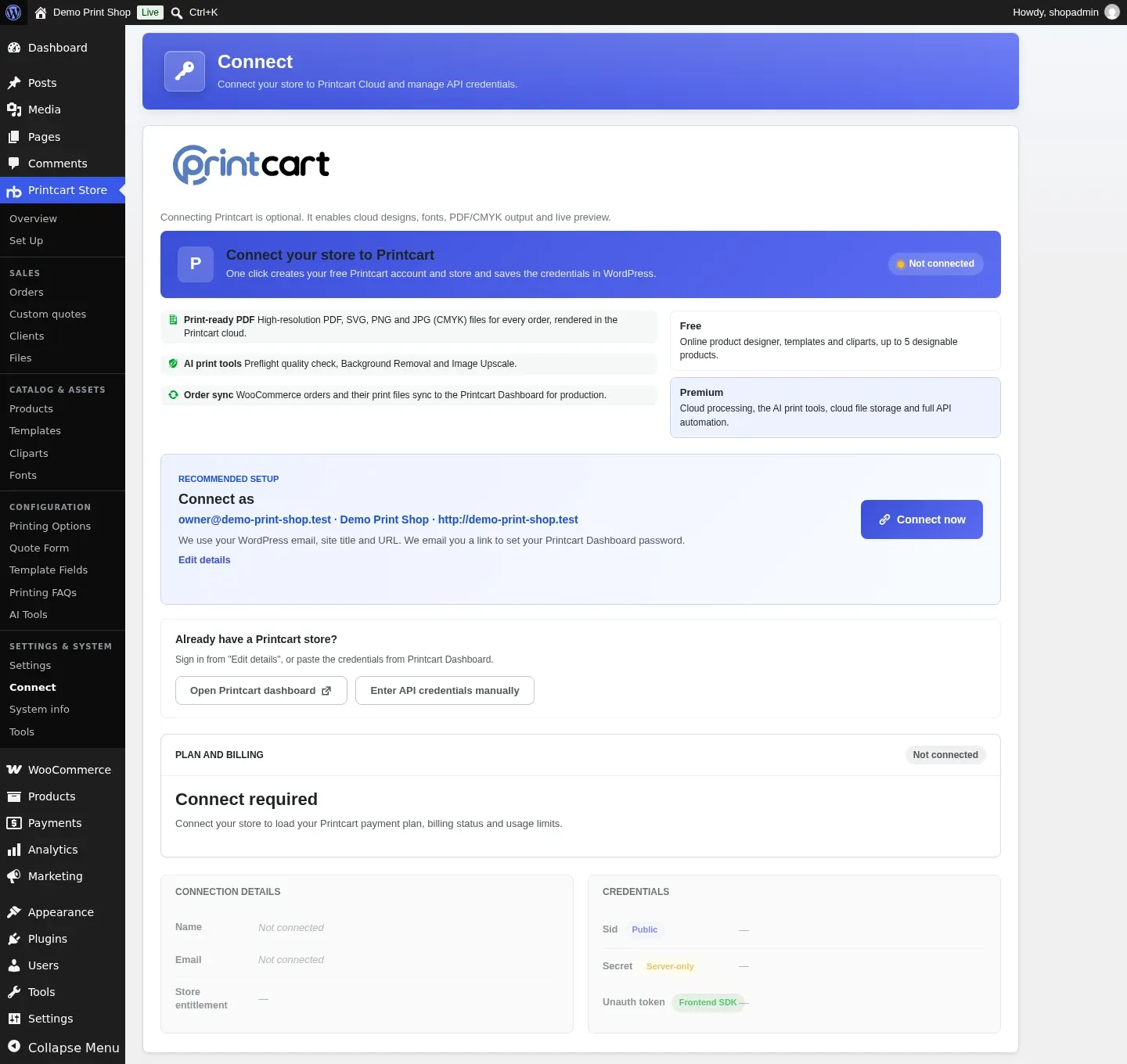
Expected result: A blue banner reads Connect your store to Printcart and a Not connected badge shows the current state.
Step 2Compare Free and Premium
On the left, three lines say what connecting unlocks: Print-ready PDF (high-resolution PDF, SVG, PNG and JPG in CMYK, made in the Printcart cloud), AI print tools (preflight quality check, background removal and image upscale) and Order sync (WooCommerce orders and their print files go to the Printcart Dashboard for production). On the right two cards compare the plans. Free is the online product designer, templates and cliparts, for up to 5 designable products. Premium is cloud processing, the AI print tools, cloud file storage and full API automation.
Expected result: You can tell which features need a connection before you decide.
Step 3Choose how to connect, or stay unconnected
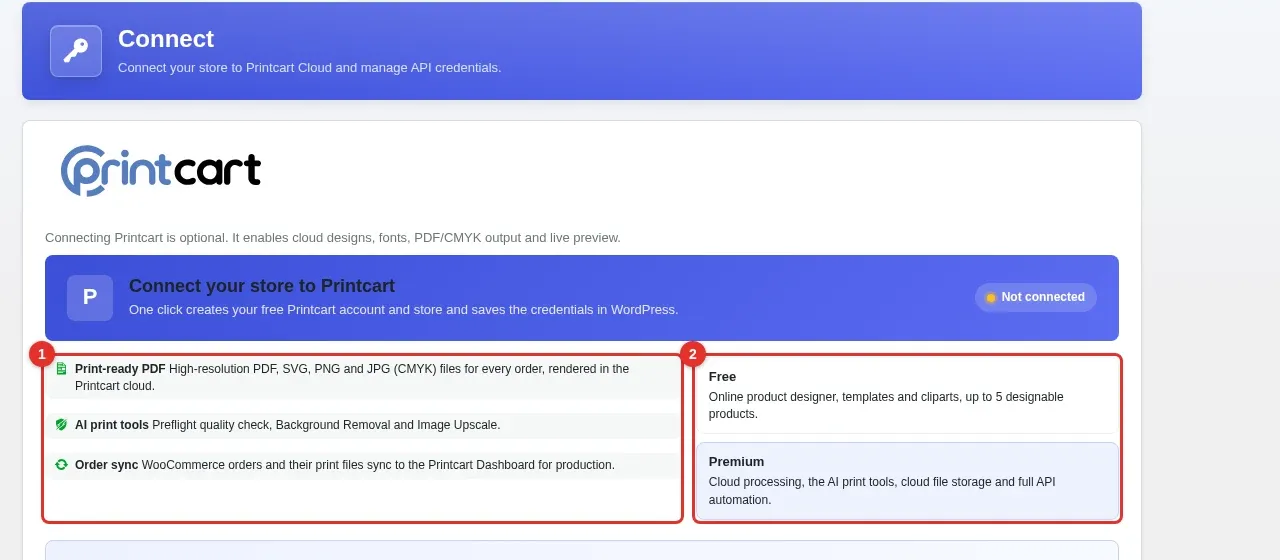
You have three ways. Connect now uses your WordPress email, site title and URL to create a free Printcart account and store, saves the keys in WordPress and emails you a link to set your Dashboard password. Edit details lets you change what is sent first. If you already have a Printcart store, use Open Printcart dashboard or Enter API credentials manually. Printcart only connects stores served over HTTPS. The step-by-step version is in How to connect your store to Printcart.
Expected result: Nothing changes until you press Connect now or save credentials. Parts 1 to 6 keep working either way.
Step 4Watch the free plan limit
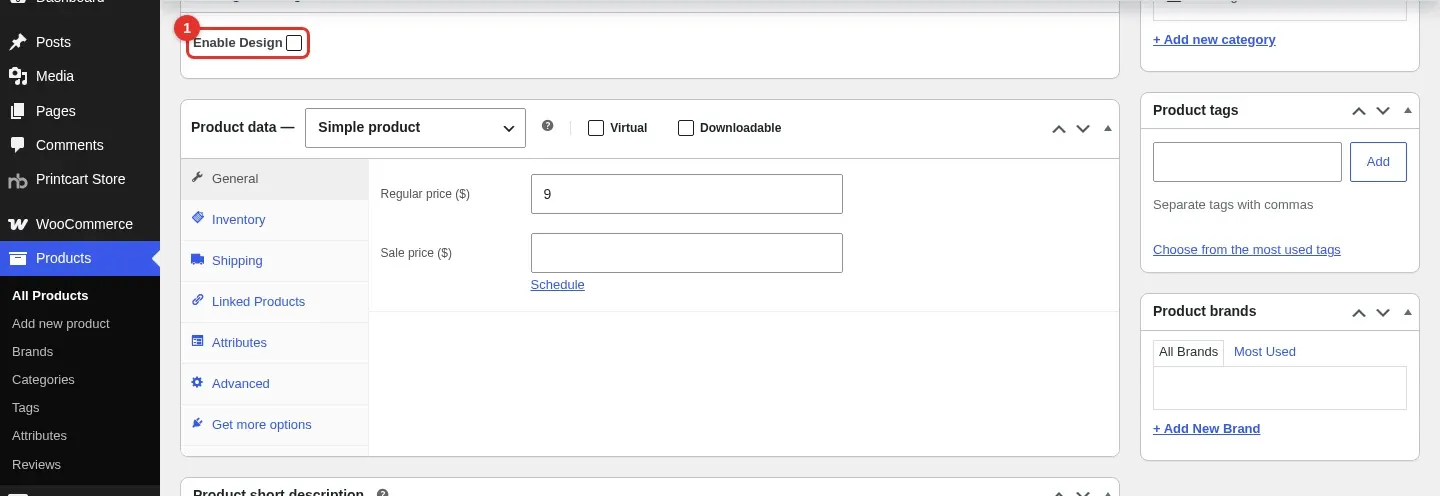
The free plan allows 5 designable products, which means products with Enable Design ticked. Once the store is connected, the plugin counts them and shows a reminder on the Products list and on the product edit screen when you pass 80 percent of the limit and again when you reach it, each with an Upgrade to Premium button. At the limit the message reads You have reached your plan limit of 5 designable products. New products cannot enable the online designer until you upgrade. We could not reach this limit in our unconnected test shop, so those messages are quoted from the plugin, not from a screenshot.
Expected result: You know the number to watch: 5 designable products on the free plan.
Step 5Upgrade in the Printcart Dashboard
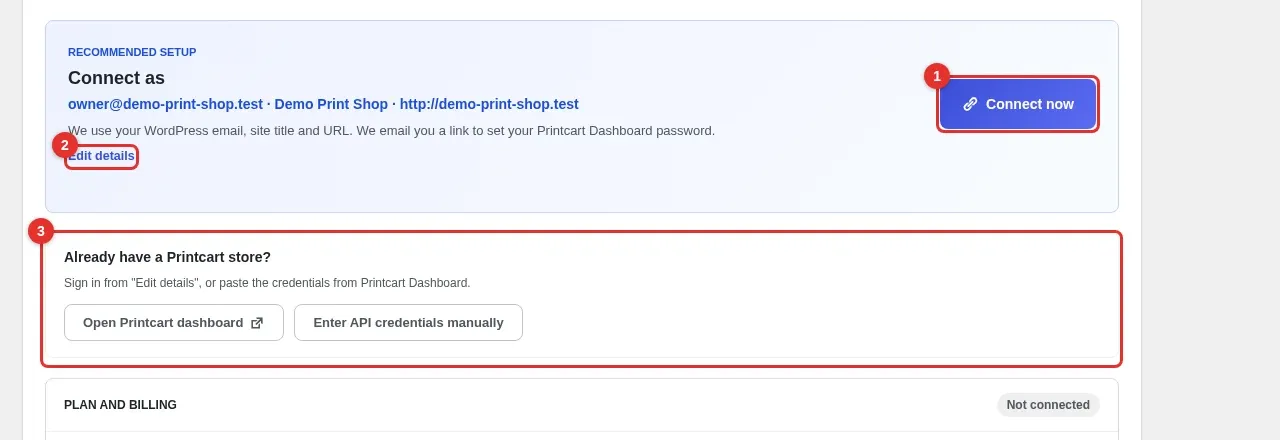
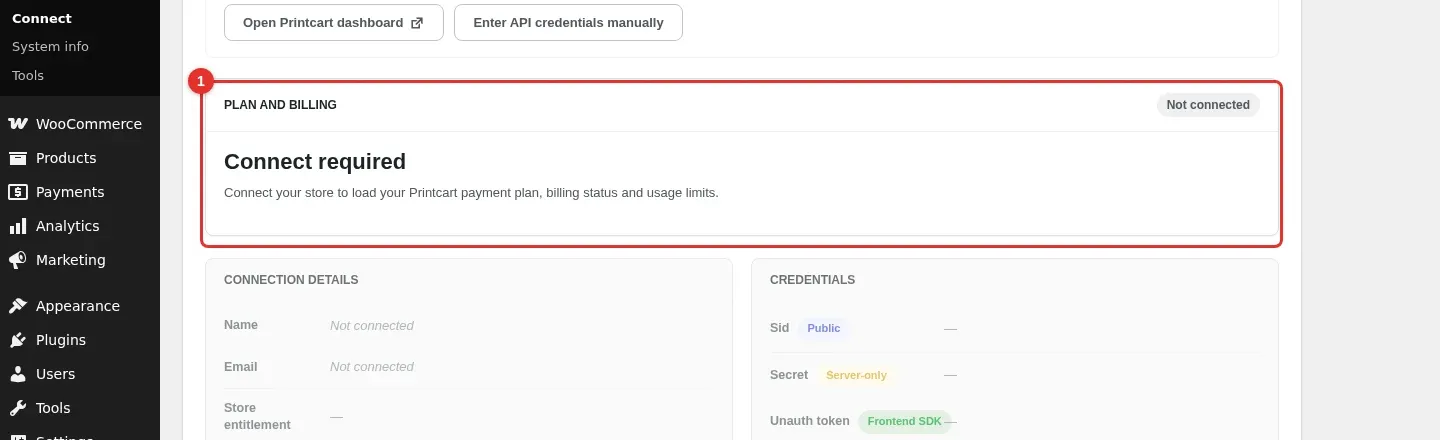
Plans and billing are handled in the Printcart Dashboard, not in WordPress. The Plan and billing panel on the Connect screen loads your plan once the store is connected, and the Upgrade to Premium buttons send you to the Dashboard payment page. For plans, tokens and the wallet, read Printcart plans, tokens and upgrading.
Expected result: Before connecting, the panel reads Connect required.
Do I have to connect to sell with Printcart Store?
No. Parts 1 to 6 of this series, including checkout and order management, ran on a test shop that was not connected. Connect when you need print-ready PDF files, the AI print tools or order sync to the Dashboard.
Do shoppers see plan or billing messages?
Plan and upgrade messages are for store managers and appear in the WordPress admin. Since version 2.11.0 the Connect notice in the design tool is shown only to store managers, and in our phone test the shopper saw only the designer and the checkout.
What does Premium add?
According to the plugin, Premium adds cloud processing, the AI print tools, cloud file storage and full API automation. The AI print tools use the AI tokens of your connected store.
All 8 parts of the Printcart Store for WordPress series
- Get started with Printcart Store for WordPress
- Create a customizable product with the online designer
- Add printing options and quantity discounts
- Let customers upload their own artwork
- Test your shop on a phone: order a custom product
- Manage print orders: review designs, track status and ship
- Free plan, connecting and upgrading (you are here)
- Troubleshooting common problems
Back to the Printcart Store for WordPress plugin page.
What should you do next?
- Printcart Store for WordPress troubleshooting
- Printcart plans, tokens and upgrading: wallet and app subscription
- How to sign up for Printcart and create your store
Stuck on a step? Message the Printcart team on WhatsApp and include your plugin version and a screenshot of the screen you are on.
Printcart field note
What to verify before you roll out Printcart Store Free Plan: What You Get, What Needs a Connection and When to Upgrade
This tutorial is written from Printcart implementation patterns across web-to-print launch planning, buyer experience, and repeatable production. Before treating it as complete, test the workflow with one real product, one real design file, and one real order path.
Printcart Store Free Plan: What You Get, What Needs a Connection and When to Upgrade — common questions
What do you need before you start?
The screenshots come from a test shop that is not connected to a Printcart account, so they show the Not connected state. We did not click Connect now , because it creates a real Printcart account. The wording for connected stores comes from the plugin itself.
Do I have to connect to sell with Printcart Store?
No. Parts 1 to 6 of this series, including checkout and order management, ran on a test shop that was not connected. Connect when you need print-ready PDF files, the AI print tools or order sync to the Dashboard.
Do shoppers see plan or billing messages?
Plan and upgrade messages are for store managers and appear in the WordPress admin. Since version 2.11.0 the Connect notice in the design tool is shown only to store managers, and in our phone test the shopper saw only the designer and the checkout.
What does Premium add?
According to the plugin, Premium adds cloud processing, the AI print tools, cloud file storage and full API automation. The AI print tools use the AI tokens of your connected store.
Next steps in Printcart
Connect printcart store free plan: what you get, what needs a connection and when to upgrade with catalog setup, templates, production workflows, and implementation support.
Want to put printcart store free plan: what you get, what needs a connection and when to upgrade into practice?
Use the related Printcart tool below, or create a free account to start building with the product designer.