Most Printcart Store problems come down to a few settings. If the design button is missing, tick Enable Design on the product. If an upload is refused, check the file types and size limits on the product. If the editor opens empty, widen the browser window or test on a phone. If phone shoppers do not get the designer, switch off Hide design editor on...
Key takeaways
Part 8 of 8 in the Printcart Store for WordPress plugin page tutorial series. Previous: Part 7, Free plan, connecting and upgrading.
What do you need before you start?
- Printcart Store installed and WooCommerce active.
- Administrator access to the WordPress admin.
The screenshots come from a test shop with the Storefront theme and Printcart Store 2.11. Every problem below was reproduced on that shop, except the block theme issue, which is a known issue described in the plugin changelog.
Why is there no design button on my product page?
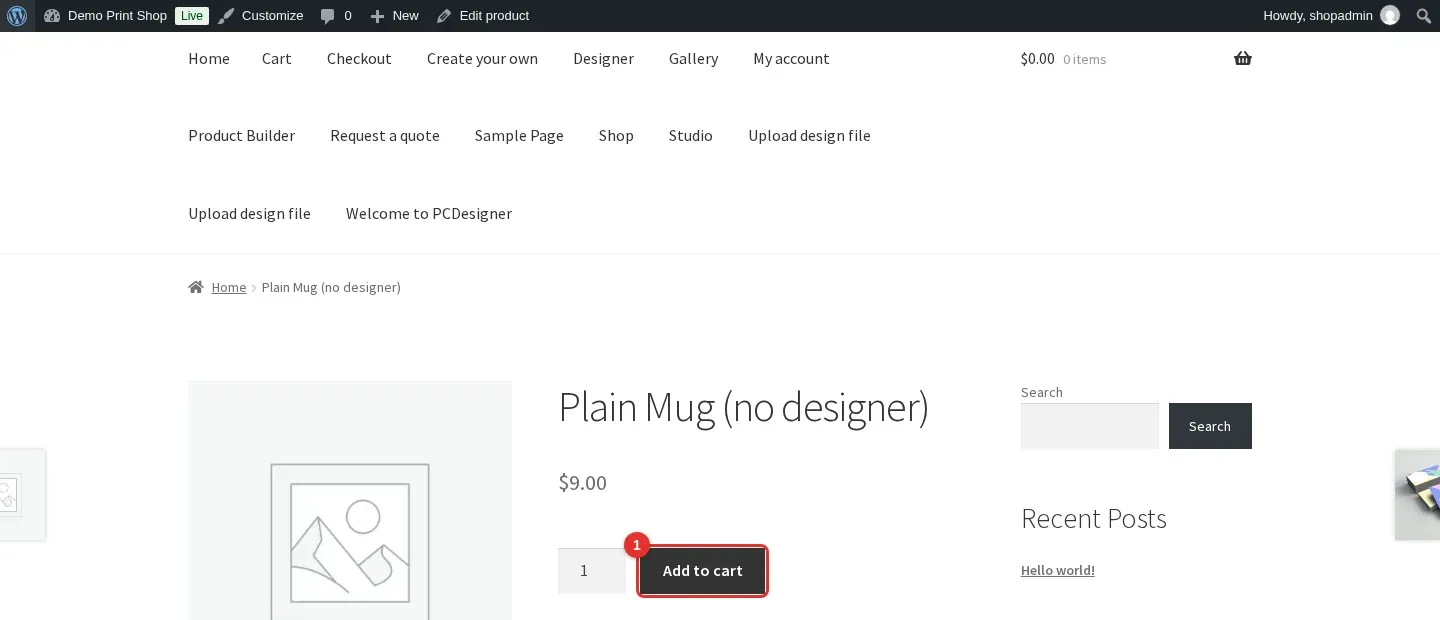
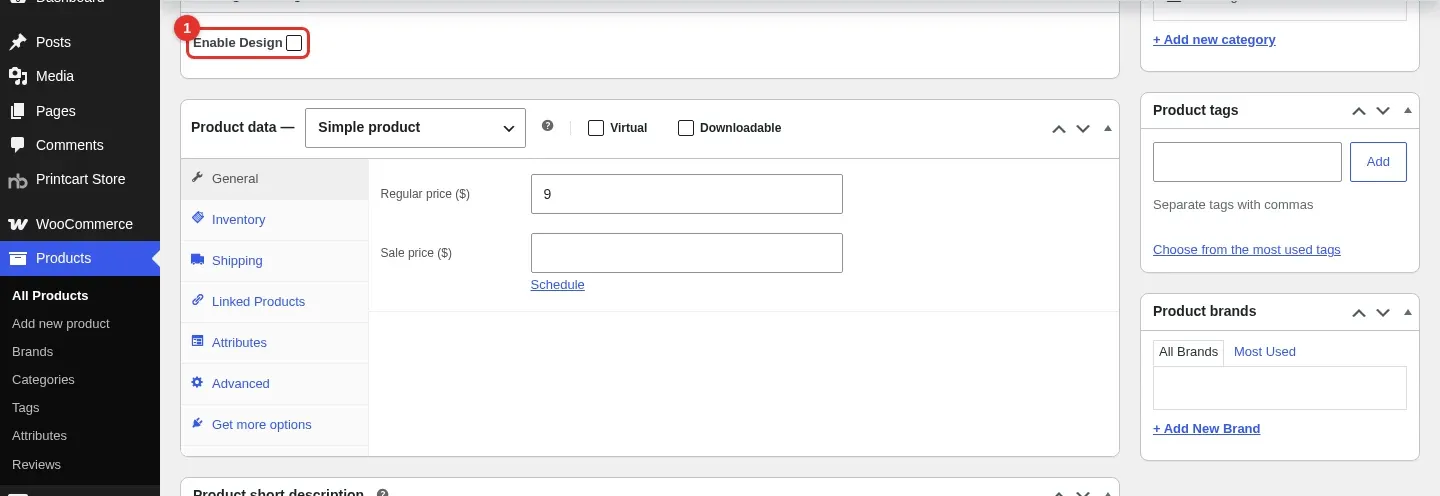
The design button only appears on products that have the designer switched on. Open the product in Products > All Products, scroll to the Setting PCDesigner box, tick Enable Design and click Update. Also check that the product is published. On a connected store the free plan allows 5 designable products, see the free plan guide.
Expected result: Without the setting, a shopper sees only the normal Add to cart button, as in the first screenshot. With it ticked, the product page shows the design button.
Why does the shop refuse my customer's upload?
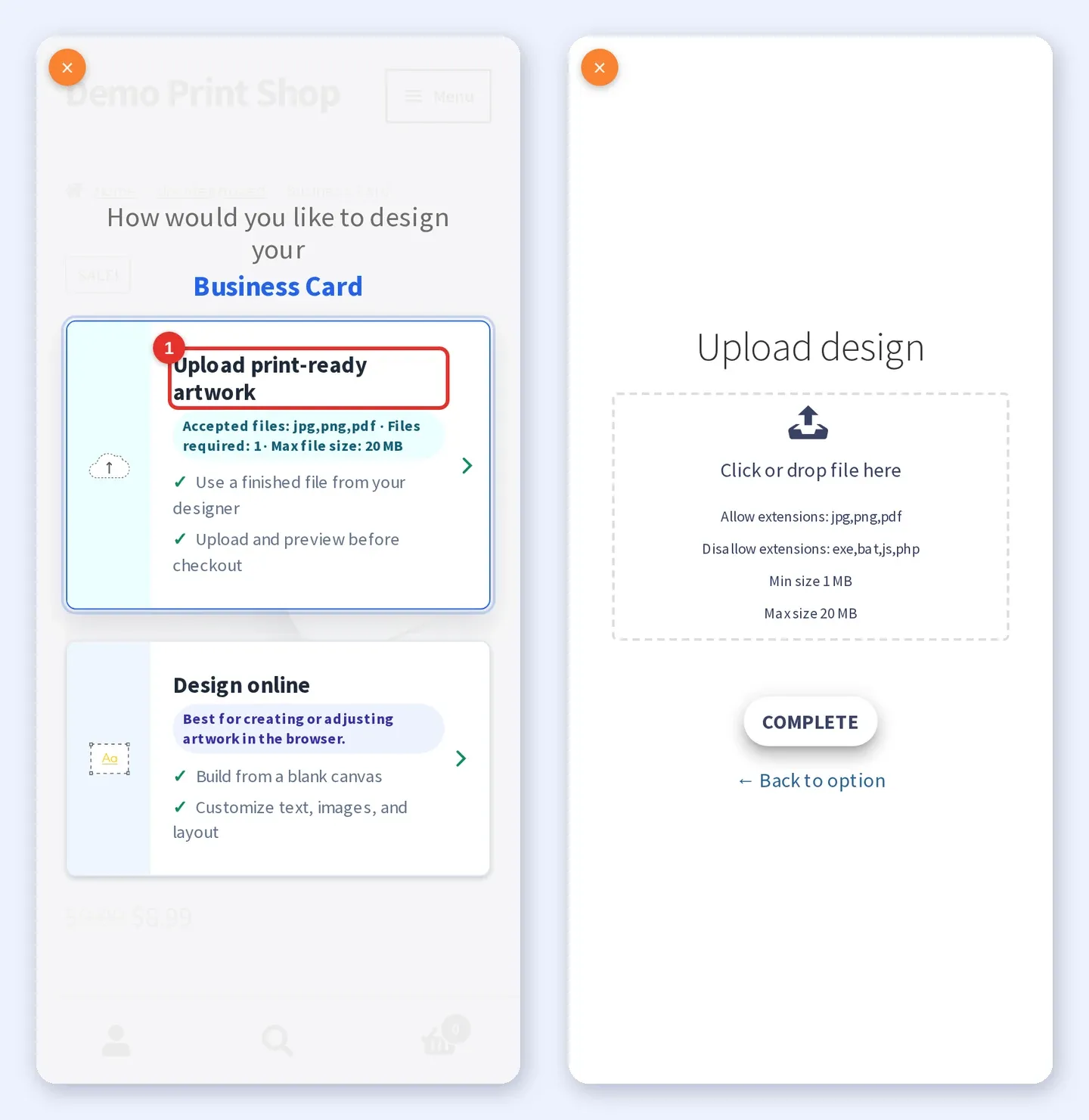
Each product has its own upload rules in the Upload Design tab of the Setting PCDesigner box: allowed file types, disallowed file types, number of files, minimum and maximum size. The upload box shows the rules to the shopper. A file that breaks a rule is refused with a pop-up message, for example one that lists the allowed types or says Min file size 1 MB. Open the product, adjust the rules in the Upload Design tab and click Update. Part 4 explains every field.
Expected result: The shopper sees the same rules in the chooser and in the upload box, so a refusal is no surprise.
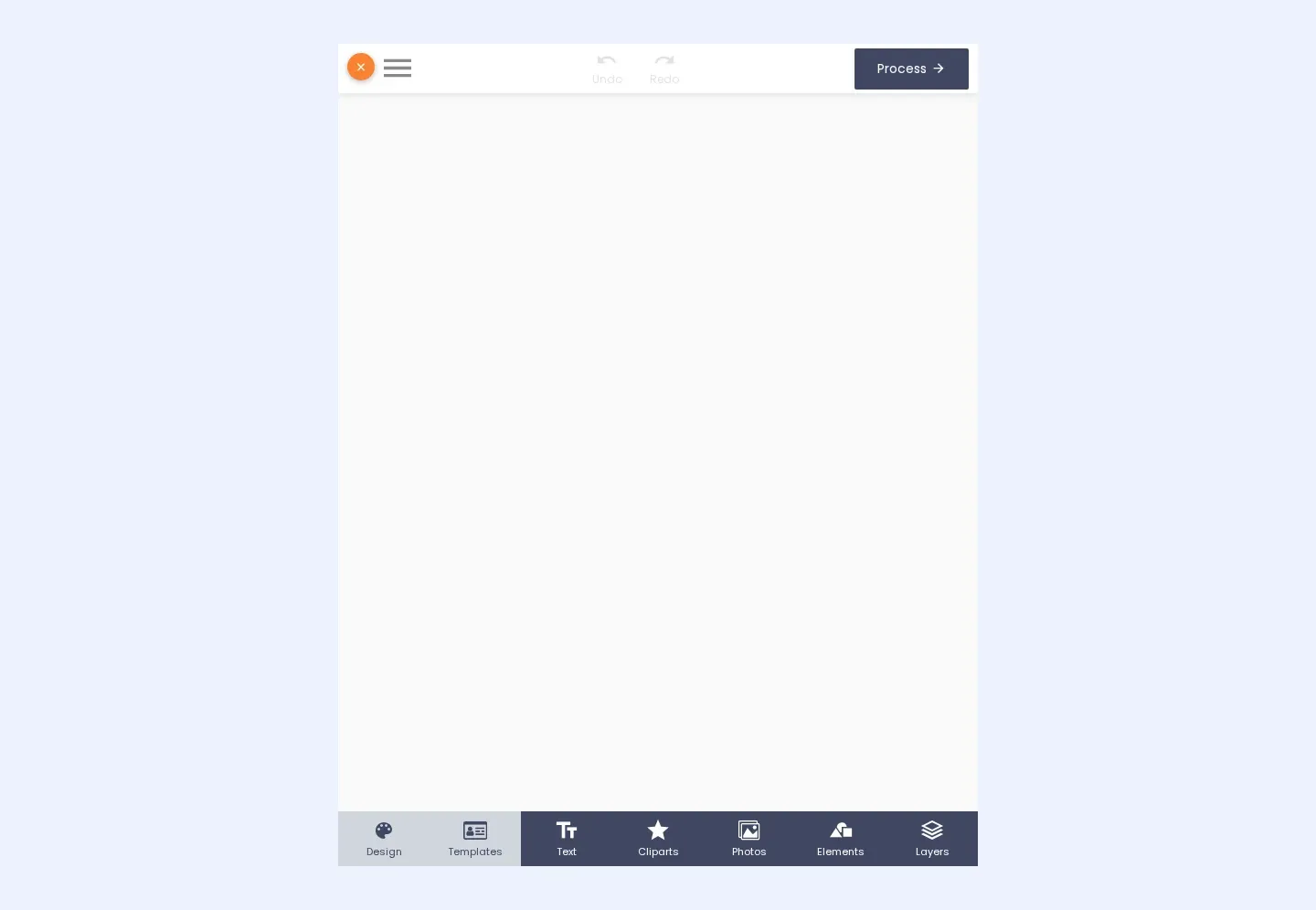
Why does the designer open with an empty canvas in a narrow window?
The shop decides whether a visitor is on a phone from the browser type, not only from the window width. In our test a desktop browser made about 700 pixels wide showed the tab bar and the Process button but no card. Widen the window to a normal desktop width, or set your browser device mode to a phone model, and the design appears. Phones are detected correctly in our phone-sized test (see Part 5).
Expected result: In a wide window, or with a phone browser type, the canvas shows the template and your text.
Why can't phone shoppers use the designer?
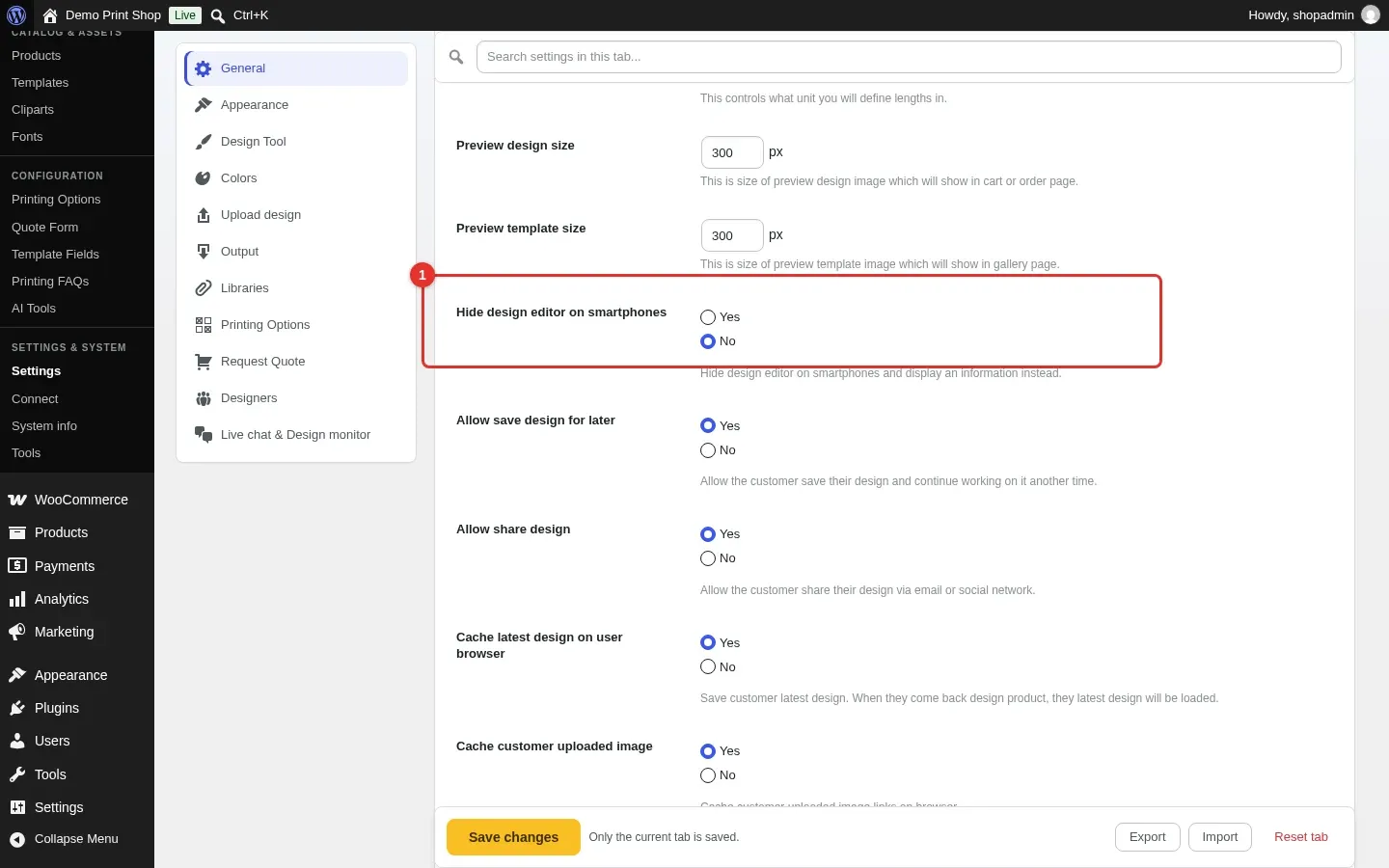
Check Printcart Store > Settings > General. The option Hide design editor on smartphones hides the editor on phones and shows an information message instead. It is set to No by default. If it is on, choose No and click Save changes.
Expected result: With the option set to No, phone shoppers get the designer.
Why do the Printing Options not show on my product page?
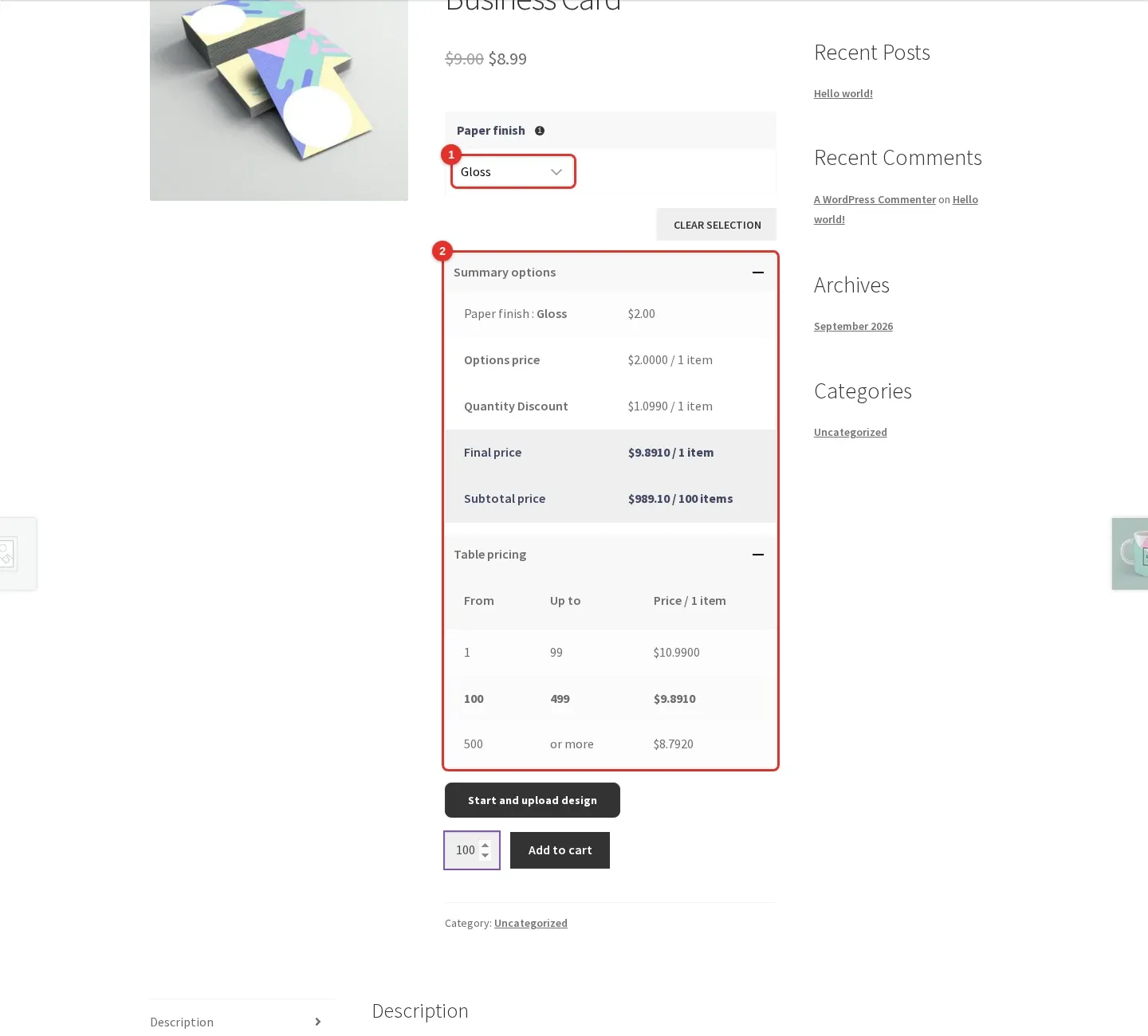
First follow Part 3: the option set needs your product under Apply for, and Enable printing option must be switched on in the product setup. If both are done, check your theme. This is a known issue: with version 2.11.0 the Printing Options form does not appear on block themes such as Twenty Twenty-Five, because the theme rewrites a character sequence in the form script. The plugin changelog lists the fix under version 2.11.1. Until you can update to it, use a classic theme such as Storefront. We did not reproduce this issue on our test shop, which runs Storefront.
Expected result: On a working product page the Paper finish dropdown, the price summary and the table pricing all show, as in the screenshot.
Why does the Connect screen say Not connected?
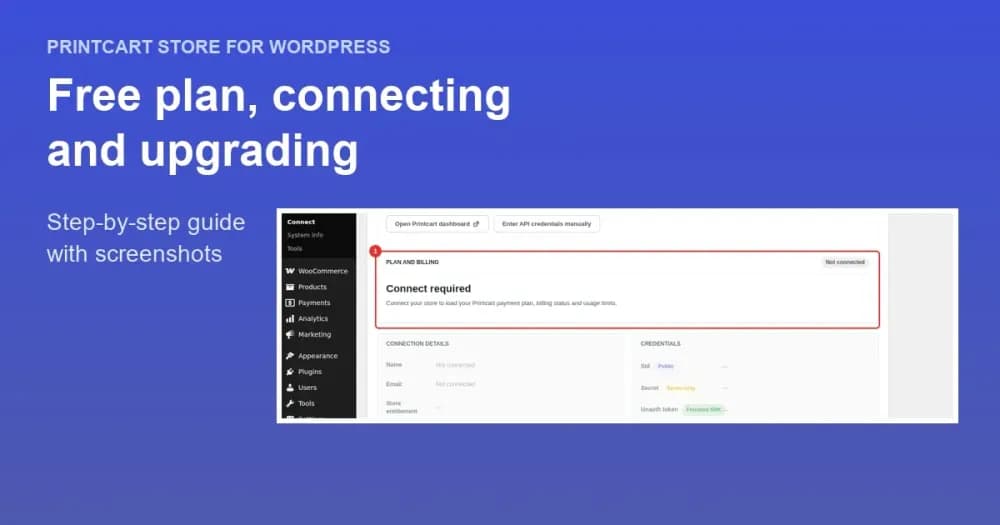
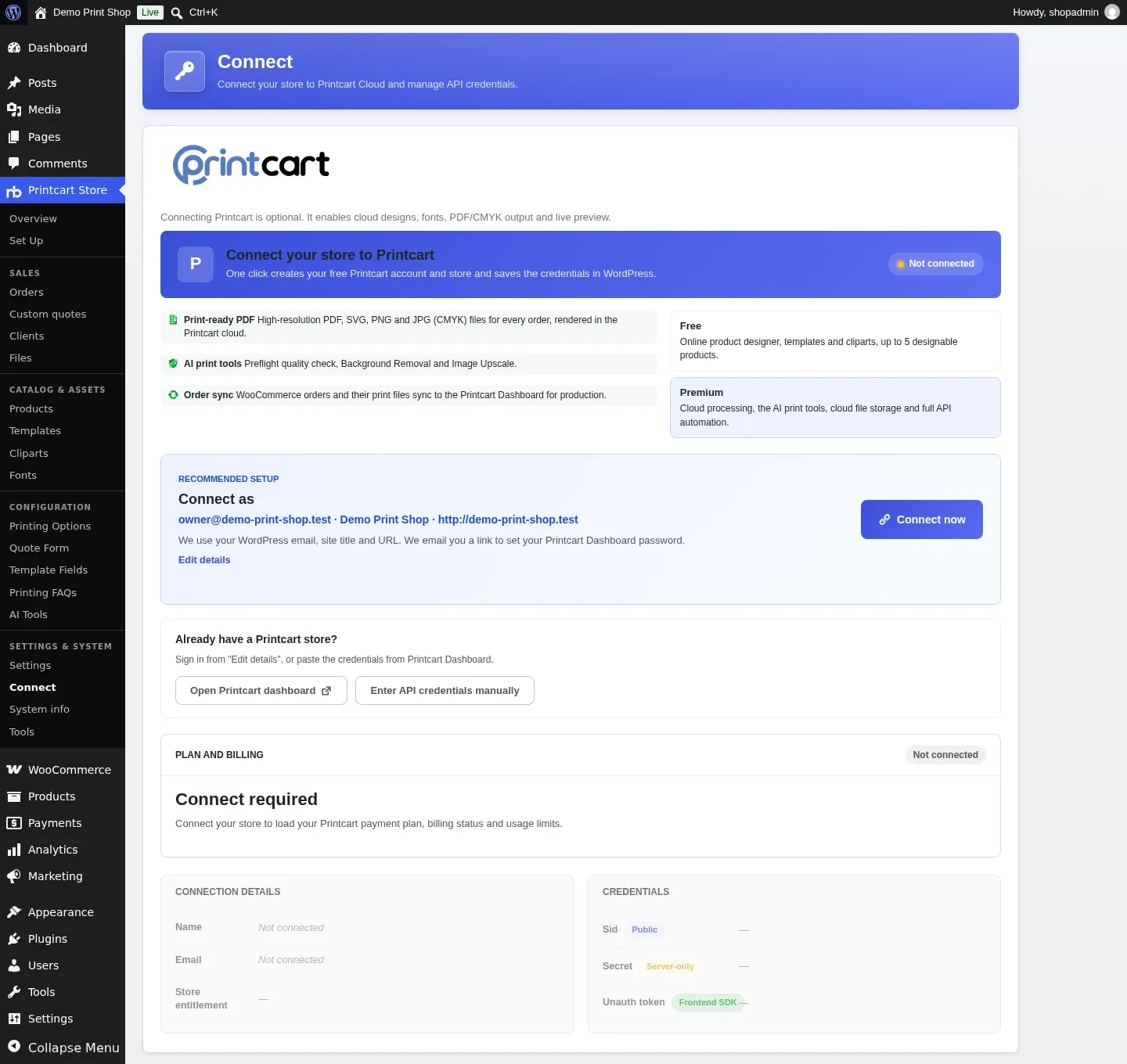
That is not an error. A store that has not been connected to Printcart works for everything in Parts 1 to 6. Connect only when you want print-ready PDF files, the AI print tools or order sync. The free plan guide explains the choices.
Expected result: The Connect screen shows the Not connected badge and the Connect now button.
What should you include when you ask for help?
Send your plugin version (Plugins > Installed Plugins), your theme name, the product link and a screenshot of the screen where you are stuck. The WhatsApp link below goes to the Printcart team.
All 8 parts of the Printcart Store for WordPress series
- Get started with Printcart Store for WordPress
- Create a customizable product with the online designer
- Add printing options and quantity discounts
- Let customers upload their own artwork
- Test your shop on a phone: order a custom product
- Manage print orders: review designs, track status and ship
- Free plan, connecting and upgrading
- Troubleshooting common problems (you are here)
Back to the Printcart Store for WordPress plugin page.
What should you do next?
- Start the series again: get started with Printcart Store for WordPress
- Printcart Store free plan, connecting and upgrading
- Browse all Printcart tutorials
Stuck on a step? Message the Printcart team on WhatsApp and include your plugin version and a screenshot of the screen you are on.
Printcart field note
What to verify before you roll out Printcart Store for WordPress Troubleshooting: Fix the Most Common Problems
This tutorial is written from Printcart implementation patterns across web-to-print launch planning, buyer experience, and repeatable production. Before treating it as complete, test the workflow with one real product, one real design file, and one real order path.
Printcart Store for WordPress Troubleshooting: Fix the Most Common Problems — common questions
What do you need before you start?
The screenshots come from a test shop with the Storefront theme and Printcart Store 2.11. Every problem below was reproduced on that shop, except the block theme issue, which is a known issue described in the plugin changelog.
Why is there no design button on my product page?
The design button only appears on products that have the designer switched on. Open the product in Products > All Products , scroll to the Setting PCDesigner box, tick Enable Design and click Update . Also check that the product is published. On a connected store the free plan allows 5 designable products, see the free plan guide .
Why does the shop refuse my customer's upload?
Each product has its own upload rules in the Upload Design tab of the Setting PCDesigner box: allowed file types, disallowed file types, number of files, minimum and maximum size. The upload box shows the rules to the shopper. A file that breaks a rule is refused with a pop-up message, for example one that lists the allowed types or says Min file size 1 MB . Open the product, adjust the rules in the Upload Design...
Why does the designer open with an empty canvas in a narrow window?
The shop decides whether a visitor is on a phone from the browser type, not only from the window width. In our test a desktop browser made about 700 pixels wide showed the tab bar and the Process button but no card. Widen the window to a normal desktop width, or set your browser device mode to a phone model, and the design appears. Phones are detected correctly in our phone-sized test (see Part 5 ).
Next steps in Printcart
Connect printcart store for wordpress troubleshooting: fix the most common problems with catalog setup, templates, production workflows, and implementation support.
Want to put printcart store for wordpress troubleshooting: fix the most common problems into practice?
Use the related Printcart tool below, or create a free account to start building with the product designer.