In the Printcart Dashboard open Production then Production Team , click Create your first team , name it, then click Invite member and enter an email address. The person gets a link, clicks Accept invitation and joins as an Approver or a Viewer . Be clear about what this is: a review team for design proofs , not a way to give staff a login with permissions...
Key takeaways
Part 12 of 12 in the Printcart Dashboard tutorial series. Previous: Part 11, Handle design requests.
What do you need before you start?
- A Printcart store (see Sign up and create your store).
- The email address of each person you want to invite. They do not need a Printcart account.
- The Advanced plan. Printcart lists teams as an Advanced feature. Read Plans, tokens and upgrading first. We could not test what a Free store sees when it tries to create a team, so if Create team shows an upgrade message, that is why.
What has and has not been checked. The screenshots come from a demo store called Demo Print Shop and use made-up addresses on example.com. We ran every step on the real Printcart Dashboard against demo data and confirmed that Send invite sends the request to the Printcart API. We have not yet verified the flow on a live store, and no invitation email was sent to anyone, so we cannot show you the email itself. The invitation page in step 6 is the real page.
What can a review team do, and what can it not do?
The screen is called Production Team in the menu, but its page title is Review team, and that is the better description. Members review design proofs that you share for approval and vote on them. An Approver can review and vote. A Viewer can only view. Members do not get a login to your Dashboard, and this screen does not give anyone permission to manage products, orders or billing. We did not find a screen for staff accounts with roles. If you want a colleague to run the shop with you, this is not the feature yet.
How do you invite your team in the Printcart Dashboard?
Step 1Open Production Team
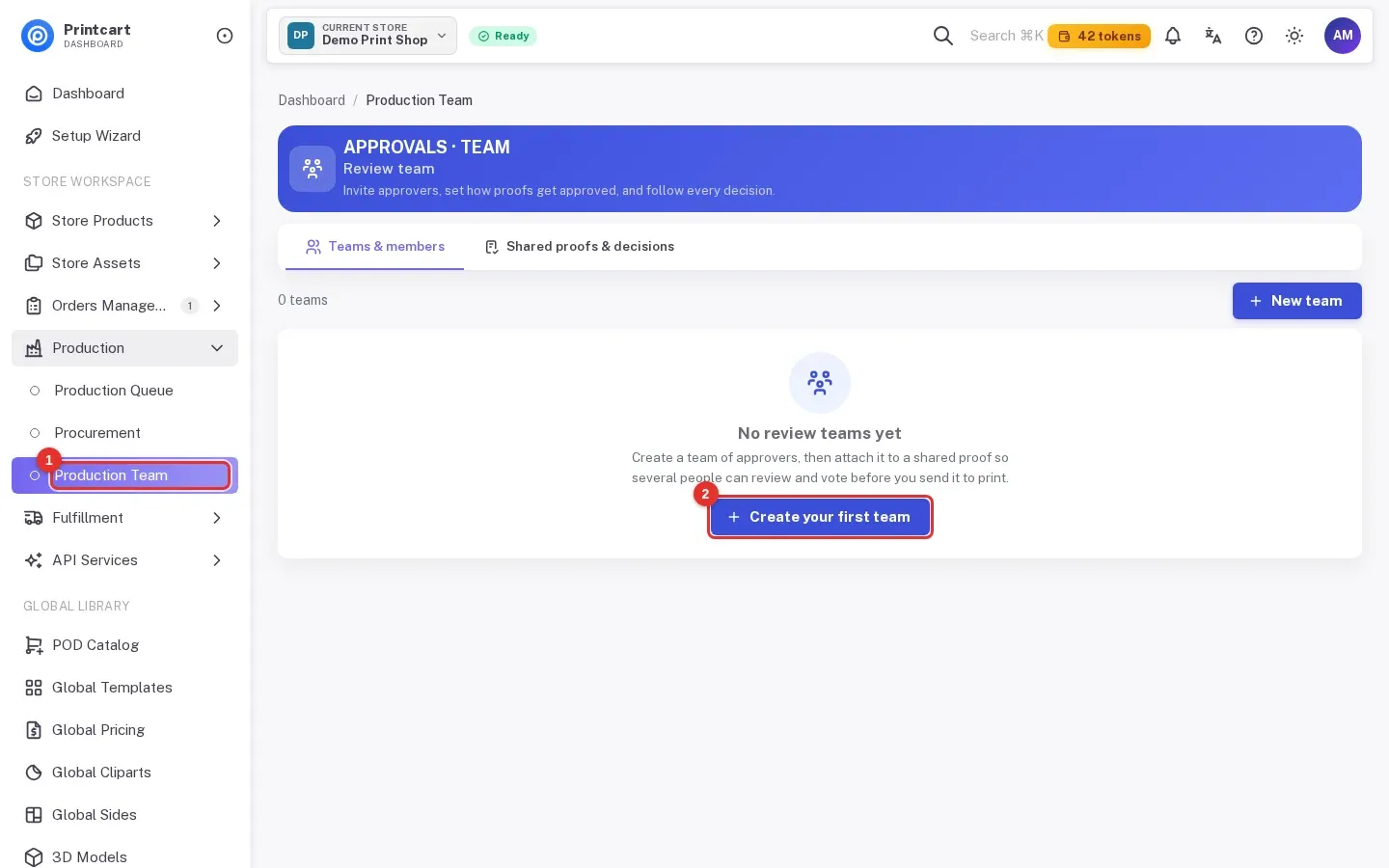
In the left menu open Production, then Production Team. If you have no team yet, click Create your first team. Later, the same page has a New team button.
Expected result: The page Review team opens with two tabs, Teams & members and Shared proofs & decisions.
Step 2Name the team and choose how approvals work
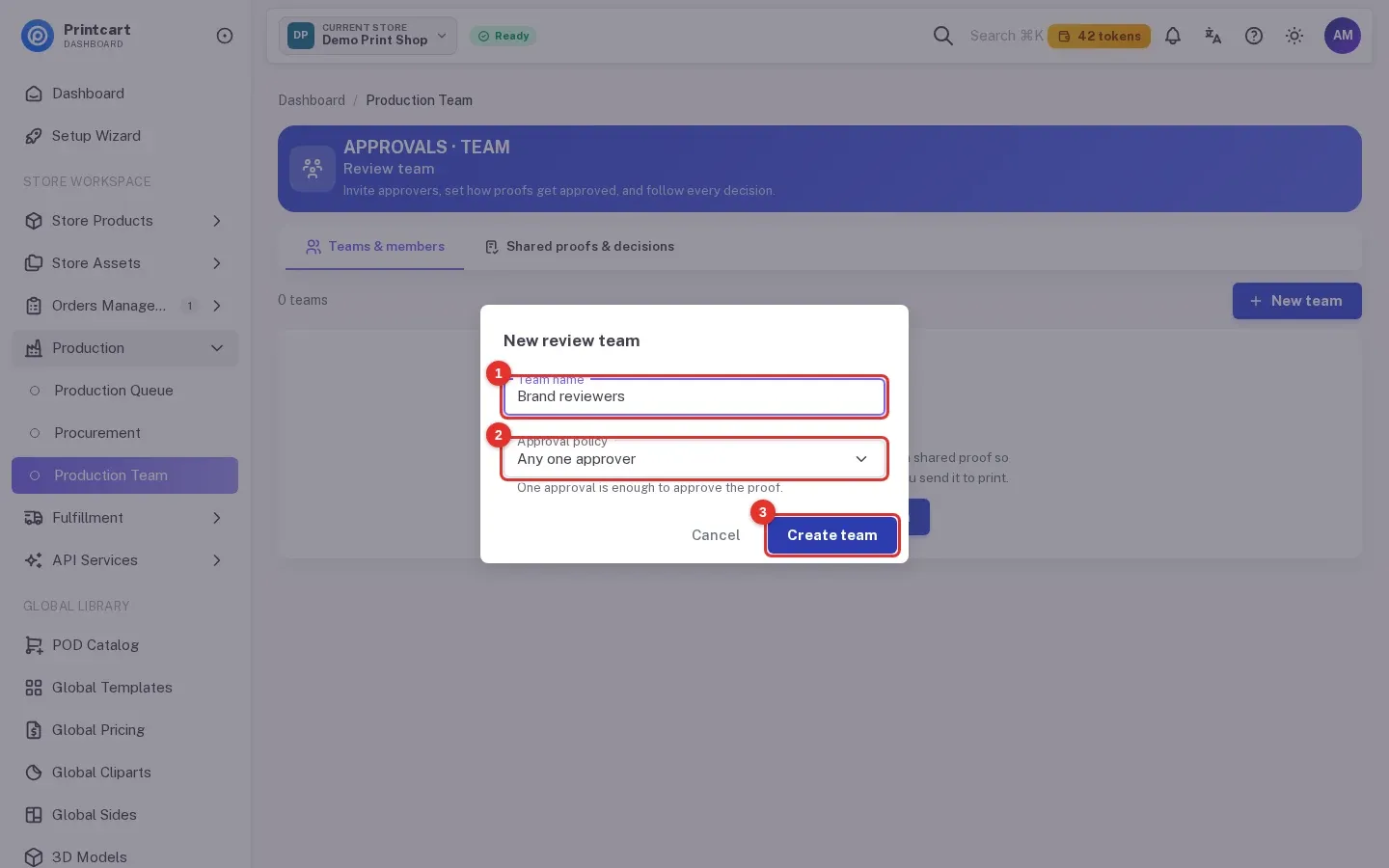
Type a Team name that your reviewers will recognise, for example the name of a client or a department. Choose an Approval policy: Any one approver (one approval is enough), Everyone must approve, or A quorum must approve (you set the number). Click Create team. You can change the policy later on the team card.
Expected result: A card with your team name appears, showing 0 active members and the policy.
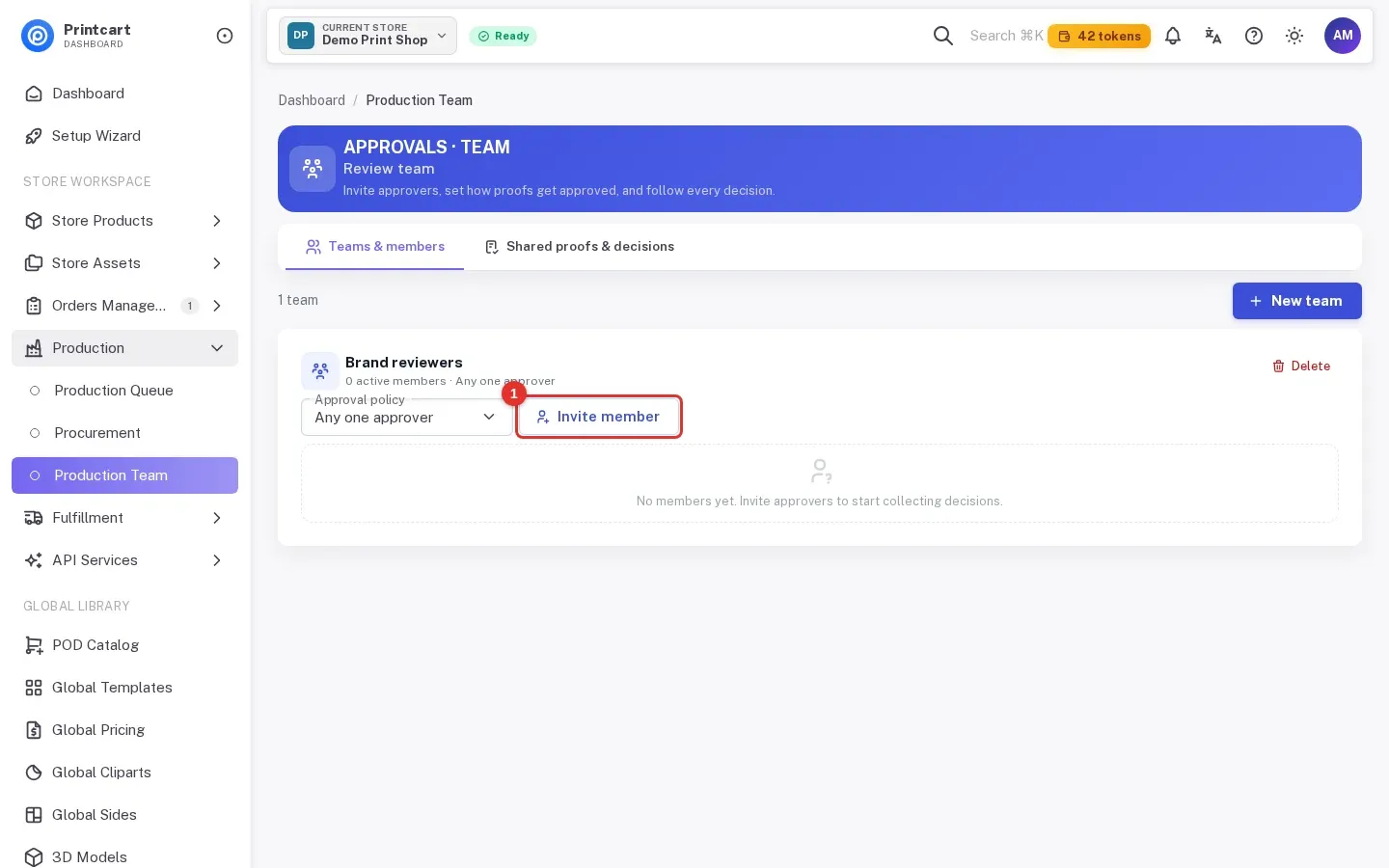
Step 3Invite a member
On the team card click Invite member. Enter the person's Email. The Name is optional. Pick a Role: Approver, can review & vote or Viewer, can view only. Click Send invite. The dialog explains that Printcart emails an invitation link and that the person joins by accepting it, with no Printcart account required.
Expected result: The dialog closes and the person is listed on the team card.
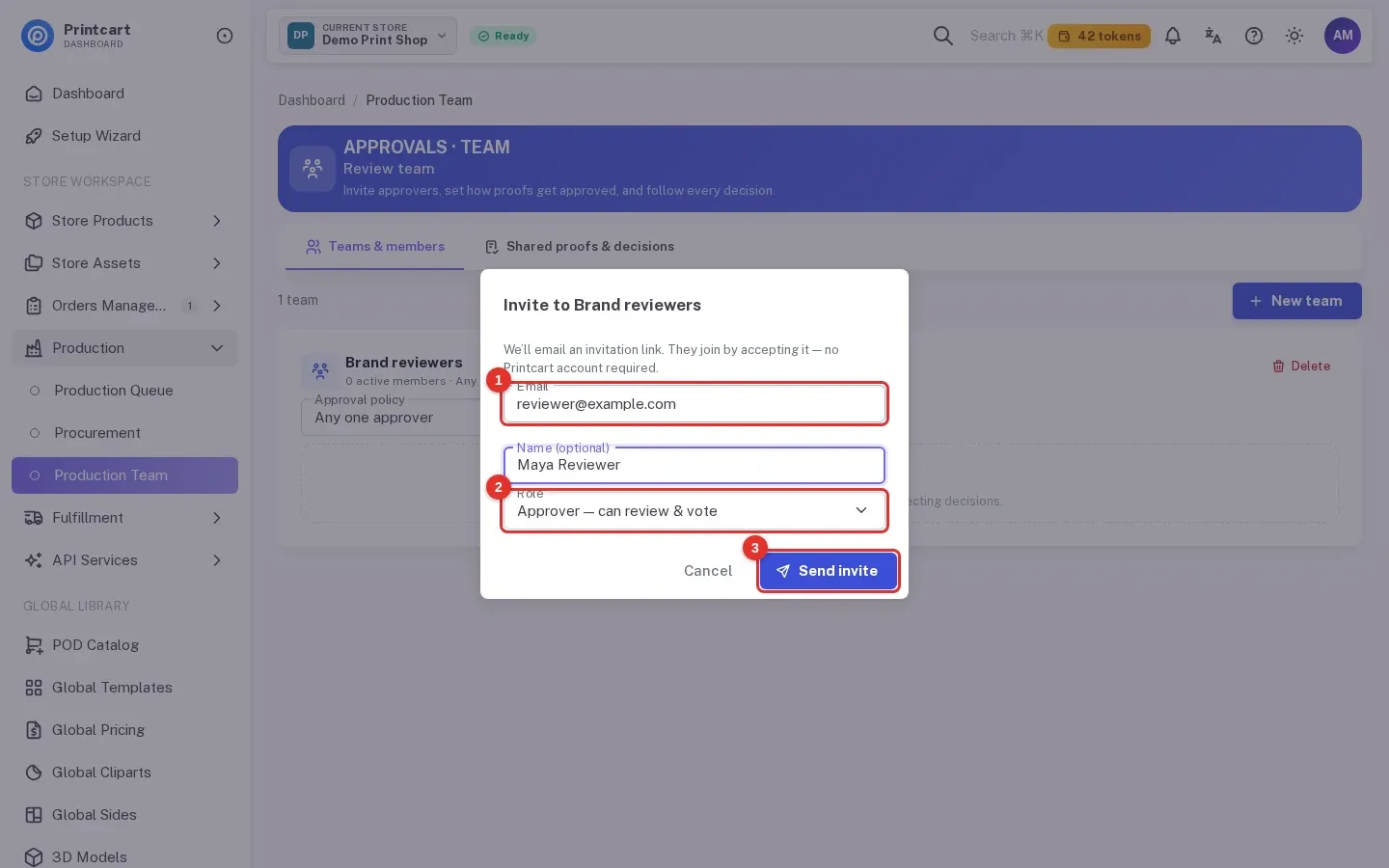
Step 4Check who has accepted
Each member shows a status. Invited means the link was sent and not accepted yet. Next to it you will see Resend, which sends the invitation again, and Revoke, which cancels it.
Expected result: The new person appears with the yellow Invited label.
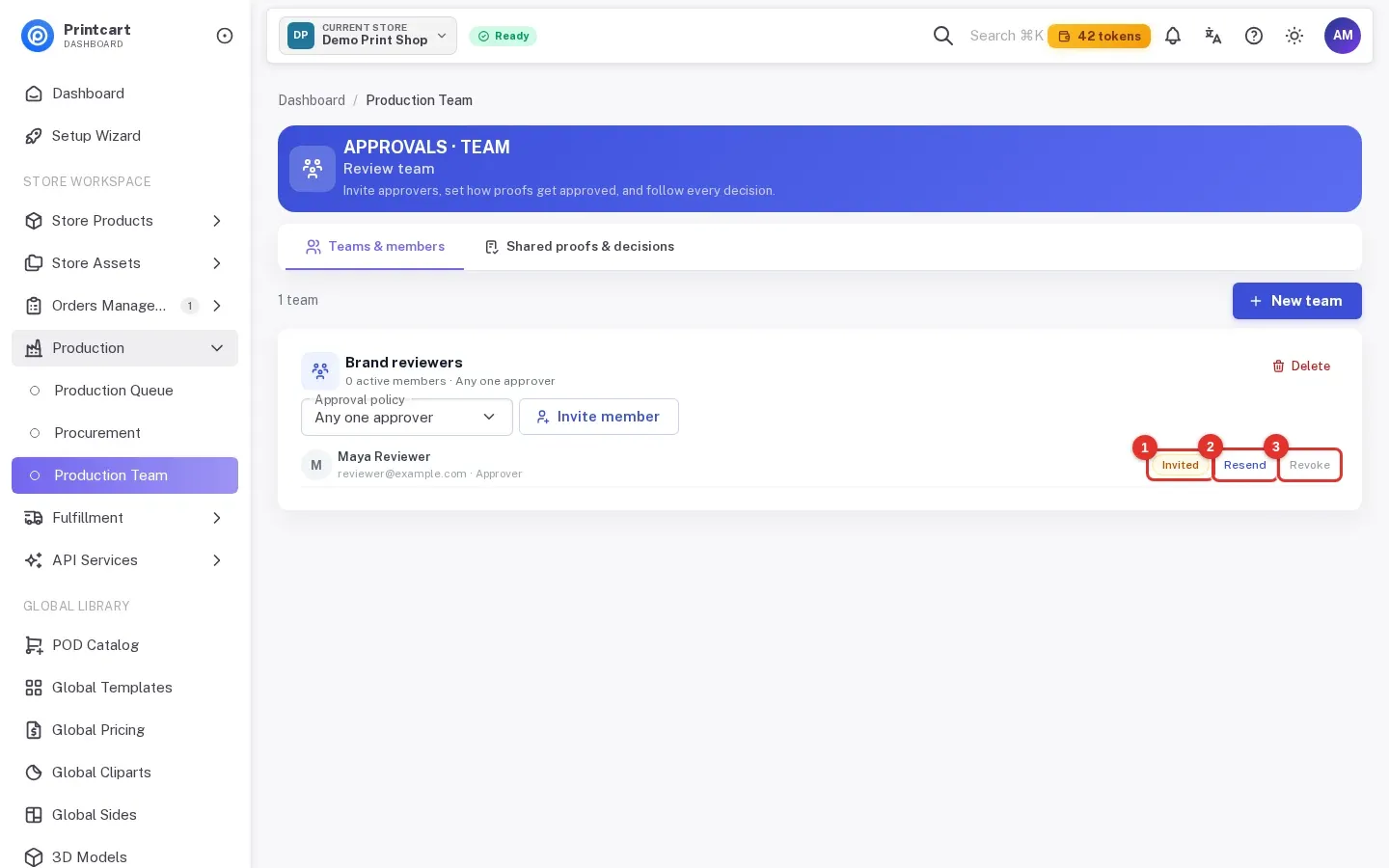
Step 5See what the invited person sees
The invitation link looks like /store/your-store/team/join/…. It opens a public page with your store name, the team name and the role. The person clicks Accept invitation. No login is needed, because the long code in the link is the key, so tell people not to forward it.
Expected result: The page says the person is on the team.
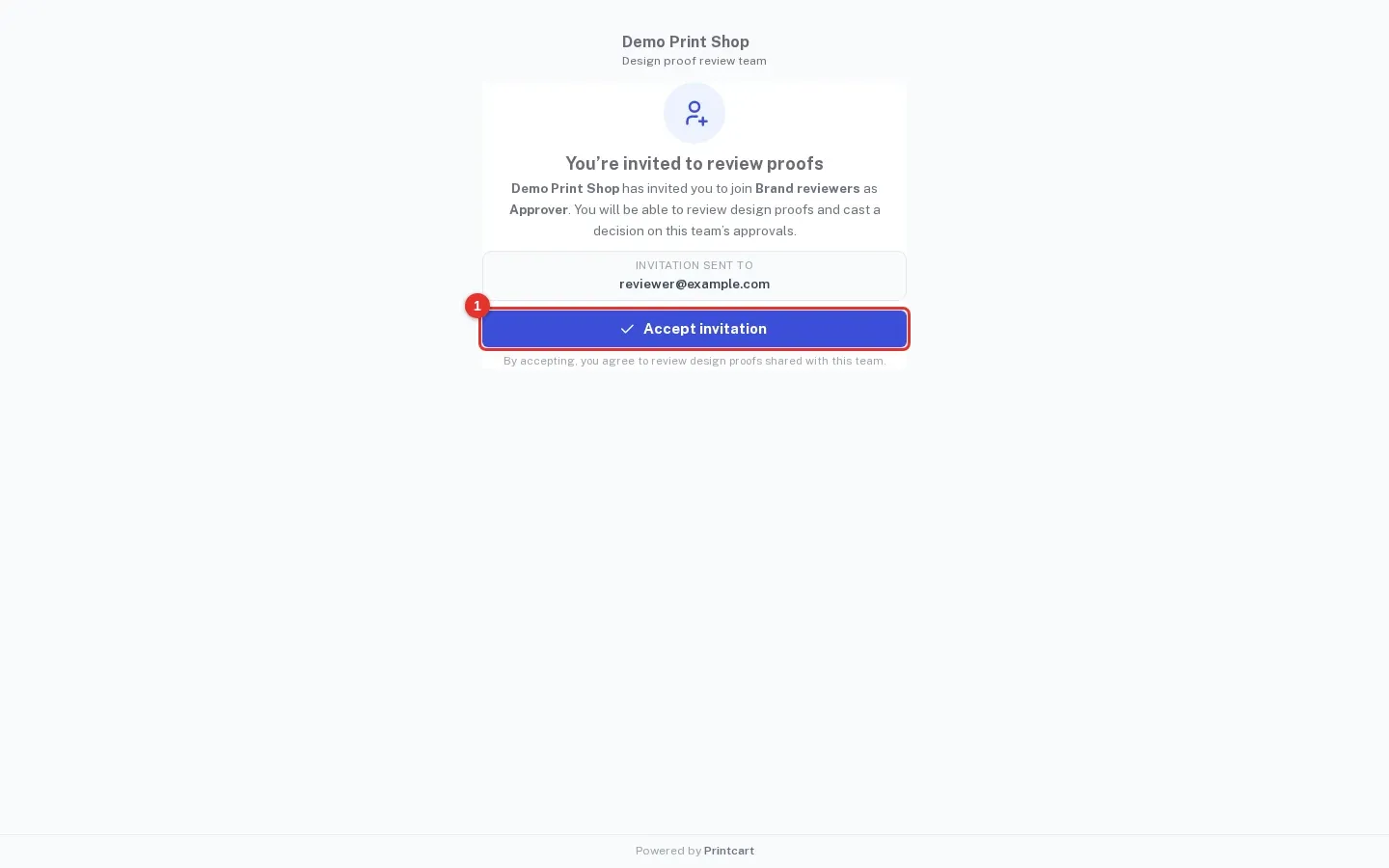
Step 6Confirm the member is active
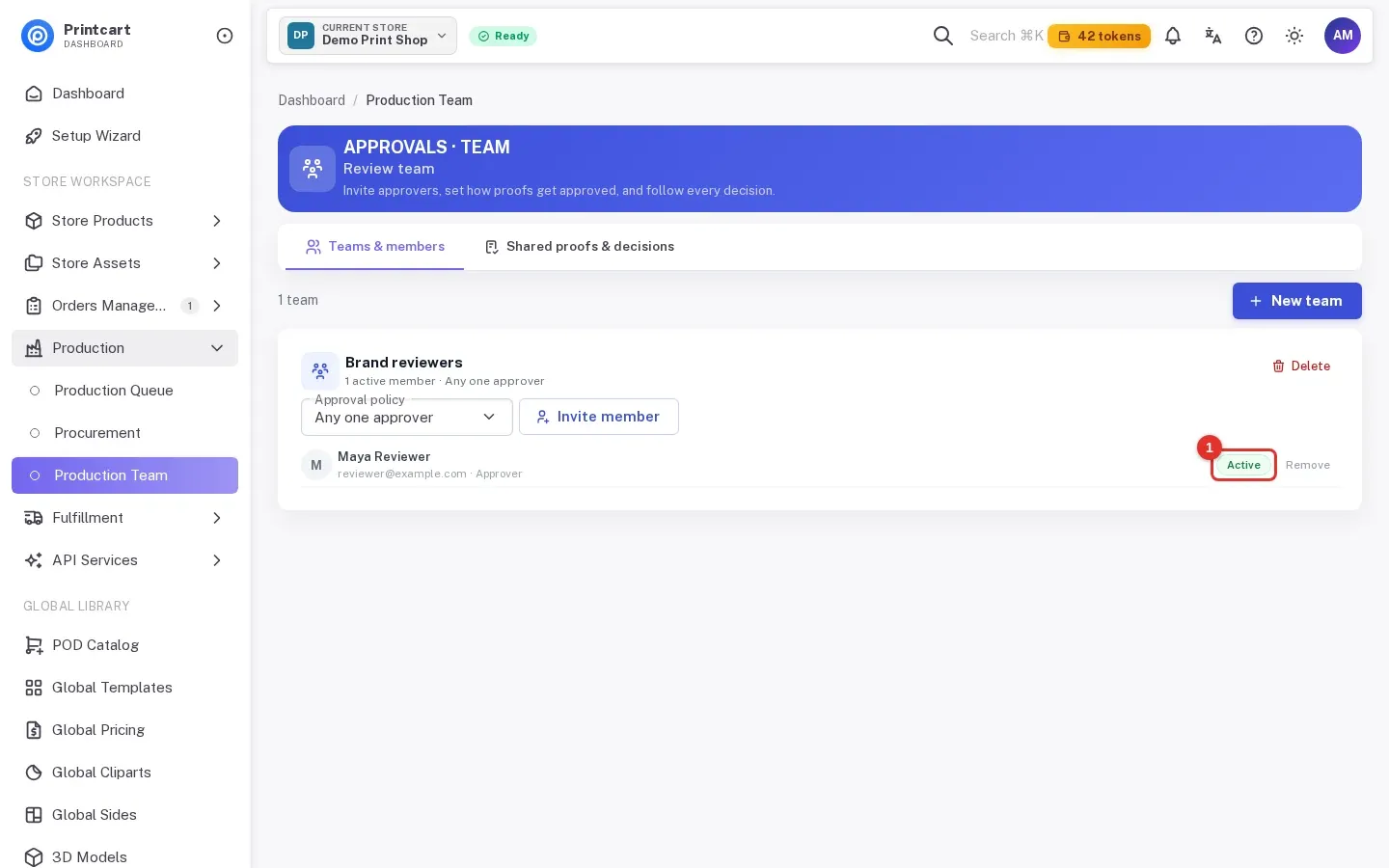
Go back to Production Team. The member now shows the green Active label and the team card counts one active member. With the policy Everyone must approve, every active member has to approve.
Expected result: The status changes from Invited to Active and the button next to it becomes Remove.
Step 7Revoke an invite or remove a member
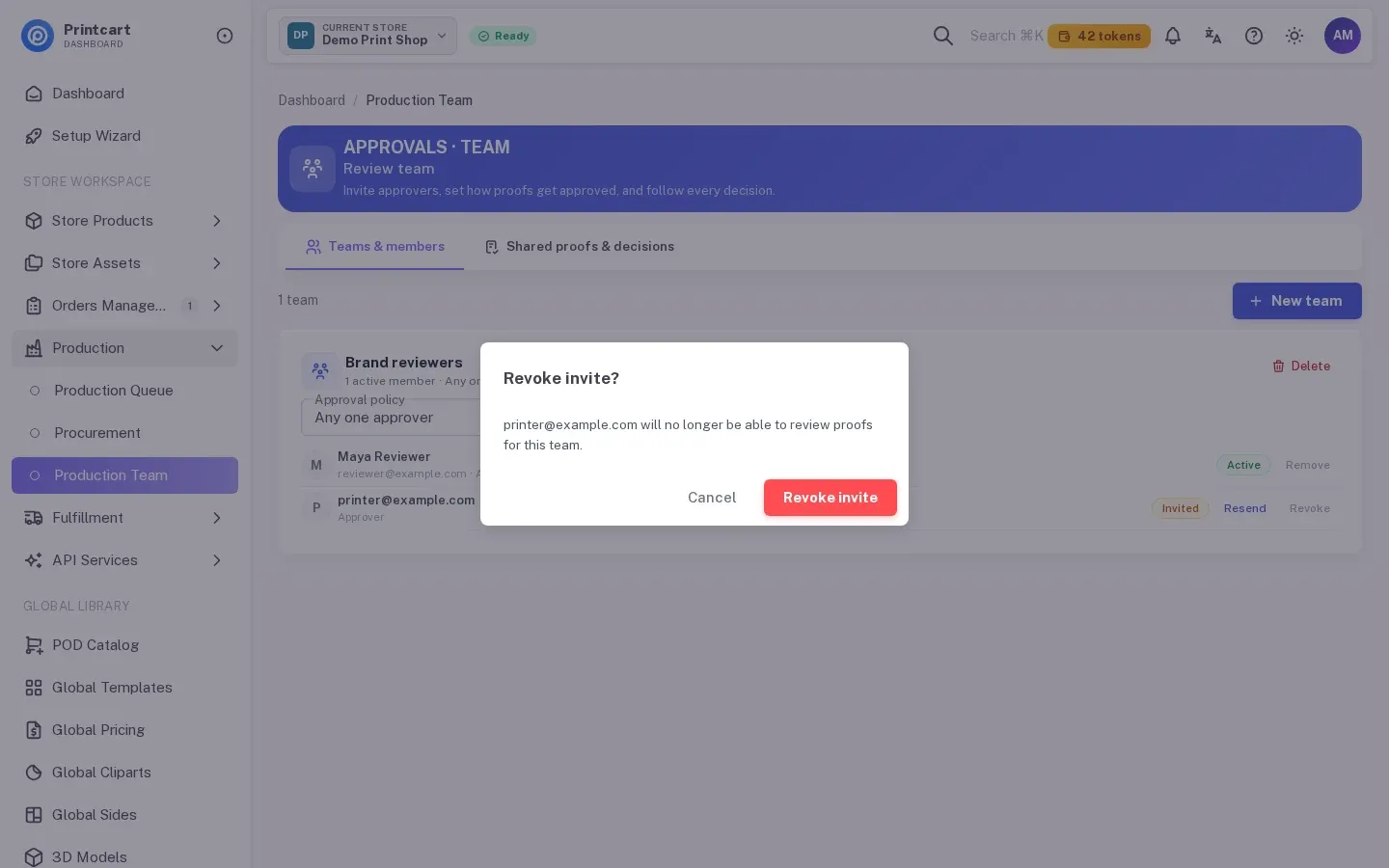
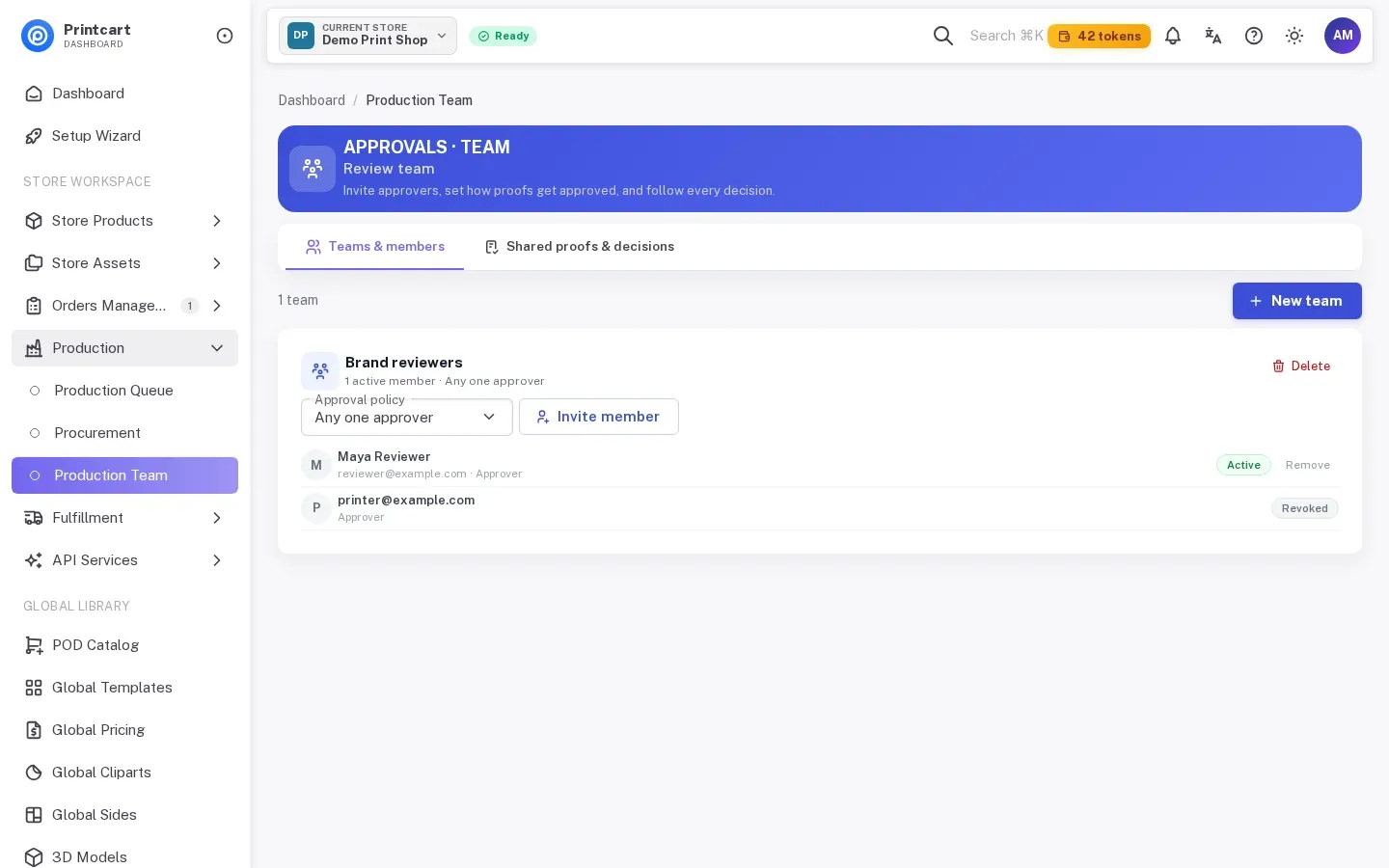
To cancel an invitation that has not been accepted, click Revoke and confirm with Revoke invite. To take away an active member, click Remove. The same card has a red Delete button that deletes the whole team.
Expected result: In our demo the revoked person stays in the list with a grey Revoked label. We have not seen what a live store does after a revoke, so check the list yourself.
Step 8Use the team on a shared proof
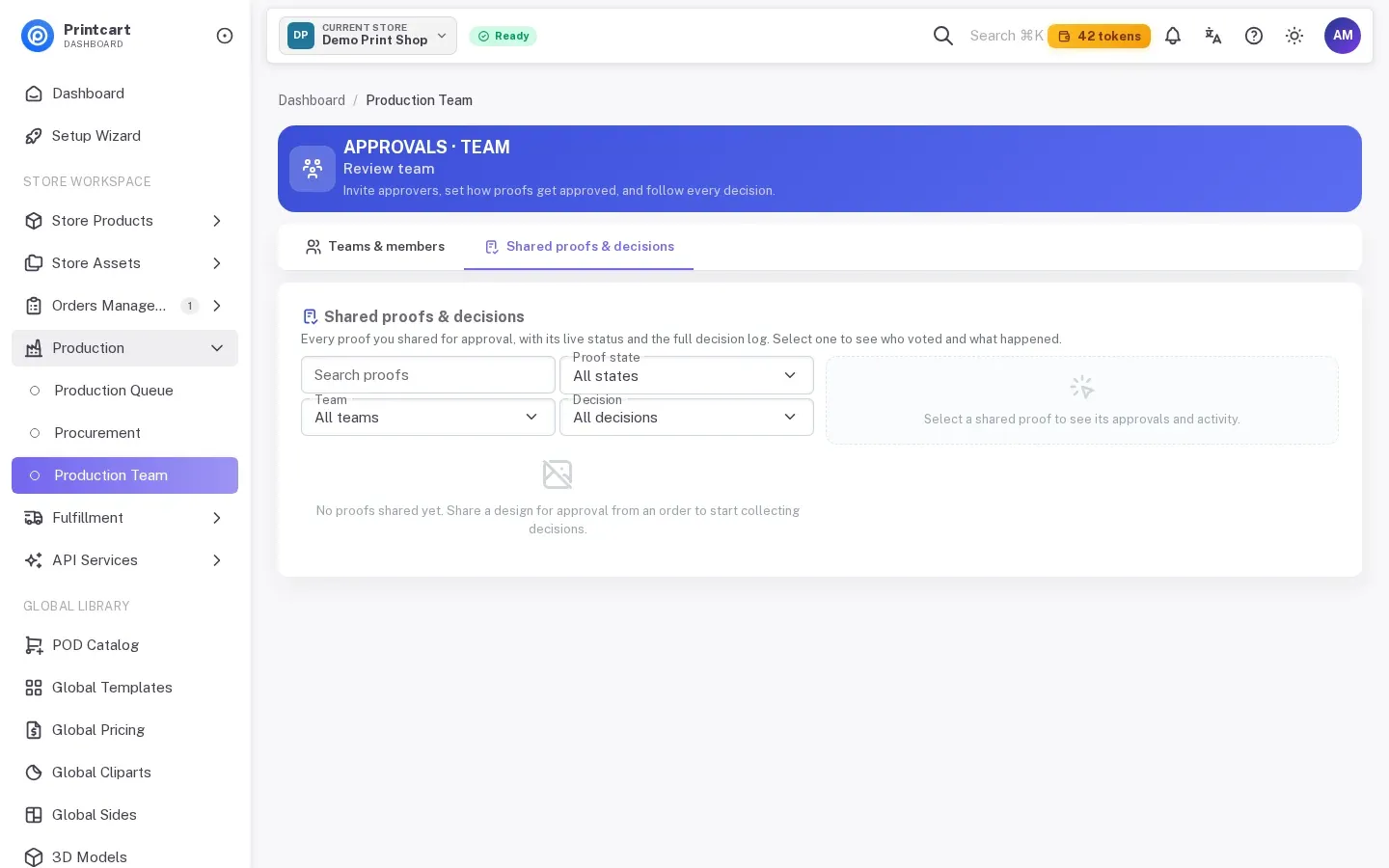
Open the Shared proofs & decisions tab. It lists every proof you shared for approval from an order, with its status and the decision log, and lets you attach a team to a shared proof. Until you have shared a proof it says that no proofs have been shared yet. We did not walk through sharing a proof in this guide.
Expected result: The tab opens with filters for proof state, team and decision.
Troubleshooting
The person did not receive the invitation
Check the spelling of the address, ask them to look in spam, then click Resend. If it still does not arrive, revoke the invite and invite them again.
I want a colleague to manage orders and products
This screen cannot do that. It only invites reviewers for design proofs. Staff accounts with permissions are not part of this screen today.
Create team shows an upgrade message
Teams are listed as an Advanced plan feature. See Plans, tokens and upgrading.
Does the person need a Printcart account?
No. They open the link in the email and click Accept invitation.
All 12 parts of the Printcart Dashboard series
- Sign up and create your store
- Connect your store
- Enable the designer and set up products
- Manage orders and design files
- Review buyer uploads and download files
- Use global templates and cliparts
- Plans, tokens and billing
- API keys and webhooks
- Store profile and brand settings
- Handle quote requests
- Handle design requests
- Invite your team to review proofs (you are here)
Using a store platform? See the guides for Wix, WordPress and WooCommerce and Shopify. Back to all Printcart tutorials.
What should you do next?
- Manage orders and design files in the Printcart Dashboard
- Review, approve or decline uploaded files
- Printcart plans, tokens and upgrading
- Browse all Printcart tutorials
Stuck on a step? Message the Printcart team on WhatsApp and include a screenshot of the screen you are on.
Printcart field note
What to verify before you roll out Invite Your Team to Review Print Proofs in the Printcart Dashboard
This tutorial is written from Printcart implementation patterns across web-to-print launch planning, buyer experience, and repeatable production. Before treating it as complete, test the workflow with one real product, one real design file, and one real order path.
Invite Your Team to Review Print Proofs in the Printcart Dashboard — common questions
What do you need before you start?
What has and has not been checked. The screenshots come from a demo store called Demo Print Shop and use made-up addresses on example.com. We ran every step on the real Printcart Dashboard against demo data and confirmed that Send invite sends the request to the Printcart API. We have not yet verified the flow on a live store, and no invitation email was sent to anyone, so we cannot show you the email itself. The...
What can a review team do, and what can it not do?
The screen is called Production Team in the menu, but its page title is Review team , and that is the better description. Members review design proofs that you share for approval and vote on them. An Approver can review and vote. A Viewer can only view. Members do not get a login to your Dashboard, and this screen does not give anyone permission to manage products, orders or billing. We did not find a screen for...
Does the person need a Printcart account?
No. They open the link in the email and click Accept invitation.
What should you do next?
Stuck on a step? Message the Printcart team on WhatsApp and include a screenshot of the screen you are on.
Next steps in Printcart
Connect invite your team to review print proofs in the printcart dashboard with catalog setup, templates, production workflows, and implementation support.
Want to put invite your team to review print proofs in the printcart dashboard into practice?
Use the related Printcart tool below, or create a free account to start building with the product designer.